Open one.google.com and go to Storage. Write down the total used and the split across Drive, Gmail and Photos. This is your reference figure. Every later stage gets checked against it, and if your script disagrees with this page, stop and find out why before going on. ### Stage 2: Pull storage quota with Apps Script 1. Go to script.google.com, choose New project, and name it something you'll recognize in six months. 2. In the left sidebar, next to Services, click the plus sign and add the Drive API. 3. Write a function that calls the About resource and requests only the `storageQuota` field. It returns the limit, total usage, and usage in Drive and in Drive trash. 4. Log the result with `Logger.log` and run it once. Authorize when prompted. Compare the log with your Stage 1 figure. Treat the limit field with care: it can be missing on some account types, so check Google's current Drive API reference on the day you build this. ### Stage 3: Email an alert at 80 percent Extend the function to divide usage by limit. If the result is 0.8 or higher, send yourself a message with `MailApp.sendEmail`, with the percentage in the subject line so you can read it from a notification.  Then open Triggers (the clock icon), choose Add Trigger, select your function, set the event source to Time-driven, the type to Day timer, and pick an hour. Lower the threshold temporarily to force an alert, confirm the email arrives, then set it back to 0.8. An alert you've never seen fire isn't an alert. ### Stage 4: Trim large Gmail and empty Drive trash Start by testing the search in the Gmail search box, not in code: `larger:10M older_than:2y`. Read what comes back. Anything you would miss, such as signed contracts or tax records, means the query needs narrowing, perhaps with a label exclusion. Once the results look right: 1. In Apps Script, run the same query through `GmailApp.search` and log the thread count only. Don't delete yet. 2. Move those threads to trash with `moveToTrash`, in small batches, so a mistake is recoverable. 3. Empty the Drive trash through the Drive service's trash-emptying call, after you've opened the trash and looked. Run it manually for a few cycles, then check Google One again. Only when the numbers drop as expected should you attach a trigger. ## Google One automation limits and fixes Once a trigger is attached, nearly every failure you meet is a documented limit with a known cause and a fix. The catch is that Google publishes the numbers on pages that change without notice. Copy each value from Google's current documentation and write the date you read it next to it, because a limit quoted without a date can't be audited. The table below pairs each symptom with its cause, the page where the limit is published, and the fix. I've left the figures out on purpose. | Symptom | Cause | Limit (dated) | Fix | |---|---|---|---| | Script stops mid-run | Execution time ceiling | Apps Script quotas page, read on your check date | Process in batches, store a cursor, resume on the next trigger | | Alert emails stop arriving | Daily email recipient cap | Same page, same date | Send one digest instead of one message per file | | Trigger quietly stops firing | Daily trigger runtime exhausted | Same page, same date | Lengthen the interval, shorten each run | | "Unverified app" warning | Script requests sensitive scopes | Google's OAuth verification docs, dated | Narrow the scopes, or accept the warning on your own account | | Drive returns 403 | Rate limit hit | Drive API usage limits page, dated | Exponential backoff, fewer calls per run | | `storageQuotaExceeded` | Pool is full | Your plan's allotment, dated | Free space, then retry | | Deleted files still count | Trash retention | Drive help page, dated | Empty Trash deliberately | | Usage figure looks wrong | Quota reporting lags | No published guarantee | Re-check later; don't alert on one reading | | Family member's files vanish from your totals | Pool is shared | Google One family docs, dated | Read the pool figure, not per-person figures | When a script copied from a Workspace tutorial fails on your account, the reason may be that consumer accounts get tighter ceilings than Workspace accounts. For a script only you run, you can proceed past the unverified-app warning. It appears because your script asks for access Google hasn't reviewed. Don't ask anyone else to. When Drive returns a 403, the response body tells you whether it means rate limiting or a full pool. After you delete files, the usage figure may lag, and Trash still counts until it's emptied. Because family members draw on one pool, your alert should watch that pool. Anything that reads only your own usage will under-report. With the failures mapped, the next step is to make your quota alert log its own errors so each of these shows up with a timestamp. ## Google One storage automation in Activepieces If you want a quota alert with a run history that shows each failure, Activepieces can do it. It has no Google One connection and can't change your plan, buy storage or trim anything on its own. It reads usage from Drive and tells you. ### Build the daily quota workflow Start with a Schedule trigger set to once a day. Add the Google Drive integration's custom API call action and request the Drive `about` endpoint with `fields=storageQuota`. The response carries `usage` and `limit` for the shared pool. 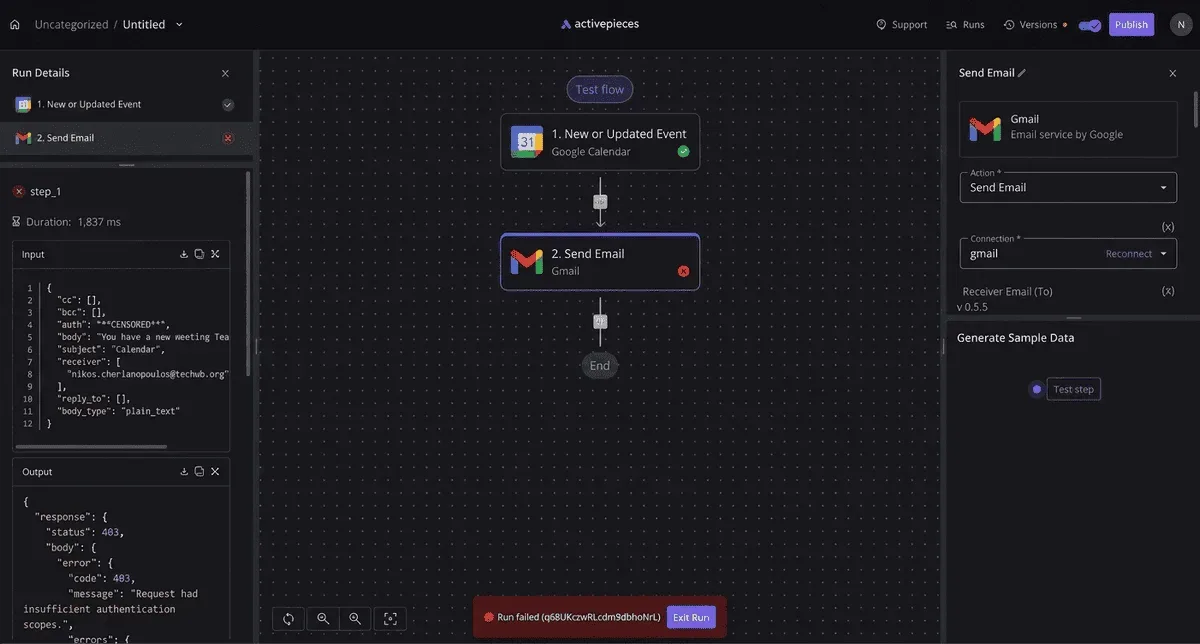 If the account has no `limit` field, there's nothing to compare against, so handle that case explicitly rather than letting the comparison fail. Add a code or branch step that divides usage by limit and continues only above your threshold. Then send a Gmail message or a Slack post. Each run is recorded, so an expired Google connection shows up as a failed step with a time attached, which is the log the previous section asked for. You can also describe this quota alert to the built-in chat instead of building it step by step. It creates the flow in your account as an ordinary flow, so every execution leaves a run trace covering the Drive call, the threshold branch and the email step, under the same RBAC and audit logs as a flow built by hand. None of this touches Google One itself. Moving to a larger plan stays a manual decision in your Google account. ### When to use Apps Script for storage alerts If you already keep a script in the same Google account, Apps Script is the shorter path: no second vendor, no second login to expire. Activepieces earns its place when the people who need to edit the alert aren't comfortable reading JavaScript. Before you rely on the pricing below, confirm it on the check date; it is from [Activepieces](https://www.activepieces.com/pricing)' own pricing page, checked 2026-11-15. | | Setup time | Upkeep | Who can edit | Cost | |---|---|---|---|---| | Apps Script | Short if you write JavaScript; longer if you don't | Re-authorize scopes, fix code when an API changes | Anyone with edit access to the script project | Free | | Activepieces | Short; visual steps plus one Google connection | Reconnect when authorization lapses; watch credit use | Anyone given access to the flow | Free: 1,000 credits. Plus: $20 with 10,000. Team: $200 with 50,000 | | Manual checks | None | Someone has to remember | Not applicable | Free | At once a day, the flow runs about thirty times a month. The Free allowance of 1,000 credits therefore runs short only if each run consumes dozens of credits, so read the count from a test run before paying for Plus or Team. The $20 and $200 tiers make sense only once you add flows beyond this one. Whichever row you pick, the manual check is the fallback, so keep a monthly calendar reminder to open the storage page yourself. viz type=stackrank title="What Google AI plans that bundle storage cost" unit="$ per month" source="Google Gemini - https://gemini.google/subscriptions"9.99 for AI Pro and ## Monday storage control setup  On Monday, do five things. Run the Stage 2 script once, set the 80 percent alert, schedule the cleanup, calendar a monthly quota-docs check, and name who receives alerts, so you catch quota problems before they become critical. - Run the Stage 2 script once by hand and confirm it reports your real usage. - Set the alert threshold at 80 percent: of the pool, which means you're warned only when the pool is nearly full. - Schedule the cleanup to run on a timer. - Put a monthly reminder in your calendar to reread Google's quota documentation. - Name one person who receives alerts on the family plan. Send an alert to a shared address that nobody owns and nobody reads it, and the pool fills anyway. Compare the cleanup against the price of more space. [TheodoreHQ](https://www.theodorehq.com/loop/blog/google-one-pricing/) lists **100 GB at $1.99 a month**, so a small overage costs little to fix by buying. The 2 TB tier is $9.99, and 5 TB is $19.99, which is $10 more for the next step up, so a family near the 2 TB ceiling should price that jump before scripting a large purge. Don't mistake Google's AI plans for storage; they are a different purchase. [Google Gemini](https://gemini.google/subscriptions) lists AI Plus at $4.99 a month and AI Pro at $19.99, the same as the 5 TB storage tier. Ultra is $199.99, ten times AI Pro, so it's never a storage fix. Buy those for the AI features and treat any bundled storage as a bonus, after checking the plan page on the day you buy. ## Frequently asked questions If you want to read plan details or manage storage, there is no public Google One API to do it with. The pool is reachable only through the services that fill it, so you watch Drive and Gmail and act on them with Apps Script. Check Google's developer documentation on the day you build, because that could change. ### Can I automate Google One with Zapier or similar tools? You can automate what sits inside the pool, not Google One itself. Connector tools such as Zapier can trigger on Gmail messages and Drive files, so a rule that flags large attachments or old files works. If a connector claims to "manage your Google One plan", it is either doing exactly that or promising too much, and you should read its action list before trusting it. Each connector also has its own run limits and pricing, so check them against the vendor's page on the day you build. ### Will automated cleanup delete photos in Google Photos? Not unless you point it at Photos, and that's harder than it sounds. A script that trims Drive files or Gmail messages doesn't reach your Photos library. Photos still counts against the same shared pool, though, so a cleanup that frees Drive space may not move the number if Photos is the real consumer. When a script only trashes files, it reports success while the quota alert keeps firing, because items in Drive's trash and Gmail's trash still count until they're emptied or expire. Have it empty the trash deliberately, and only after you've logged what it removed. Google's Photos developer rules have also narrowed what outside apps may do with a library, so confirm the current terms before planning anything there. ### Do Google One AI plan features work inside automations? Treat them as features for people, not hooks for scripts. The Gemini tools in Gmail and Drive are used from those apps' own interfaces, and nothing in the plan gives Apps Script a switch to call them or a field to check whether they're on. If a workflow needs a model, call one through its own developer API with its own key and billing, and keep that separate from your storage plan. ### Is Google One automation different on a Workspace account? Yes, mainly in who holds the controls. Workspace accounts take their storage from the organization's plan, set by an administrator, rather than from a personal Google One subscription. In the admin console, an admin can see usage across users and may restrict which scripts and third-party apps are allowed to run. Before you build anything, ask whether your account is personal or managed, because a script that works on a personal account can be blocked by policy on a managed one. ## Related reading - [Google Cloud Storage Automation Without Code in 2026](https://www.activepieces.com/blog/google-cloud-storage-automation-without-code-in-2026) - [Google One Pricing 2026: Plans and Storage Costs](https://www.activepieces.com/blog/google-one-pricing-2026-plans-and-storage-costs) - [Google Cloud Storage Pricing: Classes and Fees (2026)](https://www.activepieces.com/blog/google-cloud-storage-pricing-classes-and-fees-2026) ## References - [TheodoreHQ](https://www.theodorehq.com/loop/blog/google-one-pricing/) - [Google Gemini](https://gemini.google/subscriptions) - [Google One](https://one.google.com/about/plans)**A cleanup routine that deletes before you trust the numbers is how files go missing.