Activepieces brings every automation under the same governance as your employees, applying enterprise RBAC, SSO, and SCIM to control which spreadsheets an agent can reach, rather than just what a person can see. By opening the run detail view for any agent step, you can verify that each tool call is logged with its own input and output, ensuring that a single failed lookup doesn't collapse into an opaque, destructive overwrite. Organizations like MoneyGram and Moneypenny run their production workflows under this architecture to maintain strict governance over how automations interact with their data. ### Visual field mapping to prevent column misalignment The platform eliminates "blind pushes" by generating a dynamic schema based on the actual headers of your spreadsheet. Instead of guessing that "Column C" holds an email address, the interface displays the live header names from the sheet. 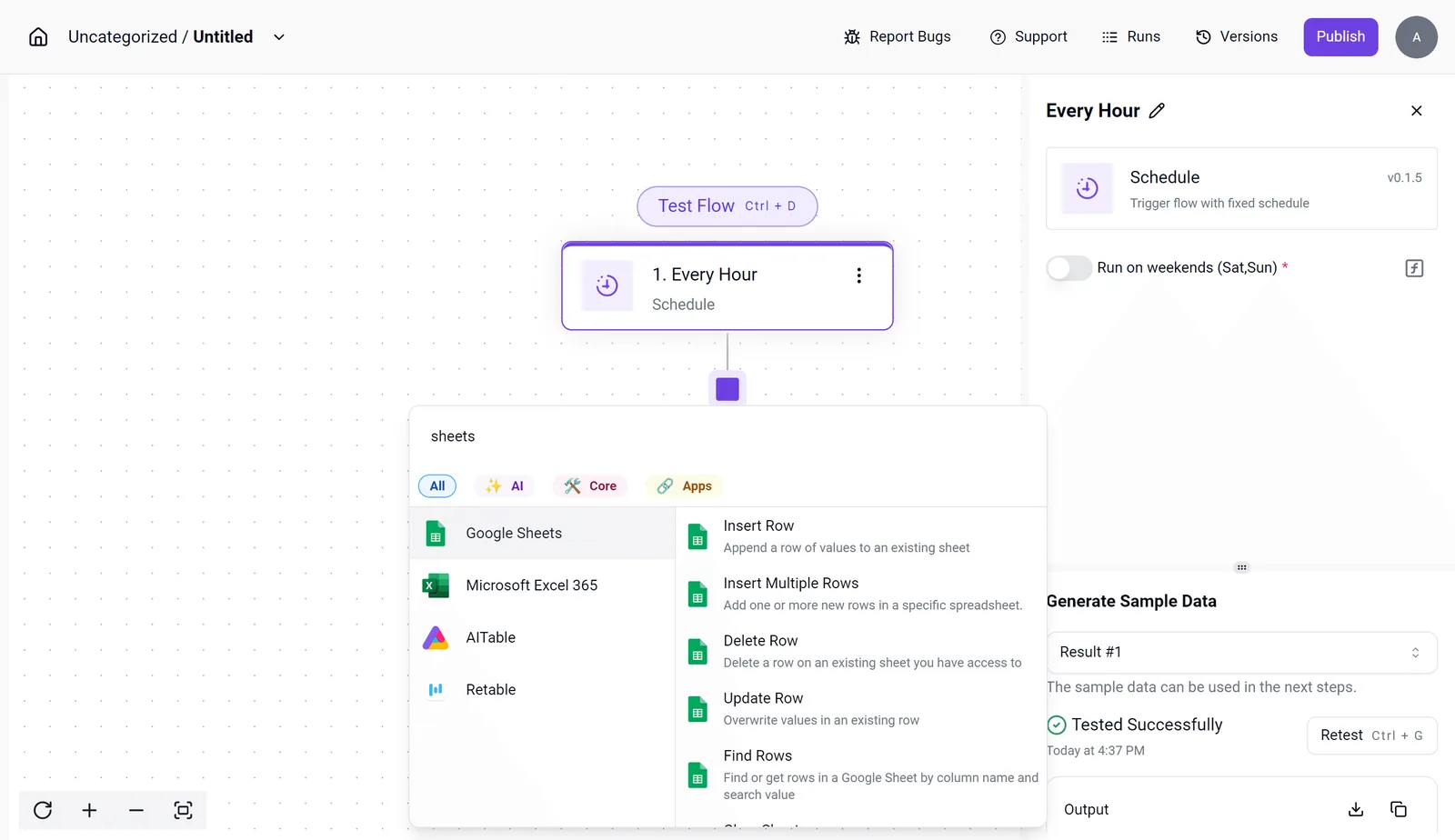 This ensures that an upstream change in column order doesn't result in a data mismatch. When a user maps a field, they're binding a specific key to a specific header. If the spreadsheet structure changes, the automation fails at the mapping layer rather than silently corrupting the data. This architectural choice moves the point of failure from the data layer to the logic layer. 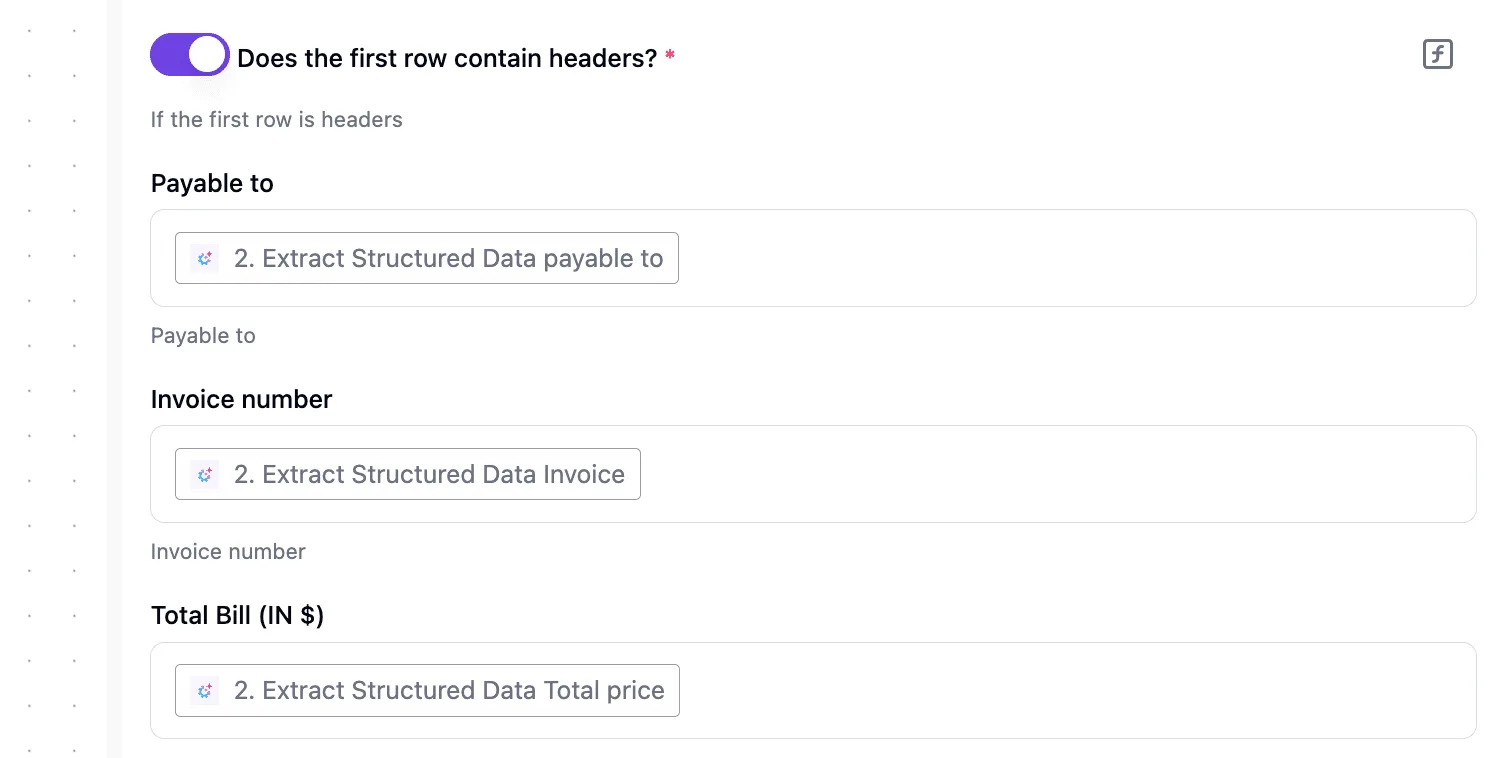 Users can then audit it without losing the integrity of the existing records. ### Testing steps with sample data before going live Activepieces allows for granular, step-by-step execution of an automation flow using real sample data before the "Publish" button is ever pressed. This sandbox environment is critical because once a cloud environment corrupts or deletes data, the recovery windows are unforgivingly short. 1. Disable the automation trigger immediately to prevent the system from writing further corrupted rows to the sheet. 2. Open Google Sheets 'Version History' or Excel 'Version History' panel to locate the last known good state of the document. 3. Identify the timestamp immediately preceding the automation error to ensure no manual entries are lost during the rollback. 4. Restore the version to clear the corrupted data and re-run the automation in test mode to identify the logic gap.  The provider's retention policies dictate the urgency of these steps. According to [Google Workspace Admin Help](https://knowledge.workspace.google.com/admin/drive/recover-deleted-files-and-folders-for-drive-users), users only have 30 days to recover items from the Gmail trash, so any permanent loss occurring after that window is irreversible. ### Google workspace retention limits Google's analysis indicates that individual file revisions are often capped at 25 versions for non-Google file types. A high-frequency automation could overwrite your entire recovery history in minutes. Even at the administrative level, you only have 25 days to recover data from a deleted account, leaving a very narrow window before that information is purged from the system forever. The same 25-day limit applies to an admin’s ability to restore deleted Drive files. 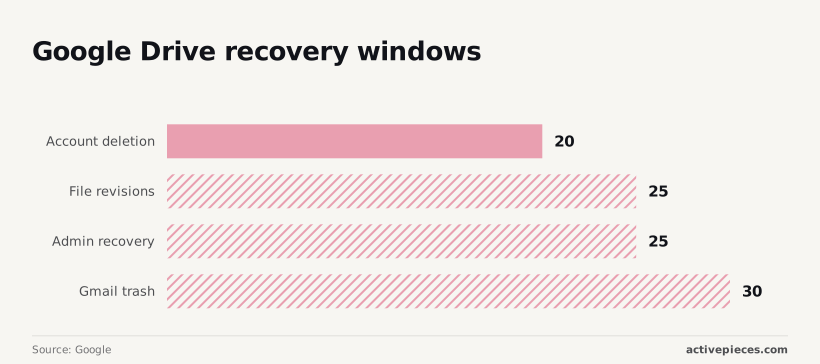 Testing within [Activepieces](https://www.activepieces.com/pricing) ensures you never have to rely on these narrow safety nets. Activepieces syncs flows to git and promotes them through Release Management, moving them from a test environment to production as versioned software rather than just saving a private history. Check the Git Sync documentation to see how this promotion becomes a deliberate, reviewed step that prevents accidental "publish" errors from reaching live data. This ensures that the logic governing your spreadsheets is treated with the same rigor as your core codebase. ### Building error-handling branches for failed lookups The platform supports conditional branching. This allows engineers to build "Find or Create" logic that's missing from basic sync tools. Instead of assuming a row exists and overwriting it, the flow uses a "Find Row" action. If the search returns no result, the branch directs the logic to a "Create Row" action. This ensures that the automation never guesses where data should live. By treating a missing lookup as a catchable error rather than a reason to crash, the system maintains a clean ledger regardless of how messy the source data becomes. ## Auditing your spreadsheet automation connections Auditing your existing connections ensures that the logic governing your data flow prevents silent overwrites before they corrupt your reporting. While a robust error-handling framework stops crashes, it can't protect a sheet from a misconfigured script. This is especially true if the script has been granted more authority than it needs to function. ### Inventorying all 'write' access API connections A secure automation environment relies on the principle of least privilege. Every service should only possess the specific permissions required for its task. You must audit your OAuth scopes to ensure 'Read/Write' access is only active where a simpler 'Append' permission is insufficient to fulfill the business requirement. If a script that only needs to log new sales has the power to clear the entire sheet, a single logic error will result in total data loss. To maintain system stability, Google notes that you must also align your sync frequency with the Google Sheets API limits.Without a "find-and-update" architecture, you aren't just syncing data; you're gambling that your source schema won't ever change.
These limits restrict projects to **300 reads and 300 writes** per minute. Exceeding these 300-operation thresholds causes the API to return 429 errors. Your automation will skip updates and leave your sheet in an inconsistent state. ### User-level API constraints Google specifies that these limits are even tighter at the user level. This level is capped at **60 reads and 60 writes** per minute per user. 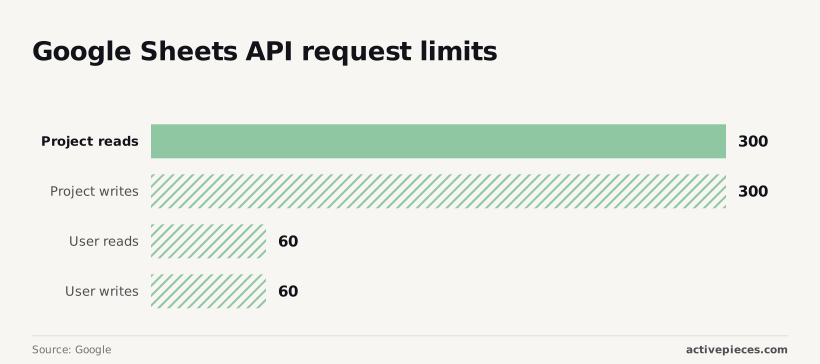 Because you're restricted to 60 operations, a single aggressive loop can lock out every other automation sharing that user’s credentials. This effectively freezes your data pipeline. Review your existing connections against these three technical requirements: 1. Verify every sheet contains a 'Last Updated' or 'System ID' column so the system can distinguish between a new entry and an update to an existing record. 2. Audit OAuth permissions to ensure 'Read/Write' is only granted where 'Append' isn't sufficient. 3. Check for hardcoded row numbers in your scripts, as these will cause the automation to overwrite the same header rows every time the sheet structure changes. ### Setting up alerts for bulk row deletions Automated alerts act as the final circuit breaker when a "find-and-update" architecture fails or encounters unexpected input. You should configure your integration platform to trigger an immediate notification if a single execution attempts to modify or delete more than 10% of your total rows, as this threshold serves as a critical early warning for potential mass data corruption, which means you can halt a runaway process before it causes irreversible damage to your database.  Since a typical business process rarely requires a mass purge, such a spike usually indicates a broken lookup key. This allows you to revert the sheet before the corrupted data is ingested by downstream dashboards. ### Creating a backup schedule for critical spreadsheets Backups provide the only guaranteed recovery path when a poorly scoped API call bypasses version history or hits the cell limit. You should schedule a daily export of critical sheets to a secondary storage environment. Using a cloud storage bucket or a version-controlled repository ensures you have a point-in-time recovery option. This option is independent of the spreadsheet provider’s internal undo-log. If a script malfunctions and exceeds the 10-million cell limit for a workbook, the spreadsheet may become unresponsive. Having an external backup means your team can restore operations in minutes rather than rebuilding the dataset from fragmented logs. ## Can you recover overwritten spreadsheet data? ### Can I recover data if Version History was turned off? Data recovery is impossible through native cloud features if the versioning toggle was disabled at the time of the overwrite. The only recourse is a local cache or a third-party backup. Most cloud-based spreadsheet platforms, such as Google Sheets, enable versioning by default. Users sometimes disable it to improve performance in large workbooks, but this choice removes the safety net that allows for point-in-time restoration. Without this internal log, the platform doesn't store the "before" state of the cells. To avoid total data loss in this scenario, check the following locations: * The local browser cache of any user who had the sheet open during the incident, which may still hold a temporary copy of the previous state. * System-wide backups of the local machine if a desktop sync client, like OneDrive or Google Drive for Desktop, was active. * The "Trash" or "Bin" folder of the cloud drive, which occasionally captures snapshots if the entire file was replaced rather than just the cell contents. ### How do I stop Zapier or Make from overwriting my headers? Preventing header overwrites requires configuring your automation tool to target specific row indexes. You must do this rather than allowing it to default to the first available row. When an integration platform like Zapier or Make connects to a spreadsheet, it often assumes the first row is a header and the second row is the starting point for data. If your spreadsheet lacks a clearly defined header row or contains empty rows at the top, the automation may treat your labels as valid targets for new data. To secure your headers, follow these steps: 1. Define a "Table" range in Excel or a "Named Range" in Google Sheets to explicitly tell the API where the data boundaries start. 2. Set the "Starting Row" in the automation module to a specific integer. This ensures the script never touches row one. 3. Apply "Protected Ranges" to the header row within the spreadsheet permissions, which forces the API to throw an error rather than completing a destructive write. ## Related reading - [Shadow Spreadsheet Automation Risks and Security in 2026](https://www.activepieces.com/blog/shadow-spreadsheet-automation-risks-and-security-in-2026) - [Prevent Temperature Excursions: Cold Chain AI Agents in 2026](https://www.activepieces.com/blog/prevent-temperature-excursions-cold-chain-ai-agents-in-2026) ## References - [Decryption Digest](https://www.decryptiondigest.com/blog/saas-oauth-app-sprawl-audit-remediation) - [Google](https://knowledge.workspace.google.com/admin/drive/recover-deleted-files-and-folders-for-drive-users) - [Google](https://developers.google.com/workspace/sheets/api/limits)If a script that only needs to log new sales has the power to clear the entire sheet, a single logic error will result in total data loss.