# n8n Workflow History: Retention and How to Restore
By Grace Muthoni Kariuki · 2026-10-27 · Source: https://www.activepieces.com/blog/n8n-workflow-history-retention-and-how-to-restore
---
If you want to inspect or restore a prior design, workflow history in n8n is the tool: **a record of earlier saved versions** of a workflow's nodes and settings, much as [Activepieces](https://www.activepieces.com) keeps versions of its own flows.
It's not a record of what the workflow processed.
Details here are current as of 27 October 2026.
## n8n workflow history is a saved-versions log
### What workflow history stores
Open a saved version and you find the workflow definition: the nodes, their parameters, the connections between them and the workflow settings. It holds references to credentials, not the credential secrets.

So restoring a version doesn't tell you who owns the connection behind a node. Confirm that separately, because a restored workflow that points at a credential someone has since deleted or reassigned will fail.
### Workflow history versus execution history
Because both sit behind "history" in the interface and both can rescue you after a bad day, the two are easy to confuse. They answer different questions: one asks what the workflow looked like, the other asks what it did.
**Neither can stand in for the other**, and each has its own limits. The table shows the two side by side.
| | Workflow history | Execution history |
|---|---|---|
| What is stored | Earlier saved versions of nodes and settings | Runs of the workflow, with their input and output data |
| Where you see it | The history view opened from within the workflow | The executions list |
| What it lets you do | Compare and restore an earlier design | Inspect a past run and diagnose failures |
| What grows storage | Saving changes to the workflow | Every run, especially with large payloads |
| What plan limits it | Plan decides whether and how far back versions are kept | Retention and pruning settings, plus plan on hosted accounts |
Since the two grow for different reasons, tuning one does nothing for the other. Frequent edits fill the version log. Frequent runs fill the execution log.
Read the limits for your own plan rather than assuming a default, because availability and retention of workflow history depend on it.
Record the plan, the owner of the instance and the retention you find, then revisit that record whenever the plan changes.
## Stage 1: open the history and read a version
Open the workflow in the editor, choose the history control, and select a saved version to read it; viewing a version changes nothing in the live workflow.
Do this with the account that owns the workflow, or one with edit rights, because a read-only role may not see the control at all.
### Find the history control in the editor
Start from the workflow's own canvas, not the executions list. The two screens sit close together and hold different things: executions record what ran, while history records what the workflow looked like.
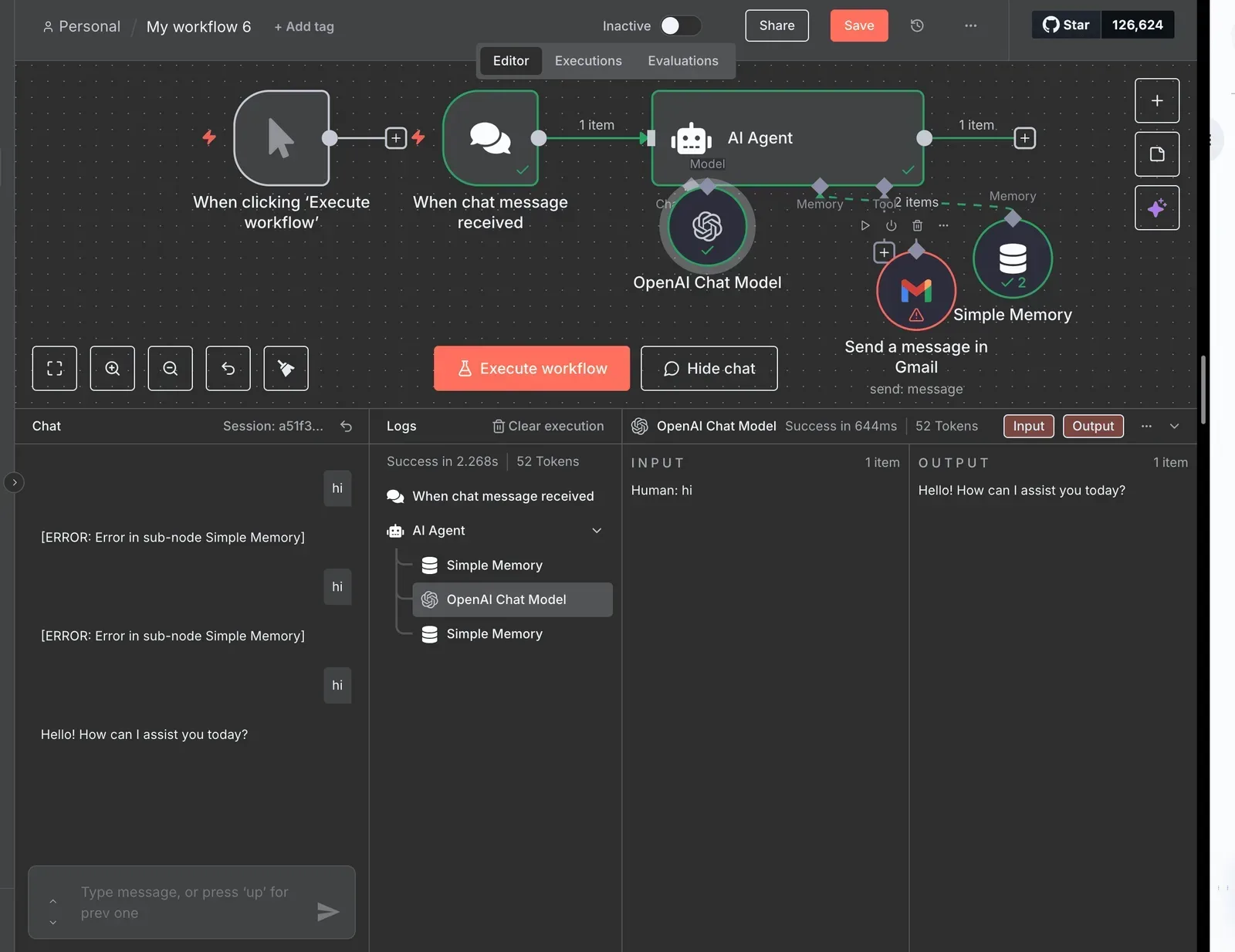
In the editor, look in the top bar and in the workflow's options menu for an entry named for history or versions.
If it's missing, check your role before assuming the feature is off, then check the plan you recorded earlier, since retention depends on it.
Reading a version needs care, because the version list lives beside the live draft. The screenshot below shows it: the flow menu lists Versions among its management options, and the panel it opens lists the saved versions, with Publish and Discard controls at the top.

### Read a version's timestamp and author
Read the author first. Each entry carries a timestamp and the name of whoever saved it.
If it shows a shared service login rather than a named person, you can't tell who made the change, and that's a finding to log against the connection and the account behind it.
Then read the timestamp against your retention note: if the oldest entry is far more recent than the workflow's creation, older versions have already been pruned and are gone.
### Open a version without changing the live workflow
Select the entry and use the view or preview action, and avoid any action labelled restore, revert or publish. Confirm you are looking at the saved copy by checking that the title bar or banner names a past version rather than the current draft.
Make no edits while there. When finished, close the panel without saving, then reopen the live workflow and confirm its last-modified time is unchanged. The next stage covers restoring a version on purpose.

## Stage 2: restore or clone an earlier version
Restore when you want the earlier version to replace the current one; clone or download when you want to inspect it without touching the live workflow. Either way, check the active state afterwards, because a restore doesn't guarantee the workflow is running.
### Restore a version in place
Before you start, confirm you have edit rights on the workflow and access to the credentials its nodes use. Restoring brings back the node configuration, but the connections behind it still belong to whoever owns them now.
The sequence below shows each step in order, including the branch between restoring and cloning, so follow it top to bottom and don't skip the final check.
1. Open the workflow and open its history.
2. Select the version you want from the list.
3. Preview it and compare it against what is running now.
4. Choose restore, or, if you would rather not overwrite anything, choose clone to a new workflow or download the JSON.
5. Confirm the action.
6. Check whether the workflow is still active or published, and re-activate it if it is not.
Preview first, because restoring overwrites the working copy. Once you confirm the restore, step six decides whether the workflow actually runs.
### Clone or download a version instead
When you are unsure the old version is the right one, or you want to lift a single node or branch back into the live workflow, use one of these.
Cloning creates a separate workflow from the chosen version, and downloading gives you the JSON file.
Both leave the current workflow as it is.
Because a clone arrives inactive, it won't compete with the original for the same trigger. Treat a downloaded file as a copy of configuration, and store it where access is controlled.
### Check the workflow still triggers correctly
After a restore, open the workflow and read its active or published indicator rather than assuming it carried over. If it's off, re-activate it.
Then check the trigger node: a webhook, schedule, or app trigger may reference a credential that's since been rotated or reassigned, and the restore won't repair that. Fire a test execution and confirm it appears in the execution list.
Next comes what history doesn't record, so you know where this safety net ends.
## Stage 3: set retention and prune what grows
Prune executions deliberately and set history retention as a separate decision, because saved workflow versions are small and execution data is what fills storage.
### Prune n8n execution data with environment variables
Before changing anything, confirm who administers the self-hosted instance, because they own these settings. n8n documents three variables.
`EXECUTIONS_DATA_PRUNE` defaults to `true`, so pruning is on unless someone turned it off. `EXECUTIONS_DATA_MAX_AGE` defaults to 336 hours, which means executions older than 14 days are deleted. `EXECUTIONS_DATA_PRUNE_MAX_COUNT` defaults to 10000, which means a busy instance can hit the count cap well before the age cap.

Check all three against what your audit trail needs, because **pruned executions can't be recovered from workflow history.**
### Know your plan's workflow history limit
30 days on Business self-hosted, 5 days on Cloud Pro and 1 day on Community: **that is how far workflow history reaches back**, per the [n8n Docs and GitHub issue](https://github.com/n8n-io/n8n/issues/25661).

According to n8n Docs and GitHub issue, business self-hosted at 30 days gives you a month to notice a bad edit and roll back, so after day 31 the error becomes permanent.
**Errors more than 30 days old** can't be rolled back, which means any undetected failure becomes permanently locked in.
On Cloud Pro, 5 days covers a working week but not a long weekend plus a slow review cycle.
On Community, 1 day means a change made yesterday afternoon may already be out of reach, so anyone relying on it for rollback is relying on very little.
If a workflow's last good version is older than your plan's limit, it's gone. Each figure is a ceiling on your recovery window, not a promise about what is kept.
### n8n workflow history on Cloud versus self-hosted
On self-hosted, you control the pruning variables above and you're responsible for the disk they protect. On Cloud, you don't control the server environment, so the plan sets the terms and your lever is the plan itself.
Hosting it yourself doesn't buy a longer window by itself: Community self-hosted keeps 1 day, while Business self-hosted keeps 30, meaning the version you deploy determines your recovery window.
Treat the tier as the deciding factor, and export critical workflows to your own version control if the limit is shorter than your recovery needs.
A history that lives only in the vendor's UI was never really reviewed.
[Activepieces](https://www.activepieces.com) syncs flows to git through Git Sync and promotes them from a test environment to production with Release Management, so each change to production is a deliberate step in a separate project. The same features run on your own servers or on its cloud.
## Mistakes people make with n8n workflow history
Confirm the setting, and who owns the account it sits under, before you need a rollback. Most workflow-history mistakes come from assuming the safety net is wider than your plan makes it.
Audit these five first, each paired with its fix: treating history as execution logs (fix: read each separately), expecting unlimited retention (fix: check the plan cap), pruning before saving failed-run data (fix: export first), expecting credential rollback (fix: record credentials separately), and keeping no external backup (fix: version-control exports).
Most workflow-history mistakes come from assuming the safety net is wider than your plan makes it.
Two different things get mixed up here. Workflow history stores saved versions of the workflow definition. Execution data records what happened when a run fired.
Restoring a version won't bring back a failed run's input, and keeping executions won't give you an earlier node configuration. Name which one you need before you open either screen.
### Trusting retention that your plan caps
Across automation tools, history is plan-gated. Zapier's version history has 0 days on Free, so a bad edit there has no recovery path. Starter gives 7 days, which misses a change nobody noticed over a fortnight.


For a monthly reporting cycle, Pro's 30 days is enough, so reports stay within the retention window. Team gives 180 days and Company 365, which cover a half-year or full-year audit window, meaning any incident within that period can still be rolled back.
Read your n8n plan's limit the same way and compare it with how long a mistake typically goes unnoticed.
When a workflow fails and pruning removes the run before anyone reviews it, the input data that would explain the failure is gone. Execution pruning deletes run records on a schedule to save storage.
Before shortening the pruning window, decide who reviews failures and how often, then save failed-run data elsewhere first.
Because history lives inside the instance you're trying to protect, export critical workflows to your own version control on a schedule.
**Credentials don't roll back with a workflow version**, so keep a separate record of each credential's owner, type and scope, and confirm someone can re-create it without the person who first entered it.
## What Activepieces does about this
The weak point this article keeps returning to is that your recovery window is set by a plan tier and by a setting you may never have opened.
Activepieces approaches it by moving the safety net out of the vendor's interface and into somewhere you already review.
Git Sync pushes your flows to a git repository you own, so every change has a date, an author and a diff, and the retention period is whatever your repository keeps rather than a day count on a pricing page.
The second integration is Release Management. Flows are built and tested in one project and promoted to production as a deliberate step, so a bad edit lands in a test environment first and the production copy changes only when someone chooses to promote it.
That cuts down how often you need to roll back at all, which is a better position than relying on a version list to rescue you after the fact.
Activepieces is open source under the MIT licence for its community edition, and it runs on your own servers or on its cloud.
The git-based workflow is therefore not tied to a hosting choice: self-hosting gives you the same route to a durable history as the cloud does, without a separate retention tier to look up.
None of this removes the checks above. Activepieces also keeps flow versions inside the app, and execution data is a separate matter there too, so confirm the limits for your own plan and instance before you trust either.
Credentials still need their own record of owner and scope. What changes is that the copy you would restore from sits in a repository you control, not only in an interface whose reach you have to go and check.
## Frequently asked questions
Yes, n8n Community Edition has workflow history, but with the It has a retention window on the n8n plan that covers a mistake you notice the same day, not one you find next month.
Check the retention for your plan and version in the n8n docs, and write it down next to the workflow's owner.
### Can I see who changed a workflow in n8n?
Treat history as a record of versions, not as an audit log. It shows that a workflow changed and when.
Whether each version carries a named author depends on your version and plan, so open the history panel on a test workflow and see what it records.
If you need to prove who changed what, keep that record outside the app, in version control or a change ticket.
### Does restoring a version delete newer versions?
Test this on a copy before you rely on it. Restoring puts the chosen version back as the workflow you're editing, and you should assume it's a change like any other.
Save or export the current state first, so the version you're replacing isn't left to the retention window. Execution data is separate and isn't rewound by a restore.
If you use Activepieces, the habit applies there too, since it also keeps flow versions: find out its limits before you trust it.
### How do I back up n8n workflows outside the app?
Export the workflows as JSON and store them somewhere you control. You can do this from the editor, with the n8n command line, or through the API on a schedule.
Commit the files to a repository so each change has a date and an author. Exports don't carry the secrets inside credentials, only references to them. Keep the separate credential record described above: owner, type and scope for each one.
## Related reading
- [Supabase Pricing: Free Tier Limits, Pro Costs & Egress](https://www.activepieces.com/blog/supabase-pricing-free-tier-limits-pro-costs-egress)
- [n8n Insights Dashboard Limits by Plan in 2026](https://www.activepieces.com/blog/n8n-insights-dashboard-limits-by-plan-in-2026)
- [Cursor Ultra Plan Pricing: Cost and Limits (2026)](https://www.activepieces.com/blog/cursor-ultra-plan-pricing-cost-and-limits-2026)
## References
- [Zapier](https://help.zapier.com/hc/en-us/articles/9693520498445-Create-Zap-versions)
- [n8n Docs and GitHub issue](https://github.com/n8n-io/n8n/issues/25661)