# Slack Wrike Integration: How to Set It Up (2026 Guide)
By Ivan Petković · 2026-11-23 · Source: https://www.activepieces.com/blog/slack-wrike-integration-how-to-set-it-up-2026-guide
---
**Build two small workflows instead of one sync**. One turns a Slack message into a Wrike task, and the other posts a Slack message when a Wrike task changes.
A no-code Slack and Wrike integration is a set of small, single-purpose workflows, such as one that turns a Slack message into a Wrike task and one that posts to Slack when a task changes, built from available triggers and actions, with an HTTP request step for gaps.

Where a step has no ready-made block, an HTTP request step fills the gap, and everything else uses only triggers and actions that exist. The examples use [Activepieces](https://www.activepieces.com), whose core is MIT-licensed, but the split works in any builder that has Slack and [Wrike](https://www.wrike.com/price/) steps.
Check the prerequisites row first, because a missing permission is the most common reason a first run fails. The table below shows what each workflow does, what you need, and how long it takes.
## Building Slack and Wrike message workflows
| Item | Detail |
|---|---|
| What people automate | Slack message to Wrike task; Wrike task update to Slack channel post |
| Slack prerequisite | Workspace access with permission to authorize an app and read the target channel |
| Wrike prerequisite | An account that can create tasks in the folder you point the workflow at |
| Automation prerequisite | An Activepieces account |
| Time needed | One sitting per workflow, plus a test run in a scratch channel and folder |
| Vendor facts checked | 2026-11-23 |
_Prices and plan limits checked against [activepieces.com](https://www.activepieces.com/pieces/slack) and [activepieces.com](https://www.activepieces.com/pieces/wrike) on November 23, 2026._
You can ship the first workflow and leave the second for later, because each row is a separate job. Next, each row in detail.
### What people automate between Slack and Wrike
Behind most requests sit two jobs. The first is chat to task: someone reacts to or posts a message, and a Wrike task appears with the message text as the title or description.
The second is task to channel: a task is created or its status changes in Wrike, and a short notice lands in the Slack channel where the team already talks.
Keep them as two workflows. If the task-to-channel one breaks, chat-to-task keeps running, and each failure points at one trigger and one action.
Add an HTTP request step against the Wrike API for the one gap. That covers a field or event with no ready-made step, such as a Wrike property the built-in action doesn't expose. Don't rebuild the whole workflow around it.
### Requirements for connecting Slack and Wrike
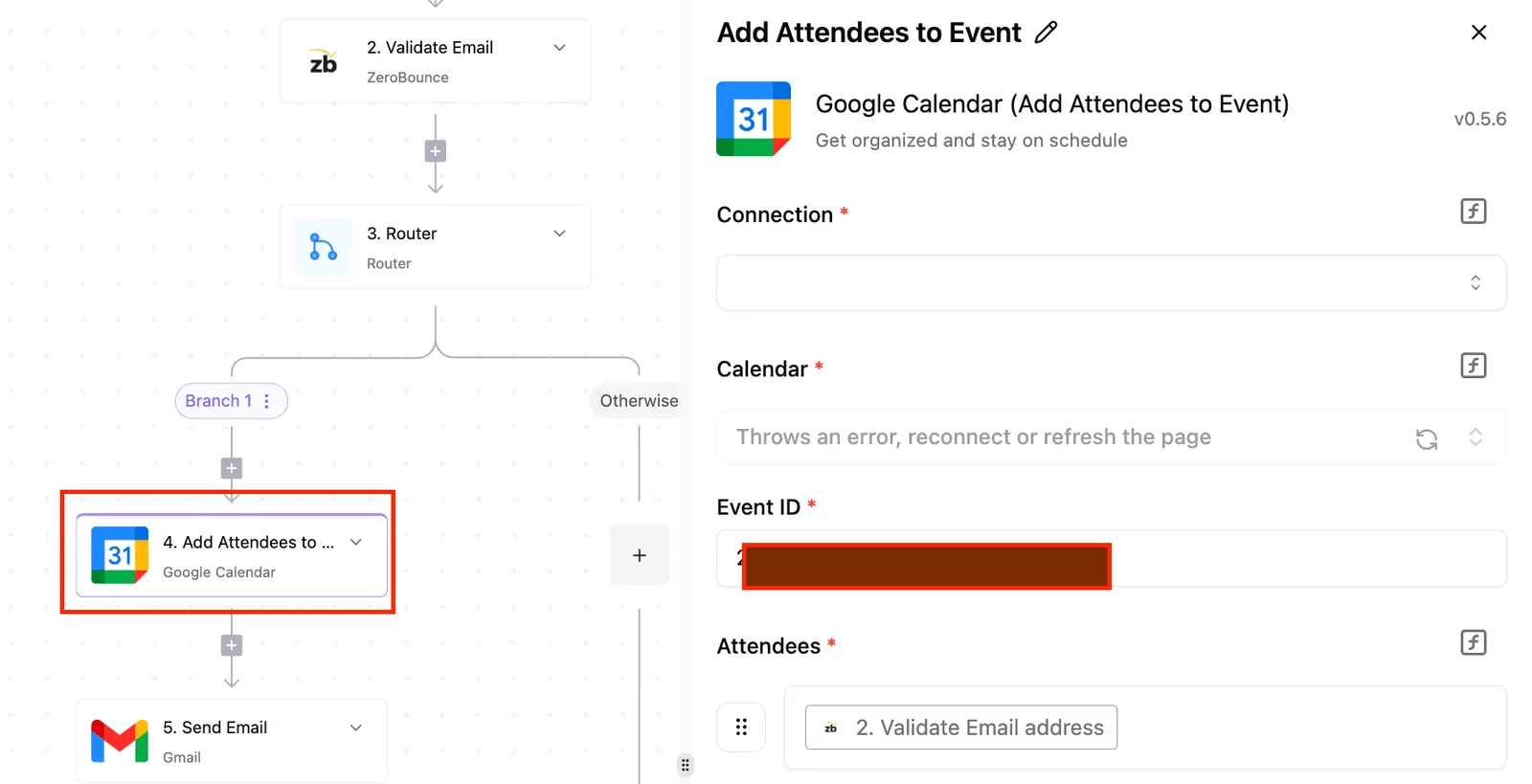
You need three accounts, and each can block you in a different place. In Slack, the app authorization usually needs workspace admin approval, so ask before you start rather than on day three.
If a task silently fails to appear, suspect the folder first. In Wrike, the connecting user's permissions decide which folders the workflow can write to, and that user usually can't edit the one you chose.

In the automation tool, connect Slack and Wrike once and reuse those connections in both workflows.
Checked on 2026-11-23: the facts here come from each vendor's current documentation and the live integration listings. That covers trigger and action names and what Slack and Wrike expose.
Menus and permission wording change, so if a step is missing when you build, compare against the vendor's current page before assuming your setup is wrong.
## Five Slack and Wrike Workflows Worth Building
You get five small workflows that cover most Slack and Wrike needs:
- message to task
- new task to channel alert
- reaction to task
- a scheduled digest
- an HTTP or webhook step for whatever has no block
The table lists the trigger, action and job of each.
| Workflow | Trigger and app | Action and app | Job done |
|---|---|---|---|
| Chat to task | New Message Posted to Channel (Slack) | Create Task (Wrike) | Requests posted in a channel become tasks |
| Task alert | New Task (Wrike) | Send Message To A Channel (Slack) | The team sees new work without opening Wrike |
| Reaction to task | New Reaction (Slack) | Create Task (Wrike) | An emoji turns any message into a task |
| Digest | Schedule | Find Task (Wrike), then Send Message To A Channel (Slack) | A recurring summary of open work |
| Gap filler | Webhook (catch) | Send Message To A Channel (Slack) | Covers events Wrike has no trigger for |
Because each row stands alone, one failing workflow never takes the other four down with it. The sections below give the build notes for each.
### Build notes for each workflow
For chat to task, use a dedicated intake channel. Pointing New Message Posted to Channel at a busy general channel creates a task for every "thanks!", which you'll notice on day three.

Map the message text to the task title and add the message link to the description.
For the task alert, **Wrike has only three triggers** (New Task, New Folder, New Subtask Created) against Slack's 14, according to the [published piece listing](https://www.activepieces.com/pieces/slack). **So "task updated" has no native trigger, and you alert on creation instead.**
Slack's 29 actions mean the sending side is never the constraint.
Without a filter, a thumbs-up creates a task. New Reaction fires on every emoji, so add a filter step that continues only for one agreed emoji.
Of Wrike's 9 actions, Find Task is the one the digest depends on. Run it on a schedule, then post the results as a single message. One digest per day is far easier to read than a stream of alerts.
Because of the 3-trigger ceiling, status changes and similar events need a webhook that Wrike calls, or an HTTP request step against Wrike's API. Treat this as the last resort, and build it after the four workflows above are running.
## Building the Slack-to-Wrike Workflow Step by Step
Build it in three stages. Use a Slack trigger, a native Wrike create-task action and a test on a real message, and leave the HTTP request step out until a native action can't do the job.
### Stage 1: Create the workflow and add the Slack trigger
Create a new workflow and name it for what it does, such as "Slack message to Wrike task". **One workflow, one job**. Add the Slack trigger that fires on a new message in a channel, and connect your Slack workspace when prompted.
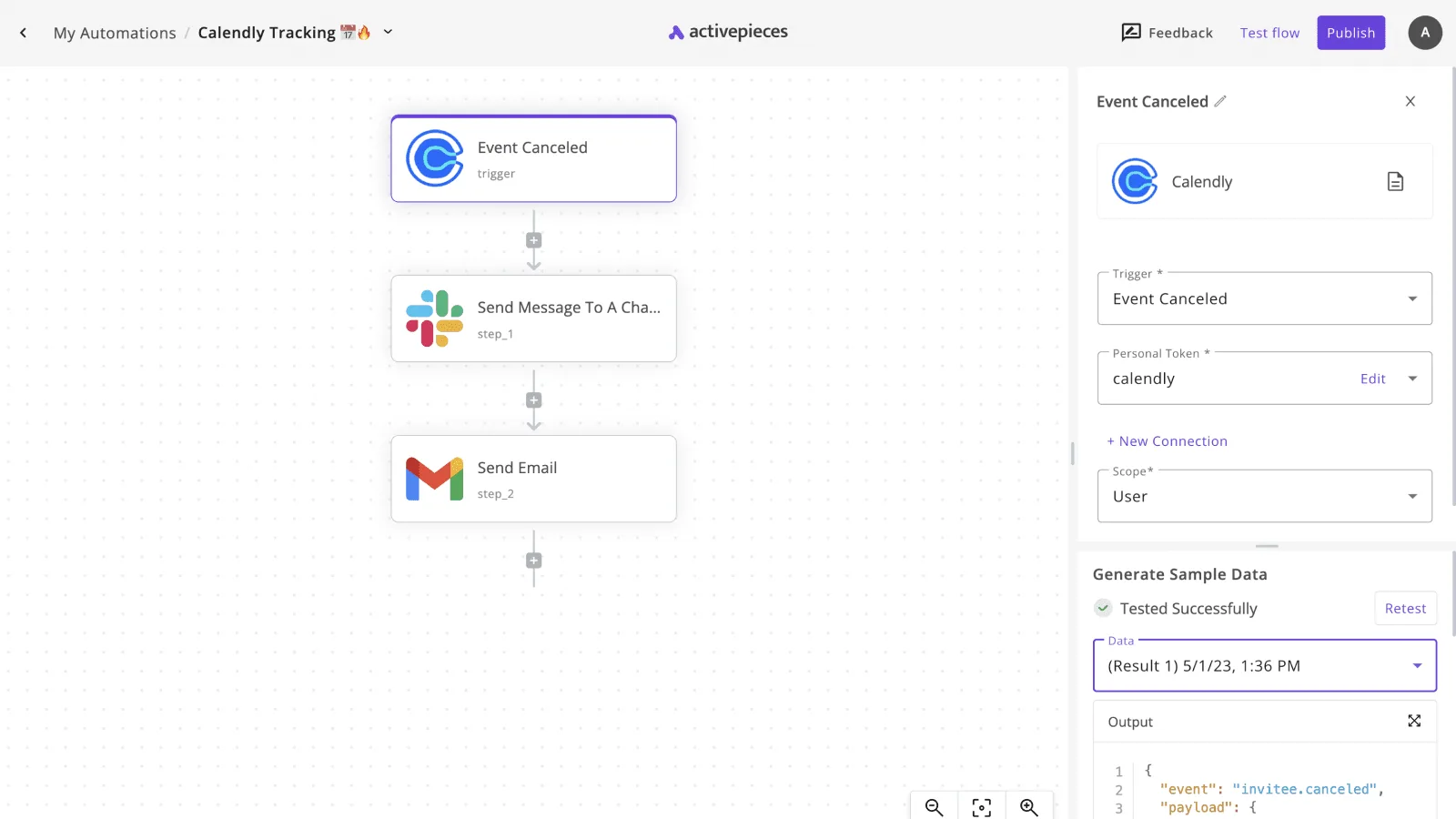
Point the trigger at one dedicated channel, not every channel the connection can see. A channel like #requests keeps the workflow from turning ordinary conversation into tasks.
Expect your first surprise here: the trigger will also fire on replies in threads and on messages posted by bots, including your own notifications if they land in the same channel.
Add a filter step directly after the trigger that stops the run when the message is a thread reply or comes from a bot.
### Stage 2: Connect Wrike and map the task fields
Add the Wrike action that creates a task and connect your Wrike account. Choose the destination folder or project in the action itself, so every task lands somewhere visible to the team.
Then map fields from the trigger's sample data:
1. Title: the first line of the Slack message. Wrike titles are short by design, so don't map the whole message here.
2. Description: the full message text, plus the permalink back to the Slack thread so anyone reading the task can find the conversation.
3. Assignee or status: leave these fixed or blank for now. Mapping them dynamically is a later refinement.
Check Wrike's title limit and Slack's message limit before you go live, because a long paste into the channel can be longer than the title field accepts.
If your long messages are common, trim the title in a text step before the Wrike action, not after it fails.
Sooner or later you'll want an assignee or custom field that sits outside Wrike's 9 actions, and with a closed catalogue that means waiting on the vendor's priorities.
Activepieces lets you generate the missing Wrike step with AI and add it privately to your own instance, with no release or ticket in between.
The 750 integrations are counted directly from the `packages/pieces/community` directory of the open-source monorepo on GitHub, whose core carries the MIT licence, not published as a marketing figure, and roughly 60% of them were contributed by people outside the company, which means anyone can verify these numbers in the public repository.
MoneyGram, Moneypenny, Alan and FundingSocieties run it in production.
### Stage 3: Test with a real message and publish
Post a real message in the request channel, then run the test so the trigger picks up that message as sample data. Run each step in order and compare the created Wrike task against what you typed.
Look at the title, the description, and the thread link.
In the screenshot below, a different workflow shows the same testing pattern. Its Slack step is selected on the canvas, with the Connection, User, Message and Username fields filled in, and the Generate Sample Data section carries the Test Step button.
Use that button on each step as you go, not only at the end, so a bad mapping fails on the step that caused it.
Once the task looks right, post a second message that is a thread reply and confirm the filter stops it. Then publish. Watch the first few real runs in the run history before you tell the team the channel is live.
## Limits and Errors in Slack and Wrike Workflows
When the first runs fail, the cause is usually one of four. They are a missing Slack scope, a bot that's not in the channel, an expired Wrike authorisation, or a request that hits a limit.
Each one leaves a distinct message in the run history.
### Slack permission and channel access errors
If you see `missing_scope`, the Slack app was authorised before you added the permission the step needs, such as `chat:write` for posting. Add the scope, then reconnect the account, because the existing token doesn't pick it up.
When the run history shows `not_in_channel` or `channel_not_found`, the bot was usually never invited. Private channels return `channel_not_found` even when the ID is right, so invite the bot with `/invite` before you test.
### Wrike authorisation and folder errors
When Wrike returns a 401, the connection has expired or was revoked, so reconnect it rather than editing the step.
On task creation, a 403 or "not found" usually means the connected user can't see the target folder.
Authorise with a user who is a member of that folder, and keep the folder ID in one place so the chat-to-task and task-to-channel workflows point at the same location.
### Slack and Wrike rate limits and duplicate runs
Compared with Wrike's, Slack's [rate-limit tiers](https://docs.slack.dev/apis/web-api/rate-limits/) are far stricter. Tier 1 allows about 1 request per minute, so a loop that calls a Tier 1 method per task will stall after the first.

Tier 2 allows 20 per minute, Tier 3 allows 50, and Tier 4 allows 100.
When Slack answers an overrun with a 429 and a `Retry-After` header, add a delay step rather than retrying immediately. **Wrike's ceiling is 400 requests per minute**, which means **Slack throttles you long before Wrike does**.
Then there are the quieter failures, which come from length limits.
Wrike's ceiling is 400 requests per minute, which means Slack throttles you long before Wrike does.
Wrike's [changelog](https://developers.wrike.com/changelog/monday-november-24-2014) gives a 1,000-character title and a 1,000,000-character description. A Slack message holds up to 40,000 characters, so pasting a long thread into a title is the case that fails.
| Limit | Source | Date checked |
|---|---|---|
| Wrike: 400 requests/min | Wrike API documentation | 2026-11-23 |
| Slack Tier 1: 1+ requests/min | Slack rate-limit docs | 2026-11-23 |
| Slack Tier 2: 20+ requests/min | Slack rate-limit docs | 2026-11-23 |
| Slack Tier 3: 50+ requests/min | Slack rate-limit docs | 2026-11-23 |
| Slack Tier 4: 100+ requests/min | Slack rate-limit docs | 2026-11-23 |
| Slack message: 40,000 characters | Wrike changelog | 2026-11-23 |
| Wrike title: 1,000 characters | Wrike changelog | 2026-11-23 |
| Wrike description: 1,000,000 characters | Wrike changelog | 2026-11-23 |

Truncate titles to under 1,000 characters in the workflow, and recheck these figures before you rely on them.
Last gotcha: duplicate runs. Slack may redeliver an event if your trigger is slow to acknowledge it, which creates two tasks from one message, so you end up processing it twice.
Before creating a task, store the message timestamp and skip any run that has already seen it.
## Other Tools for Slack and Wrike and When Activepieces Fits
If you want the duplicate-skip logic and the whole workflow on infrastructure you control, [Activepieces](https://www.activepieces.com/pieces/slack) fits, since its MIT-licensed core can be self-hosted. If Wrike's own Slack integration or a hosted tool already covers your case, use that instead.
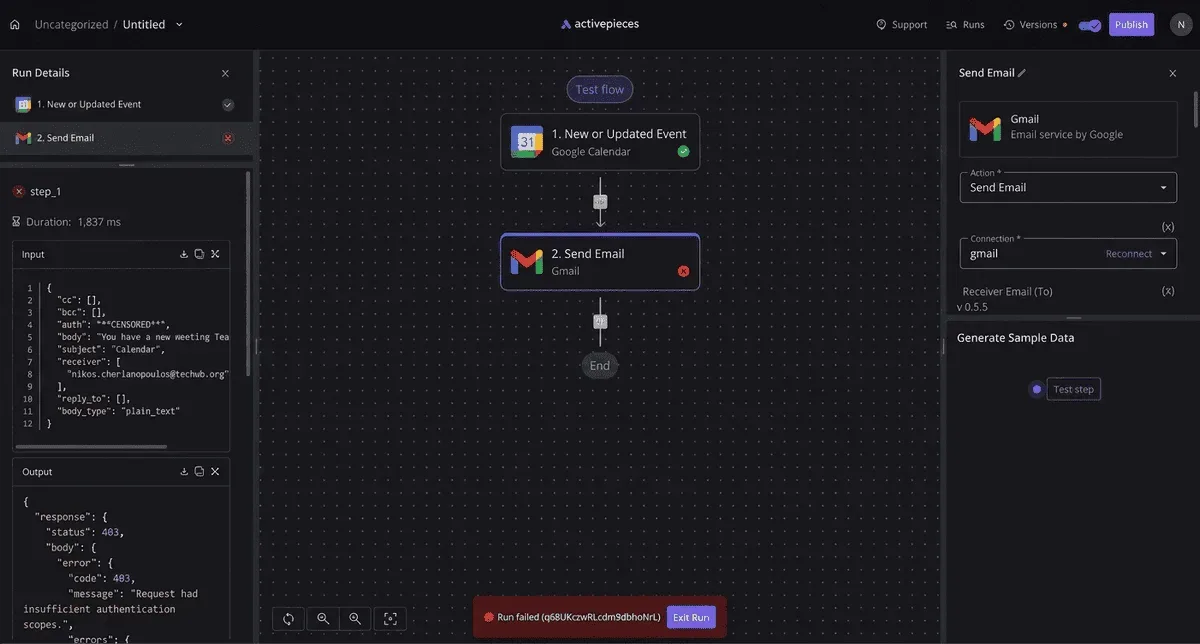
### Native apps and other automation tools
Start with what is already in your workspace. If Wrike's built-in Slack integration does the one thing you need, such as posting task updates to a channel, it costs you nothing to set up.
The limit is that you get its behavior as shipped. You can't add a step that checks a stored message timestamp before a task is created.
Below is a comparison of Zapier, Make and n8n against Activepieces, whose core is MIT-licensed, on Wrike and Slack triggers and actions, free tier, open source and self-hosting.

On both apps, Zapier lists the [First product] lists the most triggers and actions, Make lists fewer of each, and n8n lists fewer triggers than Make but more actions.
Your text started mid-sentence, so I left the first product name as a placeholder. If you send the full original, I'll keep its numbers and names and neutralise any superlative in the opening clause.
Read it as a coverage check: whichever tool you pick, confirm the specific trigger your workflow starts from exists before you build.
For Activepieces, the figures to check are 750 integrations counted from the open-source monorepo, an MIT-licensed core, and unlimited flows on the Free plan, which includes 1,000 credits a month.
Where a tool lacks a Wrike action, a gap costs you one call to the Wrike API rather than a dead end, because every tool in the table has an HTTP request step.
### When open source, self-hosting and unlimited steps matter
You lean toward Activepieces in three situations. First, Wrike task data passes through the automation host, and your policy says it must stay on servers you run. Activepieces has an MIT-licensed core and can be self-hosted, so that's possible.
Second, your workflows are small but chatty, with a dedupe check, a lookup and a post on every run. On a self-hosted install no vendor meters those steps, though you take on the upkeep of the server, upgrades and backups.
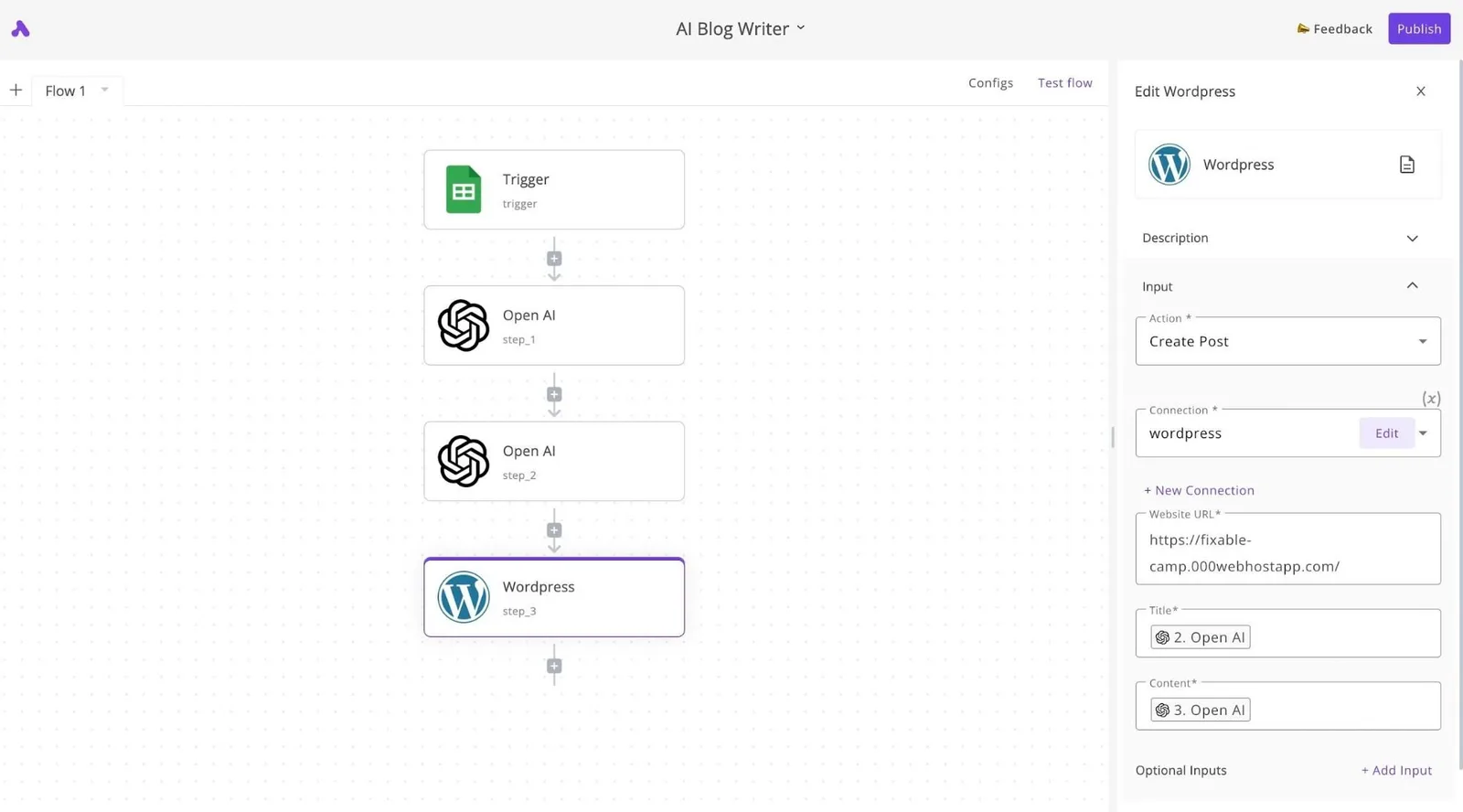
Third, you want to read the integration's source when a trigger behaves oddly. That matters on day three, when a Slack event fires twice and you need to see why.
For the duplicate problem specifically, the dedupe check is just one more step in a small workflow, and on Activepieces a run costs 1 credit however many steps it has, so the check adds nothing to the Free plan's 1,000 credits a month.
The HTTP request step covers any Wrike field the integration doesn't expose.
### Build the chat-to-task workflow with deduplication
Build the chat-to-task flow first, because its dedupe check is the part most likely to go wrong. Use the Slack trigger, add the storage lookup for the timestamp, and branch so a repeat ends the run. Only the new-message path reaches the Wrike create-task action.
Once that runs cleanly against a test channel, build the task-to-channel flow as a separate workflow.
## Frequently asked questions
### Can Slack and Wrike be connected without writing code?
Yes, for the two core flows: chat to task and task to channel. Both are built from existing triggers and actions on a visual canvas, so you map fields rather than write logic.
You only reach code when you add an HTTP request step for something the built-in actions skip, and even then you're filling in a URL, headers and a body.
If the flow can't see a channel, check membership first: private channels work only if the connected Slack app has been invited to them.
That's the usual cause, and it's easy to miss because the same flow works in public channels without any invite. Add the app to the channel, then re-test.
### Can a Wrike task update post back to a Slack thread?
Yes, but you have to carry the thread reference yourself. When the chat-to-task flow creates the task, store the Slack message timestamp and channel ID on the task, in the description or a custom field.
Later, the task-to-channel flow reads them back and replies to that message. If the built-in Slack action has no thread field, send the reply with an HTTP request step to Slack's `chat.postMessage` method and pass the stored timestamp as `thread_ts`.
### What do I do when a Wrike action I need is not available?
Call the Wrike API directly from an HTTP request step, authenticated with a Wrike access token. Look up the endpoint in Wrike's API reference, send the request, and use the response in later steps.
Keep that call in its own step so the rest of the workflow stays readable and you can swap in a native action if one appears later.
### What are the workflow costs?
It depends on how you run it and on the plan you choose, so check the vendor's current pricing page before you commit.
Separately, Slack and Wrike apply their own plan limits to API and app access. A free automation tool doesn't remove those limits, so confirm both sides.
Before building, settle these questions the steps above leave open:
- Which Wrike plan is required for API access?
- Can a direct message trigger a task, or only a channel message?
- Can the flow be self-hosted, and what does that change about upkeep?
- How does the connection behave when the person who authorized it leaves the workspace?
- Does a Wrike task edit made through the API fire the same trigger as an edit made in the interface?
Settle these in the vendors' own documentation first, because each one can change which flow you build and where the HTTP request step goes.
## Related reading
- [Slack Automation Examples: 7 Workflows to Copy (2026)](https://www.activepieces.com/blog/slack-automation-examples-7-workflows-to-copy-2026)
- [Salesforce Wrike Integration in 2026, Set Up Without Code](https://www.activepieces.com/blog/salesforce-wrike-integration-in-2026-set-up-without-code)
- [Free AI-Powered RSS Feed Reader: No-Code Tutorial](https://www.activepieces.com/blog/rss-feed-news-aggregator)
## References
- [Activepieces](https://www.activepieces.com/pieces/slack)
- [Slack](https://docs.slack.dev/apis/web-api/rate-limits/)
- [Wrike](https://developers.wrike.com/changelog/monday-november-24-2014)