### Stage 2: Connect Zoom and load sample data In Zoom's app marketplace, create an app, add an event subscription for the meeting-ended event, and paste the webhook URL as the endpoint. Then hold a short real meeting and end it. Back in the flow, choose Load Sample Data on the trigger. The payload that appears is your real field list, so every later mapping comes from an actual meeting rather than a guess.  Add the Gmail integration and pick "Send Email". Connect the Google account you want the message sent from. Every send, including every test run, counts against that account's Gmail sending limits. Use a throwaway recipient while testing, not a live customer. Fill the three fields from the sample payload: - Receiver: the host's email, or a fixed address for a team inbox. - Subject: static text plus the meeting topic. - Body: the topic and the host, plus anything else the payload carries that your reader needs. Insert values by picking them from the sample data, not by typing the field names. A typed name that misses by one character sends a blank. ### Test and publish your Zoom Gmail workflow Run the Send Email step against the saved sample and check the message in the inbox. If the subject or body is empty, the mapping points at a field the payload doesn't have, so fix it before going further. When the test passes, publish. Then end one more real meeting and open the run in the flow's runs list. That trace is how you confirm the live path matches the test, and it comes before you build the next trigger. ## Zoom Gmail Integration Errors, Limits and Fixes When a Zoom-to-Gmail flow breaks, six failures account for most of it, and each one shows up in the run trace at the step that failed. Match your trace against this list before you change anything: - Zoom scope missing: the trigger never fires or returns a permission error. Reauthorise Zoom with the meeting and recording scopes your trigger needs. - Expired Gmail connection: the send step fails with an auth error. Reconnect Gmail, then rerun. - Empty mapped field: the email goes out with a blank subject or link. Map a field that the trigger output actually contains. - Email sent before the recording is ready: the link is dead on arrival. Trigger on the recording-completed event, not on meeting end. - Duplicate runs: **one meeting sends two emails**. Check the meeting ID before sending. - Failed run needing rerun: fix the cause first, then replay that run from the trace rather than rebuilding the meeting. If the trigger is silent, suspect scopes before logic. A Zoom connection authorised without recording access will pass a connection test and still deliver nothing for recording events. Reauthorise with the missing scope, then run a short test meeting. ### Gmail sending limits and expired connections 500 emails per day is the free Gmail limit, and **2,000 per day for Google Workspace**, according to [InboxSure](https://inboxsure.io/blog/email-sending-limits). 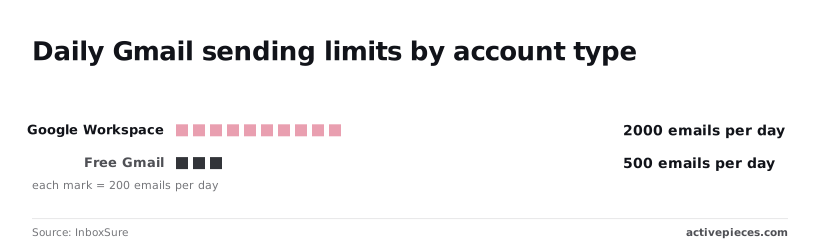 A team sending a follow-up to every attendee of a 100-person webinar uses a fifth of a free account's day in one run. I couldn't confirm these figures against Google's own documentation, so check its current sending limits before you size a workflow around them. Separately, an expired Gmail connection fails the same way every run until you reconnect it, so look at the connection before the flow.  ### Zoom trigger fires but Gmail fields are empty When a field arrives empty, the trigger ran but the value you mapped was never in its output. Open the trigger step in the trace, read the real output, and remap to a field that has data. Participant emails are the usual culprit, because guests who join without signing in may not have one. Add a condition that skips the send when the address is blank, so you don't produce a failed run. 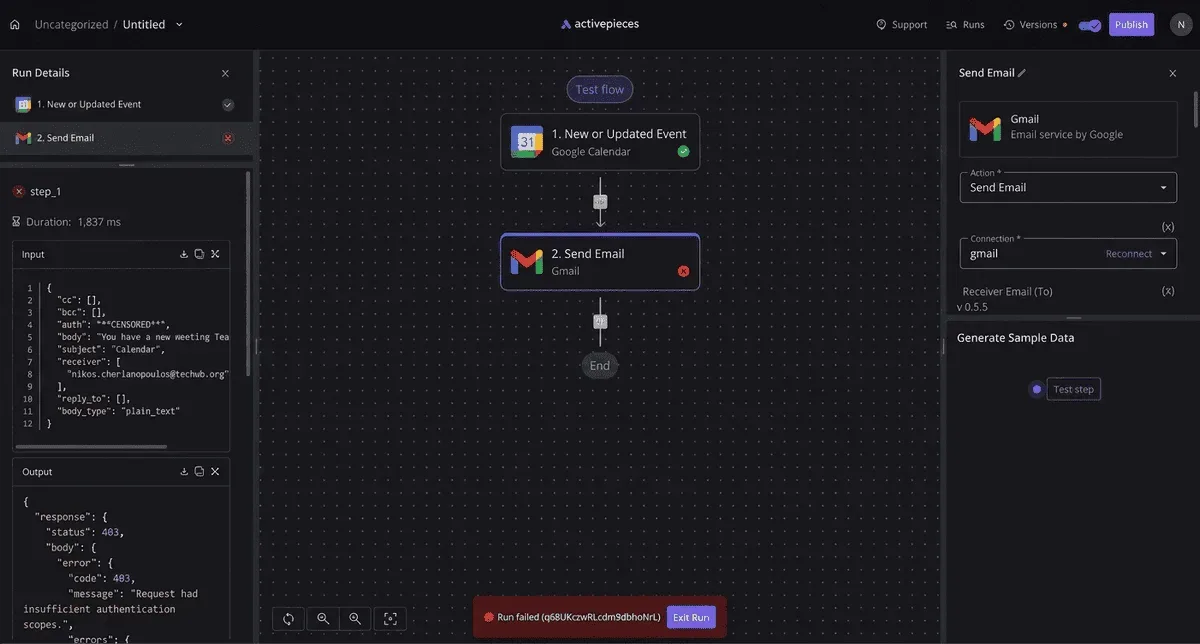 Duplicates usually come from two triggers covering the same meeting, or from a replayed run. Keep one trigger per meeting event, and rerun only the failed run, not the whole batch. ## Activepieces Compared With Other Zoom Gmail Connectors Since Zapier, Make and n8n all connect Zoom and Gmail too, the choice comes down to hosting, billing and how long you can look back at a failed run. To see what changes how you build this flow, compare the four in the table. Read the billed-unit column first, because a flow that fires on every meeting multiplies it. | Tool | Hosting choice | Billed unit | Step limits | Entry allowance | Missing-step handling | |---|---|---|---|---|---| | Activepieces | Self-host or cloud | Credit; a run is 1 credit however many steps it has | Unlimited flows on every plan | Free plan with 1,000 credits a month; free MIT-licensed self-hosted core | HTTP and code steps | | Zapier | Cloud only | Task/action | Capped by plan | Free plan | Webhook and code steps | | Make | Cloud only | Credit/module | Capped by plan | Free plan | HTTP module | | n8n | Self-host or cloud | Execution/run | Set by edition | Free self-hosted edition | HTTP Request and Code nodes | Whichever you pick, there is a way around a missing Zoom or Gmail action, so a gap in a connector rarely blocks the build. You can only rerun what you can still see, so log retention matters just as much. Zapier keeps run logs for 7 days, so a failure noticed after a week away is gone. Make's Free plan also keeps 7 days, which means anything older is inaccessible. If you review missed follow-ups monthly, the 30 days that Make Core keeps will cover it. **Make Pro keeps 60 days**, enough to trace a bad recap email back across two billing cycles. Choose Activepieces when open source and self-hosting matter, for example when meeting data has to stay on your own infrastructure: the core is MIT-licensed, and the free self-hosted edition is that core. It also fits when you don't want a step count splitting one meeting event into several flows, since a run is 1 credit however many steps it has and flows are unlimited on every plan, including free. ### When another Zoom Gmail connector fits better Choose Zapier if your team already lives there and a 7-day log window's enough for you. Choose Make if you want to see the data moving between modules on a visual canvas and want retention that scales with the plan. Choose n8n if you want self-hosting with a different execution-based billing model. If open source and self-hosting fit your constraints, start the first workflow in Activepieces, whose MIT-licensed core is free to self-host. ## Frequently asked questions Confirm each answer below against the vendor's current documentation before you build, because five questions depend on your accounts and plans more than on the workflow. ### Can I connect Zoom and Gmail for free? Often for a first test, yes. Both apps have free accounts, and many automation tools have free tiers. But the answer depends on the tool's plan and on which Zoom feature your flow needs. Cloud recordings generally require a paid Zoom plan, so a flow that waits for a recording will sit idle on a free account. Check Zoom's plan comparison page before you build around that trigger. ### Does it work with Google Workspace accounts? Yes, Gmail triggers and actions work with Workspace accounts as well as personal ones. The catch is administrative. A Workspace admin can restrict which third-party apps are allowed to reach mailbox data, so the OAuth consent screen may fail for reasons that have nothing to do with your workflow. Ask your admin to allow the app first, and read Google's Workspace Admin Help on third-party app access. Check Google's published sending limits before a flow emails a whole attendee list. Those limits are easy to hit and they fail quietly. ### Can an incoming Gmail message start a workflow about a meeting? Yes. Use a new-email trigger scoped by label or search query, such as `from:(@zoom.us) subject:invitation`, and have the flow act on the Zoom side, for example by creating a meeting or logging the details. Test the query in Gmail's own search box first. If it matches the wrong messages there, it'll match them in the trigger too. Exact trigger names vary by tool, so confirm them in the tool's Gmail documentation. ### Do I need to write code to link Zoom and Gmail? Not for the first workflow. A meeting-ended or recording-ready trigger on the Zoom side, plus a send-email action on the Gmail side, can be wired with field mapping alone. Code only comes in for the gaps, such as reformatting a transcript or handling an event the tool's Zoom connector doesn't expose. Zoom's App Marketplace documentation lists the events and scopes available to an app. ### Can I self-host the workflow to keep meeting data on my servers? Yes, if the automation tool you pick offers a self-hosted edition. That keeps run logs, stored credentials and any data the flow holds on infrastructure you control. It doesn't change where the meeting itself lives: the recordings stay in Zoom, the messages stay in Gmail, and the flow still pulls data from both over their APIs. Read each vendor's data-handling terms alongside the tool's self-hosting documentation. ## Related reading - [Zoom Workflow: How to Set Up Automation (2026 Guide)](https://www.activepieces.com/blog/zoom-workflow-how-to-set-up-automation-2026-guide) - [4 Steps to Set Up No-Code Automation + Workflow Examples](https://www.activepieces.com/blog/no-code-automation) - [Zoom Pricing in 2026: Plans, Add-Ons and Costs](https://www.activepieces.com/blog/zoom-pricing-in-2026-plans-add-ons-and-costs) ## References - [Make](https://www.make.com/en/pricing) - [InboxSure](https://inboxsure.io/blog/email-sending-limits)Each run leaves a trace in plain steps that anyone on the team can read, so nobody has to be hired for the wiring.