# Zoom Google Calendar Integration: How to Set It Up
By Thea Johannsen · 2026-11-14 · Source: https://www.activepieces.com/blog/zoom-google-calendar-integration-how-to-set-it-up
---
Manual overhead vanishes when you automate the connection between Zoom and Google Calendar, removing the need to copy meeting IDs and participant lists between disparate interfaces.
Zoom Google Calendar integration refers to the automated synchronization of meeting schedules and video conferencing data between these two platforms to ensure that calendar events and virtual meeting rooms remain consistently aligned.
Building this bridge with [Activepieces](https://www.activepieces.com) ensures that a **ten-step synchronization costs the same** to run as a simple two-step workaround.
Because the platform bills 1 credit per flow run regardless of the number of steps, you aren't penalized for the granularity required to map complex meeting data accurately.
This allows for more reliable automation without the "per-task" tax found on Zapier or the "per-module" costs on Make's pricing pages. You can verify this on the Activepieces pricing page, which lists a **flat one-credit cost** for an entire flow execution.
## Automating Zoom and Google Calendar workflows without code
### Generating Zoom links for new calendar events
When you create an event, a standardized integration ensures every meeting invite includes a valid URL the moment it is saved. Relying on manual entry often results in "missing link" emails five minutes after a meeting starts.

Building a Zoom and Google Calendar integration via Activepieces provides a more secure, scalable, and cost-effective alternative to built-in plugins. By mapping meeting IDs directly into event descriptions, you replace manual copy-pasting with a reliable, self-hosted workflow.
MoneyGram and Moneypenny run Activepieces in production to handle these types of high-volume coordination tasks where reliability is the baseline requirement.
This workflow triggers the "Create Zoom Meeting" action in Zoom whenever Google Calendar detects a "New Event." It instantly pushes the join details back into the calendar invite.
Attendees get a **single source of truth**. They'll never have to hunt through their inboxes for credentials.
### Updating calendar descriptions with meeting recordings
Syncing recording data back to the original calendar event provides a **permanent archive for participants** who missed the live session.
Instead of leaving Zoom cloud recordings in a siloed dashboard, an automated flow monitors for the "Recording Completed" event. It uses the "Update Event" action in Google Calendar to append the playback URL to the event description.
Every credential Activepieces touches (from Zoom OAuth tokens to Google API keys) can be routed to your own secret manager instead of a vendor database.
This capability is listed alongside SCIM, custom RBAC, and audit logs in the enterprise governance feature set, ensuring that no third party ever holds the connection secrets your business runs on.
By configuring a self-hosted instance to use an external secret manager, you can verify that these sensitive tokens are never stored in the Activepieces database.
Stakeholders can find the context they need directly from the time slot where the conversation occurred.
### Syncing Zoom webinar registrants to calendar invites
High-volume attendee lists for webinars require a dynamic link between registration forms and calendar availability. When a new user signs up for a Zoom webinar, the automation uses the "Add Attendees to Event" action to update the corresponding Google Calendar entry in real time.
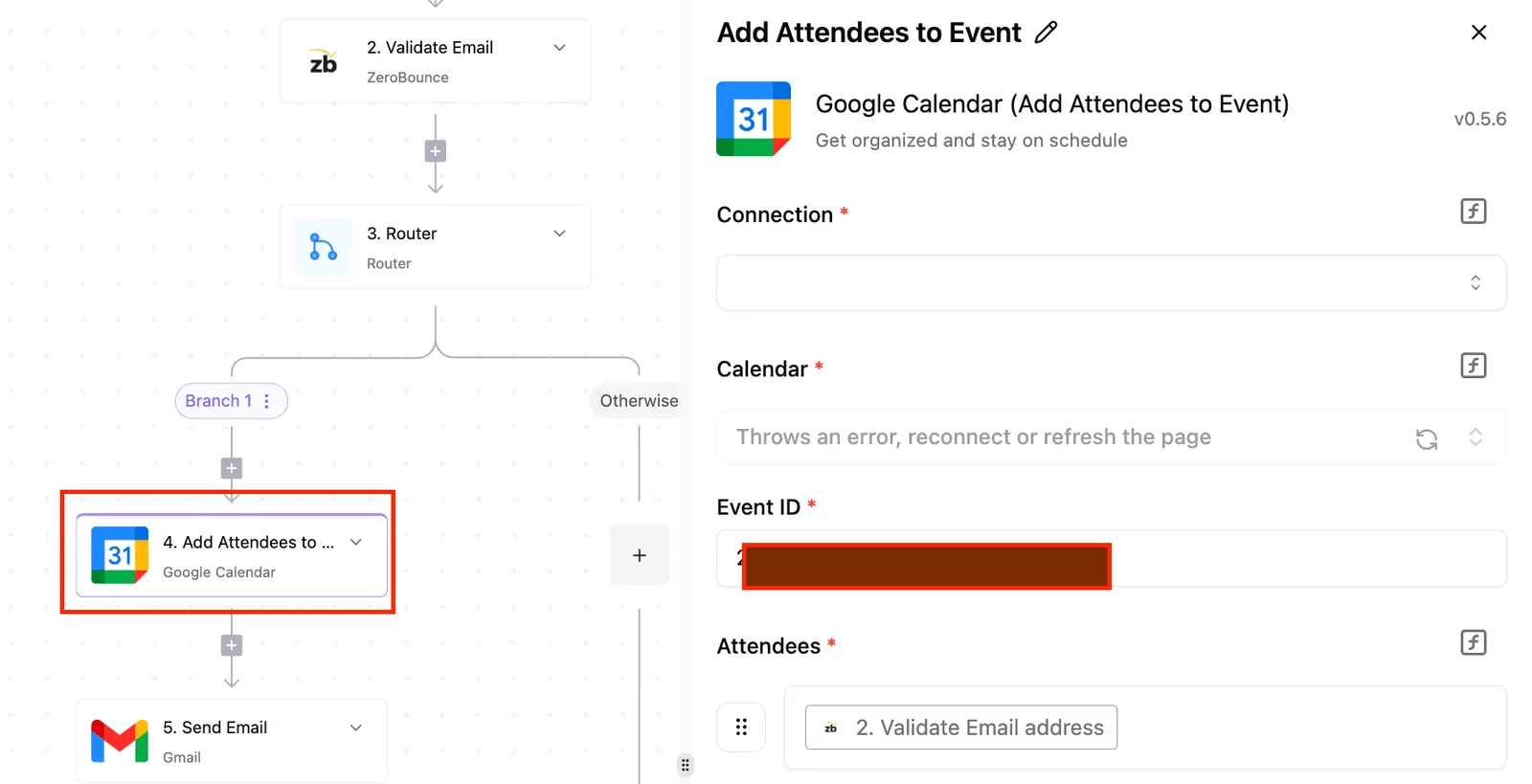
Auto-creating Zoom links for new GCal events and updating meeting durations when GCal events change are the critical coordination points.
Syncing Zoom cloud recording links back to GCal descriptions and injecting webinar attendee emails into calendar invitee lists also ensures that internal teams have an accurate headcount for resource planning without manual data entry.
### Deleting calendar events when Zoom meetings are cancelled
Removing cancelled meetings from the calendar prevents "ghost events" that block off time and confuse team availability.
When you delete a meeting in the Zoom dashboard, the "Event Cancelled" trigger in Google Calendar purges the corresponding block from the user's schedule. This keeps the organization’s availability accurate. Scheduling tools reflect actual free time rather than abandoned meeting slots.
## Creating your first zoom integration workflow
A functional integration requires a trigger that monitors your schedule and an action that generates unique conferencing credentials for every new appointment. Relying on manual link generation creates a "copy-paste" tax. It leads to broken links and missed starts.
1. Select the Google Calendar integration and choose the "New or Updated Event" trigger to ensure the system watches for every change in your availability. You must authenticate your Google account to grant the builder permission to read your primary calendar metadata. This connection is the data source, capturing the event title, start time, and duration, which are variables required to configure the subsequent meeting.
2. Insert the [Zoom](https://www.activepieces.com/pieces/zoom) integration as the next step and select the "Create Zoom Meeting" action. This action communicates with the Zoom API to reserve a room on your account without you opening the Zoom desktop client. Map the "Topic" field to the Google Calendar event title. You must also map the "Start Time" field to the calendar's start time variable so the meeting reflects your actual schedule.
3. Add a "Update Event" action for Google Calendar after the Zoom step to write the generated "Join URL" back into the original calendar invite. Without this loop, the meeting exists in Zoom, but your attendees have no way to access it from their own calendars. By mapping the "Join URL" output from the Zoom step into the "Description" or "Location" field of the Google Calendar event, you centralize the access point for all participants.
4. Click the test button to run the flow against a recent calendar entry and confirm that the API returns a successful JSON response. The builder interface displays the execution path, showing the specific data packets moving between services and highlighting exactly where a mapping might fail.
The visual debugger shows the input and output for each step. It allows you to catch formatting errors in the start time or empty fields before the flow goes live.
Once the test run shows a green success state for all nodes, the integration is ready to handle live traffic.
## Select the right meeting integration platform
Choosing an automation engine depends on whether your compliance team permits third-party data residency or requires total infrastructure control.
While many platforms operate exclusively as multi-tenant cloud services, the ability to self-host ensures that sensitive meeting transcripts and participant lists never leave your virtual private cloud.
This architectural choice eliminates the risk of data leakage inherent in shared environments where your information sits on another company's hardware.
The following table compares the structural differences between leading automation providers to show how hosting and retention policies impact your long-term scalability.
| Feature | Activepieces | Zapier | Make |
| :--- | :--- | :--- | :--- |
| Price Range | $0 - $200 | $0 - $103 | $0 - $29 |
| Data Retention | Self-hosted / Unlimited | 7 - 69 days | 7 days |
| Hosting | Cloud / On-prem | Cloud | Cloud |
_Prices and plan limits checked against [activepieces.com](https://www.activepieces.com/pieces/google-calendar) and [activepieces.com](https://www.activepieces.com/pieces/zoom) and [docs.claude.com](https://docs.claude.com/en/docs/about-claude/models/overview) and [openai.com](https://openai.com/chatgpt/pricing) and [gemini.google](https://gemini.google/subscriptions) on November 14, 2026._
A platform that limits data retention forces you to build secondary logging systems just to audit past meeting triggers.
If you're processing high-volume scheduling tasks, such as those handled by Gemini 3.8 Flash for enterprise workflows, a short retention window means your debugging logs vanish before you can identify patterns in failed syncs.
### Securing confidential meeting data with AI models
Raw audio and text must pass through a middleman's servers before reaching your database when using cloud-only providers. For teams utilizing high-reasoning models like GPT-6 Astra to summarize confidential board meetings, the [Platform](https://platform.openai.com/docs/models) states that the hosting model is the primary security barrier.
When you control the hosting, you define the encryption standards and access logs. Your meeting data remains an internal asset rather than a liability stored in a vendor's queue.
When you control the hosting, you define the encryption standards and access logs.
Managing these workflows internally also removes the per-step tax often found in proprietary clouds, allowing you to scale complex multi-node automations without a linear increase in monthly overhead.
## Troubleshooting common Zoom and Google Calendar sync errors
Mismatched permission scopes or expired credentials are the typical culprits for API failures in meeting synchronizations, rather than logic errors in the workflow.
Identifying the specific error code returned by the endpoint allows you to pinpoint whether the failure occurred at the identity provider level or within the application’s rate-limiting tier.
The 401 Unauthorized error means the Zoom access token has expired or was revoked, meaning the automation can't act on behalf of the user.
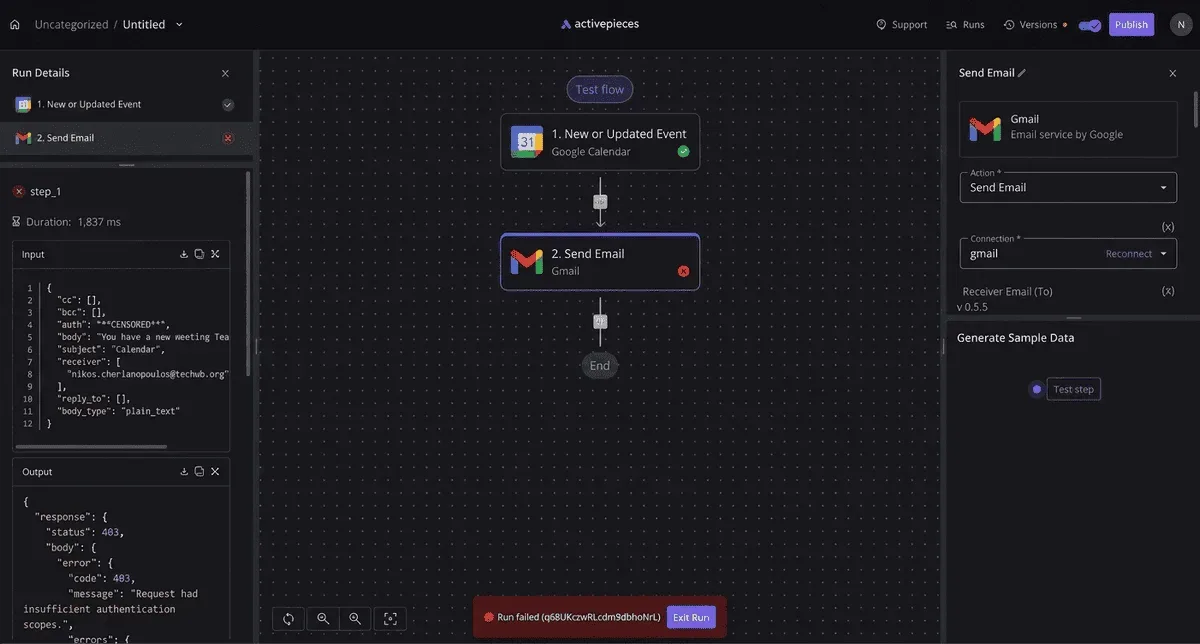
The 403 Forbidden error indicates the Google Calendar API request lacks the necessary OAuth scopes, so the application is blocked from writing to the specific primary calendar.
Rate Limit Exceeded means the workflow has hit the threshold of **10,000 requests per 100 seconds**, which causes the request to fail and return an HTTP 429 error rather than a temporary lockout.
Meeting ID Not Found occurs when the event was manually deleted in the Zoom web portal, so the calendar sync is attempting to update a resource that doesn't exist.
Correcting these issues ensures that meeting links and participant lists remain consistent across both platforms without manual intervention.
### Resolving '403 forbidden' errors in Google Calendar
A '403 Forbidden' error indicates that the authenticated account doesn't have the "Manage" permission level required to modify calendar events.
While a connection might succeed for reading data, writing a Zoom link into the event description requires the `https://www.googleapis.com/auth/calendar.events` scope to be explicitly granted during the initial OAuth handshake.
If you're using a Google Workspace service account, the domain administrator must also enable domain-wide delegation. This allows the automation to impersonate the specific user who owns the calendar.
### Fixing Zoom JWT and OAuth authentication failures
Authentication failures occur when the app credentials in the Zoom App Marketplace don't match the environment variables in your integration.
Zoom has deprecated standalone JWT (JSON Web Token) apps in favor of Server-to-Server OAuth, which requires a specific Account ID, Client ID, and Client Secret to generate short-lived tokens.
If the workflow fails with a "401 Unauthorized" message, the refresh token has likely been invalidated by a password change or a manual deauthorization in the marketplace settings. This requires a re-authentication to establish a new secure session.
### Fixing Zoom and Google Calendar time zone mismatches
Meetings often appear several hours off because Google Calendar and [Zoom](https://www.zoom.com/en/blog/we-now-have-more-than-1000-apps-on-the-zoom-app-marketplace/) handle UTC offsets differently. Google Calendar defaults to the time zone set in the user's primary calendar settings. Zoom meetings are created based on the time zone of the API user's profile.
To prevent scheduling conflicts, you must pass the `start_time` in ISO 8601 format with a clear offset. You can also use a reasoning model like [Gemini](https://gemini.google/subscriptions) 3.8 Flash to normalize the incoming timestamps into a single standard before the data reaches the destination app.
### Syncing recurring meetings
Targeting the specific `instanceId` of a Google Calendar event rather than the `recurringEventId` of the parent series allows you to sync recurring meetings accurately.
Mapping to the parent ID only updates the template for the series, which causes individual exceptions (like a holiday reschedule) to revert to the wrong time. The following logic ensures that updates to a single occurrence in a series correctly update the corresponding Zoom session:

The parent recurring event icon in Google Calendar is linked to multiple instance icons, with a Custom API Call block fetching the specific Instance ID for the Zoom update.
This granular targeting prevents the "series drift" where a change to one Monday meeting accidentally overwrites the settings for every Monday for the rest of the year.
By using the Google Calendar API `instances` endpoint, you isolate the specific Unix timestamp of the occurrence you intend to modify.
### How do I prevent private calendar events from creating Zoom links?
A conditional filter must evaluate the `visibility` property of the Google Calendar event object before the data reaches the Zoom API.
If the `visibility` field is set to `private` or `confidential`, the workflow must terminate immediately to ensure sensitive appointment titles or attendee lists aren't logged in the Zoom dashboard.
Filtering at the logic layer is more reliable than relying on user behavior. It removes the risk of a person forgetting to uncheck a "Make it Zoom" box on a personal doctor's appointment.
### Does this integration work with Zoom Webinars?
By swapping the standard `/meetings` endpoint for the `/webinars` endpoint in the API request configuration, this integration works with Zoom Webinars.
Because Zoom treats Webinars as a distinct object type with different metadata requirements, such as panelist permissions and registration toggles, a standard meeting sync will fail with a 404 error.
Zoom Webinars require a `webinar_id` and support unique registration URLs for each attendee.
Zoom Meetings require a `meeting_id` and typically use a static join link for all participants. Switching between these two modes allows you to use a single Google Calendar to manage both internal team syncs and large-scale public broadcasts without maintaining separate scheduling tools.
## Related reading
- [Add Google Calendar Events for New Monday Items (Easy and Automated)](https://www.activepieces.com/blog/google-calendar-events-from-monday-new-items)
- [Connect Ramp to Claude for Automated Expense Auditing](https://www.activepieces.com/blog/connect-ramp-to-claude-for-automated-expense-auditing)
- [Connect Google Workspace to Gemini for Automation](https://www.activepieces.com/blog/connect-google-workspace-to-gemini-for-automation)