Keep the template's action as it is; changing both at once hides which edit broke the run. ### Saving, publishing, and testing your Zoom Workflow 1. Save the workflow. A saved draft doesn't run on its own. 2. Publish it. Skipping this is the most common reason a "tested" workflow does nothing. 3. Start a short test meeting that matches your filters, with only you or a colleague present. 4. End the meeting and wait for the trigger to fire. 5. Open run history and look for exactly one run. Read that run, not just its status. A success with an empty or wrong payload is still a defect. Zero runs means look at the filters, the publish state and the plan limits, in that order. Several runs means the filters are too loose.  **Don't add a second branch until one run appears, once, with the output you expected.** ## Workflow actions, variables, and connected apps With the trigger proven, add exactly one action step, map the trigger's variables into it, and authorize the single app that action needs, then run it again before touching anything else. ### Add an action step and map variables The message posted, but the fields were blank: almost always a variable typed by hand instead of picked from the trigger's output. Then trigger a real event and check that every mapped field holds a value in the run record, not only in the editor preview. ### Connect an outside app A connection can succeed and still be too narrow, so the action fails later with a permissions error. Authorize with an account that can actually perform the action, such as posting to the target channel or creating the record. Read the scopes on the consent screen before approving. If the action fails after a clean connection, check scope and the connecting account's role before you rewrite the step. Saving a recording link to a CRM is the kind of task that spans tools Zoom's native automation can't reach, and Activepieces is one option beside Zoom's own for it. Open its built-in chat, describe that process and name the apps it touches, and what comes back is a published flow in your account, the same kind a builder would have assembled by hand, plus a run trace showing each step as it happened.  The 750 integrations behind it are counted from the open source monorepo on GitHub, and MoneyGram, Moneypenny, Alan and FundingSocieties run it in production, which means it's proven reliable in real-world environments where organizations depend on it. ### Native, Marketplace app or general automation tool Choose the route by what happens when a run breaks, not only by which apps it can reach. Treat every cell marked unconfirmed as a question to settle in Zoom's documentation or by forcing a failure in a test account. | Route | Setup effort | Apps reachable | Behavior on failure | |---|---|---|---| | Zoom native connectors | Lowest; authorization happens inside Zoom | Only the connectors Zoom ships; check the current list | Unconfirmed; test by revoking access | | Marketplace apps | Varies by app; install and consent per app | Whatever publishers have listed | Unconfirmed; depends on the publisher | | General tools such as Zapier or Make | Highest; a separate account and a second authorization to Zoom | Widest, since these services connect to many apps | Failures usually appear in the tool's own run history, not in Zoom; retry behavior unconfirmed | | Activepieces | — | 750 integrations, counted from the open source monorepo | — | That changes where you look for errors: a failure on a general tool won't show up in Zoom, so someone has to own checking the other dashboard. Start with the native connector if it covers your app, and move outward only when it doesn't.  ## Zoom Workflow Limits and Errors, With Fixes Moving outward from the native connector swaps one set of limits for another, so check plan tier, connection scope and rate limits before you blame the workflow. ### Zoom Workflow documented limits and quotas I have no confirmed figures for workflow count, step count, run quotas or history retention, so none appear here. Read them from Zoom's own documentation and write down the date you read them. Each step up in plan raises the ceiling, and every plan throttles heavy calls hardest. Upgrading buys headroom, not immunity, so test the loop at realistic volume before you add branches. Start from the symptom the user reported and work back to the cause; errors are easiest to fix that way. | Symptom | Likely cause | Fix | |---|---|---| | Action fails with an authorization or "forbidden" message | Connection lacks the scope the action needs, or the user lacks permission | Reconnect with the required scopes and confirm the account role allows the action | | Worked for weeks, then stopped | Expired or revoked authorization | Reauthorize the connection and rerun the failed step | | Trigger never fires | Event not enabled for the account, or the wrong account is connected | Confirm the event source, then trigger it manually and watch for the run | | Edits have no effect | The workflow is saved but not published | Publish it, then test again | | Runs start failing partway through the day | Quota or rate limit exhausted | Reduce call volume or batch the work, then check your plan's documented limits | Reproduce each failure in a test workflow with one trigger and one action before you change the production one. If the test passes and production still fails, the difference is almost always the connection or the account's permissions. ### When Zoom Workflow is the wrong tool When the job needs heavy call volume, logic spanning many unrelated apps, or guarantees about retries and history that Zoom doesn't document, Zoom Workflow is the wrong tool. In those cases the limits above stop being a nuisance and become the design constraint. Use a general automation platform or your own code, and keep Zoom's native connector as a single, tested step inside it. ## Zoom Workflow Checklist for Your First Week Build one workflow with a single trigger and a single action, name one owner, read its run history every day, and recheck Zoom's documentation every quarter. That's the whole routine, and the connector step you tested above is the first piece of it. If any one of the five items below is missing, the workflow will eventually fail quietly and someone will report it by asking why a recording never arrived. - Build one workflow first: one trigger, one action, no branches. - Name an owner, a person rather than a team alias. - Check the run history daily and compare it with what actually happened in Zoom. - Ask an admin the moment a run fails on permissions, scope or a plan limit. - Recheck Zoom's own documentation every quarter. ### Build one workflow and watch it for five days Pick the workflow whose failure you would notice fastest and that would cost least. Take a meeting-ended trigger that posts a message to a chat channel: it is a good example, because a missing message is obvious within minutes. Run it in a test account first. A workflow that has never been reproduced there is a guess, not a result. Then read the run history every day. A green run only says the platform finished its steps. It doesn't say the right meeting was captured. Compare a handful of runs against the meetings that really took place, and treat any gap as a defect even when no error was logged. Escalate to an admin on the first permission error, the first "insufficient scope" message, or the first run that stops without explanation. These are rarely bugs in your logic. More often the connection was authorized with narrower access than the action needs, or the account's plan doesn't allow what you asked for. ### Assigning a Zoom Workflow owner and rechecking limits Nobody opens the log while the trigger keeps firing and the failures pile up. That is the usual cause of a long outage: an unowned workflow. Make the owner whoever reads the daily history and whoever the admin contacts when a connection needs reauthorizing. When that person changes roles, the workflow changes hands in the same conversation. Over time, limits and permissions drift. Zoom revises its plans, its rate rules and its app scopes, and a summary you copied into a wiki months ago won't follow. Confirm each limit against Zoom's own documentation on a fixed quarterly date, and write down what changed. After that, and only then, add a second branch. ## Frequently asked questions Only if the first branch runs does a second one help, and these five questions are where first runs most often stall. The body doesn't settle them, so each answer points to the Zoom documentation that does. Is Zoom Workflow free? Partly. Availability and run allowances depend on your Zoom plan, and the Free tier is capped. One question stays open: whether test runs count against the Free quota. Treat them as if they do until Zoom's plan documentation says otherwise, or you may spend your allowance before the real trigger ever fires. Check Zoom's pricing and plan-comparison pages. ### Can Zoom Workflow start from a webhook or a schedule? Before you assume a webhook or timer exists, open the trigger picker and read what is listed. Which trigger types you get depends on what the workflow builder offers for your plan and account. 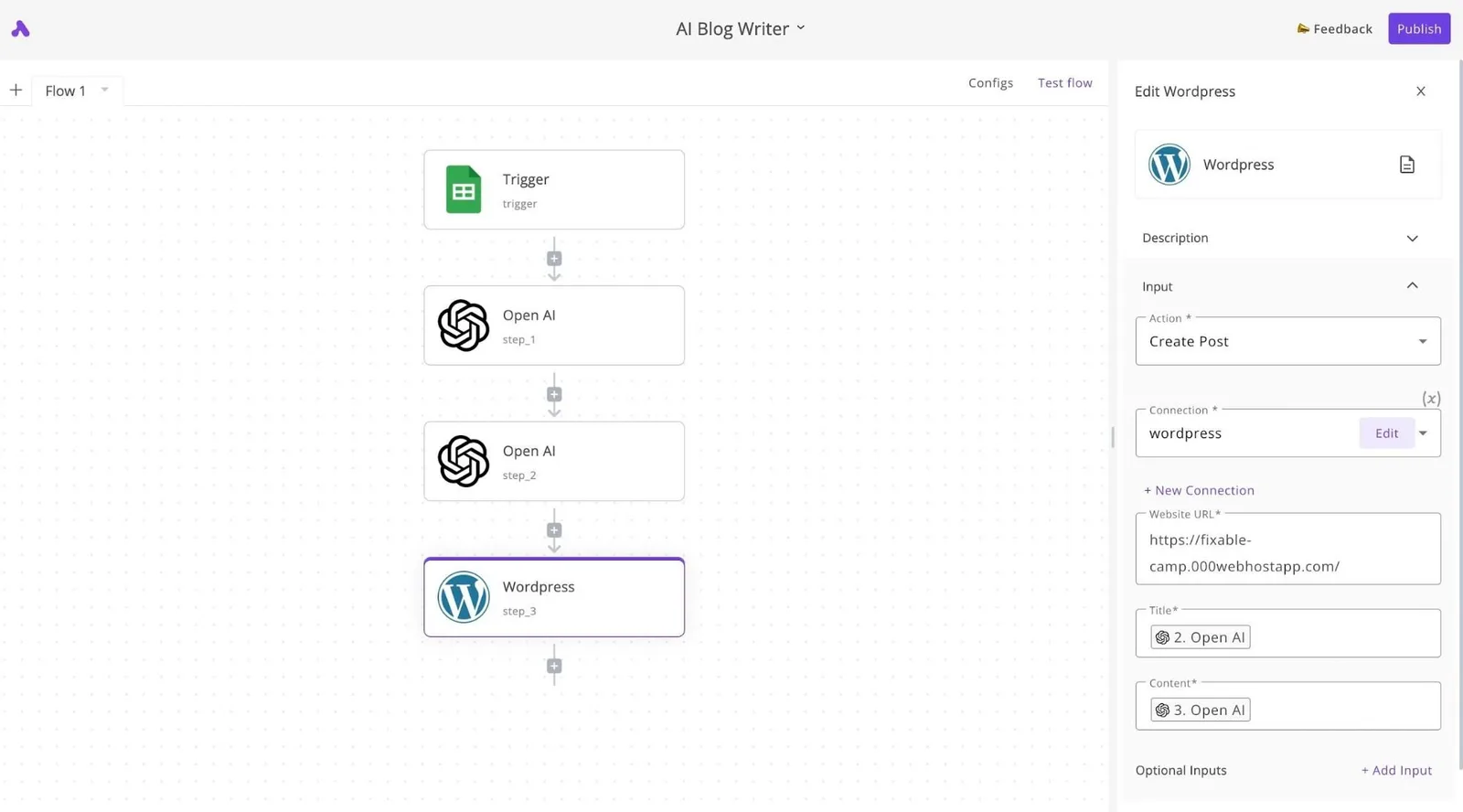 If the trigger you need is missing, Zoom's Workflow documentation is the place to confirm whether it is unsupported or gated by plan. Don't build a branch around a trigger you haven't seen fire in a test. Why didn't my Zoom workflow run after a meeting ended? The usual cause is a permission, a connection scope or a plan limit, not the workflow logic. Work through them in this order: 1. Confirm the workflow is published and switched on. 2. Confirm the account that owns the connection can see that meeting. 3. Confirm the connection was granted the scope the action needs. 4. Confirm you haven't exhausted your run allowance. 5. Check that the event you chose matches what you wanted. "Meeting ended" and "recording available" are separate events, and the second can arrive well after the first. Where your plan exposes it, run history is the first place to look. A silent failure there is more useful than no record at all. ### Can I use Zoom Workflow without being an admin? Sometimes, and the limit is usually the connection, not the builder. Whether a non-admin can create workflows, authorize connections, or install account-level apps is controlled by account settings, so an admin may have to enable it.  If a colleague's workflow works and yours doesn't, compare roles before comparing steps. Zoom's admin and role-permission documentation covers who can do what. ### How is Zoom Workflow different from Zoom Marketplace apps? For chaining a trigger to actions inside your account, Workflow is the builder. Install and authorize a Marketplace app and it brings its own scopes and approval rules, because these are separate integrations. A workflow may rely on a connection to an app, so a failure can sit in either place. Zoom's Marketplace documentation covers app installation and permissions; its Workflow documentation covers the builder.  ## Related reading - [No-Code Automation Statistics 2026: Adoption for Small Teams](https://www.activepieces.com/blog/no-code-automation-statistics-2026-adoption-for-small-teams) - [Compare Taskade Pricing for Small Teams](https://www.activepieces.com/blog/compare-taskade-pricing-for-small-teams) - [DeepSeek Search API vs Exa Pricing for Small Teams (2026)](https://www.activepieces.com/blog/deepseek-search-api-vs-exa-pricing-for-small-teams-2026) ## References - [Zoom](https://zoom.us/pricing)If you authorized it with narrower scope than the action needs, the workflow saves cleanly and fails when it runs.