> ## Documentation Index
> Fetch the complete documentation index at: https://www.activepieces.com/docs/llms.txt
> Use this file to discover all available pages before exploring further.
# Overview
> Connect external secret management systems to securely store and retrieve credentials
Secret Managers allow you to integrate external secret management systems with Activepieces, enabling centralized credential management and enhanced security for your global connections.
## Benefits
* **Centralized Management**: Store all credentials in one secure location
* **Enhanced Security**: Credentials are managed by dedicated secret management systems
* **Audit & Compliance**: Track access and changes to secrets
* **Rotation Support**: Easily rotate credentials without updating flows
* **Access Control**: Use your existing secret manager access policies
## Supported Providers
* **[HashiCorp Vault](./hashicorp)** - Enterprise-grade secrets management
* **[CyberArk Conjur](./cyberark-conjur)** - Centralized secrets management with host-based authentication
* **[AWS Secrets Manager](./aws)** - Managed secrets storage on AWS
* **[1Password](./onepassword)** - Consumer and team password manager with Secrets Automation
## How to Connect
1. Go to **Platform Admin → Security → Secret Managers**
2. Click **New Connection**
3. Select the secret manager provider you want to connect
4. Enter a **Name** for the connection
5. Choose a **Scope** (see [Connection Scopes](#connection-scopes) below)
6. Follow the provider-specific setup instructions in the provider documentation
7. Enter the required connection details
8. Click **Save** to test and save the connection
The connection will be encrypted and stored securely. You can edit or delete it at any time from the Secret Managers page.
## Connection Scopes
Each secret manager connection has a **scope** that controls which projects can use it:
| Scope | Description |
| ------------ | ------------------------------------------ |
| **Platform** | Available to all projects on the platform |
| **Project** | Restricted to specific projects you select |
When creating or editing a connection, select **Project** scope and choose the projects that should have access. Platform-scoped connections are always visible to all projects.
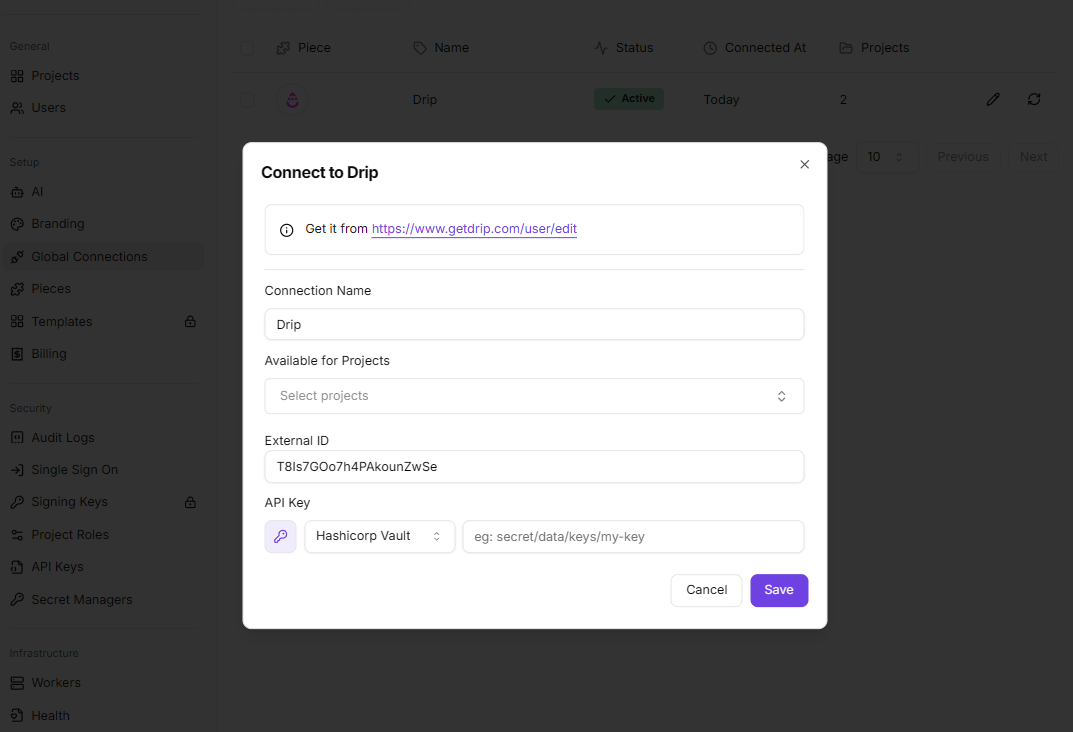
## Using Secret Managers in Connection Dialogs
Once connected, you can reference secrets from your secret managers when configuring piece connections:
1. Open a connection dialog (either a global connection or one inside the flow builder)
2. Click the **key icon** (🔑) next to a credential field
3. Select a secret manager connection from the dropdown
4. Enter the secret path/identifier required by your provider (see provider-specific documentation)
5. The connection will automatically retrieve the secret from your secret manager when needed
**Global connections (Platform Admin):** All platform-scoped and project-scoped secret manager connections are available to select.
**Flow builder connections:** Only secret manager connections that are accessible to the current project are shown — this includes platform-scoped connections and project-scoped connections assigned to that project.
 ## How It Works
When you use a secret manager in a connection:
* The global connection stores a reference to the secret (not the actual credential)
* When the flow runs, Activepieces authenticates with your secret manager and retrieves the secret
* Secrets are fetched on-demand and never stored in Activepieces
* If the secret is updated in your secret manager, flows will use the new value after the cache expires (up to 1 hour), or immediately after clearing the cache
## Caching
Connection checks and retrieved secrets are cached in Redis (encrypted) for **1 hour** to reduce latency and provider API load.
To force a refresh (e.g. after rotating credentials or updating secrets), platform admins can clear the cache per connection using the **refresh icon** next to each connection row in the Secret Managers page.
## How It Works
When you use a secret manager in a connection:
* The global connection stores a reference to the secret (not the actual credential)
* When the flow runs, Activepieces authenticates with your secret manager and retrieves the secret
* Secrets are fetched on-demand and never stored in Activepieces
* If the secret is updated in your secret manager, flows will use the new value after the cache expires (up to 1 hour), or immediately after clearing the cache
## Caching
Connection checks and retrieved secrets are cached in Redis (encrypted) for **1 hour** to reduce latency and provider API load.
To force a refresh (e.g. after rotating credentials or updating secrets), platform admins can clear the cache per connection using the **refresh icon** next to each connection row in the Secret Managers page.
 You can also clear the cache via the API. Omit `connectionId` to clear all cached entries for the platform, or pass a `connectionId` to clear only that connection's cache:
```bash theme={null}
# Clear cache for a specific connection
curl --request DELETE \
--url 'https:///api/v1/secret-managers/cache?connectionId=' \
--header 'Authorization: Bearer '
# Clear all platform cache entries
curl --request DELETE \
--url 'https:///api/v1/secret-managers/cache' \
--header 'Authorization: Bearer '
```
## Security Considerations
* **Encryption**: Secret managers authentication configuration is encrypted
* **Access Control**: Use your secret manager's access policies to control who can access secrets
* **Network Security**: Ensure your secret manager is accessible from your Activepieces instance
* **Credential Management**: Regularly rotate authentication credentials for secret managers
## Troubleshooting
**Connection Failed:**
* Verify the connection details are correct and accessible
* Check that authentication credentials are valid
* Ensure network connectivity between Activepieces and your secret manager
* Review provider-specific troubleshooting guides
**Secret Not Found:**
* Verify the secret path/name is correct
* Check that the secret exists in your secret manager
* Ensure the authentication credentials have permissions to read the secret
**Permission Denied:**
* Verify the authentication credentials have the necessary permissions
* Check your secret manager's access control policies
* Review audit logs in your secret manager for detailed error information
You can also clear the cache via the API. Omit `connectionId` to clear all cached entries for the platform, or pass a `connectionId` to clear only that connection's cache:
```bash theme={null}
# Clear cache for a specific connection
curl --request DELETE \
--url 'https:///api/v1/secret-managers/cache?connectionId=' \
--header 'Authorization: Bearer '
# Clear all platform cache entries
curl --request DELETE \
--url 'https:///api/v1/secret-managers/cache' \
--header 'Authorization: Bearer '
```
## Security Considerations
* **Encryption**: Secret managers authentication configuration is encrypted
* **Access Control**: Use your secret manager's access policies to control who can access secrets
* **Network Security**: Ensure your secret manager is accessible from your Activepieces instance
* **Credential Management**: Regularly rotate authentication credentials for secret managers
## Troubleshooting
**Connection Failed:**
* Verify the connection details are correct and accessible
* Check that authentication credentials are valid
* Ensure network connectivity between Activepieces and your secret manager
* Review provider-specific troubleshooting guides
**Secret Not Found:**
* Verify the secret path/name is correct
* Check that the secret exists in your secret manager
* Ensure the authentication credentials have permissions to read the secret
**Permission Denied:**
* Verify the authentication credentials have the necessary permissions
* Check your secret manager's access control policies
* Review audit logs in your secret manager for detailed error information