> ## Documentation Index
> Fetch the complete documentation index at: https://www.activepieces.com/docs/llms.txt
> Use this file to discover all available pages before exploring further.
# Builder Canvas Controls
The Builder includes several controls that make it easier to navigate the canvas, change how your flow is displayed, and work with your steps.
### **Mini Map**
The **Mini Map** gives you an overview of your entire flow and lets you quickly move to different parts of it. This is especially useful when working with large flows that have many steps.
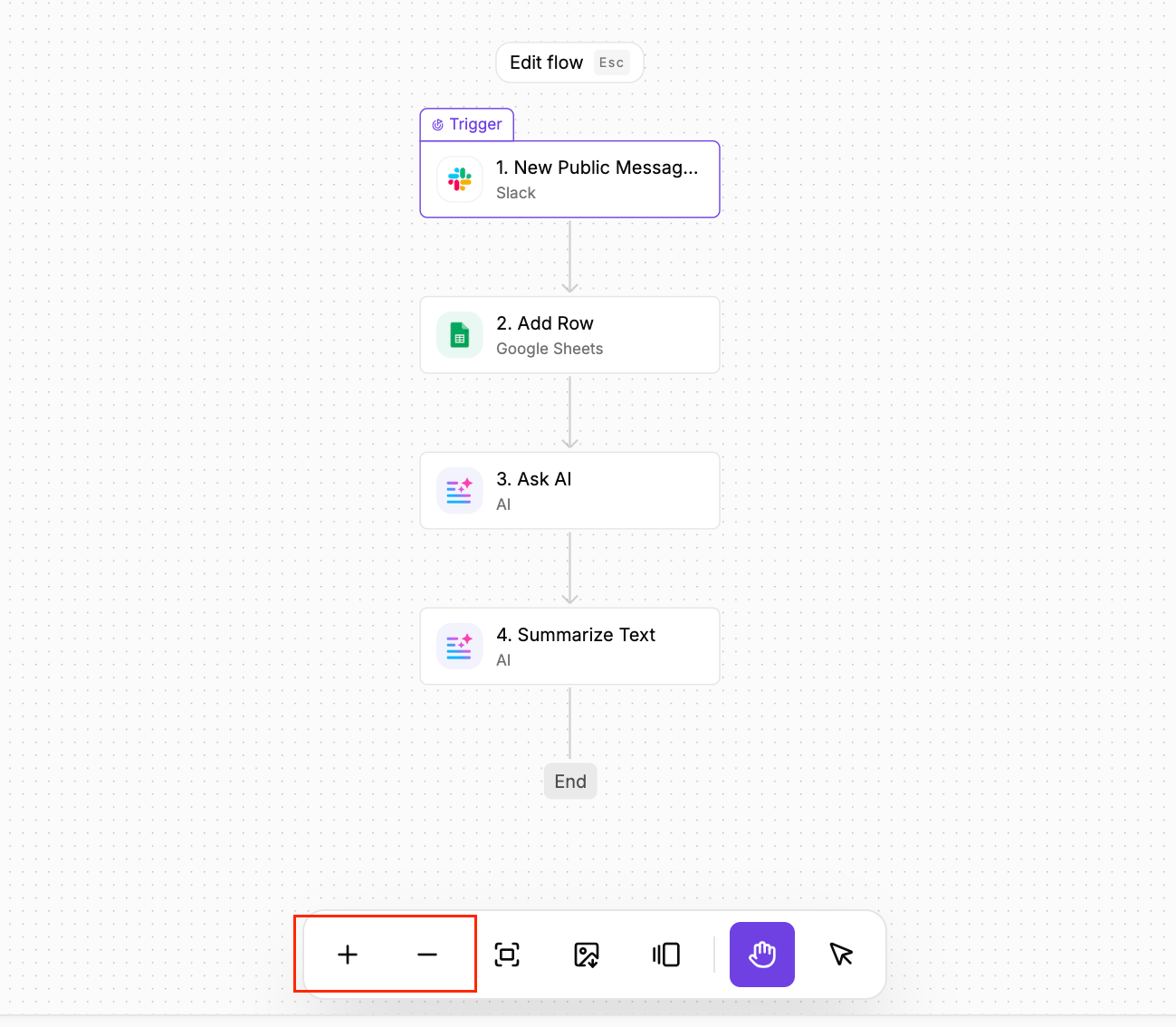
### **Zoom in and Zoom out**
Use **Zoom in** and **Zoom out** to adjust how much of your flow you can see on the canvas.
 ### **Fit to view**
This automatically adjusts the canvas so your entire flow fits on the screen.
### **Image Download**
Use this to save an image of your flow.
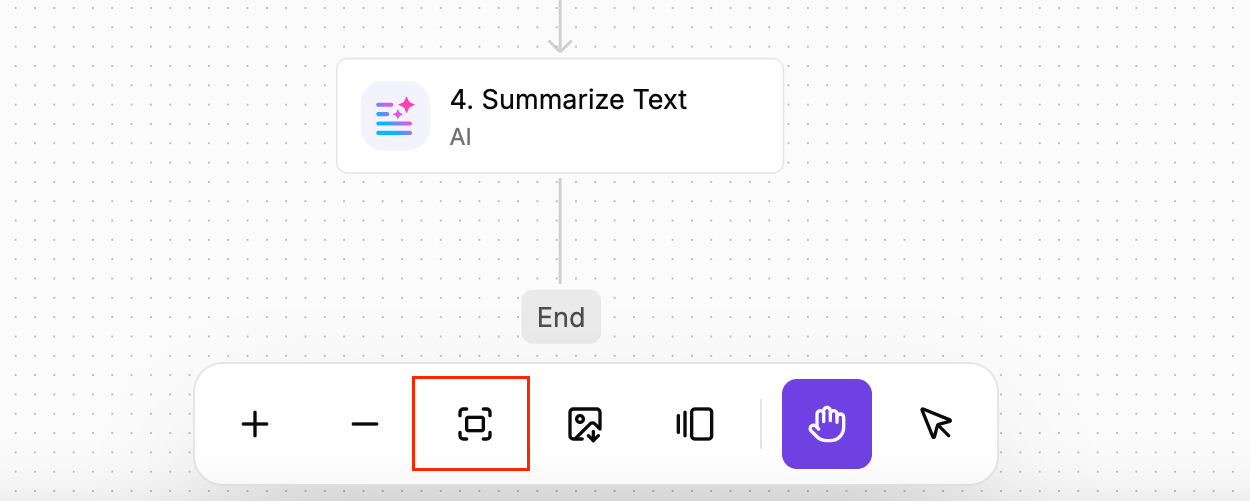
### **Fit to view**
This automatically adjusts the canvas so your entire flow fits on the screen.
### **Image Download**
Use this to save an image of your flow.
 ### **Layout Switch**
Use this to change how your flow is displayed. You can switch between a **vertical** and **horizontal** layout.
### **Grab Mode**
Use **Grab Mode** (hand icon) to grab the canvas and move around your flow.
### **Select Mode**
Use **Select Mode** (cursor icon) to select multiple steps at once.
Once selected, you can perform actions on the selected steps together, such as copying, skipping (which means that step will not be carried out in the flow), or deleting them.
### **Notes**
Use **Notes** to add extra context directly to your flow.
Notes are especially useful when collaborating with other people. You can explain why a particular decision was made, provide context about a step, or leave information that someone else may need when working on the flow.
They can also help you remember why you made certain decisions when you return to a flow later.
### **Layout Switch**
Use this to change how your flow is displayed. You can switch between a **vertical** and **horizontal** layout.
### **Grab Mode**
Use **Grab Mode** (hand icon) to grab the canvas and move around your flow.
### **Select Mode**
Use **Select Mode** (cursor icon) to select multiple steps at once.
Once selected, you can perform actions on the selected steps together, such as copying, skipping (which means that step will not be carried out in the flow), or deleting them.
### **Notes**
Use **Notes** to add extra context directly to your flow.
Notes are especially useful when collaborating with other people. You can explain why a particular decision was made, provide context about a step, or leave information that someone else may need when working on the flow.
They can also help you remember why you made certain decisions when you return to a flow later.