> ## Documentation Index
> Fetch the complete documentation index at: https://www.activepieces.com/docs/llms.txt
> Use this file to discover all available pages before exploring further.
# Template Library
The Template Library gives you ready-made automation flows that you can use instead of building a flow from scratch. You can customize them to fit your specific needs.
Templates cover common workflows across areas like Sales, Marketing, Customer Service, Finance, HR, Engineering, Operations, and AI Agents.
## **Find a template**
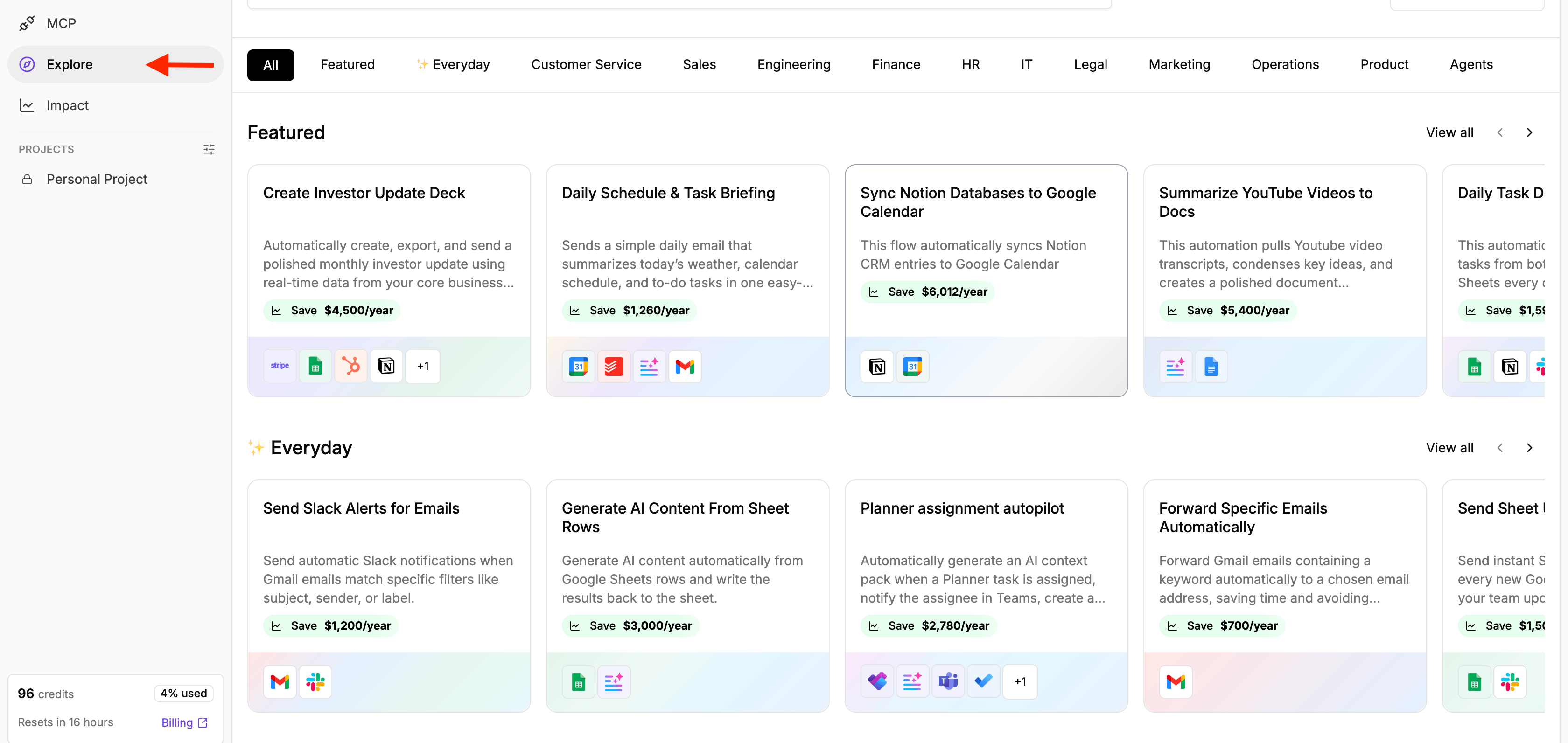
You can find the template library in the **Explore** tab.
Browse templates by category or search for a specific workflow using its name or description.
Each template gives you a quick overview of what the automation does and the apps it uses, so you can find a workflow that fits what you want to automate.
They also show an estimate of the time and cost they can save, helping you understand the potential value of automating that process.
 ## **Preview a template**
Click on any template to see how the automation works before adding it to your project.
The template page shows:
* **About this template:** An overview of the process the template automates.
* **What's included:** The flows included in the template.
* **Used Pieces:** The apps and integrations required by the automation.
* **Flow preview:** A visual preview of the steps in the automation.
* **Setup guide:** Additional instructions for configuring the template, when available.
This lets you understand what the template does and what you'll need to connect before deciding to use it.
You can also check out what the flow looks like in the vertical or horizontal layout
## **Use a template**
When you find a template you want to use:
1. Open the template.
2. Review the flow and the pieces it uses.
3. Click **Use template** to start using the template
4. To learn more about the set up and how to connect your own credentials to use the template, click **Set Up Guide and** follow the setup instructions to configure the required connections and settings for your use case.
## **Preview a template**
Click on any template to see how the automation works before adding it to your project.
The template page shows:
* **About this template:** An overview of the process the template automates.
* **What's included:** The flows included in the template.
* **Used Pieces:** The apps and integrations required by the automation.
* **Flow preview:** A visual preview of the steps in the automation.
* **Setup guide:** Additional instructions for configuring the template, when available.
This lets you understand what the template does and what you'll need to connect before deciding to use it.
You can also check out what the flow looks like in the vertical or horizontal layout
## **Use a template**
When you find a template you want to use:
1. Open the template.
2. Review the flow and the pieces it uses.
3. Click **Use template** to start using the template
4. To learn more about the set up and how to connect your own credentials to use the template, click **Set Up Guide and** follow the setup instructions to configure the required connections and settings for your use case.