# Changelog
Source: https://www.activepieces.com/docs/about/changelog
A log of all notable changes to Activepieces
### Agents you can keep, talk to, and put where they belong
An agent used to be a bag of settings inside one flow step. Now it is something you
name, brief, talk to, and reuse.
**Build one from a sentence**
* **Describe the job**: the Agents page opens with a prompt box. Write *"summarise my
unread emails every morning"* and you get a drafted agent — a name, instructions, and
the tools it needs from the apps you have already connected. See
[Create an agent](/docs/agents/create).
* **It only reaches for what you asked for**: the draft picks actions that read your data,
and adds one that sends, posts or files only when the sentence asks for it.
* **Edit with AI**: describe a change in the editor — *"only reply to paying customers"* —
and the instructions and tools are rewritten for you. Edits stay a draft until you press
**Publish**, and publishing updates every flow already using the agent on its
next run, with nothing to republish.
**Where an agent lives**
* **Choose the project up front**: new agents no longer land wherever you happened to be.
The prompt box names the project and lets you change it, because the project decides
which connections, flows and files the agent can reach.
* **Move one later**: with a preview of what it costs first — the apps that have no
connection in the new project, the people who lose a share, and the fact that tools which
keep working now use the new project's accounts. See
[Manage an agent](/docs/agents/manage).
* **Deleting is honest about consequences**: an agent still running inside a published flow
cannot be deleted or moved, and the flows are named so you know where to look.
**Finding them**
* The Agents page spans every project you can read, with search, sorting and a project
filter answered by the server, so a long list stays complete and fast.
### AI-ready pieces: tool search, AI metadata, and audience
The piece catalog is now built for AI agents as much as for humans. An agent connected
through the [MCP server](/docs/mcp/overview) can find the right action across hundreds of
pieces by describing the task — then inspect its schema and run it.
**Tool search**
* **Search by task, not by name**: the new `ap_search_actions` and `ap_search_triggers`
MCP tools take a plain-language description (*"send a message to a Slack channel"*)
and return the most relevant actions or triggers, ranked by semantic similarity.
See [Tool Search](/docs/mcp/tool-search).
* **Honest no-match**: results below a relevance threshold are dropped rather than
padded, so agents don't grab a wrong tool when nothing fits.
* **Self-host ready**: turn it on with `AP_TOOL_SEARCH_ENABLED`; semantic ranking uses
an OpenAI key, with a keyword fallback when none is configured.
**AI metadata & audience**
* **Agent-oriented descriptions**: actions and triggers across the catalog carry
`aiMetadata` — a description written for agents plus an idempotency declaration for
safe retries. See [AI Metadata](/docs/build-pieces/piece-reference/ai-metadata).
* **Audience targeting**: actions can target humans, agents, or both — the visual
builder shows the human view while agents discover the AI view, so agent-only
atomic actions don't clutter the piece selector.
* **Output schemas**: pieces can declare a labelled, formatted presentation of their
step output, driving the builder's data selector and output viewer.
See [Output Schema](/docs/build-pieces/piece-reference/output-schema).
### Production setup: lightweight workers, bundled pieces, and predictable scaling
A ground-up overhaul of how Activepieces runs in production. The new shape is sized from a single number, your peak concurrent flows, and every piece of it is cheaper to run and easier to reason about. See the updated [Production Setup](/docs/install/configure-operate/production-setup).
**Workers**
* **New lightweight worker image**: a dedicated, slimmer Docker image for the execution tier.
* **One flow per worker**: run workers at `AP_WORKER_CONCURRENCY=1` so each worker handles a single flow at a time. Recommended size is **0.5 vCPU / 1 GB** per worker; about 300 MB is warm-process overhead, leaving \~700 MB for the flow.
* **No noisy neighbours**: every flow gets its own guaranteed CPU and memory slice, so one flow can't starve or crash another. See [Reserved Resources](/docs/install/guarantees/reserved-resources).
* **Less to provision**: the pre-warm feature and worker persistent disks are no longer required; each worker fills its cache lazily and reaches steady-state on its own.
**Pieces & flows**
* **Pieces are now bundled**: each piece (and its dependencies) is compiled into a single small artifact, KB-scale instead of multi-megabyte module trees. Bundling is applied uniformly, so existing pieces shrink too.
* **Faster cold boot**: less code to compile and only a trivial amount of ephemeral disk needed per run.
* **Served from S3**: flow bundles and pieces are served and cached from your in-region object store (npm registry stays as a fallback), cutting install time from seconds to under 100 ms. See [S3 Storage](/docs/install/configure-operate/setup-s3).
**Scaling**
* **Arithmetic scaling**: for every 10 workers, add 1 app (a **1:10** app-to-worker ratio).
* **Measured**: throughput scales near-linearly through 80 workers / 8 apps (484 req/s warm) and keeps climbing to 777 req/s at 160 workers, though the per-worker rate tapers as the database takes more of the load. Full methodology in the [Benchmark](/docs/install/architecture/benchmark).
**Worker Groups**
Reserve dedicated worker capacity for specific projects. A worker group is a **floor**, capacity a project's runs can always claim and no other project can take, complementing the soft-cap **ceiling** that limits how much a project may use. Shield your critical projects from noisy neighbours. See [Worker Groups](/docs/install/configure-operate/worker-groups).
### Waitpoints — durable pause and resume for flow runs
Flows can now **pause mid-execution and resume later** without losing any state. The execution context is fully persisted so restarts, deployments, or extended wait times do not affect in-progress runs.
Two pause types are available out of the box:
* **Webhook waitpoints** — the flow pauses and resumes the moment a specific callback URL is called. The URL is unique to the run, carries the caller's request body, headers, and query parameters through to the next step, and supports both async and synchronous (respond-when-done) modes.
* **Delay waitpoints** — the flow pauses until a scheduled timestamp and then resumes automatically, freeing up worker capacity during the wait.
Both types survive worker restarts. If a resume signal arrives before the run has finished writing its paused state, it is buffered and replayed automatically — no lost callbacks.
Read more: [Waitpoints](/docs/install/architecture/waitpoints) · [Durable Execution](/docs/install/architecture/durable-execution)
### Network Security
Activepieces now ships with a built-in **network proxy that protects your automations from network attacks**.
* **One switch to turn it on** — set `AP_NETWORK_MODE=STRICT` and the protection is active. It's **opt-in today**, but in an upcoming release it will become **opt-out** (on by default).
* **Allow list for trusted internal services** — if a flow legitimately needs to reach an internal API or database, add its address (or a whole subnet like `10.10.0.0/24`) to `AP_SSRF_ALLOW_LIST`.
* **Works with your corporate proxy** — if you already use `HTTP_PROXY` / `HTTPS_PROXY`, Activepieces respects them automatically.
See the [Network Security](/docs/install/architecture/network-security) architecture page for the full breakdown.
### Shared concurrency pools
Projects can now share a single concurrency limit through **concurrency pools**, giving platform operators finer control over how worker capacity is distributed.
* **Per-project concurrency** — set **Max Concurrent Jobs** directly in Project Settings > General.
* **Shared pools** — multiple projects can be grouped into the same pool so they draw from one shared limit instead of each having its own.
* **Embedding support** — when provisioning users via JWT, include `concurrencyPoolKey` and `concurrencyPoolLimit` claims to create or reuse a pool automatically. See [Provision Users](/docs/embedding/provision-users).
Learn more in the [Manage Concurrency](/docs/admin-guide/guides/manage-concurrency) guide.
### Stability & reliability improvements
Major investments in worker architecture, testing, and resilience to ensure more reliable flow execution.
**Worker Architecture**
* Complete worker rewrite (worker v2) focused on stability and reliability
* New sandbox process model with improved error handling and resource cleanup
**Testing & Quality — what we added and why it matters**
Race condition tests:
* **Queue dispatcher** (12 tests) — tests orphaned job handling when a job is dequeued but all waiters have timed out, prevents double-loop spawn during close with in-flight dequeue, verifies single dequeue concurrency control, tests waiter timeout and retry behavior
* **Subflow resume** (8 tests) — tests the race condition where the engine writes pause metadata to Redis before it's persisted to DB, verifies Redis fallback when DB is stale, simulates concurrent reads/writes with spy mocks, covers sync endpoint with concurrent Redis updates
* **Rate limiter** (5+ tests) — tests concurrent job slot allocation, idempotency with concurrent dispatch, per-project isolation so different projects don't interfere
* **Concurrent flow execution** — end-to-end test creating 5 concurrent flow runs verifying none get stuck or deadlocked
* **Memory lock** — verifies mutual exclusion (two concurrent lock acquire calls on same key are serialized)
Worker unit tests:
* **Worker polling** — tests job execution lifecycle, resilience to invalid job data, null polls, unrecognized job types, mixed valid/invalid sequences
* **Sandbox execution** — tests sandbox creation, startup, RPC communication, stdout/stderr accumulation, resource cleanup on timeout or memory issues, process cleanup and listener removal
* **Process forking** — tests execArgv configuration (memory limits, node options), environment variable propagation
* **Cache logic** — tests cache hit/miss, disk persistence, memory caching, cache invalidation predicates
* **Configuration** — tests config loading for different container types (WORKER\_AND\_APP vs WORKER)
End-to-end validation:
* **[Smoke tests](https://github.com/activepieces/activepieces/blob/main/.github/workflows/smoke-test.yml) in GitHub Actions** — validates health checks and webhook flow execution on AMD64 and ARM64
* **[Benchmark tests](https://github.com/activepieces/activepieces/blob/main/.github/workflows/benchmark.yml) in GitHub Actions** — load testing across 6 app/worker configurations measuring throughput, mean latency, P50, P99 ([see results](/docs/install/architecture/benchmark))
**Resilience**
* Worker gracefully handles invalid job data, null polls, and unrecognized job types
* Sandbox properly cleans up processes, listeners, and resources on timeout or memory issues
* Race condition fixes for subflow resume and user interaction jobs
### Platform Admin — full UI redesign
A comprehensive visual refresh across all Platform Admin and Project pages with a cleaner, more consistent interface.
**Platform Admin**
* **Projects** — filter chips, inline edit icons, and cleaner sidebar without branding
* **Users** — new Role and Last Active columns, dedicated Invite button, and per-row action menus
* **Project Roles** — switched from table to card-based layout with permission viewing
* **Audit Logs** — fully enabled with Action, Performed By, Project, and Date Range filters, plus detail slide-over panels with a full JSON payload viewer
* **Secret Managers** — card-based layout with Hashicorp Vault, AWS Secrets Manager, Cyberark Conjur, and 1Password
* **Branding** — refreshed page layout
**Project pages**
* **Automations** — renamed from "Flows", with Type and Owner filters, search, step icon details, status toggles, and favorites
* **Connections** — Pieces and Owner filters, flow usage count, inline edit and refresh actions
* **Runs** — updated tab navigation and consistent styling
**General improvements**
* Unified tab navigation across Automations, Runs, and Connections
* Platform Admin link added to the bottom of the project sidebar
* Slide-over panels for detail views instead of full-page navigation
* Previous / Next pagination style throughout
* Sidebar header replaced with a "Back to app" link
### Dedicated staging environment & improved release process
All changes now go through a dedicated staging environment before reaching production. Every update is validated internally for a minimum of 16 hours before being promoted, ensuring higher reliability and fewer disruptions for our users.
* **Staging-first deployment** — every change is tested in a production-like environment before going live
* **Daily production promotions** — only validated, stable builds are promoted to production
* **Weekly self-hosted releases** — predictable, stable releases published every week for self-hosted customers
* **Emergency hotfix path** — critical fixes can still be fast-tracked to production when needed
[Read more about our release cycle](/docs/handbook/engineering/onboarding/release-cycle)
For previous releases, see the [GitHub Releases](https://github.com/activepieces/activepieces/releases) page.
# i18n Translations
Source: https://www.activepieces.com/docs/about/i18n
This guide helps you understand how to change or add new translations.
Activepieces uses Crowdin because it helps translators who don't know how to code. It also makes the approval process easier. Activepieces automatically sync new text from the code and translations back into the code.
## Contribute to existing translations
1. Create Crowdin account
2. Join the project [https://crowdin.com/project/activepieces](https://crowdin.com/project/activepieces)
3. Click on the language you want to translate
4. Click on "Translate All"
5. Select Strings you want to translate and click on "Save" button
## Adding a new language
* Please contact us ([support@activepieces.com](mailto:support@activepieces.com)) if you want to add a new language. We will add it to the project and you can start translating.
# License
Source: https://www.activepieces.com/docs/about/license
Activepieces' **core** is released as open source under the [MIT license](https://github.com/activepieces/activepieces/blob/main/LICENSE) and enterprise / cloud editions features are released under [Commercial License](https://github.com/activepieces/activepieces/blob/main/packages/ee/LICENSE)
The MIT license is a permissive license that grants users the freedom to use, modify, or distribute the software without any significant restrictions. The only requirement is that you include the license notice along with the software when distributing it.
Using the enterprise features (under the packages/ee and packages/server/api/src/app/ee folder) with a self-hosted instance requires an Activepieces license. If you are looking for these features, contact us at [sales@activepieces.com](mailto:sales@activepieces.com).
**Benefits of Dual Licensing Repo**
* **Transparency** - Everyone can see what we are doing and contribute to the project.
* **Clarity** - Everyone can see what the difference is between the open source and commercial versions of our software.
* **Audit** - Everyone can audit our code and see what we are doing.
* **Faster Development** - We can develop faster and more efficiently.
If you are still confused or have feedback, please open an issue on GitHub or send a message in the #contribution channel on Discord.
# AI Capabilities
Source: https://www.activepieces.com/docs/admin-guide/guides/ai-capabilities
AI Capabilities let platform admins connect external services that give the Activepieces AI assistant additional abilities beyond what the AI model can do on its own.
Currently, you can configure capabilities for **Web Search, Web Scraping, and Image Generation**.
### **Why use AI Capabilities?**
AI Capabilities let your organization control which external services the AI assistant can use for specialized tasks.
For example, you can allow the assistant to search for current information on the web, extract content from webpages, or generate images when users need these capabilities.
Configuring these services at the platform level also means the required API credentials can be managed centrally rather than asking individual users to configure them.
### **Available AI Capabilities**
#### **Web Search**
Web Search lets the AI assistant search the live web for current information.
This is useful for tasks where the assistant needs information that may not be available in the model itself.
#### **Web Scraping**
Web Scraping lets the AI assistant extract clean content from webpages as Markdown, including pages that are rendered with JavaScript.
This can be useful when the assistant needs to read and work with the full content of a webpage rather than just search results.
#### **Image Generation**
Image Generation lets the AI assistant create images such as realistic photos, marketing graphics with text, brand logos, and abstract art. The model is selected automatically for each request.
### **How To Set Up AI Capability**
The setup is similar across the available capabilities:
1. Go to **Platform Admin → Catalogue → AI Center → Capabilities**.
2. Find the capability you want to configure.
3. Click **Set up**.
4. Enter the API key for the external service.
5. Click **Save**.
### **AI Providers vs AI Capabilities**
**AI Providers** connect the AI models Activepieces uses, while **AI Capabilities** connect external services that give the AI assistant additional abilities such as web search, web scraping, and image generation.
# Connections
Source: https://www.activepieces.com/docs/admin-guide/guides/connections
Connections are the individual accounts of third-party apps or integrations connected to your Activepieces platform.
For example, when a user connects their Gmail account to Activepieces, that account is registered as one connection. If two users connect their individual Gmail accounts, Activepieces registers them as two separate connections, even though they both use the same Gmail piece.
**Example:**
Employee 1 Gmail **=** Connection 1
Employee 2 Gmail **=** Connection 2
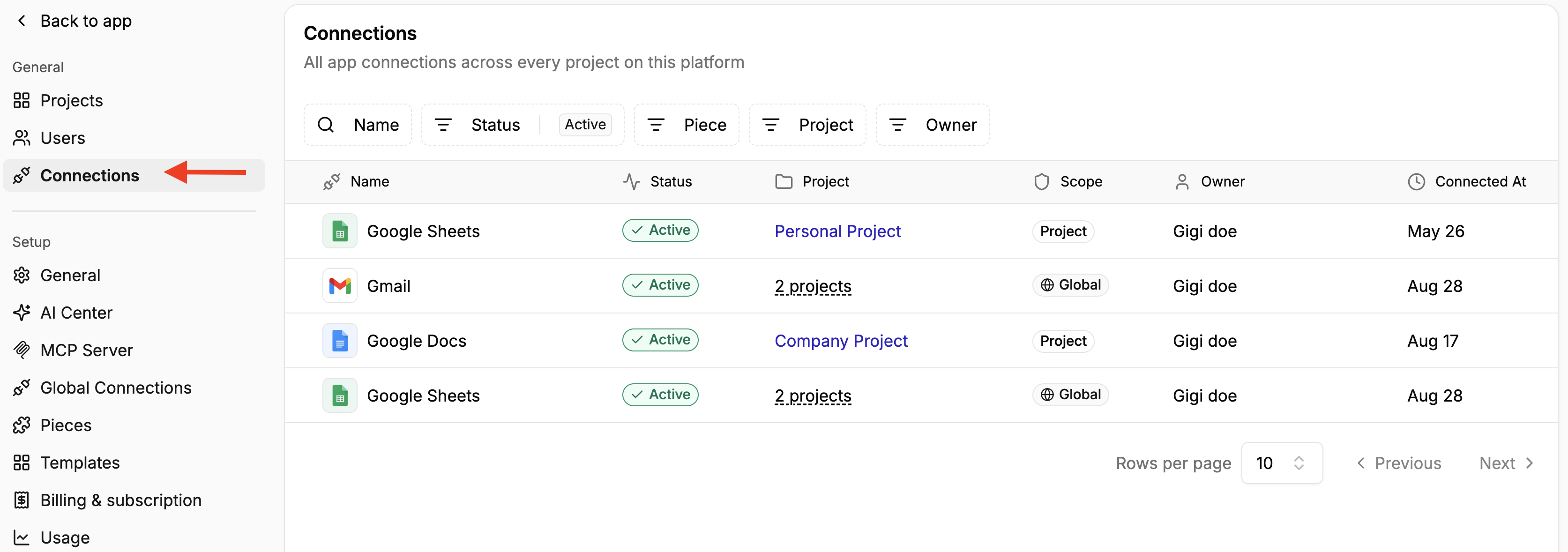
The Connections page in Platform Admin gives administrators a detailed view of all app connections across every project on the platform. You can filter connections by **name, status, piece, project, and owner**.
For each connection, you can see:
* Its current status
* The piece or app it belongs to
* The project and owner associated with it
* When the connection was created
* The scope (whether it is available to specific projects or is a **Global Connection**)
If it is a Global Connection, you can also see the different projects that have access to that connection.
Learn more about [Connections vs Global Connections](https://app.mintlify.com/activepieces/activepieces/editor/ginika%2Fdraft-aug-31/~/766e454b-da15-4ea1-9e26-de1c537fc45b)
As more teams build automations, the number of connected accounts can grow quickly. The Connections page gives platform admins a single place to see which accounts are connected, who owns them, where they are used, and whether they are still active.
For example, if an employee leaves the company, an admin can use the **Owner** filter to identify connections associated with that user and understand which projects may depend on them.
Regularly reviewing connections can also help identify outdated ones
### **Navigating Connections Via API**
Refer to [API reference](https://www.activepieces.com/docs/endpoints/connections/schema)
# Embedding
Source: https://www.activepieces.com/docs/admin-guide/guides/embedding
Embedding lets you make Activepieces automation capabilities available inside your own product or website.
The Embed Onboarding page helps platform admins configure the platform-level settings required before embedding Activepieces into an application.
### Set up Embedding
The onboarding process has four steps:
1. **Enter the embed URL:** Enter the domain where you want to embed Activepieces. Use a subdomain that your organization controls, for example: flows.acme.com Click Save domain to continue.
2. **Verify the DNS records:** Configure the provided DNS records for your domain and complete the verification process. This connects the domain you entered to your Activepieces embedded environment.
3. **Add allowed domains:** Add the domains that are allowed to host your embedded Activepieces experience. This lets you control which applications or websites can use the embedded experience.
4. **Add signing keys:** Add the signing keys required for your embedded setup. These keys are used as part of the authentication process between your application and Activepieces.
### **Learn more about Embedding**
This page covers the **platform-level setup** for Embedding.
For the complete guide to embedding Activepieces in your application, including user provisioning, authentication, and the **Embed SDK**, see the [Embedding documentation](/docs/embedding/overview).
# Event Streaming
Source: https://www.activepieces.com/docs/admin-guide/guides/event-streaming
Stream audit events to Datadog, PostHog, Grafana Loki, or any OpenTelemetry backend, or to a webhook as raw JSON
## Overview
Event Streaming sends every platform [audit event](/docs/admin-guide/security/audit-logs/overview) to a destination of your choice, as it happens. Each destination has a **format**:
* **OpenTelemetry (OTLP).** Each event is sent as an OpenTelemetry log record over OTLP/HTTP. This works with Datadog, PostHog, Grafana Loki, Grafana Cloud, New Relic, Honeycomb, Dynatrace, Elastic, SigNoz, Axiom, Better Stack, and any other backend that accepts OTLP logs. No collector or agent is needed in between.
* **Raw JSON.** The audit event is posted as-is to any webhook URL. Point it at a flow inside Activepieces and route each event to Slack, Gmail, Microsoft Teams, custom HTTP, and so on.
Use it to react to flow run failures, new sign-ins, project releases, or any other audit event with the tools you already use.
## Quick start
Creating a destination is a three-step page: **Destination**, **Events**, and **Connection**.
1. Open **Platform Admin → Security → Audit Logs → Event Streaming** and click **New Destination**.
2. **Destination** — pick **Send to an OpenTelemetry tool** or **Send to a webhook**. This choice sets the format, and you cannot change it once the destination is created.
3. **Events** — select the events to send.
4. **Connection** — paste the endpoint URL and add any headers the endpoint needs, such as an API key. For an OpenTelemetry tool, also pick the encoding. For a webhook, you can click **Generate handler flow** instead of pasting a URL, and Activepieces builds a flow to handle the events (see below). Use **Send test event** to fire a sample of any selected event.
5. Click **Create destination**.
### Generate a handler flow
Pick **Send to a webhook** on the Destination step, then click **Generate handler flow** on the Connection step. It builds a webhook-triggered flow with one router branch per event you selected, plus a nested branch for failed runs when you pick `flow.run.finished`. It fills the endpoint URL in for you. A webhook destination sends **Raw JSON**, which is the shape the generated flow routes on.
The flow lands in your personal project with sample data pre-baked, so you can hit Test right away. Add a router step under any event branch to check for specific project or flow ids, customize the branches with whatever pieces you like, then publish the flow and save the destination.
## Formats
### OpenTelemetry
Each event becomes one OTLP log record inside an `ExportLogsServiceRequest`, posted to the endpoint URL. Pick an encoding:
* **Protobuf** (recommended) — `Content-Type: application/x-protobuf`. This is the OTLP default and works with every backend listed below. Datadog, Dynatrace, and Elastic document only this encoding.
* **JSON** — `Content-Type: application/json`, the OTLP/JSON encoding. Pick it only when your receiver accepts JSON and not protobuf.
Paste the **full OTLP logs URL**, including its path — for example `https://otlp.datadoghq.com/v1/logs`. Activepieces posts to the URL exactly as you enter it and does not append `/v1/logs`. The path differs between vendors: Grafana Loki uses `/otlp/v1/logs` and PostHog uses `/i/v1/logs`.
Every log record carries:
| OTLP field | Value |
| - | - |
| `resource.attributes` | `service.name` = `activepieces` |
| `scope.name` | `activepieces.event-streaming` |
| `timeUnixNano` | when the event happened (the event's `created`) |
| `eventName` | the event name, for example `flow.run.finished` |
| `severityText` / `severityNumber` | `INFO` / `9` |
| `body` | the full audit event as a JSON string — the same bytes the Raw JSON format sends |
| `attributes` | `action`, `id`, `platformId`, `projectId`, `projectDisplayName`, `userId`, `userEmail`, `ip`, plus every field of `data` as a dotted key, for example `data.flowRun.status` |
An attribute is left out when the event does not have that field. Lists inside `data` are sent as one JSON string. Because every field is an attribute, you can filter and alert on it in your backend without a parser — for example `data.flowRun.status:FAILED` in Datadog.
Here is a `flow.run.finished` event in the OTLP/JSON encoding (the body string and some attributes are shortened):
```json theme={null}
{
"resourceLogs": [{
"resource": { "attributes": [{ "key": "service.name", "value": { "stringValue": "activepieces" } }] },
"scopeLogs": [{
"scope": { "name": "activepieces.event-streaming" },
"logRecords": [{
"timeUnixNano": "1790158542318000000",
"severityNumber": 9,
"severityText": "INFO",
"eventName": "flow.run.finished",
"body": { "stringValue": "{\"id\":\"Qz3vN8kLp2XwR7tY1mB4c\",\"action\":\"flow.run.finished\",\"data\":{...}}" },
"attributes": [
{ "key": "action", "value": { "stringValue": "flow.run.finished" } },
{ "key": "platformId", "value": { "stringValue": "Hd8sK2mWq9LxT4vB7nP1e" } },
{ "key": "projectDisplayName", "value": { "stringValue": "Finance Ops" } },
{ "key": "data.flowRun.duration", "value": { "intValue": "5214" } },
{ "key": "data.flowRun.flowDisplayName", "value": { "stringValue": "Invoice sync" } },
{ "key": "data.flowRun.status", "value": { "stringValue": "FAILED" } }
]
}]
}]
}]
}
```
### OpenTelemetry endpoints
| Backend | Logs endpoint | Authentication header | Encoding |
| - | - | - | - |
| Datadog | `https://otlp./v1/logs` — `` is `datadoghq.com`, `us3.datadoghq.com`, `us5.datadoghq.com`, `ap1.datadoghq.com`, `ap2.datadoghq.com`, `uk1.datadoghq.com`, `datadoghq.eu`, or `ddog-gov.com` | `dd-api-key: ` | Protobuf |
| Datadog Agent (7.48+) | `http://:4318/v1/logs` — set `DD_OTLP_CONFIG_LOGS_ENABLED=true` on the Agent | none | Protobuf |
| PostHog | `https://us.i.posthog.com/i/v1/logs` | `Authorization: Bearer ` | Protobuf or JSON |
| Grafana Loki 3.x | `http:///otlp/v1/logs` — needs schema v13 with structured metadata | `X-Scope-OrgID: ` when multi-tenant | Protobuf or JSON |
| Grafana Cloud | `https://otlp-gateway-prod-.grafana.net/otlp/v1/logs` — copy it from your stack's OpenTelemetry tile | `Authorization: Basic ` | Protobuf or JSON |
| New Relic | `https://otlp.nr-data.net/v1/logs` (EU: `https://otlp.eu01.nr-data.net/v1/logs`) | `api-key: ` | Protobuf |
| Honeycomb | `https://api.honeycomb.io/v1/logs` (EU: `https://api.eu1.honeycomb.io/v1/logs`) | `x-honeycomb-team: ` | Protobuf or JSON |
| Dynatrace | `https://.live.dynatrace.com/api/v2/otlp/v1/logs` | `Authorization: Api-Token ` | Protobuf |
| Elastic Cloud | the managed OTLP endpoint from the Cloud console, plus `/v1/logs` | `Authorization: ApiKey ` | Protobuf |
| SigNoz Cloud | `https://ingest..signoz.cloud:443/v1/logs` | `signoz-ingestion-key: ` | Protobuf |
| Axiom | `https:///v1/logs` | `Authorization: Bearer ` and `x-axiom-dataset: ` | Protobuf |
| Better Stack | `https:///v1/logs` | `Authorization: Bearer ` | Protobuf |
Where the table says Protobuf, pick **Protobuf**: the backend documents no JSON support. Splunk has no direct OTLP logs endpoint: run your own OpenTelemetry Collector with the Splunk HEC exporter and point the destination at the collector.
### Raw JSON
The destination receives the audit event itself as the JSON body, with `Content-Type: application/json`. This is also what every destination created before formats existed keeps sending.
* `action` — the event name (for example `flow.run.finished`).
* `data` — event-specific payload, including details like the flow id, run id, status, or affected user.
* `id`, `created`, `updated` — event identifiers and timestamps.
* `platformId`, `projectId` — context fields present on every event.
* `userId`, `userEmail`, `ip` — who did it and from where. These are filled in for events that come from a user request. The four `flow.run.*` events are emitted by a worker rather than a request, so they carry none of them.
A handler flow on this instance gets the JSON of its destination's format: the raw event for Raw JSON, and the OTLP/JSON request for the OpenTelemetry JSON encoding. A flow webhook accepts only JSON, so a destination that points at one cannot use the Protobuf encoding: the setup page switches it to JSON (and back to Protobuf if you then enter a URL that is not a flow webhook, unless you picked JSON yourself), and the API rejects Protobuf for a flow webhook URL with a `400`.
## Headers
Add any headers the endpoint requires — an `Authorization` bearer token, a `dd-api-key`, an `X-Scope-OrgID`, and so on. The delivery sets `Content-Type` from the format, and it also owns `Content-Length`, `Content-Encoding`, `Transfer-Encoding`, `Host`, and `Connection`, so none of these can be added as a custom header. A header name may appear only once, whatever its letter case.
A handler flow on this instance receives the custom headers too, with lowercase names, exactly as an HTTP request to its webhook would. A Catch Webhook trigger that uses header or basic authentication can check them.
Header values are **encrypted at rest and write-only**. When you reopen a destination, saved keys are listed with an empty value and the placeholder *Hidden — type to replace*:
* Leave a value empty to keep the stored value.
* Type a new value to replace it.
* Delete the whole row to remove the header.
Values are masked as you type; select the eye icon to show one.
The API behaves the same way: `GET` returns each header key with a `null` value, and sending `null` for a key on update keeps whatever is stored.
A stored value is bound to the URL it was saved against. **If you change the URL, you must re-enter every header value in the same save** — as soon as you change the URL, the form asks for a new value on each saved header you have not retyped, and the API answers `400` if an update changes the URL while keeping a stored value. This is what makes "write-only" true: without it, anyone who can edit a destination could point it at their own endpoint and have the next audit event deliver the secret for them.
## Test, enable, and disable
**Send test event** on the Connection step builds a sample of the event you choose and delivers it in the selected format. It reports the HTTP status code, the round-trip time, and the body that was sent, so you can confirm the shape before you save. For the Protobuf encoding the body is shown in its OTLP/JSON form, since protobuf bytes are not readable.
A test never reads a stored header value. It sends only the values typed into the form, so on a saved destination you must retype a secret to test with it. The button stays disabled, with a note, while any header value is blank or a header has an error. If the API refuses the test request itself, the card shows the reason. A result stays on screen only while the URL, headers, encoding, and event still match what was sent.
Each destination has an **Enabled** switch on the listing page. A disabled destination keeps its configuration but receives nothing. The switch changes only that setting; if the change fails, it flips back and a message shows the reason.
## Available events
You can subscribe a destination to any audit event — flow lifecycle, run status, folder/connection changes, user activity, and platform admin actions. See the [Audit Log Events catalog](/docs/admin-guide/security/audit-logs/overview#event-catalog) for the full list and per-event payload details.
## Requirements
* **Enterprise Edition**: Event Streaming requires a plan with Event Streaming enabled. Without it, no events are delivered.
* **Platform admin**: only platform admins can configure destinations.
* **HTTPS endpoint**: use HTTPS for any external endpoint. Audit events carry user emails and IP addresses, and Activepieces does not reject an `http://` URL for you.
* **Publicly accessible**: external endpoints must be reachable from your Activepieces server. Handler flows on this same instance are delivered internally, so they work even when the instance is not publicly reachable (for example, behind an internal load balancer).
## Troubleshooting
* **Events not received**: check the destination is enabled. For external endpoints, verify they are reachable from your server and return 2xx status codes. For a handler flow on this instance, make sure the flow is published and enabled.
* **`404` from an OpenTelemetry backend**: the URL is missing the logs path. Paste the full logs URL from the table above, not the base URL.
* **`415` or a decode error from an OpenTelemetry backend**: the backend does not accept the selected encoding. Switch the encoding to **Protobuf**.
* **Test fails**: check that your URL is valid and uses HTTPS. The test reports the status code returned by the endpoint, which usually names the problem.
* **Missing events**: make sure the event type is selected in your destination configuration.
* **A field is missing**: the field is not on that event. The four `flow.run.*` events carry no `userId`, `userEmail`, or `ip`, because a worker emits them rather than a user request.
## See also
* [Audit Logs](/docs/admin-guide/security/audit-logs/overview) — view every event recorded on your platform
# General
Source: https://www.activepieces.com/docs/admin-guide/guides/general
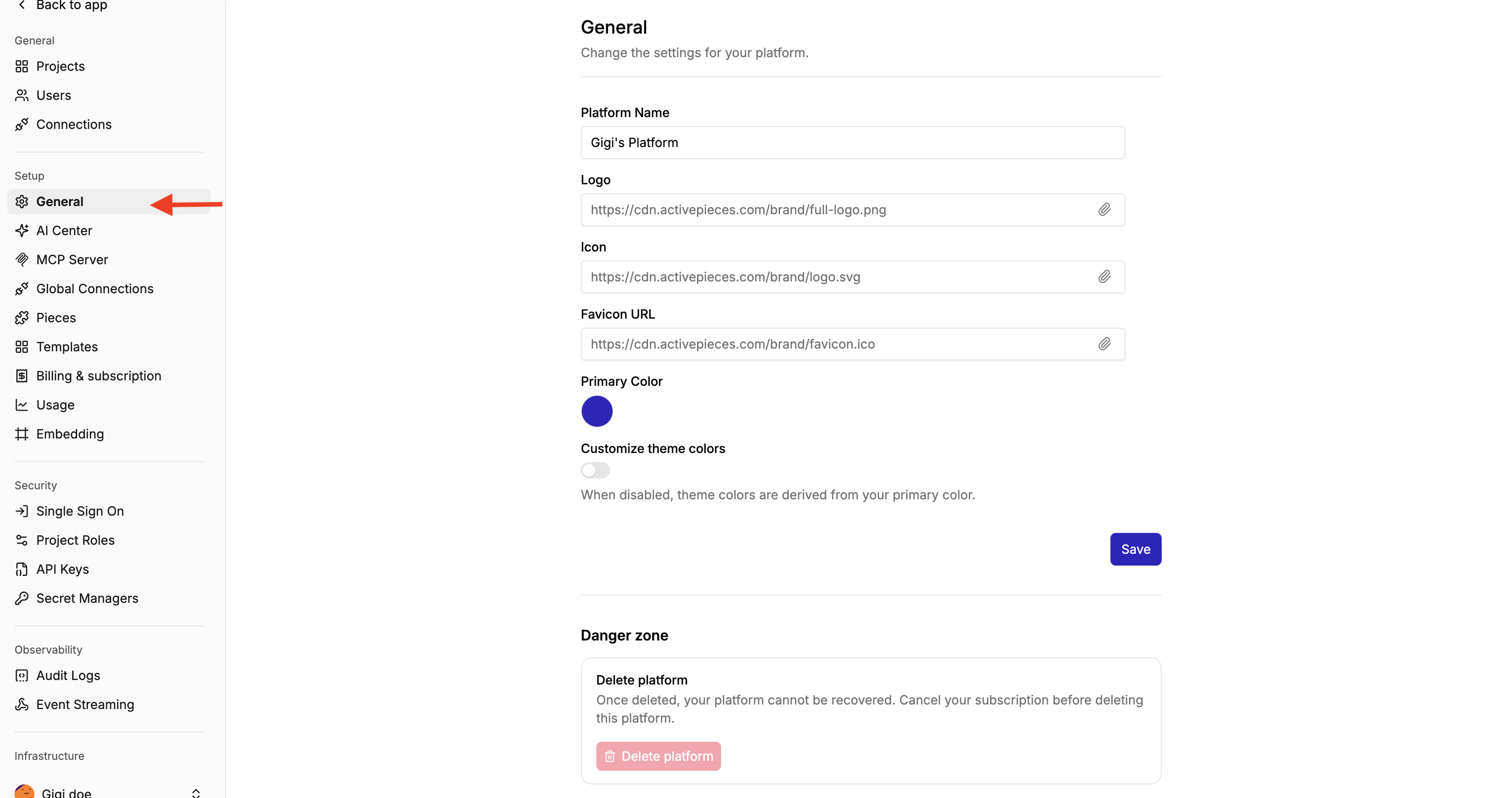
This is where you can change the basic appearance of your platform
You can change the platform name, icon, logo, favicon, primary color, and the danger, warning and success colors. Each color sets its whole scale in light and dark mode, and **Reset** puts a status color back on the standard palette.
You also have the **Danger Zone,** which is where you can delete your platform.
**NB:** Once your platform is deleted, it cannot be recovered. Ensure you cancel your subscription before deleting your platform.
# Global Connections
Source: https://www.activepieces.com/docs/admin-guide/guides/global-connections
Global Connections enable platform admins to create and manage connections to external apps that can be shared across multiple projects.
Instead of every project or user creating a separate connection to the same account, an organization can create one connection and make it available to the projects that need it.
For example, if several departments need to send emails from the same company Gmail account, an admin can create it as a Global Connection and give the appropriate projects access to it.
### **Viewing Global Connections**
The **Global Connections** page gives platform admins an overview of the global connections configured on the platform.
For each connection, you can see:
* **Name**: The app or integration connected
* **Status**: Whether the connection is currently active
* **Connected At**: When the connection was created
* **Projects**: How many projects have access to the connection
You can also search for connections and filter them by status.
### **Create a Global Connection**
You can create a new global connection using either
* **OAuth2**: Quickly connect using a preconfigured OAuth2 app. No setup required.
* **Custom OAuth2 App (Advanced)**: Connect using your own OAuth2 credentials for more flexibility and control.
* **Service Account (Advanced):** Connect using service account credentials for secure, non-user-based access to an external application.
**OAuth2**
**Step 1**: Go to **Platform Admin → Platform → Connections → Global Connections**.
**Step 2**: Click **New Connection**.
**Step 3**: Select the app you want to connect.
**Step 4**: Select which projects the connection should be available for
**Step 5**: Select if you want that connection to be included by default in new projects
**Step 6**: Select the permissions you want that connection to have
**Step 7**: Click Connect and follow the authentication instructions
**Step 8:** Click Save
#### **Custom OAuth2 App (Advanced) or Service Account (Advanced)**
**Step 1**: Go to **Platform Admin → Platform → Connections → Global Connections**.
**Step 2**: Click **New Connection**.
**Step 3**: Select the app you want to connect.
**Step 4**: Click **Try another method**
**Step 5:** Select **Custom OAuth2 App (Advanced)** or **Service Account (Advanced)** depending on what you want
You can search for Global Connections by typing the name of the connection in the search bar
You can also filter them by **Status**: Active, Error, or Missing.
### **Global Connections vs Connections**
A **Connection** is one account connected to Activepieces, such as a user's Gmail or Slack account. It is available only in the project where it was created. The Connections page in Platform Admin gives admins a central place to view and filter connections from all projects across the platform.
A **Global Connection** is a shared connection that a platform admin can make available to multiple projects in the platform. Use it when different projects need to use the same account without creating a separate connection for each project.
# Health
Source: https://www.activepieces.com/docs/admin-guide/guides/health
The Health page brings together system, run, and queue health so you can determine whether a problem is coming from your infrastructure, or individual flows.
## **System Health**
Use System Health to check whether the app and workers running Activepieces are healthy.
Activepieces checks areas such as version, release integrity, disk, RAM, and CPU and highlights anything that needs attention.
It also shows Daily job health for the last 30 days, so you can see whether platform jobs have been operating consistently over time.
If a system check needs attention, use the details shown for that check to determine which part of your deployment needs investigation.
## **Runs Health**
Use Runs Health to understand how reliably jobs are completing across your platform.
You can review job volume and success rate for a selected period and distinguish between successful, failed, cancelled, and internal-error jobs.
Internal errors are particularly useful when troubleshooting because they represent failures inside Activepieces, such as the engine or worker, rather than failures caused by your flow logic. Activepieces groups these errors by the projects and flows they affected so you can understand their impact.
## **Queue Health**
Use Queue Health to check whether jobs are moving through your execution queue normally.
It shows how many jobs are currently running or queued and highlights stuck jobs.
A growing queue or stuck jobs can help you identify execution problems that may require further investigation.
# Manage Concurrency
Source: https://www.activepieces.com/docs/admin-guide/guides/manage-concurrency
Control how many flows can run at the same time per project
## Overview
Concurrency limits control how many flow runs can execute simultaneously within a project. When a project reaches its limit, new runs are queued and retried automatically with exponential backoff until a slot becomes available.
This is useful to:
* Prevent a single project from consuming all available workers.
* Protect downstream APIs from being overwhelmed by too many parallel requests.
* Ensure fair resource distribution across projects on your platform.
## Setting a Per-Project Limit
1. Navigate to **Project Settings > General**.
2. Find the **Max Concurrent Jobs** field.
3. Enter the desired limit, or leave it empty to use the platform default.
4. Click **Save**.
When the field is empty, the project uses the default concurrency limit from your platform plan.
## What Happens When the Limit Is Reached
When a project hits its concurrency limit:
1. New flow runs are **not dropped** — they are queued.
2. The system retries queued runs with **exponential backoff**.
3. Once an active run finishes and a slot opens, the next queued run starts.
This means flows will always eventually execute, but they may experience delays when the project is at capacity.
## Programmatic Management via Embedding
If you are embedding Activepieces, you can manage concurrency limits programmatically through the JWT token used to provision users. This allows you to group multiple projects into a shared **concurrency pool** so they share the same limit.
See [Provision Users](/docs/embedding/provision-users) for the `concurrencyPoolKey` and `concurrencyPoolLimit` JWT claims.
# Override OAuth2 Apps
Source: https://www.activepieces.com/docs/admin-guide/guides/manage-oauth2
Use your own OAuth2 credentials instead of the default Activepieces apps
## Default Behavior
When users connect to services like Google Sheets or Slack, they see "Activepieces" as the app requesting access. This works out of the box with no setup required.
## Why Replace OAuth2 Apps?
* **Branding**: Show your company name instead of "Activepieces" in authorization screens
* **Higher Limits**: Some services have stricter rate limits for shared OAuth apps
* **Compliance**: Your organization may require using company-owned credentials
## How to Configure
1. Go to **Platform Admin → Catalogue → Pieces**
2. Find the piece you want to configure (e.g., Google Sheets)
3. Click the lock icon to open the OAuth2 settings
4. Enter your own Client ID and Client Secret
# Pieces
Source: https://www.activepieces.com/docs/admin-guide/guides/manage-pieces
Control which integrations are available to your users
## Overview
**Pieces** are the building blocks of Activepieces — they are integrations and connectors (like Google Sheets, Slack, OpenAI, etc.) that users can use in their automation flows.
As a platform administrator, you have full control over which pieces are available to your users. This allows you to:
* **Enforce security policies** by restricting access to certain integrations
* **Simplify the user experience** by showing only relevant pieces for your use case
* **Deploy custom/private pieces** that are specific to your organization
There are **two levels** of piece management:
| Level | Who Can Manage | Scope |
| - | - | - |
| **Platform Level** | Platform Admin | Install and remove pieces across the entire platform |
| **Piece Sets** | Platform Admin | Choose which pieces, actions, and triggers each project can use, and which actions a flow must contain to publish |
Pieces are standard npm packages — official pieces are **auto-synced from the registry hourly**, so you don't need to upgrade the server to get new versions. Each step in a flow is pinned to a specific piece version, and drafts can be upgraded from the builder. See [Piece Syncing & Versioning](/docs/install/architecture/piece-syncing) for the full pipeline.
***
## Platform-Level Management
Platform administrators can manage pieces for the entire Activepieces instance from **Platform Admin → Catalogue → Pieces**.
## Piece Sets
A piece set is a named list of the pieces, actions, and triggers that users can see in the builder. Every project uses exactly one piece set. Projects that you don't assign to a set use the **Default** set.
Manage piece sets from **Platform Admin → Catalogue → Pieces → Piece Sets**.
### Create a Piece Set and Assign Projects
Click **New Piece Set**, give it a name, and open it.
Click the **Assigned** button and select the projects that use this set. A project can use only one set, so a project that already uses another set moves to this one. The dialog shows each project's current set and warns you before a project moves.
### Choose the Pieces
* Turn a piece's switch off to hide it from the projects in this set.
* Select several pieces and use **Include** to set what they show:
* **Actions and triggers**: all actions and all triggers.
* **Actions only**: all actions and no triggers.
* **Triggers only**: all triggers and no actions.
Use **Exclude** to remove them from the set.
* **Auto-Include · New pieces** decides whether pieces installed later are visible in this set. It doesn't change the pieces you've already chosen.
### Choose the Actions and Triggers of a Piece
Click a piece row to open **Actions & triggers**:
* **All** makes every current and future action and trigger of the piece available.
* **Only selected** makes only the checked items available. Actions and triggers added to the piece later stay hidden until you check them. Use **Select all** to check or clear every item at once.
A piece set controls what users see in the builder. It does not stop a flow that already uses a hidden piece from running or being published.
### Required Actions
Use required actions when every published flow must use your own app — for example, an embedded integration that must always write to your product.
Open the piece set and go to the **Required actions** tab.
Under **Publishing flows rule**, choose:
* **At least one** (default): a flow must contain at least one of the required actions.
* **All required actions**: a flow must contain every required action.
Click **Add actions**, pick a piece, check the actions to require, and click **Save**. Only actions can be required, not triggers. The piece must be in the set.
Each piece has its own card. Click **Edit** on a card to change its actions, click the **×** on an action to remove it, or click **Remove all** to remove every required action.
Changes apply as soon as you make them.
When a flow doesn't meet the rule, publishing is blocked. The builder shows the missing actions and can add them to the end of the flow for you. The same check runs when a flow is published through the API, MCP, project releases, or Git sync. Replacing a connection does not run the check. For a flow that needs approval, the check runs before the request goes to the approver.
Good to know:
* A **skipped** step doesn't count, and neither does any step inside a skipped loop or branch.
* The **Pieces** tab shows how many required actions each piece has. In **Actions & triggers**, required actions have a **Required** badge.
* If a new version of a piece removes a required action, publishing ignores it. Its card shows it crossed out, with a note and a **Remove** button.
* Actions that only AI agents can use are ignored by the rule.
* New actions that a piece adds later are never required until you add them.
* Hiding a piece or an action that is required removes it from the required actions. The admin console asks you to confirm first.
* Flows that are already published keep running. The rule applies the next time a flow is published.
## Install Private Pieces
For detailed instructions on building custom pieces, check the [Building Pieces](/docs/build-pieces/building-pieces/overview) documentation.
If you've built a custom piece for your organization, you can upload it directly as a tarball (`.tgz`) file.
Build your piece using the Activepieces CLI:
```bash theme={null}
npm run pieces -- build --name=your-piece-name
```
This generates a tarball in `dist/packages/pieces/your-piece-name`.
Go to **Platform Admin → Catalogue → Pieces** and click **Install Piece**.
Choose **Upload File** as the installation source.
Select the `.tgz` file from your build output and upload it.
# Users
Source: https://www.activepieces.com/docs/admin-guide/guides/permissions
Activepieces utilizes Role-Based Access Control (RBAC) for managing permissions within projects. Each project consists of multiple flows and users, with each user assigned specific roles that define their actions within the project.
The Users tab is a dedicated place for your platform admin to manage, delete, activate, and deactivate users at the entire platform level, not just from projects.
### How To Invite a User To Your Platform
**Step 1**: Click on Users in the platform admin
**Step 2**: Navigate to the upper right and click the **invite** button
**Step 3**: Add the invitee’s email and assign them a role
**Step 4:** Click **Invite**
### **How To Edit User Role**
**Step 1**: Go to Users in the platform admin
**Step 2**: Click on the 3 dots to the right of the user you want to edit
**Step 3**: Click on Edit
####
Default Roles
Activepieces comes with four standard roles out of the box. The table below shows the permissions for each role:
| Permission | Admin | Editor | Operator | Viewer |
| - | :-: | :-: | :-: | :-: |
| **Flows** | | | | |
| View Flows | ✓ | ✓ | ✓ | ✓ |
| Edit Flows | ✓ | ✓ | | |
| Publish / Toggle Flows | ✓ | ✓ | ✓ | |
| **Runs** | | | | |
| View Runs | ✓ | ✓ | ✓ | ✓ |
| Retry Runs | ✓ | ✓ | ✓ | |
| **Connections** | | | | |
| View Connections | ✓ | ✓ | ✓ | ✓ |
| Edit Connections | ✓ | ✓ | ✓ | |
| **Team** | | | | |
| View Project Members | ✓ | ✓ | ✓ | ✓ |
| Add/Remove Project Members | ✓ | | | |
| **Git Sync** | | | | |
| Configure Git Repo | ✓ | | | |
| Pull Flows from Git | ✓ | | | |
| Push Flows to Git | ✓ | | | |
#### Custom Roles
If the default roles don't fit your needs, you can create custom roles with specific permissions.
Go to **Platform Admin** → **Security** → **Project Roles**
Click **Create Role** and give it a name
Select the specific permissions you want to grant to this role
Custom roles are useful when you need fine-grained control, such as allowing users to view and retry runs without being able to edit flows.
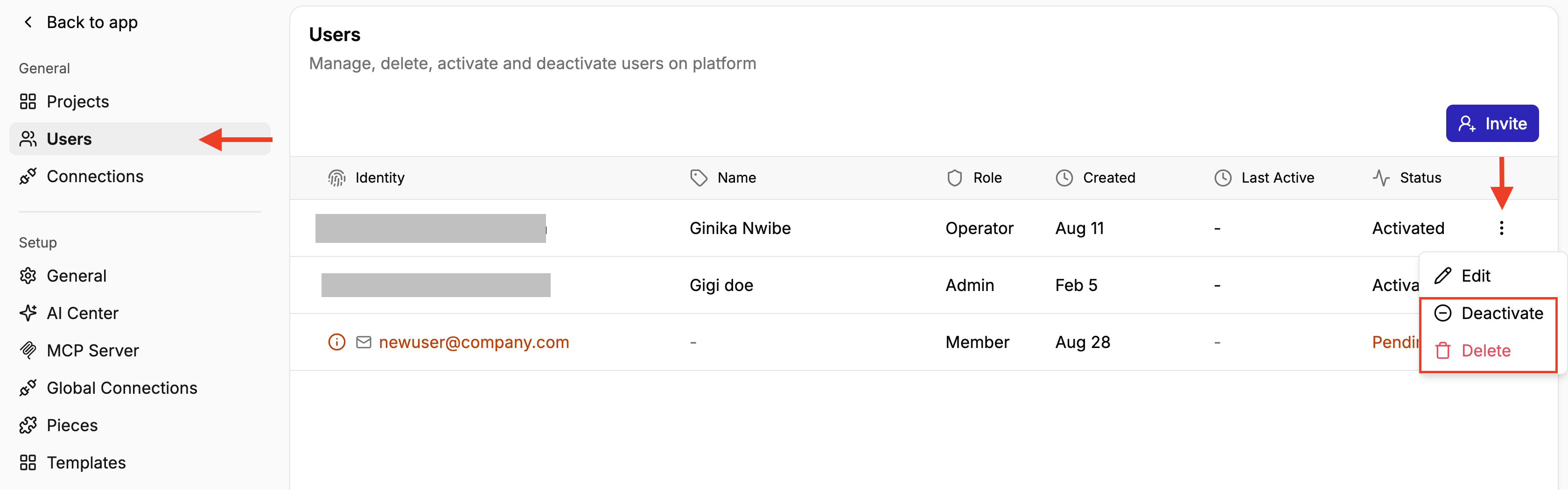
### **Deactivate & Delete User:**
**Step 1**: Click on Users in the platform admin
**Step 2**: Click on the 3 dots to the right of the user you want to delete or deactivate
**Step 3:** Click on either Delete or Deactivate depending on what you want
***NB***:
* If you **Deactivate a user**, they will lose access but won't lose all their data. You can always activate them again.
* However, if you **Delete** a user, all their data will be deleted as well.
### **Managing users in larger organizations**
For larger teams, managing users one by one can quickly become difficult. Instead, you can use [**Single Sign-On (SSO)**](https://app.mintlify.com/activepieces/activepieces/editor/ginika%2Fdraft-aug-31/~/dbcb5d11-21d1-444b-bd97-4a062786a2ec) to let users sign in with your organization’s identity provider and [**SCIM**](https://app.mintlify.com/activepieces/activepieces/editor/ginika%2Fdraft-aug-31/~/e1d21d0e-a53d-478d-9f6b-d788b5f01576) to automate user provisioning and deprovisioning.
This makes it easier to manage access as your organization grows without manually inviting, activating, or deactivating every user.
### **Navigating Users Via API**
Refer to [API reference](https://www.activepieces.com/docs/endpoints/users/schema)
# Project Releases
Source: https://www.activepieces.com/docs/admin-guide/guides/project-releases
Learn how to manage and deploy releases across projects
Project Releases allow you to sync flows, connections, and tables between different projects—essential for teams that want to develop in one environment and deploy to another with confidence.
**Example:** Build and test your automations in a **Staging** project, then seamlessly promote them to **Production** when ready. Simply navigate to your Production project → **Releases** → create a release from Staging, and all your changes will be applied instantly.
## Overview
There are three ways to create a release:
| Source | Description |
| - | - |
| **Git** | Pull changes from a connected Git repository |
| **Project** | Copy flows from another project in your instance |
| **Rollback** | Restore a previous release state |
## Prerequisites
### Enabling Environments
In your project dashboard, go to settings then to Environments and hit the enable button.
## Getting Started
Navigate to the **Releases** page from your project sidebar to view all releases and create new ones.
## Connecting Git (Optional)
If you want to use Git to track your changes, you'll need to connect a Git repository first. This requires the Environments feature to be enabled.
## Creating a Release
### From Project
Apply changes from flows, connections and tables in one project to another.
Click the **Create Release** dropdown button.
Choose **From Project** from the dropdown menu.
Choose the project you want to copy flows, connections and tables from.
Review the changes, and click **Apply Changes**.
New connections created during a release are placeholders and need to be reconnected with valid credentials after the release is applied.
### From Git
Click the **Create Release** dropdown button.
Choose **From Git** from the dropdown menu.
A dialog will appear showing all the changes that will be applied:
* **Flows Changes**: New, updated, or deleted flows
* **Connections Changes**: New or renamed connections
* **Tables Changes**: New, updated, or deleted tables
Check or uncheck the flows you want to include in this release.
Enter a **Name** and optional **Description** for your release.
Click **Apply Changes** to create the release.
## Push Everything to Git
If your project is connected to a Git repository, you can push all your flows, connections, and tables to Git.
Click the **Push Everything** button on the releases page.
Write a descriptive commit message explaining your changes.
Click **Push** to send all published flows to the Git repository.
## Pushing Individual Flows or Tables
You can also push specific flows or tables to Git without pushing everything.
You can only push published flows to git
Navigate to your flows or tables and select the items you want to push.
Click the **Push to Git** option.
Provide a commit message describing what you're pushing.
Click **Push** to send the selected items to Git.
## Rolling Back a Release
If something goes wrong after applying a release, you can easily rollback to a previous state.
Locate the release you want to rollback to in the releases list.
Click the rollback icon (↩) next to the release.
Review the changes that will be applied to restore that release state.
Select the changes to include and click **Apply Changes**.
## Release Details
Each release in the list shows:
| Column | Description |
| - | - |
| **Name** | The name you gave the release |
| **Source** | Where the release came from (Git, Project, or Rollback) |
| **Imported At** | When the release was created |
| **Imported By** | The user who created the release |
Click on any release to view its full details.
## Understanding the Changes Preview
When creating a release, you'll see a preview of all changes:
### Flow Changes
* New flows that will be created
* Existing flows that will be updated
* Flows that will be deleted
### Connection Changes
* New connections are placeholders and must be reconnected after the release
* Renamed connections
### Table Changes
* New, updated, and deleted tables are shown with their respective indicators
## Best Practices
Give your releases meaningful names like "v1.2.0 - Added email notifications" to easily identify them later.
Always review the changes preview carefully before applying a release to avoid unexpected modifications.
If using Git sync, test changes in a development project before deploying to production.
Use the description field to document what changed and why for future reference.
## Permissions
To create and manage releases, you need the **Write Project Release** permission. Contact your instance administrator if you don't have access to the releases feature.
## Troubleshooting
The Environments feature must be enabled on your instance plan to use Git sync. Contact your instance administrator to upgrade your plan or enable this feature.
* Verify your SSH private key is correctly formatted (ends with an endline), and make sure it has an empty phrase.
* Ensure the remote URL is in SSH format (not HTTPS)
* Check that the branch exists in the repository
If no changes appear when creating a release, it means your current project is already in sync with the source.
After applying a release with new connections, navigate to the Connections page and reconnect them with valid credentials.
Make sure you configured your git settings and if you are selecting flows, make sure they are published.
Navigate to **Project Settings** from the sidebar, then click on **Environment**. If you don't see this option, the Environments feature may not be enabled for your instance.
# Project Replace CLI
Source: https://www.activepieces.com/docs/admin-guide/guides/project-replace-cli
Mirror a project across Activepieces deployments from CI/CD without Git
The `@activepieces/cli` `project replace` command mirrors a project's flows, table schemas, and folders from one Activepieces deployment to another using direct API calls. Use it from CI/CD to promote work between independent staging and production instances when Git-based [Project Releases](/docs/admin-guide/guides/project-releases) aren't a fit.
**Use case:** A nightly GitHub Action runs `npx @activepieces/cli project replace --source-url=staging --dest-url=prod`. Staging is treated as the source of truth; production becomes a byte-for-byte mirror. The job fails before any write if the destination is missing required pieces or referenced connections.
## Prerequisites
* The **Environments** feature must be enabled on the destination platform's plan — see [Project Releases prerequisites](/docs/admin-guide/guides/project-releases#prerequisites).
* You need a **platform-scoped API key** (`SERVICE` principal) on **both** instances. The same project id format must be used on each side.
* Both deployments must share the same major Activepieces version, and the destination version must be greater than or equal to the source version.
## What gets mirrored
| Resource | Behavior |
| - | - |
| Flows | Created / updated / deleted on the destination by `externalId`. |
| Table schemas | Schema only — fields, name, externalId. **Row data is never copied.** |
| Folders | Mirrored by `externalId`. |
| Required pieces | Auto-installed on the destination at the source's exact pinned version (official + custom from npm). Replace aborts before any other writes if any install fails. |
| Connections | **Metadata auto-mirrored** (externalId, pieceName, displayName); secret values never cross the wire. New connections land on the destination as placeholders with `status: MISSING`. Operator authorizes each one in the destination UI before flows can run. |
| MCP servers, agents, project metadata, custom domains, app credentials | **Out of scope.** Not touched. |
## Command
```bash theme={null}
# API keys via env vars (recommended for CI — keeps secrets out of process args and shell history)
export AP_SOURCE_API_KEY="$STAGING_API_KEY"
export AP_DEST_API_KEY="$PROD_API_KEY"
npx @activepieces/cli project replace \
--source-url https://staging.activepieces.com \
--source-project "$STAGING_PROJECT_ID" \
--dest-url https://prod.activepieces.com \
--dest-project "$PROD_PROJECT_ID" \
[--json]
```
### Flags
| Flag | Required | Purpose |
| - | - | - |
| `--source-url` | yes | Base URL of the source instance (no trailing slash needed). |
| `--source-api-key` | flag *or* env | Platform API key for the source. Falls back to `AP_SOURCE_API_KEY`. |
| `--source-project` | yes | Project id on the source instance. |
| `--dest-url` | yes | Base URL of the destination instance. |
| `--dest-api-key` | flag *or* env | Platform API key for the destination. Falls back to `AP_DEST_API_KEY`. |
| `--dest-project` | yes | Project id on the destination instance. |
| `--json` | no | Emit machine-readable JSON instead of a human summary. |
**Don't pass API keys via `--source-api-key` / `--dest-api-key` flags in CI or production scripts.** Process arguments are visible to other users on the host (`ps aux`), get captured in CI log output, and persist in shell history. Use `AP_SOURCE_API_KEY` / `AP_DEST_API_KEY` environment variables instead — they don't show up in any of those places.
## Exit codes
| Code | Meaning |
| - | - |
| `0` | Apply succeeded; every item applied cleanly. |
| `1` | Apply succeeded but at least one item failed. Inspect `failed[]` in the response. |
| `2` | Server-side preflight failed (`422`). No writes occurred. |
| `3` | Server abort: piece install failed (`502`), generic 5xx, **or** another replace was already in progress on the destination project (`409`). |
| `4` | Local CLI / transport error — bad URL, unreachable host, invalid API key. |
## What happens when you run it
1. **CLI** lists the source project's flows, folders, and table schemas via the source instance's REST API.
2. **CLI** packages them into a `ProjectReplaceRequest` and `POST`s to `/v1/projects/:projectId/replace` on the destination.
3. **Destination** acquires a per-project `NoWait` lock. If another replace is in flight, it returns `409 REPLACE_IN_PROGRESS`.
4. **Destination preflight** (no writes if any of these fail):
* Activepieces version is parsed; same major + `dest >= source`.
* For every source connection: if the destination already has one with the same `externalId`, its `pieceName` must match.
5. **Install phase** — for each entry in `requiredPieces` not already on dest at the exact pinned version, the server installs it from npm (`packageType: REGISTRY`, scope: platform). All installs are attempted; if any fail, the response aborts with `502` listing every failure. **No other writes have happened at this point** — folders, tables, flows, and connections are still untouched.
6. **Apply phase** — connections, then folders, then tables, then flows are created/updated. Deletes run in reverse order. Each item runs in its own try/catch; per-item failures are collected, systemic 5xx errors abort the run.
7. **Audit event** `project.replaced` is emitted only when the apply phase ran — on `SUCCESS` or `PARTIAL_FAILURE`. Rejected attempts (preflight failure, install failure, lock contention) are not audited.
## Output
### Human-readable (default)
```text theme={null}
Replace finished in 1240ms
pieces : 1 installed
flows : 1 created, 2 updated, 0 deleted, 47 unchanged
tables : 0 created, 0 updated, 0 deleted, 5 unchanged
folders : 0 created, 1 updated, 0 deleted, 3 unchanged
connections : 1 created, 0 updated, 4 unchanged
1 piece(s) installed on destination:
- activepieces-onlinepay@0.0.7 (CUSTOM)
1 connection(s) need authorization on destination before flows can run:
- Slack Main (@activepieces/piece-slack) [externalId=slack_main]
```
### `--json`
```jsonc theme={null}
{
"applied": {
"flowsCreated": 1, "flowsUpdated": 2, "flowsDeleted": 0, "flowsUnchanged": 47,
"tablesCreated": 0, "tablesUpdated": 0, "tablesDeleted": 0, "tablesUnchanged": 5,
"foldersCreated": 0, "foldersUpdated": 1, "foldersDeleted": 0, "foldersUnchanged": 3,
"connectionsCreated": 1, "connectionsUpdated": 0, "connectionsUnchanged": 4
},
"failed": [
{ "kind": "flow", "externalId": "...", "op": "UPDATE", "error": "..." }
],
"piecesInstalled": [
{ "name": "activepieces-onlinepay", "version": "0.0.7", "pieceType": "CUSTOM" }
],
"connectionsAwaitingAuthorization": [
{ "externalId": "slack_main", "pieceName": "@activepieces/piece-slack", "displayName": "Slack Main" }
],
"durationMs": 1240
}
```
### Preflight failures (exit 2)
```jsonc theme={null}
{
"errors": [
{ "kind": "AP_VERSION_MISMATCH", "sourceVersion": "1.2.0", "destVersion": "1.1.5", "message": "..." },
{ "kind": "CONNECTION_PIECE_MISMATCH", "externalId": "slack_main", "expectedPieceName": "@activepieces/piece-slack", "foundPieceName": "@activepieces/piece-discord" }
]
}
```
The full set of preflight error kinds: `AP_VERSION_MISMATCH`, `PIECE_VERSION_MISMATCH`, `CONNECTION_PIECE_MISMATCH`.
### Install failures (exit 3, HTTP 502)
```jsonc theme={null}
{
"failures": [
{ "pieceName": "@activepieces/piece-slack", "version": "1.2.3", "pieceType": "OFFICIAL", "message": "ENGINE_OPERATION_FAILURE: ..." },
{ "pieceName": "pdfcrowd-piece-activepieces", "version": "0.0.5", "pieceType": "CUSTOM", "message": "..." }
]
}
```
When this happens, no flows / tables / folders / connections have been touched yet — the run aborted before the apply phase. Common causes: piece not on npm at that version, npm registry unreachable, engine crashed during metadata extraction, npm auth token missing on the destination platform for a private package.
## Idempotency and retries
Re-running the CLI after a partial failure converges to the source state. Items applied on the previous run are detected as unchanged via a typed deep-equality check and skipped; failed items are retried. The destination is left in a partially-applied state on hard failure — by design, since pause/restore would force downtime on every successful release.
The apply phase is **not wrapped in a single database transaction**, and that's deliberate:
* Partial-success semantics (`207` + `failed[]`) require successfully-applied items to persist across a sibling failure. A single transaction would roll back every successful folder/table/connection just because one flow's republish failed.
* Flow republish dispatches BullMQ jobs and trigger-source registrations that can't sit inside a SQL transaction.
* Recovery is by re-run, not rollback. Every operation matches by `externalId`, so a process crash mid-apply leaves the destination in some intermediate state that the next run's diff phase detects and finishes. CI/CD's natural retry handles process-level failures (OOM, SIGKILL, deploy timeout).
If your CI does want a clean "all-or-nothing" property at the workflow level, drive replace from a job step that retries on non-zero exit and treat success only as exit `0`.
## Connections
Connection metadata (externalId, pieceName, displayName) is mirrored to the destination as **placeholder records** with `status: MISSING`. Secret values (OAuth tokens, API keys, etc.) **never cross the wire** — each instance keeps its own.
After a replace, the CLI prints any connections that still need authorization on the destination:
```text theme={null}
1 connection(s) need authorization on destination before flows can run:
- Slack Main (@activepieces/piece-slack) [externalId=slack_main]
```
The operator opens the destination UI → **Connections** → reconnects each placeholder using the destination's credentials (a different Slack workspace, prod-grade API key, etc.). Until that's done, any flow run that uses the connection will fail at execution time. Re-running the CLI after authorization is a no-op for connections that are already `ACTIVE`.
If a connection on the destination already exists with the same `externalId` but a different `pieceName`, the replace fails preflight with `CONNECTION_PIECE_MISMATCH` so the conflict can be resolved without overwriting unrelated flows.
## GitHub Actions example
```yaml theme={null}
name: Promote staging to prod
on:
schedule:
- cron: '0 2 * * *'
workflow_dispatch:
jobs:
replace:
runs-on: ubuntu-latest
steps:
- uses: actions/setup-node@v4
with:
node-version: 20
- run: |
npx @activepieces/cli project replace \
--source-url "${{ vars.STAGING_URL }}" \
--source-project "${{ vars.STAGING_PROJECT_ID }}" \
--dest-url "${{ vars.PROD_URL }}" \
--dest-project "${{ vars.PROD_PROJECT_ID }}" \
--json
env:
AP_SOURCE_API_KEY: ${{ secrets.STAGING_API_KEY }}
AP_DEST_API_KEY: ${{ secrets.PROD_API_KEY }}
```
A non-zero exit code fails the job — preflight errors, server errors, or transport errors all surface naturally to GitHub Actions without extra wiring.
## Troubleshooting
Another replace is running against the same destination project. Wait a few seconds and retry — the lock is per-project and released as soon as the previous run finishes.
The CLI passed preflight but a required piece couldn't be installed on the destination. Check `failures[*].message` in the response — most commonly the piece doesn't exist on npm at that version, the registry is unreachable, or the engine crashed during metadata extraction. The replace aborted before any writes; fix the install issue and re-run.
The destination already has the piece installed at a different version than the source. Either upgrade/downgrade the destination piece manually, or update the source flow to use a version compatible with what's on the destination.
The replace mirrored the connection metadata as a placeholder; the destination still needs the secret. Open the destination UI → **Connections** → reconnect each placeholder. The replace response and CLI output list every connection that needs authorization.
The destination already has a connection with the same `externalId` but for a different piece. Either rename the source's externalId or delete/replace the conflicting connection on the destination before re-running.
The destination is on an older version or a different major than the source. Upgrade the destination first.
The destination platform's plan does not have the **Environments** feature enabled. Contact your platform owner.
# SCIM Overview
Source: https://www.activepieces.com/docs/admin-guide/guides/scim/overview
Automate user lifecycle management with SCIM in Activepieces.
## What is SCIM?
SCIM (System for Cross-domain Identity Management) lets your identity provider automatically create, update, and deactivate users in Activepieces.
## What SCIM Handles
* **Provision users** when they are assigned in your identity provider
* **Sync profile updates** such as name or email changes
* **Deprovision users** when access is removed or accounts are deactivated
## SCIM and SSO
SCIM handles user lifecycle management.
SSO handles sign-in and authentication.
You can use both together so user access is managed centrally in your identity provider.
## Supported Providers
Configure SCIM provisioning from Okta to Activepieces.
## Configuration
| Variable | Description | Default |
| - | - | - |
| `AP_SCIM_DEFAULT_PROJECT_ROLE` | The project role assigned to members when added via SCIM group sync. Accepted values: `Admin`, `Editor`, `Viewer`. | `Editor` |
# SCIM with Microsoft Entra ID
Source: https://www.activepieces.com/docs/admin-guide/guides/scim/providers/microsoft-entra-id
Configure SCIM provisioning from Microsoft Entra ID to Activepieces.
## Prerequisites
Before you start, make sure you have:
* **Admin access** to your Activepieces platform
* **Admin access** to your Microsoft Entra ID
* SSO already configured (recommended): [SAML with Microsoft Entra ID](/docs/admin-guide/guides/sso#saml-with-microsoft-entra-id-azure-ad)
* Generated an API key from `/platform/api-keys` route in the Activepieces app
## Configure SCIM Connection in Microsoft Entra ID
In Entra ID Admin Console, open your Activepieces application (created in first [SSO step](/docs/admin-guide/guides/sso#saml-with-microsoft-entra-id-azure-ad)).
Click on **provisioning** tab in the left menu, In the center of the page there will be **Create configuration** section, click on **Connect your application**.
**New provisioning configuration** page show with a form:
* **Authentication method** leave as deafult ( Bearer authentication )
* **Tenant URL** to `https://your-activepieces-domain/api/v1/scim/v2`
* **Secret token** to ``
Click **Test Connector Configuration** and confirm the test passes.
Finally, **Save** the configuration. after saving, you should get redirected to overview page.
## Attributes mapping
Before you actually start provisioning, you need to map the attributes between Entra ID and Activepieces.
In the overview page, click on **Attribute mapping** in the left menu. then select **Provision Microsoft Entra ID Users**. It should show enabled switch and **Target Object Actions** should all be checked ( Create, Update, Delete )
First you need to map the **userName** attribute to the field that represent the email address. by default it's mapped to userPrincipalName which is considered as an email address. but there's also a **mail** attribute that represent the email address. so you should choose the one that represents the actuall email used by your users.
Map the **externalId** ( Target attribute) to objectId ( Source attribute )
By default ( if you skip this ), the platform role of provisioned users will be set to `Member`. but it can be also mapped to entra ID fields.
Scroll down to bottom of the page and check **Show advanced options** -> **Edit attribute list for customappsso**, A new page with attributes table will be opened.
Scroll down to bottom of the table where there is a row with an input field, paste `urn:ietf:params:scim:schemas:activepieces:1.0:CustomUserAttributes:platformRole` and save
* After adding the attribute, you will be redirected back to the attribute mapping page. on the bottom of the table click **Add new mapping**, a form will be opened to map the attribute to the field that represents the platform role.
* in the **Target attribute** field, select the attribute you just added (`urn:ietf:params:scim:schemas:activepieces:1.0:CustomUserAttributes:platformRole`)
* Now the mapping is going to rely on how roles are represented in your entra ID. in Activepieces Platform role can be one of `MEMBER`, `OPERATOR`, `ADMIN`. this means that you need to map your entra ID role fields to these values.
* if you already use a field ( which is probably not the case ) that has exactly these values, you can map it directly by selecting **Mapping type** to **Direct** and selecting the field from the **Source attribute** field.
* else, you can map it by selecting **Mapping type** to **Expression** and writing an expression that maps your entra ID field(s) to one of `MEMBER`, `OPERATOR`, `ADMIN`. see [Expression mapping](https://learn.microsoft.com/en-us/entra/identity/app-provisioning/functions-for-customizing-application-data) for more details.
Finally, click **Save** above the table and confirm.
## Group provisioning
Groups are mapped to Activepieces projects. Members of the groups in entra ID will be added as members of the project in Activepieces. The name of the group will also be the display name of the project.
By default, all group memebers will have `Editor` role for the project. for now this can't be mapped like platform role. for self hosted customers they can change the env var `SCIM_DEFAULT_PROJECT_ROLE` to `Admin` or `Viewer`.
## Users and groups assignments
Assignments will allow you to select which users and groups that will be provisioned to Activepieces.
## Starting provisioning
Back at the overview page, click **Start provisioning** to enable it. it will happen automatically and periodically.
Provision on demand can be used to trigger a one-time provisioning of any selected users and groups.
# SCIM with Okta
Source: https://www.activepieces.com/docs/admin-guide/guides/scim/providers/okta
Configure SCIM provisioning from Okta to Activepieces.
## Prerequisites
Before you start, make sure you have:
* **Admin access** to your Activepieces platform
* **Admin access** to your Okta tenant
* SSO already configured (recommended): [SAML with Okta](/docs/admin-guide/guides/sso#saml-with-okta)
* Generated an API key from `/platform/api-keys` route in the Activepieces app
## Configure SCIM Connection in Okta
In Okta Admin Console, open your Activepieces application (created in first [SSO step](/docs/admin-guide/guides/sso#saml-with-okta)).
In the app's **General** tab, enable **SCIM Provisioning**.
**Provisioning** will be visible, go to it and set:
* **SCIM base URL** to `https://your-activepieces-domain/api/v1/scim/v2`
* **Unique identifier field** to `userName`
* **Authentication mode** to `HTTP Header`
* **Authorization** to `Bearer `
In Supported provisioning actions we support all **Push** actions
Click **Test Connector Configuration** and confirm the test passes.
## Configure Attribute Mapping
In **Provisioning -> To App -> Attribute Mappings**, map these fields:
| Activepieces (SCIM) | Okta Value |
| - | - |
| `userName` | `user.email` |
| `givenName` | `user.firstName` |
| `familyName` | `user.lastName` |
| `email` | `user.email` |
| `displayName` | `user.displayName` |
## Platform role mapping
By default, provisioned users will have `Member` role in the platform. In order to specify roles for users in Okta, follow these steps:
In Okta admin console, navigate to **Directory -> Profile Editor -> Your-Application User**.
Click **Add Attribute** and fill form with:
| Field | Value |
| - | - |
| `Display name` | `platformRole` |
| `Variable name` | `platformRole` |
| `External name` | `platformRole` |
| `External namespace` | `urn:ietf:params:scim:schemas:activepieces:1.0:CustomUserAttributes` |
| `Enum` | `enabled` |
For **Attribute members**, add:
| Display name | Value |
| - | - |
| `ADMIN` | `ADMIN` |
| `MEMBER` | `MEMBER` |
| `OPERATOR` | `OPERATOR` |
Finally click save.
This step assumes that you already have a field in the Okta user profile that you can map to platformRole in your Activepieces user profile. If you don't have one, you can create a new field in **Directory -> Profile Editor -> User (default)**.
* Back to your Activepieces application page in **Provisioning -> To App -> Attribute Mappings**
* Scroll down and click **Show Unmapped Attributes**
* Edit `platformRole` field
* Here you need to map the attribute value from your Okta user profile. If you already have a role field in the Okta user profile that matches exactly with a platformRole value (`ADMIN`, `MEMBER`, `OPERATOR`) then you can select it directly with `Map from Okta Profile` option, otherwise you can use an [Expression](https://developer.okta.com/docs/reference/okta-expression-language/) to return one of the 3 roles based on other fields in the Okta user profile.
Here is an example of an expression:
Please make sure the return value to always be one of `ADMIN`, `MEMBER` or `OPERATOR`
## Provision and Deprovision Users
### Provision
In the Activepieces application page, go to **Provisioning -> To App** and enable the actions you want to be applied to Activepieces when changes occur in Okta.
Now in the **Assignments** tab you can:
* Choose to provision individual users or groups. Note that groups in Okta will be projects in Activepieces.
* In case you don't have groups and you want to provision your Okta users at once, you can assign the `Everyone` group.
* When editing/creating users in an assigned group (including `Everyone`), they should be updated in Activepieces.
* To push groups to Activepieces, go to the **Push groups** tab and click on the push button, find the group and save.
Default role for users in projects will be `Editor` role, right now there is no way to link the project role with Okta
Created users in Activepieces will receive a welcome email. When clicked, they will be redirected to sign in with `SAML`.
### Deprovision
Users' state switches to `INACTIVE` in Activepieces only when they are deactivated in Okta. Suspension or deletion in Okta does not reflect in Activepieces because of Okta's design.
For groups you can delete them in **Push groups** tab -> click on button in **Push Status** column -> Unlink pushed group -> Delete the group in target
Deleting a group will delete the whole project in Activepieces with its flows and connections. Users linked to that group won't be affected.
## Troubleshooting
* Confirm SCIM base URL is correct.
* Ensure the `Authorization` header uses `Bearer` format.
* Ensure users are assigned to the Okta app.
* Confirm provisioning actions are enabled in Okta.
* Recheck mappings in **Provisioning -> To App**.
* Ensure `userName` uses a stable unique value (usually email).
# AWS Secrets Manager
Source: https://www.activepieces.com/docs/admin-guide/guides/secret-managers/aws
Connect AWS Secrets Manager to Activepieces for centralized secret management
AWS Secrets Manager helps you protect access to your applications, services, and IT resources. This integration uses **IAM user credentials** (Access Key + Secret Key) to authenticate directly with AWS Secrets Manager.
## Prerequisites
* An AWS account with permissions to create IAM users and policies
* Permissions to create and manage secrets in AWS Secrets Manager
## Step 1 — Create an IAM policy for Secrets Manager access
Create an IAM policy that grants read access to the secrets Activepieces will retrieve.
1. Open the [IAM console → Policies → Create policy](https://console.aws.amazon.com/iam/home#/policies\$new?step=edit).
2. Switch to the **JSON** tab and paste:
```json theme={null}
{
"Version": "2012-10-17",
"Statement": [
{
"Effect": "Allow",
"Action": [
"secretsmanager:GetSecretValue",
"secretsmanager:ListSecrets",
"secretsmanager:DescribeSecret"
],
"Resource": "*"
}
]
}
```
For production, scope `Resource` to the specific secret ARNs Activepieces needs instead of using `"*"`.
3. Click **Next**, name the policy (e.g. `ActivepiecesSecretsReadOnly`), and create it.
## Step 2 — Create an IAM user and attach the policy
1. Open the [IAM console → Users → Create user](https://console.aws.amazon.com/iam/home#/users\$new).
2. Enter a username (e.g. `activepieces-secrets-user`) and click **Next**.
3. Select **Attach policies directly**, find and attach the policy created in Step 1, then click **Next** and **Create user**.
4. Open the newly created user, go to the **Security credentials** tab, and click **Create access key**.
5. Select **Application running outside AWS**, click **Next**, then **Create access key**.
6. Copy the **Access Key** and **Secret Key** — you will need both in the next step.
## Step 3 — Connect in Activepieces
1. Go to **Platform Admin → Security → Secret Managers**.
2. Select **AWS Secrets Manager** from the provider list.
3. Enter the connection details:
* **Access Key** — the Access Key ID from Step 2 (e.g. `AKIAIOSFODNN7EXAMPLE`).
* **Secret Key** — the Secret Access Key from Step 2.
* **Region** — the AWS region where your secrets are stored (e.g. `us-east-1`).
4. Click **Connect** to test and save the connection.
## Using AWS Secrets Manager in connections
When configuring a global connection that requires credentials:
1. Click the **key icon** (🔑) next to the credential field.
2. Select **AWS Secrets Manager** as the secret manager.
3. Fill in:
* **Secret Name** — the friendly name of the secret in AWS Secrets Manager.
* **Secret Json key** — Key of row for the stored secret.
Activepieces will use the configured credentials to retrieve the secret value and inject it into the connection at runtime.
If you update existing secrets and you can't see the update reflected . refer to [caching](/docs/admin-guide/guides/secret-managers/overview#caching)
# CyberArk Conjur
Source: https://www.activepieces.com/docs/admin-guide/guides/secret-managers/cyberark-conjur
Connect CyberArk Conjur to Activepieces for centralized secret management
CyberArk Conjur is a secrets management solution that provides secure storage and access to credentials. Integration with Activepieces uses **host/API key authentication**: Activepieces authenticates as a Conjur host, receives a short-lived token, and uses it to retrieve secrets for which that host has `read` and `execute` permissions.
Conjur policies are defined in `.yml` files. For recommended structure and patterns, see [Policy best practices](https://docs.cyberark.com/conjur-enterprise/13.0/en/Content/Operations/Policy/policy-best-practices.htm) in the CyberArk Conjur documentation. For policy syntax and operators, see the [Policy syntax](https://docs.cyberark.com/conjur-open-source/Latest/en/Content/Operations/Policy/policy-syntax.htm) reference.
## Prerequisites
* A Conjur server (Conjur Cloud, Conjur Enterprise, or Conjur Open Source)
* A Conjur policy that defines a host for Activepieces and grants it access to the variables you want to use
## Conjur host configuration for Activepieces
To allow Activepieces to read secrets, configure a Conjur policy that declares a group, variables, a host, a layer, and the right permissions. The steps below describe how to create that policy file.
### Example policy (Activepieces)
The following policy defines a policy `activepieces` with a group, two variables, a host, a layer, and the grants so the host can read the variables.
```yaml theme={null}
- !policy
id: activepieces
body:
- !group activepieces-secrets
- &variables
- !variable
id: key-1
kind: password
- !variable
id: key-2
kind: password
- !permit
role: !group /activepieces/activepieces-secrets
privileges: [read, update, execute]
resources: *variables
- !host activepieces
- !layer activepieces
- !grant
role: !layer activepieces
members:
- !host activepieces
- !grant
role: !group activepieces-secrets
member: !layer activepieces
```
### Policy steps (summary)
1. **Declare a group** at the root of the policy (e.g. `activepieces-secrets`). This group will be allowed to read (and optionally execute) the variables.
2. **Declare variables** and give the group `read` and `execute` on them (so the host can fetch secret values):
```yaml theme={null}
- &variables
- !variable
id: my-secret
kind: password
- !permit
role: !group /your-policy/your-group
privileges: [read, execute]
resources: *variables
```
3. **Declare the host** that Activepieces will use (e.g. `activepieces`) and a **layer** (e.g. `activepieces`), and add the host to the layer:
```yaml theme={null}
- !host activepieces
- !layer activepieces
- !grant
role: !layer activepieces
members:
- !host activepieces
```
4. **Grant the layer membership in the group** that has access to the variables:
```yaml theme={null}
- !grant
role: !group activepieces-secrets
member: !layer activepieces
```
5. **Load the policy** into Conjur. Conjur will create the host and return an **API key** for that host. You will use this API key and the host identity when connecting Activepieces.
After loading the policy, Conjur returns something like:
```json theme={null}
{
"created_roles": {
"conjur:host:activepieces/activepieces": {
"id": "conjur:host:activepieces/activepieces",
"api_key": ""
}
},
"version": 1
}
```
Store the **api\_key** securely; you will enter it in Activepieces as the **API Key**.
## Server URL and organization
* **Conjur Cloud**: Use a URL of the form\
`https://.secretsmgr.cyberark.cloud/api/`\
and set **Organization account name** to `conjur` unless your Cloud tenant uses a different account.
* **On-prem / Enterprise**: Use your Conjur server base URL (e.g. `https://conjur.example.com`) and your organization account name.
## Connecting to Activepieces
1. Go to **Platform Admin → Security → Secret Managers**.
2. Select **CyberArk Conjur** from the provider list.
3. Enter the connection details:
* **URL**: Conjur server URL (e.g. `https://conjur.example.com` or Conjur Cloud URL above). Do not add a trailing slash.
* **Organization account name**: Your Conjur account (e.g. `conjur` for Conjur Cloud).
* **Login ID**: For host authentication this must be the Conjur host ID with a `host/` prefix, e.g. `host/activepieces/activepieces` (policy id and host name as in your policy).
* **API Key**: The host API key returned when the host was created (see policy load response above).
4. Click **Connect** to test and save the connection.
## Using CyberArk Conjur secrets in connections
When configuring a connection that uses a secret:
1. Click the **key icon** (🔑) next to the credential field.
2. Select a **CyberArk Conjur** connection from the list.
3. Enter the **Secret key**: the Conjur variable path in the form `policy_id/variable_id`.\
For the example policy above, use:
* `activepieces/key-1`
* `activepieces/key-2`
Activepieces will authenticate as the configured host and retrieve the secret from Conjur when the flow runs.
If you update existing secrets and you can't see the update reflected . refer to [caching](/docs/admin-guide/guides/secret-managers/overview#caching)
# HashiCorp Vault
Source: https://www.activepieces.com/docs/admin-guide/guides/secret-managers/hashicorp
Connect HashiCorp Vault to Activepieces for enterprise-grade secret management
HashiCorp Vault is an enterprise-grade secrets management system that provides secure storage and access to secrets, API keys, passwords, and other sensitive data.
## Prerequisites
Before connecting HashiCorp Vault to Activepieces, ensure you have:
* **HashiCorp Vault Key-value (KV) secrets engine** version 2
* **AppRole auth method** [enabled](https://developer.hashicorp.com/vault/docs/auth/approle)
* **One or more AppRoles** [configured](https://developer.hashicorp.com/vault/docs/auth/approle) with appropriate policies
## Policies
Enable The created AppRole to access your secrets engine(s) by adding the following to your policy
```
path "sys/mounts" {
capabilities = [ "read" ]
}
path "/data/" {
capabilities = [ "read" ]
}
```
or
```
path "sys/mounts" {
capabilities = [ "read" ]
}
path "/data/*" {
capabilities = [ "read" ]
}
```
## Connecting to Activepieces
1. Go to **Platform Admin → Security → Secret Managers**
2. Click **New Connection** and select **HashiCorp Vault**
3. Enter a **Name** for the connection
4. Choose a **Scope** — **Platform** to make it available to all projects, or **Project** to restrict it to specific projects
5. Fill in the connection details:
* **URL**: Your Vault server URL (e.g., `http://localhost:8200`)
* **Role ID**: The Role ID from your AppRole configuration
* **Secret ID**: The Secret ID from your AppRole configuration
* **Namespace** (optional): Vault namespace if using Vault Enterprise namespaces
6. Click **Save** to test and save the connection
## Using HashiCorp Vault Secrets
Once the connection is saved, you can reference Vault secrets inside any piece connection dialog — in global connections (Platform Admin) or directly in the flow builder.
1. Open a connection dialog and click the **key icon** (🔑) next to a credential field
2. Select your HashiCorp Vault connection from the dropdown
3. Enter the secret path in the format: `mount/data/path/to/secret/key`
For example, if you stored a secret with:
```bash theme={null}
vault kv put -mount=secret mysec api_key='supersecret'
```
The path to enter would be:
```
secret/data/mysec/api_key
```
The connection will automatically retrieve the secret from Vault when the flow runs.
If you update a secret in Vault and the change isn't reflected in your flows, the cached value may still be active. Use the **refresh icon** next to the connection in the Secret Managers page to clear its cache immediately, or wait up to 1 hour for it to expire automatically. See [Caching](/docs/admin-guide/guides/secret-managers/overview#caching) for details.
# 1Password
Source: https://www.activepieces.com/docs/admin-guide/guides/secret-managers/onepassword
Connect 1Password to Activepieces for centralized secret management
1Password Secrets Automation lets you securely store and retrieve credentials from 1Password vaults. This integration uses a **service account token** to authenticate with the 1Password SDK.
## Prerequisites
* A 1Password account with the **Teams** or **Business** plan (service accounts require a paid plan)
* Permission to create service accounts in your 1Password account
## Step 1 — Create a service account
1. Sign in to [1password.com](https://1password.com) and go to **Developer Tools → Service Accounts**.
2. Click **Create a service account**.
3. Give it a name (e.g. `Activepieces`).
4. Grant it **Read Items** access on the vaults Activepieces needs to access.
5. Click **Create service account** and copy the token — it starts with `ops_` and is shown only once.
Store the token securely. Once you leave the page, 1Password will not show it again.
## Step 2 — Connect in Activepieces
1. Go to **Platform Admin → Security → Secret Managers**.
2. Select **1Password** from the provider list.
3. Paste the **Service Account Token** from Step 1.
4. Click **Connect** to test and save the connection.
## Using 1Password in connections
When configuring a global connection that requires credentials:
1. Click the **key icon** (🔑) next to the credential field.
2. Select a **1Password** connection from the list.
3. Enter the **Secret Reference** in the format:
```
op://vault/item/field
```
* **vault** — the vault name or ID (e.g. `Production`)
* **item** — the item title or ID (e.g. `Stripe`)
* **field** — the field label within the item (e.g. `password`, `api key`)
Activepieces will retrieve the secret value from 1Password and inject it into the connection at runtime.
## Example secret references
| 1Password location | Reference |
| - | - |
| Vault `Production` → Item `Stripe` → Field `Secret Key` | `op://Production/Stripe/Secret Key` |
| Vault `Shared` → Item `Database` → Field `password` | `op://Shared/Database/password` |
If you update existing secrets and you can't see the update reflected, refer to [caching](/docs/admin-guide/guides/secret-managers/overview#caching).
# Overview
Source: https://www.activepieces.com/docs/admin-guide/guides/secret-managers/overview
Connect external secret management systems to securely store and retrieve credentials
Secret Managers allow you to integrate external secret management systems with Activepieces, enabling centralized credential management and enhanced security for your global connections.
## Benefits
* **Centralized Management**: Store all credentials in one secure location
* **Enhanced Security**: Credentials are managed by dedicated secret management systems
* **Audit & Compliance**: Track access and changes to secrets
* **Rotation Support**: Easily rotate credentials without updating flows
* **Access Control**: Use your existing secret manager access policies
## Supported Providers
* **[HashiCorp Vault](./hashicorp)** - Enterprise-grade secrets management
* **[CyberArk Conjur](./cyberark-conjur)** - Centralized secrets management with host-based authentication
* **[AWS Secrets Manager](./aws)** - Managed secrets storage on AWS
* **[1Password](./onepassword)** - Consumer and team password manager with Secrets Automation
## How to Connect
1. Go to **Platform Admin → Security → Secret Managers**
2. Click **New Connection**
3. Select the secret manager provider you want to connect
4. Enter a **Name** for the connection
5. Choose a **Scope** (see [Connection Scopes](#connection-scopes) below)
6. Follow the provider-specific setup instructions in the provider documentation
7. Enter the required connection details
8. Click **Save** to test and save the connection
The connection will be encrypted and stored securely. You can edit or delete it at any time from the Secret Managers page.
## Connection Scopes
Each secret manager connection has a **scope** that controls which projects can use it:
| Scope | Description |
| - | - |
| **Platform** | Available to all projects on the platform |
| **Project** | Restricted to specific projects you select |
When creating or editing a connection, select **Project** scope and choose the projects that should have access. Platform-scoped connections are always visible to all projects.
## Using Secret Managers in Connection Dialogs
Once connected, you can reference secrets from your secret managers when configuring piece connections:
1. Open a connection dialog (either a global connection or one inside the flow builder)
2. Click the **key icon** (🔑) next to a credential field
3. Select a secret manager connection from the dropdown
4. Enter the secret path/identifier required by your provider (see provider-specific documentation)
5. The connection will automatically retrieve the secret from your secret manager when needed
**Global connections (Platform Admin):** All platform-scoped and project-scoped secret manager connections are available to select.
**Flow builder connections:** Only secret manager connections that are accessible to the current project are shown — this includes platform-scoped connections and project-scoped connections assigned to that project.
## How It Works
When you use a secret manager in a connection:
* The global connection stores a reference to the secret (not the actual credential)
* When the flow runs, Activepieces authenticates with your secret manager and retrieves the secret
* Secrets are fetched on-demand and never stored in Activepieces
* If the secret is updated in your secret manager, flows will use the new value after the cache expires (up to 1 hour), or immediately after clearing the cache
## Caching
Connection checks and retrieved secrets are cached in Redis (encrypted) for **1 hour** to reduce latency and provider API load.
To force a refresh (e.g. after rotating credentials or updating secrets), platform admins can clear the cache per connection using the **refresh icon** next to each connection row in the Secret Managers page.
You can also clear the cache via the API. Omit `connectionId` to clear all cached entries for the platform, or pass a `connectionId` to clear only that connection's cache:
```bash theme={null}
# Clear cache for a specific connection
curl --request DELETE \
--url 'https:///api/v1/secret-managers/cache?connectionId=' \
--header 'Authorization: Bearer '
# Clear all platform cache entries
curl --request DELETE \
--url 'https:///api/v1/secret-managers/cache' \
--header 'Authorization: Bearer '
```
## Security Considerations
* **Encryption**: Secret managers authentication configuration is encrypted
* **Access Control**: Use your secret manager's access policies to control who can access secrets
* **Network Security**: Ensure your secret manager is accessible from your Activepieces instance
* **Credential Management**: Regularly rotate authentication credentials for secret managers
## Troubleshooting
**Connection Failed:**
* Verify the connection details are correct and accessible
* Check that authentication credentials are valid
* Ensure network connectivity between Activepieces and your secret manager
* Review provider-specific troubleshooting guides
**Secret Not Found:**
* Verify the secret path/name is correct
* Check that the secret exists in your secret manager
* Ensure the authentication credentials have permissions to read the secret
**Permission Denied:**
* Verify the authentication credentials have the necessary permissions
* Check your secret manager's access control policies
* Review audit logs in your secret manager for detailed error information
# AI Providers
Source: https://www.activepieces.com/docs/admin-guide/guides/setup-ai-providers
Bring your own AI keys and use them across every project
AI Providers lets platform administrators connect the AI services that can be used by [AI pieces](https://www.activepieces.com/pieces/ai).
Instead of every user adding their own provider credentials, an administrator can configure supported providers centrally and make them available for use across the platform.
### **Why use AI Providers?**
AI Providers gives organizations one place to control which AI services are connected to Activepieces.
This is especially useful for larger teams that want to:
* Use company-managed AI provider accounts instead of personal accounts
* Keep provider credentials managed centrally
* Standardize which AI providers teams use
* Apply company security and access policies to AI usage
### **How Connect to an AI Provider**
**Step 1**: Go to **Platform Admin → Catalogue → AI Center → Providers**.
**Step 2:** Find the provider you want to configure.
**Step 3**: Click **Connect**.
**Step 4**: Follow the instructions shown for that provider and enter the required credentials.
**Step 5**: Click **Save**.
Once configured, the provider can be used by supported AI features in Activepieces.
## Supported providers
**Model providers**
* OpenAI
* Anthropic
* Google Gemini
* Mistral AI
* DeepSeek
* xAI
* Qwen
* Z.ai
* MiniMax
* Moonshot AI
**Cloud platforms**
* Azure
* AWS Bedrock
**Gateways**
* OpenRouter
* Cloudflare AI Gateway
**Anything else**
* Other (OpenAI Compatible)
**Other (OpenAI Compatible)** covers any endpoint that speaks the OpenAI API, including self-hosted models and gateways not listed here. Point it at your own base URL.
## Cost control and logging
Spend on your own key goes to your provider, so put a gateway in front of it when you want limits and an audit trail:
* Set rate limits and budgets
* Log and monitor every AI request
* Track usage across projects
**OpenRouter** and **Cloudflare AI Gateway** are set up like any other provider. Any other gateway that speaks the OpenAI API works through **Other (OpenAI Compatible)**, so LiteLLM, Portkey, Helicone, and self-hosted routers are all fine.
## Supported providers
**Model providers**
* OpenAI
* Anthropic
* Google Gemini
* Mistral AI
* DeepSeek
* xAI
* Qwen
* Z.ai
* MiniMax
* Moonshot AI
**Cloud platforms**
* Azure
* AWS Bedrock
**Gateways**
* OpenRouter
* Cloudflare AI Gateway
**Anything else**
* Other (OpenAI Compatible)
**Other (OpenAI Compatible)** covers any endpoint that speaks the OpenAI API, including self-hosted models and gateways not listed here. Point it at your own base URL.
## Cost control and logging
Spend on your own key goes to your provider, so put a gateway in front of it when you want limits and an audit trail:
* Set rate limits and budgets
* Log and monitor every AI request
* Track usage across projects
**OpenRouter** and **Cloudflare AI Gateway** are set up like any other provider. Any other gateway that speaks the OpenAI API works through **Other (OpenAI Compatible)**, so LiteLLM, Portkey, Helicone, and self-hosted routers are all fine.
**Azure** and **AWS Bedrock** give you the same thing through your cloud account's own quotas and logs**Azure** and **AWS Bedrock** give you the same thing through your cloud account's own quotas and logs.
You can add several providers at once and pick the model per agent or per step, so the expensive models only run on the work that needs them.
You can add several providers at once and pick the model per agent or per step, so the expensive models only run on the work that needs them.
# How to Setup SSO
Source: https://www.activepieces.com/docs/admin-guide/guides/sso
Configure Single Sign-On (SSO) to enable secure, centralized authentication for your Activepieces platform
## Overview
Single Sign-On (SSO) allows your team to authenticate using your organization's existing identity provider, eliminating the need for separate Activepieces credentials. This improves security, simplifies user management, and provides a seamless login experience.
## Prerequisites
Before configuring SSO, ensure you have:
* **Admin access** to your Activepieces platform
* **Admin access** to your identity provider (Google, GitHub, Okta, or JumpCloud)
* The **redirect URL** from your Activepieces SSO configuration screen
## Accessing SSO Configuration
Navigate to **Platform Settings** → **SSO** in your Activepieces admin dashboard to access the SSO configuration screen.
## Enforcing SSO
You can enforce SSO by specifying your organization's email domain. When SSO enforcement is enabled:
* Users with matching email domains must authenticate through the SSO provider
* Email/password login can be disabled for enhanced security
* All authentication is routed through your designated identity provider
We recommend testing SSO with a small group of users before enforcing it organization-wide.
## SSO Domain
The **SSO Domain** lets you map a public domain (e.g. `acme.com`) to your platform's SAML provider so users can discover the right IdP from the shared sign-in page.
You can set it in the SAML configuration dialog (**Platform Settings → SSO → SAML 2.0 → Enable**), in the **SSO Domain** field. Leave it empty to disable domain-based discovery.
**How it works on Cloud**
On the cloud sign-in page, clicking **Sign in with SAML** opens a dialog asking the user for their organization's domain. When they enter `acme.com`, the platform whose SSO Domain matches is looked up and the user is redirected to that platform's identity provider.
**Constraints**
* Must be a valid public hostname containing a dot (e.g. `acme.com`, not `acme`).
* Each domain can be claimed by only one platform on Cloud.
On self-hosted Enterprise instances the SAML button on the sign-in page redirects directly to the configured identity provider, so the **SSO Domain** field is effectively ignored at login. You can still leave it empty.
## Supported SSO Providers
Activepieces supports multiple SSO providers to integrate with your existing identity management system.
### Google
Go to the [Google Cloud Console](https://console.cloud.google.com/) and select your project (or create a new one).
Navigate to **APIs & Services** → **Credentials** → **Create Credentials** → **OAuth client ID**.
Select **Web application** as the application type.
Copy the **Redirect URL** from the Activepieces SSO configuration screen and add it to the **Authorized redirect URIs** in Google Cloud Console.
Copy the **Client ID** and **Client Secret** from Google and paste them into the corresponding fields in Activepieces.
Click **Finish** to complete the setup.
### SAML with Okta
Go to the [Okta Admin Portal](https://login.okta.com/) → **Applications** → **Create App Integration**.
Choose **SAML 2.0** as the sign-on method and click **Next**.
Enter an **App name** (e.g., "Activepieces") and optionally upload a logo. Click **Next**.
* **Single sign-on URL**: Copy the SSO URL from the Activepieces configuration screen
* **Audience URI (SP Entity ID)**: Enter `Activepieces`
* **Name ID format**: Select `EmailAddress`
Add the following attribute mappings:
| Name | Value |
| - | - |
| `firstName` | `user.firstName` |
| `lastName` | `user.lastName` |
| `email` | `user.email` |
Click **Next**, select the appropriate feedback option, and click **Finish**.
Go to the **Sign On** tab → **View SAML setup instructions** or **View IdP metadata**. Copy the Identity Provider metadata XML.
* Paste the **IdP Metadata** XML into the corresponding field
* Copy the **X.509 Certificate** from Okta and paste it into the **Signing Key** field
* (Optional, Cloud) Set the **SSO Domain** to your organization's public domain (e.g. `acme.com`) so users can sign in by entering it on the cloud sign-in page. See [SSO Domain](#sso-domain) above.
Click **Save** to complete the setup.
### SAML with Microsoft Entra ID (Azure AD)
Go to the [Azure Portal](https://portal.azure.com/) → **Microsoft Entra ID** → **Enterprise applications** → **New application** → **Create your own application**.
Name it (e.g., "Activepieces") and select **Integrate any other application you don't find in the gallery (Non-gallery)**.
Open the application → **Single sign-on** → select **SAML**.
Edit **Basic SAML Configuration**:
* **Identifier (Entity ID)**: `Activepieces`
* **Reply URL (Assertion Consumer Service URL)**: paste the SSO URL from the Activepieces configuration screen
Edit **Attributes & Claims** and add these additional claims (leave **Namespace** empty):
| Claim name | Source attribute |
| - | - |
| `firstName` | `user.givenname` |
| `lastName` | `user.surname` |
| `email` | `user.mail` |
In the **SAML Certificates** section, copy the **App Federation Metadata Url**.
You can paste this URL directly into the **IdP Metadata** field in Activepieces — Activepieces will fetch the metadata XML automatically. Alternatively, open the URL in a browser, save the XML, and paste its contents.
Download the **Certificate (Base64)** from the **SAML Certificates** section. Open the file and copy its contents (including the `-----BEGIN CERTIFICATE-----` / `-----END CERTIFICATE-----` markers) into the **Signing Key** field in Activepieces.
Go to **Users and groups** in the application and assign the users or groups that should be allowed to sign in.
Click **Save** in Activepieces to complete the setup.
### SAML with JumpCloud
Go to the [JumpCloud Admin Portal](https://console.jumpcloud.com/) → **SSO Applications** → **Add New Application** → **Custom SAML App**.
Copy the **ACS URL** from the Activepieces configuration screen and paste it into the **ACS URLs** field in JumpCloud.
Set the **SP Entity ID** (Audience URI) to `Activepieces`.
Configure the following attribute mappings:
| Service Provider Attribute | JumpCloud Attribute |
| - | - |
| `firstName` | `firstname` |
| `lastName` | `lastname` |
| `email` | `email` |
JumpCloud does not include the `HTTP-Redirect` binding by default. You **must** enable this option.
Without HTTP-Redirect binding, the SSO integration will not work correctly.
Click **Save**, then refresh the page and click **Export Metadata**.
Verify that the exported XML contains `Binding="urn:oasis:names:tc:SAML:2.0:bindings:HTTP-Redirect"` to ensure the binding was properly enabled.
Paste the exported metadata XML into the **IdP Metadata** field in Activepieces.
Locate the `` element in the IdP metadata and extract its value. Format it as a PEM certificate:
```text theme={null}
-----BEGIN CERTIFICATE-----
[PASTE THE CERTIFICATE VALUE HERE]
-----END CERTIFICATE-----
```
Paste this into the **Signing Key** field.
In JumpCloud, assign the application to the appropriate users or user groups.
Click **Finish** to complete the setup.
## Troubleshooting
* Verify the redirect URL is correctly configured in your identity provider
* Ensure users are assigned to the application in your identity provider
* Check that email domains match the SSO enforcement settings
* Confirm the IdP metadata is complete and correctly formatted
* If you pasted a metadata URL, make sure it is publicly reachable (Activepieces fetches it server-side)
* Verify the signing certificate is properly formatted with BEGIN/END markers
* Ensure all required attributes (firstName, lastName, email) are mapped
* Enable the HTTP-Redirect binding option in JumpCloud
* Re-export the metadata after enabling the binding
* Verify the binding appears in the exported XML
## Need Help?
If you encounter issues during SSO setup, please contact our enterprise support or [sales team](https://www.activepieces.com/sales).
# Projects
Source: https://www.activepieces.com/docs/admin-guide/guides/structure-projects
### **What is a project:**
Projects help you organize automations and resources for different teams or areas of work. Each project has its own flows, connections, and tables, which are only shared with users who have access to that project.
Being invited to the platform does not automatically give a user access to every project. Users only see the projects they have access to, while **platform admins can access all projects**.
### **Why you need projects:**
For example, each department can have its own project, so other departments can’t access its connections or credentials.
In the following parts under this project section, we will explore everything that you do within a project.
### **Personal and Team Projects:**
In Activepieces, you have two types of projects:
**Personal projects:** A personal project has a single member, its owner, so no other member of the platform sees its flows, connections, or tables. It gives users a safe space to experiment and try new ideas without affecting shared company projects or data. However, as with every project, platform admins and operators can still access it. Operators are automatically granted Editor access to every project on the platform, including personal ones, letting them view and modify its flows, connections, tables, and variables.
New users get a personal project on signup by default. Platform admins can turn this off with **Automatic personal project creation** on the **Platform Admin → Projects** page — useful when you provision users into team projects manually, for example through SSO or SCIM. While it is off, new users start without a personal project and land on a team project they have been given access to instead.
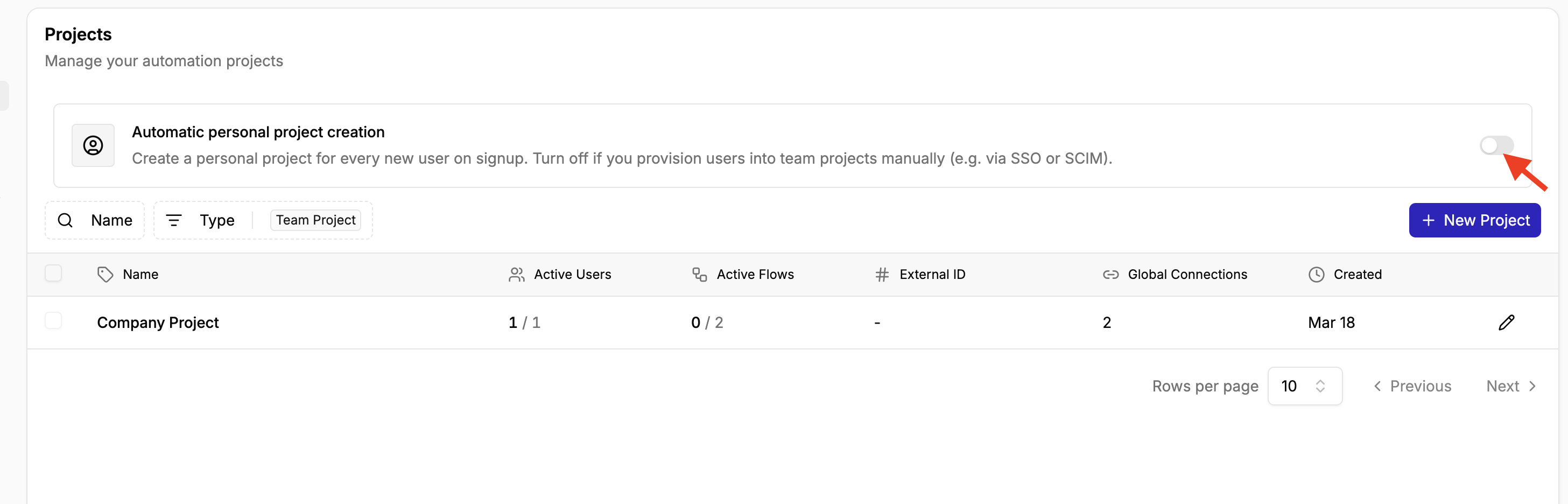
**Team Projects:** Team projects are shared workspaces where multiple users can collaborate on automations. Members of a team project can share access to its flows, connections, and tables. Team projects are useful for organizing and managing automation work that needs to be shared across a team.
### **Creating and Managing Projects**
* **Creating A New Project**
**Step 1**: Navigate to the platform admin on the lower left of your dashboard
**Step 2**: Click on **Projects** on the left sidebar
**Step 3**: Click on **+ New Project**
**Step 4**: Add the project name
**Step 5:** Add alert receiver email (This person receives emails when there is a flow failure in that project)
**Step 6:** Add [Global Connection](https://app.mintlify.com/activepieces/activepieces/editor/ginika%2Fdraft-aug-31/~/766e454b-da15-4ea1-9e26-de1c537fc45b) (if needed)
**Step 7:** Click **Create Project**
* **Managing Projects**
**How to rename/edit a project:** To rename/edit a project, click on the pencil icon beside the project. You will be able to edit the project name.
**Global Connection:** You can also add or remove a global connection from a project. However, note that removing a global connection from a project that has a flow using it will break that flow.
* **Inviting & Removing People From Projects:**
**How to invite someone to a project:**
**Step 1:** Click on the project; this will lead you to the main dashboard of the project
**Step 2:** Click on “**Add Members**” in your upper right
**Step 3:** Add the email of the invitee and select the role you want them to have
**How to remove a member from a project**
**Step 1:** Click on the human icon beside “**Add Members**” in your upper right
**Step 2:** Click on the delete icon beside the name of the member you want to remove
* **Changing Access or Roles**
You can change the roles and access of members of a project
**Step 1**: Inside your project dashboard, click on the **settings icon** beside “Add Members” in your upper right
**Step 2**: Click on **Members** and select the new project role
### **Project Settings**
This is the main control area where you edit and update the project
You can find it by clicking the settings icon inside your project dashboard.
**General:**
Here you can:
* Edit the project name and change the theme color of the project
* Find and identify your project based on your SaaS ID
* Set your [**Maximum concurrent jobs**](https://app.mintlify.com/activepieces/activepieces/editor/ginika%2Fdraft-aug-31/~/c4b347fd-41d6-4c46-bbb5-58b31c7d9b86): Maximum number of flows that can run at the same time for your project
* Set **Active Flows Limit:** Maximum number of enabled flows in your project. Leave empty for no limit.
**Members**
Here you can add or remove a user and edit their roles
**Alert Emails:**
Here you can add emails to get alerted when there is a failure in any flow in the project.
Only the first failure per flow each day sends an alert. Other failures are summarized in a daily email.
You can also choose to email the flow owner when their flow fails, even if they are not listed in the alert
**MCP Server:**
The MCP Server in a project is limited to just that project. This is not the platform-wide MCP server.
**Pieces**
The **Pieces** setting shows the integrations that are available for use within the project. You can view each piece's **display name, package name, and current version**, and search for a specific piece by name.
***Important to note:***
Project Settings → Pieces = Pieces currently available to a project (cannot be changed except through a platform admin)
Platform Admin → Pieces = Where platform admin controls pieces that are available to projects
**Environment**
The Environment settings let you connect a project to a Git repository and manage [project releases](https://app.mintlify.com/activepieces/activepieces/editor/ginika%2Fdraft-aug-31/~/75eedf3e-853e-40f7-9be3-e4e61b448d4d). This is useful for teams that want a more controlled way to manage and track changes to their automations.
The page contains two main options: **Git and Releases.**
### **Navigating Projects Via API**
Refer to [API reference](https://www.activepieces.com/docs/endpoints/projects/schema)
# Templates
Source: https://www.activepieces.com/docs/admin-guide/guides/templates
Templates enable you to convert your most common automation into reusable resources. You can share that with people so they don’t have to build the same thing repeatedly.
### **How to Create a Template**
**Step 1**: Export the flow you want to convert to a template
**Step 2**: Navigate to your platform admin
**Step 3**: Click Template on the left side bar
**Step 4**: Click on New template
**Step 5**: Add the Template Name, Summary , Description and Blog URL or Setup Guide URL
**Step 6**: Add the template file
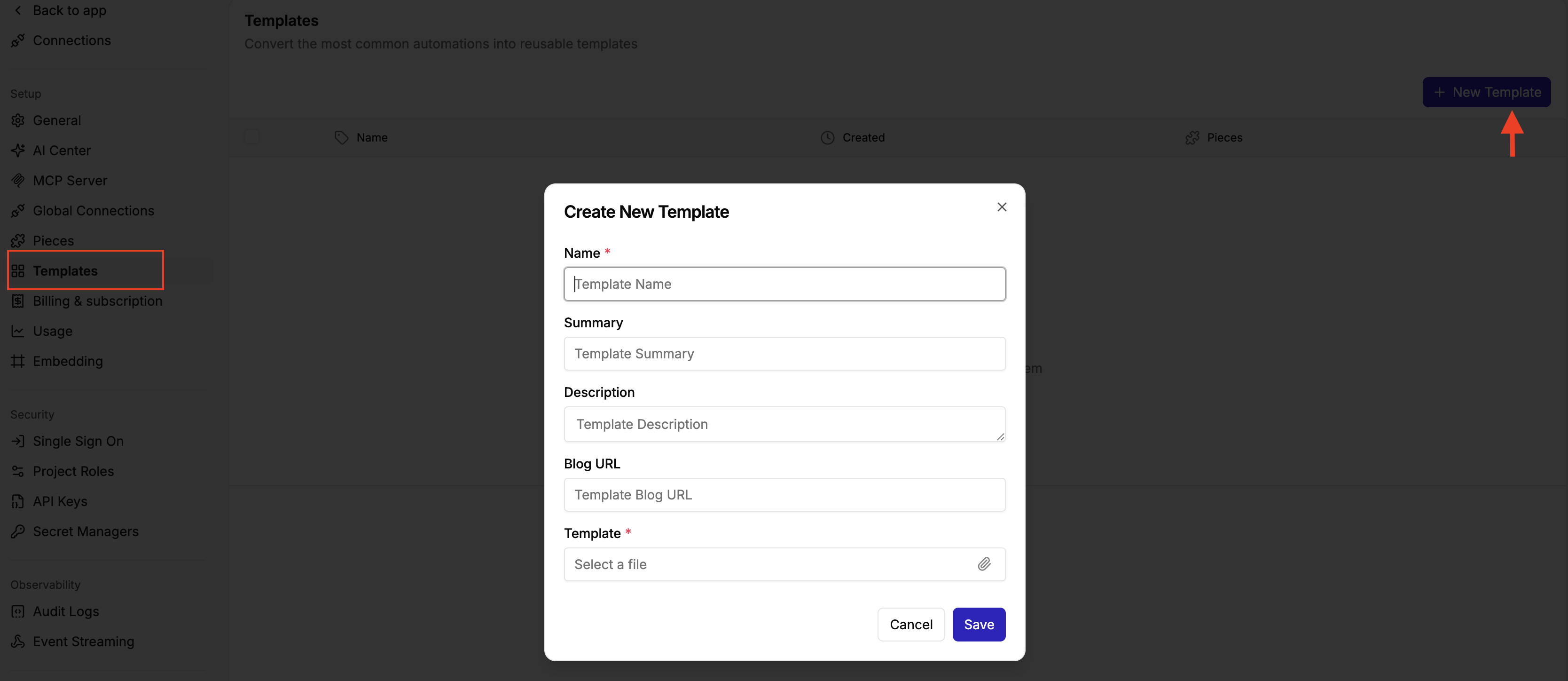
# Triggers
Source: https://www.activepieces.com/docs/admin-guide/guides/trigger-health
The Triggers page helps platform admins monitor the health and performance of triggers across the platform.
Use this page to identify integrations whose triggers may be failing or behaving unexpectedly, especially when the problem affects multiple flows or projects.
## **Monitor trigger health**
Trigger health is grouped by piece, allowing you to see whether problems are concentrated around a particular integration.
You can review:
* The number of trigger runs over the last 14 days.
* Recent trigger results.
* Trigger health over the last 24 hours, 7 days, and 14 days.
# Usage
Source: https://www.activepieces.com/docs/admin-guide/guides/usage
The **Usage** page gives platform admins a central place to understand how resources are being consumed across the platform.
At the top of the page, you can see your overall usage for:
* **Credits:** The number of credits used and the credit limit included in your plan.
* **Users:** The number of users on the platform and the user limit included in your plan.
If your plan does not have a limit for a resource, it is shown as **Unlimited**.
### **Credits Usage by Project**
The Project section breaks down credit usage across individual projects, making it easier to see where usage is coming from.
For each project, you can see:
* **AI Usage:** Credits used by AI-related activity.
* **Runs Usage:** Credits used by flow runs.
* **Total:** The total credits used by the project.
If credit usage increases, you can identify which projects are responsible for most of that usage.
You can change the time period to review usage over a specific date range.
To understand the credit usage break down, checkout the Billing and Subscription page in the platform admin
# Workers
Source: https://www.activepieces.com/docs/admin-guide/guides/workers
The **Workers** page gives platform admins a central place to view the workers running your Activepieces flows and monitor their health and resource usage. A worker is responsible for executing flows.
The worker page on your platform admin is designed for monitoring your existing workers.
For information about configuring and operating workers, including worker sizing, scaling, concurrency, failure recovery, sandboxing, and network isolation, see the [**Workers documentation**](/docs/install/architecture/workers).
## **Monitor worker health**
Each worker is displayed separately so you can see its current status and resource usage.
For each worker, you can view:
* **Status:** Whether the worker is currently online.
* **CPU:** How much processing capacity the worker is currently using.
* **RAM:** How much memory the worker is using.
* **Disk:** How much disk space is being used.
* **Last seen:** How recently Activepieces received a health update from the worker.
You can use this information to quickly check whether your workers are online and identify workers experiencing unusually high resource usage.
# Enterprise Control
Source: https://www.activepieces.com/docs/admin-guide/overview
Give your organization AI automation without giving up control
Most AI tools ask you to choose: let people move fast, or keep control. Activepieces is built so you don't have to.
Most of these controls are on paid plans. Every plan can run on Cloud or self-hosted. See [plans and pricing](https://www.activepieces.com/pricing).
Everything is designed around one question: **can IT hand automation to the business and still answer for it?** Who can build, which apps they can reach, where credentials live, what the AI is allowed to do, and what happened afterwards.
That's why regulated industries and governments run Activepieces, often fully self-hosted and network-gapped, on their own infrastructure.
## What control looks like
Projects, roles, and permissions, so teams are separated by default.
SSO and SCIM, so access follows your identity provider.
Bring your own vault. Credentials never have to sit in the product.
Decide which apps and pieces your organization can use at all.
Your providers, your models, your budget.
Audit logs for every meaningful action, streamable to your SIEM.
## Why it matters for AI
Shadow AI is the current version of shadow IT. People will automate with AI whether or not you provide a way, and the risk isn't the automation, it's not knowing it exists.
Activepieces makes the sanctioned path the easy one:
| Concern | The control |
| - | - |
| Data leaving your network | Self-host it, fully network-gapped |
| Which models see your data | [Your own AI keys and providers](/docs/admin-guide/guides/setup-ai-providers) |
| Credentials in the wrong hands | [External secret managers](/docs/admin-guide/guides/secret-managers/overview) |
| Unreviewed changes reaching production | [Project releases](/docs/admin-guide/guides/project-releases) and environments |
| No record of what was done | [Audit logs](/docs/admin-guide/security/audit-logs/overview) and [event streaming](/docs/admin-guide/guides/event-streaming) |
## Start here
Separate teams, data, and connections.
Sign in with your identity provider.
How we build and what we recommend.
# Agent Action Executed
Source: https://www.activepieces.com/docs/admin-guide/security/audit-logs/agent-action-executed
# Audit Log Retention Updated
Source: https://www.activepieces.com/docs/admin-guide/security/audit-logs/audit-log-retention-updated
# Connection Deleted
Source: https://www.activepieces.com/docs/admin-guide/security/audit-logs/connection-deleted
# Connection Upserted
Source: https://www.activepieces.com/docs/admin-guide/security/audit-logs/connection-upserted
# Flow Activated
Source: https://www.activepieces.com/docs/admin-guide/security/audit-logs/flow-activated
# Flow Approval Granted
Source: https://www.activepieces.com/docs/admin-guide/security/audit-logs/flow-approval-granted
# Flow Approval Rejected
Source: https://www.activepieces.com/docs/admin-guide/security/audit-logs/flow-approval-rejected
# Flow Approval Requested
Source: https://www.activepieces.com/docs/admin-guide/security/audit-logs/flow-approval-requested
# Flow Approval Withdrawn
Source: https://www.activepieces.com/docs/admin-guide/security/audit-logs/flow-approval-withdrawn
# Flow Created
Source: https://www.activepieces.com/docs/admin-guide/security/audit-logs/flow-created
# Flow Deactivated
Source: https://www.activepieces.com/docs/admin-guide/security/audit-logs/flow-deactivated
# Flow Deleted
Source: https://www.activepieces.com/docs/admin-guide/security/audit-logs/flow-deleted
# Flow Published
Source: https://www.activepieces.com/docs/admin-guide/security/audit-logs/flow-published
# Flow Run Finished
Source: https://www.activepieces.com/docs/admin-guide/security/audit-logs/flow-run-finished
# Flow Run Started
Source: https://www.activepieces.com/docs/admin-guide/security/audit-logs/flow-run-started
# Flow Updated
Source: https://www.activepieces.com/docs/admin-guide/security/audit-logs/flow-updated
# Folder Created
Source: https://www.activepieces.com/docs/admin-guide/security/audit-logs/folder-created
# Folder Deleted
Source: https://www.activepieces.com/docs/admin-guide/security/audit-logs/folder-deleted
# Folder Updated
Source: https://www.activepieces.com/docs/admin-guide/security/audit-logs/folder-updated
# Overview
Source: https://www.activepieces.com/docs/admin-guide/security/audit-logs/overview
Track every action on your platform and forward events to your tools
## What are audit events?
Activepieces records an audit event for every meaningful action on the platform — a flow gets created, a run finishes, a user signs in, a connection is saved, a signing key is rotated, and so on. Each event captures what happened, who did it, when, and the project or platform it belongs to.
Agent actions are recorded too. When an agent runs a **piece action** that writes something — sending an email, updating a row, posting a message — the event names the agent, the app, the action, the account it used and where the run came from. A flow the agent chose to run is recorded the same way, named as a flow rather than a piece action. Each row says whether the action succeeded or failed, so an attempt that errored is still on the record. Reads are not recorded, the values the agent passed to the action are never stored, and an MCP server tool is not recorded at all, since nothing marks those as reads or writes.
You can do two things with these events: **view them in the audit log table** for compliance and forensics, or **stream them to a webhook** to react in real time.
## View them in the audit log
Open **Platform Admin → Security → Audit Logs** to browse the full table. Filter by action, user, project, or date range to find a specific event, and click any row to see the full payload.
## Forward them to your tools
To react to events in real time — get a Slack alert when a flow fails, forward audit logs to your SIEM, send a daily digest of new sign-ups — use [Event Streaming](/docs/admin-guide/guides/event-streaming). It POSTs each event to a webhook URL of your choice, which you can point at an external system or at an internal handler flow that routes each event to the channel you care about.
## Keep events for a set period
Audit events are kept forever by default. To keep the table small, open **Platform Admin → Security → Audit Logs**, click the **Retention** button at the top right, and choose how long to keep events: 30 days, 90 days, 6 months, 1 year, or forever. The dialog also shows the date of your oldest event, so you can see when the cleanup has caught up.
* Events older than that period are deleted every hour, oldest first, in small batches with a pause after each one, so your database keeps serving traffic while the cleanup runs.
* Each hourly run deletes up to 1 million events. A large backlog takes several runs: 100 million expired events take about four days. While a platform is behind, the server logs a warning that names it.
* Deletion is permanent. If you need a long-term copy, forward events to your own storage with [Event Streaming](/docs/admin-guide/guides/event-streaming) before they expire.
* The shortest period you can choose is 30 days.
* Every change to the period is itself recorded as an [Audit log retention updated](/docs/admin-guide/security/audit-logs/audit-log-retention-updated) event, with who made it and the old and new periods. Subscribe a webhook to it with Event Streaming to get a copy outside the platform at once.
On a self-hosted instance, set [`AP_AUDIT_LOG_RETENTION_DAYS`](/docs/install/reference/environment-variables#limits-&-retention) to cap the period for every platform, from 30 to 3650 days. The cap is a hard limit: a platform can only choose a shorter period. A platform that has not chosen a period uses the cap, so the first hourly cleanup after you set it deletes that platform's older events.
To stop the cleanup for a while, for example during a database migration, set [`AP_AUDIT_LOG_RETENTION_PAUSED`](/docs/install/reference/environment-variables#limits-&-retention) to `true` on every app server and restart them. Any app server can run the cleanup, so a server without the setting keeps deleting. While the cleanup is paused, the Retention dialog says so.
Deleting events does not shrink the database files on disk. Postgres reuses the freed space for new events, so the `audit_event` table stops growing. To return the space to the operating system once, run `pg_repack` on the `audit_event` table (online, but it needs free disk about the size of the table and its indexes), or `VACUUM FULL audit_event` during a maintenance window (it locks the table while it runs). Backups and point-in-time recovery archives taken earlier keep the deleted events until they expire.
The first time the cleanup has events to delete, it sets `autovacuum_vacuum_scale_factor = 0.02` on the `audit_event` table, so Postgres reclaims deleted rows sooner. If you already set a value on that table, the cleanup leaves it alone.
## Event catalog
The full list of documented events. We add new ones as the platform grows; the source of truth for every event we emit is the [event schema in the codebase](https://github.com/activepieces/activepieces/blob/main/packages/core/shared/src/lib/ee/audit-events/index.ts).
### Flows
* [Flow created](/docs/admin-guide/security/audit-logs/flow-created)
* [Flow updated](/docs/admin-guide/security/audit-logs/flow-updated)
* [Flow deleted](/docs/admin-guide/security/audit-logs/flow-deleted)
### Flow runs
* [Flow run started](/docs/admin-guide/security/audit-logs/flow-run-started)
* [Flow run finished](/docs/admin-guide/security/audit-logs/flow-run-finished)
### Agents
* [Agent action executed](/docs/admin-guide/security/audit-logs/agent-action-executed)
### Folders
* [Folder created](/docs/admin-guide/security/audit-logs/folder-created)
* [Folder updated](/docs/admin-guide/security/audit-logs/folder-updated)
* [Folder deleted](/docs/admin-guide/security/audit-logs/folder-deleted)
### Connections
* [Connection saved](/docs/admin-guide/security/audit-logs/connection-upserted)
* [Connection deleted](/docs/admin-guide/security/audit-logs/connection-deleted)
### Users
* [User signed up](/docs/admin-guide/security/audit-logs/user-signed-up)
* [User signed in](/docs/admin-guide/security/audit-logs/user-signed-in)
* [User email verified](/docs/admin-guide/security/audit-logs/user-email-verified)
* [User password reset](/docs/admin-guide/security/audit-logs/user-password-reset)
### Platform
* [Signing key created](/docs/admin-guide/security/audit-logs/signing-key-created)
* [Audit log retention updated](/docs/admin-guide/security/audit-logs/audit-log-retention-updated)
## See also
* [Event Streaming](/docs/admin-guide/guides/event-streaming) — forward audit events to a webhook URL
# Signing Key Created
Source: https://www.activepieces.com/docs/admin-guide/security/audit-logs/signing-key-created
# User Email Verified
Source: https://www.activepieces.com/docs/admin-guide/security/audit-logs/user-email-verified
# User Password Reset
Source: https://www.activepieces.com/docs/admin-guide/security/audit-logs/user-password-reset
# User Signed In
Source: https://www.activepieces.com/docs/admin-guide/security/audit-logs/user-signed-in
# User Signed Up
Source: https://www.activepieces.com/docs/admin-guide/security/audit-logs/user-signed-up
# Security & Data Practices
Source: https://www.activepieces.com/docs/admin-guide/security/practices
We prioritize security and follow these practices to keep information safe.
## External Systems Credentials
**Storing Credentials**
All credentials are stored with 256-bit encryption keys, and there is no API to retrieve them for the user. They are sent only during processing, after which access is revoked from the engine.
**Data Masking**
We implement a robust data masking mechanism where third-party credentials or any sensitive information are systematically censored within the logs, guaranteeing that sensitive information is never stored or documented.
**OAuth2**
Integrations with third parties are always done using OAuth2, with a limited number of scopes when third-party support allows.
## Vulnerability Disclosure
Activepieces is an open-source project that welcomes contributors to test and report security issues.
For detailed information about our security policy, please refer to our GitHub Security Policy at: [https://github.com/activepieces/activepieces/security/policy](https://github.com/activepieces/activepieces/security/policy)
## Access and Authentication
**Role-Based Access Control (RBAC)**
To manage user access, we utilize Role-Based Access Control (RBAC). Team admins assign roles to users, granting them specific permissions to access and interact with projects, folders, and resources. RBAC allows for fine-grained control, enabling administrators to define and enforce access policies based on user roles.
**Single Sign-On (SSO)**
Implementing Single Sign-On (SSO) serves as a pivotal component of our security strategy. SSO streamlines user authentication by allowing them to access Activepieces with a single set of credentials. This not only enhances user convenience but also strengthens security by reducing the potential attack surface associated with managing multiple login credentials.
**Audit Logs**
We maintain comprehensive audit logs to track and monitor all access activities within Activepieces. This includes user interactions, system changes, and other relevant events. Our meticulous logging helps identify security threats and ensures transparency and accountability in our security measures.
**Password Policy Enforcement**
Users log in to Activepieces using a password known only to them. Activepieces enforces password length and complexity standards. Passwords are not stored; instead, only a secure hash of the password is stored in the database. For more information.
## Privacy & Data
**Supported Cloud Regions**
Presently, our cloud services are available in Germany as the supported data region.
We have plans to expand to additional regions in the near future.
If you opt for **self-hosting**, the available regions will depend on where you choose to host.
**Policy**
To better understand how we handle your data and prioritize your privacy, please take a moment to review our [Privacy Policy](https://www.activepieces.com/privacy). This document outlines in detail the measures we take to safeguard your information and the principles guiding our approach to privacy and data protection.
# Create an agent
Source: https://www.activepieces.com/docs/agents/create
The three routes in, and what each setting is for
## Describe the job
The **Agents** page opens with a prompt box. Write the job in a sentence and the agent is written for you: a name, instructions, and the tools it needs from the apps you have already connected.
*"Summarise my unread emails every morning."* You get a drafted agent to review.
The chips under the box — triage support tickets, research a company, enrich a lead — are the same route with the sentence written.
Drafting needs an [AI provider connected](/docs/admin-guide/guides/setup-ai-providers) and turned on for chat. Without one the page says so and offers to write the agent by hand instead.
Ask for what you want done, not for the tools. The draft only picks an action that reads your data unless the sentence asks for something to be sent, posted or filed, so *"tell me when something changes"* gets an agent that reports, not one that emails.
## Start from a blank one
**New agent**, beside the view toggles on the list, skips the drafting and opens an empty agent for you to write yourself. It goes to your personal project, since an agent you have not deliberately placed belongs to you; where a platform does not create personal projects, the button asks which project to use. Either way you can [move it later](/docs/agents/manage).
A blank agent has no model yet, so it opens straight into its editor with that still to pick.
## Choose where it lives
Start typing in the prompt box and **New agents go to** appears beneath it, naming the project the agent will belong to and letting you change it before you create it. That matters because the project is the boundary: an agent reaches only its own project's connections, flows, tables and knowledge.
If you have one project, there is nothing to choose and the control stays out of the way. See [managing an agent](/docs/agents/manage) for moving one later.
## Set it up
The **Configure** panel beside the conversation holds everything that changes what the agent does.
Write down the job, how to decide, and when to stop.
Give it the app actions, flows, and MCP servers it needs to reach.
Attach the documents and tables it should look things up in.
Pick the model that answers and the key that pays for it.
Name the fields you want back, so a flow can use the result.
Cap how many actions it can take in one run, so a stuck agent stops.
## Try it, then put it live
The editor has two tabs beside the Configure panel.
Describe a change — *"only reply to paying customers"* — and it rewrites the instructions and tools for you.
Talk to the agent as it is now, and watch which tools it reaches for.
Edits are a draft until you press **Publish**. The header says which state you are in: *Changes not live yet* while you are editing, *Live* once published, and *Needs a model to run* if no model is picked. Publishing updates every flow already using the agent on its next run, with nothing to republish.
Brief it like a capable new colleague. Say the goal and the edges, not every keystroke. The two people forget most: what "done" looks like, and which calls it should hand back to a human.
# Agents in Flows
Source: https://www.activepieces.com/docs/agents/in-flows
Use an agent as a step, and act on what it returns
Drop an agent into a [flow](/docs/flows/building-flows) as a step. The flow handles what's certain, the agent handles the rest.
## What people use it for
Looks up a lead and returns a brief with a fit score.
Reads an email, classifies it, sets the urgency.
Files the invoice, updates the system, posts the summary.
If you can write the rule in one sentence without saying "depends", it's a condition, not an agent.
## Run one of your saved agents
Add a **Run Agent** step from the **AI** piece, then pick the agent in **Agent**. Its instructions, tools and model come from the agent, so leave **AI Model** empty. An agent marked **Not published yet** is listed too, but a flow can only run it once it's published.
Edits you make to the agent reach your flows once you publish them from the agent's Configure panel. Until then, flows keep running the version that was live.
The agent's **Runs** tab lists the runs flows started, with the flow that triggered each one. A run refused before it started isn't listed.
While a published flow runs the agent, it can't be deleted or moved to another project. The dialog links the flows that use it (members who can't read flows see a count instead). Take the agent out of each flow and publish the flow, then try again.
## Get a result you can build on
Prose is hard to branch on, because the phrasing drifts every run.
> "This looks fairly urgent, someone should pick it up today."
Ask for **structured output** instead and you get fields:
| Field | Type | Example |
| - | - | - |
| `category` | Text | `billing` |
| `urgency` | Number | `4` |
| `needs_human` | Boolean | `true` |
Later steps pick these up from the [data selector](/docs/flows/passing-data), the same as any other step's output. Route on `needs_human`, sort by `urgency`, drop `category` into the Slack message.
Ask for the fewest fields the next step needs. Every extra field is one more thing to get wrong.
# Agent Knowledge
Source: https://www.activepieces.com/docs/agents/knowledge
Give an agent something to look things up in
Attach a document or a table and the agent looks the answer up instead of guessing at it.
## Two sources
Upload a document. PDF, DOCX, TXT, or CSV.
Point at a table already in your project.
Both live in the **Knowledge Base** section of the agent editor, below Agent Tools. Add one with **Add File Source** or **Add Table Source**.
Two things have to be in place or the section does not appear at all. Your Postgres needs the `pgvector` extension, which Activepieces installs on startup when the database offers it — Cloud and the standard self-hosted images are covered, but a managed Postgres without `pgvector` hides knowledge entirely. And the agent's model provider has to support embeddings: OpenAI, Google, Azure, and OpenRouter do.
## Which one
| | File | Table |
| - | - | - |
| **Holds** | Documents, policies, guides | Rows of data |
| **Changes** | Rarely | Constantly |
| **Updated by** | Re-uploading | Your flows, live |
If a flow already writes the data, use a table. The agent then reads what's true right now, with nothing to re-upload.
## Why not just paste it in
Two reasons, and the first is size.
Everything in an agent's instructions has to fit the model's context window, and all of it is read on **every single run**. That caps you at a few pages, and makes every run slower and more expensive whether the content was relevant or not.
Knowledge works the other way round. A file is split into chunks and indexed, and the agent searches it only when it needs something, pulling back the passages that match. A three-hundred-page policy manual costs nothing until a question actually touches it.
The second reason is freshness. A product list pasted into instructions works until the list changes, and then you have two versions of the truth and one of them is wrong.
Instructions are for **how to behave**. Knowledge is for **what's true**.
## Say when to use it
Knowledge tells the agent what it can look up, not when to bother. Put that in the [instructions](/docs/agents/create):
> Before answering pricing questions, check the pricing table. Never quote a figure that isn't in it.
# Manage an agent
Source: https://www.activepieces.com/docs/agents/manage
Where an agent lives, how to move it, and how to delete it safely
## The project is the boundary
An agent belongs to one project, and that decides what it can reach: the connections it authenticates with, the flows it can call, the tables and files it looks things up in. Two projects with the same Gmail connection name are two different mailboxes.
The **Agents** page spans every project you can see, so each agent's row tells you which project it belongs to. The project filter beside the search box narrows the list, and it also sets where a described agent will be created. Start typing in the prompt box and **New agents go to** appears beneath it, naming that destination; whatever you pick there wins, so check it before you create anything.
## Move it to another project
From the `...` menu beside the agent, or from **Project** in the agent's own Advanced section, pick **Move to another project**.
The agent takes its instructions, tools and conversations with it. Before you confirm, the dialog says what the move costs:
A pinned connection is matched by name in the new project. Anything without a counterpart there stops working until you connect it, and the same is true for a flow or a file the new project does not have.
Tools that keep working now use the new project's accounts. Moving an agent between two clients points it at the second client's data.
An agent shared with someone who is not in the new project loses that share, and moving it back does not restore it.
Two things refuse the move outright: a **published flow still running the agent**, because the reference is live and that flow would break, and a project you cannot create agents in.
Only the person who created the agent, or a project admin, can move or delete it. Everyone else in the project can use and edit it.
## Delete it
**Delete** sits in the same `...` menu, and in a danger zone at the bottom of the agent's Advanced section.
Deleting is permanent: the instructions, the tools and every conversation held with the agent go with it. A draft flow step pointing at the agent will break, and the dialog says so.
If a **published flow** still runs the agent, deleting is refused and the dialog links those flows (members who can't read flows see a count instead). Take the agent out of each flow and publish the flow, then delete.
## Who can see it
An agent is visible to everyone in its project. A restricted agent, shared with you and named colleagues instead, shows a lock beside its name in the list.
There is no screen for restricting an agent yet. Visibility is set through the API, with `visibility` and `sharedWithUserIds` on the agent create and update calls, and only the creator or a project admin can change who can see one. Everyone you share it with has to be a member of its project already, and a [move](#move-it-to-another-project) drops the shares that do not hold in the new project.
# Agents
Source: https://www.activepieces.com/docs/agents/overview
AI workers that do the parts you can't draw as steps
Describe the job. Give it tools. It figures out the rest.
## What is an agent?
An agent is someone you brief rather than something you configure. You write down the job in plain language, give it access to the apps it needs, and it handles the work as it arrives.
Each time it runs, it reads the situation, decides which tools to use, and keeps going until the job is done. Two similar cases can be handled differently, the same way a colleague would treat them differently.
## Flow or agent?
| | Flow | Agent |
| - | - | - |
| **The logic is** | Written down once | Worked out each run |
| **Same input twice** | Same steps every time | May handle it differently |
| **Best when** | You know the procedure | The work varies |
## What it can do
Any action from 760+ pieces becomes a tool it can call.
Answers grounded in your documents and tables.
Run one as a step and get structured data back.
Say what you need and the agent gets written for you.
## Where an agent lives
An agent belongs to one project, and that decides which connections, flows and files it can reach. You choose the project when you create it, and you can [move it later](/docs/agents/manage) — the dialog tells you what a move would break before you confirm.
# Agent Tools
Source: https://www.activepieces.com/docs/agents/tools
How an agent reaches your apps, your flows, and your systems
Tools are how an agent reaches the rest of your company, and it uses them two ways.
**To find out.** It searches Slack, Linear, Drive, or any of 760+ apps at the moment it needs the answer, rather than working from whatever you pasted into the instructions.
**To act.** It raises the invoice, drafts the document, updates the record.
Attach none and it can only talk.
A single action from one of your connected apps.
One of your own flows, handed over as a tool.
An external server, for systems that aren't pieces.
## Piece tools
You attach individual actions, not whole apps. An agent given **Send message** can post to Slack and nothing else.
Each input on that action is one of three modes, so you pin what has to be exact and leave the rest to the agent.
It writes the value.
You pin it.
Nothing is sent.
Pin the Slack channel, let the agent write the message.
## Flow tools
The most underused one. When part of a job has to happen the same way every time, build that part as a flow and hand it over.
The agent chooses the moment. The flow guarantees the steps.
## MCP servers
Paste the URL and pick how it authenticates: none, an access token, an API key, or custom headers. Streamable HTTP, SSE, and plain HTTP all work.
Activepieces lists the server's tools as soon as you add it, so you know it works before an agent depends on it.
## Seeing what an agent did
**Actions leave a record.** On plans with audit logs, open **Platform Admin → Security → Audit Logs** and you get the agent, the app, the action, the account it used and whether the run came from chat, the agent page or a flow step. Reads are left out, so the log stays about what changed rather than what was looked at, and the values the agent passed to the action are never stored.
A row says whether the action succeeded or failed, so an attempt that errored is still on the record rather than missing. What each tool type leaves behind:
| Tool | Audit event |
| - | - |
| Piece action | Yes, when it is not a read |
| Flow tool | Yes, naming the flow the agent chose. A flow that runs in the background is recorded without an outcome, because the row is written when it starts |
| MCP server tool | No |
| Knowledge base search | No, it is a read |
| Code the agent wrote and ran | No |
| Email the agent sent | No |
An agent will not change itself in a reply where it already read something. Ask it to update its instructions and it does; ask it to check a sheet **and** update its instructions in one message and it declines the change, because anything it just read could have told it to. Send the change on its own and it goes through, or make it in the Configure panel.
MCP server tools, code and email are the gaps. MCP tools carry no read-or-write marking, so recording them would fill the log with lookups. If you need a trail for a step, use a piece action or a flow.
See [Agent action executed](/docs/admin-guide/security/audit-logs/agent-action-executed) for the event itself, and [Event Streaming](/docs/admin-guide/guides/event-streaming) to send it somewhere in real time.
When an agent keeps getting something wrong, ask what it was missing. Usually it needed somewhere to look something up, not a longer prompt.
# Build with Chat
Source: https://www.activepieces.com/docs/ai/chat
Describe what you want and Activepieces builds it
Instead of dragging steps together, describe the outcome you want and Chat builds the agent or automation for you. It picks the pieces, wires the steps, and fills in the configuration.
## Getting started
Open **Chat** in the sidebar and describe what you want in plain language. Be specific about the outcome rather than the steps:
* "When a new row is added to my CRM, summarise it and post to Slack"
* "Every Monday, pull last week's support tickets and email me the themes"
* "Watch this inbox and create a task for anything that looks like a bug report"
Chat asks for anything it needs, such as which account to use, and builds the flow. You can review every step before publishing.
## What it can do
* Build flows from a description, choosing the pieces for you
* Connect the apps a flow needs
* Explain what an existing flow does
* Change a flow you already have
## After it builds
Chat produces a normal flow. Open it in the builder, edit any step by hand, and [publish it](/docs/flows/publishing-flows) when you're happy. Nothing is locked or special about a flow that Chat created.
## Prefer your own AI client?
If you'd rather build from Claude, Cursor, or any other MCP client, the [MCP server](/docs/mcp/overview) exposes the same capabilities as tools.
# Build Pieces with AI Using the Piece Builder Skill
Source: https://www.activepieces.com/docs/build-pieces/building-pieces/build-with-ai
Use the piece-builder skill with Claude Code or Cursor to research an API, scaffold a piece, write actions and triggers, and verify the build.
The fastest way to build an Activepieces piece is the `piece-builder` skill, which lives in the repository at [`.agents/skills/piece-builder`](https://github.com/activepieces/activepieces/tree/main/.agents/skills/piece-builder). It teaches your AI coding agent the Activepieces conventions so it can create a new piece, add actions or triggers to an existing one, or fix a bug, then build and lint it for you.
This is the recommended way to build pieces. The [manual tutorial](/docs/build-pieces/building-pieces/start-building) is still available if you want to learn the framework step by step.
## Before You Start
Follow [Fork Repository](/docs/build-pieces/building-pieces/setup-fork) and [Development Setup](/docs/build-pieces/building-pieces/development-setup) to get the mono-repo running locally.
The skill is picked up automatically. Both`.claude/skills` and `.cursor/skills` point to `.agents/skills`, so Claude Code and Cursor load it with no extra configuration.
In Claude Code, invoke the skill directly:
```bash theme={null}
/piece-builder "app name" # Build or extend a piece
```
You can also just describe the work ("add a Create Invoice action to the Stripe piece"). The agent uses the skill whenever you ask to work on an Activepieces piece, connector, or integration.
## Task Modes
The skill picks a workflow based on what you ask for.
| Mode | What you're doing | What the agent does |
| - | - | - |
| **New piece** | Building an integration for an app that has no piece yet | Runs the full five-step workflow below |
| **Add action / trigger** | An existing piece needs another operation or event | Opens the existing piece, matches its conventions (its `common/` helpers, auth access, file naming, error handling), implements, wires, verifies, and bumps the piece version |
| **Fix a bug** | An existing action or trigger misbehaves | Reproduces, reads the offending file and its `common/` helpers, applies the smallest fix that matches the surrounding style, verifies, and bumps the piece version |
For existing pieces, the piece being edited is the source of truth, not the templates. The one exception is framework calls that silently drop data: for example, if a piece passes a hand-picked subset to `pollingHelper` instead of the whole `context`, the agent fixes every trigger in that piece while it is there.
## Here's what the agent Piece Building workflow looks like.
The agent finds the target app's REST API docs, identifies the auth method (API key, OAuth2, Basic Auth, or custom), lists endpoints, checks for webhook support, and notes the base URL, pagination, and rate limits.
It places the piece in `packages/pieces/community/` (or `packages/pieces/custom/` if you ask for a custom piece), chooses the auth type, and selects the most useful actions (CRUD, search, list) and triggers (webhook if supported, polling otherwise).
The agent asks you before starting when OAuth2 URLs or scopes are missing from the docs, the auth method is unclear, more than 10 actions are possible, the API uses webhook signature verification, or test credentials are needed.
It creates the piece structure and copies the config files from the scaffold reference:
```text theme={null}
packages/pieces/community//
src/
index.ts
lib/
auth.ts # Auth always lives here, never inline in index.ts
actions/ # One file per action
triggers/ # One file per trigger
common/ # Shared helpers (optional)
package.json
.eslintrc.json
tsconfig.json
tsconfig.lib.json
```
The agent writes auth, actions, and triggers using the vetted patterns in the skill's reference files rather than copying older, inconsistent pieces.
It imports every action and trigger in `src/index.ts`, adds `createCustomApiCallAction`, adds AI metadata, registers the piece alphabetically in `tsconfig.base.json`, then runs:
```bash theme={null}
bun install # new pieces only, creates workspace symlinks
npx turbo run build --filter=@activepieces/piece-
npx turbo run lint --filter=@activepieces/piece-
```
Both must pass. Lint failures block CI even when the build is green.
## Test Your Piece Locally
Add `AP_DEV_PIECES=` to the repository-root `.env.dev`, start with `npm start`, and open `localhost:4200`.
## Benefits of The Piece Building Skill
* Dynamic dropdowns instead of asking users to type IDs.
* Descriptions that teach (where to click, what to copy) instead of restating the field name.
* `Property.MarkDown()` instructions for complex setup.
* Sensible defaults, plain-language names ("Create Contact", "New Order"), and step-by-step auth descriptions.
Outputs are flattened (`{ user_name: "Jo" }` rather than `{ user: { name: "Jo" } }`), list actions return arrays with consistent keys, and key names are human-readable so they map cleanly to Google Sheets and Activepieces Tables columns.
Every hand-written action carries `audience`, `aiMetadata`, and `classification`. Every trigger carries `aiMetadata` and `classification: 'READ'`. See [AI Metadata](/docs/build-pieces/piece-reference/ai-metadata).
Every change to an existing piece bumps its `package.json` version. Removing an action, trigger, or prop, adding a required prop, or changing behavior is **MAJOR**. Adding an action, trigger, optional prop, or output attribute is **MINOR**; fixing a bug without changing the public surface is **PATCH**. See [Piece Versioning](/docs/build-pieces/piece-reference/piece-versioning).
* Action and trigger `name` fields are permanent. Flows store them by name, so never change them after publishing.
* Auth is imported by actions and triggers but never re-exported from `index.ts`.
## Reference Files
The agent opens these files from the skill folder when it needs a concrete example.
| File | Covers |
| - | - |
| `SKILL.md` | Entry point: task modes, workflow, quick auth and piece templates |
| `new-piece-scaffold.md` | The four config files for a new piece |
| `auth-patterns.md` | Auth wiring and connection identifiers |
| `action-patterns.md` | Full shape of an action file |
| `trigger-patterns.md` | Polling, webhook, handshake, and renewal triggers |
| `property-ui-selection.md` | Choosing prop components, display modes, and layout |
| `props-patterns.md` | Exact syntax for each prop type |
| `common-patterns.md` | Shared API helpers, pagination, and custom API calls |
| `ux-guidelines.md` | Advanced UX patterns |
| `output-quality.md` | Flattening nested API responses |
| `ai-metadata.md` | `audience`, `aiMetadata`, and `classification` rules |
| `piece-types.md` | Community, core, and custom pieces and `PieceCategory` values |
## Next Steps
Contribute it to the main repo or publish it privately.
Review the framework APIs the agent uses.
# Create Action
Source: https://www.activepieces.com/docs/build-pieces/building-pieces/create-action
## Action Definition
Now let's create first action which fetch random ice-cream flavor.
```bash theme={null}
npm run cli actions create
```
You will be asked three questions to define your new piece:
1. `Piece Folder Name`: This is the name associated with the folder where the action resides. It helps organize and categorize actions within the piece.
2. `Action Display Name`: The name users see in the interface, conveying the action's purpose clearly.
3. `Action Description`: A brief, informative text in the UI, guiding users about the action's function and purpose.
Next, let's create the action file:
**Example:**
```bash theme={null}
npm run cli actions create
? Enter the piece folder name : gelato
? Enter the action display name : get icecream flavor
? Enter the action description : fetches random icecream flavor.
```
This will create a new TypeScript file named `get-icecream-flavor.ts` in the `packages/pieces/community/gelato/src/lib/actions` directory.
Inside this file, paste the following code:
```typescript theme={null}
import {
createAction,
Property,
PieceAuth,
} from '@activepieces/pieces-framework';
import { httpClient, HttpMethod } from '@activepieces/pieces-common';
import { gelatoAuth } from '../..';
export const getIcecreamFlavor = createAction({
name: 'get_icecream_flavor', // Must be a unique across the piece, this shouldn't be changed.
auth: gelatoAuth,
displayName: 'Get Icecream Flavor',
description: 'Fetches random icecream flavor',
props: {},
async run(context) {
const res = await httpClient.sendRequest({
method: HttpMethod.GET,
url: 'https://cloud.activepieces.com/api/v1/webhooks/RGjv57ex3RAHOgs0YK6Ja/sync',
headers: {
Authorization: context.auth.secret_text, // Pass API key in headers
},
});
return res.body;
},
});
```
The createAction function takes an object with several properties, including the `name`, `displayName`, `description`, `props`, and `run` function of the action.
The `name` property is a unique identifier for the action. The `displayName` and `description` properties are used to provide a human-readable name and description for the action.
The `props` property is an object that defines the properties that the action requires from the user. In this case, the action doesn't require any properties.
The `run` function is the function that is called when the action is executed. It takes a single argument, context, which contains the values of the action's properties.
The `run` function utilizes the httpClient.sendRequest function to make a GET request, fetching a random ice cream flavor. It incorporates API key authentication in the request headers. Finally, it returns the response body.
You can describe how an action's output is presented in the builder, including readable labels for outputs keyed by opaque IDs or returned as arrays, by declaring an [Output Schema](/docs/build-pieces/piece-reference/output-schema).
## Expose The Definition
To make the action readable by Activepieces, add it to the array of actions in the piece definition.
```typescript theme={null}
import { createPiece } from '@activepieces/pieces-framework';
// Don't forget to add the following import.
import { getIcecreamFlavor } from './lib/actions/get-icecream-flavor';
export const gelato = createPiece({
displayName: 'Gelato',
logoUrl: 'https://cdn.activepieces.com/pieces/gelato.png',
authors: [],
auth: gelatoAuth,
// Add the action here.
actions: [getIcecreamFlavor], // <--------
triggers: [],
});
```
# Testing
By default, the development setup only builds specific components. Open the file `.env.dev` and include "gelato" in the `AP_DEV_PIECES`.
For more details, check out the [Piece Development](/docs/build-pieces/building-pieces/development-setup#pieces-development) section.
Once you edit the environment variable, restart the backend. The piece will be rebuilt. After this process, you'll need to **refresh** the frontend to see the changes.
If the build fails, try debugging by running `npx turbo run build --filter=@activepieces/piece-gelato`.
It will display any errors in your code.
To test the action, use the flow builder in Activepieces. It should function as shown in the screenshot.
# Create Trigger
Source: https://www.activepieces.com/docs/build-pieces/building-pieces/create-trigger
This tutorial will guide you through the process of creating trigger for a Gelato piece that fetches new icecream flavor.
## Trigger Definition
To create trigger run the following command,
```bash theme={null}
npm run cli triggers create
```
1. `Piece Folder Name`: This is the name associated with the folder where the trigger resides. It helps organize and categorize triggers within the piece.
2. `Trigger Display Name`: The name users see in the interface, conveying the trigger's purpose clearly.
3. `Trigger Description`: A brief, informative text in the UI, guiding users about the trigger's function and purpose.
4. `Trigger Technique`: Specifies the trigger type - either [polling](../piece-reference/triggers/polling-trigger) or [webhook](../piece-reference/triggers/webhook-trigger).
**Example:**
```bash theme={null}
npm run cli triggers create
? Enter the piece folder name : gelato
? Enter the trigger display name : new flavor created
? Enter the trigger description : triggers when a new icecream flavor is created.
? Select the trigger technique: polling
```
This will create a new TypeScript file at `packages/pieces/community/gelato/src/lib/triggers` named `new-flavor-created.ts`.
Inside this file, paste the following code:
```ts theme={null}
import { gelatoAuth } from '../../';
import {
DedupeStrategy,
HttpMethod,
HttpRequest,
Polling,
httpClient,
pollingHelper,
} from '@activepieces/pieces-common';
import {
TriggerStrategy,
createTrigger,
AppConnectionValueForAuthProperty
} from '@activepieces/pieces-framework';
import dayjs from 'dayjs';
const polling: Polling<
AppConnectionValueForAuthProperty,
Record
> = {
strategy: DedupeStrategy.TIMEBASED,
items: async ({ auth, propsValue, lastFetchEpochMS }) => {
const request: HttpRequest = {
method: HttpMethod.GET,
url: 'https://cloud.activepieces.com/api/v1/webhooks/aHlEaNLc6vcF1nY2XJ2ed/sync',
headers: {
authorization: auth.secret_text,
},
};
const res = await httpClient.sendRequest(request);
return res.body['flavors'].map((flavor: string) => ({
epochMilliSeconds: dayjs().valueOf(),
data: flavor,
}));
},
};
export const newFlavorCreated = createTrigger({
auth: gelatoAuth,
name: 'newFlavorCreated',
displayName: 'new flavor created',
description: 'triggers when a new icecream flavor is created.',
props: {},
sampleData: {},
type: TriggerStrategy.POLLING,
async test(context) {
return await pollingHelper.test(polling, context);
},
async onEnable(context) {
await pollingHelper.onEnable(polling, context);
},
async onDisable(context) {
await pollingHelper.onDisable(polling, context);
},
async run(context) {
return await pollingHelper.poll(polling, context);
},
});
```
The way polling triggers usually work is as follows:
`Run`:The run method executes every 5 minutes, fetching data from the endpoint within a specified timestamp range or continuing until it identifies the last item ID. It then returns the new items as an array. In this example, the httpClient.sendRequest method is utilized to retrieve new flavors, which are subsequently stored in the store along with a timestamp.
## Expose The Definition
To make the trigger readable by Activepieces, add it to the array of triggers in the piece definition.
```typescript theme={null}
import { createPiece } from '@activepieces/pieces-framework';
import { getIcecreamFlavor } from './lib/actions/get-icecream-flavor';
// Don't forget to add the following import.
import { newFlavorCreated } from './lib/triggers/new-flavor-created';
export const gelato = createPiece({
displayName: 'Gelato Tutorial',
logoUrl: 'https://cdn.activepieces.com/pieces/gelato.png',
authors: [],
auth: gelatoAuth,
actions: [getIcecreamFlavor],
// Add the trigger here.
triggers: [newFlavorCreated], // <--------
});
```
# Testing
By default, the development setup only builds specific components. Open the file `.env.dev` and include "gelato" in the `AP_DEV_PIECES`.
For more details, check out the [Piece Development](/docs/build-pieces/building-pieces/development-setup#pieces-development) section.
Once you edit the environment variable, restart the backend. The piece will be rebuilt. After this process, you'll need to **refresh** the frontend to see the changes.
To test the trigger, use the load sample data from flow builder in Activepieces. It should function as shown in the screenshot.
To make your webhook accessible from the internet, you need to expose your local development instance to the internet, do the following:
1. Install [localxpose](https://localxpose.io/docs#start-your-first-tunnel).
2. Follow the documentation to start your first tunnel to localhost:4200.
3. Copy the tunnel domain, i.e wozcsvaint.loclx.io, and replace the `AP_FRONTEND_URL` environment variable in `.env.dev` with the exposed url, i.e [https://wozcsvaint.loclx.io](https://wozcsvaint.loclx.io)
4. Go to /packages/web/vite.config.ts, uncomment allowedHosts and replace the value with the same tunnel domain, i.e wozcsvaint.loclx.io.
Once you have completed these configurations, you will be able to test webhook triggers and run published flows that have them.
# Development setup
Source: https://www.activepieces.com/docs/build-pieces/building-pieces/development-setup
## Prerequisites
* Node.js v22.15+ or v24
* npm v9+
## Instructions
1. Setup the environment
```bash theme={null}
node tools/setup-dev.js
```
2. Start the environment
This command will start activepieces with PGLite and an in-memory queue.
```bash theme={null}
npm start
```
By default, the development setup only builds specific pieces.Open the file
`.env.dev` and add comma-separated list of pieces to make
available.
For more details, check out the [Piece Development](/docs/build-pieces/building-pieces/development-setup#pieces-development) section.
3. Go to ***localhost:4200*** on your web browser and sign in with these details:
Email: `dev@ap.com`
Password: `12345678`
## Pieces Development
When [`AP_PIECES_SYNC_MODE`](https://github.com/activepieces/activepieces/blob/main/.env.dev#L14) is set to `OFFICIAL_AUTO`, all pieces are automatically loaded from the cloud API and synced to the database on first launch. This process may take a few seconds to several minutes depending on your internet connection.
For local development, pieces are loaded from your local `dist` folder instead of the database. To enable this, set the [`AP_DEV_PIECES`](https://github.com/activepieces/activepieces/blob/main/.env.dev#L5) environment variable with a comma-separated list of pieces. For example, to develop with `google-sheets` and `cal-com`:
```sh theme={null}
AP_DEV_PIECES=google-sheets,cal-com npm start
```
# Overview
Source: https://www.activepieces.com/docs/build-pieces/building-pieces/overview
This section helps developers build and contribute pieces.
Building pieces is fun and important; it allows you to customize Activepieces for your own needs.
The fastest way to build a piece: let Claude Code or Cursor research the API, scaffold, implement, and verify it using the piece-builder skill.
We love contributions! In fact, most of the pieces are contributed by the community. Feel free to open a pull request.
**Friendly Tip:**
For the fastest support, we recommend joining our Discord community. We are dedicated to addressing every question and concern raised there.
Build pieces using TypeScript for a more powerful and flexible development process.
See your changes in the browser within 7 seconds.
Work within the open-source environment, explore, and contribute to other pieces.
Join our large community, where you can ask questions, share ideas, and develop alongside others.
# Add Piece Authentication
Source: https://www.activepieces.com/docs/build-pieces/building-pieces/piece-authentication
### Piece Authentication
Activepieces supports multiple forms of authentication, you can check those forms [here](../piece-reference/authentication)
Now, let's establish authentication for this piece, which necessitates the inclusion of an API Key in the headers.
Modify `src/index.ts` file to add authentication,
```ts theme={null}
import { PieceAuth, createPiece } from '@activepieces/pieces-framework';
export const gelatoAuth = PieceAuth.SecretText({
displayName: 'API Key',
required: true,
description: 'Please use **test-key** as value for API Key',
});
export const gelato = createPiece({
displayName: 'Gelato',
logoUrl: 'https://cdn.activepieces.com/pieces/gelato.png',
auth: gelatoAuth,
authors: [],
actions: [],
triggers: [],
});
```
Use the value **test-key** as the API key when testing actions or triggers for
Gelato.
# Create Piece Definition
Source: https://www.activepieces.com/docs/build-pieces/building-pieces/piece-definition
This tutorial will guide you through the process of creating a Gelato piece with an action that fetches random icecream flavor and trigger that fetches new icecream flavor created. It assumes that you are familiar with the following:
* [Activepieces Local development](./development-setup) Or [GitHub Codespaces](../misc/codespaces).
* TypeScript syntax.
## Piece Definition
To get started, let's generate a new piece for Gelato
```bash theme={null}
npm run cli pieces create
```
You will be asked three questions to define your new piece:
1. `Piece Name`: Specify a name for your piece. This name uniquely identifies your piece within the ActivePieces ecosystem.
2. `Package Name`: Optionally, you can enter a name for the npm package associated with your piece. If left blank, the default name will be used.
3. `Piece Type`: Choose the piece type based on your intention. It can be either "custom" if it's a tailored solution for your needs, or "community" if it's designed to be shared and used by the broader community.
**Example:**
```bash theme={null}
npm run cli pieces create
? Enter the piece name: gelato
? Enter the package name: @activepieces/piece-gelato
? Select the piece type: community
```
The piece will be generated at `packages/pieces/community/gelato/`,
the `src/index.ts` file should contain the following code
```ts theme={null}
import { PieceAuth, createPiece } from '@activepieces/pieces-framework';
export const gelato = createPiece({
displayName: 'Gelato',
description: '',
logoUrl: 'https://cdn.activepieces.com/pieces/gelato.png',
auth: PieceAuth.None(),
minimumSupportedRelease: '0.36.1',
authors: [],
actions: [],
triggers: [],
});
```
# Fork Repository
Source: https://www.activepieces.com/docs/build-pieces/building-pieces/setup-fork
To start building pieces, we need to fork the repository that contains the framework library and the development environment. Later, we will publish these pieces as `npm` artifacts.
Follow these steps to fork the repository:
If you are on windows, please install [WSL](https://learn.microsoft.com/en-us/windows/wsl/install) and set up git there then proceed with the instructions down below
1. Go to the repository page at [https://github.com/activepieces/activepieces](https://github.com/activepieces/activepieces).
2. Click the `Fork` button located in the top right corner of the page.
3. Clone your fork using a shallow clone for faster setup:
```bash theme={null}
git clone --depth=1 https://github.com/YOUR_USERNAME/activepieces.git
```
Using `--depth=1` reduces the clone size significantly by only fetching the latest commit instead of the full history.
If you are an enterprise customer and want to use the private pieces feature, you can refer to the tutorial on how to set up a [private fork](../misc/private-fork).
# Start Building
Source: https://www.activepieces.com/docs/build-pieces/building-pieces/start-building
Want to skip the manual steps? [Build with AI](/docs/build-pieces/building-pieces/build-with-ai) using the piece-builder skill, the recommended way to build pieces.
This section guides you in creating a Gelato piece, from setting up your development environment to contributing the piece. By the end of this tutorial, you will have a piece with an action that fetches a random ice cream flavor and a trigger that fetches newly created ice cream flavors.
These are the next sections. In each step, we will do one small thing. This tutorial should take around 30 minutes.
## Steps Overview
Fork the repository to create your own copy of the codebase.
Set up your development environment with the necessary tools and dependencies.
Define the structure and behavior of your Gelato piece.
Implement authentication mechanisms for your Gelato piece.
Create an action that fetches a random ice cream flavor.
Create a trigger that fetches newly created ice cream flavors.
Share your Gelato piece with others.
Contribute a piece to our repo and receive +1,400 tasks/month on [Activepieces Cloud](https://cloud.activepieces.com).
# Build Custom Pieces
Source: https://www.activepieces.com/docs/build-pieces/misc/build-piece
You can use the CLI to build custom pieces for the platform. This process compiles the pieces and exports them as a `.tgz` packed archive.
### How It Works
The CLI scans the `packages/pieces/` directory for the specified piece. It checks the **name** in the `package.json` file. If the piece is found, it builds and packages it into a `.tgz` archive.
### Usage
To build a piece, follow these steps:
1. Ensure you have the CLI installed by cloning the repository.
2. Run the following command:
```bash theme={null}
npm run build-piece
```
You will be prompted to enter the name of the piece you want to build. For example:
```bash theme={null}
? Enter the piece folder name : google-drive
```
The CLI will build the piece and you will be given the path to the archive. For example:
```bash theme={null}
Piece 'google-drive' built and packed successfully at packages/pieces/community/google-drive/dist
```
You may also build the piece non-interactively by passing the piece name as an argument. For example:
```bash theme={null}
npm run build-piece google-drive
```
# Bundling Pieces
Source: https://www.activepieces.com/docs/build-pieces/misc/bundling-pieces
Activepieces builds every piece into a **self-contained bundle**. Instead of shipping a piece that depends on `@activepieces/shared`, `@activepieces/pieces-framework`, `@activepieces/pieces-common`, and the `@activepieces/core-*` packages at install time, the build inlines all of that code into a single artifact.
This is what lets the engine provision a piece by downloading **one artifact**, with no `bun install` / `npm install` of a dependency tree at runtime.
### What gets bundled
When a piece is built for publishing, the bundler:
* **Inlines all `@activepieces/*` workspace libraries** (`shared`, `pieces-framework`, `pieces-common`, `core-utils`, `core-piece-types`, …) directly into the bundle. These libraries are **never published to npm**; they only exist as part of each piece's bundle.
* **Inlines third-party dependencies** (e.g. an SDK the piece imports) into the same bundle.
* **Keeps a small allow-list of deps external** only when they genuinely cannot be inlined: native addons or packages that use dynamic `require`. These remain in the published `dependencies` so the runtime installer resolves them.
The result is typically **\~2–3× smaller** than the raw inputs, and the published `package.json` lists only the few unavoidable external deps (e.g. `tslib`).
### The published manifest
After bundling, the piece's `dist/package.json` is rewritten:
```jsonc theme={null}
{
"name": "@activepieces/piece-json",
"version": "0.1.7",
"main": "./src/index.js", // the self-contained bundle
"dependencies": {
"tslib": "2.6.2" // only genuinely-external deps remain
},
"files": ["src/index.js", "package.json", "src/i18n"]
}
```
No `@activepieces/*` dependency appears, so installing the piece never requires those packages to exist on the registry.
### Forcing a dependency to stay external
If a dependency must not be inlined (for example a native module), add it to a `bundleDeps` array in the piece's `package.json`. The bundler will keep it external and preserve it in the published `dependencies`.
```jsonc theme={null}
{
"name": "@activepieces/piece-example",
"bundleDeps": ["some-native-addon"]
}
```
### Files loaded at runtime (forked processes)
A file your piece loads by path at runtime (for example `child_process.fork(path.join(__dirname, 'runner.js'))`) is invisible to the bundler's import graph, so by default it would not exist in the published package. Declare it in `bundleForkedEntries`:
```jsonc theme={null}
{
"name": "@activepieces/piece-oracle-database",
"bundleForkedEntries": ["src/lib/common/oracle-runner.ts"]
}
```
Each declared entry is bundled on its own and emitted **next to the main bundle** at `src/.js`, which is where `path.join(__dirname, '.js')` resolves at runtime, since the bundled parent code lives at `src/index.js`. Dependencies that only the forked file imports (e.g. `oracledb`) are still captured into the published `dependencies`.
The bundler **fails the build** if piece code uses `__dirname` without declaring any `bundleForkedEntries`, because such code breaks silently after publishing.
### Building and publishing
Bundling happens automatically when you build or publish a piece:
* `npm run build-piece `: builds and packs the bundle into a `.tgz` (see [Build Custom Pieces](./build-piece)).
* `npm run publish-piece-to-api`: bundles and uploads the piece to a platform (see [Publish Custom Pieces](./publish-piece)).
You don't need to configure anything for bundling; it is the default behavior.
# GitHub Codespaces
Source: https://www.activepieces.com/docs/build-pieces/misc/codespaces
GitHub Codespaces is a cloud development platform that enables developers to write, run, and debug code directly in their browsers, seamlessly integrated with GitHub.
### Steps to setup Codespaces
1. Go to [Activepieces repo](https://github.com/activepieces/activepieces).
2. Click Code `<>`, then under codespaces click create codespace on main.
By default, the development setup only builds specific pieces.Open the file
`.env.dev` and add comma-separated list of pieces to make
available.
For more details, check out the [Piece Development](/docs/build-pieces/building-pieces/development-setup#pieces-development) section.
3. Open the terminal and run `npm start`
4. Access the frontend URL by opening port 4200 and signing in with these details:
Email: `dev@ap.com`
Password: `12345678`
# Dev Containers
Source: https://www.activepieces.com/docs/build-pieces/misc/dev-container
## Using Dev Containers in Visual Studio Code
The project includes a dev container configuration that allows you to use Visual Studio Code's [Remote Development](https://marketplace.visualstudio.com/items?itemName=ms-vscode-remote.vscode-remote-extensionpack) extension to develop the project in a consistent environment. This can be especially helpful if you are new to the project or if you have a different environment setup on your local machine.
## Prerequisites
Before you can use the dev container, you will need to install the following:
* [Visual Studio Code](https://code.visualstudio.com/).
* The [Remote Development](https://marketplace.visualstudio.com/items?itemName=ms-vscode-remote.vscode-remote-extensionpack) extension for Visual Studio Code.
* [Docker](https://www.docker.com/).
## Using the Dev Container
To use the dev container for the Activepieces project, follow these steps:
1. Clone the Activepieces repository to your local machine.
2. Open the project in Visual Studio Code.
3. Press `Ctrl+Shift+P` and type `> Dev Containers: Reopen in Container`.
4. Run `npm start`.
5. The backend will run at `localhost:3000` and the frontend will run at `localhost:4200`.
By default, the development setup only builds specific pieces.Open the file
`.env.dev` and add comma-separated list of pieces to make
available.
For more details, check out the [Piece Development](/docs/build-pieces/building-pieces/development-setup#pieces-development) section.
The login credentials are:\
Email: `dev@ap.com`
Password: `12345678`
## Exiting the Dev Container
To exit the dev container and return to your local environment, follow these steps:
1. In the bottom left corner of Visual Studio Code, click the `Remote-Containers: Reopen folder locally` button.
2. Visual Studio Code will close the connection to the dev container and reopen the project in your local environment.
## Troubleshoot
One of the best trouble shoot after an error occur is to reset the dev container.
1. Exit the dev container
2. Run the following
```sh theme={null}
sh tools/reset-dev.sh
```
3. Rebuild the dev container from above steps
# Migrate from Nx to Turbo
Source: https://www.activepieces.com/docs/build-pieces/misc/migrate-nx-to-turbo
The Activepieces monorepo has fully migrated to Turbo. This guide is kept for **historical reference** and for users with older forks that still use the Nx-based build system.
If you have an existing fork with custom pieces built using the **old Nx-based build system**, you need to migrate them to the new **Turbo-based build system**. This guide explains what changed and provides a migration script.
## What Changed
The Activepieces monorepo replaced [Nx](https://nx.dev) with [Turbo](https://turbo.build) as its build orchestrator. For pieces, this means:
| | **Old (Nx)** | **New (Turbo)** |
| - | - | - |
| Build config | `project.json` per piece | `package.json` scripts |
| Build command | `nx build pieces-{name}` | `turbo run build --filter=@activepieces/piece-{name}` |
| Output directory | `dist/out-tsc` (shared) | `./dist` (local per piece) |
| Task runner | Nx executor (`@nx/js:tsc`) | Direct `tsc -p tsconfig.lib.json && cp package.json dist/` |
| Dependencies | Inferred by Nx graph | Workspace protocol (`workspace:*`) in `package.json` |
### Files affected per piece
* **`project.json`**: Deleted (no longer needed)
* **`package.json`**: Added `build` and `lint` scripts, added `main` and `types` fields, added workspace dependencies
* **`tsconfig.lib.json`**: Updated `outDir`, added `rootDir`, `baseUrl`, `paths`
## Automatic Migration
Run the migration script to update all custom pieces at once:
```bash theme={null}
npx ts-node tools/scripts/migrate-custom-piece-to-turbo.ts
```
This scans `packages/pieces/custom/` and applies all necessary changes.
### Migrate a specific piece
You can also pass a path to migrate a single piece:
```bash theme={null}
npx ts-node tools/scripts/migrate-custom-piece-to-turbo.ts packages/pieces/custom/my-piece
```
### What the script does
For each piece, the script:
1. **Updates `package.json`**: adds `build` and `lint` scripts, sets `main` and `types` entry points, ensures `@activepieces/pieces-framework`, `@activepieces/shared`, and `tslib` are listed as dependencies
2. **Updates `tsconfig.lib.json`**: sets `outDir` to `./dist`, adds `rootDir`, `baseUrl`, `paths`, and `declaration` settings
3. **Creates `tsconfig.json`** if missing, extending the root `tsconfig.base.json`
4. **Deletes `project.json`**, removing the Nx configuration
## Verify the Migration
After migrating, build your piece to verify everything works:
```bash theme={null}
npx turbo run build --filter=@activepieces/piece-your-piece --force
```
Or use the CLI:
```bash theme={null}
npm run build-piece your-piece
```
The build output should appear in `packages/pieces/custom/your-piece/dist/`.
# Migrate Pieces to Self-Contained Bundles
Source: https://www.activepieces.com/docs/build-pieces/misc/migrate-pieces-to-bundles
This applies to forks with custom pieces created before pieces moved to self-contained bundles. Pieces created with `npm run cli pieces create` already use the bundle model, so there's nothing to do.
Activepieces builds each piece into a single self-contained bundle (see [Bundling Pieces](./bundling-pieces) for how that works). If you maintain custom pieces from before this change, update them so they conform to the new model.
## What changed
| | **Before** | **Now** |
| - | - | - |
| Piece dependencies | `@activepieces/shared` + framework + common | framework + common only |
| Imports in piece code | `@activepieces/shared` and `@activepieces/pieces-framework` | `@activepieces/pieces-framework` only |
| Build output | compiled files + dependency tree | one self-contained bundle |
| `@activepieces/shared` location | `packages/shared` | `packages/core/shared` (same package name) |
Pieces now import only from `@activepieces/pieces-framework` and `@activepieces/pieces-common`. The framework re-exports the foundation symbols (`isNil`, `SeekPage`, `PieceCategory`, `AppConnectionType`, and so on) that used to come from `@activepieces/shared`.
## Migrate with the CLI
The `pieces migrate` command applies every change below for you:
```bash theme={null}
# preview the changes without writing anything
npm run cli -- pieces migrate --dry-run
# apply them
npm run cli -- pieces migrate
```
* Pass `--all` to migrate every piece under `packages/pieces`.
* It is idempotent: re-running it on an already-migrated piece makes no changes.
Then build the piece to verify:
```bash theme={null}
npm run build-piece
```
To migrate by hand, or to see exactly what the command changes, follow the steps below.
## What it changes (or migrate by hand)
Replace any `@activepieces/shared` (or `@activepieces/core-*`) import with `@activepieces/pieces-framework`:
```ts theme={null}
// Before
import { PieceCategory, ExecutionType } from '@activepieces/shared';
// After
import { PieceCategory, ExecutionType } from '@activepieces/pieces-framework';
```
If a symbol isn't re-exported by the framework, it was server-only and shouldn't be imported into a piece.
Remove `@activepieces/shared` and move `tslib` to `devDependencies`. Add `@activepieces/core-piece-types` and `@activepieces/core-utils`, which are build-time only (they let `tsc` emit portable type declarations; your source never imports them directly). Add the `bundle` script.
```jsonc theme={null}
{
"dependencies": {
"@activepieces/pieces-common": "workspace:*",
"@activepieces/pieces-framework": "workspace:*",
"@activepieces/core-piece-types": "workspace:*",
"@activepieces/core-utils": "workspace:*"
},
"devDependencies": {
"tslib": "2.6.2"
},
"scripts": {
"build": "tsc -p tsconfig.lib.json && cp package.json dist/",
"bundle": "node ../../../../dist/packages/cli/src/index.js pieces bundle",
"lint": "eslint 'src/**/*.ts'"
}
}
```
Add a `no-restricted-imports` rule to the `*.ts`/`*.tsx` override in the piece's `.eslintrc.json` so it can't regress to importing packages that defeat bundling:
```json theme={null}
{
"files": ["*.ts", "*.tsx"],
"rules": {
"no-restricted-imports": ["error", {
"patterns": [
"lodash",
"lodash/*",
"@activepieces/core-*",
"@activepieces/server*",
"@activepieces/engine",
"@activepieces/shared"
]
}]
}
}
```
```bash theme={null}
npm run build-piece your-piece
```
The archive produced in `packages/pieces//your-piece/dist/` is now a self-contained bundle.
A freshly scaffolded piece (`npm run cli pieces create`) already includes all of the above. Use one as a reference if you're unsure what a migrated piece should look like.
# Custom Pieces CI/CD
Source: https://www.activepieces.com/docs/build-pieces/misc/pieces-ci-cd
You can use the CLI to sync custom pieces. There is no need to rebuild the Docker image as they are loaded directly from npm.
### How It Works
Use the CLI to sync items from `packages/pieces/custom/` to instances. In production, Activepieces acts as an npm registry, storing all piece versions.
The CLI scans the directory for `package.json` files, checking the **name** and **version** of each piece. If a piece isn't uploaded, it packages and uploads it via the API.
### Usage
To use the CLI, follow these steps:
1. Generate an API Key from the Admin Interface. Go to Settings and generate the API Key.
2. Install the CLI by cloning the repository.
3. Run the following command, replacing `API_KEY` with your generated API Key and `INSTANCE_URL` with your instance URL:
```bash theme={null}
AP_API_KEY=your_api_key_here bun run sync-pieces -- --apiUrl https://INSTANCE_URL/api
```
### Developer Workflow
1. Developers create and modify the pieces offline.
2. Increment the piece version in their corresponding `package.json`. For more information, refer to the [piece versioning](../piece-reference/piece-versioning) documentation.
3. Open a pull request towards the main branch.
4. Once the pull request is merged to the main branch, manually run the CLI or use a GitHub/GitLab Action to trigger the synchronization process.
### GitHub Action
```yaml theme={null}
name: Sync Custom Pieces
on:
push:
branches:
- main
workflow_dispatch:
jobs:
sync-pieces:
runs-on: ubuntu-latest
steps:
# Step 1: Check out the repository code with full history
- name: Check out repository code
uses: actions/checkout@v3
with:
fetch-depth: 0
# Step 2: Set up Bun
- name: Set up Bun
uses: oven-sh/setup-bun@v1
with:
bun-version: latest
# Step 3: Cache Bun dependencies
- name: Cache Bun dependencies
uses: actions/cache@v3
with:
path: ~/.bun/install/cache
key: bun-${{ hashFiles('bun.lockb') }}
restore-keys: |
bun-
# Step 4: Install dependencies using Bun
- name: Install dependencies
run: bun install --no-save
# Step 5: Sync Custom Pieces
- name: Sync Custom Pieces
env:
AP_API_KEY: ${{ secrets.AP_API_KEY }}
run: bun run sync-pieces -- --apiUrl ${{ secrets.INSTANCE_URL }}/api
```
# Setup Private Fork
Source: https://www.activepieces.com/docs/build-pieces/misc/private-fork
**Friendly Tip #1:** If you want to experiment, you can fork or clone the public repository.
For private piece installation, you will need the paid edition. However, you can still develop pieces, contribute them back, **OR** publish them to the public npm registry and use them in your own instance or project.
## Create a Private Fork (Private Pieces)
By following these steps, you can create a private fork on GitHub, GitLab or another platform and configure the "activepieces" repository as the upstream source, allowing you to incorporate changes from the "activepieces" repository.
1. **Clone the Repository:**
Begin by creating a bare clone of the repository. Remember that this is a temporary step and will be deleted later.
```bash theme={null}
git clone --bare git@github.com:activepieces/activepieces.git
```
2. **Create a Private Git Repository**
Generate a new private repository on GitHub or your chosen platform. When initializing the new repository, do not include a README, license, or gitignore files. This precaution is essential to avoid merge conflicts when synchronizing your fork with the original repository.
3. **Mirror-Push to the Private Repository:**
Mirror-push the bare clone you created earlier to your newly created "activepieces" repository. Make sure to replace `` in the URL below with your actual GitHub username.
```bash theme={null}
cd activepieces.git
git push --mirror git@github.com:/activepieces.git
```
4. **Remove the Temporary Local Repository:**
```bash theme={null}
cd ..
rm -rf activepieces.git
```
5. **Clone Your Private Repository:**
Now, you can clone your "activepieces" repository onto your local machine into your desired directory.
```bash theme={null}
cd ~/path/to/directory
git clone git@github.com:/activepieces.git
```
6. **Add the Original Repository as a Remote:**
If desired, you can add the original repository as a remote to fetch potential future changes. However, remember to disable push operations for this remote, as you are not permitted to push changes to it.
```bash theme={null}
git remote add upstream git@github.com:activepieces/activepieces.git
git remote set-url --push upstream DISABLE
```
You can view a list of all your remotes using `git remote -v`. It should resemble the following:
```
origin git@github.com:/activepieces.git (fetch)
origin git@github.com:/activepieces.git (push)
upstream git@github.com:activepieces/activepieces.git (fetch)
upstream DISABLE (push)
```
> When pushing changes, always use `git push origin`.
### Sync Your Fork
To retrieve changes from the "upstream" repository, fetch the remote and rebase your work on top of it.
```bash theme={null}
git fetch upstream
git merge upstream/main
```
Conflict resolution should not be necessary since you've only added pieces to your repository.
# Publish Custom Pieces
Source: https://www.activepieces.com/docs/build-pieces/misc/publish-piece
You can use the CLI to publish custom pieces to the platform. This process packages the pieces and uploads them to the specified API endpoint.
### How It Works
The CLI scans the `packages/pieces/` directory for the specified piece. It checks the **name** and **version** in the `package.json` file. If the piece is not already published, it builds, packages, and uploads it to the platform using the API.
### Usage
To publish a piece, follow these steps:
1. Ensure you have an API Key. Generate it from the Admin Interface by navigating to Settings.
2. Install the CLI by cloning the repository.
3. Run the following command:
```bash theme={null}
npm run publish-piece-to-api
```
4. You will be asked three questions to publish your piece:
* `Piece Folder Name`: This is the name associated with the folder where the action resides. It helps organize and categorize actions within the piece.
* `API URL`: This is the URL of the API endpoint where the piece will be published (ex: [https://cloud.activepieces.com/api](https://cloud.activepieces.com/api)).
* `API Key Source`: This is the source of the API key. It can be either `Env Variable (AP_API_KEY)` or `Manually`.
In case you choose `Env Variable (AP_API_KEY)`, the CLI will use the API key from the `.env` file in the `packages/server/api` directory.
In case you choose `Manually`, you will be asked to enter the API key.
Examples:
```bash theme={null}
npm run publish-piece-to-api
? Enter the piece folder name : google-drive
? Enter the API URL : https://cloud.activepieces.com/api
? Enter the API Key Source : Env Variable (AP_API_KEY)
```
```bash theme={null}
npm run publish-piece-to-api
? Enter the piece folder name : google-drive
? Enter the API URL : https://cloud.activepieces.com/api
? Enter the API Key Source : Manually
? Enter the API Key : ap_1234567890abcdef1234567890abcdef
```
# Testing Pieces
Source: https://www.activepieces.com/docs/build-pieces/misc/testing-pieces
How to add unit tests to your pieces
Testing pieces is **optional** but recommended for complex logic. Pieces can be tested using [Vitest](https://vitest.dev/) with the `createMockActionContext` helper from the framework.
For a full working example, see the [text-helper piece tests on GitHub](https://github.com/activepieces/activepieces/tree/main/packages/pieces/core/text-helper/test).
## Setup
### 1. Add vitest to your piece
Add `vitest` as a dev dependency in your piece's `package.json` and add a `test` script:
```json theme={null}
{
"scripts": {
"build": "tsc -p tsconfig.lib.json && cp package.json dist/",
"lint": "eslint 'src/**/*.ts'",
"test": "vitest run"
},
"devDependencies": {
"vitest": "3.0.8"
}
}
```
### 2. Create a vitest config
Create `vitest.config.ts` in your piece root:
```typescript theme={null}
import path from 'path'
import { defineConfig } from 'vitest/config'
const repoRoot = path.resolve(__dirname, '../../../..')
export default defineConfig({
test: {
globals: true,
environment: 'node',
},
resolve: {
alias: {
'@activepieces/shared': path.resolve(repoRoot, 'packages/core/shared/src/index.ts'),
'@activepieces/pieces-framework': path.resolve(repoRoot, 'packages/pieces/framework/src/index.ts'),
'@activepieces/pieces-common': path.resolve(repoRoot, 'packages/pieces/common/src/index.ts'),
},
},
})
```
### 3. Write tests
Create a `test/` directory and add `.test.ts` files:
```typescript theme={null}
import { createMockActionContext } from '@activepieces/pieces-framework';
import { myAction } from '../src/lib/actions/my-action';
describe('myAction', () => {
test('does something', async () => {
const ctx = createMockActionContext({
propsValue: {
inputField: 'test value',
},
});
const result = await myAction.run(ctx);
expect(result).toBe('expected output');
});
});
```
### 4. Run tests
```bash theme={null}
# Run tests for a specific piece
npx turbo test --filter=@activepieces/piece-text-helper
# Run tests directly from the piece directory
cd packages/pieces/core/text-helper
npx vitest run
```
# AI Metadata
Source: https://www.activepieces.com/docs/build-pieces/piece-reference/ai-metadata
Make your piece's actions and triggers discoverable and safe for AI agents
Every action and trigger you build is also an AI tool: agents connected through the [MCP server](/docs/mcp/overview) discover piece actions and execute them directly. Two optional fields control how your piece appears to agents: `aiMetadata` describes the operation in agent terms, and `audience` controls which surfaces an action shows up in. Both are additive: omitting them leaves the piece behaving exactly as before.
## aiMetadata
Available on both actions and triggers:
```typescript theme={null}
aiMetadata: {
description: string, // optional, agent-oriented description
idempotent: boolean, // optional, is repeating the call with the same input safe?
}
```
**`description`** is written for an agent, not for the UI. The regular `description` stays a short label under the action name in the builder; `aiMetadata.description` can be a full paragraph that states what the operation does, its notable options and constraints, and how it differs from sibling actions ("Use *Send Message To A User* for a private DM"). This text feeds the [tool search](/docs/mcp/tool-search) index, so a precise description directly improves whether agents find your action.
**`idempotent`** declares whether calling the operation twice with the same input is safe. Reads, upserts, and set-value operations are idempotent; anything that creates, sends, or appends on every call is not. The value is exposed to agents and MCP clients as metadata that informs whether a retry is safe; it does not by itself prevent or trigger retries.
```typescript theme={null}
import { createAction } from '@activepieces/pieces-framework';
export const createTask = createAction({
name: 'create_task',
displayName: 'Create Task',
description: 'Create a task in a project',
aiMetadata: {
description:
'Create a new task in a given project, with optional assignee, due date, and labels. ' +
'Each call creates a new task, so it is not idempotent. ' +
'Use Update Task to modify an existing task instead.',
idempotent: false,
},
props: {
/* ... */
},
run: async (context) => {
/* ... */
},
});
```
## audience
Available on actions only (triggers have no audience: they always start flows, which both humans and agents build):
```typescript theme={null}
audience: 'human' | 'ai' | 'both'
```
| Value | Visual builder | AI agents |
| - | - | - |
| `both` (default when omitted) | Shown | Shown |
| `human` | Shown | Hidden from agent discovery |
| `ai` | Hidden from the piece selector | Shown |
Mark an action `human` when it only makes sense with the builder around it, for example the generic custom API call, or composite actions whose inputs assume a person picking from dropdowns. Mark an action `ai` for atomic operations added specifically for agents that would clutter the human piece selector.
`audience` is a discovery filter, not a permission. It controls which catalogs an action appears in; it does not prevent execution, so don't rely on it to keep a dangerous action away from agents.
## Writing actions agents can use well
Agents work best with actions that behave like clean API calls:
* **Atomic over composite.** One action should map to one capability with explicit inputs. Agents compose multi-step work themselves, so a focused *Create Task* beats a *Create Task and Notify Channel*.
* **Explicit inputs.** Every behavior should be reachable through a documented prop; agents fill inputs from the [property schema](/docs/build-pieces/piece-reference/properties), not from a UI.
* **Describe the output.** Pair the action with an [output schema](/docs/build-pieces/piece-reference/output-schema) so both the data selector and agents know the shape of what comes back.
* **Disambiguate in `aiMetadata.description`.** When a piece has several similar actions, say which one to use when: that sentence is often what decides which action the search returns.
# Piece Auth
Source: https://www.activepieces.com/docs/build-pieces/piece-reference/authentication
Learn about piece authentication
Piece authentication is used to gather user credentials and securely store them for future use in different flows.
The authentication must be defined as the `auth` parameter in the `createPiece`, `createTrigger`, and `createAction` functions.
This requirement ensures that the type of authentication can be inferred correctly in triggers and actions.
The auth parameter for `createPiece`, `createTrigger`, and `createAction` functions can take an array, but you cannot have more than one auth property of the same type, i.e two OAUTH2 properties.
### Secret Text
This authentication collects sensitive information, such as passwords or API keys. It is displayed as a masked input field.
**Example:**
```typescript theme={null}
PieceAuth.SecretText({
displayName: 'API Key',
description: 'Enter your API key',
required: true,
// Optional Validation
validate: async ({auth}) => {
if(auth.startsWith('sk_')){
return {
valid: true,
}
}
return {
valid: false,
error: 'Invalid Api Key'
}
}
})
```
### Username and Password
This authentication collects a username and password as separate fields.
**Example:**
```typescript theme={null}
PieceAuth.BasicAuth({
displayName: 'Credentials',
description: 'Enter your username and password',
required: true,
username: {
displayName: 'Username',
description: 'Enter your username',
},
password: {
displayName: 'Password',
description: 'Enter your password',
},
// Optional Validation
validate: async ({auth}) => {
if(auth){
return {
valid: true,
}
}
return {
valid: false,
error: 'Invalid Api Key'
}
}
})
```
### Custom
This authentication allows for custom authentication by collecting specific properties, such as a base URL and access token.
**Example:**
```typescript theme={null}
PieceAuth.CustomAuth({
displayName: 'Custom Authentication',
description: 'Enter custom authentication details',
props: {
base_url: Property.ShortText({
displayName: 'Base URL',
description: 'Enter the base URL',
required: true,
}),
access_token: PieceAuth.SecretText({
displayName: 'Access Token',
description: 'Enter the access token',
required: true
})
},
// Optional Validation
validate: async ({auth}) => {
if(auth){
return {
valid: true,
}
}
return {
valid: false,
error: 'Invalid Api Key'
}
},
required: true
})
```
#### Token Refresh (Server-Side Caching)
Some APIs require a login call to exchange credentials for a short-lived token. Without caching, this login happens before every action and can trigger **429 rate limit errors** from the third-party API.
Add an optional `refresh` callback to have Activepieces fetch the token once, cache it server-side, and inject it into every action/trigger as `context.auth.access_token`. The token is automatically renewed up to 15 minutes before it expires (clamped to half the token lifetime for short-lived tokens).
**Example:**
```typescript theme={null}
PieceAuth.CustomAuth({
displayName: 'Self-hosted Connection',
props: {
baseUrl: Property.ShortText({
displayName: 'Instance URL',
required: true,
}),
username: Property.ShortText({
displayName: 'Username',
required: true,
}),
password: PieceAuth.SecretText({
displayName: 'Password',
required: true,
}),
},
validate: async ({ auth }) => {
// validate credentials here and return { valid: true } or { valid: false, error: '...' }
return { valid: true }
},
// Optional: cache the token server-side to avoid a login call per action
refresh: {
generate: async ({ auth }) => {
const response = await httpClient.sendRequest<{ token: string }>({
method: HttpMethod.POST,
url: `${auth.baseUrl}/api/auth/login`,
body: { username: auth.username, password: auth.password },
});
return {
access_token: response.body.token,
// expires_in: 3600, // optional, in seconds
};
},
// Used when the API doesn't return expires_in. Defaults to 3300 (55 min).
defaultExpiresIn: 3300,
},
required: true,
})
```
Inside actions and triggers, read the cached token from `context.auth.access_token`:
```typescript theme={null}
async run(context) {
const token = context.auth.access_token; // injected by the server after refresh
const baseUrl = context.auth.props.baseUrl;
await httpClient.sendRequest({
method: HttpMethod.GET,
url: `${baseUrl}/api/websites`,
headers: { Authorization: `Bearer ${token}` },
});
}
```
`refresh` is opt-in. Pieces that don't define it are unaffected. The `generate` callback receives the same flat `auth` object as `validate` (i.e. `auth.baseUrl`, `auth.username`), not the connection value wrapper.
### OAuth2
This authentication collects OAuth2 authentication details, including the authentication URL, token URL, and scope.
**Example:**
```typescript theme={null}
PieceAuth.OAuth2({
displayName: 'OAuth2 Authentication',
grantType: OAuth2GrantType.AUTHORIZATION_CODE,
required: true,
authUrl: 'https://example.com/auth',
tokenUrl: 'https://example.com/token',
scope: ['read', 'write']
})
```
Please note `OAuth2GrantType.CLIENT_CREDENTIALS` is also supported for service-based authentication.
### Connection Identifier
Every auth type (`SecretText`, `BasicAuth`, `OAuth2`, `CustomAuth`) accepts an optional `getConnectionIdentifier` callback. It resolves a human-readable label for a connection (e.g. the account email, or Slack's "display-name (workspace)"), shown in the UI so users can tell which account a connection belongs to.
**Example:**
```typescript theme={null}
PieceAuth.OAuth2({
displayName: 'OAuth2 Authentication',
authUrl: 'https://example.com/auth',
tokenUrl: 'https://example.com/token',
required: true,
scope: ['read', 'write'],
getConnectionIdentifier: async ({ auth }) => {
const response = await httpClient.sendRequest<{ email: string }>({
method: HttpMethod.GET,
url: 'https://api.example.com/v1/me',
headers: { Authorization: `Bearer ${auth.access_token}` },
});
return response.body.email;
},
})
```
This is best-effort: it must never throw, and returning `undefined` is fine when no identifier can be resolved. For OAuth2 connections, Activepieces already derives an identifier from the token response's OIDC claims when present. Only add `getConnectionIdentifier` when the provider needs custom handling (e.g. Slack's workspace + user lookup).
# Enable Custom API Calls
Source: https://www.activepieces.com/docs/build-pieces/piece-reference/custom-api-calls
Learn how to enable custom API calls for your pieces
Custom API Calls allow the user to send a request to a specific endpoint if no action has been implemented for it.
This will show in the actions list of the piece as `Custom API Call`, to enable this action for a piece, you need to call the `createCustomApiCallAction` in your actions array.
## Basic Example
The example below implements the action for the OpenAI piece. The OpenAI piece uses a `Bearer token` authorization header to identify the user sending the request.
```typescript theme={null}
actions: [
...yourActions,
createCustomApiCallAction({
// The auth object defined in the piece
auth: openaiAuth,
// The base URL for the API
baseUrl: () => {
'https://api.openai.com/v1'
},
// Mapping the auth object to the needed authorization headers
authMapping: async (auth) => {
return {
'Authorization': `Bearer ${auth}`
}
}
})
]
```
## Dynamic Base URL and Basic Auth Example
The example below implements the action for the Jira Cloud piece. The Jira Cloud piece uses a dynamic base URL for it's actions, where the base URL changes based on the values the user authenticated with. We will also implement a Basic authentication header.
```typescript theme={null}
actions: [
...yourActions,
createCustomApiCallAction({
baseUrl: (auth) => {
return `${(auth as JiraAuth).instanceUrl}/rest/api/3`
},
auth: jiraCloudAuth,
authMapping: async (auth) => {
const typedAuth = auth as JiraAuth
return {
'Authorization': `Basic ${typedAuth.email}:${typedAuth.apiToken}`
}
}
})
]
```
# Piece Examples
Source: https://www.activepieces.com/docs/build-pieces/piece-reference/examples
Explore a collection of example triggers and actions
To get the full benefit, it is recommended to read the tutorial first.
## Triggers:
**Webhooks:**
* [New Form Submission on Typeform](https://github.com/activepieces/activepieces/blob/main/packages/pieces/community/typeform/src/lib/trigger/new-submission.ts)
* [New Event on Okta (with Handshake Configuration)](https://github.com/activepieces/activepieces/blob/main/packages/pieces/community/okta/src/lib/triggers/new-event.ts)
**Polling:**
* [New Completed Task On Todoist](https://github.com/activepieces/activepieces/blob/main/packages/pieces/community/todoist/src/lib/triggers/task-completed-trigger.ts)
## Actions:
* [Send a message On Discord](https://github.com/activepieces/activepieces/blob/main/packages/pieces/community/discord/src/lib/actions/send-message-webhook.ts)
* [Send an mail On Gmail](https://github.com/activepieces/activepieces/blob/main/packages/pieces/community/gmail/src/lib/actions/send-email-action.ts)
## Authentication
**OAuth2:**
* [Slack](https://github.com/activepieces/activepieces/blob/main/packages/pieces/community/slack/src/index.ts)
* [Gmail](https://github.com/activepieces/activepieces/blob/main/packages/pieces/community/gmail/src/index.ts)
**API Key:**
* [Sendgrid](https://github.com/activepieces/activepieces/blob/main/packages/pieces/community/sendgrid/src/index.ts)
**Basic Authentication:**
* [Twilio](https://github.com/activepieces/activepieces/blob/main/packages/pieces/community/twilio/src/index.ts)
**Custom Auth:**
* [Kimai](https://github.com/activepieces/activepieces/blob/main/packages/pieces/community/kimai/src/index.ts)
**Custom Auth with Token Refresh:**
* [Umami](https://github.com/activepieces/activepieces/blob/main/packages/pieces/community/umami/src/lib/auth.ts)
* [OmniHR](https://github.com/activepieces/activepieces/blob/main/packages/pieces/community/omnihr/src/lib/auth.ts)
# External Libraries
Source: https://www.activepieces.com/docs/build-pieces/piece-reference/external-libraries
Learn how to install and use external libraries.
The Activepieces repository is structured as a monorepo, employing Turbo as its build tool.
To keep our main `package.json` as light as possible, we keep libraries that are only used for a piece in the piece `package.json` . This means when adding a new library you should navigate to the piece folder and install the library with our package manager `bun`
```bash theme={null}
cd packages/pieces/
bun install --save
```
* Import the library into your piece.
Guidelines:
* Make sure you are using well-maintained libraries.
* Ensure that the library size is not too large to avoid bloating the bundle size; this will make the piece load faster in the sandbox.
## Dependency Pinning
When pieces are built for publishing, all dependency versions, including **transitive dependencies** (dependencies of your dependencies), are automatically pinned to the exact versions resolved in the monorepo's `bun.lock` file.
This means:
* You don't need to worry about manually pinning transitive dependency versions.
* The published piece will always install the same dependency tree that was tested during development.
* This protects against supply chain attacks where a compromised transitive dependency could be silently pulled in at install time.
# Files
Source: https://www.activepieces.com/docs/build-pieces/piece-reference/files
Learn how to use files object to create file references.
The `ctx.files` object allow you to store files in local storage or in a remote storage depending on the run environment.
## Write
You can use the `write` method to write a file to the storage, It returns a string that can be used in other actions or triggers properties to reference the file. The `data` accepts a `Buffer` or a `Readable`.
**Example:**
```ts theme={null}
const fileReference = await files.write({
fileName: 'file.txt',
data: Buffer.from('text')
});
```
For large files, pass a `Readable` instead of a `Buffer` so the file streams to storage
without being held in memory. See [Large File Streaming](./large-file-streaming).
This code will store the file in the database If the run environment is testing mode since it will be required to test other steps, other wise it will store it in the local temporary directory.
For Reading the file If you are using the file property in a trigger or action, It will be automatically parsed and you can use it directly, please refer to `Property.File` in the [properties](./properties#file) section.
# Flow Control
Source: https://www.activepieces.com/docs/build-pieces/piece-reference/flow-control
Learn how to control flow execution from inside a piece
Flow Controls let an action change the shape of the run: stop it early, send an intermediate HTTP response, or **pause the flow and resume later** when an external signal arrives. All of these are exposed on the `ctx` parameter of the action's `run` method.
## Stop Flow
Stop the flow and (optionally) return a response to the webhook trigger that started it.
**With a response:**
```typescript theme={null}
context.run.stop({
response: {
status: context.propsValue.status ?? StatusCodes.OK,
body: context.propsValue.body,
headers: (context.propsValue.headers as Record) ?? {},
},
});
```
**Without a response:**
```typescript theme={null}
context.run.stop();
```
## Pause with a waitpoint
A **waitpoint** is a durable checkpoint: the run is marked `PAUSED`, its execution state is persisted, and the action will be invoked a second time once the waitpoint is resumed. Waitpoints survive worker restarts; see [Durable Execution](/docs/install/architecture/durable-execution) for the full model.
The same action runs twice (once to create the waitpoint, once to read the resume payload), so every pausing action branches on `ctx.executionType`:
```typescript theme={null}
import { ExecutionType } from '@activepieces/shared';
async run(ctx) {
if (ctx.executionType === ExecutionType.BEGIN) {
// First invocation: create the waitpoint and pause.
// A real WEBHOOK waitpoint must surface waitpoint.buildResumeUrl(...) to
// the outside world, see the "Wait for a webhook callback" section below.
const waitpoint = await ctx.run.createWaitpoint({ type: 'WEBHOOK' });
ctx.run.waitForWaitpoint(waitpoint.id);
return {};
}
// Second invocation: the waitpoint was resumed.
return {
body: ctx.resumePayload.body,
headers: ctx.resumePayload.headers,
queryParams: ctx.resumePayload.queryParams,
};
}
```
Two hooks do the work:
* `ctx.run.createWaitpoint({ type, ... })`: registers the waitpoint on the server and returns `{ id, resumeUrl, buildResumeUrl }`.
* `ctx.run.waitForWaitpoint(waitpointId)`: tells the engine the step's verdict is `paused`; the run transitions to `PAUSED` after the action returns.
There are two waitpoint types.
### Wait for a webhook callback
Create a `WEBHOOK` waitpoint and expose its resume URL. The flow will resume whenever that URL is called.
```typescript theme={null}
async run(ctx) {
if (ctx.executionType === ExecutionType.BEGIN) {
const waitpoint = await ctx.run.createWaitpoint({ type: 'WEBHOOK' });
const callbackUrl = waitpoint.buildResumeUrl({
queryParams: { runId: ctx.run.id },
});
// Send `callbackUrl` somewhere the outside world can reach it
// (email, Slack message, third-party API, etc).
ctx.run.waitForWaitpoint(waitpoint.id);
return {};
}
return {
approved: ctx.resumePayload.queryParams['action'] === 'approve',
};
}
```
`buildResumeUrl` takes an optional `sync: true` to return the caller a synchronous response produced by the remainder of the flow, and a `queryParams` object that is carried through to `ctx.resumePayload.queryParams` on resume.
### Respond immediately and wait for the next webhook
Pause the flow **and** immediately reply to the webhook trigger, useful for "we got your submission, we'll call you back" patterns. Pass `responseToSend` and your HTTP response is sent right away; the flow then sits paused until the returned URL is called.
```typescript theme={null}
async run(ctx) {
if (ctx.executionType === ExecutionType.BEGIN) {
const waitpoint = await ctx.run.createWaitpoint({
type: 'WEBHOOK',
responseToSend: {
status: 200,
headers: {},
body: { accepted: true },
},
});
const nextWebhookUrl = waitpoint.buildResumeUrl({
queryParams: { created: new Date().toISOString() },
sync: true,
});
// nextWebhookUrl is what the counterpart should call to resume this run.
ctx.run.waitForWaitpoint(waitpoint.id);
return { nextWebhookUrl };
}
return {
body: ctx.resumePayload.body,
headers: ctx.resumePayload.headers,
queryParams: ctx.resumePayload.queryParams,
};
}
```
### Delay until a timestamp
Create a `DELAY` waitpoint with the UTC timestamp you want to resume at. The server schedules a one-time job that fires at `resumeDateTime` and resumes the run automatically.
```typescript theme={null}
async run(ctx) {
if (ctx.executionType === ExecutionType.RESUME) {
return { success: true };
}
const futureTime = new Date(Date.now() + 60 * 60 * 1000); // 1 hour
const waitpoint = await ctx.run.createWaitpoint({
type: 'DELAY',
resumeDateTime: futureTime.toUTCString(),
});
ctx.run.waitForWaitpoint(waitpoint.id);
return {};
}
```
`resumeDateTime` is capped by the server's `AP_PAUSED_FLOW_TIMEOUT_DAYS` setting; the engine throws `PausedFlowTimeoutError` if you ask for a longer delay.
## Reading the resume payload
On the `RESUME` branch, `ctx.resumePayload` is whatever the resume call carried in:
```typescript theme={null}
ctx.resumePayload.body // request body from the webhook caller (empty for DELAY)
ctx.resumePayload.headers // HTTP headers from the webhook caller
ctx.resumePayload.queryParams // parsed ?foo=bar query string
```
For `DELAY` waitpoints there is no incoming HTTP request, so the payload is empty. Use the `RESUME` branch simply to produce the step's final output.
**Deprecated:** older pieces use `ctx.run.pause({ pauseMetadata: { type: PauseType.WEBHOOK | PauseType.DELAY, ... } })` together with `ctx.generateResumeUrl(...)`. That V0 API is kept for backwards compatibility with in-flight paused runs and will be removed. New actions must use `ctx.run.createWaitpoint` + `ctx.run.waitForWaitpoint`.
# Piece i18n
Source: https://www.activepieces.com/docs/build-pieces/piece-reference/i18n
Learn about translating pieces to multiple locales
Run the following command to create a translation file with all the strings that need translation in your piece
```bash theme={null}
npm run cli pieces generate-translation-file PIECE_FOLDER_NAME
```
Make a copy of `packages/pieces///src/i18n/translation.json`, name it `.json` i.e fr.json and translate the values.
For open source pieces, you can use the [Crowdin project](https://crowdin.com/project/activepieces) to translate to different languages. These translations will automatically sync back to your code.
After following the steps to [setup your development environment](/docs/build-pieces/building-pieces/development-setup), click the small cog icon next to the logo in your dashboard and change the locale.
In the builder your piece will now appear in the translated language:
Follow the docs here to [publish your piece](/docs/build-pieces/sharing-pieces/overview)
# Large File Streaming
Source: https://www.activepieces.com/docs/build-pieces/piece-reference/large-file-streaming
Move large files through a flow without buffering them in memory
Large file streaming lets a piece process a big file by passing it through as a stream,
transferring the bytes a chunk at a time, instead of loading the whole file into memory
first. It is useful when a file is too large to hold in RAM at either the source or the
destination. Because the file is never fully buffered, a flow can move files far larger
than the worker's memory budget.
## Why it matters
A worker runs your piece code inside a sandbox with a bounded memory budget (about 1 GB,
minus overhead, see [Limits](/docs/install/reference/limits)). Reading a large file into a
`Buffer` holds the entire file in that budget at once, so a big enough file exhausts the
memory and the worker is OOM-killed.
Streaming avoids this: the bytes flow through as a Node `Readable`, roughly 5 MB at a
time, so no process ever holds the whole file. The transfer is transparent: there are no
extra "chunk" steps in your flow; a streaming action looks and behaves like any other.
**Reading a *stored* file as a stream requires S3 file storage.** Moving bytes from one
third-party service to another — the common case — never touches Activepieces storage and
works on any backend. But when the file being read already lives in Activepieces storage,
only S3 (`AP_FILE_STORAGE_LOCATION=S3`) serves it incrementally: with the default database
(`DB`) storage the bytes cannot be read out of a column a chunk at a time, so the server
loads the whole row into memory before sending it to your action, which defeats the memory
savings. Self-hosted installs default to `DB`; set S3 to get the benefit. See
[Set up S3](/docs/install/configure-operate/setup-s3).
## When to use it
**Which approach should you use?**
* **Buffer** (a `Buffer`, the default): small files of known size where holding the whole
file in memory is cheap and simple.
* **Stream** (a `Readable`): large files, files of unknown size, or app-to-app transfers
(e.g. downloading a large object from one service and uploading it to another) where
buffering would risk exhausting memory.
Typical cases: large media files, multi-hundred-MB CSV or log exports, database dumps, and
storage-to-storage transfers.
## Pieces that support streaming
Streaming is enabled per action. "In" means the action reads its **input** file as a stream;
"out" means it writes the file it produces **out** as a stream.
| Piece | Streams in | Streams out |
| - | - | - |
| Amazon S3 | Upload File | Read File |
| Azure Blob Storage | Create Blob | Read Blob |
| Dropbox | Upload file | Download File |
| Google Drive | Upload file | Read File Content, List files, Set public access, New File (trigger) |
| Microsoft OneDrive | Upload file | Get File |
| Microsoft SharePoint | Upload File | N/A |
| FTP/SFTP | Upload File | Read File Content |
| Subflows | Stream CSV to Subflows | N/A |
More pieces are being enabled over time. Actions not listed here still work: they buffer
the file in memory, which is fine within the [size limit](/docs/install/reference/limits).
Stream CSV to Subflows streams a CSV straight from the URL you give it and never writes the
file into storage, so it is the one entry above that does **not** need S3 file storage.
### Per-service upload ceilings
Streaming removes the *memory* ceiling, not the destination API's own limit. Where a service caps
what a single request can carry, the action switches to a chunked upload session above that cap:
| Piece | One-request cap | Above it |
| - | - | - |
| Dropbox | [150 MB](https://developers.dropbox.com/dbx-performance-guide) (`/2/files/upload` answers `409 payload_too_large`) | `/2/files/upload_session/*`, 8 MiB chunks |
| Microsoft SharePoint | [250 MB](https://learn.microsoft.com/en-us/graph/api/driveitem-put-content) (Graph's simple `PUT …/content`) | Graph upload session, 10 MiB chunks |
| Microsoft OneDrive | 4 MiB | Graph upload session, 10 MiB chunks |
These are pre-existing API limits rather than streaming limits, and each action now handles its own.
One difference matters if your source doesn't report a size: Dropbox's session is offset-based, so it
just streams the chunks as they arrive, while Graph wants the file's total length in every fragment's
`Content-Range` header, so the two Microsoft actions buffer once to learn the length before they can
chunk. Give those a source that reports `Content-Length` when you can.
## Building streaming actions
If you are [building a piece](/docs/build-pieces/building-pieces/overview), you can stream on both sides: read an
input file as a stream, and write an output file as a stream.
### Writing a file as a stream
`ctx.files.write` accepts a `Buffer` **or** a `Readable`. Pass a `Readable`, such as an S3
object body or a streaming HTTP response, and the engine drains it for you, counting the
bytes against `AP_MAX_FILE_SIZE_MB` as they arrive. Your action never builds a `Buffer`
itself, though the write is not streamed end-to-end: that cap sits far below the sandbox's
memory budget, so the upload declares a real `Content-Length` — which is what makes it
retryable. It returns a file reference string you return from the action, exactly like the
buffered form (see [Files](./files)).
```ts theme={null}
async run(context) {
const s3 = await resolveS3Client({ authProps, server: context.server });
const { Body } = await s3.getObject({ Bucket: bucket, Key: key });
// Body is a Readable: hand it straight to files.write, no Buffer in between
return context.files.write({
fileName: key,
data: Body,
});
}
```
### Reading a file as a stream
Add `streaming: true` to a `Property.File`. On platforms 0.87.0 and later the property
resolves to an `ApStreamingFile`; older engines still deliver a buffered `ApFile`, so the
value is typed as `ApStreamingFile | ApFile`:
```ts theme={null}
type ApStreamingFile = {
filename: string;
extension?: string;
size?: number; // may be undefined when the source doesn't report a length
body: Readable;
};
```
Never read `.body` or `.size` off the property directly — normalize it first with
`streamUtils.toStreamingBody` from `@activepieces/pieces-common`. It passes an
`ApStreamingFile` through untouched and wraps an `ApFile`'s buffer into a `Readable` with an
exact `size`:
```ts theme={null}
import { streamUtils } from '@activepieces/pieces-common';
const { body, size } = streamUtils.toStreamingBody(context.propsValue.file);
```
Consume `body` directly. How you hand it to the destination depends on what that destination's
client accepts, in order of preference:
**1. A chunking uploader (best).** Accepts a stream of unknown length and buffers each part
before sending it, so no content length is needed and parts are individually replayable. For S3
that is `Upload` from `@aws-sdk/lib-storage`; for Azure Blob Storage,
`blockBlobClient.uploadStream`.
```ts theme={null}
props: {
file: Property.File({
displayName: 'File',
required: true,
streaming: true,
}),
},
async run(context) {
const { body } = streamUtils.toStreamingBody(context.propsValue.file);
const s3 = await resolveS3Client({ authProps, server: context.server });
await new Upload({
client: s3,
params: {
Bucket: bucket,
Key: finalFileName,
Body: body,
},
}).done();
}
```
**2. An SDK that takes a stream directly.** Some clients accept a `Readable` as-is: Google
Drive's `media.body`, SFTP's `client.put`. Just pass `body`.
**3. A single-request HTTP upload.** If the destination is a plain `PUT`/`POST` that needs an
explicit `Content-Length`, you have to use `size`, and `size` is best-effort, so this
path needs a buffered fallback for when it is missing. Dropbox, SharePoint and OneDrive all
look like this:
```ts theme={null}
import { buffer as readableToBuffer } from 'node:stream/consumers';
const { body: streamedBody, size } = streamUtils.toStreamingBody(context.propsValue.file);
const headers: Record = { 'Content-Type': 'application/octet-stream' };
let body;
if (size != null) {
headers['Content-Length'] = String(size);
body = streamedBody;
} else {
body = await readableToBuffer(streamedBody);
}
```
`size` is informational and best-effort: it is `undefined` when the source reports no
`Content-Length`, and it is also dropped when the response is compressed
(`Content-Encoding: gzip`/`br`/`deflate`), because the decompressed body no longer matches the
advertised length. Don't require it: prefer pattern 1 or 2, which never need it.
`Property.File()` without `streaming` is unchanged: it still resolves to an `ApFile` with a
`data` buffer, so existing actions keep working.
## Limits & storage
* **Writing into storage is capped, and buffered by the engine.** A stream passed to
`ctx.files.write` is counted against `AP_MAX_FILE_SIZE_MB` (Cloud: 10 MB, self-hosted
default: 25 MB) *while* the bytes flow; crossing it aborts the transfer and fails the
step before anything is uploaded. See [Limits](/docs/install/reference/limits).
* **Reading a streamed input is not capped.** A `streaming: true` file input has no
`AP_MAX_FILE_SIZE_MB` ceiling; that is deliberate, since the point of the feature is to move
files larger than the cap out to an external service.
* **Storage backend.** Streaming a file *out of* Activepieces storage requires S3; see the
callout at the top of this page. Writes are capped and engine-buffered on every backend.
- **Individual parts retry, the whole transfer doesn't.** A multipart uploader buffers each
\~5 MB part before sending it, so it can replay *that part* on a transient error. But the
source `Readable` can be read only once, so there is no retry of the transfer as a whole,
and an action that fails after its stream is drained cannot be re-run against the same
stream — it has to fetch the source again.
- **`httpClient` does not retry a stream body at all.** The retry loop in `pieces-common`
reuses the body it serialized before the first attempt, and a stream is one-shot, so retrying
would replay a drained stream and send a truncated body. So a request whose body is a
`Readable` (or a `form-data` payload, which is streamed too) runs its `retries` setting as
`0`. This applies to **any** piece sending a stream through `httpClient`, not just file
actions. If you need real retries, buffer the body instead.
- **Multipart webhook signatures aren't verified.** Verifying an HMAC signature over an
uploaded file needs the raw bytes held in memory, which is exactly what streaming avoids.
Streamed multipart webhook uploads therefore skip signature verification. JSON, XML, form,
and text webhook bodies are unaffected.
# Output Schema
Source: https://www.activepieces.com/docs/build-pieces/piece-reference/output-schema
Describe how a step output is presented in the builder
By default, the builder renders a step's output as raw JSON. You can opt in to a friendly,
labelled presentation by declaring an `outputSchema` on your action or trigger. The schema drives
both the **Smart Output Viewer** (test step / run details) and the **Data Selector** (variable
picker), giving users readable labels, formatted values, and nested/tabular views, without
changing the expression paths used in automations.
The schema is fully type-checked against the `OutputSchema` type exported from
`@activepieces/pieces-framework`.
## Declare a Schema
Pass `outputSchema` with a flat list of `fields`. Each field maps to a path in the output:
```typescript theme={null}
import { createAction } from '@activepieces/pieces-framework';
export const getEmail = createAction({
name: 'get_email',
displayName: 'Get email',
props: {},
outputSchema: {
fields: [
{ key: 'subject', label: 'Subject' },
{ key: 'from', label: 'From', format: 'email' },
{ key: 'date', label: 'Received', format: 'datetime' },
{
key: 'attachments',
label: 'Attachments',
listItems: [
{ key: 'fileName' },
{ key: 'size', format: 'filesize' },
],
},
],
},
run: async (context) => {
/* ... */
},
});
```
A field supports an optional `label`, a `value` path override, a `format` (`email`, `url`, `date`,
`datetime`, `number`, `boolean`, `image`, `html`, `currency`, `filesize`, `duration`), and
`children` / `listItems` for nested objects and arrays of records.
## Friendly Labels for Opaque Keys
When your output is an object keyed by UUIDs/slugs (`dynamicKey: true`) or an array of records
(`listItems`), the entries would otherwise show as raw keys or `Item 1`, `Item 2`, … Use `labelKey`
to point at a property **inside each entry/item** whose value should be shown as the label instead.
The expression path is never affected: `labelKey` only changes what the user sees. Inserting a
variable still references the opaque key (`step_1['']`) or numeric index. This is ideal when
keying by UUID: the key stays stable even if the name changes in the external system, so existing
automations never break.
**Object keyed by ID:**
```typescript theme={null}
outputSchema: {
fields: [
{
key: 'boards',
label: 'Boards',
dynamicKey: true,
labelKey: 'name',
},
],
},
// run() returns: { boards: { '3f2504e0-...': { name: 'Roadmap', ... } } }
```
The data selector and output viewer show `Roadmap` instead of the UUID. The inserted expression is
still `step_1['boards']['3f2504e0-...']`.
**Array of records:**
```typescript theme={null}
outputSchema: {
fields: [
{
key: 'items',
label: 'Items',
labelKey: 'name',
listItems: [{ key: 'id' }, { key: 'name' }],
},
],
},
```
Each element is labelled by its `name` instead of `Item 1`, `Item 2`. When an item has no `name`
(or it's empty), the label falls back to `Item N`.
`labelKey` is a path relative to each entry/item, so nested label sources work too
(`labelKey: 'profile.fullName'`). It applies to the expanded (field-list) view; the tabular/column
view derives its headers from property keys.
## Top-Level Array Output
When your action returns a **top-level array** (e.g. a list of search results), the schema's `fields`
describe a single item, and they are applied to every element of the array. Use the optional
`itemLabel` template to label each item. `{dotPath}` placeholders are resolved against that item:
```typescript theme={null}
outputSchema: {
itemLabel: '{key}: {fields.summary}',
fields: [
{ key: 'key', label: 'Key' },
{ key: 'summary', label: 'Summary', value: 'fields.summary' },
{ key: 'status', label: 'Status', value: 'fields.status.name' },
],
},
// run() returns: [ { key: 'ADS-69', fields: { summary: 'Booking issue', status: { name: 'To Do' } } }, ... ]
```
Each item is shown as `ADS-69: Booking issue` and expands to the labelled fields. When the template
resolves to an empty string, the label falls back to `Item N`. The inserted expression for an item
is still its index (`step_1[0]`), and each field resolves under it
(`step_1[0]["fields"]["summary"]`).
# Persistent Storage
Source: https://www.activepieces.com/docs/build-pieces/piece-reference/persistent-storage
Learn how to store and retrieve data from a key-value store
The `ctx` parameter inside triggers and actions provides a simple key/value storage mechanism. The storage is persistent, meaning that the stored values are retained even after the execution of the piece.
By default, the storage operates at the flow level, but it can also be configured to store values at the project level.
The storage scope is completely isolated. If a key is stored in a different scope, it will not be fetched when requested in different scope.
## Put
You can store a value with a specified key in the storage.
**Example:**
```typescript theme={null}
ctx.store.put('KEY', 'VALUE', StoreScope.PROJECT);
```
## Get
You can retrieve the value associated with a specific key from the storage.
**Example:**
```typescript theme={null}
const value = ctx.store.get('KEY', StoreScope.PROJECT);
```
## Delete
You can delete a key-value pair from the storage.
**Example:**
```typescript theme={null}
ctx.store.delete('KEY', StoreScope.PROJECT);
```
These storage operations allow you to store, retrieve, and delete key-value pairs in the persistent storage. You can use this storage mechanism to store and retrieve data as needed within your triggers and actions.
# Piece versioning
Source: https://www.activepieces.com/docs/build-pieces/piece-reference/piece-versioning
How to choose a version number when publishing a piece
Pieces are npm packages and follow **semantic versioning**.
This page is for *piece authors* deciding what version number to publish. For how flows adopt new piece versions, see [Piece syncing & versioning](/docs/install/architecture/piece-syncing).
## Semantic versioning
The version number is `MAJOR.MINOR.PATCH`:
* **MAJOR**: bump when you make a breaking change.
* **MINOR**: bump when you add functionality without breaking existing flows.
* **PATCH**: bump for bug fixes that don't change behavior.
## Classifying changes
Use this checklist when deciding which segment to bump.
### Breaking changes (MAJOR)
* Remove an existing action or trigger.
* Add a required prop to an existing action or trigger.
* Remove an existing prop, whether required or optional.
* Rename an existing prop, or change its type/shape.
* Remove an attribute from an action output.
* Change the existing behavior of an action or trigger.
### Non-breaking changes (MINOR or PATCH)
* Add a new action or trigger.
* Add an optional prop.
* Add an attribute to an action output.
* Fix a bug without changing the public surface (PATCH).
The rule of thumb: **any removal is breaking, any required addition is breaking, everything else is not.**
# Props
Source: https://www.activepieces.com/docs/build-pieces/piece-reference/properties
Learn about different types of properties used in triggers / actions
Properties are used in actions and triggers to collect information from the user. They are also displayed to the user for input. Each property renders as a labelled field in the step settings form; the previews below show exactly what the user sees.
## Basic Properties
These properties collect basic information from the user.
### Short Text
This property collects a short text input from the user.
```typescript theme={null}
Property.ShortText({
displayName: 'Name',
description: 'Enter your name',
required: true,
defaultValue: 'John Doe',
placeholder: 'Enter your name',
});
```
### Long Text
This property collects a long text input from the user.
```typescript theme={null}
Property.LongText({
displayName: 'Description',
description: 'Enter a description',
required: false,
});
```
### Rich Text
This property gives the user a formatting toolbar (bold, italic, underline, links, lists) and preserves `{{ variables }}` inserted from previous steps. Pair it with a sibling dropdown via `formatProperty` to let the user switch between **plain text** and **HTML**; the returned value is a plain string in the chosen format.
```typescript theme={null}
props: {
body_type: Property.StaticDropdown({
displayName: 'Body Type',
required: true,
defaultValue: 'plain_text',
display: 'cards',
options: {
options: [
{ label: 'Plain text', value: 'plain_text', description: 'Simple', icon: 'text' },
{ label: 'HTML', value: 'html', description: 'Rich + styled', icon: 'code' },
],
},
}),
body: Property.RichText({
displayName: 'Body',
description: 'Body of the email',
required: true,
// Name of the sibling dropdown whose value selects the editing mode.
formatProperty: 'body_type',
}),
}
```
`formatProperty` maps the sibling value by convention: `plain_text` / `plain` / `text` → plain, `html` → rich HTML, `markdown` / `md` → markdown. Anything else falls back to plain.
### Checkbox
This property presents a toggle for the user to switch on or off.
```typescript theme={null}
Property.Checkbox({
displayName: 'Agree to Terms',
description: 'Check this box to agree to the terms',
required: true,
defaultValue: false,
});
```
You can also **reveal nested fields** only when the checkbox is on by listing their names in `reveals`. The revealed fields appear indented beneath the toggle.
```typescript theme={null}
props: {
has_attachment: Property.Checkbox({
displayName: 'Has attachment',
description: 'Only match emails with a file',
required: false,
defaultValue: false,
reveals: ['attachment_name'],
}),
attachment_name: Property.ShortText({
displayName: 'Attachment name',
required: false,
placeholder: 'e.g. invoice.pdf',
}),
}
```
### Markdown
This property displays a markdown snippet to the user, useful for documentation or instructions. It includes a `variant` option to style the markdown, using the `MarkdownVariant` enum:
* **BORDERLESS**: For a minimalistic, no-border layout.
* **INFO**: Displays informational messages.
* **WARNING**: Alerts the user to cautionary information.
* **TIP**: Highlights helpful tips or suggestions.
The default value for `variant` is **INFO**.
```typescript theme={null}
Property.MarkDown({
value: '## This is a markdown snippet',
variant: MarkdownVariant.WARNING,
}),
```
If you want to show a webhook url to the user, use `{{ webhookUrl }}` in the
markdown snippet.
### DateTime
This property collects a date and time from the user.
```typescript theme={null}
Property.DateTime({
displayName: 'Date and Time',
description: 'Select a date and time',
required: true,
defaultValue: '2023-06-09T12:00:00Z',
});
```
### Date Range
This property collects a relative or absolute time window. The user picks a preset (last 24 hours, 7 / 30 / 90 days, this month) or a **custom range** with explicit *after* / *before* dates. Set `display: 'dropdown'` to render the presets as a compact select (used inside the filter builder); omit it for pill buttons.
```typescript theme={null}
Property.DateRange({
displayName: 'Date',
description: 'Limit results to a time window',
required: false,
display: 'dropdown',
});
```
The value is `{ preset, after?, before? }`. Resolve it to concrete ISO bounds inside `run()` with `dateRangeUtils.resolve`. Relative presets resolve against "now", so recurring flows roll the window forward:
```typescript theme={null}
import { dateRangeUtils } from '@activepieces/pieces-framework';
const { after, before } = dateRangeUtils.resolve(context.propsValue.date_range);
// after / before are ISO strings (or undefined for an open bound)
```
### Number
This property collects a numeric input from the user.
```typescript theme={null}
Property.Number({
displayName: 'Quantity',
description: 'Enter a number',
required: true,
});
```
Set `display: 'stepper'` with `min` / `max` / `step` to render a compact −/value/+ control for bounded numbers.
```typescript theme={null}
Property.Number({
displayName: 'Max results',
required: false,
defaultValue: 10,
display: 'stepper',
min: 1,
max: 500,
step: 1,
});
```
### Static Dropdown
This property presents a dropdown menu with predefined options.
```typescript theme={null}
Property.StaticDropdown({
displayName: 'Country',
description: 'Select your country',
required: true,
options: {
options: [
{
label: 'Option One',
value: '1',
},
{
label: 'Option Two',
value: '2',
},
],
},
});
```
For a small set of choices, set `display: 'cards'` to render the options as selectable cards. Each option may carry an `icon` and a short `description`.
```typescript theme={null}
Property.StaticDropdown({
displayName: 'Body Type',
required: true,
defaultValue: 'plain_text',
display: 'cards',
options: {
options: [
{ label: 'Plain text', value: 'plain_text', description: 'Simple', icon: 'text' },
{ label: 'HTML', value: 'html', description: 'Rich + styled', icon: 'code' },
],
},
});
```
### Static Multiple Dropdown
This property presents a dropdown menu with multiple selection options.
```typescript theme={null}
Property.StaticMultiSelectDropdown({
displayName: 'Colors',
description: 'Select one or more colors',
required: true,
options: {
options: [
{
label: 'Red',
value: 'red',
},
{
label: 'Green',
value: 'green',
},
{
label: 'Blue',
value: 'blue',
},
],
},
});
```
### JSON
This property collects JSON data from the user.
```typescript theme={null}
Property.Json({
displayName: 'Data',
description: 'Enter JSON data',
required: true,
defaultValue: { key: 'value' },
});
```
### Dictionary
This property collects key-value pairs from the user.
```typescript theme={null}
Property.Object({
displayName: 'Options',
description: 'Enter key-value pairs',
required: true,
defaultValue: {
key1: 'value1',
key2: 'value2',
},
});
```
### File
This property collects a file from the user, either by providing a URL or uploading a file.
```typescript theme={null}
Property.File({
displayName: 'File',
description: 'Upload a file',
required: true,
});
```
### Color
This property collects a color from the user via a swatch and hex input.
```typescript theme={null}
Property.Color({
displayName: 'Brand color',
description: 'Pick a color',
required: false,
});
```
### Array of Strings
This property collects an array of strings from the user.
```typescript theme={null}
Property.Array({
displayName: 'Tags',
description: 'Enter tags',
required: false,
defaultValue: ['tag1', 'tag2'],
});
```
### Array of Fields
This property collects an array of objects from the user.
```typescript theme={null}
Property.Array({
displayName: 'Fields',
description: 'Enter fields',
properties: {
fieldName: Property.ShortText({
displayName: 'Field Name',
required: true,
}),
fieldType: Property.StaticDropdown({
displayName: 'Field Type',
required: true,
options: {
options: [
{ label: 'TEXT', value: 'TEXT' },
{ label: 'NUMBER', value: 'NUMBER' },
],
},
}),
},
required: false,
defaultValue: [],
});
```
## Dynamic Data Properties
These properties provide more advanced options for collecting user input.
### Dropdown
This property allows for dynamically loaded options based on the user's input.
```typescript theme={null}
Property.Dropdown({
displayName: 'Options',
description: 'Select an option',
required: true,
auth: yourPieceAuth,
refreshers: ['auth'],
refreshOnSearch: false,
options: async ({ auth }, { searchValue }) => {
// Search value only works when refreshOnSearch is true
if (!auth) {
return {
disabled: true,
};
}
return {
options: [
{
label: 'Option One',
value: '1',
},
{
label: 'Option Two',
value: '2',
},
],
};
},
});
```
When accessing the Piece auth, be sure to use exactly `auth` as it is
hardcoded. However, for other properties, use their respective names.
### Multi-Select Dropdown
This property allows for multiple selections from dynamically loaded options.
```typescript theme={null}
Property.MultiSelectDropdown({
displayName: 'Options',
description: 'Select one or more options',
required: true,
refreshers: ['auth'],
auth: yourPieceAuth,
options: async ({ auth }) => {
if (!auth) {
return {
disabled: true,
};
}
return {
options: [
{
label: 'Option One',
value: '1',
},
{
label: 'Option Two',
value: '2',
},
],
};
},
});
```
When accessing the Piece auth, be sure to use exactly `auth` as it is
hardcoded. However, for other properties, use their respective names.
### Dynamic Properties
This property is used to construct forms dynamically based on API responses or user input.
```typescript theme={null}
import {
httpClient,
HttpMethod,
} from '@activepieces/pieces-common';
Property.DynamicProperties({
description: 'Dynamic Form',
displayName: 'Dynamic Form',
required: true,
refreshers: ['auth'],
auth: yourPieceAuth,
props: async ({auth}) => {
const apiEndpoint = 'https://someapi.com';
const response = await httpClient.sendRequest<{ values: [string[]][] }>({
method: HttpMethod.GET,
url: apiEndpoint ,
//you can add the auth value to the headers
});
const properties = {
prop1: Property.ShortText({
displayName: 'Property 1',
description: 'Enter property 1',
required: true,
}),
prop2: Property.Number({
displayName: 'Property 2',
description: 'Enter property 2',
required: false,
}),
};
return properties;
},
});
```
## Layout & display options
Every property accepts a few optional hints that fine-tune how it renders. They are ignored where they don't apply, so they're always safe to add.
| Hint | Applies to | Effect |
| - | - | - |
| `placeholder` | text inputs | Grey hint text shown inside an empty field (e.g. `you@example.com`). |
| `width: 'half'` | any prop inside a group | Renders two fields side-by-side instead of full-width. |
| `icon` | any prop, `section` and `builder` groups | A named icon shown beside the field in the filter builder, or in the header of a section card. One of `text`, `code`, `markdown`, `reply`, `reply-all`, `users`, `user`, `send`, `type`, `file`, `paperclip`, `location`, `tag`, `inbox`, `calendar`, `trash`, `filter`, `sliders`, `blank`; any other name renders nothing. |
| `advanced: true` | any prop | Moves the field into the collapsible *Advanced* section. Props render in the main form by default. |
Every property renders in the main form by default, required or not. Set `advanced: true` on a secondary option to tuck it into the collapsible **Advanced** section; `advanced: false` is the default and has no effect. Avoid the flag on required props: the section starts collapsed, so a mandatory field hidden there only surfaces as a validation error.
**Half-width fields**
```typescript theme={null}
props: {
first_name: Property.ShortText({ displayName: 'First name', required: false, width: 'half' }),
last_name: Property.ShortText({ displayName: 'Last name', required: false, width: 'half' }),
}
```
## Grouping properties
Actions and triggers can declare `propertyGroups` to organize related fields. Each group references its members by name and chooses how they render with `display`.
### Segmented tabs
`display: 'tabs'` groups a set of props into a segmented tab control, for example To / Cc / Bcc recipients.
```typescript theme={null}
createAction({
// ...
propertyGroups: [
{
key: 'recipients',
display: 'tabs',
label: 'Recipients',
description: 'Who receives this email. Use Cc and Bcc for additional recipients.',
props: ['to', 'cc', 'bcc'],
},
],
props: {
to: Property.Array({ displayName: 'To', required: true }),
cc: Property.Array({ displayName: 'Cc', required: false }),
bcc: Property.Array({ displayName: 'Bcc', required: false }),
},
});
```
### Filter builder
For search / list actions, `display: 'builder'` renders a progressive **"Add filter"** builder: the user starts with an empty step and adds only the filters they need from a searchable, categorized picker. Each `builder` group becomes a picker category; a `footer` group pins a control (such as a result limit) below the list.
```typescript theme={null}
createAction({
// ...
propertyGroups: [
{ key: 'people', display: 'builder', label: 'People', icon: 'users', props: ['from', 'to'] },
{ key: 'time', display: 'builder', label: 'Time', icon: 'calendar', props: ['date_range'] },
{ key: 'footer', display: 'footer', props: ['max_results'] },
],
props: {
from: Property.ShortText({ displayName: 'From', required: false, icon: 'user', placeholder: 'sender@example.com' }),
to: Property.ShortText({ displayName: 'To', required: false, icon: 'send', placeholder: 'recipient@example.com' }),
date_range: Property.DateRange({ displayName: 'Date', required: false, display: 'dropdown', icon: 'calendar' }),
max_results: Property.Number({ displayName: 'Max results', required: false, defaultValue: 10, display: 'stepper', min: 1, max: 500 }),
},
});
```
A filter row is shown when its value is set, so there's nothing extra to persist. Give filters short `placeholder` hints and an `icon` so each row reads clearly. Note that a `builder` or `footer` group also switches off the *Advanced* section for the whole step: every prop lives in the builder.
### Sectioned cards
`display: 'section'` groups related props into titled cards, for example a *Send to* card and a *Message* card. Unlike tabs and the filter builder, sectioned layouts **keep the collapsible *Advanced* section** for props outside the cards: an ungrouped prop still honours `advanced: true`, unless it is a checkbox `reveals` target, which renders inline under its toggle instead. Props inside a section are always essential. Give each group a `label` and `icon`, and use `width: 'half'` on members to pack two fields per row.
```typescript theme={null}
createAction({
// ...
propertyGroups: [
{ key: 'destination', display: 'section', label: 'Send to', icon: 'send', props: ['chat_id'] },
{ key: 'message', display: 'section', label: 'Message', icon: 'text', props: ['format', 'message'] },
],
props: {
chat_id: Property.ShortText({ displayName: 'Chat Id', required: true, placeholder: '@channelusername or 123456789' }),
format: Property.StaticDropdown({ displayName: 'Format', required: false, display: 'cards', options: { options: [/* Markdown / HTML / Plain */] } }),
message: Property.RichText({ displayName: 'Message', required: true, formatProperty: 'format' }),
// ungrouped props can opt into Advanced with advanced: true
disable_notification: Property.Checkbox({ displayName: 'Disable notification', required: false, advanced: true }),
},
});
```
### Custom Property (BETA)
This feature is still in BETA and not fully released yet, please let us know if you use it and face any issues and consider it a possibility could have breaking changes in the future
This is a property that lets you inject JS code into the frontend and manipulate the DOM of this content however you like, it is extremely useful in case you are [embedding](/docs/embedding/overview) Activepieces and want to have a way to communicate with the SaaS embedding it.
It has a `code` property which is a function that takes in an object parameter which will have the following schema:
| Parameter Name | Type | Description |
| - | - | - |
| onChange | `(value:unknown)=>void` | A callback you call to set the value of your input (only call this inside event handlers) |
| value | `unknown` | Whatever the type of the value you pass to onChange |
| containerId | `string` | The ID of an HTML element in which you can modify the DOM however you like |
| isEmbedded | `boolean` | The flag that tells you if the code is running inside an [embedded instance](/docs/embedding/overview) of Activepieces |
| projectId | `string` | The project ID of the flow the step that contains this property is in |
| disabled | `boolean` | The flag that tells you whether or not the property is disabled |
| property | `{ displayName:string, description?: string, required: boolean}` | The current property information |
* You can return a clean up function at the end of the `code` property function to remove any listeners or HTML elements you inserted (this is important for development mode, the component gets [mounted twice](https://react.dev/reference/react/useEffect#my-effect-runs-twice-when-the-component-mounts)).
* This function must be pure without any imports from external packages or variables outside the function scope.
* **Must** mark your piece `minimumSupportedRelease` property to be at least `0.58.0` after introducing this property to it.
Here is how to define such a property:
```typescript theme={null}
Property.Custom({
code:(({value,onChange,containerId})=>{
const container = document.getElementById(containerId);
const input = document.createElement('input');
input.classList.add(...['border','border-solid', 'border-border', 'rounded-md'])
input.type = 'text';
input.value = `${value}`;
input.oninput = (e: Event) => {
const value = (e.target as HTMLInputElement).value;
onChange(value);
}
container!.appendChild(input);
const windowCallback = (e:MessageEvent<{type:string,value:string,propertyName:string}>) => {
if(e.data.type === 'updateInput' && e.data.propertyName === 'YOUR_PROPERTY_NAME'){
input.value= e.data.value;
onChange(e.data.value);
}
}
window.addEventListener('message', windowCallback);
return ()=>{
window.removeEventListener('message', windowCallback);
container!.removeChild(input);
}
}),
displayName: 'Custom Property',
required: true
})
```
* If you would like to know more about how to setup communication between Activepieces and the SaaS that's embedding it, check the [window postMessage API](https://developer.mozilla.org/en-US/docs/Web/API/Window/postMessage).
# Props Validation
Source: https://www.activepieces.com/docs/build-pieces/piece-reference/properties-validation
Learn about different types of properties validation
Activepieces uses Zod for runtime validation of piece properties. Zod provides a powerful schema validation system that helps ensure your piece receives valid inputs.
To use Zod validation in your piece, first import the validation helper and Zod:
Please make sure the `minimumSupportedRelease` is set to at least `0.36.1` for the validation to work.
```typescript theme={null}
import { createAction, Property } from '@activepieces/pieces-framework';
import { propsValidation } from '@activepieces/pieces-common';
import { z } from 'zod';
export const getIcecreamFlavor = createAction({
name: 'get_icecream_flavor', // Unique name for the action.
displayName: 'Get Ice Cream Flavor',
description: 'Fetches a random ice cream flavor based on user preferences.',
props: {
sweetnessLevel: Property.Number({
displayName: 'Sweetness Level',
required: true,
description: 'Specify the sweetness level (0 to 10).',
}),
includeToppings: Property.Checkbox({
displayName: 'Include Toppings',
required: false,
description: 'Should the flavor include toppings?',
defaultValue: true,
}),
numberOfFlavors: Property.Number({
displayName: 'Number of Flavors',
required: true,
description: 'How many flavors do you want to fetch? (1-5)',
defaultValue: 1,
}),
},
async run({ propsValue }) {
// Validate the input properties using Zod
await propsValidation.validateZod(propsValue, {
sweetnessLevel: z.number().min(0).max(10, 'Sweetness level must be between 0 and 10.'),
numberOfFlavors: z.number().min(1).max(5, 'You can fetch between 1 and 5 flavors.'),
});
// Action logic
const sweetnessLevel = propsValue.sweetnessLevel;
const includeToppings = propsValue.includeToppings ?? true; // Default to true
const numberOfFlavors = propsValue.numberOfFlavors;
// Simulate fetching random ice cream flavors
const allFlavors = [
'Vanilla',
'Chocolate',
'Strawberry',
'Mint',
'Cookie Dough',
'Pistachio',
'Mango',
'Coffee',
'Salted Caramel',
'Blackberry',
];
const selectedFlavors = allFlavors.slice(0, numberOfFlavors);
return {
message: `Here are your ${numberOfFlavors} flavors: ${selectedFlavors.join(', ')}`,
sweetnessLevel: sweetnessLevel,
includeToppings: includeToppings,
};
},
});
```
# Overview
Source: https://www.activepieces.com/docs/build-pieces/piece-reference/triggers/overview
This tutorial explains three techniques for creating triggers:
* `Polling`: Periodically call endpoints to check for changes.
* `Webhooks`: Listen to user events through a single URL.
* `App Webhooks (Subscriptions)`: Use a developer app (using OAuth2) to receive all authorized user events at a single URL (Not Supported).
to create new trigger run following command,
```bash theme={null}
npm run cli triggers create
```
1. `Piece Folder Name`: This is the name associated with the folder where the trigger resides. It helps organize and categorize triggers within the piece.
2. `Trigger Display Name`: The name users see in the interface, conveying the trigger's purpose clearly.
3. `Trigger Description`: A brief, informative text in the UI, guiding users about the trigger's function and purpose.
4. `Trigger Technique`: Specifies the trigger type - either polling or webhook.
# Trigger Structure
```typescript theme={null}
export const createNewIssue = createTrigger({
auth: PieceAuth | undefined
name: string, // Unique name across the piece.
displayName: string, // Display name on the interface.
description: string, // Description for the action
sampleData: null,
type: TriggerStrategy.WEBHOOK | TriggerStrategy.POLLING | TriggerStrategy.APP_WEBHOOK,
props: {}; // Required properties from the user.
// Run when the user enable or publish the flow.
onEnable: (ctx) => {},
// Run when the user disable the flow or
// the old flow is deleted after new one is published.
onDisable: (ctx) => {},
// Trigger implementation, It takes context as parameter.
// should returns an array of payload, each payload considered
run: async run(ctx): unknown[] => {}
})
```
It's important to note that the `run` method returns an array. The reason for
this is that a single polling can contain multiple triggers, so each item in
the array will trigger the flow to run.
## Context Object
The Context object contains multiple helpful pieces of information and tools that can be useful while developing.
```typescript theme={null}
// Store: A simple, lightweight key-value store that is helpful when you are developing triggers that persist between runs, used to store information like the last polling date.
await context.store.put('_lastFetchedDate', new Date());
const lastFetchedData = await context.store.get('_lastFetchedDate', new Date());
// Webhook URL: A unique, auto-generated URL that will trigger the flow. Useful when you need to develop a trigger based on webhooks.
context.webhookUrl;
// Payload: Contains information about the HTTP request sent by the third party. It has three properties: status, headers, and body.
context.payload;
// PropsValue: Contains the information filled by the user in defined properties.
context.propsValue;
```
**App Webhooks (Not Supported)**
Certain services, such as `Slack` and `Square`, only support webhooks at the developer app level.
This means that all authorized users for the app will be sent to the same endpoint. While this technique will be supported soon, for now, a workaround is to perform polling on the endpoint.
# Polling Trigger
Source: https://www.activepieces.com/docs/build-pieces/piece-reference/triggers/polling-trigger
Periodically call endpoints to check for changes
The way polling triggers usually work is as follows:
**On Enable:**
Store the last timestamp or most recent item id using the context store property.
**Run:**
This method runs every **5 minutes**, fetches the endpoint between a certain timestamp or traverses until it finds the last item id, and returns the new items as an array.
**Testing:**
You can implement a test function which should return some of the most recent items. It's recommended to limit this to five.
**Examples:**
* [New Record Airtable](https://github.com/activepieces/activepieces/blob/main/packages/pieces/community/airtable/src/lib/trigger/new-record.trigger.ts)
* [New Updated Item Salesforce](https://github.com/activepieces/activepieces/blob/main/packages/pieces/community/salesforce/src/lib/trigger/new-updated-record.ts)
# Polling library
There multiple strategy to implement polling triggers, and we have created a library to help you with that.
## Strategies
**Timebased:**
This strategy fetches new items using a timestamp. You need to implement the items method, which should return the most recent items.
The library will detect new items based on the timestamp.
The polling object's generic type consists of the props value and the object type.
```typescript theme={null}
const polling: Polling, Record> = {
strategy: DedupeStrategy.TIMEBASED,
items: async ({ propsValue, lastFetchEpochMS }) => {
// Todo implement the logic to fetch the items
const items = [ {id: 1, created_date: '2021-01-01T00:00:00Z'}, {id: 2, created_date: '2021-01-01T00:00:00Z'}];
return items.map((item) => ({
epochMilliSeconds: dayjs(item.created_date).valueOf(),
data: item,
}));
}
}
```
**Last ID Strategy:**
This strategy fetches new items based on the last item ID. To use this strategy, you need to implement the items method, which should return the most recent items.
The library will detect new items after the last item ID.
The polling object's generic type consists of the props value and the object type
```typescript theme={null}
const polling: Polling, Record> = {
strategy: DedupeStrategy.LAST_ITEM,
items: async ({ propsValue }) => {
// Implement the logic to fetch the items
const items = [{ id: 1 }, { id: 2 }];
return items.map((item) => ({
id: item.id,
data: item,
}));
}
}
```
## Trigger Implementation
After implementing the polling object, you can use the polling helper to implement the trigger.
```typescript theme={null}
export const newTicketInView = createTrigger({
name: 'new_ticket_in_view',
displayName: 'New ticket in view',
description: 'Triggers when a new ticket is created in a view',
type: TriggerStrategy.POLLING,
props: {
authentication: Property.SecretText({
displayName: 'Authentication',
description: markdownProperty,
required: true,
}),
},
sampleData: {},
onEnable: async (context) => {
await pollingHelper.onEnable(polling, context)
},
onDisable: async (context) => {
await pollingHelper.onDisable(polling, context)
},
run: async (context) => {
return await pollingHelper.poll(polling, context);
},
test: async (context) => {
return await pollingHelper.test(polling, context);
}
});
```
# Webhook Trigger
Source: https://www.activepieces.com/docs/build-pieces/piece-reference/triggers/webhook-trigger
Listen to user events through a single URL
The way webhook triggers usually work is as follows:
**On Enable:**
Use `context.webhookUrl` to perform an HTTP request to register the webhook in a third-party app, and store the webhook Id in the `store`.
**On Handshake:**
Some services require a successful handshake request usually consisting of some challenge. It works similar to a normal run except that you return the correct challenge response. This is optional and in order to enable the handshake you need to configure one of the available handshake strategies in the `handshakeConfiguration` option, and implement `onHandshake` to return the expected `WebhookResponse` (`{ status, body?, headers? }`).
Available `WebhookHandshakeStrategy` values: `NONE` (default), `HEADER_PRESENT`, `QUERY_PRESENT`, `BODY_PARAM_PRESENT`, and `HEAD_REQUEST`. For the `*_PRESENT` strategies, also set `paramName` to the header/query/body key to check.
**Run:**
You can find the HTTP body inside `context.payload.body`. If needed, alter the body; otherwise, return an array with a single item `context.payload.body`.
**Disable:**
Using the `context.store`, fetch the webhook ID from the enable step and delete the webhook on the third-party app.
**Full Example:**
```ts theme={null}
import { createTrigger, TriggerStrategy, WebhookHandshakeStrategy } from '@activepieces/pieces-framework';
import { HttpMethod, httpClient } from '@activepieces/pieces-common';
export const newEvent = createTrigger({
auth: someAuth,
name: 'new_event',
displayName: 'New Event',
description: 'Fires when a new event is generated',
type: TriggerStrategy.WEBHOOK,
props: {},
sampleData: {
id: 'evt_123',
type: 'event.created',
},
// Called once when the flow is published; register the webhook with the third-party app.
async onEnable(context) {
const response = await httpClient.sendRequest<{ id: string }>({
method: HttpMethod.POST,
url: 'https://api.example.com/webhooks',
body: {
url: context.webhookUrl,
},
});
await context.store.put('webhookId', response.body.id);
},
// Called once when the flow is disabled; deregister the webhook.
async onDisable(context) {
const webhookId = await context.store.get('webhookId');
if (webhookId) {
await httpClient.sendRequest({
method: HttpMethod.DELETE,
url: `https://api.example.com/webhooks/${webhookId}`,
});
}
},
// Optional; only needed if the third-party app requires a verification challenge
// when the webhook URL is first registered.
handshakeConfiguration: {
strategy: WebhookHandshakeStrategy.HEADER_PRESENT,
paramName: 'x-verification-challenge',
},
async onHandshake(context) {
const challenge = context.payload.headers['x-verification-challenge'];
return {
status: 200,
body: { challenge },
};
},
// Called on every incoming webhook request once the trigger is live.
async run(context) {
return [context.payload.body];
},
});
```
**Testing:**
You cannot test it with Test Flow, as it uses static sample data provided in the piece.
To test the trigger, publish the flow, perform the event. Then check the flow runs from the main dashboard.
**Examples:**
* [New Form Submission on Typeform](https://github.com/activepieces/activepieces/blob/main/packages/pieces/community/typeform/src/lib/trigger/new-submission.ts)
To make your webhook accessible from the internet, you need to expose your local development instance to the internet, do the following:
1. Install [localxpose](https://localxpose.io/docs#start-your-first-tunnel).
2. Follow the documentation to start your first tunnel to localhost:4200.
3. Copy the tunnel domain, i.e wozcsvaint.loclx.io, and replace the `AP_FRONTEND_URL` environment variable in `.env.dev` with the exposed url, i.e [https://wozcsvaint.loclx.io](https://wozcsvaint.loclx.io)
4. Go to /packages/web/vite.config.ts, uncomment allowedHosts and replace the value with the same tunnel domain, i.e wozcsvaint.loclx.io.
Once you have completed these configurations, you will be able to test webhook triggers and run published flows that have them.
# Community (Public NPM)
Source: https://www.activepieces.com/docs/build-pieces/sharing-pieces/community
Learn how to publish your piece to the community.
You can publish your pieces to the npm registry and share them with the community. Users can install your piece from Settings -> My Pieces -> Install Piece -> type in the name of your piece package.
Make sure you are logged in to npm. If not, please run:
```bash theme={null}
npm login
```
Rename the piece name in `package.json` to something unique or related to your organization's scope (e.g., `@my-org/piece-PIECE_NAME`). You can find it at `packages/pieces/community/PIECE_NAME/package.json`.
Don't forget to increase the version number in `package.json` for each new release.
Replace `PIECE_FOLDER_NAME` with the name of the folder.
Run the following command:
```bash theme={null}
npm run publish-piece PIECE_FOLDER_NAME
```
**Congratulations! You can now import the piece from the settings page.**
# Contribute
Source: https://www.activepieces.com/docs/build-pieces/sharing-pieces/contribute
Learn how to contribute a piece to the main repository.
* Build and test your piece.
* Open a pull request from your repository to the main fork.
* A maintainer will review your work closely.
* Once the pull request is approved, it will be merged into the main branch.
* Your piece will be available within a few minutes.
* An automatic GitHub action will package it and create an npm package on npmjs.com.
# Overview
Source: https://www.activepieces.com/docs/build-pieces/sharing-pieces/overview
Learn the different ways to publish your own piece on activepieces.
## Methods
* [Contribute Back](/docs/build-pieces/sharing-pieces/contribute): Publish your piece by contributing back your piece to main repository.
* [Community](/docs/build-pieces/sharing-pieces/community): Publish your piece on npm directly and share it with the community.
* [Private](/docs/build-pieces/sharing-pieces/private): Publish your piece on activepieces privately.
# Private
Source: https://www.activepieces.com/docs/build-pieces/sharing-pieces/private
Learn how to share your pieces privately.
This guide assumes you have already created a piece and created a private fork of our repository, and you would like to package it as a file and upload it.
Friendly Tip: There is a CLI to easily upload it to your platform. Please check out [Publish Custom Pieces](../misc/publish-piece).
Build the piece using the following command. Make sure to replace `${name}` with your piece folder name.
```bash theme={null}
npm run pieces -- build --name=${name}
```
More information about building pieces can be found [here](../misc/build-piece).
Upload the generated tarball from `packages/pieces/custom/${name}/dist` from Activepieces Platform Admin -> Pieces
# Configure Embedding
Source: https://www.activepieces.com/docs/embedding/configure-embedding
Set up your platform before provisioning users
Before you provision users and generate signing keys, complete the embed onboarding in **Platform Admin → Developers → Embedding**.
On **Cloud**, all four steps below are required. On **self-hosted** Enterprise, only steps 3 and 4 apply — your instance already runs on your own domain.
Pick the subdomain you'll embed in your website (e.g. `flows.acme.com`). This URL will be visible inside workflows and is the origin the iframe loads from.
Use a subdomain you control. You'll need access to its DNS provider in the next step.
Add the records shown in the dashboard at your DNS provider. They cover hostname routing, ownership, and SSL. We detect them automatically — verification usually completes within a few minutes.
If you see **two `_acme-challenge` TXT records** with different values, both must be in place for SSL to issue. If your DNS provider supports multiple records with the same name, add both at once. If it only allows a single record per name, add one first — once it verifies and disappears from the dashboard, add the second.
Once all records are detected, the domain status switches to **Active** and you can move on.
List the origins that are allowed to load your embed in an iframe (e.g. `https://app.acme.com`). All other origins are blocked by the browser.
You can also pre-seed origins via the `AP_ALLOWED_EMBED_ORIGINS` environment variable on self-hosted instances. Origins set this way are merged with the ones configured in the UI.
Generate the signing key used to authenticate users. This step is covered in detail in [Provision Users](./provision-users).
# Show/Hide Pieces
Source: https://www.activepieces.com/docs/embedding/customize-pieces
Choose which pieces each customer can see
If you would like to only show specific pieces to your embedding users, we recommend using **Piece Sets**.
## Piece Sets (recommended)
A piece set is a reusable, named selection of pieces (and, optionally, which of their actions/triggers are visible). You build the set once in the platform admin, give it a **Key**, then reference that key from your provision token.
Go to **Platform Admin -> Catalogue -> Pieces -> Piece Sets**, create a set, choose which pieces are visible, and give it a **Key** (e.g. `premium`). If you leave the key blank, one is generated from the name.
Issue a **v4** token and set the `pieceSet` claim to the set's key. Check how to generate a token in [provisioning users](./provision-users).
```json theme={null}
{
/// Other claims
"version": "v4",
"pieceSet": "premium"
}
```
Each time the token is used by the embedding SDK, the token's project is assigned this piece set. If the key matches no set, the project falls back to the platform's default set.
## Tags (legacy)
Older integrations select pieces by tag using a **v3** token. New integrations should use piece sets instead.
Tag the pieces you would like to show to your user by going to **Platform Admin -> Catalogue -> Pieces**, selecting the pieces you would like to tag and hit **Apply Tags**
You need to specify the tags of pieces in the token, check how to generate token in [provisioning users](./provision-users).
You should specify the `pieces` claim like this:
```json theme={null}
{
/// Other claims
"version": "v3",
"piecesFilterType": "ALLOWED",
"piecesTags": [ "free" ]
}
```
Each time the token is used by the embedding SDK, it will sync all pieces with these tags to the token's project.
The project will only contain the pieces that contain these tags.
Only the **first** tag is honored, and it is matched against a piece set whose key equals the tag name.
# Embed Builder
Source: https://www.activepieces.com/docs/embedding/embed-builder
Render the Activepieces builder inside your application
This documentation explains how to embed the Activepieces iframe inside your application and customize it.
## Configure SDK
Adding the embedding SDK script will initialize an object in your window called `activepieces`, which has a method called `configure` that you should call after the container has been rendered.
The following scripts shouldn't contain the `async` or `defer` attributes.
These steps assume you have already generated a JWT token from the backend. If not, please check the [provision-users](./provision-users) page.
```html theme={null}
```
`configure` returns a promise which is resolved after authentication is done.
Please check the [navigation](./navigation) section, as it's very important to understand how navigation works and how to supply an auto-sync experience.
**Configure Parameters:**
| Parameter Name | Required | Type | Description |
| - | - | - | - |
| instanceUrl | ✅ | string | The url of the instance hosting Activepieces, could be [https://cloud.activepieces.com](https://cloud.activepieces.com) if you are a cloud user. |
| jwtToken | ✅ | string | The jwt token you generated to authenticate your users to Activepieces. |
| prefix | ❌ | string | Some customers have an embedding prefix, like this `/`. For example if the prefix is `/automation` and the Activepieces url is `/flows` the full url would be `/automation/flows`. |
| embedding.containerId | ❌ | string | The html element's id that is going to be containing Activepieces's iframe. |
| embedding.initialRoute | ❌ | string | The route the iframe loads on, instead of the default page (added in [0.14.0](./sdk-changelog#07%2F27%2F2026-0-14-0)). Accepts the same routes as the [navigate method](/docs/embedding/navigation#navigate-method). |
| embedding.builder.disableNavigation | ❌ | boolean \| `keep_home_button_only` | Hides the folder name, home button (if not set to [`keep_home_button_only`](./sdk-changelog#20%2F05%2F2025-0-4-0)) and delete option in the builder, by default it is false. |
| embedding.builder.hideFlowName | ❌ | boolean | Hides the flow name and flow actions dropdown in the builder's header, by default it is false. |
| embedding.builder.homeButtonClickedHandler | ❌ | `()=>void` | Callback that stops home button from navigating to dashboard and overrides it with this handler (added in [0.4.0](./sdk-changelog#20%2F05%2F2025-0-4-0)) |
| embedding.builder.homeButtonIcon | ❌ | `logo` \| `back` | if set to **`back`** the tooltip shown on hovering the home button is removed (added in [0.5.0](./sdk-changelog#03%2F07%2F2025-0-5-0)) |
| embedding.dashboard.hideSidebar | ❌ | boolean | Controls the visibility of the sidebar in the dashboard, by default it is false. |
| embedding.dashboard.hideFlowsPageNavbar | ❌ | boolean | Controls the visibility of the navbar showing flows,issues and runs above the flows table in the dashboard, by default it is false. (added in [0.6.0](./sdk-changelog#07%2F07%2F2025-0-6-0)) |
| embedding.dashboard.hidePageHeader | ❌ | boolean | Hides the page header in the dashboard by default it is false. (added in [0.8.0](./sdk-changelog#09%2F21%2F2025-0-8-0)) |
| embedding.hideFolders | ❌ | boolean | Hides all things related to folders in both the flows table and builder by default it is false. |
| embedding.hideTables | ❌ | boolean | Hides the Tables UI in the dashboard (tree, filters, create/import buttons) and blocks direct access to the table editor route. The Tables piece used inside flows is unaffected. By default it is false. (added in [0.9.0](./sdk-changelog#04%2F21%2F2026-0-9-0)) |
| embedding.hideActiveUsers | ❌ | boolean | Hides the active users (presence) avatars in the builder's header and the table editor's header. When hidden, the embedded user also stops appearing in other collaborators' active-users list. By default it is false. (added in [0.12.0](./sdk-changelog#07%2F09%2F2026-0-12-0)) |
| embedding.hideGlobalSearch | ❌ | boolean | Hides the global search button in the dashboard sidebar and disables the `CMD+K` / `Ctrl+K` command palette, by default it is false. (added in [0.13.0](./sdk-changelog#07%2F09%2F2026-0-13-0)) |
| embedding.formulasDocsUrl | ❌ | string | Where the "See All" link in the formula editor points. Leave it unset (the default) and the link is hidden entirely, so embedded users are never sent to the Activepieces docs. Set it to your own formula reference to show the link pointing there. (added in [0.15.0](./sdk-changelog#08%2F01%2F2026-0-15-0)) |
| embedding.analytics.gtmContainerId | ❌ | string | Loads Google Tag Manager inside the embedded app using this container id (e.g. `GTM-XXXXXXX`), so the tags you configure in GTM (analytics, session recording) run on the builder and dashboard. Scripts on your own page cannot see into the iframe, so this is the only way to track it. Off when unset. (added in [0.16.0](./sdk-changelog#09%2F10%2F2026-0-16-0)) |
| embedding.analytics.clarityProjectId | ❌ | string | Loads Microsoft Clarity inside the embedded app using this project id. Session recording on a large flow canvas can be heavy, so test it on a real flow before rolling out. Off when unset. (added in [0.16.0](./sdk-changelog#09%2F10%2F2026-0-16-0)) |
| embedding.styling.fontUrl | ❌ | string | The url of the font to be used in the embedding, by default it is `https://fonts.googleapis.com/css2?family=Roboto:wght@300;400;500;700&display=swap`. |
| embedding.styling.fontFamily | ❌ | string | The font family to be used in the embedding, by default it is `Roboto`. |
| embedding.styling.mode | ❌ | `light` \| `dark` | Controls light/dark mode (added in [0.5.0](./sdk-changelog#03%2F07%2F2025-0-5-0)) |
| embedding.hideExportAndImportFlow | ❌ | boolean | Hides the option to export or import flows (added in [0.4.0](./sdk-changelog#20%2F05%2F2025-0-4-0)) |
| embedding.hideDuplicateFlow | ❌ | boolean | Hides the option to duplicate a flow (added in [0.5.0](./sdk-changelog#03%2F07%2F2025-0-5-0)) |
| embedding.locale | ❌ | `en` \| `nl` \| `de` \| `fr` \| `es` \| `ja` \| `zh` \| `pt` \| `zh-TW` \| `ru` \| | it takes [ISO 639-1](https://en.wikipedia.org/wiki/List_of_ISO_639_language_codes) locale codes (added in [0.5.0](./sdk-changelog#03%2F07%2F2025-0-5-0)) |
| navigation.handler | ❌ | `({route:string}) => void` | This callback will be triggered each time a route in Activepieces changes, you can read more about it [here](/docs/embedding/navigation) |
For the font to be loaded, you need to set both the `fontUrl` and `fontFamily` properties.
If you only set one of them, the default font will be used.
The default font is `Roboto`.
The font weights we use are the default font-weights from [tailwind](https://tailwindcss.com/docs/font-weight).
**Before enabling `embedding.analytics`:** the GTM container and Clarity tag run inside the embedded app with your user's session, so any tag you publish can read what that user can. Clarity masks input fields by default but records everything else on screen, including step outputs, sample data, and connection names in the builder. You own the consent banner and privacy disclosure for that data. Session recording also mirrors the page in memory, so test it on your largest flows before rolling it out widely.
# Create/Update Connections
Source: https://www.activepieces.com/docs/embedding/embed-connections
**Requirements:**
* Activepieces version 0.34.5 or higher
* SDK version 0.3.2 or higher
"connectionName" is the externalId of the connection (you can get it by hovering the connection name in the connections table).
We kept the same parameter name for backward compatibility, anyone upgrading their instance from \< 0.35.1, will not face issues in that regard.
**Breaking Change:**
If your Activepieces instance version is \< 0.45.0 and (you are using the connect method from the embed sdk, and need the connection externalId to be returned after the user creates it OR if you want to reconnect a specific connection with an externalId), you must upgrade your instance to >= 0.45.0
* You can use the embedded SDK in your SaaS to allow your users to create connections and store them in Activepieces.
Follow the instructions in the [Embed Builder](./embed-builder).
After initializing the SDK, you will have access to a property called `activepieces` inside your `window` object. Call its `connect` method to open a new connection dialog as follows.
```html theme={null}
```
**Connect Parameters:**
| Parameter Name | Required | Type | Description |
| - | - | - | - |
| pieceName | ✅ | string | The name of the piece you want to create a connection for. |
| connectionName | ❌ | string | The external Id of the connection (you can get it by hovering the connection name in the connections table), when provided the connection created/upserted will use this as the external Id and display name. |
| newWindow | ❌ | \{ width?: number, height?: number, top?: number, left?: number } | If set the connection dialog will be opened in a new window instead of an iframe taking the full page. |
**Connect Result**
The `connect` method returns a `promise` that resolves to the following:
```ts theme={null}
{
connection?: {
id: string,
name: string
}
}
```
`name` is the externalId of the connection.
`connection` is undefined if the user closes the dialog and doesn't create a connection.
You can use the `connections` piece in the builder to retrieve the created connection using its name.
# Embeddable MCP
Source: https://www.activepieces.com/docs/embedding/embeddable-mcp
Let your embedded users connect their automations to AI with one click
## What it does
Every Activepieces project can act as an [MCP](/docs/mcp/overview) server — a place an AI can connect to in order to run that project's flows.
When you embed Activepieces, your users log in through **your** app, not Activepieces. So they can't use the normal "connect your AI" screen (it would ask them to log in to Activepieces, which they can't).
Embeddable MCP fixes that. Your user clicks one **Authorize** button inside your app, and your backend gets a token it can use to run that user's automations through AI.
**Who does what:**
* **Your backend** runs the connect steps and keeps the token.
* **Your user** just clicks Authorize in a small popup inside your app.
* **Activepieces** checks everything and gives back a token for that one user's project.
It's normal OAuth. The only Activepieces-specific part is one SDK call (`authorizeMcp`) that shows the Authorize popup inside your app.
## Quick token (no OAuth)
If you don't need the full OAuth flow — you just want a token to point an AI at the embedded user's project — call `generateMcpToken()` from the frontend. It uses the embed session you already configured, so there's no app registration, no PKCE, and no popup.
```ts theme={null}
const { mcpServerUrl, mcpToken } = await activepieces.generateMcpToken();
// Point your MCP client at mcpServerUrl with Authorization: Bearer
```
This is the same kind of credential the built-in chat assistant uses internally. The token:
* is scoped to **that user's project** (the `externalProjectId` in their embed JWT),
* works for **15 minutes** — call `generateMcpToken()` again to get a fresh one.
Use this when your app holds the MCP client and the embedded user is already signed in through the SDK. Use the **OAuth flow below** when a separate third-party app needs long-lived, revocable access on the user's behalf (it returns a refresh token).
## Before you start
Embedding should already work for you:
1. You created a **signing key**.
2. Your backend **signs a user token (JWT)**.
3. Your frontend called `activepieces.configure({ jwtToken, instanceUrl, … })`.
Below, `INSTANCE_URL` is your Activepieces address (like `https://app.your-company.com`).
## The whole idea in 6 steps
1. **Register your app once** → you get a `client_id`.
2. **Make two random codes** (a "verifier" and a "challenge").
3. **Ask Activepieces to start a connection** → you get an `authRequestId`.
4. **Show the Authorize popup** in your app → the user clicks Authorize → you get a `code`.
5. **Trade the `code` for a token.**
6. **Use the token** to run the user's flows.
## Steps
This tells Activepieces who your app is. Save the `client_id` — it's the same for all users.
```bash theme={null}
curl -X POST "$INSTANCE_URL/register" \
-H "Content-Type: application/json" \
-d '{
"client_name": "My App AI Assistant",
"redirect_uris": ["https://app.your-company.com/mcp/callback"]
}'
```
You get back a `client_id`.
`client_name` is the name your user sees in the popup ("**My App AI Assistant** wants to connect"). Skip it and it says "Unknown app".
Make a random `codeVerifier`, then turn it into a `codeChallenge`. Keep the verifier for step 5.
```ts theme={null}
import crypto from 'crypto';
const base64url = (b: Buffer) =>
b.toString('base64').replace(/\+/g, '-').replace(/\//g, '_').replace(/=/g, '');
const codeVerifier = base64url(crypto.randomBytes(45));
const codeChallenge = base64url(crypto.createHash('sha256').update(codeVerifier).digest());
```
Call `/authorize`. It doesn't reply with data — it **redirects**. Don't follow the redirect; just read the `authRequestId` from the redirect address.
```ts theme={null}
const params = new URLSearchParams({
client_id: CLIENT_ID,
redirect_uri: 'https://app.your-company.com/mcp/callback',
response_type: 'code',
code_challenge: codeChallenge,
code_challenge_method: 'S256',
});
const res = await fetch(`${INSTANCE_URL}/authorize?${params}`, { redirect: 'manual' });
const location = res.headers.get('location'); // .../mcp-authorize?authRequestId=eyJ...
const authRequestId = new URL(location).searchParams.get('authRequestId');
```
The `authRequestId` only lasts 10 minutes. Get it right before showing the popup.
Send the `authRequestId` to your frontend and pass it to the SDK. A popup shows up inside your app and the user clicks Authorize.
```ts theme={null}
const result = await activepieces.authorizeMcp({ authRequestId });
if (result.denied) {
// user clicked Deny
} else {
// result.redirectUrl looks like: .../mcp/callback?code=THE_CODE
const code = new URL(result.redirectUrl).searchParams.get('code');
// send `code` to your backend for step 5
}
```
On your backend, swap the `code` (plus the `codeVerifier` from step 2) for a token.
```ts theme={null}
const res = await fetch(`${INSTANCE_URL}/token`, {
method: 'POST',
headers: { 'Content-Type': 'application/json' },
body: JSON.stringify({
grant_type: 'authorization_code',
code,
code_verifier: codeVerifier,
redirect_uri: 'https://app.your-company.com/mcp/callback',
client_id: CLIENT_ID,
}),
});
const { access_token, refresh_token } = await res.json();
```
Save the `refresh_token` for this user. The `access_token` works for 15 minutes; the `refresh_token` gets you new ones and can be turned off anytime.
Point your AI at `INSTANCE_URL/mcp` with the token. It only works for that user's project. Quick check:
```bash theme={null}
curl -X POST "$INSTANCE_URL/mcp" \
-H "Authorization: Bearer $ACCESS_TOKEN" \
-H "Content-Type: application/json" \
-H "Accept: application/json, text/event-stream" \
-d '{"jsonrpc":"2.0","id":1,"method":"tools/list","params":{}}'
```
You'll see the user's tools and flows come back.
## Get a new token / disconnect
Get a fresh token when the 15-minute one expires:
```bash theme={null}
curl -X POST "$INSTANCE_URL/token" -H "Content-Type: application/json" \
-d '{"grant_type":"refresh_token","refresh_token":"","client_id":""}'
```
Disconnect (turn the AI off):
```bash theme={null}
curl -X POST "$INSTANCE_URL/revoke" -H "Content-Type: application/json" \
-d '{"token":"","client_id":""}'
```
## Optional: let users manage their MCP
Add a button so users can see their connection and turn tools on or off — inside your app:
```ts theme={null}
await activepieces.mcpSettings();
```
## Good to know
* **Use the same `redirect_uri` everywhere** (register, `/authorize`, `/token`). If it differs, it's rejected.
* **`authRequestId` lasts 10 minutes** — make it right before the popup.
* **The token is only for that one user's project** — that's how users stay separate.
* **Cursor and Claude Desktop are different.** Those are tools a user installs and connects themselves, so they don't use this popup. Embeddable MCP is for the AI **your app** runs for the user.
# Navigation
Source: https://www.activepieces.com/docs/embedding/navigation
By default, navigating within your embedded instance of Activepieces doesn't affect the client's browser history or viewed URL. Activepieces only provide a **handler**, that trigger on every route change in the **iframe**.
## Automatically Sync URL
You can use the following snippet when configuring the SDK, which will implement a handler that syncs the Activepieces iframe with your browser:
The following snippet listens when the user clicks backward, so it syncs the route back to the iframe using `activepieces.navigate` and in the handler, it updates the URL of the browser.
```js theme={null}
const instanceUrl = 'YOUR_INSTANCE_URL';
const jwtToken = 'YOUR_GENERATED_JWT_TOKEN';
const containerId = 'YOUR_CONTAINER_ID';
activepieces.configure({
instanceUrl,
jwtToken,
embedding: {
containerId,
builder: {
disableNavigation: false,
hideFlowName: false
},
dashboard: {
hideSidebar: false
},
hideFolders: false,
navigation: {
handler: ({ route }) => {
//route can include search params at the end of it
if (!window.location.href.endsWith(route)) {
window.history.pushState({}, "", window.location.origin + route);
}
}
}
},
});
window.addEventListener("popstate", () => {
const route = activepieces.extractActivepiecesRouteFromUrl({ vendorUrl: window.location.href });
activepieces.navigate({ route });
});
```
## Navigate Method
If you use `activepieces.navigate({ route: '/flows' })` this will tell the embedded sdk where to navigate to.
Here is the list for routes the sdk can navigate to:
| Route | Description |
| - | - |
| `/flows` | Flows table |
| `/flows/{flowId}` | Opens up a flow in the builder |
| `/runs` | Runs table |
| `/runs/{runId}` | Opens up a run in the builder |
| `/connections` | Connections table |
| `/tables` | Tables table |
| `/tables/{tableId}` | Opens up a table |
## Navigate to Initial Route
You can call the `navigate` method after initializing the sdk using the `configure` sdk:
```js theme={null}
const flowId = '1234';
const instanceUrl = 'YOUR_INSTANCE_URL';
const jwtToken = 'YOUR_GENERATED_JWT_TOKEN';
activepieces.configure({
instanceUrl,
jwtToken,
}).then(() => {
activepieces.navigate({
route: `/flows/${flowId}`
})
});
```
# Overview
Source: https://www.activepieces.com/docs/embedding/overview
Understanding how embedding works
This section provides an overview of how to embed the Activepieces builder in your application and automatically provision the user.
The embedding process involves the following steps:
Generate a JSON Web Token (JWT) to identify your customer and pass it to the SDK, read more [here](./provision-users).
You can use the SDK to embed and customize Activepieces in your SaaS, read more [here](./embed-builder).
Here is an example of how it looks like in one of the SaaS that embed Activepieces:
In case, you need to gather connections from your users in your SaaS. You can do this with the SDK. Find more info [here](./embed-connections).
If you are looking for a way to communicate between Activepieces and the SaaS embedding it through a piece, we recommend you check the [custom property doc](/docs/build-pieces/piece-reference/properties#custom-property-beta)
# Predefined Connection
Source: https://www.activepieces.com/docs/embedding/predefined-connection
Use predefined connections to allow users to access your piece in the embedded app without re-entering authentication credentials.
The high-level steps are:
* Create a global connection for a project using the API in the platform admin. Only platform admins can edit or delete global connections.
* (Optional) Hide the connections dropdown in the piece settings.
### Prerequisites
* [Run the Enterprise Edition](/docs/handbook/engineering/playbooks/run-ee)
* [Create your piece](/docs/build-pieces/building-pieces/overview). Later we will customize the piece logic to use predefined connections.
### Create a Predefined Connection
Go to **Platform Admin → Developers → API Keys** and create an API key. Save it for use in the next step.
Add the following snippet to your backend to create a global connection each time you generate the JWT token.
The snippet does the following:
* Create Project If it doesn't exist.
* Create a global connection for the project with certain naming convention.
```js theme={null}
const apiKey = 'YOUR_API_KEY';
const instanceUrl = 'https://cloud.activepieces.com';
// The name of the user / organization in your SAAS
const externalProjectId = 'org_1234';
const pieceName = '@activepieces/piece-gelato';
// This will depend on what your piece auth type is, can be one of this ['PLATFORM_OAUTH2','SECRET_TEXT','BASIC_AUTH','CUSTOM_AUTH']
const pieceAuthType = "CUSTOM_AUTH"
const connectionProps = {
// Fill in the props required by your piece's auth
}
const { id: projectId, externalId } = await getOrCreateProject({
projectExternalId: externalProjectId,
apiKey,
instanceUrl,
});
await createGlobalConnection({
projectId,
externalProjectId,
apiKey,
instanceUrl,
pieceName,
props,
pieceAuthType
});
```
Implementation:
```js theme={null}
async function getOrCreateProject({
projectExternalId,
apiKey,
instanceUrl,
}: {
projectExternalId: string,
apiKey: string,
instanceUrl: string
}): Promise<{ id: string, externalId: string }> {
const projects = await fetch(`${instanceUrl}/api/v1/projects?externalId=${projectExternalId}`, {
method: 'GET',
headers: {
'Authorization': `Bearer ${apiKey}`,
'Content-Type': 'application/json'
},
})
.then(response => response.json())
.then(data => data.data)
.catch(err => {
console.error('Error fetching projects:', err);
return [];
});
if (projects.length > 0) {
return {
id: projects[0].id,
externalId: projects[0].externalId
};
}
const newProject = await fetch(`${instanceUrl}/api/v1/projects`, {
method: 'POST',
headers: {
'Authorization': `Bearer ${apiKey}`,
'Content-Type': 'application/json'
},
body: JSON.stringify({
displayName: projectExternalId,
metadata: {},
externalId: projectExternalId
})
})
.then(response => response.json())
.catch(err => {
console.error('Error creating project:', err);
throw err;
});
return {
id: newProject.id,
externalId: newProject.externalId
};
}
async function createGlobalConnection({
projectId,
externalProjectId,
apiKey,
instanceUrl,
pieceName,
props,
pieceAuthType
}: {
projectId: string,
externalProjectId: string,
apiKey: string,
instanceUrl: string,
pieceName: string,
props: Record,
pieceAuthType
}) {
const displayName = 'Gelato Connection';
const connectionExternalId = 'gelato_' + externalProjectId;
return fetch(`${instanceUrl}/api/v1/global-connections`, {
method: 'POST',
headers: {
'Authorization': `Bearer ${apiKey}`,
'Content-Type': 'application/json'
},
body: JSON.stringify({
displayName,
pieceName,
metadata: {},
type: pieceAuthType,
value: {
type: pieceAuthType,
props
},
scope: 'PLATFORM',
projectIds: [projectId],
externalId: connectionExternalId
})
});
}
```
### Hide the Connections Dropdown (Optional)
Wherever you call `createTrigger` or `createAction` set `requireAuth` to `false`, this will hide the connections dropdown in the piece settings in the builder,
next we need to fetch it based on a naming convention.
Here is example how you can fetch the connection value based on naming convention, make sure this naming convention is followed when creating a global connection.
```js theme={null}
import {
ConnectionsManager,
Property,
TriggerStrategy
} from "@activepieces/pieces-framework";
import {
createTrigger
} from "@activepieces/pieces-framework";
import {
isNil
} from "@activepieces/shared";
// Add this import from the index.ts file, where it contains the definition of the auth object.
import { auth } from '../..';
const fetchConnection = async (
connections: ConnectionsManager,
projectExternalId: string | undefined,
): Promise> => {
if (isNil(projectExternalId)) {
throw new Error('This project is missing an external id');
}
// the naming convention here is gelato_projectExternalId
const connection = await connections.get(`gelato_${projectExternalId}`);
if (isNil(connection)) {
throw new Error(`Connection not found for project ${projectExternalId}`);
}
return connection as PiecePropValueSchema;
};
export const newFlavorCreated = createTrigger({
requireAuth: false,
name: 'newFlavorCreated',
displayName: 'new flavor created',
description: 'triggers when a new icecream flavor is created.',
props: {
dropdown: Property.Dropdown({
displayName: 'Dropdown',
required: true,
refreshers: [],
options: async (_, {
connections,
project
}) => {
const connection = await fetchConnection(connections, (await project.externalId()));
// your logic
return {
options: [{
label: 'test',
value: 'test'
}]
}
}
})
},
sampleData: {},
type: TriggerStrategy.POLLING,
async test({connections,project}) {
const connection = await fetchConnection(connections, (await project.externalId()));
// use the connection with your own logic
return []
},
async onEnable({connections,project}) {
const connection = await fetchConnection(connections, (await project.externalId()));
// use the connection with your own logic
},
async onDisable({connections,project}) {
const connection = await fetchConnection(connections, (await project.externalId()));
// use the connection with your own logic
},
async run({connections,project}) {
const connection = await fetchConnection(connections, (await project.externalId()));
// use the connection with your own logic
return []
},
});
```
# Provision Users
Source: https://www.activepieces.com/docs/embedding/provision-users
Automatically authenticate your SaaS users to your Activepieces instance
## Overview
In Activepieces, there are **Projects** and **Users**. Each project is provisioned with their corresponding workspace, project, or team in your SaaS. The users are then mapped to the respective users in Activepieces.
To achieve this, the backend will generate a signed token that contains all the necessary information to automatically create a user and project. If the user or project already exists, it will skip the creation and log in the user directly.
You can generate a signing key by going to **Platform Settings -> Signing Keys -> Generate Signing Key**.
This will generate a public and private key pair. The public key will be used by Activepieces to verify the signature of the JWT tokens you send. The private key will be used by you to sign the JWT tokens.
Please store your private key in a safe place, as it will not be stored in Activepieces.
The signing key will be used to generate JWT tokens for the currently logged-in user on your website, which will then be sent to the Activepieces Iframe as a query parameter to authenticate the user and exchange the token for a longer lived token.
To generate these tokens, you will need to add code in your backend to generate the token using the RS256 algorithm, so the JWT header would look like this:
To obtain the `SIGNING_KEY_ID`, refer to the signing key table and locate the value in the first column.
```json theme={null}
{
"alg": "RS256",
"typ": "JWT",
"kid": "SIGNING_KEY_ID"
}
```
The signed tokens must include these claims in the payload:
```json theme={null}
{
"version": "v3",
"externalUserId": "user_id",
"externalProjectId": "user_project_id",
"firstName": "John",
"lastName": "Doe",
"role": "EDITOR",
"piecesFilterType": "NONE",
"exp": 1856563200,
"tasks": 50000,
"aiCredits": 250
}
```
| Claim | Description |
| - | - |
| externalUserId | Unique identification of the user in **your** software |
| externalProjectId | Unique identification of the user's project in **your** software |
| projectDisplayName | Display name of the user's project |
| firstName | First name of the user |
| lastName | Last name of the user |
| role | Role of the user in the Activepieces project (e.g., **EDITOR**, **VIEWER**, **ADMIN**) |
| exp | Expiry timestamp for the token (Unix timestamp) |
| version | Token payload version. Use `"v4"` to assign a piece set via `pieceSet`, or `"v3"` for the legacy `piecesTags` approach |
| pieceSet | (v4) Key of the piece set to assign to the project, check [customize pieces](/docs/embedding/customize-pieces) |
| piecesFilterType | (v3, legacy) Customize the project pieces, check [customize pieces](/docs/embedding/customize-pieces) |
| piecesTags | (v3, legacy) Customize the project pieces, check [customize pieces](/docs/embedding/customize-pieces) |
| tasks | Customize the tasks limit for your user's project |
| aiCredits | Customize the ai credits limit for your user's project |
| concurrencyPoolKey | Pool identifier. Projects sharing the same key share the same concurrency limit. Must be used with `concurrencyPoolLimit`. See [Manage Concurrency](/docs/admin-guide/guides/manage-concurrency) |
| concurrencyPoolLimit | Maximum concurrent flow runs for the pool. Must be used with `concurrencyPoolKey`. |
You can use any JWT library to generate the token. Here is an example using the jsonwebtoken library in Node.js:
**Friendly Tip #1**: You can also use this [tool](https://dinochiesa.github.io/jwt/) to generate a quick example.
**Friendly Tip #2**: Make sure the expiry time is very short, as it's a temporary token and will be exchanged for a longer-lived token.
```javascript Node.js theme={null}
const jwt = require('jsonwebtoken');
// JWT NumericDates specified in seconds:
const currentTime = Math.floor(Date.now() / 1000);
let token = jwt.sign(
{
version: "v3",
externalUserId: "user_id",
externalProjectId: "user_project_id",
firstName: "John",
lastName: "Doe",
role: "EDITOR",
piecesFilterType: "NONE",
exp: currentTime + (60 * 60), // 1 hour from now
},
process.env.ACTIVEPIECES_SIGNING_KEY,
{
algorithm: "RS256",
header: {
kid: signingKeyID, // Include the "kid" in the header
},
}
);
```
Once you have generated the token, please check the embedding docs to know how to embed the token in the iframe.
# SDK Changelog
Source: https://www.activepieces.com/docs/embedding/sdk-changelog
A log of all notable changes to Activepieces SDK
**Breaking Change:**
If your Activepieces image version is \< 0.45.0 and (you are using the connect method from the embed SDk, and need the connection externalId to be returned after the user creates it OR if you want to reconnect a specific connection with an externalId), you must upgrade your Activepieces image to >= 0.45.0
Between Acitvepieces image version 0.32.1 and 0.46.4 the navigation handler was including the project id in the path, this might have broken implementation logic for people using the navigation handler, this has been fixed from 0.46.5 and onwards, the handler won't show the project id prepended to routes.
Change log format: MM/DD/YYYY (version)
### 09/10/2026 (0.16.0)
* SDK URL: [https://cdn.activepieces.com/sdk/embed/0.16.0.js](https://cdn.activepieces.com/sdk/embed/0.16.0.js)
* Added `embedding.analytics.gtmContainerId` and `embedding.analytics.clarityProjectId` parameters to the [configure](./embed-builder#configure-parameters) method **(value: string)**. Loads Google Tag Manager and/or Microsoft Clarity inside the embedded app so you get user-behaviour analytics on the builder; scripts on your own page cannot see into the iframe. Only ids are accepted, never script code, and the ids are validated before anything loads. Both are off when unset. This version requires an Activepieces release that includes [#15442](https://github.com/activepieces/activepieces/pull/15442).
### 08/01/2026 (0.15.0)
* SDK URL: [https://cdn.activepieces.com/sdk/embed/0.15.0.js](https://cdn.activepieces.com/sdk/embed/0.15.0.js)
* Added `embedding.formulasDocsUrl` parameter to the [configure](./embed-builder#configure-parameters) method **(value: string)**. Sets where the "See All" link in the formula editor points. When unset the link stays hidden, so embedded users are never sent to the Activepieces docs; set it to your own formula reference to show the link pointing there.
### 07/27/2026 (0.14.0)
* SDK URL: [https://cdn.activepieces.com/sdk/embed/0.14.0.js](https://cdn.activepieces.com/sdk/embed/0.14.0.js)
* `navigate()` calls made before the embedding finishes configuring are now deferred and applied once it is ready (the most recent route wins), instead of being silently dropped.
* Calling `configure()` again now tears down the previous embedding: the old iframe and its listeners are removed (even when the previous call was still waiting for its container), open embed dialogs are closed, and the cached embed session is reset so a new `jwtToken` takes effect. A superseded `configure()` call resolves with `{ status: 'superseded' }`.
* Added `embedding.initialRoute` parameter to the [configure](./embed-builder#configure-parameters) method **(value: string)**. Sets the route the iframe loads on instead of the default page.
### 07/09/2026 (0.13.0)
* SDK URL: [https://cdn.activepieces.com/sdk/embed/0.13.0.js](https://cdn.activepieces.com/sdk/embed/0.13.0.js)
* Added `embedding.hideGlobalSearch` parameter to the [configure](./embed-builder#configure-parameters) method **(value: true | false)**. When `true`, hides the global search button in the dashboard sidebar and disables the `CMD+K` / `Ctrl+K` command palette, so embedded users can't navigate to pages, flows, or tables through search. This version requires an Activepieces release that includes [#14135](https://github.com/activepieces/activepieces/pull/14135).
### 07/09/2026 (0.12.0)
* SDK URL: [https://cdn.activepieces.com/sdk/embed/0.12.0.js](https://cdn.activepieces.com/sdk/embed/0.12.0.js)
* Added `embedding.hideActiveUsers` parameter to the [configure](./embed-builder#configure-parameters) method **(value: true | false)**. When `true`, hides the active users (presence) avatars in the builder's header and the table editor's header. The embedded user will also not appear in other collaborators' active-users list. This version requires an Activepieces release that includes [#13630](https://github.com/activepieces/activepieces/pull/13630).
### 06/18/2026 (0.10.0)
* SDK URL: [https://cdn.activepieces.com/sdk/embed/0.10.0.js](https://cdn.activepieces.com/sdk/embed/0.10.0.js)
* Added `authorizeMcp({ authRequestId })` — opens an in-embed MCP OAuth consent dialog so embedded (managed-auth) users can approve connecting an AI client to their project **without a standalone Activepieces login**. Resolves with `{ redirectUrl }` on approval or `{ denied: true }`. See [Embeddable MCP](./embeddable-mcp).
* Added `mcpSettings()` — opens the MCP settings dialog (connection URL, tools, exposed flows) for the embedded user's project, inside the host app.
### 04/21/2026 (0.9.0)
* SDK URL: [https://cdn.activepieces.com/sdk/embed/0.9.0.js](https://cdn.activepieces.com/sdk/embed/0.9.0.js)
* This version requires you to **upgrade Activepieces to [0.82.0](https://github.com/activepieces/activepieces/releases/tag/0.82.0)**.
* Added `embedding.hideTables` parameter to the [configure](./embed-builder#configure-parameters) method **(value: true | false)**. When `true`, hides the Tables UI from the dashboard (tree view, Type filter option, Create/Import Table buttons, empty-state card, global search results) and blocks direct access to the `/tables/:id` editor route. The Tables piece used inside flows is unaffected.
### 10/27/2025 (0.8.1)
* SDK URL: [https://cdn.activepieces.com/sdk/embed/0.8.1.js](https://cdn.activepieces.com/sdk/embed/0.8.1.js)
* Fixed a bug where if you didn't start your navigation route with '/' it would redirect you to '/flows'
### 09/21/2025 (0.8.0)
* SDK URL: [https://cdn.activepieces.com/sdk/embed/0.8.0.js](https://cdn.activepieces.com/sdk/embed/0.8.0.js)
* This version requires you to **upgrade Activepieces to [0.70.0](https://github.com/activepieces/activepieces/releases/tag/0.70.0)**.
* Removed `embedding.dashboard.hideSettings`.
* Added `embedding.dashboard.hidePageHeader` parameter to the [configure](./embed-builder#configure-parameters) method **(value: true | false)**.
### 07/30/2025 (0.7.0)
* SDK URL: [https://cdn.activepieces.com/sdk/embed/0.7.0.js](https://cdn.activepieces.com/sdk/embed/0.7.0.js)
* This version requires you to **upgrade Activepieces to [0.66.7](https://github.com/activepieces/activepieces/releases/tag/0.66.7)**
* Added `embedding.dashboard.hideSettings` parameter to the [configure](./embed-builder#configure-parameters) method **(value: true | false)**.
### 07/07/2025 (0.6.0)
* SDK URL: [https://cdn.activepieces.com/sdk/embed/0.6.0.js](https://cdn.activepieces.com/sdk/embed/0.6.0.js)
* This version requires you to **upgrade Activepieces to [0.66.1](https://github.com/activepieces/activepieces/releases/tag/0.66.1)**
* Added `embedding.dashboard.hideFlowsPageNavbar` parameter to the [configure](./embed-builder#configure-parameters) method **(value: true | false)**.
* **(Breaking Change)** `embedding.dashboard.hideSidebar` used to hide the navbar above the flows table in the dashboard now it relies on `embedding.dashboard.hideFlowsPageNavbar`.
### 03/07/2025 (0.5.0)
* SDK URL: [https://cdn.activepieces.com/sdk/embed/0.5.0.js](https://cdn.activepieces.com/sdk/embed/0.5.0.js)
* This version requires you to **upgrade Activepieces to [0.64.2](https://github.com/activepieces/activepieces/releases/tag/0.64.2)**
* Added `embedding.hideDuplicateFlow` parameter to the [configure](./embed-builder#configure-parameters) method **(value: true | false)**.
* Added `embedding.builder.homeButtonIcon` parameter to the [configure](./embed-builder#configure-parameters) method **(value: 'logo' | 'back')**, if set to **'back'** the tooltip shown on hovering the home button is removed.
* Added `embedding.locale` parameter to the [configure](./embed-builder#configure-parameters) method, it takes [ISO 639-1](https://en.wikipedia.org/wiki/List_of_ISO_639_language_codes) locale codes, here are the ones supported: **('en' | 'nl' | 'it' | 'de' | 'fr' | 'bg' | 'uk' | 'hu' | 'es' | 'ja' | 'id' | 'vi' | 'zh' | 'pt')**
* Added `embedding.styling.mode` parameter to [configure](./embed-builder#configure-parameters) method **(value: 'light' | 'dark')**
* **(Breaking Change)** Removed `embedding.builder.hideLogo` parameter from the [configure](./embed-builder#configure-parameters) method.
* **(Breaking Change)** Removed MCP methods from sdk.
### 17/06/2025 (0.5.0-rc.1)
* SDK URL: [https://cdn.activepieces.com/sdk/embed/0.5.0-rc.1.js](https://cdn.activepieces.com/sdk/embed/0.5.0-rc.1.js)
* This version requires you to **upgrade Activepieces to [0.64.0-rc.0](https://github.com/activepieces/activepieces/pkgs/container/activepieces/438888138?tag=0.64.0-rc.0)**
* Revert back the `prefix` parameter from the [configure](./embed-builder#configure-parameters) method.
### 16/06/2025 (0.5.0-rc.0)
* SDK URL: [https://cdn.activepieces.com/sdk/embed/0.5.0-rc.0.js](https://cdn.activepieces.com/sdk/embed/0.5.0-rc.0.js)
* This version requires you to **upgrade Activepieces to [0.64.0-rc.0](https://github.com/activepieces/activepieces/pkgs/container/activepieces/438888138?tag=0.64.0-rc.0)**
* Added `embedding.hideDuplicateFlow` parameter to the [configure](./embed-builder#configure-parameters) method **(value: true | false)**.
* Added `embedding.builder.homeButtonIcon` parameter to the [configure](./embed-builder#configure-parameters) method **(value: 'logo' | 'back')**, if set to **'back'** the tooltip shown on hovering the home button is removed.
* Added `embedding.locale` parameter to the [configure](./embed-builder#configure-parameters) method, it takes [ISO 639-1](https://en.wikipedia.org/wiki/List_of_ISO_639_language_codes) locale codes, here are the ones supported: **('en' | 'nl' | 'it' | 'de' | 'fr' | 'bg' | 'uk' | 'hu' | 'es' | 'ja' | 'id' | 'vi' | 'zh' | 'pt')**
* Added `embedding.styling.mode` parameter to [configure](./embed-builder#configure-parameters) method **(value: 'light' | 'dark')**
* **(Breaking Change)** Removed `prefix` parameter from the [configure](./embed-builder#configure-parameters) method.
* **(Breaking Change)** Removed `embedding.builder.hideLogo` parameter from the [configure](./embed-builder#configure-parameters) method.
### 26/05/2025 (0.4.1)
* Fixed an issue where sometimes the embed HTML file was getting cached.
### 20/05/2025 (0.4.0)
\-- Note: we didn't consider adding optional new parameters as a breaking change so we were bumping the patch version, but that was wrong and we will begin bumping the minor version for those changes from now on, and patch version will only get bumped for bug fixes.
* This version requires you to update Activepieces to 0.56.0
* Added `embedding.hideExportAndImportFlow` parameter to the [configure](./embed-builder#configure-parameters) method.
* Added new possible value to the configure method param `embed.builder.disableNavigation` which is "keep\_home\_button\_only" that keeps only the home button and hides the folder name with the delete flow action.
* Added new param to the configure method `embed.builder.homeButtonClickedHandler`, that overrides the navigation behaviour on clicking the home button.
### 17/04/2025 (0.3.7)
* Added MCP methods to update MCP configurations.
### 16/04/2025 (0.3.6)
* Added the [request](./sdk-server-requests) method which allows you to call our backend API.
### 24/2/2025 (0.3.5)
* Added a new parameter to the connect method to make the connection dialog a popup instead of an iframe taking the full page.
* Fixed a bug where the returned promise from the connect method was always resolved to \{connection: undefined}
* Now when you use the connect method with the "connectionName" parameter, the user will reconnect to the connection with the matching externalId instead of creating a new one.
### 04/02/2025 (0.3.4)
* This version requires you to update Activepieces to 0.41.0
* Adds the ability to pass font family name and font url to the embed sdk
### 26/01/2025 (0.3.3)
* This version requires you to update Activepieces to 0.39.8
* activepieces.configure method was being resolved before the user was authenticated, this is fixed now, so you can use activepieces.navigate method to navigate to your desired initial route.
### 04/12/2024 (0.3.0)
* add custom navigation handler ([#4500](https://github.com/activepieces/activepieces/pull/4500))
* allow passing a predefined name for connection in connect method ([#4485](https://github.com/activepieces/activepieces/pull/4485))
* add changelog ([#4503](https://github.com/activepieces/activepieces/pull/4503))
# API Requests
Source: https://www.activepieces.com/docs/embedding/sdk-server-requests
Send requests to your Activepieces instance from the embedded app
**Requirements:**
* Activepieces version 0.34.5 or higher
* SDK version 0.3.6 or higher
You can use the embedded SDK to send requests to your instance and retrieve data.
Follow the instructions in the [Embed Builder](./embed-builder) to initialize the SDK.
```html theme={null}
```
**Request Parameters:**
| Parameter Name | Required | Type | Description |
| - | - | - | - |
| path | ✅ | string | The path within your instance you want to hit (we prepend the path with your\_instance\_url/api/v1) |
| method | ✅ | string | The http method to use 'GET', 'POST','PUT', 'DELETE', 'OPTIONS', 'PATCH' and 'HEAD |
| body | ❌ | JSON object | The json body of your request |
| queryParams | ❌ | Record\ | The query params to include in your request |
# Delete Connection
Source: https://www.activepieces.com/docs/endpoints/connections/delete
DELETE /v1/app-connections/{id}
Delete an app connection
# Get Connection
Source: https://www.activepieces.com/docs/endpoints/connections/get
GET /v1/app-connections/{id}
Get an app connection by id
# List Connections
Source: https://www.activepieces.com/docs/endpoints/connections/list
GET /v1/app-connections
List app connections
# Connection Schema
Source: https://www.activepieces.com/docs/endpoints/connections/schema
# Upsert Connection
Source: https://www.activepieces.com/docs/endpoints/connections/upsert
POST /v1/app-connections
Upsert an app connection based on the app name
# Add allowed embed origins
Source: https://www.activepieces.com/docs/endpoints/embedding/add-allowed-embed-origins
POST /v1/embed-subdomain/allowed-embed-origins
Add origins to the list allowed to embed this platform in an iframe. Existing origins are preserved; duplicates are ignored.
# Get Flow Run
Source: https://www.activepieces.com/docs/endpoints/flow-runs/get
GET /v1/flow-runs/{id}
Get Flow Run
# List Flows Runs
Source: https://www.activepieces.com/docs/endpoints/flow-runs/list
GET /v1/flow-runs
List Flow Runs
# Flow Run Schema
Source: https://www.activepieces.com/docs/endpoints/flow-runs/schema
# Create Flow
Source: https://www.activepieces.com/docs/endpoints/flows/create
POST /v1/flows
Create a flow
# Delete Flow
Source: https://www.activepieces.com/docs/endpoints/flows/delete
DELETE /v1/flows/{id}
Delete a flow
# Get Flow
Source: https://www.activepieces.com/docs/endpoints/flows/get
GET /v1/flows/{id}
Get a flow by id
# List Flows
Source: https://www.activepieces.com/docs/endpoints/flows/list
GET /v1/flows
List flows
# Flow Schema
Source: https://www.activepieces.com/docs/endpoints/flows/schema
# Apply Flow Operation
Source: https://www.activepieces.com/docs/endpoints/flows/update
POST /v1/flows/{id}
Apply an operation to a flow
# Create Folder
Source: https://www.activepieces.com/docs/endpoints/folders/create
POST /v1/folders
Create a new folder
# Delete Folder
Source: https://www.activepieces.com/docs/endpoints/folders/delete
DELETE /v1/folders/{id}
Delete a folder
# Get Folder
Source: https://www.activepieces.com/docs/endpoints/folders/get
GET /v1/folders/{id}
Get a folder by id
# List Folders
Source: https://www.activepieces.com/docs/endpoints/folders/list
GET /v1/folders
List folders
# Folder Schema
Source: https://www.activepieces.com/docs/endpoints/folders/schema
# Update Folder
Source: https://www.activepieces.com/docs/endpoints/folders/update
POST /v1/folders/{id}
Update an existing folder
# Configure
Source: https://www.activepieces.com/docs/endpoints/git-repos/configure
POST /v1/git-repos
Upsert a git repository information for a project.
# Git Repos Schema
Source: https://www.activepieces.com/docs/endpoints/git-repos/schema
# Delete Global Connection
Source: https://www.activepieces.com/docs/endpoints/global-connections/delete
DELETE /v1/global-connections/{id}
# List Global Connections
Source: https://www.activepieces.com/docs/endpoints/global-connections/list
GET /v1/global-connections
# Global Connection Schema
Source: https://www.activepieces.com/docs/endpoints/global-connections/schema
# Update Global Connection
Source: https://www.activepieces.com/docs/endpoints/global-connections/update
POST /v1/global-connections/{id}
# Upsert Global Connection
Source: https://www.activepieces.com/docs/endpoints/global-connections/upsert
POST /v1/global-connections
# Overview
Source: https://www.activepieces.com/docs/endpoints/overview
API keys are generated under the platform dashboard at this moment to manage multiple projects, which is only available in the Platform and Enterprise editions,
Please contact [sales@activepieces.com](mailto:sales@activepieces.com) for more information.
### Authentication:
The API uses "API keys" to authenticate requests. You can view and manage your API keys from the Platform Dashboard.
After creating your API key, you can pass the API key as a Bearer token in the header.
Example:
`Authorization: Bearer {API_KEY}`
### Pagination
All endpoints use seek pagination, to paginate through the results, you can provide the `limit` and `cursor` as query parameters.
The API response will have the following structure:
```json theme={null}
{
"data": [],
"next": "string",
"previous": "string"
}
```
* **`data`**: Holds the requested results or data.
* **`next`**: Provides a starting cursor for the next set of results, if available.
* **`previous`**: Provides a starting cursor for the previous set of results, if applicable.
# Install Piece
Source: https://www.activepieces.com/docs/endpoints/pieces/install
POST /v1/pieces
Add a piece to a platform
# Piece Schema
Source: https://www.activepieces.com/docs/endpoints/pieces/schema
# Delete Project Member
Source: https://www.activepieces.com/docs/endpoints/project-members/delete
DELETE /v1/project-members/{id}
# List Project Member
Source: https://www.activepieces.com/docs/endpoints/project-members/list
GET /v1/project-members
# Project Member Schema
Source: https://www.activepieces.com/docs/endpoints/project-members/schema
# Create Project Release
Source: https://www.activepieces.com/docs/endpoints/project-releases/create
POST /v1/project-releases
# Project Release Schema
Source: https://www.activepieces.com/docs/endpoints/project-releases/schema
# Create Project
Source: https://www.activepieces.com/docs/endpoints/projects/create
POST /v1/projects
# Delete Project
Source: https://www.activepieces.com/docs/endpoints/projects/delete
DELETE /v1/projects/{id}
# List Projects
Source: https://www.activepieces.com/docs/endpoints/projects/list
GET /v1/projects
# Project Schema
Source: https://www.activepieces.com/docs/endpoints/projects/schema
# Update Project
Source: https://www.activepieces.com/docs/endpoints/projects/update
POST /v1/projects/{id}
# Get Sample Data
Source: https://www.activepieces.com/docs/endpoints/sample-data/get
GET /v1/sample-data
# Create Template
Source: https://www.activepieces.com/docs/endpoints/templates/create
POST /v1/templates
Create a template.
# Delete Template
Source: https://www.activepieces.com/docs/endpoints/templates/delete
DELETE /v1/templates/{id}
Delete a template.
# Get Template
Source: https://www.activepieces.com/docs/endpoints/templates/get
GET /v1/templates/{id}
Get a template.
# List Templates
Source: https://www.activepieces.com/docs/endpoints/templates/list
GET /v1/templates
List templates.
# Template Schema
Source: https://www.activepieces.com/docs/endpoints/templates/schema
# Delete User Invitation
Source: https://www.activepieces.com/docs/endpoints/user-invitations/delete
DELETE /v1/user-invitations/{id}
# List User Invitations
Source: https://www.activepieces.com/docs/endpoints/user-invitations/list
GET /v1/user-invitations
# User Invitation Schema
Source: https://www.activepieces.com/docs/endpoints/user-invitations/schema
# Send User Invitation (Upsert)
Source: https://www.activepieces.com/docs/endpoints/user-invitations/upsert
POST /v1/user-invitations
Send a user invitation to a user. If the user already has an invitation, the invitation will be updated.
# Delete User
Source: https://www.activepieces.com/docs/endpoints/users/delete
DELETE /v1/users/{id}
Delete user
# List Users
Source: https://www.activepieces.com/docs/endpoints/users/list
GET /v1/users
List users
# User Schema
Source: https://www.activepieces.com/docs/endpoints/users/schema
# Update User
Source: https://www.activepieces.com/docs/endpoints/users/update
POST /v1/users/{id}
Update user
# Create Variable
Source: https://www.activepieces.com/docs/endpoints/variables/create
POST /v1/variables
Create a project variable. Fails if a variable with the same name already exists.
Creating a variable whose name already exists in the project returns `409 Conflict`. To set a value whether or not the variable exists yet:
1. Call [List Variables](/docs/endpoints/variables/list) with `name` set to the variable name. The filter matches partial names, so look for a result whose `name` is an exact match. If none matches and `next` is not null, pass `next` as `cursor` with the same `projectId` and `name`, and repeat until you find the exact match or there are no more pages.
2. If you find an exact match, [update](/docs/endpoints/variables/update) it by `id`. Otherwise, create it.
When you embed Activepieces, each of your tenants maps to a project. Find the tenant's `projectId` with `GET /v1/projects?externalId=`.
# Delete Variable
Source: https://www.activepieces.com/docs/endpoints/variables/delete
DELETE /v1/variables/{id}
Delete a project variable
Deleting a variable does not update the flows that reference it. Any step that still uses `{{variables['NAME']}}` fails the next time it runs.
# List Variables
Source: https://www.activepieces.com/docs/endpoints/variables/list
GET /v1/variables
List project variables
The `name` filter is a case-insensitive partial match. Values are never returned.
# Variable Schema
Source: https://www.activepieces.com/docs/endpoints/variables/schema
A variable is an encrypted secret, credential, or other value stored once in a project. Any step in any flow of that project can reference it as `{{variables['NAME']}}`. See [Project Variables](/docs/flows/project-variables) for how flows use them.
Values are write-only for API keys. No response from these endpoints contains the value, and an API key cannot read it back. Revealing a value requires the session of a signed-in project member with write access (Editor or Admin).
# Update Variable
Source: https://www.activepieces.com/docs/endpoints/variables/update
POST /v1/variables/{id}
Update a project variable value or metadata. Name cannot be changed.
Replaces the value, the metadata, or both. A variable cannot be renamed; delete it and create a new one instead.
# Queue Metrics
Source: https://www.activepieces.com/docs/endpoints/worker-machines/queue-metrics
GET /v1/worker-machines/queue-metrics
# AI Router
Source: https://www.activepieces.com/docs/flows/ai-router
Ask one question and Jev, an evaluation model, picks the route
A normal [Router](/docs/flows/building-flows) asks you to write a condition for every branch. The AI
Router inverts that: you write **one question**, and each branch is **one possible answer**.
```
Input {{trigger.body.message}}
Question Which team should handle this?
Routes
Billing Payments, invoices, refunds
Technical Bugs, errors, something not working
Sales Pricing questions, upgrades
Otherwise Anything that fits none of the routes above
```
One request decides. Jev, an evaluation model built to judge text rather than generate it, makes
the call. By default exactly one route runs; switch **Match** to run every route that applies.
## Which router do you want?
The AI Router reads. The normal [Router](/docs/flows/building-flows) compares. Reach for the AI Router
the moment you catch yourself typing a fifth `OR contains "…"`.
**Use the normal Router for** exact field values, numbers and dates, comparing two dynamic values
against each other (`{{step.total}} > {{step.limit}}`), "does this field exist", anything inside a
big loop, and anything that has to be auditable or reproducible — compliance gates, billing tiers,
approval thresholds. It is free, instant and gives the same answer forever.
**Use the AI Router for** anything a human typed. Intent, topic, sentiment, urgency, "is this worth
a call". It routes `"i got billed 2x lol wtf"` and `"Mi tarjeta fue cobrada dos veces"` to Billing
without you listing a single keyword in either language.
**Most real flows use both.** Let the AI Router take the judgement and put a normal Router inside
the branch for the facts:
```
AI Router — "Which team should handle this?"
├── Billing ──▶ Router — "Over $500?" ──▶ approval / auto-refund
├── Technical ─▶ create an issue
└── Otherwise ─▶ human review
```
Never ask the model whether 500 is bigger than 499.
## Fields
| Field | What it does |
| - | - |
| **Input** | The text the model reads. Reference a previous step, e.g. `{{trigger.body.message}}`. Only the first 20,000 characters are sent. |
| **Question** | One question. With the default match, exactly one route answers it. |
| **Routes** | Each route's **name** is a possible answer; its **description** tells the model when to pick it. |
| **Otherwise** | Always present, always last. Edit its description like any other route. |
| **Match** | Take the best route, or every route that applies. |
| **Confidence floor** | Optional. Below it, the flow takes the Otherwise route, and the run detail says so. |
## One route, or every route that applies
**Match** decides how many routes run.
**The best route** (the default) asks one question and exactly one route runs. Use it when the routes
are alternatives — a ticket goes to one team.
**Every route that applies** runs each route that fits, and the Otherwise route only when none did.
Use it when the routes are independent — one message can be *both* a billing question *and* an
angry customer.
```
Input {{trigger.body}}
Question What does this message need?
Match Every route that applies
Routes
Refund Wants money back
Escalate Angry, threatening to churn, or asking for a manager
Log feedback Mentions a feature or a complaint about the product
Otherwise Nothing above applies
```
`"I want a refund and honestly I'm done with you"` runs **Refund** and **Escalate**, and skips the
other two.
Two things to know before you switch:
* It **asks the model once per route**, so a 6-route step is 6 questions instead of 1. They go in one
request. On the built-in Activepieces key you pay the real cost of those extra questions, still a
fraction of a credit; on your own OpenRouter key it is one credit either way.
* It does **not** send Otherwise to the model. There is no forced choice to decline from — every
route can simply answer no — so Otherwise is decided here rather than by the model, and its
description is unused in this mode.
A confidence floor works per route here: a route the model affirmed at 60% is dropped by a 70%
floor, and if the floor rejects every route, Otherwise runs.
## Write route descriptions, not prompts
The description is the whole instruction the model gets for that route. Short and concrete beats
long and careful:
```text Good theme={null}
Billing Payments, invoices, refunds, double charges
Technical Bugs, errors, something not working
```
```text Worse theme={null}
Billing If the customer seems to be talking about anything financial in nature,
including but not limited to payments, you should probably pick this one
```
## Otherwise is a real route (best-route mode)
Give it a description. It is sent to the model as a genuine option, not used as a leftover bucket,
and that is what lets the router decline rather than guess.
The difference is large. With `Billing / Technical / Sales` and no Otherwise description, the input
`"hi"` is routed to **Sales** — confidently, and past any threshold you would have set. Add
*"Anything that fits none of the routes above"* and `"hi"` goes to **Otherwise** instead, while a
clear billing message still goes to Billing.
## Reading a run
In a published flow the step pauses the run while the decision is made, usually a second or two, so
you may see it as Paused before it turns green. Test runs from the builder wait for the answer
instead.
The run detail shows how sure the model was across every route, not just the one it picked:
```
Billing ████████████░░ 91%
Technical █░░░░░░░░░░░░░ 6%
Sales ░░░░░░░░░░░░░░ 3%
```
The route that ran is marked. A route picked at 91% and one picked at 34% look identical in a
normal run log. Use the spread to tell a routing rule you can trust from one you cannot, and tighten
the descriptions that come out close.
When a confidence floor sends the run to Otherwise, the run detail says which route fell short:
```
Billing ████████░░░░░░ 63%
Technical ████░░░░░░░░░░ 33%
Otherwise █░░░░░░░░░░░░░ 4%
Billing scored 63%, under your 70% floor, so Otherwise ran
```
## When a call fails
The step **fails**. It does not quietly take the Otherwise route, because sending a refund down the
wrong branch because a model timed out is a bug that looks like normal operation. A failed step is
visible in the run and can be retried.
When the platform is out of AI credits, the step fails the same way, with an error that says so, and
nothing is charged. If no answer arrives within ten minutes, the step fails too.
## Self-hosting
The AI Router runs on the platform's OpenRouter key, the same way every AI step does, and reaches Jev
through OpenRouter's Decisions API. On Cloud, and on Enterprise instances with billing, that is the
built-in Activepieces provider, and each decision is billed at the cost OpenRouter reports, about
0.03 credit. With your own OpenRouter key, added under **AI providers** in the platform admin, each
decision costs one AI credit, and nothing on Community Edition, which has no credits. The step
appears in the step list as soon as the project can reach one of those keys, and is hidden otherwise.
There is nothing to configure on the step itself.
# Building Flows
Source: https://www.activepieces.com/docs/flows/building-flows
Flow consists of two parts, trigger and actions
## Trigger
This is the flow's starting point. It determines the frequency of execution. There are various types of triggers available, such as Schedule Trigger, Webhook Trigger, or Event Trigger based on specific service.
## Action
Actions come after the trigger and control what occurs when the flow is activated, like running code or communicating with other services.
Here is an example:
# Builder Canvas Controls
Source: https://www.activepieces.com/docs/flows/canvas-controls
The Builder includes several controls that make it easier to navigate the canvas, change how your flow is displayed, and work with your steps.
### **Mini Map**
The **Mini Map** gives you an overview of your entire flow and lets you quickly move to different parts of it. This is especially useful when working with large flows that have many steps.
### **Zoom in and Zoom out**
Use **Zoom in** and **Zoom out** to adjust how much of your flow you can see on the canvas.
### **Fit to view**
This automatically adjusts the canvas so your entire flow fits on the screen.
### **Image Download**
Use this to save an image of your flow.
### **Layout Switch**
Use this to change how your flow is displayed. You can switch between a **vertical** and **horizontal** layout.
### **Grab Mode**
Use **Grab Mode** (hand icon) to grab the canvas and move around your flow.
### **Select Mode**
Use **Select Mode** (cursor icon) to select multiple steps at once.
Once selected, you can perform actions on the selected steps together, such as copying, skipping (which means that step will not be carried out in the flow), or deleting them.
### **Notes**
Use **Notes** to add extra context directly to your flow.
Notes are especially useful when collaborating with other people. You can explain why a particular decision was made, provide context about a step, or leave information that someone else may need when working on the flow.
They can also help you remember why you made certain decisions when you return to a flow later.
# Debugging Runs
Source: https://www.activepieces.com/docs/flows/debugging-runs
Ensuring your business automations are running properly
You can monitor each run that results from an enabled flow:
1. Go to the Dashboard, click on **Runs**.
2. Find the run that you're looking for, and click on it.
3. You will see the builder in a view-only mode, each step will show succeeded or failed to indicate its execution status.
4. Click on any of these steps, you will see the **input** and **output** in the **Run Details** panel.
The debugging experience looks like this:
# Flow Approvals
Source: https://www.activepieces.com/docs/flows/flow-approvals
Require a review step before flows in sensitive projects go live
Flow Approvals adds a publish-time review gate for flows in projects marked as **sensitive**. When the flag is on, publishing a flow creates an approval request and the flow stays offline until an approver reviews it. It's designed for teams that need governance over automations touching production — financial systems, customer data pipelines, prod credentials — without slowing down the rest of their projects.
Flow Approvals is an Enterprise / Cloud feature and requires the Environments plan.
## When approval is required
Approval is required only when the project is marked **Sensitive** and the person publishing isn't an admin. Admins publish directly — the gate is skipped for them.
## Turning on sensitive mode
Sensitive is a per-project switch, off by default. Anyone with the **Write Project** permission (the Admin role, by default) can toggle it.
* **From inside the project** — Project Settings → General → toggle **Sensitive Project**.
* **From the platform admin console** — Projects → Edit Project → toggle **Sensitive**.
## Requesting approval
Once sensitive mode is on, the **Publish** button becomes **Request approval** for non-admin editors.
1. Make changes on the draft.
2. Click **Request approval**. A banner appears saying **Approval pending**.
3. The previously published version keeps running while the request is being reviewed.
The submitter can **Withdraw** the request from the banner at any point while it's still pending — the changes go back to being a draft and can be edited again.
## Reviewing approvals
Approvers see a **Pending approvals** entry in the project sidebar with a badge showing the count (capped at "10+"). Clicking it opens a list of every request awaiting review. Each row links to the flow so the approver can see exactly what's changing.
From the flow's banner an approver can:
* **Approve** — the change goes live.
* **Reject** — the request is marked rejected, with an optional reason. The submitter can pick up from where they left off using **Use as Draft** on the rejected version and try again.
Every step of the request lifecycle is recorded in the [audit log](/docs/admin-guide/security/audit-logs/overview).
# Data Manipulation Functions
Source: https://www.activepieces.com/docs/flows/formula-reference
Every data manipulation function, grouped by category
This is the complete catalog of data manipulation functions. Most users will reach for them through the `/` slash trigger inside any text input — see [Data Manipulation](./using-formulas) for an introduction.
## Syntax
```
function_name(arg1; arg2; arg3)
```
* Arguments are separated by **semicolons (`;`)**, not commas.
* Argument types are checked while you edit; type mismatches show up in the preview panel under the input.
* Functions can be nested freely — any argument can be another function.
* **Quotes around text arguments are optional** (`combine(John; Smith)` and `combine("John"; "Smith")` both work), **except** for empty or whitespace-only values — use `""` for an empty string and `" "` for a single-space separator.
## Text
Functions that work with strings of text.
| Function | Signature | Description | Example |
| - | - | - | - |
| `combine` | `combine(text1; text2; separator)` | Joins two or more values into one piece of text. | `combine(John; Smith; " ")` → `John Smith` |
| `uppercase` | `uppercase(text)` | Changes all characters to uppercase. | `uppercase(acme inc)` → `ACME INC` |
| `lowercase` | `lowercase(text)` | Changes all characters to lowercase. | `lowercase(John@ACME.com)` → `john@acme.com` |
| `titlecase` | `titlecase(text)` | Capitalizes the first letter of every word. | `titlecase(john smith)` → `John Smith` |
| `trim` | `trim(text)` | Removes space characters at the start and end. | `trim( Hello World )` → `Hello World` |
| `prefix` | `prefix(text; value)` | Adds text before a value. | `prefix(10042; ORD-)` → `ORD-10042` |
| `suffix` | `suffix(text; value)` | Adds text after a value. | `suffix(Acme; " Ltd.")` → `Acme Ltd.` |
| `replace` | `replace(text; find; with)` | Finds a word or character and swaps it for another. | `replace(first_name; "_"; " ")` → `first name` |
| `remove` | `remove(text; value)` | Deletes every occurrence of a character or word. | `remove(004-420-712; "-")` → `004420712` |
| `first_n` | `first_n(text; n)` | Returns only the first N characters. | `first_n(Jonathan; 3)` → `Jon` |
| `last_n` | `last_n(text; n)` | Returns only the last N characters. | `last_n(ACC-7890; 4)` → `7890` |
| `truncate` | `truncate(text; n)` | Cuts text to N characters and adds `...` at the end. | `truncate(Annual Revenue Report; 14)` → `Annual Revenue...` |
| `split` | `split(text; separator; index)` | Breaks text into parts and returns one of them. | `split(John Smith; " "; 0)` → `John` |
| `extract_between` | `extract_between(text; start; end)` | Returns the text sitting between two markers. | `extract_between(Status [urgent]; "["; "]")` → `urgent` |
| `extract_email` | `extract_email(text)` | Finds and returns the first email address in a text. | `extract_email(Contact john@acme.com for help)` → `john@acme.com` |
| `extract_url` | `extract_url(text)` | Finds and returns the first URL in a text. | `extract_url(Visit https://acme.com today)` → `https://acme.com` |
| `length` | `length(text)` | Counts how many characters are in the text. | `length(Hello World)` → `11` |
| `contains` | `contains(text; value)` | Checks if the text has a specific word or character in it. | `contains(bug, urgent, backend; urgent)` → `TRUE` |
| `starts_with` | `starts_with(text; value)` | Checks if the text begins with a specific value. | `starts_with(support@acme.com; info@)` → `FALSE` |
| `ends_with` | `ends_with(text; value)` | Checks if the text ends with a specific value. | `ends_with(report.pdf; .pdf)` → `TRUE` |
| `remove_spaces` | `remove_spaces(text)` | Removes all extra spaces and line breaks inside the text. | `remove_spaces(hello world)` → `hello world` |
| `word_count` | `word_count(text)` | Counts how many words are in the text. | `word_count(The quick brown fox)` → `4` |
| `pad_left` | `pad_left(text; length; char)` | Pads text on the left with a character so it reaches a set length. | `pad_left(42; 5; "0")` → `00042` |
| `pad_right` | `pad_right(text; length; char)` | Pads text on the right with a character so it reaches a set length. | `pad_right(42; 5; "0")` → `42000` |
| `repeat` | `repeat(text; count)` | Repeats text a given number of times. | `repeat(ab; 3)` → `ababab` |
| `reverse` | `reverse(text)` | Reverses the order of characters in the text. | `reverse(hello)` → `olleh` |
| `slug` | `slug(text)` | Turns text into a URL-friendly slug (lowercase, dashes between words). | `slug(Hello World!)` → `hello-world` |
## Number
Functions for arithmetic and formatting numeric values.
| Function | Signature | Description | Example |
| - | - | - | - |
| `add` | `add(num1; num2)` | Adds two numbers together. | `add(49.99; 5.00)` → `54.99` |
| `subtract` | `subtract(num1; num2)` | Takes the second number away from the first. | `subtract(100.00; 10.50)` → `89.5` |
| `multiply` | `multiply(num1; num2)` | Multiplies two numbers together. | `multiply(3; 49.99)` → `149.97` |
| `divide` | `divide(num1; num2)` | Divides the first number by the second. | `divide(4999; 100)` → `49.99` |
| `round` | `round(number; decimals)` | Rounds a number to a set number of decimal places. | `round(49.9871; 2)` → `49.99` |
| `round_up` | `round_up(number)` | Always rounds up to the next whole number. | `round_up(7.1)` → `8` |
| `round_down` | `round_down(number)` | Always rounds down to the previous whole number. | `round_down(7.9)` → `7` |
| `absolute` | `absolute(number)` | Returns the positive version of a number, removing any minus sign. | `absolute(-42.00)` → `42` |
| `percentage` | `percentage(value; total)` | Calculates what percentage the value is of the total. | `percentage(75; 100)` → `75%` |
| `format_number` | `format_number(number; decimals)` | Adds thousand separators so large numbers are easier to read. | `format_number(1250000; 2)` → `1,250,000.00` |
| `format_currency` | `format_currency(number; symbol)` | Adds a currency symbol and formats the number. | `format_currency(49.99; "$")` → `$49.99` |
| `cents_to_dollars` | `cents_to_dollars(number)` | Converts a value stored in cents into dollars. | `cents_to_dollars(4999)` → `$49.99` |
| `min` | `min(num1; num2)` | Returns the smaller of two numbers. | `min(87; 100)` → `87` |
| `max` | `max(num1; num2)` | Returns the larger of two numbers. | `max(-5; 0)` → `0` |
| `to_number` | `to_number(text)` | Converts a text value into a number you can calculate with. | `to_number(1990)` → `1990` |
| `random` | `random()` | Returns a random decimal number between 0 (included) and 1 (excluded). | `random()` → `0.4827` |
| `random_int` | `random_int(min; max)` | Returns a random whole number between two values (both included). | `random_int(1; 100)` → `57` |
| `power` | `power(base; exponent)` | Raises a number to the power of another number. | `power(2; 10)` → `1024` |
| `sqrt` | `sqrt(number)` | Returns the square root of a number. | `sqrt(144)` → `12` |
| `modulo` | `modulo(num1; num2)` | Returns the remainder left over after dividing one number by another. | `modulo(10; 3)` → `1` |
| `clamp` | `clamp(number; min; max)` | Keeps a number between a minimum and a maximum. | `clamp(150; 0; 100)` → `100` |
| `sign` | `sign(number)` | Returns -1 if the number is negative, 1 if positive, and 0 if zero. | `sign(-42)` → `-1` |
## Date
Functions for working with dates and times.
| Function | Signature | Description | Example |
| - | - | - | - |
| `format_date` | `format_date(date; format)` | Changes how a date looks using a format you pick. | `format_date(2025-01-15; MMM DD, YYYY)` → `Jan 15, 2025` |
| `format_date_long` | `format_date_long(date)` | Shows the full date written out in plain language. | `format_date_long(2025-01-15)` → `Friday, January 15, 2025` |
| `format_time` | `format_time(date; format)` | Pulls the time out of a date and formats it. | `format_time(2025-01-15T14:30:00Z; h:mm A)` → `2:30 PM` |
| `relative_time` | `relative_time(date)` | Shows how long ago or how far away a date is. | `relative_time(2025-01-12)` → `3 days ago` |
| `add_days` | `add_days(date; n)` | Adds a number of days to a date. | `add_days(2025-01-15; 30)` → `Feb 14, 2025` |
| `subtract_days` | `subtract_days(date; n)` | Goes back a number of days from a date. | `subtract_days(2025-01-15; 7)` → `Jan 08, 2025` |
| `add_hours` | `add_hours(date; n)` | Adds a number of hours to a date and time. | `add_hours(2025-01-15T14:30:00Z; 2)` → `2025-01-15T16:30:00Z` |
| `days_between` | `days_between(date1; date2)` | Counts how many days are between two dates. | `days_between(2025-01-01; 2025-01-15)` → `14` |
| `get_day` | `get_day(date)` | Returns the day number from a date (1–31). | `get_day(2025-01-15)` → `15` |
| `get_month` | `get_month(date)` | Returns the month from a date. | `get_month(2025-01-15)` → `January` |
| `get_year` | `get_year(date)` | Returns the year from a date. | `get_year(2025-01-15)` → `2025` |
| `get_day_of_week` | `get_day_of_week(date)` | Returns the name of the day of the week. | `get_day_of_week(2025-01-15)` → `Wednesday` |
| `start_of_month` | `start_of_month(date)` | Returns the first day of the same month. | `start_of_month(2025-01-15)` → `Jan 01, 2025` |
| `end_of_month` | `end_of_month(date)` | Returns the last day of the same month. | `end_of_month(2025-01-15)` → `Jan 31, 2025` |
| `convert_timezone` | `convert_timezone(date; timezone)` | Converts a date and time from one timezone to another. | `convert_timezone(2025-01-15T14:30:00Z; America/New_York)` → `Jan 15, 9:30 AM EST` |
| `now` | `now()` | Returns the current date and time at the moment the flow runs. | `now()` → `2025-01-15T14:30:00Z` |
| `today` | `today()` | Returns today's date with no time attached. | `today()` → `2025-01-15` |
| `to_date` | `to_date(text)` | Turns a text value into a proper date the flow can work with. | `to_date(January 15, 2025)` → `2025-01-15T00:00:00Z` |
| `add_minutes` | `add_minutes(date; n)` | Adds a number of minutes to a date and time. | `add_minutes(2025-01-15T14:30:00Z; 15)` → `2025-01-15T14:45:00Z` |
| `hours_between` | `hours_between(date1; date2)` | Counts how many hours are between two dates. | `hours_between(2025-01-15T09:00:00Z; 2025-01-15T17:30:00Z)` → `8` |
| `start_of_day` | `start_of_day(date)` | Returns the date at midnight (the start of that day). | `start_of_day(2025-01-15T14:30:00Z)` → `2025-01-15T00:00:00Z` |
| `end_of_day` | `end_of_day(date)` | Returns the date at one moment before midnight (the end of that day). | `end_of_day(2025-01-15T14:30:00Z)` → `2025-01-15T23:59:59Z` |
| `is_before` | `is_before(date1; date2)` | Checks if the first date is before the second date. | `is_before(2025-01-01; 2025-02-01)` → `TRUE` |
| `is_after` | `is_after(date1; date2)` | Checks if the first date is after the second date. | `is_after(2025-02-01; 2025-01-01)` → `TRUE` |
| `is_same_day` | `is_same_day(date1; date2)` | Checks if two dates land on the same calendar day, ignoring the time. | `is_same_day(2025-01-15T09:00:00Z; 2025-01-15T21:00:00Z)` → `TRUE` |
## List
Functions for working with collections (arrays of items).
| Function | Signature | Description | Example |
| - | - | - | - |
| `filter_list` | `filter_list(list; field; value)` | Keeps only the items where a field matches a value. | `filter_list(tickets; status; open)` → `[3 of 10 items]` |
| `sort_list` | `sort_list(list; field; order)` | Sorts a list from highest to lowest, or A to Z, by a field. | `sort_list(orders; amount; desc)` → `[sorted: 500, 200, 50]` |
| `pluck` | `pluck(list; field)` | Picks one field out of every item in a list. | `pluck(users; email)` → `[ana@x.com, bob@x.com]` |
| `join_list` | `join_list(list; separator)` | Turns a list into a single piece of text with a separator. | `join_list([bug;urgent;backend]; ", ")` → `bug, urgent, backend` |
| `first_item` | `first_item(list)` | Returns the first item in a list. | `first_item([apple;banana;cherry])` → `apple` |
| `last_item` | `last_item(list)` | Returns the last item in a list. | `last_item([apple;banana;cherry])` → `cherry` |
| `item_at` | `item_at(list; index)` | Returns the item at a specific position in a list. | `item_at([apple;banana;cherry]; 1)` → `banana` |
| `count` | `count(list)` | Counts how many items are in a list. | `count([bug;urgent;backend])` → `3` |
| `sum` | `sum(list; field)` | Adds up a number field across all items in a list. | `sum(orders; amount)` → `4820.5` |
| `average` | `average(list; field)` | Calculates the average of a number field across all items. | `average(scores; value)` → `82.4` |
| `max_in_list` | `max_in_list(list; field)` | Finds the highest value of a field across all items. | `max_in_list(orders; amount)` → `1200` |
| `min_in_list` | `min_in_list(list; field)` | Finds the lowest value of a field across all items. | `min_in_list(orders; amount)` → `9.99` |
| `deduplicate` | `deduplicate(list; field)` | Removes items that have the same value in a field. | `deduplicate(leads; email)` → `[7 of 10 items]` |
| `flatten` | `flatten(list)` | Turns a list of lists into one flat list. | `flatten([[a;b];[c;d]])` → `[a,b,c,d]` |
| `split_text_to_list` | `split_text_to_list(text; separator)` | Turns a comma-separated text into a list of items. | `split_text_to_list(bug,urgent,backend; ",")` → `[bug,urgent,backend]` |
| `reverse_list` | `reverse_list(list)` | Reverses the order of items in a list. | `reverse_list([a;b;c])` → `[c,b,a]` |
| `contains_item` | `contains_item(list; value)` | Checks if a list contains a specific value. | `contains_item([bug;urgent;backend]; urgent)` → `TRUE` |
## Logic
Functions for conditionals, comparisons, and fallbacks.
| Function | Signature | Description | Example |
| - | - | - | - |
| `if` | `if(condition; true_value; false_value)` | Returns one value if something is true, and another if it's not. | `if(1500 > 1000; High value; Standard)` → `High value` |
| `if_empty` | `if_empty(value; fallback)` | Uses a fallback value if the field is empty. | `if_empty(""; No name)` → `No name` |
| `if_null` | `if_null(value; fallback)` | Uses a fallback value if the field has no value at all. | `if_null(null; N/A)` → `N/A` |
| `switch` | `switch(value; key1; result1; key2; result2; ...)` | Maps a value to another — like a lookup table written inline. | `switch(US; US; North America; DE; Europe)` → `North America` |
| `is_empty` | `is_empty(value)` | Checks if a field has no value. | `is_empty("")` → `TRUE` |
| `is_not_empty` | `is_not_empty(value)` | Checks if a field has any value in it. | `is_not_empty(john@acme.com)` → `TRUE` |
| `is_equal` | `is_equal(value1; value2)` | Checks if two values are exactly the same. | `is_equal(active; active)` → `TRUE` |
| `and` | `and(condition1; condition2)` | Returns true only if both conditions are true at the same time. | `and(25 >= 18; US = US)` → `TRUE` |
| `or` | `or(condition1; condition2)` | Returns true if at least one of the conditions is true. | `or(standard = vip; 600 > 500)` → `TRUE` |
| `not` | `not(condition)` | Flips a true to false, or a false to true. | `not(is_empty(john@acme.com))` → `TRUE` |
| `coalesce` | `coalesce(value1; value2; value3; ...)` | Returns the first field that has a value, skipping any empty ones. | `coalesce(""; John; User)` → `John` |
| `is_number` | `is_number(value)` | Checks if the value is a number (text that looks numeric returns false). | `is_number(42)` → `TRUE` |
| `is_list` | `is_list(value)` | Checks if the value is a list. | `is_list([a;b;c])` → `TRUE` |
## Deprecated functions
No functions are currently deprecated. When a function gets replaced or scheduled for removal, it will appear here with the recommended replacement and the version it will be removed in. Saved flows that use a deprecated function keep running — the editor just shows a strikethrough badge to flag the issue.
# Passing Data
Source: https://www.activepieces.com/docs/flows/passing-data
Using data from previous steps in the current one
## Data flow
Any Activepieces flow can either have a vertical or horizontal layout that starts with a trigger step followed by any number of action steps.
Data flows from parent steps to the children (Children steps have access to the output data of the parent steps)
## Example Steps
This flow has 3 steps, they can access data as follows:
* **Step 1** is the main data producer to be used in the next steps. Data produced by Step 1 will be accessible in Steps 2 and 3. Some triggers don't produce data though, like Schedules.
* **Step 2** can access data produced by Step 1. After execution, this step will also produce data to be used in the next step(s).
* **Step 3** can access data produced by Steps 1 and 2 as they're its parent steps. This step can produce data but since it's the last step in the flow, it can't be used by other ones.
## Data to Insert Panel
In order to use data from a previous step in your current step, place your cursor in any input, the **Data selector** panel will pop up.
This panel shows the accessible steps and their data. You can expand the data items to view their content, and you can click the items to insert them in your current settings input.
If an item in this panel has a caret **(›)** to the right, it means you can click on the item to expand its child properties. You can select the parent item or its properties as you need.
When you insert data from this panel, it gets inserted at the cursor's position in the input. This means you can combine static text and dynamic data in any field.
We generally recommend that you expand the items before inserting them to understand the type of data they contain and whether they're the right fit to the input you're filling.
## Testing Steps
While building flows, we require you to test each step you add before moving to the next step.
This enables you to access the data in the previous step and use it in the next step
This approach protects you from selecting the wrong data and breaking your flows after publishing them.
If a tigger or a step is not tested , you will see a **Test me** on top of it. Click that step to open the side bar and test the step.
For triggers here is what it looks like:
For actions or other steps, here is what it looks like:
To fix this, go to the step and use the **Test Step** button to test it.
Follow the instructions to know how your step should be tested.
This is an example of how your steps are tested:
## Advanced Tips
### Switching to Dynamic Values
Dropdowns and some other input types don't let you select data from previous steps. If you'd like to bypass this and use data from previous steps instead, switch the input into a dynamic one using this button:
### Working with large files
When a step produces a file, the file isn't copied into every step below it — the step
passes a reference, and later steps read the file when they need it. For large files
(big exports, media, storage-to-storage transfers), some actions **stream** the file
instead of loading it fully into memory, so your flow can move files larger than the
worker's memory budget. This happens automatically — there's nothing to configure; just
pick an action that supports it. On self-hosted installs this requires S3 file storage. See
[Large File Streaming](/docs/build-pieces/piece-reference/large-file-streaming) for the list of
supported actions, storage requirements, and size limits.
### Accessing data by path
If you can't find the data you're looking for in the **Data to Insert** panel but you'd like to use it, you can write a JSON path instead.
Use the following syntax to write JSON paths:
`{{step_name['output']['path']['to']['property']}}`
The easiest way to get the `step_name['output']` part right is to right-click the step on the canvas and select **Copy reference**. This copies `{{step_name['output']}}`to your clipboard, ready to extend with the rest of the path.
# Project Variables
Source: https://www.activepieces.com/docs/flows/project-variables
Store a reusable value once and reference it from any step in any flow
Project Variables are named values, scoped to a single project, that you can reference from any step in any flow. Use them for things you'd otherwise paste into a dozen steps: an API key, a webhook URL, a Slack channel ID, a feature flag.
Unlike step output, a variable's value isn't tied to a single flow run. It stays the same until you change it, and it stays out of your flow's steps, so rotating a key means editing it once instead of hunting through every flow that uses it.
If you're storing credentials for a specific piece (Slack, Stripe, Google Sheets, etc.), create a connection for that piece instead. Variables are for plain values you want to reuse, not for piece authentication.
## Creating a variable
1. Go to **Variables** in the left sidebar, or open the **Variables** tab in a step's Data Selector while editing a flow.
2. Click **New variable**.
3. Enter a **Name**. Names can only contain letters, numbers, and underscores (e.g. `STRIPE_PROD`, `SLACK_CHANNEL_ID`).
4. Enter the **Value** and click **Create**.
## Referencing a variable in a flow
Insert `{{variables['NAME']}}` into any step input. The easiest way is from the Data Selector: open the **Variables** tab and click the variable you want, it's inserted at your cursor automatically.
You can also copy a variable's reference from the Variables page: open the row's menu and click **Copy reference**.
## Rotating a value
A variable's value is encrypted at rest and never displayed in the variables list or the edit dialog. To change it, open the variable and click **Rotate value**, then enter the new value.
Members with write access (Editor or Admin) can retrieve the plaintext through the reveal endpoint (`POST /v1/variables/:id/reveal`) with their signed-in session. API keys cannot reveal a value. On platforms with audit logs enabled, each reveal is recorded as a `VARIABLE_VALUE_REVEALED` event.
## Deleting a variable
Deleting a variable doesn't touch the flows that reference it. Any step still referencing `{{variables['NAME']}}` will fail at runtime the next time it runs.
Before deleting a variable, search your flows for its reference and remove or replace those steps first.
## Managing variables from your backend
Use the [Variables API](/docs/endpoints/variables/schema) with a platform API key to create, list, update, and delete variables in any project of your platform. This is how you store per-tenant secrets when you embed Activepieces.
## Permissions
Reading and writing variables are separate permissions (`READ_VARIABLE`, `WRITE_VARIABLE`) tied to your project role, same as any other resource. A member with read-only access can use existing variables in flows but can't create, edit, or delete them.
# Publishing Flows
Source: https://www.activepieces.com/docs/flows/publishing-flows
Make your flow work by publishing your updates
The changes you make won't work right away to avoid disrupting the flow that's already published. To enable your changes, simply click on the publish button once you're done with your changes.
In projects marked as **Sensitive**, publishing requires review from a user with the `PUBLISH_SENSITIVE_FLOW_ACCESS` permission. The Publish button reads **Request approval** instead. See [Flow Approvals](/docs/flows/flow-approvals) for how the gate, review workflow, and audit trail work.
# Template Library
Source: https://www.activepieces.com/docs/flows/template-library
The Template Library gives you ready-made automation flows that you can use instead of building a flow from scratch. You can customize them to fit your specific needs.
Templates cover common workflows across areas like Sales, Marketing, Customer Service, Finance, HR, Engineering, Operations, and AI Agents.
## **Find a template**
You can find the template library in the **Explore** tab.
Browse templates by category or search for a specific workflow using its name or description.
Each template gives you a quick overview of what the automation does and the apps it uses, so you can find a workflow that fits what you want to automate.
They also show an estimate of the time and cost they can save, helping you understand the potential value of automating that process.
## **Preview a template**
Click on any template to see how the automation works before adding it to your project.
The template page shows:
* **About this template:** An overview of the process the template automates.
* **What's included:** The flows included in the template.
* **Used Pieces:** The apps and integrations required by the automation.
* **Flow preview:** A visual preview of the steps in the automation.
* **Setup guide:** Additional instructions for configuring the template, when available.
This lets you understand what the template does and what you'll need to connect before deciding to use it.
You can also check out what the flow looks like in the vertical or horizontal layout
## **Use a template**
When you find a template you want to use:
1. Open the template.
2. Review the flow and the pieces it uses.
3. Click **Use template** to start using the template
4. To learn more about the set up and how to connect your own credentials to use the template, click **Set Up Guide and** follow the setup instructions to configure the required connections and settings for your use case.
# Data Manipulation
Source: https://www.activepieces.com/docs/flows/using-formulas
Transform and combine data inside any text input using data manipulation
## Why data manipulation
[Passing data](./passing-data) lets you insert values from previous steps into the current step's inputs. Data manipulation lets you **transform that data** before it gets used — combine two values into one, change the format, do a calculation, fall back to a default when something is empty, or branch on a condition.
If a mention answers *"which value goes here?"*, a data manipulation function answers *"what should I do with that value first?"*.
## The slash trigger
Place your cursor in any text input and type `/`. A search popover appears with every available function. Type to filter, click to insert. Each function is inserted as a styled badge with empty argument slots — fill them in with text, numbers, or mentions from previous steps.
## Anatomy of a data manipulation function
Once inserted, a function looks like this in the input:
* The **function name** appears as a pill on the left.
* Arguments are separated by **semicolons (`;`)**, not commas.
* A matching pill closes the function on the right.
* A **preview panel** below the input shows the evaluated result while you edit. If the function has a type problem (e.g. passing text where a number is expected), the panel shows the error.
You can mix plain text, mentions, and functions in the same input. The function's result replaces the badge when the flow runs.
## Quoting text values
For text arguments, **quotes are optional**. The editor accepts both styles and gives you the same result:
* Without quotes: `combine(John; Smith; -)` → `John-Smith`
* With quotes: `combine("John"; "Smith"; "-")` → `John-Smith`
Use whichever feels natural. Quotes are useful when:
* The text contains a semicolon (which would otherwise be read as the next argument's separator)
* You want to be explicit about where the text starts and ends
**Empty or whitespace-only values are the one case where quotes are required.** Without quotes, the editor treats an empty slot as "no argument" and trims any whitespace, so:
* For an **empty string**, write `""` — e.g. `coalesce(""; John)` → `John`
* For a **single space** as a separator, write `" "` — e.g. `combine(John; Smith; " ")` → `John Smith`
Without quotes, `combine(John; Smith; )` would treat the third argument as missing and fall back to no separator.
## Recipes
### Combine a first and last name
`combine(first_name; " "; last_name)` → `"Sara Mitchell"`
Use `combine` whenever you need to glue several values together with a separator.
### Capitalize a customer name
`titlecase(customer_name)` → `"Sara Mitchell"`
Use `uppercase` if you want everything in caps (`"SARA MITCHELL"`), or `lowercase` for the opposite.
### Format a date for display
`format_date(order.created_at; MMM DD, YYYY)` → `"Jan 15, 2025"`
For a fully written-out date, use `format_date_long(order.created_at)` → `"Friday, January 15, 2025"`.
### Get the first item of a list
`first_item(tags)` → the first element. Use `last_item` for the last, or `item_at(tags; 2)` to pick by index.
### Use a fallback when a value is missing
`coalesce(customer.preferred_name; customer.first_name; "Friend")` → returns the first non-empty value, skipping empty ones.
Use `if_empty(value; fallback)` for a single fallback, or `if_null(value; fallback)` when the field could be `null` specifically.
### Branch on a condition
`if(order.total > 1000; "High value"; "Standard")`
The first argument is the condition. The second is what to return when it's true, the third when it's false.
### Strip whitespace and check length
`length(trim(user_input))` → tells you how many characters there are after the leading and trailing spaces are removed. Nest functions freely — the inner one runs first.
### Extract an email from a longer string
`extract_email(message_body)` → returns the first email address found in the text. Use `extract_url` for URLs.
### Round a calculated total
`round(subtotal * 1.0825; 2)` → `49.99`
The second argument is how many decimal places to keep.
### Sum a number field across a list
`sum(line_items; amount)` → adds up the `amount` field of every item in the list. Use `average` for the mean, or `max_in_list` / `min_in_list` for extremes.
### Compute days between two dates
`days_between(order.created_at; today())` → the integer day count. Combine with `if` to flag overdue records.
### Map a value through a lookup
`switch(country_code; "US"; "North America"; "DE"; "Europe"; "JP"; "Asia")` → returns `"North America"` for `"US"`. Write the pairs inline.
## Advanced tips
### Nesting functions
Any function can take another function as one of its arguments. Read them inside-out: `uppercase(trim(customer_name))` first trims, then uppercases. The hover popover on each badge shows what type each argument expects.
### Mixing static text with functions
You can drop functions anywhere inside a regular text input. Type some text, insert a function, type more text. The output is a single string with the function's result substituted in.
### Mixing mentions and functions
Mentions like `{{step.field}}` work as function arguments. Drop a mention into any argument slot and the function uses the resolved value at runtime.
### When the preview shows an error
If you see a red error message under the input, it usually means one of:
* **Wrong number of values** — you have too few or too many arguments. Check the hover popover for the expected count.
* **Type mismatch** — you passed text where a number is expected, or similar. Wrap the value in `to_number(...)` or `to_date(...)` if it needs converting.
* **Unknown function** — the function name was renamed or removed. Re-insert it with `/` to pick a current name.
The flow won't run a step whose function is in error — fix it before publishing.
## See also
* [Data Manipulation Functions](./formula-reference) — every available function, grouped by category, with signature and example
* [Passing Data](./passing-data) — using mentions to insert values from previous steps
# Version History
Source: https://www.activepieces.com/docs/flows/versioning
Learn how flow versioning works in Activepieces
Activepieces keeps track of all published flows and their versions. Here’s how it works:
1. You can edit a flow as many times as you want in **draft** mode.
2. Once you're done with your changes, you can publish it.
3. The published version will be locked and uneditable.
4. If you try to edit a published flow, Activepieces will create a new **draft** if there is none and copy the **published** version to the new version.
This means you can always go back to a previous version and edit the flow in draft mode without affecting the published version.
As you can see in the following screenshot, the yellow dot refers to DRAFT and the green dot refers to PUBLISHED.
# How to handle Requests
Source: https://www.activepieces.com/docs/handbook/customer-support/handle-requests
As a support engineer, you should:
* Fix the urgent issues (please see the definition below)
* Open tickets for all non-urgent issues. **(DO NOT INCLUDE ANY SENSITIVE INFO IN ISSUE)**
* Keep customers updated
* Write clear ticket descriptions
* Help the team prioritize work
* Route issues to the right people
Our support hours are from **8 am to 6 pm New York time (ET)**. Please keep this in mind when communicating response expectations to customers.
### Ticket fields
When handling support tickets, ensure you set the appropriate status and priority to help with ticket management and response time:
### Requests
### Type 1: Quick Fixes & Urgent Issues
* Understand the issue and how urgent it is.
* Open a ticket for on linear with "require attention" label and assign someone.
### Type 2: Complex Technical Issues
* Assess the issue and determine its urgency.
* Always create a Linear issue for the feature request, and send it to the customer.
* Leave a comment on the Linear issue with an estimated completion time.
### Type 3: Feature Enhancement Requests
* Always create a Linear issue for the feature request and send it to the customer.
* Evaluate the request and dig deeper into what the customer is trying to solve, then either evaluate and open a new ticket or append to an existing ticket in the backlog.
* Add it to our roadmap and discuss it with the team.
### Type 4: Business Case
* These cases involve purchasing new features, billing, or discussing agreements.
* Change the Team to "Success" on Pylon.
* Tag someone from the Success Team to handle it.
New features will always have the status "Backlog". Please make sure to communicate that we will discuss and address it in future production cycles so the customer doesn't expect immediate action.
### Frequently Asked Questions
If you don't understand the feature or issue, reach out to the customer for clarification. It's important to fully grasp the problem before proceeding. You can also consult with your team for additional insights.
When faced with multiple urgent issues, assess the impact of each on the customer and the system. Prioritize based on severity, number of affected users, and potential risks. Communicate with your team to ensure alignment on priorities.
If you encounter an abusive or rude customer, escalate the issue to Mohammad AbuAboud or Ashraf Samhouri. It's important to handle such situations with care and ensure that the customer feels heard while maintaining a respectful and professional demeanor.
# Overview
Source: https://www.activepieces.com/docs/handbook/customer-support/overview
At Activepieces, we take a unique approach to customer support. Instead of having dedicated support staff, our full-time engineers handle support requests on rotation. This ensures you get expert technical help from the people who build the product.
### Support Schedule
Our on-call engineer handles customer support as part of their rotation. For more details about how this works, check out our on-call documentation.
### Support Channels
* Community Support
* GitHub Issues: We actively monitor and respond to issues on our [GitHub repository](https://github.com/activepieces/activepieces)
* Community Forum: We engage with users on our [Community Platform](https://community.activepieces.com/) to provide help and gather feedback
* Email: only for account related issues, delete account request or billing issues.
* Enterprise Support
* Enterprise customers receive dedicated support through Slack
* We use [Pylon](https://usepylon.com) to manage support tickets and customer channels efficiently
* For detailed information on using Pylon, see our [Pylon Guide](/docs/handbook/customer-support/pylon)
### Support Hours & SLA:
Work in progress—coming soon!
# How to use Pylon
Source: https://www.activepieces.com/docs/handbook/customer-support/pylon
Guide for using Pylon to manage customer support tickets
At Activepieces, we use Pylon to manage Slack-based customer support requests through a Kanban board.
Learn more about Pylon's features: [https://docs.usepylon.com/pylon-docs](https://docs.usepylon.com/pylon-docs)
### New Column
Contains new support requests that haven't been reviewed yet
* Action Items:
* Respond fast even if you don't have an answer, the important thing here is to reply that you will take a look into it, the key to winning the customer's heart.
### On You Column
Contains active tickets that require your attention and response. These tickets need immediate review and action.
* Action items:
* Set ticket fields (status and priority) according to the guide below
* Check the [handle request page](./handle-requests) on how to handle tickets
The goal as a support engineer is to keep the "New" and "On You" columns empty.
### On Hold
Contains only tickets that have a linked Linear issue.
* Place tickets here after:
* You have identified the customer's issue
* You have created a Linear issue (if one doesn't exist - avoid duplicates!)
* You have linked the issue in Pylon
* You have assigned it to a team member (for urgent cases only)
Please do not place tickets on hold without a ticket.
Tickets will automatically move back to the "On You" column when the linked GitHub issue is closed.
### Closed Column
This means you did awesome job and the ticket reached it's Final destination for resolved tickets and no further attention required.
# Tone & Communication
Source: https://www.activepieces.com/docs/handbook/customer-support/tone
Our customers are fellow engineers and great people to work with. This guide will help you understand the tone and communication style that reflects Activepieces' culture in customer support.
#### Casual
Chat with them like you're talking to a friend. There's no need to sound like a robot. For example:
* ✅ "Hey there! How can I help you today?"
* ❌ "Greetings. How may I assist you with your inquiry?"
* ✅ "No worries, we'll get this sorted out together!"
* ❌ "Please hold while I process your request."
#### Fast
Reply quickly! People love fast responses. Even if you don't know the answer right away, let them know you'll get back to them with the information. This is the fastest way to make customers happy; everyone likes to be heard.
#### Honest
Explain the issue clearly, don't be defensive, and be honest. We're all about open source and transparency here – it's part of our culture. For example:
* ✅ "I'm sorry, I forgot to follow up on this. Let's get it sorted out now."
* ❌ "I apologize for the delay; there were unforeseen circumstances."
### Always Communicate the Next Step
Always clarify the next step, such as whether the ticket will receive an immediate response or be added to the backlog for team discussion.
#### Use "we," not "I"
* ✅ "We made a mistake here. We'll fix that for you."
* ❌ "I'll look into this for you."
* You're speaking on behalf of the company in every email you send.
* Use "we" to show customers they have the whole team's support.
Customers are real people who want to talk to real people. Be yourself, be helpful, and focus on solving their problems!
# Handling Downtime
Source: https://www.activepieces.com/docs/handbook/engineering/onboarding/downtime-incident

## 📋 What You Need Before Starting
Make sure these are ready:
* **[BetterStack Setup](../playbooks/setup-betterstack)**: For managing incidents and on-call alerts.
* **[BetterStack Logs](https://telemetry.betterstack.com)**: For checking logs and errors.
* **[BetterStack Monitors](https://uptime.betterstack.com)**: For e2e test results and uptime monitoring.
* **[BetterStack Errors](https://errors.betterstack.com)**: For thrown errors.
***
## 🚨 Stay Calm and Take Action
Don’t panic! Follow these steps to fix the issue.
1. **Tell Your Users**:
* Let your users know there’s an issue. Post on [Community](https://community.activepieces.com) and Discord.
* Example message: *“We’re looking into a problem with our services. Thanks for your patience!”*
2. **Find Out What’s Wrong**:
* Gather details. What’s not working? When did it start?
3. **Update the Status Page**:
* Use [BetterStack](https://uptime.betterstack.com) and create an incident to update the status page. Set it to *”Investigating”* or *”Partial Outage”*.
***
## 🔍 Check for Infrastructure Problems
1. **Look at DigitalOcean**:
* Check if the CPU, memory, or disk usage is too high.
* If it is:
* **Increase the machine size** temporarily to fix the issue.
* Keep looking for the root cause.
***
## 📜 Check Logs and Errors
1. **Use BetterStack Logs**:
* Go to [https://telemetry.betterstack.com](https://telemetry.betterstack.com).
* Search for recent errors in the logs.
2. **Check BetterStack errors**:
* Go to [https://errors.betterstack.com](https://errors.betterstack.com).
* Look for grouped errors (errors that happen a lot).
* Try to **reproduce the error** and fix it if possible.
***
## 🛠️ Debugging with Playwright / BetterStack Monitors
1. **Check BetterStack Monitor Logs**:
* Go to [https://uptime.betterstack.com](https://uptime.betterstack.com) and review recent monitor failures.
* If the issue is a **timeout**, it might mean there’s a bigger performance problem.
2. **Check Playwright E2E Results**:
* Review the latest Playwright test run in CI for failed checks.
* If it’s an E2E test failure due to UI changes, it’s likely not urgent.
* Fix the test file packages/tests-e2e/scenarios/betterstack/webhook-should-return-response.flat.spec.js and the issue will go away once pushed to main and Sync Playwright test to BetterStack ci runs.
***
## 🎭 Debugging Incidents via Playwright Artifacts
1. Go to the [BetterStack Incidents list](https://uptime.betterstack.com/team/t142339/incidents?m=4211060).
2. Choose the relevant incident.
3. Scroll down and open the **Artifacts** tab.
4. You’ll find **screenshots** of the failed Playwright tests and **logs** that help pinpoint what went wrong.
***
## 🚨 When Should You Ask for Help?
Ask for help right away if:
* Flows are failing.
* The whole platform is down.
* There's a lot of data loss or corruption.
* You're not sure what is causing the issue.
* You've spent **more than 5 minutes** and still don't know what's wrong.
💡 **How to Ask for Help**:
* Use **BetterStack** to create a **critical alert**.
* Go to the **Slack incident channel** and escalate the issue to the engineering team.
If you’re unsure, **ask for help!** It’s better to be safe than sorry.
***
## 💡 Helpful Tips
1. **Stay Organized**:
* Keep a list of steps to follow during downtime.
* Write down everything you do so you can refer to it later.
2. **Communicate Clearly**:
* Keep your team and users updated.
* Use simple language in your updates.
3. **Take Care of Yourself**:
* If you feel stressed, take a short break. Grab a coffee ☕, take a deep breath, and tackle the problem step by step.
# Engineering Workflow
Source: https://www.activepieces.com/docs/handbook/engineering/onboarding/how-we-work
Activepieces work is based on one-week sprints, as priorities change fast, the sprint has to be short to adapt.
## Sprints
Sprints are shared publicly on our GitHub account. This would give everyone visibility into what we are working on.
* There should be a GitHub issue for the sprint set up in advance that outlines the changes.
* Each *individual* should come prepared with specific suggestions for what they will work on over the next sprint. **if you're in an engineering role, no one will dictate to you what to build – it is up to you to drive this.**
* Teams generally meet once a week to pick the **priorities** together.
* Everyone in the team should attend the sprint planning.
* Anyone can comment on the sprint issue before or after the sprint.
## Pull Requests
When it comes to code review, we have a few guidelines to ensure efficiency:
* Create a pull request in draft state as soon as possible.
* Be proactive and review other people’s pull requests. Don’t wait for someone to ask for your review; it’s your responsibility.
* Assign only one reviewer to your pull request.
* Add the PR to the current project (sprint) so we can keep track of unmerged PRs at the end of each sprint.
* It is the **responsibility** of the **PR owner** to draft the test scenarios within the PR description. Upon review, the reviewer may assume that these scenarios have been tested and provide additional suggestions for scenarios.
* Large, incomplete features should be broken down into smaller tasks and continuously merged into the main branch.
## Planning is everyone's job.
Every engineer is responsible for discovering bugs/opportunities and bringing them up in the sprint to convert them into actionable tasks.
# On-Call
Source: https://www.activepieces.com/docs/handbook/engineering/onboarding/on-call
## Prerequisites:
* [Setup BetterStack](../playbooks/setup-betterstack)
## Why On-Call?
We need to ensure there is **exactly one person** at the same time who is the main point of contact for the users and the **first responder** for the issues. It's also a great way to learn about the product and the users and have some fun.
You can listen to [Queen - Under Pressure](https://www.youtube.com/watch?v=a01QQZyl-_I) while on-call, it's fun and motivating.
If you ever feel burn out in middle of your rotation, please reach out to the team and we will help you with the rotation or take over the responsibility.
## On-Call Schedule
The on-call rotation is managed through BetterStack, with each engineer taking a one-week shift. You can:
* View the current schedule and upcoming rotations on [BetterStack On-Call Schedule](https://uptime.betterstack.com)
* Add the schedule to your Google Calendar using the calendar feed link from BetterStack
Make sure to update the on-call schedule in BetterStack if you cannot be available during your assigned rotation. This ensures alerts are routed to the correct person and maintains our incident response coverage.
To modify the schedule:
1. Go to [BetterStack On-Call Schedule](https://uptime.betterstack.com)
2. Find your rotation slot and create an override for your unavailable period
3. Coordinate with the team to find coverage for your slot
## What it means to be on-call
The primary objective of being on-call is to triage issues and assist users. It is not about fixing the issues or coding missing features. Delegation is key whenever possible.
You are responsible for the following:
* Respond to Slack messages as soon as possible, referring to the [customer support guidelines](/docs/handbook/customer-support/overview).
* Check [community.activepieces.com](https://community.activepieces.com) for any new issues or to learn about existing issues.
* Monitor your BetterStack notifications and respond promptly when paged.
**Friendly Tip #1**: always escalate to the team if you are unsure what to do.
## How do you get paged?
Monitor and respond to incidents that come through these channels:
#### Slack Fire Emoji (🔥)
When a customer reports an issue in Slack and someone reacts with 🔥, you'll be automatically paged via BetterStack.
#### Automated Alerts
Watch for notifications from:
* Digital Ocean about CPU, Memory, or Disk outages
* BetterStack Monitors about website downtime or uptime failures
* Playwright CI about e2e test failures
# Onboarding Check List
Source: https://www.activepieces.com/docs/handbook/engineering/onboarding/onboarding-check-list
🎉 Welcome to Activepieces!
This guide provides a checklist for the new hire onboarding process.
***
## 📧 Essentials
* [ ] Set up your @activepieces.com email account and setup 2FA
* [ ] Confirm access to our private Discord server.
* [ ] Get Invited to the Activepieces Github Organization and Setup 2FA
* [ ] Get Assigned to a buddy who will be your onboarding buddy.
During your first two months, we'll schedule 1:1 meetings every two weeks to ensure you're progressing well and to maintain open communication in both directions.
After two months, we will decrease the frequency of the 1:1 to once a month.
If you don't setup the 2FA, We will be alerted from security perspective.
***
### Engineering Checklist
* [ ] Setup your development environment using our setup guide
* [ ] Learn the repository structure and our tech stack (Fastify, React, PostgreSQL, SQLite, Redis)
* [ ] Understand the key database tables (Platform, Projects, Flows, Connections, Users)
* [ ] Complete your first "warmup" task within your first day (it's our tradition!)
***
## 🌟 Tips for Success
* Don't hesitate to ask questions—the team is especially helpful during your first days
* Take time to understand the product from a business perspective
* Work closely with your onboarding buddy to get up to speed quickly
* Review our documentation, explore the codebase, and check out community resources, outside your scope.
* Provide your ideas and feedback regularly
***
Welcome again to the team. We can't wait to see the impact you'll make at Activepieces! 😉
# Release Cycle
Source: https://www.activepieces.com/docs/handbook/engineering/onboarding/release-cycle
This page explains how code moves from merge to production and why each step exists.
## The Cycle
```
Merge to main (Mon–Thu) ──→ Deploy to staging
│
5 PM UTC Thu: staging freezes + RC tagged
│
Fri–Sat: canary runs daily from main
│
Sun 9 AM UTC: canary rebuilt from main
│ → release-candidate promoted to production
│ + deploy/cloud/YYYY-MM-DD branch created
Mon 9 AM UTC: self-hosted release published
```
## Cutoffs & Why
### Staging Freeze / RC Tag — Thursday 5 PM UTC
Merges to `main` after 5 PM UTC on Thursday are **not deployed to staging**. At Thursday 5 PM UTC, the current staging image and commit are tagged as `release-candidate` — this is the stability gate for the week.
**Why**: Anything merged after the Thursday cut doesn't go to cloud production until the following week. This gives the team a predictable, stable window to validate changes before they reach customers.
### Promotion — Sunday 9 AM UTC
At 9 AM UTC on Sunday, the cloud workflow first refreshes the canary environment by invoking `continuous-delivery-canary.yml` as a reusable workflow, then promotes Thursday's `release-candidate` to production.
**Why**: By Sunday, the release candidate has soaked in the canary environment (Fri–Sat). Refreshing canary again right before promotion ensures it is running the latest `main` when production is updated. If something is broken, we catch it before it reaches all customers.
After promotion, a `deploy/cloud/YYYY-MM-DD` branch is created.
### Weekly Release — Monday 9 AM UTC
On Monday at 9 AM UTC, the self-hosted release is published: git tag, GitHub release notes, and the `release-candidate` cloud image re-tagged as the versioned self-hosted image on Docker Hub and GHCR.
**Why**: Publishing the day after cloud promotion means self-hosted users get the exact same bits that cloud deployed on Sunday — no separate build, no divergence. The Monday timing also allows the team to catch any issues from Sunday's cloud deployment before the self-hosted image goes public.
## Putting It Together
| Time | What Happens |
| - | - |
| Mon–Thu, 9 AM–5 PM UTC | Merge to `main` → auto-deployed to staging |
| Mon–Thu, 5 PM–9 AM UTC | Merge to `main` → code in `main` only, staging frozen |
| **Thu 5 PM UTC** | Staging image + commit tagged as `release-candidate` |
| Fri–Sat | Canary deploys daily from `main`; cloud is quiet |
| **Sun 9 AM UTC** | Canary rebuilt from latest `main`; `release-candidate` promoted to cloud production; `deploy/cloud/YYYY-MM-DD` branch created |
| **Mon 9 AM UTC** | Self-hosted release published (re-tags cloud RC image) |
## Overrides
Sometimes the cycle needs to be bypassed:
* **Hotfix**: Apply your fix to the current `deploy/cloud/YYYY-MM-DD` branch, then manually dispatch `continuous-delivery-cloud.yml` with action `cloud-hotfix` **on that branch** (not `main`). This builds the image and deploys directly to production — staging is not involved. After promotion, merge the hotfix branch into `main` — this automatically triggers `tag-release-candidate`, which SSHes to staging and retrags whatever image is running there as `release-candidate`. Sunday's scheduled run will then re-deploy what is already on prod — a safe no-op.
* **Emergency**: Use `emergency-cloud-deploy.yml` to deploy directly to production, bypassing staging entirely. Use sparingly.
## FAQ
**Q: I merged at 6 PM UTC on a Wednesday. When does my code reach production?**
Your code is in `main` but staging is frozen. It won't be included in the Thursday RC tag unless it lands before 5 PM UTC Thursday. If it misses that cut, it won't reach cloud production until the following Sunday.
**Q: I merged at 10 AM UTC on a Wednesday. When does my code reach production?**
It deploys to staging immediately. As long as nothing breaks before Thursday 5 PM UTC, it will be included in the RC tag and will reach cloud production the following Sunday.
**Q: Can I deploy to staging during the freeze window?**
Yes, manually dispatch `continuous-delivery.yml` with `deploy-staging`. But consider that the content team may be relying on the frozen version.
# Stack & Tools
Source: https://www.activepieces.com/docs/handbook/engineering/onboarding/stack
## Language
Activepieces uses **Typescript** as its one and only language.
The reason behind unifying the language is the ability for it to break data models and features into packages, which can be shared across its components (worker / frontend / backend).
This enables it to focus on learning fewer tooling options and perfect them across all its packages.
## Frontend
* Web framework/library: [React](https://reactjs.org/)
* Layout/components: [shadcn](https://shadcn.com/) / Tailwind
## Backend
* Framework: [Fastify](https://www.fastify.io/)
* Database: [PostgreSQL](https://www.postgresql.org/)
* Task Queuing: [Redis](https://redis.io/)
* Task Worker: [BullMQ](https://github.com/taskforcesh/bullmq)
## Testing
* Unit & Integration Tests: [Vitest](https://vitest.dev/)
* E2E Test: [Playwright](https://playwright.dev/)
## Additional Tools
* Application monitoring: [Sentry](https://sentry.io/welcome/)
* CI/CD: [GitHub Actions](https://github.com/features/actions) / [Depot](https://depot.dev/) / [Kamal](https://kamal-deploy.org/)
* Containerization: [Docker](https://www.docker.com/)
* Linter: [ESLint](https://eslint.org/)
* Logging: [evlog](https://evlog.dev/) (structured wide events; OTLP log drain via AP\_OTEL\_ENABLED)
* Building: [Turbo](https://turbo.build/) with [Bun](https://bun.sh/)
## Adding New Tool
Adding a new tool isn't a simple choice. A simple choice is one that's easy to do or undo, or one that only affects your work and not others'.
We avoid adding new stuff to increase the ease of setup, which increases adoption. Having more dependencies means more moving parts and support.
If you're thinking about a new tool, ask yourself these:
* Is this tool open source? How can we give it to customers who use their own servers?
* What does it fix, and why do we need it now?
* Can we use what we already have instead?
These questions only apply to required services for everyone. If this tool speeds up your own work, we don't need to think so hard.
# Overview
Source: https://www.activepieces.com/docs/handbook/engineering/overview
Welcome to the engineering team! This section contains essential information to help you get started, including our development processes, guidelines, and practices. We're excited to have you on board.
# AI Engineering Guide
Source: https://www.activepieces.com/docs/handbook/engineering/playbooks/ai-engineering-guide
How to use our Claude Code setup to ship features from a single prompt (hopefully 😄).
This guide is for engineers, not AI. Claude should not read this file.
## What We Built
Our repo has a layered AI assistance system:
| Layer | What | When Loaded | Purpose |
| - | - | - | - |
| `CLAUDE.md` (root) | \~55 lines | Every session | Non-obvious architecture rules |
| `packages/*/CLAUDE.md` | \~30-55 lines each | When working in that package | Package-specific patterns |
| `brain/wiki//index.md` | 9 areas | First stop for an unfamiliar subsystem | Area glossary + list of its pages |
| `brain/wiki//*.md` | one page per subsystem | When Claude explores that subsystem | Entity schemas, services, data flows, gotchas |
| `brain/decisions/*.md` | numbered, flat | When Claude needs the *why* behind a design | One hard-to-reverse call each |
| `.claude/rules/` | 3-5 lines each | Every session | Critical safety checks (entity registration, data isolation, edition safety) |
| `.agents/skills/` | one folder each | When invoked | Investigations, not conventions — `/debug-failed-run`, `/triage-*`, `/piece-builder`. Code shapes and conventions live in the wiki, not here. |
Total context per session: \~150 lines. Claude has \~150 instruction slots — we use them all, nothing wasted.
## The Workflow: Prompt to Feature to Ship
### 1. Write a Clear Brief (5 min)
**Bad:** "add analytics"
**Good:** "Add a project-level analytics dashboard showing flow run count, success rate, and average duration for the last 7/30/90 days. Project-scoped, CE feature, visible to users with READ\_RUN permission."
Include:
* What it does (1-2 sentences)
* Who sees it (role/permission)
* CE, EE, or both
* Any constraints (must work embedded, must respect quotas, etc.)
### 2. Explore (Plan Mode) — 15 min
Press `Shift+Tab` twice to enter Plan Mode, then paste your brief.
Claude will:
* Read the relevant subsystem pages in `brain/wiki//` (and that area's `index.md`) for the modules you'll touch
* Explore existing patterns in the codebase
* Ask you clarifying questions
* Propose which files to create/modify
You review and refine. This is where 80% of the value comes from — getting the plan right before writing code.
### 3. Implement — 30-90 min
Exit Plan Mode. Claude executes the plan.
For full-stack features, point Claude at the anatomy pages — `brain/wiki/engineering/server-module-anatomy.md` for shared types, entity, migration, service, controller, and module registration, and `web-feature-anatomy.md` for the frontend half. These are conventions, so Claude should *read* them, not run them as a workflow.
Claude will:
* Create files following our patterns (references real code, not examples)
* Register entities in `getEntities()` (rules enforce this)
* Add migrations to `getMigrations()`
* Set up `securityAccess` on every endpoint
* Filter queries by `projectId`/`platformId`
* Create frontend feature folder with API client + hooks
### 4. Test — 10-30 min
Tell Claude: "Write API tests for this feature and run them."
Claude will:
* Create test file at `test/integration/ce/{feature}.test.ts`
* Use `setupTestEnvironment()` + `createTestContext(app)`
* Run `npm run test-api`
* Fix failures and re-run
### 5. Verify and Ship — 10 min
```bash theme={null}
npm run lint-dev # Claude runs this automatically
npm run test-api # Verify all tests pass
```
Then: "Create a PR for this" — Claude handles branch, commit, and PR creation.
## Parallel Features (2-3 at Once)
Open multiple terminal tabs, each with its own Claude session:
```bash theme={null}
Tab 1: claude --worktree # Feature A (backend-heavy)
Tab 2: claude --worktree # Feature B (frontend-heavy)
Tab 3: claude --worktree # Feature C (piece/integration)
```
Each tab gets its own git worktree (isolated branch, no conflicts). While Tab 1 is running tests, switch to Tab 2 and keep building.
Practical limit: 3 parallel sessions. Beyond that, context-switching overhead exceeds gains.
## Session Management
| Situation | Command | Why |
| - | - | - |
| Starting unrelated feature | `/clear` | Wipe old context, start clean |
| Continuing same feature next day | Open Claude in same directory | Auto-loads `CLAUDE.md` |
| Claude keeps making same mistake | `/clear` + rewrite prompt | Correction loops waste context |
| Long session (45+ min) | `/compact` | Prevent quality degradation |
| Context feels bloated | `/compact` | Summarize and continue fresh |
If you've corrected Claude twice on the same thing, `/clear` and rewrite the prompt with what you learned. Don't accumulate corrections.
## Code Review Checklist (for AI-Generated Code)
* [ ] Logic matches the plan you approved
* [ ] Queries filter by `projectId` or `platformId`
* [ ] New entity registered in `getEntities()`
* [ ] Migration added to `getMigrations()`
* [ ] Every endpoint has `securityAccess` config
* [ ] EE code stays in `src/app/ee/` (no cross-imports)
* [ ] Tests exist and pass
* [ ] No `as SomeType` casting
* [ ] No `any` types
* [ ] Zod error messages use i18n keys
* [ ] `@activepieces/shared` version bumped (if changed)
## Weekly Rhythm (5 Features/Week Target)
| Day | Morning | Afternoon |
| - | - | - |
| Mon | Plan Feature A (explore + plan) | Implement Feature A |
| Tue | Finish A, test, PR | Plan + start Feature B |
| Wed | Finish B | Plan + implement Feature C |
| Thu | Finish C, test, PR | Feature D (full cycle in 1 day) |
| Fri | Feature E (or polish D) | Code review, merge, retrospective |
Planning on Day N, implementing on Day N+1 produces better code than doing both in the same session. The overnight break lets you think about edge cases.
## Tips from Top Performers
1. **Front-load the brief.** A clear 3-sentence description saves 30 min of Claude wandering. Include: what, who, CE/EE, constraints.
2. **Let Plan Mode run.** Don't skip it. The 15 minutes of exploration prevents 2 hours of wrong-direction coding.
3. **Use the skills for investigations.** `/debug-failed-run` and the `/triage-*` skills encode routes through live systems that are painful to rediscover. For code shapes, read the wiki anatomy pages instead.
4. **Read the wiki page yourself.** Before starting a feature in a module, spend 2 minutes reading its page under `brain/wiki/`. You'll ask better questions.
5. **Don't babysit.** Start Claude on a task, switch to another tab, come back when it's done. Check notifications.
6. **Small PRs > big PRs.** Ship each feature as its own PR. Don't bundle.
7. **Test commands in the brief.** Include "success looks like: this test passes, this API returns 200, this page renders" in your prompt.
8. **Trust the rules.** Our `.claude/rules/` enforce entity registration, edition safety, and data isolation. Claude follows these every time.
## Quick Reference
```bash Start working theme={null}
claude # Opens Claude Code in current directory
```
```bash Plan before implementing theme={null}
# Press Shift+Tab twice for Plan Mode
```
```bash Custom skills theme={null}
/debug-failed-run # Trace a failed run across BullMQ, Postgres, ClickHouse
/piece-builder "app name" # Build or extend a piece
/triage-dependabot-alerts # Work the dependency-vulnerability backlog
```
```bash Session management theme={null}
/clear # Hard reset (new feature)
/compact # Soft reset (continue, less context)
```
```bash Verification theme={null}
npm run lint-dev # Lint + auto-fix
npm run test-api # Run API tests
npm run test-unit # Run unit tests
```
```bash Ship theme={null}
git push -u origin HEAD
```
## Onboarding (First Week)
Read this guide. Install Claude Code. Read root `CLAUDE.md` (\~55 lines).
Pick a small feature (5-10 files). Follow the full workflow: brief, Plan Mode, implement, test, PR. Expect 4-6 hours.
Pick a medium feature (15-25 files). Practice `/clear` when stuck. Read the wiki anatomy pages before you start.
Try 2 parallel sessions on different features. Practice tab-switching.
You should be shipping 1 feature/day comfortably.
# Building for Self-Hosting
Source: https://www.activepieces.com/docs/handbook/engineering/playbooks/building-for-self-hosting
We develop against Cloud, where every env var, secret, and key is already provisioned. Most of our users self-host. When a feature quietly depends on something only Cloud has, it works on your machine, in the demo, and in the changelog — and is **silently broken for everyone who self-hosts.** They see a feature that looks enabled, doesn't work, and tells them nothing. Then they open a ticket.
## The core rule: default to zero-setup
> If a feature needs the self-hoster to set something up first, the default is **make it work with zero setup** — not "document the env var."
An env var isn't a feature flag for the user. It's a tax on every install, and an undiscoverable failure: they enable the feature, it fails, nothing explains why. Order of preference for any required secret/key/config:
1. **Auto-provision** it on first boot or first use. Reach for this first — it's almost always possible.
2. **Derive** it from something the instance already has.
3. **Gate visibly** — if the prerequisite is genuinely absent, the feature must be **disabled with an explanation**, never enabled-but-broken.
4. **Require manual setup** — last resort only, with a clear in-product error *and* a changelog note.
## Failure modes we keep hitting
**1. "Requires manual setup" shipped as enabled.** A feature needs a per-instance key. Cloud has it, so it works; self-hosters don't, so it fails — but the UI shows it as available.
* *S3 IAM Role / OIDC (PR #13439)* depends on `AP_OIDC_RSA_PRIVATE_KEY`. Unset, every connection fails: `/api/v1/worker/oidc-token` → `400`, `/.well-known/jwks.json` → `400 SYSTEM_PROP_INVALID`. The discovery doc returns `200`, so it *looks* deployed. The fix is to **auto-generate the key**, not document the env var.
* *Pipefy* shipped the same shape — enabled in the UI, broken until an undocumented setup step is done.
**2. Data-layer changes that break self-hosted upgrades.** *pgvector:* we added a dependency on the extension. Cloud's Postgres had it; many self-hosted instances didn't. Upgrades failed on migration — and it never reached breaking-changes, *because the people who hit it self-host and we don't test that path.* Either don't depend on what self-hosted Postgres may lack, or flag it as breaking, fail the migration with an actionable error, and document the step.
**3. Assuming Cloud's network and infra.** Cloud has outbound internet, a public webhook URL, and generous resources. Self-hosters may run air-gapped or in strict network mode, behind a firewall with no public URL, or on tighter limits. A feature that calls an external service at runtime, fetches from a registry, assumes a publicly reachable callback, or hardcodes a Cloud URL (`cloud.activepieces.com`, `api.activepieces.com`) works for us and dies for them. Degrade gracefully when a dependency is absent, and derive URLs from the instance's own config — never hardcode Cloud's.
**4. Enabling a feature without a self-hosted path at all.** A capability is built on a Cloud-only service (a managed secret store, a proprietary backend, a paid third-party with our key) and exposed everywhere anyway. Self-hosters can't supply the missing half, so it can never work for them. Decide up front whether it has a self-hosted story — if not, gate it by edition rather than letting it surface broken.
## If it genuinely can't be zero-setup
The UI must never present the feature as working when it isn't.
* **Disable it visibly** with a message naming the missing prerequisite. Use existing patterns (`LockedFeatureGuard`, `enabled:` on queries, `platformMustHaveFeatureEnabled`).
* **Fail with a real error** that names the prerequisite and links the fix — not an opaque `400`.
* "Disable on Cloud" is a stopgap, not the goal. We want it to *work everywhere*, not be hidden on the one env where it happens to be set up.
We're self-hosting-first. The self-hosted non-happy path *is* the happy path for most users — building for it is the work, not extra work.
# Canary Deployment
Source: https://www.activepieces.com/docs/handbook/engineering/playbooks/canary-deployment
Canary deployment lets us run a separate app instance on a newer (or experimental) build and route a specific subset of platforms to it, while all other traffic continues hitting the primary app. This gives us real-world validation with live data before a full rollout.
## Architecture Overview
```
Browser / External Webhook
│
▼
Primary App (prod)
┌─────────────────────────────┐
│ preHandler hook │
│ canaryRoutingMiddleware │
│ ├─ platformId ∈ canary? │──── No ──▶ handle normally
│ └─ Yes │
│ ▼ │
│ HTTP proxy to canary app │──────────▶ Canary App
└─────────────────────────────┘ │
▼
Canary Worker
(polls canaryWorkerJobs queue)
```
All traffic enters the primary app. The `canaryRoutingMiddleware` runs as a Fastify `preHandler` hook on every request. If the resolved `platformId` is in the canary list, the request is proxied in-process to the canary app and the response is returned directly to the caller — the primary app never processes it further.
## Canary membership: DB-backed with Redis cache
Canary platform membership is stored in the `platform_plan.canary` boolean column. On each lookup, the list of canary platform IDs is fetched from Redis (`canary-platform-ids` key). On cache miss the list is read from the database and cached. When the canary flag is changed via the API, the cache is invalidated immediately.
This removes the need to keep `AP_CANARY_PLATFORM_IDS` in sync across services and allows runtime changes without a redeploy.
## Components
### Canary App
A second instance of the server API running a different image tag. No special env vars are needed for canary membership — it is driven entirely by the DB. Configure it with:
| Env var | Value |
| - | - |
| `AP_FRONTEND_URL` | canary app's public URL |
The canary app runs as a full app instance. Global queue consumers (`runsMetadata`, `system-job-queue`) run on both the primary and canary app — this is safe because BullMQ ensures each job is processed by exactly one consumer.
### Canary Workers
Dedicated workers that connect to the canary app instead of the primary app:
| Env var | Value |
| - | - |
| `AP_WORKER_GROUP_ID` | `canary` |
Workers use `AP_FRONTEND_URL` for their Socket.IO RPC channel and for posting engine results back to the app. Canary workers are registered with the canary app, so the RPC path is fully isolated.
### Primary App Config
The primary app only needs to know where to proxy canary requests:
| Env var | Description |
| - | - |
| `AP_CANARY_APP_URL` | Internal URL of the canary app |
## WebSocket / Real-time Updates
Socket.IO is configured with a **Redis adapter** (`@socket.io/redis-adapter`). Events emitted on any app instance (primary or canary) are broadcast through Redis pub/sub to all connected instances. This means:
* Users connected to the primary app receive real-time flow run updates even when the execution happened on the canary app.
* No WebSocket proxying is required.
## Queue Isolation
| Queue | Primary App | Canary App |
| - | - | - |
| `workerJobs` | ✅ Consumed by primary workers | Not consumed |
| `runsMetadata` | ✅ Consumed | ✅ Consumed |
| `system-job-queue` | ✅ Consumed | ✅ Consumed |
| `canaryWorkerJobs` | Not consumed | ✅ Consumed by canary workers |
Jobs for canary platforms are enqueued to `canaryWorkerJobs`, which only canary workers poll — fully isolated from the primary worker fleet.
## Deploying a New Canary Build
The **Continuous Delivery — Canary** workflow (`continuous-delivery-canary.yml`) runs automatically every day at 9 AM UTC, building from the latest `main`. It is also invoked as a reusable workflow from `continuous-delivery-cloud.yml` on the Sunday promotion, so the canary is always refreshed from the latest `main` immediately before production is updated.
The workflow:
1. Builds and pushes a new image tagged `..canary`
2. Checks if any new migrations are breaking — fails the workflow if they are (no override)
3. Deploys the canary app (`config/app-canary.yml`) and canary workers
Required GitHub secrets: `AP_API_KEY` (the primary app's `AP_API_KEY` value).
## Rolling Back a Canary Deployment
Trigger the **Continuous Delivery — Rollback Canary** workflow (`continuous-delivery-rollback-canary.yml`) with the image tag you want to roll back to. The workflow:
1. Extracts the migration manifest from the target image
2. Rolls back DB migrations not present in that manifest
3. Redeploys the canary app and workers to the target image
| Input | Description |
| - | - |
| `rollback_to_image_tag` | Image tag to roll back to (e.g. `0.51.0.abc1234.canary`) |
| `force` | Force rollback even if breaking migrations exist. Default: `false`. |
## Promoting canary build to production
Canary is a validation environment, not a promotion path. Full promotion happens via the Sunday scheduled cloud workflow, which deploys `release-candidate` to production. If a canary build has been validated and the corresponding commit has been tagged as `release-candidate`, it will automatically reach production on the next Sunday.
## Managing Platform Routing
### Enable canary routing for a platform
```bash theme={null}
curl -X POST https://cloud.activepieces.com/v1/admin/platforms/canary \
-H "api-key: " \
-H "Content-Type: application/json" \
-d '{"platformId": "", "canary": true}'
```
### Disable canary routing for a platform
```bash theme={null}
curl -X POST https://cloud.activepieces.com/v1/admin/platforms/canary \
-H "api-key: " \
-H "Content-Type: application/json" \
-d '{"platformId": "", "canary": false}'
```
Both calls update `platform_plan.canary` in the database and invalidate the Redis cache (`canary-platform-ids`). The change takes effect on the next request — no restart required.
# Connect Claude to Chrome
Source: https://www.activepieces.com/docs/handbook/engineering/playbooks/connect-claude-to-chrome
This guide explains how to set up the Chrome DevTools MCP server so Claude Code can inspect and control your Chrome browser.
## Linux
### 1. Start Chrome with remote debugging
```bash theme={null}
google-chrome --remote-debugging-port=4222 --user-data-dir=/tmp/chrome-debug
```
### 2. Install Claude Code
```bash theme={null}
npm i -g @anthropic-ai/claude-code
```
### 3. Add the Chrome DevTools MCP
```bash theme={null}
claude mcp add chrome-devtools --scope user -- npx chrome-devtools-mcp@latest --browserUrl=http://localhost:4222
```
> Make sure the port in `--browserUrl` matches the `--remote-debugging-port` you used when launching Chrome.
***
## Windows + WSL
### 1. Configure WSL mirrored networking
Create a file called `.wslconfig` in your Windows user profile directory (`%USERPROFILE%`, e.g. `C:\Users\YourName\.wslconfig`) with the following content:
```ini theme={null}
[wsl2]
networkingMode = mirrored
```
> **Important:** The file must be named exactly `.wslconfig` — not `.wslconfig.txt`. If you created it with Notepad, double-check that it didn't append `.txt` to the filename.
After creating or editing the file, restart WSL:
```powershell theme={null}
wsl --shutdown
```
### 2. Install Claude Code and add the MCP (inside WSL)
Open your WSL terminal and run:
```bash theme={null}
npm i -g @anthropic-ai/claude-code
claude mcp add chrome-devtools --scope user -- npx chrome-devtools-mcp@latest --browserUrl=http://localhost:4222
```
### 3. Start Chrome on Windows
Open **cmd** or **PowerShell** on Windows and run:
```cmd theme={null}
"C:\Program Files\Google\Chrome\Application\chrome.exe" --remote-debugging-port=4222 --user-data-dir="%TEMP%\chrome-debug"
```
> The port must match the one you used in the `--browserUrl` flag above.
***
## Verify the connection
### 1. Check the debug endpoint
Open your browser and navigate to:
```
http://localhost:4222/json/version
```
You should see a JSON response like this:
```json theme={null}
{
"Browser": "Chrome/147.0.7727.55",
"Protocol-Version": "1.3",
"User-Agent": "Mozilla/5.0 ...",
"V8-Version": "14.7.173.16",
"WebKit-Version": "537.36 (...)",
"webSocketDebuggerUrl": "ws://localhost:4222/devtools/browser/..."
}
```
If you see this, the debug protocol is active.
### 2. Check the MCP connection in Claude Code
Inside Claude Code, run:
```
/mcp
```
You should see `chrome-devtools` listed as a connected MCP server. If it appears with a green status, Claude can communicate with your browser.
***
## Devcontainer
The devcontainer is already configured to set up the Chrome DevTools MCP automatically. The `postCreateCommand` in `.devcontainer/devcontainer.json` installs dependencies and registers the MCP server, resolving the host IP via `host.docker.internal`:
```json theme={null}
"postCreateCommand": "bun install && HOST_IP=$(getent ahostsv4 host.docker.internal | awk '{print $1}' | head -1) && claude mcp add chrome-devtools --scope user -- npx chrome-devtools-mcp@latest --browserUrl=http://${HOST_IP}:4222"
```
All you need to do is:
1. Start Chrome on your host machine with `--remote-debugging-port=4222` (see the Linux or Windows sections above).
2. Inside the devcontainer, verify the MCP is registered by running `/mcp` in Claude Code.
# Database Migrations
Source: https://www.activepieces.com/docs/handbook/engineering/playbooks/database-migration
Guide for creating database migrations in Activepieces
Activepieces uses TypeORM as its database driver in Node.js. We support two database types across different editions of our platform.
The database migration files contain both what to do to migrate (up method) and what to do when rolling back (down method).
Read more about TypeORM migrations here:
[https://orkhan.gitbook.io/typeorm/docs/migrations](https://orkhan.gitbook.io/typeorm/docs/migrations)
## Database Support
* PostgreSQL
* PGlite
**Why Do we have PGlite?**
We support PGlite to simplify development and self-hosting. It's particularly helpful for:
* Developers creating pieces who want a quick setup
* Self-hosters using platforms to manage docker images but doesn't support docker compose.
PGlite is a lightweight PostgreSQL implementation that runs embedded, so migrations are compatible with PostgreSQL.
## Editions
* **Enterprise & Cloud Edition** (Must use PostgreSQL)
* **Community Edition** (Can use PostgreSQL or PGlite)
### How To Generate
Set the `AP_DB_TYPE` environment variable to `POSTGRES` after making sure have latest state by running Activepieces first.
Run the migration generation command:
```bash theme={null}
npx turbo run db-migration --filter=api -- --name=
```
Replace `` with a descriptive name for your migration.
The command will generate a new migration file in `packages/server/api/src/app/database/migration/postgres/`.
The generated file uses `MigrationInterface` — you need to update it:
1. Change `implements MigrationInterface` to `implements Migration`
2. Update the import from `typeorm` to import `Migration` from `../../migration`
3. Add `breaking = false` (or `true` if the migration drops columns/tables or transforms data irreversibly)
4. Add `release = ''` matching the upcoming release version (check `package.json` in the repo root)
5. Implement the `down()` method with queries that reverse the `up()` changes (unless `breaking = true`)
6. Register it in `postgres-connection.ts`
```typescript theme={null}
import { QueryRunner } from 'typeorm'
import { Migration } from '../../migration'
export class AddMyColumn1234567890 implements Migration {
name = 'AddMyColumn1234567890'
breaking = false
release = '0.78.0'
public async up(queryRunner: QueryRunner): Promise {
await queryRunner.query(`ALTER TABLE "project" ADD COLUMN "description" text`)
}
public async down(queryRunner: QueryRunner): Promise {
await queryRunner.query(`ALTER TABLE "project" DROP COLUMN "description"`)
}
}
```
CI will fail if `breaking`, `release`, or `down()` are missing on new migrations.
## PGlite Compatibility
While PGlite is mostly PostgreSQL-compatible, some features are not supported. When using features like `CONCURRENTLY` for index operations, you need to conditionally handle PGlite:
```typescript theme={null}
import { QueryRunner } from 'typeorm'
import { Migration } from '../../migration'
import { system } from '../../../helper/system/system'
import { AppSystemProp } from '../../../helper/system/system-props'
import { DatabaseType } from '../../database-type'
const databaseType = system.get(AppSystemProp.DB_TYPE)
const isPGlite = databaseType === DatabaseType.PGLITE
export class AddMyIndex1234567890 implements Migration {
name = 'AddMyIndex1234567890'
breaking = false
release = '0.78.0'
transaction = false // Required when using CONCURRENTLY
public async up(queryRunner: QueryRunner): Promise {
if (isPGlite) {
await queryRunner.query(`CREATE INDEX "idx_name" ON "table" ("column")`)
} else {
await queryRunner.query(`CREATE INDEX CONCURRENTLY "idx_name" ON "table" ("column")`)
}
}
public async down(queryRunner: QueryRunner): Promise {
if (isPGlite) {
await queryRunner.query(`DROP INDEX "idx_name"`)
} else {
await queryRunner.query(`DROP INDEX CONCURRENTLY "idx_name"`)
}
}
}
```
`CREATE INDEX CONCURRENTLY` and `DROP INDEX CONCURRENTLY` are not supported in PGlite because PGLite is a single user/connection database. Always add a check for PGlite when using these operations.
Always test your migrations by running them both up and down to ensure they work as expected.
# E2E Tests
Source: https://www.activepieces.com/docs/handbook/engineering/playbooks/e2e-tests
This playbook is specifically about **full-stack browser E2E tests using Playwright** in `packages/tests-e2e/`. For the canonical 4-layer testing taxonomy across the whole monorepo (unit / integration / e2e / smoke) — and to decide whether your test actually belongs at the E2E layer at all — see the [Testing Strategy playbook](/docs/handbook/engineering/playbooks/testing-strategy).
## Overview
Our **full-stack browser E2E** suite uses Playwright to ensure critical user workflows function correctly across the application. The tests are organized using the Page Object Model pattern to maintain clean, reusable, and maintainable test code. This playbook outlines the structure, conventions, and best practices for writing e2e tests.
## Project Structure
```
packages/tests-e2e/
├── scenarios/ # Test files (*.spec.ts)
├── pages/ # Page Object Models
│ ├── base.ts # Base page class
│ ├── index.ts # Page exports
│ ├── authentication.page.ts
│ ├── builder.page.ts
│ ├── flows.page.ts
│ └── agent.page.ts
├── helper/ # Utilities and configuration
│ └── config.ts # Environment configuration
├── playwright.config.ts # Playwright configuration
└── project.json # Nx project configuration
```
This playbook provides a comprehensive guide for writing e2e tests following the established patterns in your codebase. It covers the Page Object Model structure, test organization, configuration management, and best practices for maintaining reliable e2e tests.
## Page Object Model Pattern
### Base Page Structure
All page objects extend the `BasePage` class and follow a consistent structure:
```typescript theme={null}
export class YourPage extends BasePage {
url = `${configUtils.getConfig().instanceUrl}/your-path`;
getters = {
// Locator functions that return page elements
elementName: (page: Page) => page.getByRole('button', { name: 'Button Text' }),
};
actions = {
// Action functions that perform user interactions
performAction: async (page: Page, params: { param1: string }) => {
// Implementation
},
};
}
```
### Page Object Guidelines
#### ❌ Don't do
```typescript theme={null}
// Direct element selection in test files
test('should create flow', async ({ page }) => {
await page.getByRole('button', { name: 'Create Flow' }).click();
await page.getByText('From scratch').click();
// Test logic mixed with element selection
});
```
#### ✅ Do
```typescript theme={null}
// flows.page.ts
export class FlowsPage extends BasePage {
getters = {
createFlowButton: (page: Page) => page.getByRole('button', { name: 'Create Flow' }),
fromScratchButton: (page: Page) => page.getByText('From scratch'),
};
actions = {
newFlowFromScratch: async (page: Page) => {
await this.getters.createFlowButton(page).click();
await this.getters.fromScratchButton(page).click();
},
};
}
// integration.spec.ts
test('should create flow', async ({ page }) => {
await flowsPage.actions.newFlowFromScratch(page);
// Clean test logic focused on behavior
});
```
## Test Organization
### Test File Structure
Test files should be organized by feature or workflow:
```typescript theme={null}
import { test, expect } from '@playwright/test';
import {
AuthenticationPage,
FlowsPage,
BuilderPage
} from '../pages';
import { configUtils } from '../helper/config';
test.describe('Feature Name', () => {
let authenticationPage: AuthenticationPage;
let flowsPage: FlowsPage;
let builderPage: BuilderPage;
test.beforeEach(async () => {
// Initialize page objects
authenticationPage = new AuthenticationPage();
flowsPage = new FlowsPage();
builderPage = new BuilderPage();
});
test('should perform specific workflow', async ({ page }) => {
// Test implementation
});
});
```
### Test Naming Conventions
* Use descriptive test names that explain the expected behavior
* Follow the pattern: `should [action] [expected result]`
* Include context when relevant
```typescript theme={null}
// Good test names
test('should send Slack message via flow', async ({ page }) => {});
test('should handle webhook with dynamic parameters', async ({ page }) => {});
test('should authenticate user with valid credentials', async ({ page }) => {});
// Avoid vague names
test('should work', async ({ page }) => {});
test('test flow', async ({ page }) => {});
```
## Configuration Management
### Environment Configuration
Use the centralized config utility to handle different environments:
```typescript theme={null}
// helper/config.ts
export const configUtils = {
getConfig: (): Config => {
return process.env.E2E_INSTANCE_URL ? prodConfig : localConfig;
},
};
// Usage in pages
export class AuthenticationPage extends BasePage {
url = `${configUtils.getConfig().instanceUrl}/sign-in`;
}
```
### Environment Variables
Required environment variables for CI/CD:
* `E2E_INSTANCE_URL`: Target application URL
* `E2E_EMAIL`: Test user email
* `E2E_PASSWORD`: Test user password
## Writing Effective Tests
### Test Structure
Follow this pattern for comprehensive tests:
```typescript theme={null}
test('should complete user workflow', async ({ page }) => {
// 1. Set up test data and timeouts
test.setTimeout(120000);
const config = configUtils.getConfig();
// 2. Authentication (if required)
await authenticationPage.actions.signIn(page, {
email: config.email,
password: config.password
});
// 3. Navigate to relevant page
await flowsPage.actions.navigate(page);
// 4. Clean up existing data (if needed)
await flowsPage.actions.cleanupExistingFlows(page);
// 5. Perform the main workflow
await flowsPage.actions.newFlowFromScratch(page);
await builderPage.actions.waitFor(page);
await builderPage.actions.selectInitialTrigger(page, {
piece: 'Schedule',
trigger: 'Every Hour'
});
// 6. Add assertions and validations
await builderPage.actions.testFlowAndWaitForSuccess(page);
// 7. Clean up (if needed)
await builderPage.actions.exitRun(page);
});
```
### Wait Strategies
Use appropriate wait strategies instead of fixed timeouts:
```typescript theme={null}
// Good - Wait for specific conditions
await page.waitForURL('**/flows/**');
await page.waitForSelector('.react-flow__nodes', { state: 'visible' });
await page.waitForFunction(() => {
const element = document.querySelector('.target-element');
return element && element.textContent?.includes('Expected Text');
}, { timeout: 10000 });
// Avoid - Fixed timeouts
await page.waitForTimeout(5000);
```
### Error Handling
Implement proper error handling and cleanup:
```typescript theme={null}
test('should handle errors gracefully', async ({ page }) => {
try {
await flowsPage.actions.navigate(page);
// Test logic
} catch (error) {
// Log error details
console.error('Test failed:', error);
// Take screenshot for debugging
await page.screenshot({ path: 'error-screenshot.png' });
throw error;
} finally {
// Clean up resources
await flowsPage.actions.cleanupExistingFlows(page);
}
});
```
## Best Practices
### Element Selection
Prefer semantic selectors over CSS selectors:
```typescript theme={null}
// Good - Semantic selectors
getters = {
createButton: (page: Page) => page.getByRole('button', { name: 'Create Flow' }),
emailField: (page: Page) => page.getByPlaceholder('email@example.com'),
searchInput: (page: Page) => page.getByRole('textbox', { name: 'Search' }),
};
// Avoid - Fragile CSS selectors
getters = {
createButton: (page: Page) => page.locator('button.btn-primary'),
emailField: (page: Page) => page.locator('input[type="email"]'),
};
```
### Test Data Management
Use dynamic test data to avoid conflicts:
```typescript theme={null}
// Good - Dynamic test data
const runVersion = Math.floor(Math.random() * 100000);
const uniqueFlowName = `Test Flow ${Date.now()}`;
// Avoid - Static test data
const flowName = 'Test Flow';
```
### Assertions
Use meaningful assertions that verify business logic:
```typescript theme={null}
// Good - Business logic assertions
await builderPage.actions.testFlowAndWaitForSuccess(page);
const response = await apiRequest.get(urlWithParams);
const body = await response.json();
expect(body.targetRunVersion).toBe(runVersion.toString());
// Avoid - Implementation details
expect(await page.locator('.success-message').isVisible()).toBe(true);
```
## Running Tests
### Local Development & Debugging with Checkly
We use [Checkly](https://checklyhq.com/) to run and debug E2E tests. Checkly provides video recordings for each test run, making it easy to debug failures.
```bash theme={null}
# Run tests with Checkly (includes video reporting)
npx turbo run test-checkly --filter=tests-e2e
```
* Test results, including video recordings, are available in the Checkly dashboard.
* You can debug failed tests by reviewing the video and logs provided by Checkly.
### Deploying Tests
Manual deployment is rarely needed, but you can trigger it with:
```bash theme={null}
npx turbo run deploy-checkly --filter=tests-e2e
```
Tests are deployed to Checkly automatically after successful test runs in the CI pipeline.
## Debugging Tests
### 1. Checkly Videos and Reports
When running tests with Checkly, each test execution is recorded and detailed reports are generated. This is the fastest way to debug failures:
* **Video recordings**: Watch the exact browser session for any test run.
* **Step-by-step logs**: Review detailed logs and screenshots for each test step.
* **Access**: Open the Checkly dashboard and navigate to the relevant test run to view videos and reports.
### 2. VSCode Extension
For the best local debugging experience, install the **Playwright Test for VSCode** extension:
1. Open VSCode Extensions (Ctrl+Shift+X)
2. Search for "Playwright Test for VSCode"
3. Install the extension by Microsoft
**Benefits:**
* Debug tests directly in VSCode with breakpoints
* Step-through test execution
* View test results and traces in the Test Explorer
* Auto-completion for Playwright APIs
* Integrated test runner
### 3. Debugging Tips
1. **Use Checkly dashboard**: Review videos and logs for failed tests.
2. **Use VSCode Extension**: Set breakpoints directly in your test files.
3. **Step Through**: Use F10 (step over) and F11 (step into) in debug mode.
4. **Inspect Elements**: Use `await page.pause()` to pause execution and inspect the page.
5. **Console Logs**: Add `console.log()` statements to track execution flow.
6. **Manual Screenshots**: Take screenshots at critical points for visual debugging.
```typescript theme={null}
test('should debug workflow', async ({ page }) => {
await page.goto('/flows');
// Pause execution for manual inspection
await page.pause();
// Take screenshot for debugging
await page.screenshot({ path: 'debug-screenshot.png' });
// Continue with test logic
await flowsPage.actions.newFlowFromScratch(page);
});
```
## Common Patterns
### Authentication Flow
```typescript theme={null}
test('should authenticate user', async ({ page }) => {
const config = configUtils.getConfig();
await authenticationPage.actions.signIn(page, {
email: config.email,
password: config.password
});
await agentPage.actions.waitFor(page);
});
```
### Flow Creation and Testing
```typescript theme={null}
test('should create and test flow', async ({ page }) => {
await flowsPage.actions.navigate(page);
await flowsPage.actions.cleanupExistingFlows(page);
await flowsPage.actions.newFlowFromScratch(page);
await builderPage.actions.waitFor(page);
await builderPage.actions.selectInitialTrigger(page, {
piece: 'Schedule',
trigger: 'Every Hour'
});
await builderPage.actions.testFlowAndWaitForSuccess(page);
});
```
### API Integration Testing
```typescript theme={null}
test('should handle webhook integration', async ({ page }) => {
const apiRequest = await page.context().request;
const response = await apiRequest.get(urlWithParams);
const body = await response.json();
expect(body.targetRunVersion).toBe(expectedValue);
});
```
## Maintenance Guidelines
### Updating Selectors
When UI changes occur:
1. Update page object getters with new selectors
2. Test the changes locally
3. Update related tests if necessary
4. Ensure all tests pass before merging
### Adding New Tests
1. Create or update relevant page objects
2. Write test scenarios in appropriate spec files
3. Follow the established patterns and conventions
4. Add proper error handling and cleanup
5. Test locally before submitting
### Performance Considerations
* Keep tests focused and avoid unnecessary steps
* Use appropriate timeouts (not too short, not too long)
* Clean up test data to avoid conflicts
* Group related tests in the same describe block
# Frontend Best Practices
Source: https://www.activepieces.com/docs/handbook/engineering/playbooks/frontend-best-practices
## Overview
Our frontend codebase is large and constantly growing, with multiple developers contributing to it. Establishing consistent rules across key areas like data fetching and state management will make the code easier to follow, refactor, and test. It will also help newcomers understand existing patterns and adopt them quickly.
## Data Fetching with React Query
### Hook Organization
All `useMutation` and `useQuery` hooks should be grouped by domain/feature in a single location: `features/lib/feature-hooks.ts`. Never call data fetching hooks directly from component bodies.
**Benefits:**
* Easier refactoring and testing
* Simplified mocking for tests
* Cleaner components focused on UI logic
* Reduced clutter in `.tsx` files
#### ❌ Don't do
```tsx theme={null}
// UserProfile.tsx
import { useMutation, useQuery } from '@tanstack/react-query';
import { updateUser, getUser } from '../api/users';
function UserProfile({ userId }) {
const { data: user } = useQuery({
queryKey: ['user', userId],
queryFn: () => getUser(userId)
});
const updateUserMutation = useMutation({
mutationFn: updateUser,
onSuccess: () => {
// refetch logic here
}
});
return (
);
}
```
### Query Keys Management
Query keys should be unique identifiers for specific queries. Avoid using boolean values, empty strings, or inconsistent patterns.
**Best Practice:** Group all query keys in one centralized location (inside the hooks file) for easy management and refactoring.
```tsx theme={null}
// features/users/lib/user-hooks.ts
export const userKeys = {
all: ['users'] as const,
lists: () => [...userKeys.all, 'list'] as const,
list: (filters: string) => [...userKeys.lists(), { filters }] as const,
details: () => [...userKeys.all, 'detail'] as const,
detail: (id: string) => [...userKeys.details(), id] as const,
preferences: (id: string) => [...userKeys.detail(id), 'preferences'] as const,
};
// Usage examples:
// userKeys.all // ['users']
// userKeys.list('active') // ['users', 'list', { filters: 'active' }]
// userKeys.detail('123') // ['users', 'detail', '123']
```
**Benefits:**
* Easy key renaming and refactoring
* Consistent key structure across the app
* Better query specificity control
* Centralized key management
### Refetch vs Query Invalidation
Prefer using `invalidateQueries` over passing `refetch` functions between components. This approach is more maintainable and easier to understand.
#### ❌ Don't do
```tsx theme={null}
function UserList() {
const { data: users, refetch } = useUsers();
return (
{/* Passing refetch everywhere */}
);
}
```
#### ✅ Do
```tsx theme={null}
// In your mutation hooks
export function useCreateUser() {
const queryClient = useQueryClient();
return useMutation({
mutationFn: createUser,
onSuccess: () => {
queryClient.invalidateQueries({ queryKey: userKeys.lists() });
}
});
}
// Components don't need to handle refetching
function UserList() {
const { data: users } = useUsers();
return (
{/* Handles its own invalidation */}
{/* Handles its own invalidation */}
);
}
```
## Dialog State Management
Use a centralized store or context to manage all dialog states in one place. This eliminates the need to pass local state between different components and provides global access to dialog controls.
### Implementation Example
```tsx theme={null}
// stores/dialog-store.ts
import { create } from 'zustand';
import { immer } from 'zustand/middleware/immer';
interface DialogState {
createUser: boolean;
editUser: boolean;
deleteConfirmation: boolean;
// Add more dialogs as needed
}
interface DialogStore {
dialogs: DialogState;
setDialog: (dialog: keyof DialogState, isOpen: boolean) => void;
}
export const useDialogStore = create()(
immer((set) => ({
dialogs: {
createUser: false,
editUser: false,
deleteConfirmation: false,
},
setDialog: (dialog, isOpen) =>
set((state) => {
state.dialogs[dialog] = isOpen;
}),
}))
);
// Usage in components
function UserManagement() {
const { dialogs, setDialog } = useDialogStore();
return (
);
}
// Any component can control dialogs - no provider needed
function Sidebar() {
const setDialog = useDialogStore((state) => state.setDialog);
return (
);
}
// You can also use selectors for better performance
function UserDialog() {
const isOpen = useDialogStore((state) => state.dialogs.createUser);
const setDialog = useDialogStore((state) => state.setDialog);
return (
setDialog('createUser', false)}
/>
);
}
```
**Benefits:**
* Centralized dialog state management
* No prop drilling of dialog states
* Easy to open/close dialogs from anywhere in the app
* Consistent dialog behavior across the application
* Simplified component logic
# Cloud Infrastructure
Source: https://www.activepieces.com/docs/handbook/engineering/playbooks/infrastructure
The playbooks are private, Please ask your team for access.
Our infrastructure stack includes several key components to monitor, deploy, and manage our services effectively.
## Hosting Providers
We use two main hosting providers:
* **DigitalOcean**: Hosts our databases including Redis and PostgreSQL.
* **Hetzner**: Provides the machines that run our services.
## Environments
| Environment | Domain | Kamal Config |
| - | - | - |
| Staging | `stg.activepieces.com` | `mrsk/stg` |
| Production | `cloud.activepieces.com` | `mrsk/prod` |
Staging receives every merge to `main` and is promoted to production daily at 9 AM UTC. See the [Releases & Deployment](/docs/handbook/engineering/playbooks/releases) playbook for the full flow.
## Observability: Logs & Telemetry
We collect logs and telemetry from all services using **HyperDX**.
## Kamal for Deployment
We use **Kamal** as a deployment tool to deploy our Docker containers to staging and production with zero downtime. Kamal configs live on the devops machine under `mrsk/stg` and `mrsk/prod`.
# PR Review SLA & Code Owners
Source: https://www.activepieces.com/docs/handbook/engineering/playbooks/pr-review-sla
How pull requests get a reviewer, how long a review should take, and what happens to PRs that go stale.
## Code Owners → auto-assigned reviewer
Almost every PR gets a reviewer automatically via [`.github/CODEOWNERS`](https://github.com/activepieces/activepieces/blob/main/.github/CODEOWNERS). GitHub matches the changed paths and requests review from the owning team. Each team uses **round-robin assignment** (`Settings → Teams → → Code review assignment`), so exactly **one** member is picked per PR instead of pinging the whole team.
CODEOWNERS is **last-match-wins** — the most specific matching line decides the owner.
| Path | Team | Members |
| - | - | - |
| `*` (everything else) | `@activepieces/core` | Louai, Abdul, Hazem, Ahmad, Othman |
| `packages/pieces/` | `@activepieces/pieces` | Ahmad, Kishan, Sanket |
| `packages/server/engine/`, `packages/server/worker/`, `packages/core/execution/` | `@activepieces/platform` | Mohammad, Chaker, Amr |
| `bun.lock`, `brain/` | *unowned — no team requested* | — |
The engine/worker/execution paths are the critical execution path and are owned by the platform team regardless of the `*` fallback.
`bun.lock` and `brain/` are deliberately **unowned**: they are listed in CODEOWNERS with an empty owner column, which releases them from the `*` fallback. A PR touching only those paths requests no team and needs no code-owner approval — it still needs one approving review from any collaborator with write access. Before this, a pieces PR that merely regenerated the lockfile also blocked on a core reviewer, and a docs-only change to `brain/` pulled in core.
A PR touching an unowned path **and** an owned one is unaffected: the owned path still requests its team.
### Changing ownership
* **New member on a team** → add them in `Settings → Teams`. No CODEOWNERS change needed.
* **New path with a dedicated owner** → add a line to `.github/CODEOWNERS`, more specific than `*`, pointing at a team.
* **New path that should need no review owner** → add the path with **no owner after it**, below the `*` line. CODEOWNERS has no `!negation` syntax; an empty owner column is the only way to opt out.
* Owners must have write access to the repo, or GitHub silently skips the assignment.
* After any edit, check `gh api repos/activepieces/activepieces/codeowners/errors` returns `{"errors":[]}`. A line with invalid syntax is **silently skipped**, which quietly hands the path back to `*`.
## Review SLA — the expectation
The auto-assigned reviewer is expected to give a **first response within 2 business days**. First response means an approval, a change request, or a substantive comment — not necessarily a full merge.
If you can't review in time, **re-assign** to another team member rather than letting it sit. A requested review is a promise to the author that someone is looking.
## Stale PRs — the backstop
PRs with **no activity for 60 days** are closed automatically by the `stale` job in [`.github/workflows/close-external-prs.yml`](https://github.com/activepieces/activepieces/blob/main/.github/workflows/close-external-prs.yml) (built on [`actions/stale`](https://github.com/actions/stale)). Any comment, push, or reopen resets the 60-day clock. Closing is not rejection — reopen and it's back in the queue with a fresh clock.
This is a backstop for abandoned work, **not** the review SLA. A healthy PR is reviewed in days, not months; the 60-day close only catches things everyone has forgotten.
# Feature Announcement
Source: https://www.activepieces.com/docs/handbook/engineering/playbooks/product-announcement
When we develop new features, our marketing team handles the public announcements. As engineers, we need to clearly communicate:
1. The problem the feature solves
2. The benefit to our users
3. How it integrates with our product
### Handoff to Marketing Team
There is an integration between GitHub and Linear, that automatically open a ticket for the marketing team after 5 minutes of issue get closed.\
\
Please make sure of the following:
* Github Pull Request is linked to an issue.
* The pull request must have one of these labels: **"Pieces"**, **"Polishing"**, or **"Feature"**.
* If none of these labels are added, the PR will not be merged.
* You can also add any other relevant label.
* The GitHub issue must include the correct template (see "Ticket templates" below).
Bonus: Please include a video showing the marketing team on how to use this feature so they can create a demo video and market it correctly.
Ticket templates:
```
### What Problem Does This Feature Solve?
### Explain How the Feature Works
[Insert the video link here]
### Target Audience
Enterprise / Everyone
### Relevant User Scenarios
[Insert Pylon tickets or community posts here]
```
# BullMQ Prometheus Metrics
Source: https://www.activepieces.com/docs/handbook/engineering/playbooks/queue-metrics
The app exposes per-queue BullMQ job counts in Prometheus text format so a scraper can track queue depth by state (`waiting`, `active`, `completed`, `failed`, `delayed`, `paused`).
## Endpoint (self-hosted only)
```
GET /v1/worker-machines/queue-metrics/prometheus/:queueName
```
* Available on self-hosted Community and Enterprise. Not registered on Cloud.
* `:queueName` is optional and defaults to `workerJobs` (the shared queue). Pass a worker-group queue name (e.g. `platform--jobs`) to scrape a dedicated queue.
* Auth: `Authorization: Bearer ` (an `sk-...` key created under platform admin). Platform admin user tokens work too.
* Returns `text/plain`. Responds `404` if the queue has not been initialized on this app instance.
### Example
```bash theme={null}
curl -H "Authorization: Bearer $PLATFORM_API_KEY" \
https://your-instance.example.com/api/v1/worker-machines/queue-metrics/prometheus/workerJobs
```
```
# HELP bullmq_job_count Number of jobs in the queue by state
# TYPE bullmq_job_count gauge
bullmq_job_count{queue="workerJobs", state="waiting"} 0
bullmq_job_count{queue="workerJobs", state="active"} 3
bullmq_job_count{queue="workerJobs", state="completed"} 0
bullmq_job_count{queue="workerJobs", state="failed"} 1
bullmq_job_count{queue="workerJobs", state="delayed"} 0
```
Bearer auth works with standard scraper config: Prometheus `authorization.credentials`, Azure managed Prometheus `bearer_token_file`, Grafana Alloy `bearer_token`. No header-injecting proxy is needed.
Metrics come from BullMQ's built-in `Queue.exportPrometheusMetrics()`. Each queue only reports the states it holds on the app instance being scraped; in a multi-worker-group deployment, scrape each group's queue by name (`platform--jobs` / `project--jobs`). A JSON variant with `waiting`/`active` counts only lives at `GET /v1/worker-machines/queue-metrics` (all editions, used for KEDA autoscaling).
# Releases & Deployment
Source: https://www.activepieces.com/docs/handbook/engineering/playbooks/releases
All changes flow through a staging environment before reaching production. There are no release branches — everything merges to `main`.
## How It Works
Five separate workflows cover the full delivery lifecycle:
1. **Merge to `main`** (Mon–Thu, 9 AM–5 PM UTC) — `continuous-delivery-stg.yml` automatically builds a Docker image and deploys to **staging** (`stg.activepieces.com`).
2. **Staging freeze (5 PM UTC)** — merges to `main` after 5 PM UTC are accepted but **not deployed** to staging. The content team uses the frozen staging environment overnight.
3. **Daily 9 AM UTC** — `continuous-delivery-canary.yml` builds a `version.sha.canary` image from the latest `main` and deploys it to the **canary** environment. Breaking migrations block the deployment. See the [Canary Deployment playbook](/docs/handbook/engineering/playbooks/canary-deployment) for details.
4. **Thursday 5 PM UTC** — `tag-release-candidate` job tags the current staging image and commit as `release-candidate`.
5. **Sunday 9 AM UTC** — `continuous-delivery-cloud.yml` runs a fresh canary build from `main` (by calling `continuous-delivery-canary.yml` as a reusable workflow), then promotes `release-candidate` to production and creates a `deploy/cloud/YYYY-MM-DD` branch.
6. **Monday 9 AM UTC** — `continuous-delivery-release.yml` re-tags the `release-candidate` image and publishes the self-hosted release.
## Environments
| Environment | URL | Purpose |
| - | - | - |
| Preview | `branch-name.activepieces.com` | Per-PR ephemeral environment for review. *Requires the `preview` label on the PR.* |
| Staging | `stg.activepieces.com` | Internal testing, content team daily use |
| Canary | `canary.activepieces.com` | Daily cut from `main`; catches issues before they reach production |
| Production | `cloud.activepieces.com` | Live customers |
## Hotfix Workflow
1. Checkout from the current `deploy/cloud/YYYY-MM-DD` branch (created by the last Sunday promotion).
2. Push your fix commit(s) to that branch.
3. Manually trigger `continuous-delivery-cloud.yml` with action `cloud-hotfix` **on the hotfix branch** (not `main`). This builds the image and deploys directly to production — staging is not involved. If the next scheduled Sunday promotion is within 1 hour, the workflow will refuse to run — just wait for the scheduled run instead.
4. Merge the hotfix branch into `main`. This automatically triggers `tag-release-candidate`, which SSHes to staging and retrags whatever image is running there as `release-candidate`. Sunday's scheduled run will re-deploy — a safe no-op.
## Self-Hosted Release
The weekly self-hosted release runs automatically on Mondays at 9 AM UTC. It re-tags the `release-candidate` cloud image as the versioned self-hosted image — no separate build required.
For off-cycle or hotfix releases from any branch, use `release-self-hosted.yml` (see below).
## GitHub Actions Workflows
To run any workflow manually, go to the repo's **Actions** tab, select the workflow, and click **Run workflow**.
### `continuous-delivery-stg.yml` — Staging
| Trigger | What happens |
| - | - |
| **Push to `main`** | Builds a `version.sha.beta` image and deploys to staging. Skipped automatically during the freeze window (5 PM – 9 AM UTC). |
| **Manual dispatch** | Presents a dropdown with two choices (see below). |
#### Manual dispatch choices
* **`deploy-staging`** — Re-deploy the latest `main` to staging. Use this after an infra change, or to force a deploy that was skipped due to the freeze window.
* **`deploy-staging-skip-freeze`** — Same as above but explicitly bypasses the freeze window check.
### `continuous-delivery-cloud.yml` — Production Promotion
| Trigger | What happens |
| - | - |
| **Scheduled (Sunday 9 AM UTC)** | Triggers `continuous-delivery-canary.yml` as a reusable workflow to refresh the canary environment from the latest `main`, then promotes `release-candidate` to production (requires approval via the `production` GitHub Environment). After promotion, creates a `deploy/cloud/YYYY-MM-DD` branch and runs a smoke test. |
| **`workflow_call`** | Same as above, triggered by another workflow. |
| **Manual dispatch — `cloud-hotfix`** | Builds the image from the current branch and deploys directly to production, bypassing staging. Trigger this **on the hotfix branch** (`deploy/cloud/YYYY-MM-DD`), not `main`. After promotion, merge the hotfix branch into `main` to automatically retag `release-candidate`. Blocked automatically if the next scheduled Sunday promotion is within 1 hour. |
### `continuous-delivery-release.yml` — Weekly Release
| Trigger | What happens |
| - | - |
| **Scheduled (Mondays 9 AM UTC)** | Publishes a GitHub release with changelog, creates a git tag, and re-tags `ghcr.io/activepieces/activepieces-cloud:release-candidate` as `activepieces/activepieces:X.Y.Z` + `latest` on Docker Hub and GHCR. |
| **Manual dispatch** | Same as above, on demand. Use this if a Monday run was skipped or you need an off-cycle release. |
### `continuous-delivery-canary.yml` — Canary
| Trigger | What happens |
| - | - |
| **Scheduled (daily 9 AM UTC)** | Builds a `version.sha.canary` image from the latest `main`, checks migrations, deploys the canary app and workers. Breaking migrations always block the deployment. |
| **`workflow_call`** | Same as scheduled, triggered by `continuous-delivery-cloud.yml` on the Sunday promotion so the canary always receives a fresh build just before production is updated. |
| **Manual dispatch** | Same as scheduled, on demand. |
See the [Canary Deployment playbook](/docs/handbook/engineering/playbooks/canary-deployment) for full details.
### `continuous-delivery-rollback-canary.yml` — Canary Rollback
Manual dispatch only. Rolls back the canary environment to a previous image tag. Reverses DB migrations not present in the target image's manifest, then redeploys the canary app and workers to that tag.
| Input | Description |
| - | - |
| `rollback_to_image_tag` | Target image tag to roll back to (e.g. `0.51.0.abc1234.canary`). Leave blank to roll back to the current cloud production image. |
| `force` | Force rollback even if breaking migrations exist. Default: `false`. |
### `release-self-hosted.yml`
Manual dispatch only. Prompts for a **release tag** (e.g., `0.79.2` or `0.79.2-hotfix.1`). Builds multi-platform images (amd64 + arm64), pushes to Docker Hub and GHCR, and creates a git tag. Can be run from any branch — useful for patching older versions.
This is the **only** release path that takes a free-text version — the scheduled `continuous-delivery-release.yml` and `continuous-delivery-canary.yml` both derive the version from `package.json` (`node --print "require('./package.json').version"`) and never ask a human. The free-text input exists precisely because off-cycle patches carry deploy-only suffixes (`-hotfix.N`, `-rc.N`) that don't live in `package.json`. Because `package.json` is the single runtime source of truth (`apVersionUtil.getCurrentRelease` reads it, and it's baked into the image from source), a mistyped tag would publish an image whose real version disagrees with its tag — invisible until it's mixed with a correctly-built peer and the worker↔app version gate silently withholds jobs. The **`Verify tag matches package.json`** step fails the release when the tag's base `X.Y.Z` (suffix stripped) doesn't equal `package.json`, so bump `package.json` (or fix the tag) before releasing.
Because the bump commit for an off-cycle release lives on its release branch, `main`'s `package.json` would otherwise stay stale, and the next weekly release then reads the old version at the `release-candidate` ref and refuses to overwrite the already-existing tag (this is how 0.85.4/0.85.5 came to report 0.85.2). To close that loop, a **`sync-version-to-main`** job runs after every successful release: if `main`'s version is behind the released base version, it opens an automated PR (branch `automated/sync-main-`, one per tag so a hotfix never overwrites a pending base-release PR, pushed and created with the automated-PR token so CI runs on it) setting `package.json` to the base version and the `docker-compose.yml` image pins to the full released tag. **Merge that PR before the next release-candidate cut (Thursday 5 PM UTC).** The weekly release reads the version at the `release-candidate` ref, so merging after the cut is too late. The same job runs `tools/scripts/breaking-changes-rollover.ts`: every entry on the hidden `docs/install/reference/breaking-changes-unreleased.mdx` page that already existed at the released tag is moved under `## ` on the public Breaking Changes page, so the PR opens whenever the version or the breaking-changes pages need syncing, not only when the version is behind. If neither needs a change, the job no-ops. The weekly `continuous-delivery-release.yml` runs the same rollover in its `sync-main` job, so both release paths file entries under the tag that shipped them. The job lives in the workflow definition at the dispatched ref, so releases run from branches cut before it existed won't open a sync PR. Check `main`'s version manually in that case.
### `publish-embed-sdk.yml`
Publishes the embed SDK bundle (`packages/ee/embed-sdk`) to `https://cdn.activepieces.com/sdk/embed/.js`. Runs on pushes to `main` that change `packages/ee/embed-sdk/package.json`, on a daily schedule, and on manual dispatch (`main` only). The check job compares the package version against the CDN and publishes only when that version is missing: a 200 skips, a 404 publishes, anything else fails the run. Bumping `version` in `packages/ee/embed-sdk/package.json` is the entire release procedure for the SDK; the daily schedule retries failed publishes, and already-published versions are never overwritten. Failures notify the on-call Discord channel. Requires the `CDN_S3_ENDPOINT`, `CDN_S3_BUCKET`, `CDN_S3_ACCESS_KEY_ID`, `CDN_S3_SECRET_ACCESS_KEY`, and `DISCORD_ON_CALL_WEBHOOK` secrets.
## Changelog
Before each weekly release, ensure the draft GitHub release has accurate notes. PRs should be labeled correctly so the auto-generated changelog categorizes them properly.
# Run Enterprise Edition
Source: https://www.activepieces.com/docs/handbook/engineering/playbooks/run-ee
The enterprise edition requires a postgres and redis instance to run, and a license key to activate.
Follow the instructions [here](/docs/build-pieces/misc/dev-container) to run the dev container.
Pase the following env variables in `server/api/.env`
```bash theme={null}
## these variables are set to align with the .devcontainer/docker-compose.yml file
AP_DB_TYPE=POSTGRES
AP_DEV_PIECES="your_piece_name"
AP_ENVIRONMENT="dev"
AP_EDITION=ee
AP_EXECUTION_MODE=UNSANDBOXED
AP_FRONTEND_URL="http://localhost:4200"
AP_WEBHOOK_URL="http://localhost:3000"
AP_PIECES_SYNC_MODE='NONE'
AP_LOG_LEVEL=debug
AP_LOG_PRETTY=true
AP_REDIS_HOST="redis"
AP_REDIS_PORT="6379"
AP_TRIGGER_DEFAULT_POLL_INTERVAL=1
AP_CACHE_PATH=/workspace/cache
AP_POSTGRES_DATABASE=activepieces
AP_POSTGRES_HOST=db
AP_POSTGRES_PORT=5432
AP_POSTGRES_USERNAME=postgres
AP_POSTGRES_PASSWORD=A79Vm5D4p2VQHOp2gd5
AP_ENCRYPTION_KEY=427a130d9ffab21dc07bcd549fcf0966
AP_JWT_SECRET=secret
```
After signing in, activate the license key by going to **Platform Admin -> Account -> Billing & subscription** and clicking **Activate license key**
# Security Advisory Response
Source: https://www.activepieces.com/docs/handbook/engineering/playbooks/security-advisory-response
Internal lifecycle for handling security reports from intake to public disclosure
A security advisory is the public artifact we publish after a vulnerability is reported and fixed. This playbook is the lifecycle that produces one. Reporter-facing policy lives in [SECURITY.md](https://github.com/activepieces/activepieces/blob/main/SECURITY.md).
## Triage
Reports arrive through GitHub private vulnerability reporting and appear under repo → **Security** → **Advisories**. Reply in the advisory thread on intake confirming the report was received, with a confidentiality reminder. \
Do this first, before reproduction and scoring, so the response is never delayed by triage depth.
Reproduce locally before scoring. If it doesn't reproduce, ask the reporter for clarification.
Compare against the **Out of scope** list in [SECURITY.md](https://github.com/activepieces/activepieces/blob/main/SECURITY.md). If out of scope, reply with the reason and close.
Use the [FIRST calculator](https://www.first.org/cvss/calculator/4-0). Record the score and vector. \
Buckets: 0.1–3.9 low, 4.0–6.9 medium, 7.0–8.9 high, 9.0–10 critical.
Reply to the reporter with the severity and expected resolution date. Clock starts at the report timestamp.
## Private fix
A report submitted through private vulnerability reporting already appears as a draft advisory under repo → **Security** → **Advisories**; open it. \
For an internally discovered issue with no external reporter, create one with **New draft security advisory**. \
Set affected versions, severity, and a neutral summary. \
Keep it as a draft. You'll fill the rest of the metadata in [Draft advisory](#draft-advisory) later.
From the draft advisory, click **Start a temporary private fork**. \
Fix on a `security/` branch inside it.
Run `npm run lint-dev`, `npm run test-unit`, `npm run test-api`. \
Add a regression test. Merge the PR inside the private fork.
A public PR or push collapses the embargo. Double-check the remote URL before pushing.
## Draft advisory
In the draft advisory: **CVE ID** → **Request CVE**. GitHub assigns one within \~1 business day.
Fields must match the in-app `SecurityAdvisory` shape: `summary`, `description`, `severity`, `cvssScore`, `vulnerableVersionRange` (e.g. `< 0.71.1`), `patchedVersion`. Use the [advisory body template](#advisory-body-template) for the `description`.
Default 60 days. Hold publication until the patch is on cloud production and customers have been notified.
Publish sooner if actively exploited or the reporter has set an earlier date.
## Patch release
Always a patch bump (e.g. `0.71.0` → `0.71.1`). Never bundle with feature commits.
Follow the cloud-hotfix flow in [Releases](/docs/handbook/engineering/playbooks/releases): `deploy/cloud/YYYY-MM-DD` branch, then trigger `continuous-delivery-cloud.yml` with `cloud-hotfix`.
Patch-bump root [package.json](https://github.com/activepieces/activepieces/blob/main/package.json). Bump `packages/core/shared` if touched. If the fix has a migration, set `release = ''` per [Database Migrations](/docs/handbook/engineering/playbooks/database-migration).
Wait for canary to confirm before promoting to production.
Draft (don't post yet) for [docs/about/changelog.mdx](https://github.com/activepieces/activepieces/blob/main/docs/about/changelog.mdx):
```mdx theme={null}
### Security
Fixed (, ). Upgrade to immediately.
```
## Customer disclosure
7-day lead time before public publication. Patched version must already be on cloud production before sending.
```
Subject: [Security] Activepieces advisory — patched in
Cloud customers are already protected — the fix was deployed on .
Self-managed customers should upgrade to before
, when we'll publish CVE on GitHub.
Mitigation if you cannot upgrade:
```
Re-confirm the disclosure date with the reporter before sending.
## Public publication
In the draft advisory, click **Publish advisory**. This makes the CVE public.
Confirm the new advisory appears on the platform health page (`/platform/health`). Source feeds cache for 15 minutes, so allow that delay before troubleshooting.
Pending the security advisories panel reaching production. Until then, skip this step.
Commit the changelog entry drafted in [Patch release](#patch-release).
## Postmortem
Required for high/critical, optional for medium, skip for low.
Create `docs/handbook/engineering/postmortems/YYYY-MM-DD-.mdx` using the existing structure (see [2026-03-19 Redis and delay overload](/docs/handbook/engineering/postmortems/2026-03-19-redis-and-delay-overload)).
## References
* [SECURITY.md](https://github.com/activepieces/activepieces/blob/main/SECURITY.md)
* [GitHub Security Advisories docs](https://docs.github.com/en/code-security/security-advisories)
* [FIRST CVSS 4.0 calculator](https://www.first.org/cvss/calculator/4-0)
## Advisory body template
```markdown theme={null}
## Summary
One paragraph plain-language explanation of the vulnerability — what it is, no exploit detail.
## Impact
What an attacker can achieve, what data or systems are at risk, and which versions and configurations are affected.
## Patches
The patched version and how to upgrade.
## Workarounds
Mitigations available to users who cannot upgrade immediately, or note that the only safe option is to upgrade.
## References
The fix commit (visible after publication), related CVEs or upstream advisories, and reporter credit.
```
# Setup BetterStack
Source: https://www.activepieces.com/docs/handbook/engineering/playbooks/setup-betterstack
BetterStack is our primary tool for managing and responding to urgent issues and service disruptions.
This guide explains how we use BetterStack to coordinate our on-call rotations and emergency response procedures.
## Setup and Notifications
### Personal Setup
1. Download the BetterStack mobile app from your device's app store
2. Ask your team to add you to the BetterStack workspace
3. Configure your notification preferences:
* Phone calls for critical incidents
* Push notifications for high-priority issues
* Slack notifications for standard updates
### On-Call Rotations
Our team operates on a weekly rotation schedule through BetterStack, where every team member participates. When you're on-call:
* You'll receive priority notifications for all urgent issues
* Phone calls will be placed for critical service disruptions
* Rotations change every week, with handoffs occurring on Monday mornings
* Response is expected within 15 minutes for critical incidents
If you are unable to respond to an incident, please escalate to the engineering team.
# Structured Logging
Source: https://www.activepieces.com/docs/handbook/engineering/playbooks/structured-logging
Field-naming conventions for evlog wide events across the Activepieces server
All structured logging on the server goes through [evlog](https://www.evlog.dev) — `logger.{info,warn,error,debug}({ fields }, msg)` and `wideEvent.set/error/timed` from `@activepieces/server-utils`.
The **field keys** (not the message string) are the real schema — they are what dashboards, alerts, and the OTLP drain query against. If the same thing is logged under different keys (`runId` here, `flowRunId` there, a bare `id` elsewhere), every query becomes a guessing game and correlation silently breaks.
One rule above all: **one concept = one field, everywhere.**
## Group fields by entity
Following [evlog's guidance](https://www.evlog.dev/learn/wide-events), group related fields under the entity they belong to instead of flat, prefixed keys. An entity's own id is just `id` inside its group.
```ts theme={null}
// ✅ Grouped — clear, and flattens to flowRun.id / flow.id
logger.info({
flowRun: { id: run.id, status: run.status },
flow: { id: run.flowId },
project: { id: run.projectId },
}, 'Flow run started')
// ❌ Flat prefixes, alias, and a bare id
logger.info({ runId: run.id, flowRunId: run.id, id: run.id }, 'Flow run started')
```
The group name is the camelCase singular entity from the domain model. The id lives at `entity.id`, and the entity's attributes sit beside it in the same group.
## Rules
Never a top-level `flowRunId`, `runId`, or bare `id`. A flow run is `flowRun: { id }`, a flow is `flow: { id }`. This gives exactly one queryable path per entity.
`{ jobId, jobType }` becomes `job: { id, type }`; `{ pieceName, pieceVersion }` becomes `piece: { name, version }`. Never a bare `name` / `version` / `status` / `type` at the top level — they're meaningless without their entity.
Pass the error straight to evlog — `logger.error(err)` or `logger.error({ err }, 'msg')` — and it lands under the canonical `error` key. Descriptive error fields like `migrationError` are fine.
Durations end in `Ms` (`durationMs`, `timings.{op}Ms`), bytes in `Bytes`, counts in `Count` or a plural.
One level of grouping (two max). `requestId`, `service`, `version`, `level`, `msg`, `timestamp`, `error`, `method`, `path` are added automatically — never set them, and never fold `requestId` into a group.
## Groups
| Group | Fields | Entity |
| - | - | - |
| `flowRun` | `id`, `status`, `environment` | A flow execution |
| `flow` | `id`, `version` | A flow definition |
| `flowVersion` | `id` | A flow version |
| `project` | `id` | A project |
| `platform` | `id` | A platform / workspace |
| `user` | `id` | A user |
| `job` | `id`, `type` | A queue job |
| `piece` | `name`, `version` | An integration piece |
| `connection` | `id` | An app connection |
| `sandbox` | `id` | An execution sandbox |
| `worker` | `id` | A worker process |
| `webhook` | `id`, `requestId`, `mode`, `flowFound`, `responseStatus` | A webhook request |
| `conversation` | `id` | A chat conversation |
| `waitpoint` | `id` | A pause / resume point |
| `step` | `name` | A flow step |
| `trigger` | `name` | A flow trigger |
| `migration` | `name` | A database migration |
This convention governs the keys in **logging calls** only, not entity or DTO field names. Data-model fields such as `JobData.runId`, DB query arguments, and service-call arguments stay as-is — the value is simply logged under `flowRun: { id }`.
# Testing Strategy
Source: https://www.activepieces.com/docs/handbook/engineering/playbooks/testing-strategy
Canonical 4-layer testing taxonomy for Activepieces
## Overview
Activepieces tests live in four distinct layers. Each layer owns a different failure mode — picking the wrong layer produces slow, redundant, or silently ineffective tests.
## The Four Layers
### Unit
A single module or function in isolation. Mocks are allowed for collaborators. No real I/O, no real infrastructure. Runs in-process under Vitest.
### Integration
Multiple modules (and sometimes multiple packages) wired together against real infrastructure — a real database, queue, filesystem, iptables rule set, HTTP server, or V8 isolate. The scope still sits inside a single package, but the collaborators are real. Runs under Vitest, in-process plus local services.
### E2E
The full product stack, exercised through a public interface — either a browser UI or the public HTTP API. Runs under Playwright against docker-compose or a deployed environment.
### Smoke
Minimal post-deploy liveness checks against a real running environment. Implemented as bash plus `curl`. Runs against production-like stacks after deploy.
## Which package owns which layer
| Layer | Lives in |
| - | - |
| Unit | `packages/server/api/test/unit/`, most of `packages/server/worker/test/lib/`, engine `test/variables/` + `test/helper/` + `test/utils.test.ts` + `test/network/ssrf-guard.test.ts` |
| Integration | `packages/server/api/test/integration/{ce,ee,cloud}/`, engine `test/handler/` + `test/core/code/` + `test/piece-context/` + `test/operations/` |
| E2E | `packages/tests-e2e/` |
| Smoke | `smoke-test/` |
## Picking the right layer
It is a **Unit** test. Keep mocks for collaborators and run it in-process.
It is an **Integration** test. Stay within one package, but let the collaborators be real.
It is an **E2E** test. Write it with Playwright under `packages/tests-e2e/`.
It is a **Smoke** test. Drop it under `smoke-test/` as a bash + `curl` script.
## Common pitfalls
The engine SSRF guard is unit-tested in `packages/server/engine/test/network/ssrf-guard.test.ts` — its `dns.lookup` / `Socket.connect` monkey-patches run fully in-process, no privileged infra needed. The former privileged `packages/server/worker/test/e2e/` suite (egress proxy + iptables lockdown) was removed along with those out-of-process layers.
If you are tempted to mock a database, a queue, or a kernel primitive, and your test still feels like it is testing real behaviour, move it up one layer. Mocks that nearly reimplement the real thing are a smell.
## Classification debt
* **`packages/server/api/test/unit/app/core/canary/canary-proxy.integration.test.ts`** — already carries an `.integration.` suffix but lives under `test/unit/`. Spins up two real Fastify instances listening on real TCP ports. Target: move to `packages/server/api/test/integration/ce/core/canary/`.
* **`packages/server/api/test/integration/ce/authentication/password-hasher.test.ts`** — pure bcrypt/scrypt logic, no `setupTestEnvironment`, no DB, no Fastify. Target: move to `packages/server/api/test/unit/app/authentication/`.
* **`packages/server/engine/test/handler/*.test.ts`** (13 files) — load real `@activepieces/piece-http`, `@activepieces/piece-data-mapper`, etc. and make real outbound HTTP calls from the executor. Target: relabel as integration (either move to a new `test/integration/` subtree, or document in the engine test README that the flat folder mixes unit and integration).
* **`packages/server/engine/test/core/code/v8-isolate-code-sandbox.test.ts`** — runs a real V8 isolate. Target: same as above (integration).
* **`packages/server/worker/test/piece-installer.test.ts`** — does real filesystem work against temp dirs; borderline integration. Target: decide on a threshold (temp-dir I/O alone = unit, vs. temp-dir I/O + subprocess = integration) and relabel accordingly.
* **Duplication: `api/test/integration/ce/flows/flow/flow.test.ts` vs `api/test/integration/cloud/flow/flow.test.ts`** — both assert identical "Create flow" shapes; only role-permission checks differ. Target: extract the shared CRUD assertions into CE and keep only the cloud-specific role permutations under `cloud/`.
This list is a backlog, not a to-do list for this playbook. Tackle items opportunistically as you touch the adjacent code.
## What is NOT duplication (defense-in-depth)
* Flow execution is tested at engine (pure logic), API integration (queue + worker dispatch), and smoke (post-deploy liveness). Each owns different failure modes.
* Sandbox isolation is tested at engine (V8 code sandbox) and worker (process orchestration). Distinct concerns.
## Related documentation
* [E2E Tests playbook](/docs/handbook/engineering/playbooks/e2e-tests) — full-stack browser E2E deep dive
* Per-package READMEs live at `packages/server/api/test/README.md`, `packages/server/engine/test/README.md`, `packages/server/worker/test/README.md`, `packages/tests-e2e/README.md`, and `smoke-test/README.md`.
# Infrastructure Upgrade — Mar 16–17, 2026
Source: https://www.activepieces.com/docs/handbook/engineering/postmortems/2026-03-16-infrastructure-upgrade
## Summary
On March 16–17, 2026, Activepieces experienced a service disruption lasting approximately 12–24 hours (with the first \~6 hours being the most severe) after rolling out a new worker architecture on Kubernetes. Two cascading issues — a persistent volume provisioning problem and a dedicated worker misconfiguration — caused flow execution failures for most cloud customers and one enterprise customer.
## Impact
* Most cloud customers experienced failed or delayed flow executions over a \~12–24 hour period, with the first \~6 hours being the most severe. All affected executions were replayed from the failed step once service was restored.
* One enterprise customer with a dedicated worker had flows fail because npm was blocked after a trust level misconfiguration during pre-incident migration. All affected executions were replayed from the failed step once resolved.
## Timeline
All times are in UTC.
**Mar 14–15 (Pre-incident):** As part of our infrastructure upgrade, we moved enterprise dedicated workers one by one first and isolated them from shared infrastructure changes. We then began rolling out the new architecture for shared workers.
1. **Mar 16, 8:13 PM** — Shared workers begin failing after the architecture refactor deployment is applied. Team immediately begins investigating.
2. **Mar 16, 8:50 PM** — Brief recovery observed.
3. **Mar 16, 8:52 PM** — Errors resurface. Pattern of brief recoveries followed by recurring errors points to a resource issue rather than a code bug.
4. **Mar 17, 3:26 AM** — Root cause identified: persistent volumes (PVCs) filled up with no shell access to worker pods to fix in-place. Decision made to revert to the previous deployment method (Kamal) with multi-tenant workers. This was not a simple rollback — reverting to Kamal required significant code changes to re-adapt the worker architecture back to the previous multi-tenant deployment model.
5. **Mar 17, \~8:00 AM** — Kamal revert deployed, flow execution restored for cloud customers.
6. **Mar 17, 8:13 AM** — Attention turned to enterprise dedicated workers. Discovered one customer's dedicated worker had `trustedEnvironment` incorrectly set to `false` after the namespace migration, blocking npm libraries in their sandbox.
7. **Mar 17, 11:30 AM** — Trust level configuration fixed, test coverage added for this code path. All failed executions identified across cloud and enterprise customers and replayed from the exact failed step. No customer data or automation results were permanently lost.
## Root Causes
### Issue 1: Persistent volume provisioning on Kubernetes
The Kubernetes persistent volumes (PVCs) allocated to the new shared workers filled up quickly after deployment. Once full, there was no shell access available to diagnose or remediate the issue. Additionally, no rollback plan had been prepared for the Kubernetes deployment, which delayed recovery.
### Issue 2: Enterprise dedicated worker trust level misconfiguration
When moving enterprise dedicated workers to the new server, a code change accidentally set `trustedEnvironment` to `false` for one enterprise customer. This disabled npm package support in the sandbox, causing that customer's flows to fail. This code path had no test coverage at the time, so the misconfiguration went undetected until flows started failing.
## What Went Well
1. **Enterprise worker isolation was completed ahead of rollout.** Dedicated workers were moved to their own namespaces 1–2 days before the shared worker migration, which limited the blast radius and prevented the PVC issue from affecting enterprise customers directly.
2. **Execution replay from failed step.** The platform's ability to replay failed executions from the exact step that failed meant no customer data was permanently lost, despite the extended outage.
3. **Smoke tests for trusted environments already existed in worker v2.** The new worker architecture already included smoke tests that validate sandbox npm access for trusted environments, which helped catch Issue 2 quickly once it was discovered.
4. **Gradual dedicated worker migration was already built into worker v2.** Per-customer validation when migrating dedicated workers was already implemented, reducing future risk.
5. **Quick identification of the revert path.** Once the PVC root cause was identified, the team made a clear decision to revert to Kamal rather than continue debugging the Kubernetes deployment, which accelerated recovery.
6. **Team stayed engaged through the night** (8 PM – 11:30 AM UTC) with continuous investigation and response.
## What Went Wrong
1. **No rollback plan for the Kubernetes deployment.** The migration to Kubernetes was deployed without a documented or tested rollback strategy. When PVCs filled up, there was no fast path back, delaying recovery by several hours.
2. **PVC sizing was not validated under production load.** Persistent volumes were provisioned without load-testing against real production traffic patterns, causing them to fill up unexpectedly fast.
3. **Trust level configuration had no test coverage.** The code path that set `trustedEnvironment` for dedicated workers was not covered by tests, allowing a misconfiguration to ship undetected.
4. **No canary deployment strategy.** The new architecture was rolled out to all shared workers at once rather than incrementally, so there was no opportunity to catch issues on a small subset before full impact.
5. **Issue 2 was discovered late.** The enterprise worker misconfiguration was not found until \~12 hours after the initial incident began, because investigation was focused on the PVC issue affecting shared workers.
## Action Items
| Action Item | Status |
| - | - |
| Implement a documented and tested rollback plan for all infrastructure migrations ([GIT-911](https://linear.app/activepieces/issue/GIT-911)) | To do |
| Add test coverage for worker trust level and sandbox configuration | Done |
| Support canary deployments | To do |
## Improvements Done
* **Worker trust level and sandbox configuration tests** — added dedicated tests covering the `trustedEnvironment` code path that caused Issue 2, ensuring configuration changes are validated automatically.
* **Worker polling resilience tests** — tests covering job execution lifecycle, resilience to invalid job data, null polls, unrecognized job types, and mixed valid/invalid sequences.
* **Sandbox execution tests** — tests for sandbox creation, startup, RPC communication, resource cleanup on timeout or memory issues, and process cleanup.
* **Race condition tests for queue dispatcher** — 12 tests covering orphaned job handling, double-loop spawn prevention during close, single dequeue concurrency control, and waiter timeout/retry behavior.
* **Subflow resume race condition tests** — 8 tests covering the race where the engine writes pause metadata to Redis before it's persisted to DB, verifying Redis fallback when DB is stale.
* **Rate limiter concurrency tests** — tests for concurrent job slot allocation, idempotency with concurrent dispatch, and per-project isolation.
* **End-to-end smoke tests in CI** — GitHub Actions workflows that validate health checks and webhook flow execution on both AMD64 and ARM64.
* **Benchmark tests in CI** — load testing across 6 app/worker configurations measuring throughput, mean latency, P50, and P99.
# Delay Step Infinite Loop — Mar 19, 2026
Source: https://www.activepieces.com/docs/handbook/engineering/postmortems/2026-03-19-redis-and-delay-overload
## Summary
On March 19, 2026, a bug in the Delay step caused flows to restart from the beginning instead of resuming after the delay, creating an infinite loop that flooded Redis with jobs. Affected flows never completed, and the growing job backlog degraded queue processing for all users.
## Impact
* Flows with a Delay step looped forever without completing.
* The runaway job creation overloaded Redis, causing delays for other flows.
* All affected executions were replayed once service was restored — no data was lost.
## Timeline
All times are in UTC.
1. **Mar 18, \~9:00 PM** — A code change to the Delay step is deployed, introducing the infinite loop bug.
2. **Mar 19, \~8:45 AM** — Customer reports arrive indicating flows with Delay steps are not completing. Investigation begins.
3. **Mar 19, \~10:45 AM** — Fix for the Delay step bug deployed.
## Root Cause
When a flow hits a Delay step, the system puts the job on hold via BullMQ's `moveToDelayed()`. The bug was that the job still carried `executionType: BEGIN` instead of `RESUME`. When the delay expired, the worker re-ran the entire flow from the first step, hit the Delay again, paused again, and looped forever — flooding Redis with new jobs on every iteration.
```
Trigger -> Step 1 -> Delay(20s) -> PAUSE
| (20s later, job still says "BEGIN")
Trigger -> Step 1 -> Delay(20s) -> PAUSE
| (20s later, job still says "BEGIN")
... forever
```
The platform does enforce per-execution time limits, but because the job was marked as `BEGIN` instead of `RESUME`, each loop iteration was treated as a brand-new execution rather than a continuation. Each fresh execution only ran from the trigger to the Delay step — well within the time limit — before spawning another delayed job and repeating.
## Detection & Monitoring Gaps
* **Detected by customers, not automated alerting.** There was no monitoring on repeated execution patterns or runaway job creation for a single flow.
* No alerting on Redis queue depth growth rate or sudden spikes in scheduled job volume.
## Action Items
| Action Item | Status |
| - | - |
| Update job data to `executionType: RESUME` before calling `moveToDelayed()` so the worker continues from the correct step | Done |
| Add test coverage for Delay step resume behavior to catch regressions where a delayed job restarts instead of resuming | Done |
| Prevent a flow from entering an infinite state by detecting and halting repeated re-executions of the same run ([ENG-320](https://linear.app/activepieces/issue/ENG-320)) | Done |
| Add alerting on abnormal queue depth growth to detect runaway job creation before customers are impacted | To do |
| Add monitoring for repeated execution patterns on a single flow (e.g., same flow re-triggered N times within a short window) | To do |
## Improvements Done
* **Delay step fix** — Updated job data to `executionType: RESUME` before calling `moveToDelayed()`, so the worker continues from where the flow left off instead of restarting.
* **Defense-in-depth: RESUME empty state guard** — Worker validates that RESUME operations have non-empty execution state. An empty state with RESUME is the exact signature of the original bug and is rejected with a `VALIDATION` error.
* **Defense-in-depth: BEGIN non-empty state assertion** — Engine asserts that BEGIN operations have empty execution state. A BEGIN with pre-existing steps would indicate a code regression.
# Redis QueueEvents Overload — Mar 20, 2026
Source: https://www.activepieces.com/docs/handbook/engineering/postmortems/2026-03-redis-queue-events-overload
## Summary
On Friday, March 20, 2026, BullMQ's `QueueEvents` caused every worker to broadcast job lifecycle events to all connected app instances. As traffic grew, Redis output buffers grew faster than clients could consume them, eventually filling Redis memory. Once memory was exhausted, the `runsMetadata` queue stopped consuming, workers crashed, and flow execution logs were delayed up to **8 hours** before appearing in the UI.
The incident lasted the entire day. Mitigation involved repeated server restarts and manual cleanup to minimize customer impact while the root cause was identified. The fix was to revert the `QueueEvents` change.
## Impact
* Redis memory filled up, causing all queue processing to stall.
* Workers crashed and could not recover automatically.
* Flow execution logs were delayed up to **8 hours** before appearing in the UI.
* No executions were lost — all `runsMetadata` jobs were eventually resumed and indexed.
## Timeline
All times are in UTC.
1. **Mar 20, morning** — Incident begins. Redis memory usage spikes as `QueueEvents` broadcast volume overwhelms output buffers. The `runsMetadata` queue stops consuming and workers start crashing.
2. **Mar 20, during the day** — Customers report missing/delayed execution logs on the community. Team begins investigating.
3. **Mar 20, during the day** — Mitigation: repeated server restarts and manual cleanup of stalled jobs to keep customer impact minimal while root cause is identified.
4. **Mar 20, end of day** — Root cause identified as `QueueEvents` broadcasting. Change reverted. Redis memory recovers, workers resume, and all backed-up `runsMetadata` jobs are processed and indexed.
## Root Cause
BullMQ's `QueueEvents` feature subscribes each worker instance to a Redis pub/sub stream of all job lifecycle events (started, completed, failed, etc.) for the queues it listens to. In a multi-instance deployment, this means **every** app server receives **every** event from **every** other server.
As traffic grew, the volume of events exceeded the rate at which clients could read them. Redis buffers these unread events in per-client output buffers. When the cumulative buffer size exceeded available Redis memory, Redis could no longer accept writes. The `runsMetadata` queue — which records execution logs for the UI — was the first visible casualty, but all queue operations were degraded.
## Detection & Monitoring Gaps
* **Detected by customers on the community**, not by automated alerting.
* No alerting specifically on Redis output buffer growth or pub/sub subscriber lag.
* No automated detection of `runsMetadata` queue stalling or worker crash loops.
## Action Items
| Action Item | Status |
| - | - |
| Revert `QueueEvents` adoption to stop the event broadcast storm | Done |
| Add alerting on Redis memory usage and output buffer growth | To do |
| Add monitoring for `runsMetadata` queue consumption lag | To do |
## Improvements Done
* **QueueEvents reverted** — Removed the `QueueEvents` listener so workers no longer broadcast lifecycle events to all instances, eliminating the Redis output buffer growth.
# Our Compensation
Source: https://www.activepieces.com/docs/handbook/hiring/compensation
The packages include three factors for the salary:
* **Role**: The specific position and responsibilities of the employee.
* **Location**: The geographical area where the employee is based.
* **Level**: The seniority and experience level of the employee.
Salaries are fixed and based on levels and seniority, not negotiation. This ensures fair pay for everyone.Salaries are updated based on market trends and the company's performance. It's easier to justify raises when the business is great.
# Our Hiring Process
Source: https://www.activepieces.com/docs/handbook/hiring/hiring
Engineers are the majority of the Activepieces team, and we are always looking for highly talented product engineers.
Here, you'll face a real challenge from Activepieces. We'll guide you through it to see how you solve problems.
We'll chat about your past experiences and how you design products. It's like having a friendly conversation where we reflect on what you've done before.
You'll do open source task for one day. This open source contribution task help us understand how well we work together.
## Interviewing Tips
Every interview should make us say **HELL YES**. If not, we'll kindly pass.
**Avoid Bias:** Get opinions from others to make fair decisions.
**Speak Up Early:** If you're unsure about something, ask or test it right away.
# Our Roles & Levels
Source: https://www.activepieces.com/docs/handbook/hiring/levels
**Product Engineers** are full stack engineers who handle both the engineering and product side, delivering features end-to-end.
### Our Levels
We break out seniority into three levels, **L1 to L3**.
### L1 Product Engineers
They tend to be early-career.
* They get more management support than folks at other levels.
* They focus on continuously absorbing new information about our users and how to be effective at **Activepieces**.
* They aim to be increasingly autonomous as they gain more experience here.
### L2 Product Engineers
They are generally responsible for running a project start-to-finish.
* They independently decide on the implementation details.
* They work with **Stakeholders** / **teammates** / **L3s** on the plan.
* They have personal responsibility for the **“how”** of what they’re working on, but share responsibility for the **“what”** and **“why”**.
* They make consistent progress on their work by continuously defining the scope, incorporating feedback, trying different approaches and solutions, and deciding what will deliver the most value for users.
### L3 Product Engineers
Their scope is bigger than coding, they lead a product area, make key product decisions and guide the team with strong leadership skills.
* **Planning**: They help **L2s** figure out what the next priority things to focus on and guide **L1s** in determining the right sequence of work to get a project done.
* **Day-to-Day Work**: They might be hands-on with the day-to-day work of the team, providing support and resources to their teammates as needed.
* **Customer Communication**: They handle direct communication with customers regarding planning and product direction, ensuring that customer needs and feedback are incorporated into the development process.
### How to Level Up
There is no formal process, but it happens at the end of **each year** and is based on two things:
1. **Manager Review**: Managers look at how well the engineer has performed and grown over the year.
2. **Peer Review**: Colleagues give feedback on how well the engineer has worked with the team.
This helps make sure promotions are fair and based on merit.
# Our Team Structure
Source: https://www.activepieces.com/docs/handbook/hiring/team
We are big believers in small teams with 10x engineers who would outperform other team types.
## No product management by default
Engineers decide what to build. If you need help, feel free to reach out to the team for other opinions or help.
## No Process by default
We trust the engineers' judgment to make the call whether this code is risky and requires external approval or if it's a fix that can be easily reversed or fixed with no big impact on the end user.
## They Love Users
When the engineer loves the users, that means they would ship fast, they wouldn't over-engineer because they understand the requirements very well, they usually have empathy which means they don't complicate everyone else.
## Pragmatic & Speed
Engineering planning sometimes seems sexy from a technical perspective, but being pragmatic means you would take decisions in a timely manner, taking them in baby steps and iterating faster rather than planning for the long run, and it's easy to reverse wrong decisions early on without investing too much time.
## Starts With Hiring
We hire very **slowly**. We are always looking for highly talented engineers. We love to hire people with a broader skill set and flexibility, low egos, and who are builders at heart.
We found that working with strong engineers is one of the strongest reasons to retain employees, and this would allow everyone to be free and have less process.
# Activepieces Handbook
Source: https://www.activepieces.com/docs/handbook/overview
Welcome to the Activepieces Handbook!
This guide serves as a complete resource for understanding our organization. Inside, you'll find detailed sections covering various aspects of our internal processes and policies.
# Interface Design
Source: https://www.activepieces.com/docs/handbook/product/interface-design
This page is a collection of resources for interface design. It's a work in progress and will be updated as we go.
## Color Palette
The palette includes:
* Primary colors for main actions and branding
* Secondary colors for supporting elements
* Semantic colors for status and feedback (success, warning, destructive)
## Tech Stack
Our frontend is built with:
* **React** - Core UI framework
* **Shadcn UI** - Component library
* **Tailwind CSS** - Utility-first styling
## Learning Resources
* [Interface Design (Chapters 46-53)](https://basecamp.com/gettingreal/09.1-interface-first) from Getting Real by Basecamp
# Teams
Source: https://www.activepieces.com/docs/handbook/team
Meet the teams that make Activepieces magical ✨
Designing delightful user experiences to turn your ideas into powerful automations—fast.
Building the engine room that keeps Activepieces running smoothly, securely, and at scale.
Connecting everything: we create and maintain integrations with popular apps and platforms.
Growing our community: we drive awareness, adoption, and help our users thrive.
## People
| Name | Role & Team | Social Media |
| - | - | - |
| Ashraf Samhouri | Founder | [LinkedIn](https://www.linkedin.com/in/ashrafsam/) |
| Mohammad AbuAboud | Founder | [LinkedIn](https://www.linkedin.com/in/mohammad-abuaboud/) |
| Amr Elmohamady | Platform | [LinkedIn](https://www.linkedin.com/in/amr-elmohamady/) |
| Chaker Atallah | Platform | [LinkedIn](https://www.linkedin.com/in/chaker-atallah/) |
| Yasser Belatreche | Platform | [LinkedIn](https://www.linkedin.com/in/yasser-belatreche-6b450620a/) |
| Kishan Parmar | Pieces | [LinkedIn](https://www.linkedin.com/in/kishanprmr/) |
| Sanket Nannaware | Pieces | [LinkedIn](https://www.linkedin.com/in/sanket-nannaware-a8505a22a/) |
| David Anyatonwu | Pieces | [LinkedIn](https://www.linkedin.com/in/david-anyatonwu-79165988/) |
| Hazem Adel | Product | [LinkedIn](https://www.linkedin.com/in/hazemadelkhalel/) |
| Louai Boumediene | Product | [LinkedIn](https://www.linkedin.com/in/louai-boumediene-018919262/) |
| Abdul Rahman Al Hussien | Product | [LinkedIn](https://www.linkedin.com/in/abdul-rahman-al-hussien-21a074198/) |
| Yazeed Kamal | Designer | [LinkedIn](https://www.linkedin.com/in/yazeed-kamal/) |
| Ginikachukwu Soluchi Nwibe | Content | [LinkedIn](https://www.linkedin.com/in/ginikachukwu-soluchi-nwibe-8010a5216/) |
| Ibrahim Abuznaid | Growth, Automation Specialist | [LinkedIn](https://www.linkedin.com/in/ibrahim-abuznaid-2b4079264/) |
| Kareem Nofal | Product & Customer Success | [LinkedIn](https://www.linkedin.com/in/kareem-nofal-3016091a1/) |
# Autoscaling
Source: https://www.activepieces.com/docs/install/architecture/autoscaling
Measured numbers for scaling the worker fleet: pod boot time, image pull, node provisioning, and graceful drain
Workers are the unit you scale — one worker runs one flow at a time ([Production Setup](/docs/install/configure-operate/production-setup)). This page gives the **measured** answers autoscaling decisions hang on: how fast new capacity arrives, and whether removing it is safe.
**Scope:** the recommended production shape (`SANDBOX_CODE_ONLY`, `AP_REUSE_SANDBOX=true`, one flow per worker at 0.5 vCPU / 1 GB), measured on GKE with the cluster autoscaler. Other platforms differ mainly in node-provisioning time.
## How fast capacity arrives
| Path | Ready to take jobs |
| - | - |
| **Warm node** — cluster has room, image cached | **\~5 s** |
| **New node** — cluster autoscaler adds a VM | **\~85–90 s** |
Measured from the scale command to the worker polling for jobs (workers have no readiness probe — pod `Ready` only means the container started). The worker's own boot is \~3–5 s on both paths; node provisioning and the image pull are the difference.
The worker image is **126 MB** compressed — a single pre-bundled `worker.js` with no `node_modules` — precisely because the pull sits on this critical path (the app image, which you scale rarely, is 551 MB). Keep it in a **same-region registry**; the pull times above include cross-region transfer.
A new worker's first flow pays the one-time [cold start](/docs/install/architecture/latency) (\~2–3 s, piece install + engine boot); its second run is already warm.
## Scaling down is safe
On `SIGTERM` the worker stops polling, finishes its in-flight flow, and exits (forced exit only after 30 s, matching Kubernetes' default grace period). Deleting a busy pod mid-load lost nothing: every request returned 200 and the flow-runs API showed zero failures. Runs that would have landed on the draining worker stay queued in Redis and drain to the remaining fleet.
## When to autoscale — and when not to
* **Async and scheduled workloads: autoscale freely.** Scale-up lag just shifts the backlog curve; scale on queue depth or worker CPU. Add the HPA's own reaction time (typically 15–60 s) in front of both paths above.
* **Synchronous webhooks: size statically for peak.** A burst that needs a *new node* (\~90 s) blows the 30 s sync budget before capacity arrives — hence [Production Setup](/docs/install/configure-operate/production-setup#sizing)'s pre-sized fleet. Keep **min replicas ≥ your sync peak** and let the autoscaler own the burst headroom above it.
* **Scale-down is free.** Drain is sub-second and lossless, so aggressive scale-down policies don't risk runs.
## How this was measured
GKE standard, `e2-standard-4` with the cluster autoscaler (2–5 nodes), Activepieces 0.85. Scale-ups timed from `kubectl scale` to the worker's "polling for jobs" log line via pod events and worker logs (7 warm samples, 4.6–5.0 s; new-node path timed end-to-end); drain timed from `kubectl delete pod` under `hey` load with server-side run statuses verified. Full methodology and raw logs: `benchmark/EXPERIMENTS.md` (Experiment 2) and `benchmark/data/autoscaling-2026-07-02/` in the repo. Throughput and latency for the same shape: [Benchmark](/docs/install/architecture/benchmark), [Latency](/docs/install/architecture/latency).
# Benchmark
Source: https://www.activepieces.com/docs/install/architecture/benchmark
Warm webhook throughput of the worker-is-the-sandbox model on GKE as the fleet scales at the recommended 1:10 app-to-worker ratio
This benchmark answers one question for the recommended production shape: **at the 1:10 app-to-worker ratio, how does throughput scale as you grow the fleet from 40 to 160 workers?** It runs the [worker-is-the-sandbox](/docs/install/architecture/workers) model on a real GKE cluster, against a same-region object store with signed URLs and official piece tarballs served from the CDN.
Short answer: throughput keeps climbing to 777 req/s at 160 workers, but not proportionally — the per-worker rate peaks at 80 workers and falls about 20% by 160. The workers are not what limits it: they stay under a fifth of their CPU cap throughout, while database CPU grows in step with throughput.
*The shape under test: app tier, Redis job queue, Postgres, S3, and a one-flow-per-worker execution tier.*
## What's measured
A 4-node **synchronous** webhook flow that holds the HTTP connection open until the flow returns:
Catches the request on a `/sync` URL and holds the connection until the flow finishes.
Adds `2 + 3`.
Runs `return inputs.sum + 1` inside an `isolated-vm` context.
Returns the result, closing the held connection.
The compute is sub-millisecond by design — everything measured below is orchestration (queueing, callbacks, sandbox boot), which is what actually shapes production latency.
Each fleet size is held at the recommended **1:10** ratio (1 app per 10 workers) and run **warm** (`AP_REUSE_SANDBOX=true`) — the engine process is reused between jobs.
## Results
Peak warm throughput — 16 apps, 160 workers.
Best per-worker rate, at 80 workers. It falls to 4.9 by 160 — adding workers keeps adding throughput, but less of it each time.
Each worker is one sandbox at concurrency 1, hard-capped at 0.5 vCPU / 1 GB. Apps are 1 vCPU / 1 GB. Load concurrency is matched to the worker count so requests don't queue behind the concurrency-1 workers. All 160,000 requests across the four tiers returned 200.
| Apps · Workers | Ratio | Warm req/s | Warm req/s **per worker** |
| - | - | - | - |
| 4 app · 40 workers | 1:10 | 213.0 | 5.3 |
| 8 app · 80 workers | 1:10 | 484.4 | 6.1 |
| 12 app · 120 workers | 1:10 | 641.0 | 5.3 |
| 16 app · 160 workers | 1:10 | 777.0 | 4.9 |
### What each tier ran — and what it was actually doing
Only the **app** and **worker** counts scale (1:10). **Postgres and Redis are a single fixed-size pod each — the same for every row below.** CPU is sampled every 3 s throughout the measured pass; the singletons' figures are the whole pod, app/worker are per pod.
Read the two right-hand columns differently from the two on the left. **Only the worker has a CPU *limit*** (requests == limits == 500m, a hard cap). Postgres, Redis and the app declare CPU *requests* — a scheduling reservation they may burst above on a node with spare cores — so their numbers show what each tier **consumed**, not how close it came to a ceiling.
| Apps · Workers | Warm req/s | Postgres `used` (req 3000m) | Redis `used` (req 2000m) | App `used` (req 1000m, per pod) | Worker `used / cap` (per pod) |
| - | - | - | - | - | - |
| 4 · 40 | 213 | 529m | 123m | 537m | 81m / 500m |
| 8 · 80 | 484 | 1096m | 256m | 523m | 82m / 500m |
| 12 · 120 | 641 | 1689m | 337m | 599m | 92m / 500m |
| 16 · 160 | 777 | 2738m | 781m | 611m | 91m / 500m |
**Postgres is by far the fastest-growing tier.** It climbs 529m → 2738m as the fleet quadruples — 5.2× the CPU for 4× the workers — and ends up the single largest CPU consumer in the deployment, above the entire 160-worker fleet combined (\~14.6 cores across workers vs 2.7 in one database process, but spread over 160 pods versus one). Its cost per unit of work is near-constant (**\~2.5 millicores per req/s** at every tier), so it grows with *throughput*, not with fleet size, and no configuration makes it stop growing. Redis behaves the same way (123m → 781m).
By contrast the workers — the only hard-capped tier — sit at **≤0.1 of their 0.5-core cap** at every fleet size, and apps hold steady at \~0.52–0.61 of a core per pod because the 1:10 ratio adds app capacity in step with the load.
**What this run does and does not establish.** It shows *consumption*: database CPU scales linearly with throughput while the worker fleet stays far below its cap, so the workers are demonstrably **not** what limits the curve. It does **not** prove the database is the bottleneck — Postgres here has no CPU limit and the nodes had spare cores, so 2738m is what it used, not a ceiling it hit. Pinning down the actual constraint (database CPU, lock contention, connection pool, or round-trip count per run) needs a follow-up with a hard-limited database and wait-event analysis. Treat "scale the database alongside the fleet" as the prudent reading of a linear growth trend, not as a measured saturation point.
The singletons here are deliberately generous (3 vCPU request, `max_connections=2000`, durability off, data dir on tmpfs). A **managed** Postgres at the 2 vCPU / 4 GB this documentation recommends, with fsync on and real disks, does less work per commit than this one and will feel the same load **sooner**. Size the database against your peak throughput, not against your worker count.
## How throughput scales
**Adding workers always adds throughput, but the return per worker falls after \~80.** Total throughput goes 213 → 484 → 641 → 777 (3.6× for 4× the fleet). Per worker that is 5.3 → **6.1** → 5.3 → 4.9: the rate peaks at 80 workers and then gives back about 20%.
Two things are happening at once:
* **Below \~80 workers the fleet is still filling out.** 40 workers cannot push enough concurrent work to use the tiers behind them, so the per-worker rate is not yet at its best. This is why the 40→80 step is *super*-linear (2.27× throughput for 2× the fleet).
* **Past \~80 workers, per-flow time stretches.** The measured `sandbox run` phase goes 146 ms at 80 workers to 181 ms at 160, so each worker completes fewer flows per second even though it is nowhere near its CPU cap. Something shared is absorbing the extra concurrency, and database CPU is the tier visibly growing with it (see the caveat above — growth is measured, causation is not).
The **concurrency-1 worker model** sets the shape: each worker is busy for the *whole* per-flow time — engine run plus the end-of-run run-log persistence it finishes before taking the next job — so fleet throughput is `workers ÷ per-flow-time`. That is linear in the fleet only while per-flow time holds constant, and past \~80 workers it does not. (The synchronous response reaches the client sooner than that — it is sent at the response step, before the worker wraps up the log write — so client-perceived latency is lower than the worker-busy time that sets throughput.)
**What this means for sizing:** worker count is the right lever up to roughly this scale, but do not read the worker fleet as the only dial — the shared tiers behind it grow with throughput and need to grow with you.
**Why Production Setup recommends 1:10.** Apps at 1 vCPU are cheap relative to the worker fleet, and 1:10 is the warm-headroom margin that keeps the app tier from becoming the wall during bursts — it holds here, with apps steady at \~0.6 of a core per pod at every tier. See [Production Setup](/docs/install/configure-operate/production-setup).
## Latency anatomy
Where the worker's milliseconds go — warm at peak (16 app · 160 w), averaged over all 64,000 measured runs:
| Layer | Warm |
| - | - |
| Provision (flow bundle + piece + engine, all disk-cache hits) | 0.5 ms |
| Sandbox boot (engine process reused) | \~0 ms |
| Flow run (4 steps: engine→app callbacks + end-of-run log persist) | 181 ms |
| **Worker-busy avg per job** | **\~181 ms** |
Warm provisioning and boot are effectively free — the piece cache is on local disk and the engine process is reused, so essentially the entire worker-busy time is the flow run itself. That figure grows with the fleet (167 ms at 40 workers, 146 ms at 80, 167 ms at 120, 181 ms at 160), which is the per-flow stretch behind the falling per-worker rate above.
This is the time the **worker** is occupied per job — and at concurrency 1 it is what sets throughput (`workers ÷ worker-busy-time`). The synchronous client sees less: the response is published at the flow's response step, before the worker finishes persisting the run log, so client-perceived latency runs below the worker-busy figure. At peak the in-cluster client measured p50 180 ms, p95 288 ms, p99 652 ms.
## Test environment
* **Cluster**: GKE `n2-standard-16` × 10 nodes, `europe-west1-b`
* **Worker**: 0.5 vCPU / 1 GB, concurrency 1, `SANDBOX_CODE_ONLY` (Node fork + `isolated-vm`). Idle RSS \~145 Mi
* **App**: 1 vCPU / 1 GB
* **Object store**: same-region GCS bucket (`europe-west1`) over the S3-interop endpoint, path-style SigV4 presigned URLs (`AP_S3_USE_SIGNED_URLS=true`)
* **Piece bundles**: official tarballs served from the Activepieces CDN (`AP_USE_CDN_FOR_BUNDLES=true`; the default is `false`, which serves from npm)
* **Postgres + Redis**: in-cluster singletons, deliberately generous — Postgres requesting 3 vCPU / 3 GB with `max_connections=2000` (the default 100 would starve the app pools past \~10 apps), durability off, and its data dir on tmpfs; Redis requesting 2 vCPU / 2 GB with `io-threads`. Neither has a CPU *limit*, so both may burst above their request; Postgres consumed 2738m at the top tier
* **Load**: `hey` **run inside the cluster**, against the app Service, concurrency matched to worker count (40/80/120/160) so requests don't queue behind the concurrency-1 workers — latency reflects real service time, not backlog. 400 requests per worker per tier (16k/32k/48k/64k), preceded by an unmeasured warmup pass
**Generate the load in-cluster.** Driving 120+ concurrent sync webhooks from a workstation over the public LoadBalancer exhausts the client's ephemeral port range (macOS offers \~16k; `hey` then dies with `can't assign requested address`) and the run collapses in a way that looks exactly like a server-side ceiling at the 120-worker tier. Externally-driven and in-cluster runs agree at 40 workers and diverge sharply above 80 — if you reproduce this, put the generator in the cluster or you will measure your laptop.
## How to reproduce
```bash theme={null}
benchmark/run-gke.sh [total_requests] [concurrency]
```
The script mints a worker token, deploys `benchmark/k8s-sandbox.yaml` to the cluster, runs the load test from a pod inside the cluster, and reports warm throughput and the per-run breakdown from worker-pod logs. Set `APP_REPLICAS` and `WORKER_REPLICAS` (keeping the 1:10 ratio) to reproduce any row in the results table.
This benchmark runs in `SANDBOX_CODE_ONLY` mode. It does **not** represent the performance of Activepieces Cloud, which uses a different sandboxing mechanism for multi-tenancy. See [Sandboxing](/docs/install/architecture/sandboxing).
## Benchmark your own installation
Load-test and **diagnose** your own deployment — no cluster scripts required — with the CLI. It publishes a synchronous flow (webhook trigger → data mapper → return response), fires load at its sync webhook endpoint with [autocannon](https://github.com/mcollina/autocannon), and returns one self-contained diagnostic bundle you can hand to support.
```bash theme={null}
AP_API_KEY= npx @activepieces/cli@latest benchmark --url https://your-instance.example.com
```
The CLI provisions a **throwaway project** for the run (with a high concurrency cap so a project rate limiter can't queue-throttle the numbers) and deletes it when finished — nothing is left behind, and it never touches your real projects. The API key must be a platform-admin key.
**Why the numbers are trustworthy.** The CLI runs from a different region than your servers, so its client-side latency is polluted by network distance. The numbers that matter are measured server-side instead: the QUEUE/PROVISION/BOOT/RUN split is timed *inside the worker*, and DB/Redis/S3 round-trips are measured *in-region* by an admin diagnostics endpoint. Client numbers are shown but marked observational.
**Concurrency defaults to your execution slots** (Σ `AP_WORKER_CONCURRENCY` across connected workers) so requests don't queue and you read real service time, not backlog. Comparing two deployments? Match concurrency to each one's own slots — never a fixed number, which makes the smaller one queue.
| Option | Default | Description |
| - | - | - |
| `--url` | `http://localhost:3000` | Base URL of your instance |
| `--api-key` | `AP_API_KEY` env var | Platform-admin API key (Bearer) — **required** |
| `--concurrency` | auto = execution slots | Concurrent connections |
| `--requests` | `40 × concurrency` | Total requests to fire |
| `--body` | `{"test":true}` | JSON body sent to the webhook |
| `--json` | | Emit the full machine-readable bundle (share with support) |
### Reference numbers
A **real run against a small deployment of the recommended shape** — 4 workers @ 0.5 vCPU / 1 GB, concurrency 1, `SANDBOX_CODE_ONLY`, `AP_REUSE_SANDBOX=true`, same-region GCS with signed URLs, warm, load = `concurrency 4 (= slots) × 200 requests`. This is a separate, deliberately tiny deployment used to show what the CLI's output looks like; it is **not** a row in the [results table](#results) above, and its cross-region client latency is not comparable to those numbers.
Run the CLI against your own deployment and compare **tier by tier**. A number several times larger localizes the problem: `RUN` ≫ 200 ms means a heavier flow or a CPU-starved worker; `storage` ≫ 240 ms means a mis-regioned or throttled object store; a large `QUEUE` with climbing `queue depth` means you drove more concurrency than you have slots.
```text theme={null}
Version & health
app version : 0.86.2 (latest available: 0.86.2) — all workers match app version
health : app-cpu=ok app-ram=ok disk=ok worker-cpu=ok worker-ram=ok db=ok
Infra round-trip (server-measured, in-region — authoritative, not reachable from the CLI)
database : 21 ms
redis : 17 ms
storage : 237 ms (S3/GCS write+read round-trip; same cost is inside every RUN as the end-of-run log backup)
config : execution=SANDBOX_CODE_ONLY storage=S3 signedUrls=true sandboxMemKB=1048576 s3=https://storage.googleapis.com/europe-west1
workers : 4 connected
- ONLINE worker-z | 0.5 core | cpu 100.0% | ram 13.8%
- ONLINE worker-N | 0.5 core | cpu 63.9% | ram 15.2%
- ONLINE worker-u | 0.5 core | cpu 100.0% | ram 15.5%
- ONLINE worker-e | 0.5 core | cpu 100.0% | ram 15.5%
Config flags (server-reported)
EDITION "ce" DEFAULT_CONCURRENT_JOBS_LIMIT 1000 PROJECT_RATE_LIMITER_ENABLED false
FLOW_RUN_MEMORY_LIMIT_KB 1048576 WEBHOOK_TIMEOUT_SECONDS 30 FLOW_RUN_TIME_SECONDS 600 ...
Setup
workers online : 4, execution slots : 4
[PASS] sandbox mode / reuse sandbox / worker concurrency / worker CPU / worker RAM (all match the recommended shape)
Network (CLI -> server, cross-region)
RTT min / p50 : 43.0 / 46.9 ms over 20 probes
conc 4 (= slots)
throughput : 10.0 req/s (200 reqs in 20.0s)
run outcomes : 200 SUCCEEDED (server-truth: 200 2xx, 0 non-2xx, 0 errors, 0 timeouts)
queue depth : max waiting 3, max active 4, avg waiting 1 (sampled server-side during load)
worker-measured latency (authoritative — each phase timed inside the worker, 200 runs):
QUEUE p50 100 ms — wait for a free execution slot (±app↔worker clock skew; cross-check the queue-depth)
PROVISION p50 1 ms — piece install / cache provision
BOOT p50 0 ms — engine fork + Node boot + isolate + socket connect
RUN p50/p90 201 / 244 ms — engine executes the flow, incl. end-of-run S3 log backup
=> queue-wait p50 102 ms vs service p50 201 ms => verdict: service-bound
observational (CLI-side, cross-region — NOT authoritative): client latency p50/p90/p99 256/311/5638 ms
Storage (log persistence)
50/50 sampled runs have a persisted log — the worker->storage write path is healthy
```
Each section answers one question:
| Section | What it measures | Where it's measured |
| - | - | - |
| **Version & health** | App release, whether every connected worker matches it (a version-skewed worker is silently withheld jobs), and app/worker/DB CPU-RAM-disk health | `GET /v1/health/system` |
| **Infra round-trip** | Authoritative **in-region** DB / Redis / **S3** write+read latency, the effective execution/storage config, the **app tier** (every app replica's CPU / RAM / disk / event-loop — apps self-register into a diagnostics cache on their metrics tick), and the worker fleet with live per-worker CPU. The S3 round-trip is the same cost folded into every run's end-of-run log backup — a slow object store shows up here **and** in RUN. Self-hosted only. | `GET /v1/health/diagnostics` |
| **Config flags** | The limits and throttles that silently cap throughput — a `PROJECT_RATE_LIMITER_ENABLED` or a low `DEFAULT_CONCURRENT_JOBS_LIMIT` re-queues jobs (latency, not errors); the memory/timeout/log ceilings that turn into `MEMORY_LIMIT_EXCEEDED` / `TIMEOUT` / `LOG_SIZE_EXCEEDED` statuses | `GET /v1/flags` |
| **Setup** | Execution slots (Σ `AP_WORKER_CONCURRENCY`) and a PASS/WARN check of every worker's specs, sandbox mode, reuse, and concurrency against the recommended shape | `GET /v1/worker-machines` |
| **Network** | CLI→server round-trip, so cross-region distance is quantified and subtracted rather than blamed on the server | timed `GET /v1/flags` |
| **Load + latency split** | Throughput, run-status outcomes (server truth, not just HTTP codes), live **queue depth** during load, and the per-run latency split into **QUEUE / PROVISION / BOOT / RUN** — measured inside the worker, so it's the same on any deployment regardless of where the CLI runs. The verdict says whether latency is **queue-bound** (too much concurrency for the slot count) or **service-bound** (real engine time) | `FlowRun.timeline` + `GET /v1/worker-machines/queue-metrics` |
| **Storage** | Fraction of runs whose logs were persisted — proves the worker→storage write path works end to end | `FlowRun.logsFileId` |
Here the read is unambiguous: workers pegged at \~100% of their 0.5-core limit and RUN ≈ 200 ms dominate, while QUEUE (\~100 ms at concurrency = slots) and the infra round-trips are small — the deployment is **service-bound on worker CPU**, so the lever is more/bigger workers, not a code change.
* Exits non-zero if any request fails — usable as a CI gate.
* The throwaway project (and its benchmark flow) is deleted automatically when the run finishes.
If your hardware or sandbox mode differs from the recommended shape, the absolute numbers shift — but the **shape** holds: match concurrency to your own slot count so nothing queues, then read whether you are queue-bound or service-bound and which tier dominates.
# Durable Execution
Source: https://www.activepieces.com/docs/install/architecture/durable-execution
Interrupted runs resume from their last checkpoint instead of starting over
Without it, a worker that dies mid-flow would restart the whole run from the trigger and re-send emails, re-charge cards, and re-call APIs. Instead, a fresh worker reuses the saved output of every finished step and runs only the first step that had not completed. The same mechanism covers crashes, deploys, long pauses, and retries.
## The run log
Every flow run has a **run log**: one compressed checkpoint file with everything needed to resume the run on a fresh worker.
What is in it:
* One entry per finished step, keyed by step name: input (secrets hidden), output, status, duration, and the error message for failed steps.
* Loop iterations and router branches use the same shape, nested under their parent step.
* Run-level tags.
When it is written:
* Once at the start, before the first step runs.
* Every 15 seconds while the run executes, from a background loop that snapshots whatever finished since the last write.
* Once on the final state (success, failure, or pause).
Each write overwrites the previous copy. Only the latest checkpoint is kept, and the file is compressed before upload.
## Replay and skip
Resume is not a special path. Each time a worker starts a run, it walks the flow graph from the trigger and asks at every step: is this step's output already in the log?
* If yes, and the step finished (`SUCCEEDED` or `PAUSED`), the engine returns the saved output and moves on.
* If no, the engine runs the step, records its output, and continues.
On the first run the log is empty, so every step runs. After a resume the log is full up to the interruption, so the engine skips through all of it and runs only what came next.
The most a crash can lose is the single step that was running when the worker died. That step runs again from the last checkpoint, and everything before it is skipped.
## What triggers a resume
Every interruption resolves through the same replay path. Only the trigger differs.
* **Worker crash or deployment.** The queue reassigns the run to another worker, which loads the log and replays.
* **Paused step.** The piece creates a [waitpoint](/docs/install/architecture/waitpoints). When the waitpoint fires, a resume job is queued and a worker replays the run.
* **Retry from a failed step.** The same log is reused. The run is re-queued and a worker replays from the failure point.
* **Normal progression within one worker.** Same replay model, without leaving the process.
# Latency
Source: https://www.activepieces.com/docs/install/architecture/latency
What Activepieces adds to a synchronous webhook, warm versus cold, so you can set expectations before building on it
A **synchronous webhook** holds the connection open until your flow returns, so the caller waits for the orchestration around your flow plus your flow's own work. These are floor numbers, slow paths included.
**Scope:** the recommended production setup (`SANDBOX_CODE_ONLY`, `AP_REUSE_SANDBOX=true`, one flow per worker), which self-hosted deployments and **dedicated Cloud workers** run. The shared Cloud freemium pool uses a different sandbox. See [Production Setup](/docs/install/configure-operate/production-setup).
## What to expect
| Situation | Caller waits |
| - | - |
| **Warm** (the normal case) | **\~0.2 s** |
| **Cold** (first request on a fresh worker) | **\~2 s** |
| **Under heavy load** (every worker busy) | **\~0.5 s** |
| **Timeout** (flow never responds) | 30 s, then the connection closes |
## Warm vs cold
**Cold** means a worker that has never seen this flow: it installs the pieces, fetches the bundle, and forks an engine first. **Warm** reuses all three. You hit cold when:
* It is the first request after a deploy, restart, or scale-up.
* `AP_REUSE_SANDBOX` is off (then every request is cold).
* A burst exceeds your warm worker count. Each worker runs one flow at a time, so the surplus queues or starts cold.
Size **statically for peak** so a warm slot is always waiting. Autoscaling's boot lag cannot defend a 30 s sync budget ([measured numbers](/docs/install/architecture/autoscaling)). Cold starts are not Cloud-specific, they are how the engine boots, and you will see them anywhere.
## Per-run breakdown
Every run records where its wall-clock time went, shown as a four-phase bar. **To view it, open any run and hover the info icon next to the run's duration** ("Took") in the run header.
The phases run in order:
| Phase | What it covers | Warm | Cold |
| - | - | - | - |
| **Queue** | Waiting after the run is created until a worker picks it up and starts setup — contention (every worker busy) plus dispatch overhead. | \~0 | grows under load |
| **Setup** | Fetching the flow bundle and installing the pieces, engine, and code steps into the sandbox (provisioning). | \~0 (cached) | \~0.5 s |
| **Warm-up** | Forking the engine process, Node boot, `isolated-vm` init, and the socket handshake (engine boot). | \~0 (reused) | \~0.9 s |
| **Run** | Executing the flow's trigger and steps — the same number reported as the run's duration (**Took**). Your own work and third-party calls dominate here. | your flow | your flow |
Queue, Setup, and Warm-up are the orchestration around your flow; **Run** is the flow itself. On a warm worker the first three collapse toward zero — the reused sandbox is already booted, so Warm-up is \~0 — and the bar is almost entirely **Run**, which is why warm calls are dominated by your own work.
## Where the Run phase actually goes
For a flow that does real work — a step calling a third-party API — that outbound call dominates **Run**, and the Activepieces overhead is the smaller number next to it.
For a *bare* flow (no external calls), **Run is mostly persisting the run, not executing it.** A production run makes a fixed set of network round-trips to the app and object store, independent of step count:
* **Two log-backup writes to your object store (S3/GCS)** — an initial snapshot and a final one. With signed URLs on, each is a direct worker→object-store upload. On a warm in-region cluster this is the single largest slice of Run (measured \~45% of worker-busy time); on a distant or public object-store endpoint it grows proportionally.
* **A handful of worker→app callbacks** (send-response, run-log metadata) — each roughly one worker→app round-trip. Database and Redis touches ride inside these and are a few ms each.
Per-step progress callbacks fire only for **test runs in the builder**, not production webhook runs — so adding steps does not add a callback per step to a live run.
The practical consequence: a bare warm run's latency tracks your **object-store proximity** more than anything else. Keep the object store in-region and reachable over a private, same-zone path.
## Measured (warm)
Four-step flow (webhook, math, code in `isolated-vm`, response), single warm call, no contention:
| p50 | avg | p95 | p99 |
| - | - | - | - |
| 163 ms | 176 ms | 260 ms | 343 ms |
The same setup measures \~165 ms unloaded and \~200 ms average under sustained peak (160 workers, p50 180 ms / p99 652 ms): the shared database absorbing load, not the flow slowing. Always ask which load a figure was measured under. Throughput view: [Benchmark](/docs/install/architecture/benchmark).
## Reduce it
* **Keep workers warm:** `AP_REUSE_SANDBOX=true` plus a statically sized, always-on fleet.
* **Put the object store next to the workers:** a bare warm run spends most of its Run phase on two log-backup writes to S3/GCS. In-region, same-zone, private connectivity to the object store is the biggest lever on that overhead — a distant or public endpoint multiplies it.
* **Size for peak concurrency:** N concurrent requests need N warm workers ([sizing](/docs/install/configure-operate/production-setup#sizing)).
* **Fewer, heavier steps:** each step adds overhead.
* **Don't let a slow third party block the response:** use an async webhook and callback instead of holding against the 30 s ceiling.
# Network Security
Source: https://www.activepieces.com/docs/install/architecture/network-security
How Activepieces isolates outbound traffic from your internal network
## Overview
Activepieces makes outbound HTTP from two surfaces, and each is hardened separately:
1. **User code in flows**: Code steps, piece actions, anything a flow author can write. Hardened by `AP_NETWORK_MODE`; see [User-code egress](#user-code-egress).
2. **Server-side HTTP from the API**: OAuth token claim and refresh, Vault, Conjur, event-destination webhooks, on-call pager, MCP tool validation. Always filtered, tuned via `AP_SSRF_ALLOW_LIST`; see [Server-side egress](#server-side-egress).
Both surfaces block the same set of IPs (RFC1918 private, loopback, link-local, cloud-metadata, non-unicast) and share the `AP_SSRF_ALLOW_LIST` allow-list.
## User-code egress
Every flow eventually runs **user-supplied code**: Code steps, piece actions, HTTP requests. Without an explicit boundary, that code can reach anything the host can reach: `127.0.0.1`, Redis, Postgres, the Kubernetes API, cloud-metadata endpoints (`169.254.169.254`), the VPC. `AP_NETWORK_MODE` is the switch that controls this boundary.
`AP_NETWORK_MODE` defaults to `UNRESTRICTED`. Set it to `STRICT` to install the in-process SSRF guard described below.
| Value | Effect |
| - | - |
| `UNRESTRICTED` | No outbound guard. User code can reach any host the worker can reach. |
| `STRICT` | The engine SSRF guard is installed. Outbound connections to private, loopback, link-local, and cloud-metadata IPs are blocked from user code. |
Related env var:
* `AP_SSRF_ALLOW_LIST`: comma-separated IPs/CIDRs that bypass the block (for example an internal DB or sidecar). Shared with server-side egress.
## How Isolation Works
In `STRICT` mode the engine installs an **in-process SSRF guard** before any user code runs. It monkey-patches Node's `dns.lookup` and `Socket.prototype.connect`:
* **DNS resolution**: when user code resolves a hostname, the guard resolves **every** A/AAAA record and rejects the lookup if *any* of them falls in a blocked range. This closes the multi-record bypass where one IP is public and another is private.
* **Raw socket connect**: when user code opens a socket directly to an IP, the guard checks that IP against the same blocklist.
Together these cover `axios`, `fetch`, `undici`, and raw `http`/`net` in a single pass. A blocked target throws `SSRFBlockedError`. The blocklist is every non-`unicast` range (RFC1918, loopback, link-local, multicast, cloud metadata), minus anything in `AP_SSRF_ALLOW_LIST`.
The engine SSRF guard is **best-effort, in-process protection**. It reliably stops *accidental* SSRF, such as a flow or piece that naively follows a user-supplied URL to an internal host. It is **not** a hard boundary against deliberately malicious code: `worker_threads`, `child_process`, native addons, and `process.binding` can all sidestep the JavaScript-level monkey-patches.
For multi-tenant deployments that run untrusted code, enforce the real egress boundary in **infrastructure**: a VPC firewall, network policy, or egress gateway that blocks the cloud-metadata IP (`169.254.169.254`) and your private ranges independently of the application. Treat `AP_NETWORK_MODE=STRICT` as defense-in-depth on top of that, not as a replacement for it.
The guard is independent of the sandbox execution mode. It is installed in every mode when `AP_NETWORK_MODE=STRICT`. See [Sandboxing](./sandboxing) for what each sandbox mode isolates at the process level. Network security is independent: it constrains what code is allowed to *reach*, regardless of *how* it runs.
## Verifying Your Setup
From a Code step in a test flow, try:
```js theme={null}
const res = await fetch('http://169.254.169.254/latest/meta-data/')
```
With `AP_NETWORK_MODE=STRICT` you should see an `SSRFBlockedError`. With `UNRESTRICTED` the request succeeds if the host allows it, confirming the guard is off.
## Rolling Out
1. Start in `UNRESTRICTED` (default) and identify any internal services that legitimate flows need to reach (internal APIs, databases used by Code steps, and so on).
2. Add those IPs to `AP_SSRF_ALLOW_LIST`.
3. Switch to `AP_NETWORK_MODE=STRICT`. Watch worker logs for `SSRFBlockedError`. Each one is either an attack, a misconfigured flow, or a missing allow-list entry.
## Server-side egress
Separate from flow code, the API server itself makes outbound HTTP on behalf of admins and users: OAuth token claim and refresh, Hashicorp Vault, CyberArk Conjur, event-destination webhooks, on-call pager, MCP tool validation. The URLs come from admin config (Vault server URL) or user input (webhook destination, MCP server URL), so the same SSRF risks apply.
Unlike user-code egress, **this layer is always on**. It does not require `AP_NETWORK_MODE=STRICT`. It is implemented as a `request-filtering-agent` wrapper attached to the shared axios instances in `@activepieces/server-utils`, and every outbound request flows through it. The blocked ranges are identical to the engine guard (RFC1918, loopback, link-local, cloud metadata, non-unicast).
`AP_SSRF_ALLOW_LIST` is shared between both surfaces. Add an IP or CIDR once and it applies to user-code egress **and** server-side HTTP. Restart the server after changing the value.
When a request is blocked, the axios error surfaced in the admin UI includes the `AP_SSRF_ALLOW_LIST` hint, so operators see the fix directly in connection-test dialogs.
### Self-hosted providers on private IPs
If Vault, Conjur, an on-prem OAuth2 token endpoint, or an internal webhook resolves to a private IP, the server-side filter rejects it until you add the target to `AP_SSRF_ALLOW_LIST`:
```
AP_SSRF_ALLOW_LIST=10.0.5.12,192.168.10.0/24
```
### Relaxed TLS is still filtered
Connectors that accept self-signed certs (for example CyberArk Conjur in a private cluster) use `rejectUnauthorized: false`. The SSRF filter still applies under this setting: TLS verification is relaxed, SSRF protection is not.
# Overview
Source: https://www.activepieces.com/docs/install/architecture/overview
How Activepieces is put together, and why it runs flows the way it does
This section explains **why** Activepieces works the way it does: the components, the execution model, and the trade-offs behind them. If you want to *do* something (size a deployment, set up SSL, scale workers), start with [Configure & Operate](../configure-operate/production-setup). Come here when you want the reasoning under those choices.
This page describes the main components, with a focus on how flows run.
## Components
**Activepieces:**
* **App**: The main application that organizes everything from APIs to scheduled jobs.
* **Worker**: Polls for new jobs, allocates a sandbox from the pool, executes the flows with the engine inside the sandbox, and sends results back to the app.
* **Sandbox**: An isolated execution environment that manages process lifecycle, resource limits, and communication with the engine via WebSocket.
* **Engine**: TypeScript code that parses flow JSON and executes it. It is compiled into a single JS file and runs inside the sandbox.
* **UI**: Frontend written in React.
**Third Party**:
* **Postgres**: The main database for Activepieces.
* **Redis**: Powers the queue using [BullMQ](https://docs.bullmq.io/).
## Reliability & Scalability
Postgres and Redis availability is outside the scope of this documentation, as many cloud providers already implement best practices to ensure their availability.
Everything is queue-backed: webhooks and recurring jobs land on Redis, and workers poll them off it. A spike does not drop work. It queues and drains as slots free. For exactly what survives a crash, what runs at-least-once, and where each promise stops, see [Guarantees](../guarantees/crash-recovery).
To scale Activepieces, add replicas of the workers, the app, or the Postgres database. A small Redis instance is enough: it handles thousands of jobs per second and rarely becomes a bottleneck. For the concrete sizing model, see [Production Setup](../configure-operate/production-setup).
## Repository Structure
The repository is a monorepo built with Turbo, with TypeScript as the primary language. It is divided into several packages:
```
.
├── packages
│ ├── web
│ ├── server
│ │ ├── api
│ │ ├── worker
│ │ ├── engine
│ │ ├── sandbox
│ │ └── common
│ ├── ee
│ ├── pieces
│ └── shared
```
* `web`: This package contains the user interface, implemented using the React framework.
* `api`: This package contains the main application written in TypeScript with the Fastify framework.
* `worker`: This package contains the logic of accepting flow jobs and executing them using the engine.
* `server-sandbox`: This package contains the sandbox execution environment, including process isolation, pool management, and WebSocket communication between the worker and engine.
* `common`: This package contains the shared logic between worker and app.
* `engine`: This package contains the logic for flow execution within the sandbox. Located under `server/engine`.
* `pieces`: This package contains the implementation of triggers and actions for third-party apps.
* `shared`: This package contains shared data models and helper functions used by the other packages.
* `ee`: This package contains features that are only available in the paid edition.
# Piece syncing & versioning
Source: https://www.activepieces.com/docs/install/architecture/piece-syncing
How pieces are packaged, distributed, and pinned to flow versions
Pieces are standard [npm packages](https://www.npmjs.com/search?q=%40activepieces%2Fpiece-). Two facts follow from that:
* **No server upgrade is needed for new pieces.** A sync job pulls fresh versions on its own.
* **Each step is pinned to an exact version.** Flows never auto-upgrade. Version bumps are explicit, through the builder.
## Packaging
| Type | Source | Installed by |
| - | - | - |
| Official | Activepieces cloud registry | Auto-sync |
| Custom (npm) | npm registry, scoped to one platform | Platform admin |
| Private (archive) | `.tgz` upload | Platform admin |
Custom and private pieces are managed manually. See [Manage pieces](/docs/admin-guide/guides/manage-pieces).
## Auto-sync
| `AP_PIECES_SYNC_MODE` | Behavior |
| - | - |
| `OFFICIAL_AUTO` | Hourly reconcile against the cloud registry. Default for all deployments. |
Custom and private pieces are never touched by the sync job.
## Server compatibility
Every piece declares a `minimumSupportedRelease` (and optional `maximumSupportedRelease`) in its definition: the range of Activepieces server releases it works on. The catalog filters pieces against the running server's release, so an out-of-range piece is never listed in the builder and never served from the registry.
On every sync:
1. Your instance sends its release to the registry.
2. The registry returns only the piece versions that can work on that release.
3. Your instance installs the new piece versions.
4. Your instance discards the piece versions that the registry didn't return.
The example below uses the Slack piece. Drag the slider to see which Slack versions an instance receives:
**Self-hosted: upgrade to `0.82.0` or newer.** Every new piece now declares `minimumSupportedRelease ≥ 0.82.0`, the floor that came in with the latest piece-context version. Servers below `0.82.0` will not pick up any newly published pieces or bug fixes. Cloud is always on the latest release.
## Version pinning
Adding a step records the exact piece version at that moment (e.g. `0.5.3`). The pin stays until a human changes it. To upgrade, open the step in the builder, click the version next to its name, and pick a new one. The dialog warns when the change crosses a minor or major boundary.
## Related
* [Manage pieces](/docs/admin-guide/guides/manage-pieces): install, hide, upload custom pieces.
* [Piece versioning](/docs/build-pieces/piece-reference/piece-versioning): semver rules for piece authors.
# Sandboxing
Source: https://www.activepieces.com/docs/install/architecture/sandboxing
Choose the right isolation mode for running flow code
Flow code (Code steps and piece actions) always runs inside a **sandbox** that wraps the engine process. `AP_EXECUTION_MODE` decides which sandbox. It is the most important security choice in a self-hosted deployment: it decides whether a malicious flow is contained to one worker pod or can reach the kernel.
## Execution Modes
**For enterprise deployments, use `SANDBOX_CODE_ONLY` (V8 isolation).** It is the only mode that is both multi-tenant-safe *and* runs as an unprivileged container. It is what Activepieces Cloud uses, and what fits inside a standard Kubernetes security baseline.
## Why V8 Sandboxing Exists
`SANDBOX_PROCESS` uses the `isolate` binary, which creates fresh Linux namespaces per run. That needs `CAP_SYS_ADMIN`, which in practice means `privileged: true` on the container. V8 Sandboxing exists so you do not have to grant that.
### A concrete K8s example
You run Activepieces in your own Kubernetes cluster, next to a Salesforce-sync service and a finance-analytics pod. A customer ships a malicious Code step.
* **With `SANDBOX_PROCESS`**: the worker pod is privileged. A kernel exploit escapes to the host, reads the service-account token, hits the Kubernetes API, and pivots to the Salesforce pod and the finance DB. Blast radius: **your whole cluster**.
* **With `SANDBOX_CODE_ONLY`**: the worker has no special capabilities. The Code step runs inside a fresh V8 isolate (no `require`, no filesystem, no npm). Blast radius: **that one worker pod**.
V8 isolation gives you multi-tenant code safety without handing a workflow engine kernel-level access to everything sharing the cluster.
Only choose `SANDBOX_PROCESS` if you genuinely need arbitrary `npm` packages in Code steps, and run it on a dedicated node pool. A privileged Activepieces worker should never share a node with unrelated workloads.
## How Each Mode Works
### `fork()` + V8: `UNSANDBOXED`, `SANDBOX_CODE_ONLY`
The engine runs as a plain `child_process.fork` with a memory cap. In `SANDBOX_CODE_ONLY`, every Code step is also wrapped in a fresh [`isolated-vm`](https://www.npmjs.com/package/isolated-vm) context: 128 MB per isolate, `require` removed, disposed after the step. No Linux-namespace machinery, no `CAP_SYS_ADMIN`, no privileged container. Sandboxes stay warm across jobs, so execution is fast.
* **V8 guarantees:** user code cannot touch `require`, the filesystem, or other steps' memory.
* **V8 does not:** protect isolates from each other if the host Node process itself is compromised.
### `isolate` binary: `SANDBOX_PROCESS`, `SANDBOX_CODE_AND_PROCESS`
The engine runs inside [ioi/isolate](https://github.com/ioi/isolate), which creates fresh PID, mount, user, and UTS namespaces per run and mounts the engine and code artifacts read-only. Arbitrary `npm` packages are safe inside Code steps because filesystem and process state are scoped to the box. The cost: a cold boot per run (not reusable), and the worker container must hold `CAP_SYS_ADMIN` (`--privileged` in Docker, `securityContext.privileged: true` in Kubernetes).
## Network Isolation
Execution mode decides *how* user code runs; `AP_NETWORK_MODE` decides *what it can reach*. See [Network Security](./network-security) for the in-process SSRF guard that layers on top of every sandbox mode.
# Waitpoints
Source: https://www.activepieces.com/docs/install/architecture/waitpoints
A **waitpoint** is the durable row that represents a paused step on a flow run. The flow run row only carries status (`PAUSED`, `RUNNING`, …); the *why* lives on the waitpoint.
```mermaid theme={null}
stateDiagram-v2
[*] --> PENDING: createWaitpoint
PENDING --> COMPLETED: resume signal
COMPLETED --> [*]: flow resumes
[*] --> COMPLETED: pre-completed (resume arrived first)
```
## Schema
| Field | Meaning |
| - | - |
| `flowRunId`, `stepName` | Which run/step is paused. Unique together. `stepName` is **path-qualified** for a step inside a loop (`loop_1:3/approval`), so each iteration gets its own row. |
| `type` | `DELAY`, `WEBHOOK` or `BARRIER`. |
| `status` | `PENDING` until the resume signal arrives, then `COMPLETED`. |
| `resumeDateTime` | For `DELAY`: when to fire the resume. |
| `responseToSend` | For `WEBHOOK`: optional HTTP response returned immediately to the original webhook trigger. |
| `resumePayload` | `{ body, headers, queryParams }` from the resume call, surfaced to the piece as `ctx.resumePayload`. |
| `sealed` | `BARRIER` only: no more signals will be added. |
| `policy` | `BARRIER` only: `{ requiredSuccesses?, releaseOnFirstFailure?, reasonRequiredOn? }`. |
## Types
* **`DELAY`**: resumes at `resumeDateTime`. The server schedules a one-time job for that timestamp. The delay is bounded by a configurable server-side maximum.
* **`WEBHOOK`**: resumes on any HTTP call to the waitpoint's resume URL. If `responseToSend` is set, it is replied immediately to the original trigger so a single webhook can respond-then-pause.
* **`BARRIER`**: resumes once every awaited thing has reported back. See below.
## Barriers
A **barrier** pauses a run until N things report back — the batches a `Process in Batches` step dispatched,
or the approvers on one approval. It is a waitpoint plus one **signal** row per awaited thing, created up
front:
| Field | Meaning |
| - | - |
| `id` | Primary key **and** the resume-link token. Random and unguessable, so possession of one link never lets you forge another. |
| `refId` | What the signal stands for — the child run id, or the approval link. |
| `sequence` | The producer's ordinal (batch index). Null when the producer needs no second idempotency key. |
| `label` | The human name in the summary — an approver's email, a branch path. Never a credential. |
| `status` | `PENDING` until it reports, then `SUCCEEDED` / `FAILED` / `REJECTED` / `CANCELED` / `NOT_DISPATCHED`. |
| `result` | A small bounded payload — the outcome, the run id, or an approver's reason. |
**Release is an unconditional floor rule: a sealed barrier releases once no signal is still `PENDING`.** No
configuration can produce a hang. `policy` only ever releases *sooner* — `requiredSuccesses` covers 2-of-3
approvals, `releaseOnFirstFailure` covers a veto. Signals left pending at an early release are reported
truthfully as `stillRunning`.
The step resumes with one shape, so an expression never breaks on fan-out width:
```json theme={null}
{ "total": 3, "succeeded": 2, "failed": 1, "rejected": 0, "canceled": 0,
"notDispatched": 0, "stillRunning": 0, "timedOut": false,
"signals": [ { "sequence": 0, "label": null, "outcome": "SUCCEEDED", "result": null, "runId": "..." } ] }
```
The `signals` array is present only when `total <= 100`; above that only the counts travel and
`signalsTruncated` is set. `AP_MAX_BARRIER_SIGNALS` (default 10 000) caps how many things one barrier may
wait on. The cap is stored per platform, created from the env var the first time that platform's
configuration is read. 10 000 is also the ceiling: the env var cannot raise it higher. A barrier's deadline is set when it is created, from `AP_PAUSED_FLOW_TIMEOUT_DAYS`, and never moves.
## Lifecycle
1. **Create.** The piece calls `ctx.run.createWaitpoint({ type, ... })` + `ctx.run.waitForWaitpoint(id)`. The engine marks the step as `paused` and asks the server to insert a `PENDING` row. The insert is idempotent on the `(flow run, step)` pair.
2. **Checkpoint.** The engine serializes the execution context and transitions the flow run to `PAUSED`.
3. **Resume signal.** Either an HTTP call on the resume URL or the scheduled job firing. Both carry `{ body, headers, queryParams }`.
4. **Re-run.** A worker rebuilds the context and re-invokes the same action with `ctx.executionType === ExecutionType.RESUME` and `ctx.resumePayload` populated.
```mermaid theme={null}
sequenceDiagram
participant Piece
participant Engine
participant Server
participant Queue as Job queue
participant Caller as Resume caller
Piece->>Engine: createWaitpoint + waitForWaitpoint
Engine->>Server: register waitpoint
Server-->>Engine: { id, resumeUrl }
Engine->>Engine: checkpoint context, status = PAUSED
Note over Piece,Server: ...time passes...
Caller->>Server: HTTP call on resumeUrl
Server->>Queue: enqueue resume job
Queue->>Engine: resume
Engine->>Piece: re-invoke with resumePayload
```
## Resume-before-pause race
A callback can arrive before the flow run has finished writing `PAUSED` to disk. The protocol absorbs the race:
* Completing a waitpoint takes a write lock on the `PENDING` row. If it exists, it flips to `COMPLETED` and stores the `resumePayload`. If it does not, a **pre-completed** row is inserted instead.
* When the flow run transitions to `PAUSED`, the server checks for a `COMPLETED` waitpoint on the run and enqueues the resume job immediately — but only once **no** waitpoint for that run is still `PENDING`. A run holding a pause per loop iteration can carry a completed leftover and an open pause at the same time, and resuming off the leftover would skip the open one.
Duplicate callbacks are absorbed by the uniqueness constraint; the engine never processes a resume twice.
## Endpoints
| Method | Path | Notes |
| - | - | - |
| `POST` | `/v1/waitpoints` | Engine-only. Creates a `PENDING` waitpoint, returns its resume URL. For `BARRIER`, also creates its signals. |
| `ALL` | `/v1/flow-runs/:id/signals/:signalId/confirm` | Records one signal's outcome. `GET`/`HEAD` serve the page and never decide; only `POST` does. |
| `ALL` | `/v1/flow-runs/:id/waitpoints/:waitpointId` | Resume, async. |
| `ALL` | `/v1/flow-runs/:id/waitpoints/:waitpointId/sync` | Resume, sync. The HTTP response is whatever the flow produces after resuming. |
## Piece API
Piece authors create waitpoints with `ctx.run.createWaitpoint` / `ctx.run.waitForWaitpoint`. Patterns for `WEBHOOK`, `DELAY`, and `responseToSend` are in Flow Control.
## Known limitation
`findPendingByVersion` — the lookup behind the deprecated V0 `/:id/requests/:requestId` resume routes —
returns an arbitrary pending V0 waitpoint for a run. That is exact today because nothing gives one run two
pending V0 waitpoints at once. Parallel branches would, and must fix this lookup first.
# Workers
Source: https://www.activepieces.com/docs/install/architecture/workers
Run, scale, and tune the container that executes your flows
The **worker** is the container that runs flows. It pulls jobs from Redis, runs each one inside a sandbox, and streams results back to the app. This page covers operating it: how many to run, how to size them, and what happens when one dies mid-flow.
## What a Worker Does
Each worker pulls jobs off the BullMQ queue in Redis, hands them to a sandboxed engine process, and posts progress and results back to the app over HTTP. Workers are **stateless**: they hold no per-flow memory, which is what makes horizontal scaling and crash recovery simple.
## Scaling
Workers scale **horizontally**: add replicas behind any orchestrator (Docker Compose, Kubernetes, Nomad). The recommended model is **one flow per worker** (concurrency 1, one worker per concurrent flow), so you size the fleet from a single number.
For the full sizing recommendation (worker and app sizes, the 1:10 app-to-worker ratio, the slot-based capacity formula, and database sizing), see [Production Setup](../configure-operate/production-setup).
The shipped default `AP_WORKER_CONCURRENCY=5` runs multiple sandboxes in one container as a transitional compatibility mode. It widens the OOM blast radius to all in-flight jobs in that container. Prefer `AP_WORKER_CONCURRENCY=1` and scale by replicas.
## Failure Behaviour
A worker that crashes, is evicted, or loses its Redis lease mid-run survives the failure: BullMQ requeues the job, another worker picks it up, and durable replay skips every completed step. You do not need to drain traffic before rolling workers.
For the exact promises (what re-runs, what runs at-least-once, and where each boundary is), see [Guarantees](../guarantees/crash-recovery). For how replay is persisted, see [Durable Execution](./durable-execution).
## Sandbox & Network Isolation
How flows are isolated from the worker container and the outside world is two independent choices:
* [**Sandboxing**](./sandboxing): `AP_EXECUTION_MODE` decides how user code is isolated from the host kernel. This is the most important security decision for multi-tenant deployments.
* [**Network Security**](./network-security): `AP_NETWORK_MODE` decides what the sandbox is allowed to reach on the network.
# Activate an Enterprise License Key
Source: https://www.activepieces.com/docs/install/configure-operate/enterprise-license
Unlock paid features on your self-hosted instance
Activepieces runs on the free plan by default. Every plan on the [pricing page](https://www.activepieces.com/pricing) is available self-hosted.
**Upgrading to Plus or Team? You don't need this page.** Subscribe from inside the app and your plan applies automatically, with no key to enter.
This page is for **custom and enterprise plans**. [Talk to us](https://www.activepieces.com/sales) and we'll send your license key once the agreement is in place.
## Features on paid plans
Your key activates whichever of these your plan includes.
* Projects and multi-tenancy
* SSO
* Standard and custom roles
* SCIM user provisioning
* Audit logs
* Secret managers
* Piece management
* Releases and Git Sync
* Worker groups
* Global connections
* Embeddable builder and JavaScript SDK
* Custom branding and domains
* Template management
## How to activate a license key
Open **Platform Admin → Account → Billing & subscription**, scroll to **Have a custom plan?**, and click **Activate license key**. Paste your key and save. No restart needed, and your flows and data stay as they are.
## Billing page not showing
The page appears when your instance runs the Enterprise edition. [Self host (Docker)](/docs/install/options/docker-compose) and [Kubernetes](/docs/install/options/helm) set that up for you. If you installed another way, follow either guide to switch.
Installs on an embedded database, including [Hobby (Docker)](/docs/install/options/docker), cannot run Enterprise at all.
# Production Setup
Source: https://www.activepieces.com/docs/install/configure-operate/production-setup
The one production shape we recommend: what to provision, the config to copy, and how it scales
This is the production setup we recommend. It is sized from a single number — your **peak concurrent flows** — and everything else follows from there.
## What it looks like
One flow per worker. A small fleet of those. A thin tier of apps in front. Managed Postgres, Redis, and S3 behind — all in the **same region**.
| Component | Size each | How many |
| - | - | - |
| **Worker** | 0.5 vCPU / 1 GB, concurrency **1** | one per concurrent flow |
| **App** | 1 vCPU / 1 GB | one per ten workers |
| **Postgres** | 2 vCPU / 4 GB, managed | one — **size it against peak throughput**, see below |
| **Redis** | 1 vCPU / 1 GB, managed | one |
| **Object storage (S3)** | same region, signed URLs on | required |
S3 is a hard requirement, not a nice-to-have: without it, every flow bundle and piece archive funnels through the app tier and the throughput numbers below no longer hold. (Walkthrough: [S3 Storage](./setup-s3).)
## Recommended config
Copy this — these are the execution settings the benchmark below was measured on:
```bash theme={null}
AP_WORKER_CONCURRENCY=1
AP_REUSE_SANDBOX=true
AP_EXECUTION_MODE=SANDBOX_CODE_ONLY
AP_FILE_STORAGE_LOCATION=S3
AP_S3_USE_SIGNED_URLS=true
```
On [Separate Workers](./separate-workers), the execution vars (`AP_WORKER_CONCURRENCY`, `AP_REUSE_SANDBOX`, `AP_EXECUTION_MODE`) go on the **worker** containers and the S3 vars on the **app** containers. Running a single container for both (`AP_CONTAINER_TYPE=WORKER_AND_APP`, the default)? Set them all on it.
## Sizing
A concurrency-1 worker is busy for a flow's **whole duration** (up to 10 min), so size by **concurrent flows**, not trigger rate:
```
workers = peak concurrent flows
apps = ceil(workers / 10)
```
At 50 concurrent flows: **50 workers** (25 vCPU / 50 GB) + **5 apps** (5 vCPU / 5 GB). Overflow queues in Redis and drains as slots free.
**Postgres does not stay still while you add workers.** Its CPU tracks *throughput*, at roughly 2.5 millicores per req/s in the [benchmark](../architecture/benchmark) — so a fleet doing 500 req/s wants well over a core of database on its own, and at 777 req/s that run's database was consuming 2.7 cores while every worker idled at a fifth of its cap. The 2 vCPU above is a starting point for modest fleets: watch database CPU as you grow and scale it alongside the fleet, rather than assuming worker count is the only dial.
Size **statically for peak** — autoscaling's boot and scheduling lag can't defend the 30 s sync-webhook budget. A pre-sized fleet keeps a slot warm and waiting. Measured scale-up and drain numbers: [Autoscaling](../architecture/autoscaling).
And it scales with your fleet:
Past roughly 80 workers the worker fleet stops being the only dial: throughput keeps rising (641 req/s at 120, 777 at 160) but the per-worker rate falls as the shared database absorbs more of the load, so **scale Postgres alongside the fleet**. Full methodology and the measured curve: [Benchmark](../architecture/benchmark).
## Limits
| Limit | Default | Env var |
| - | - | - |
| Flow run timeout | 600 s | `AP_FLOW_TIMEOUT_SECONDS` |
| Single action run timeout | 600 s | `AP_FLOW_TIMEOUT_SECONDS` |
| Sync webhook response | 30 s | `AP_WEBHOOK_TIMEOUT_SECONDS` |
| Max webhook payload | 25 MB | `AP_MAX_WEBHOOK_PAYLOAD_SIZE_MB` |
| Step file size | 25 MB | `AP_MAX_FILE_SIZE_MB` |
| Flow run log size | 50 MB | `AP_MAX_FLOW_RUN_LOG_SIZE_MB` |
| Max store value | 512 KB | `AP_MAX_STORE_ENTRY_VALUE_SIZE_KB` |
The complete table lives in [Limits](/docs/install/reference/limits).
Need to reserve dedicated capacity for specific tenants? See [Worker Groups](./worker-groups).
## Migrating to the recommended setup
Coming from a single combined container (`AP_CONTAINER_TYPE=WORKER_AND_APP`, the default — one image running the API and an embedded worker)? This is the path to a split app tier, a concurrency-1 worker tier, and S3. Apply it in a lower environment first, validate, then promote to production. Postgres and Redis don't change — workers never touch them; only the app does.
Same image, two roles selected by `AP_CONTAINER_TYPE`:
* **Existing container → app.** Set `AP_CONTAINER_TYPE=APP`. It stops pulling flows and only serves the API and UI, so heavy runs can no longer slow the interface.
* **New worker container.** Run the same image with three env vars — nothing else:
```bash theme={null}
AP_CONTAINER_TYPE=WORKER
AP_FRONTEND_URL=https://your-instance-url
AP_WORKER_TOKEN=
```
Workers hold no Redis or database credentials — they reach the app only over `AP_FRONTEND_URL`. Generate the token and see the full walkthrough on [Separate Workers](./separate-workers).
A concurrency-1 worker runs a single flow and is sized small; scale throughput by adding replicas, not by widening one container. Keep total slots constant: `slots = containers × concurrency`.
```bash theme={null}
AP_WORKER_CONCURRENCY=1
AP_REUSE_SANDBOX=true
AP_EXECUTION_MODE=SANDBOX_CODE_ONLY
```
| | Before | After |
| - | - | - |
| **Per worker** | \~2.5 vCPU / 5 GB, concurrency 5 | 0.5 vCPU / 1 GB, concurrency 1 |
| **For 50 slots** | 10 workers | 50 workers |
On [Worker Groups](./worker-groups), keep `AP_EXECUTION_MODE=SANDBOX_PROCESS`; code-only mode is rejected for grouped workers.
Not ready to reshape? Leave `AP_WORKER_CONCURRENCY=5` and size each worker \~5× (≈5 GB); the split and S3 still stand on their own.
Set on the **app**:
```bash theme={null}
AP_FILE_STORAGE_LOCATION=S3
AP_S3_USE_SIGNED_URLS=true
```
With signed URLs on, file bytes flow directly between the worker/browser and S3 instead of through the app. Keep the bucket in the same region as your workers. Full env var list (bucket, keys, region): [S3 Storage](./setup-s3).
# Rollback
Source: https://www.activepieces.com/docs/install/configure-operate/rollback
How to rollback Activepieces to a previous version
## Overview
Activepieces ships a rollback command that reverses database migrations when you need to downgrade to a previous version. Most releases are fully rollback-safe — the release notes will let you know if one isn't.
## Backups
For most upgrades you won't need a backup, but if you want to be extra safe:
### PostgreSQL
```bash theme={null}
pg_dump -Fc $DATABASE_URL > backup-pre-upgrade.dump
```
### PGLite
Copy the `pglite` folder inside your configured `AP_CONFIG_PATH`:
```bash theme={null}
cp -r /path/to/config/pglite /path/to/config/pglite-backup
```
## Release Notes
Releases that include non-reversible database changes will have a note at the bottom of the release notes mentioning which migrations are affected. If you don't see a note, the release is rollback-safe.
## Rolling Back
The rollback command runs against the **current (newer) image** since it has the migration reversal logic. After rolling back the database, you swap to the older image.
### Step 1: Stop Activepieces
```bash theme={null}
docker compose down
```
### Step 2: Run the rollback command
Replace `0.78.0` with your current version and `0.77.0` with the version you want to go back to:
```bash theme={null}
docker run --rm --env-file .env --entrypoint npm \
activepieces/activepieces:0.78.0 \
run rollback -- --to 0.77.0
```
If the release has breaking migrations, the command will ask you to confirm with `--force`:
```bash theme={null}
docker run --rm --env-file .env --entrypoint npm \
activepieces/activepieces:0.78.0 \
run rollback -- --to 0.77.0 --force
```
### Step 3: Switch to the older image
Update your `docker-compose.yml`:
```yaml theme={null}
services:
activepieces:
image: activepieces/activepieces:0.77.0
```
### Step 4: Start Activepieces
```bash theme={null}
docker compose up -d
```
## Restoring From Backup
If you took a backup and prefer to restore from it:
```bash theme={null}
dropdb activepieces
createdb activepieces
pg_restore -d activepieces backup-pre-upgrade.dump
```
Then switch your `docker-compose.yml` to the previous image version and start Activepieces.
## For Contributors
Every new database migration must:
1. **Implement `Migration`** instead of `MigrationInterface`
2. **Set `breaking`** to `true` (destructive changes) or `false` (additive only)
3. **Set `release`** to the target release version (e.g., `'0.78.0'`)
4. **Implement `down()`** with working rollback queries
Example:
```typescript theme={null}
import { Migration } from '../../migration'
import { QueryRunner } from 'typeorm'
export class AddNewColumn1710000000000 implements Migration {
name = 'AddNewColumn1710000000000'
breaking = false
release = '0.78.0'
public async up(queryRunner: QueryRunner): Promise {
await queryRunner.query(`ALTER TABLE "project" ADD COLUMN "description" text`)
}
public async down(queryRunner: QueryRunner): Promise {
await queryRunner.query(`ALTER TABLE "project" DROP COLUMN "description"`)
}
}
```
These requirements are enforced by CI — PRs with migrations that don't meet them will fail checks.
# Sandboxing Mode
Source: https://www.activepieces.com/docs/install/configure-operate/sandboxing
Choose how flow code is isolated and set AP_EXECUTION_MODE accordingly
Decide how flow code is isolated before you go to production. Here is a simplified way to choose:
**Multi-tenant** → use V8 / Code Sandboxing. Secure, and needs no privileged Docker access in Kubernetes (privileged Docker is usually disallowed to prevent root escalation).
**Single-tenant** → use No Sandboxing. Faster, and needs no privileged Docker access.
Set the mode with the `AP_EXECUTION_MODE` environment variable. The table below lists every mode and its exact value:
Want the reasoning behind each mode — how `fork()`/V8 isolation and kernel-namespace isolation actually work, and their security trade-offs? See [Sandboxing](../architecture/sandboxing) in the Architecture section.
# Separate Workers
Source: https://www.activepieces.com/docs/install/configure-operate/separate-workers
Benefits of separating workers from the main application (APP):
* **Availability**: The application remains lightweight, allowing workers to be scaled independently.
* **Security**: Workers lack direct access to Redis and the database, minimizing impact in case of a security breach.
Generate a worker token with the Activepieces CLI — no repository checkout needed:
```bash theme={null}
npx @activepieces/cli workers token
```
When prompted, enter the same `AP_JWT_SECRET` used for the app server. The generated token will be displayed in your terminal — copy it and use it in the next step.
Copy this into the `.env` file on the worker machine — these are the recommended settings based on the [Production Setup](./production-setup#recommended-config):
```bash theme={null}
AP_CONTAINER_TYPE=WORKER
# the public URL of your instance — the worker reaches the app at $AP_FRONTEND_URL/api
AP_FRONTEND_URL=https://your-instance-url
AP_WORKER_TOKEN=
AP_WORKER_CONCURRENCY=1
AP_REUSE_SANDBOX=true
AP_EXECUTION_MODE=SANDBOX_CODE_ONLY
```
On the **APP** machine, set `AP_CONTAINER_TYPE` to `APP`. The default is `WORKER_AND_APP`, so without it the app keeps running an embedded worker.
Launch the worker machine and supply it with the generated token.
Verify that the workers are visible in the Platform Admin Console under Infra -> Workers.
# App Webhooks
Source: https://www.activepieces.com/docs/install/configure-operate/setup-app-webhooks
Certain apps like Slack and Square only support one webhook per OAuth2 app. This means that manual configuration is required in their developer portal, and it cannot be automated.
## Slack
**Configure Webhook Secret**
1. Visit the "Basic Information" section of your Slack OAuth settings.
2. Copy the "Signing Secret" and save it.
3. Set the following environment variable in your activepieces environment:
```
AP_APP_WEBHOOK_SECRETS={"@activepieces/piece-slack": {"webhookSecret": "SIGNING_SECRET"}}
```
4. Restart your application instance.
**Configure Webhook URL**
1. Go to the "Event Subscription" settings in the Slack OAuth2 developer platform.
2. The URL format should be: `https://YOUR_AP_INSTANCE/api/v1/app-events/slack`.
3. When connecting to Slack, use your OAuth2 credentials or update the OAuth2 app details from the admin console (in platform plans).
4. Add the following events to the app:
* `message.channels`
* `reaction_added`
* `message.im`
* `message.groups`
* `message.mpim`
* `app_mention`
* `channel_created`
* `reaction_removed`
* `star_added`
* `team_join`
* `emoji_changed`
Turn **Socket Mode off** for your Slack app (under **Settings → Socket Mode**). While Socket Mode is on, Slack delivers events over a WebSocket connection and never POSTs to the Request URL (`https://YOUR_AP_INSTANCE/api/v1/app-events/slack`), so the trigger silently never fires.
**Configure Interactivity & Shortcuts**
Needed for the "New Modal Interaction" trigger and the "Request Approval"/"Request Action" actions (their buttons resume the flow via this URL).
1. Go to the "Interactivity & Shortcuts" settings in the Slack OAuth2 developer platform.
2. Turn interactivity on.
3. Set the Request URL to the same URL used above: `https://YOUR_AP_INSTANCE/api/v1/app-events/slack`.
# Observability
Source: https://www.activepieces.com/docs/install/configure-operate/setup-opentelemetry
Configure log export, queue metrics, and sampling for observability
Activepieces exports structured logs via evlog. Each API request and worker job execution emits a single wide-event JSON object including duration, status, and sampling context.
## Log Export Variables
| Variable | Description | Default Value | Example |
| - | - | - | - |
| `AP_OTEL_ENABLED` | Export logs via the OTLP log drain | `false` | `true` |
| `AP_OTEL_QUEUE_METRICS_ENABLED` | Export BullMQ queue metrics via OTLP | `false` | `true` |
| `OTEL_EXPORTER_OTLP_ENDPOINT` | OTLP endpoint for log and metric export | None | `https://your-collector:4318` |
| `OTEL_EXPORTER_OTLP_HEADERS` | Headers for OTLP exporter (comma-separated key=value pairs) | None | `Authorization=Bearer token` |
## Queue Metrics
When `AP_OTEL_QUEUE_METRICS_ENABLED=true` and `OTEL_EXPORTER_OTLP_ENDPOINT` is set, the app container also exports BullMQ queue metrics to `/v1/metrics` every 60 seconds, so your monitoring stack receives queue depth without exposing any HTTP admin surface.
| Metric | Type | Attributes | Description |
| - | - | - | - |
| `bullmq.job.count` | Gauge | `queue`, `state` | Number of jobs per queue and state (`waiting`, `active`, `failed`, `delayed`, `paused`, and other BullMQ states) |
The gauge covers all queues, including dedicated worker-group queues. Each data point carries `service.name=activepieces-api` and `host.name` resource attributes, so replicas of the app container produce distinguishable series.
Outbound requests from the app go through an SSRF filter that blocks private, loopback, and link-local IPs. If your OTLP collector resolves to a private IP (for example an in-cluster collector), add its IP or CIDR to the `AP_SSRF_ALLOW_LIST` environment variable.
## Sampling Variables
| Variable | Description | Default Value |
| - | - | - |
| `AP_LOG_SAMPLE_RATE_INFO` | Percentage of info-level events to keep (0–100) | `100` |
| `AP_LOG_KEEP_SLOW_MS` | Always keep requests slower than this threshold (ms) | `2000` |
Events with level `warn` or `error` are always kept regardless of sampling configuration.
`AP_OTEL_ENABLED=true` enables the OTLP log drain; `AP_OTEL_QUEUE_METRICS_ENABLED=true` enables queue metrics export. OpenTelemetry tracing is not emitted.
# S3 Storage
Source: https://www.activepieces.com/docs/install/configure-operate/setup-s3
Configure S3-compatible storage for files and run logs
Run logs and files are stored in the database by default, but you can switch to S3 later without any migration; for most cases, the database is enough.
It's recommended to start with the database and switch to S3 if needed. After switching, expired files in the database will be deleted, and everything will be stored in S3. No manual migration is needed.
## How It Works
When `AP_S3_USE_SIGNED_URLS` is enabled, the app never proxies file bytes. It mints a short-lived **pre-signed URL** and returns a `307` redirect, so the worker uploads (and the browser downloads) directly to S3. This keeps heavy file traffic off the API server. Without signed URLs, the app streams the bytes itself (worker → app → S3).
Files split into two groups:
* **Execution data** (run logs, step files, trigger & webhook payloads, flow bundle) — expires and is auto-cleaned. Its location follows `AP_FILE_STORAGE_LOCATION` (`S3` or `DB`).
* **Permanent files** (platform assets, profile pictures, sample data, package archives, project releases, flow-version backups, knowledge base) — always stored in Postgres.
## Environment Variables
| Variable | Description | Example |
| - | - | - |
| `AP_FILE_STORAGE_LOCATION` | The location to store files. Set to `S3` for S3 storage. | `S3` |
| `AP_S3_ACCESS_KEY_ID` | The access key ID for your S3-compatible storage service. Not required if `AP_S3_USE_IRSA` is `true`. | |
| `AP_S3_SECRET_ACCESS_KEY` | The secret access key for your S3-compatible storage service. Not required if `AP_S3_USE_IRSA` is `true`. | |
| `AP_S3_BUCKET` | The name of the S3 bucket to use for file storage. | |
| `AP_S3_ENDPOINT` | The endpoint URL for your S3-compatible storage service. Not required if `AWS_ENDPOINT_URL` is set. | `https://s3.amazonaws.com` |
| `AP_S3_REGION` | The region where your S3 bucket is located. Not required if `AWS_REGION` is set. | `us-east-1` |
| `AP_S3_USE_SIGNED_URLS` | Routes file traffic directly to S3 using pre-signed URLs, bypassing the API server. The bucket should remain private; signed URLs provide temporary authenticated access. | `true` |
| `AP_S3_USE_IRSA` | Use IAM Role for Service Accounts (IRSA) to connect to S3. When `true`, `AP_S3_ACCESS_KEY_ID` and `AP_S3_SECRET_ACCESS_KEY` are not required. | `true` |
| `AP_MAX_FILE_SIZE_MB` | The maximum allowed file size in megabytes for uploads including logs of flow runs. | `10` |
**Friendly Tip #1**: If the S3 bucket supports signed URLs but needs to be accessible over a public network, you can set `AP_S3_USE_SIGNED_URLS` to `true` to route traffic directly to S3 and reduce heavy traffic on your API server.
## Google Cloud Storage (S3 Interoperability)
Google Cloud Storage works through its [S3-interoperability endpoint](https://cloud.google.com/storage/docs/interoperability): set `AP_S3_ENDPOINT` to `https://storage.googleapis.com` and use [HMAC keys](https://cloud.google.com/storage/docs/authentication/hmackeys) as the access key ID and secret.
The AWS SDK (>= 3.729) defaults to CRC32 checksums and `aws-chunked` payloads on `PutObject`, which GCS's S3-interop endpoint rejects with `SignatureDoesNotMatch`. Set these two environment variables on the app and worker containers to restore the old behavior:
```bash theme={null}
AWS_REQUEST_CHECKSUM_CALCULATION=WHEN_REQUIRED
AWS_RESPONSE_CHECKSUM_VALIDATION=WHEN_REQUIRED
```
# HTTPS
Source: https://www.activepieces.com/docs/install/configure-operate/setup-ssl
Terminate TLS with an Nginx reverse proxy, for self-hosters managing their own certificates
This tutorial is for self-hosters who terminate TLS themselves (typically Community Edition). **You can skip this page** if your environment already handles TLS for you — a managed host, a cloud load balancer, or a Kubernetes ingress.
To enable SSL, you can use a reverse proxy. In this case, we will use Nginx as the reverse proxy.
## Install Nginx
```bash theme={null}
sudo apt-get install nginx
```
## Create Certificate
To proceed with this documentation, it is assumed that you already have a certificate for your domain.
You have the option to use Cloudflare or generate a certificate using Let's Encrypt or Certbot.
Add the certificate to the following paths: `/etc/key.pem` and `/etc/cert.pem`
## Setup Nginx
```bash theme={null}
sudo nano /etc/nginx/sites-available/default
```
```bash theme={null}
server {
listen 80;
listen [::]:80;
server_name example.com www.example.com;
return 301 https://$server_name$request_uri;
}
server {
listen 443 ssl http2;
listen [::]:443 ssl http2;
server_name example.com www.example.com;
ssl_certificate /etc/cert.pem;
ssl_certificate_key /etc/key.pem;
location / {
proxy_pass http://localhost:8080;
proxy_http_version 1.1;
proxy_set_header Upgrade $http_upgrade;
proxy_set_header Connection 'upgrade';
proxy_set_header Host $host;
proxy_cache_bypass $http_upgrade;
}
}
```
## Restart Nginx
```bash theme={null}
sudo systemctl restart nginx
```
## Test
Visit your domain and you should see your application running with SSL.
# Telemetry
Source: https://www.activepieces.com/docs/install/configure-operate/telemetry
# Why Does Activepieces need data?
As a self-hosted product, gathering usage metrics and insights can be difficult for us. However, these analytics are essential in helping us understand key behaviors and delivering a higher quality experience that meets your needs.
To ensure we can continue to improve our product, we have decided to track certain basic behaviors and metrics that are vital for understanding the usage of Activepieces.
We have implemented a minimal tracking plan and provide a detailed list of the metrics collected in a separate section.
# What Does Activepieces Collect?
We value transparency in data collection and assure you that we do not collect any personal information. The full list of events is in the app itself: go to **Platform Admin → Account → Configurations** and open **See the events we track** under Product analytics. Alongside them we count page views inside the app.
[Exact Code](https://github.com/activepieces/activepieces/blob/main/packages/core/shared/src/lib/core/common/telemetry.ts)
# Deployment setup
Licensed instances also send a daily snapshot of the *shape* of the deployment: how many app replicas and workers are running, their CPU / memory / disk sizes, their versions, worker configuration, the database / Redis / storage round-trips, the deployment settings shown on your diagnostics page (execution mode, storage location, sandbox memory limit, concurrency), and the release health check. It is the same information as **Platform Admin → Operations → Health**, and it carries no hostnames, no IP addresses, no storage endpoint, and nothing from your flows, your data or your connections.
We use it to answer support questions without asking you to gather diagnostics, and to see which deployment shapes a release is about to affect before we ship it.
# Opting out?
Go to **Platform Admin → Account → Configurations** and switch **Product analytics** off. The setting is stored per platform, so an instance hosting several platforms controls each one separately.
**Deployment setup** is a separate switch in the same place, and is on by default. Unlike product analytics it does not read `AP_TELEMETRY_ENABLED` — switch it off in the UI to stop the daily snapshot.
`AP_TELEMETRY_ENABLED=false` still works as a starting value: each platform's setting is created the first time it is read and takes the variable's value, so a self-hosted instance with the variable set to `false` is opted out from the start and stays opted out through the upgrade. Once the setting exists, the toggle governs it and changing the variable has no further effect.
# Worker Groups
Source: https://www.activepieces.com/docs/install/configure-operate/worker-groups
Reserve dedicated worker capacity for specific projects
By default every worker serves every project from one shared queue. When one busy project floods it, everyone else waits.
**Worker groups** fix that. A group is a named pool of workers with its own dedicated queue. Assign a project to a group and its runs get reserved workers no other project can take.
## Floor vs. ceiling
* A **worker group** is a **floor**: capacity reserved for a project that nobody else can use.
* A **soft cap** is a **ceiling**: an optional per-project limit on how much a project can use. See [Manage Concurrency](/docs/admin-guide/guides/manage-concurrency) for details.
Use both together to guarantee capacity for busy projects and cap the rest.
## How it works
A worker joins a group by setting its group ID at startup. `AP_PROJECT_WORKER` selects the group's scope:
* **Project** group — leave `AP_PROJECT_WORKER=true` (the default). Assign individual projects to it from **Platform Admin → Operations → Workers → Worker groups**.
* **Platform** group — set `AP_PROJECT_WORKER=false`. Serves the whole platform's runs; used for dedicated/canary fleets.
```bash theme={null}
# Project group, e.g. 1cpu_machine (AP_PROJECT_WORKER defaults to true)
AP_WORKER_GROUP_ID=1cpu_machine
# Platform group
AP_WORKER_GROUP_ID=canary
AP_PROJECT_WORKER=false
```
Grouped workers must set:
```bash theme={null}
AP_REUSE_SANDBOX=true # or false, must be set explicitly
```
Routing runs to worker group queues is done by the project rate limiter, so the app server must run with `AP_PROJECT_RATE_LIMITER_ENABLED=true`. Without it, assigned projects keep using the shared queue and grouped workers stay idle.
Once a project is assigned to a group, its flow and webhook runs are routed to that group's dedicated queue (`project--jobs`) and picked up only by workers carrying the matching `AP_WORKER_GROUP_ID` with `AP_PROJECT_WORKER=true`. If no worker in the group is online, runs wait in the group queue until one connects — they are never executed by shared workers. Changing a project's assignment — to a group, between groups, or back to shared — also moves its waiting runs to the new queue. Projects without a group keep drawing from the shared queue.
## Assigning projects to a group
You can assign a project to a project group in two ways:
* **UI** — go to **Platform admin → Operations → Workers → Worker groups** (`/platform/workers/groups`) and pick the group for each project.
* **API** — set `workerGroupId` on the project via the projects API. Use the bare group name (the same value as the group's `AP_WORKER_GROUP_ID`); pass `null` to unassign and return the project to the shared queue.
The same request also sets `maxConcurrentJobs` — the project's **concurrency limit** (the soft-cap ceiling). It's the maximum number of flow runs the project executes at once:
* **Omit it** (or send `null`) and the project uses the default: `min(plan limit, group slots)` — i.e. it can use the group's full reserved capacity, up to the plan's limit.
* **Set a number** to cap the project below that. The value is clamped to the group's slot count (a project can't run more concurrently than its pool can serve).
```bash theme={null}
curl -X POST 'https://your-instance.com/api/v1/projects/' \
-H 'Authorization: Bearer ' \
-H 'Content-Type: application/json' \
-d '{ "workerGroupId": "1cpu_machine", "maxConcurrentJobs": 2 }'
```
# Crash Recovery
Source: https://www.activepieces.com/docs/install/guarantees/crash-recovery
Runs survive crashes, deploys, and evictions. Completed work is never repeated, queued work is never dropped.
When infrastructure fails mid-flow, your runs survive. A worker can crash, get OOM-killed, be evicted, or be rolled in a deploy, and the run continues on another worker. It picks up where it left off, without repeating completed work and without being dropped.
These guarantees describe the [recommended production setup](/docs/install/configure-operate/production-setup): one flow per worker (`AP_WORKER_CONCURRENCY=1`), S3 file storage, and a reused engine process. They are converging with the shipped defaults. Activepieces Cloud upholds the same guarantees through a different sandbox mechanism; see [Sandboxing](/docs/install/architecture/sandboxing).
Three promises follow from one mechanism:
## Completed steps never re-run
Once a step's output is checkpointed, no crash, deploy, pause, or retry runs it again. On resume, every completed step is skipped and its recorded output reused. Only work that hadn't finished yet executes.
## A queued run always runs
Once a run is on the queue it executes, even if the worker holding it dies, is evicted, or loses its lease mid-run. Work is never silently dropped by Activepieces — the queue itself inherits the durability of your Redis (see [Disaster Recovery](/docs/install/guarantees/disaster-recovery)).
## Roll workers without draining
Because runs are durable and re-queued automatically, you can restart, redeploy, or evict workers mid-flow. No drain window, no graceful-shutdown hook, no in-flight runs lost.
## How it's enforced
All three come from one mechanism. Every run has a **run log**, a checkpoint of each completed step persisted to Postgres/S3. Workers are stateless, so when one dies its run is re-queued and a healthy worker replays the log, skipping completed steps and resuming at the interruption point. See [Durable Execution](/docs/install/architecture/durable-execution) for how replay and skip work.
## Where it stops
* **The in-flight step re-runs.** The single step executing when the worker died is re-run from the last checkpoint, because its output never reached the log. If it fired an external side effect before crashing, that effect can happen twice. Make external side effects idempotent where it matters; everything before the interrupted step is guaranteed not to repeat.
* **At-least-once, not exactly-once.** That in-flight step is the one place a replay can repeat work.
* **Redis durability is yours.** Queued runs live in Redis. A Redis that loses its dataset loses queued jobs — including async webhooks already acknowledged with a `200` — so use a managed Redis or enable persistence. [Disaster Recovery](/docs/install/guarantees/disaster-recovery) scopes the exposure and gives the recovery runbook.
## Governing configuration
The replay guarantee is inherent to the engine. No flag enables or disables it, and the checkpoint cadence is fixed at 15 seconds. What you own is the durability of the backing stores: managed Postgres, S3, and Redis (see [Production Setup](/docs/install/configure-operate/production-setup)).
# Disaster Recovery
Source: https://www.activepieces.com/docs/install/guarantees/disaster-recovery
What each backing store holds, what a failure of it costs you, and how to recover. RPO/RTO per component.
Activepieces runs on three backing stores. Two are systems of record; one is rebuildable state:
* **Postgres** — flows, runs, trigger schedules, waitpoints, connections. System of record.
* **S3** — run logs (step checkpoints), large webhook payloads, flow bundles. System of record for execution history.
* **Redis** — the BullMQ job queue and caches. Everything in Redis except the queue itself can be rebuilt from Postgres.
This page describes what happens when each one fails, how to recover, and how to compute your RPO/RTO from your own infrastructure choices. Recovery targets are stated as formulas because on a self-hosted deployment they are properties of *your* Postgres, Redis, and S3 setup, not of Activepieces.
## Summary
| Store | Holds | RPO | RTO | Recovery action |
| - | - | - | - | - |
| Redis | Job queue, schedules, caches | Your Redis persistence window (≤1s with AOF `everysec`; entire queue with no persistence) | Redis failover + app restart | Restart app, then bulk-retry stranded runs |
| Postgres | Flows, runs, schedules, connections | Your Postgres HA/backup config (≈0 with a synchronous replica) | Provider failover + app/worker restart | Restart app and workers after failover |
| S3 | Run logs, large payloads, bundles | Your bucket versioning/replication config | Provider-dependent | None (runs retry automatically) |
## Redis loss
Redis is the only store where data can be lost that Postgres doesn't also have. The exposure is precisely scoped:
**Lost permanently — queued jobs that no worker had picked up.** The critical case is async webhooks: Activepieces returns `200` with an `x-webhook-id` header after the job is enqueued to Redis, *before* any Postgres record exists. If Redis loses its dataset in that window, those requests vanish without a trace, and the sender — having received a `200` — will not retry. Your async-webhook RPO **is** your Redis persistence window:
* Managed Redis with replication or AOF `everysec`: **≤1 second** of accepted webhooks.
* No persistence: **the entire queue** at the moment of loss.
Sync webhooks are not exposed this way — the run is recorded in Postgres before execution, and on failure the caller receives an error it can retry.
**Not lost — everything else.** Schedules, renewals, resume timers, and in-flight runs all have their source of truth in Postgres:
1. **Polling trigger schedules and webhook renewals** are rebuilt from Postgres trigger sources automatically: the queue's migration marker lives in Redis itself, so a fresh Redis triggers a full refill on the next app start.
2. **Paused runs waiting on a timer** (Delay steps) are re-registered from Postgres waitpoints on app start. Runs paused on webhooks or human input never needed a Redis timer — their resume arrives over HTTP.
3. **Runs that were queued or executing** keep their run record and step checkpoints in Postgres/S3. Their queue job is gone, so they stay in a non-terminal state (`QUEUED`/`RUNNING`) until you retry them — the retry resumes from the last checkpoint and never re-runs completed steps (see [Crash Recovery](/docs/install/guarantees/crash-recovery)).
### Runbook
1. Restore or replace Redis (an empty Redis is fine).
2. Restart the app containers. The refill machinery rebuilds schedules, renewals, and paused-run timers from Postgres.
3. In the runs view, filter for runs still in `QUEUED` or `RUNNING` that started before the incident and bulk-retry them. They resume from their last checkpoint.
4. Accept the loss of async webhooks inside your persistence window; if the upstream system supports replay, replay from just before the incident.
**Do not bother backing up Redis.** Enable persistence (AOF `everysec` or a managed offering) to shrink the queue-loss window, but treat the rest of Redis as a rebuildable cache. A stale Redis backup is strictly worse than an empty Redis plus the refill on restart.
## Postgres failover
During a managed-Postgres failover (typically 1–5 minutes on Azure/AWS/GCP), the control plane is down but the data plane degrades gracefully:
* **The API and UI are unavailable or erratic.** Expected for the duration of the failover.
* **Async webhooks for recently-active flows keep being accepted.** Flow resolution for the webhook ingest path is served from a Redis cache, and the enqueue itself is Redis-only — so most production webhook traffic continues to be accepted and queues up. Webhooks for flows not in the cache, and all sync webhooks, fail with a `5xx` the sender can see and retry.
* **Runs executing during the outage fail and retry automatically.** Queue jobs retry once with an exponential backoff that starts at 8 minutes — longer than a typical failover — so the retry lands after recovery, and completed steps are not re-run.
### Runbook
1. Wait for the provider failover to complete.
2. **Restart the app and worker containers.** Database connection pools are not guaranteed to re-establish cleanly through a failover's DNS flip; a restart is cheap and always correct.
3. Queued work drains on its own; runs that exhausted their retry appear as failed and can be bulk-retried.
* **RPO** = your Postgres HA configuration (≈0 with a synchronous standby; your backup cadence otherwise).
* **RTO** = provider failover time + container restart time.
Protect Postgres with your provider's point-in-time recovery. It is the system of record for everything except execution history.
## S3 outage
S3 (or R2/GCS/MinIO) holds run logs — the step checkpoints that make [crash recovery](/docs/install/guarantees/crash-recovery) work — plus webhook payloads over the inline threshold and flow bundles.
* **During an outage**, runs that need to read or write files fail and retry on the same 8-minute backoff. Run history is unavailable in the UI.
* **After recovery**, retries drain automatically. No operator action is needed.
* **Permanent object loss** is the one scenario without a recovery path: a run whose checkpoint log is gone cannot resume from its last checkpoint (it can still be retried from the start), and its history is gone. Your RPO for execution history is your bucket's versioning/replication configuration.
S3 providers publish eleven-nines durability, which is why this is the lowest-risk component — but durability claims don't cover accidental deletion or misconfiguration. Enable bucket versioning; add cross-region replication if execution history is compliance-relevant.
## Worked example
A typical managed deployment — Azure Database for PostgreSQL (zone-redundant HA), managed Redis with AOF `everysec`, S3 with versioning:
| Scenario | RPO | RTO |
| - | - | - |
| Redis node loss | ≤1s of accepted async webhooks; nothing else | Minutes: Redis failover + app restart + bulk-retry |
| Postgres failover | ≈0 | \~5 min failover + container restart |
| S3 outage | 0 (retries drain) | Provider recovery time |
## What to back up
* **Postgres**: provider point-in-time recovery. This is the backup that matters.
* **S3**: bucket versioning, plus replication if execution history must survive a regional loss.
* **Redis**: persistence, not backups. Everything a backup would restore is either rebuilt from Postgres or stale queue state you'd have to reconcile anyway.
# Execution Isolation
Source: https://www.activepieces.com/docs/install/guarantees/execution-isolation
User code in one flow can't read another flow's code, memory, environment, or files
User code in one flow **cannot** read another flow's code, memory, environment, or files. Each flow executes in its own isolated environment.
This is one of the Activepieces execution guarantees for the [recommended production setup](/docs/install/configure-operate/production-setup). For the full scope and Cloud parity, see [Crash Recovery](./crash-recovery).
## How it's enforced
Two layers stack:
* **Sandbox.** Each flow's code runs inside a sandbox chosen by `AP_EXECUTION_MODE`: V8/code isolation for multi-tenant, or kernel-namespace isolation. See [Sandboxing](/docs/install/architecture/sandboxing) for how each mode works and its trade-offs.
* **One flow per worker.** At `AP_WORKER_CONCURRENCY=1` there is only ever one flow in a container, so even the container's filesystem and memory belong to a single flow.
## Where it stops
This is **execution** isolation between flows: code, memory, and filesystem. It is distinct from **tenant data isolation** at the query layer (every database query scoped to `projectId` / `platformId`), which is an application-level guarantee enforced in the API, not by the sandbox. For that, see the security documentation.
Choosing the right sandbox is the most important security decision for multi-tenant deployments; a weaker `AP_EXECUTION_MODE` narrows this guarantee.
## Governing configuration
| Variable | Recommended | Effect |
| - | - | - |
| `AP_EXECUTION_MODE` | V8 / code sandboxing for multi-tenant | How user code is isolated from the host and other flows |
| `AP_WORKER_CONCURRENCY` | `1` | One flow per container, no shared filesystem or memory |
See [Sandboxing Mode](/docs/install/configure-operate/sandboxing) to set the value.
# Reserved Resources
Source: https://www.activepieces.com/docs/install/guarantees/reserved-resources
Every flow gets its own guaranteed CPU and memory slice. No flow can starve or crash another.
Every flow runs alone in its own worker, with a guaranteed slice of CPU and memory that nothing else can take. There is no noisy neighbour: one flow can't starve another by pegging the CPU, and one flow's memory blow-up can't take down anyone else's run.
We chose this: **isolation over density**. You pay for one worker per concurrent flow rather than packing many flows into one box, and in return every flow's resources are predictable and its blast radius is itself.
This is one of the Activepieces execution guarantees for the [recommended production setup](/docs/install/configure-operate/production-setup). For the full scope and Cloud parity, see [Crash Recovery](./crash-recovery).
Two promises follow from one mechanism:
## A flow can't be starved
A flow that pegs the CPU or hangs cannot degrade any other flow's latency. Each flow has its own reserved CPU and memory, enforced by the orchestrator, so contention between flows simply doesn't exist.
## An OOM kills one job, not its neighbours
A flow that exhausts memory takes down only its own run. The worker is OOM-killed with `MEMORY_LIMIT_EXCEEDED`, the run is requeued and retried elsewhere (see [Crash Recovery](./crash-recovery)), and no other in-flight work is touched.
## How it's enforced
At `AP_WORKER_CONCURRENCY=1`, each worker container runs exactly **one flow at a time**, hard-capped at its own CPU and memory by the orchestrator (e.g. 0.5 vCPU / 1 GB). One flow's CPU spin is bounded by *its* container's CPU limit; one flow's memory growth is bounded by *its* container's memory cap, and the kernel OOM-killer's blast radius is that single job. Nothing reaches into another worker. See [Workers](/docs/install/architecture/workers).
About 300 MB of a 1 GB budget is overhead for a warm process with pieces loaded; the rest is the flow's. To handle larger work, split it into multiple flows (one flow calls another via webhook, or each processes a smaller batch).
## Where it stops
The guarantee holds at concurrency 1. Running `AP_WORKER_CONCURRENCY` higher packs multiple flows into one container and **reintroduces** the shared fate it removes: they contend for the same CPU and memory cap, and a single OOM takes down *all* in-flight jobs in that container. The shipped default is `5`; concurrency 1 is what keeps this promise, and is becoming the default. The cost of concurrency 1 is density: one worker per concurrent flow (size the fleet from peak concurrent flows, see [Production Setup](/docs/install/configure-operate/production-setup)).
## Governing configuration
| Variable | Recommended | Effect |
| - | - | - |
| `AP_WORKER_CONCURRENCY` | `1` | One flow per container, the isolation boundary and OOM blast radius |
| Container CPU / memory cap | 0.5 vCPU / 1 GB | The per-flow reserved slice, enforced by the orchestrator |
# AWS (Pulumi)
Source: https://www.activepieces.com/docs/install/options/aws
Get Activepieces up & running on AWS with Pulumi for IaC
# Infrastructure-as-Code (IaC) with Pulumi
Pulumi is an IaC solution akin to Terraform or CloudFormation that lets you deploy & manage your infrastructure using popular programming languages e.g. Typescipt (which we'll use), C#, Go etc.
## Deploy from Pulumi Cloud
If you're already familiar with Pulumi Cloud and have [integrated their services with your AWS account](https://www.pulumi.com/docs/pulumi-cloud/deployments/oidc/aws/#configuring-openid-connect-for-aws), you can use the button below to deploy Activepieces in a few clicks.
The template will deploy the latest Activepieces image that's available on [Docker Hub](https://hub.docker.com/r/activepieces/activepieces).
[](https://app.pulumi.com/new?template=https://github.com/activepieces/activepieces/tree/main/deploy/pulumi)
## Deploy from a local environment
Or, if you're currently using an S3 bucket to maintain your Pulumi state, you can scaffold and deploy Activepieces direct from Docker Hub using the template below in just few commands:
```bash theme={null}
$ mkdir deploy-activepieces && cd deploy-activepieces
$ pulumi new https://github.com/activepieces/activepieces/tree/main/deploy/pulumi
$ pulumi up
```
## What's Deployed?
The template is setup to be somewhat flexible, supporting what could be a development or more production-ready configuration.
The configuration options that are presented during stack configuration will allow you to optionally add any or all of:
* PostgreSQL RDS instance. Opting out of this will use a local SQLite3 Db.
* Single node Redis 7 cluster. Opting out of this will mean using an in-memory cache.
* Fully qualified domain name with SSL. Note that the hosted zone must already be configured in Route 53.
Opting out of this will mean relying on using the application load balancer's url over standard HTTP to access your Activepieces deployment.
For a full list of all the currently available configuration options, take a look at the [Activepieces Pulumi template file on GitHub](https://github.com/activepieces/activepieces/tree/main/deploy/pulumi/Pulumi.yaml).
## Setting up Pulumi for the first time
If you're new to Pulumi then read on to get your local dev environment setup to be able to deploy Activepieces.
### Prerequisites
1. Make sure you have [Node](https://nodejs.org/en/download) and [Pulumi](https://www.pulumi.com/docs/install/) installed.
2. [Install and configure the AWS CLI](https://docs.aws.amazon.com/cli/latest/userguide/getting-started-install.html).
3. [Install and configure Pulumi](https://www.pulumi.com/docs/clouds/aws/get-started/begin/).
4. Create an S3 bucket which we'll use to maintain the state of all the various service we'll provision for our Activepieces deployment:
```bash theme={null}
aws s3api create-bucket --bucket pulumi-state --region us-east-1
```
Note: [Pulumi supports to two different state management approaches](https://www.pulumi.com/docs/concepts/state/#deciding-on-a-state-backend).
If you'd rather use Pulumi Cloud instead of S3 then feel free to skip this step and setup an account with Pulumi.
5. Login to the Pulumi backend:
```bash theme={null}
pulumi login s3://pulumi-state?region=us-east-1
```
6. Next we're going to use the Activepieces Pulumi deploy template to create a new project, a stack in that project and then kick off the deploy:
```bash theme={null}
$ mkdir deploy-activepieces && cd deploy-activepieces
$ pulumi new https://github.com/activepieces/activepieces/tree/main/deploy/pulumi
```
This step will prompt you to create you stack and to populate a series of config options, such as whether or not to provision a PostgreSQL RDS instance or use SQLite3.
Note: When choosing a stack name, use something descriptive like `activepieces-dev`, `ap-prod` etc.
This solution uses the stack name as a prefix for every AWS service created\
e.g. your VPC will be named `-vpc`.
7. Nothing left to do now but kick off the deploy:
```bash theme={null}
pulumi up
```
8. Now choose `yes` when prompted. Once the deployment has finished, you should see a bunch of Pulumi output variables that look like the following:
```json theme={null}
_: {
activePiecesUrl: "http://.us-east-1.elb.amazonaws.com"
activepiecesEnv: [
. . . .
]
}
```
The config value of interest here is the `activePiecesUrl` as that is the URL for our Activepieces deployment.
If you chose to add a fully qualified domain during your stack configuration, that will be displayed here.
Otherwise you'll see the URL to the application load balancer. And that's it.
Congratulations! You have successfully deployed Activepieces to AWS.
## Deploy a locally built Activepieces Docker image
To deploy a locally built image instead of using the official Docker Hub image, read on.
1. Clone the Activepieces repo locally:
```bash theme={null}
git clone https://github.com/activepieces/activepieces
```
2. Move into the `deploy/pulumi` folder & install the necessary npm packages:
```bash theme={null}
cd deploy/pulumi && npm i
```
3. This folder already has two Pulumi stack configuration files reday to go: `Pulumi.activepieces-dev.yaml` and `Pulumi.activepieces-prod.yaml`.
These files already contain all the configurations we need to create our environments. Feel free to have a look & edit the values as you see fit.
Lets continue by creating a development stack that uses the existing `Pulumi.activepieces-dev.yaml` file & kick off the deploy.
```bash theme={null}
pulumi stack init activepieces-dev && pulumi up
```
Note: Using `activepieces-dev` or `activepieces-prod` for the `pulumi stack init` command is required here as the stack name needs to match the existing stack file name in the folder.
4. You should now see a preview in the terminal of all the services that will be provisioned, before you continue.
Once you choose `yes`, a new image will be built based on the `Dockerfile` in the root of the solution (make sure Docker Desktop is running) and then pushed up to a new ECR, along with provisioning all the other AWS services for the stack.
Congratulations! You have successfully deployed Activepieces into AWS using a locally built Docker image.
## Customising the deploy
All of the current configuration options, as well as the low-level details associated with the provisioned services are fully customisable, as you would expect from any IaC.
For example, if you'd like to have three availability zones instead of two for the VPC, use an older version of Redis or add some additional security group rules for PostgreSQL, you can update all of these and more in the `index.ts` file inside the `deploy` folder.
Or maybe you'd still like to deploy the official Activepieces Docker image instead of a local build, but would like to change some of the services. Simply set the `deployLocalBuild` config option in the stack file to `false` and make whatever changes you'd like to the `index.ts` file.
Checking out the [Pulumi docs](https://www.pulumi.com/docs/clouds/aws/) before doing so is highly encouraged.
# Hobbyist Installation
Source: https://www.activepieces.com/docs/install/options/docker
Single container with an embedded database, for personal use on one machine
Best for personal projects on one machine. It runs on an embedded database, so it cannot scale, cannot move to Enterprise, and moving off it means starting over.
Unless you're happy with that, use [Self hosting](/docs/install/options/docker-compose) instead.
## Install
Run this anywhere:
```bash theme={null}
docker run -d --name activepieces -p 8080:80 \
-v ~/.activepieces:/root/.activepieces \
-e AP_DB_TYPE=PGLITE \
-e AP_REDIS_TYPE=MEMORY \
-e AP_FRONTEND_URL="http://localhost:8080" \
activepieces/activepieces:latest
```
Or hand it to your AI assistant:
Install Activepieces on this machine for personal use with a single Docker container. Run `docker run -d --name activepieces -p 8080:80 -v ~/.activepieces:/root/.activepieces -e AP_DB_TYPE=PGLITE -e AP_REDIS_TYPE=MEMORY -e AP_FRONTEND_URL="http://localhost:8080" activepieces/activepieces:latest`. If port 8080 is already in use, pick a free port and change both the `-p` mapping and `AP_FRONTEND_URL` to match. When it finishes, wait until `curl http://localhost:8080/api/v1/health` responds, then tell me the URL to open.
**Requirements**
* [Docker](https://docs.docker.com/get-docker/), and nothing else.
Everything runs in one container with the database embedded, so there is no PostgreSQL or Redis to set up. Your data lives in `~/.activepieces` on your machine.
## Open Activepieces
Go to [http://localhost:8080](http://localhost:8080), or `http://:` if you installed on a remote server or changed the port.
The first account you create becomes the administrator. There is no default username or password.
## Make webhooks reachable (optional)
Skip this if your machine already has a public URL.
Webhooks and app triggers need an address that third parties can reach. On a personal machine, expose it with a tunnel such as ngrok:
```bash theme={null}
ngrok http 8080
```
Then set `AP_FRONTEND_URL` to the ngrok URL and run the container again.
ngrok is fine for testing but not suitable for production. In production, point `AP_FRONTEND_URL` at your real domain.
## Upgrade
Back up first, since the container is replaced:
```bash theme={null}
docker stop activepieces
cp -r ~/.activepieces ~/.activepieces-backup
```
Then pull the new image and start a fresh container with the same command you used to install:
```bash theme={null}
docker rm activepieces
docker pull activepieces/activepieces:latest
```
Your data survives because it lives in `~/.activepieces`, not in the container.
## Uninstall
Remove the container and keep your data:
```bash theme={null}
docker rm -f activepieces
```
Delete your data too:
```bash theme={null}
rm -rf ~/.activepieces
```
## Good to know
This setup cannot be upgraded to Enterprise. Enterprise does not support the embedded database, so moving to it means starting over. If that is a possibility, start with [Self hosting](/docs/install/options/docker-compose).
It runs on [PGLite](https://pglite.dev/) (embedded PostgreSQL) and an in-memory queue, which supports a single instance on a single machine. For production or multi-instance setups, use [Self hosting](/docs/install/options/docker-compose) with PostgreSQL and Redis.
# Self Host Activepieces
Source: https://www.activepieces.com/docs/install/options/docker-compose
Docker Compose with PostgreSQL and Redis
## Install with one command (recommended)
One line writes the config, generates your secrets, and starts everything.
Run it in the folder where you want Activepieces to live:
```bash theme={null}
curl -fsSL https://get.activepieces.com | sh
```
Or hand it to your AI assistant:
Install Activepieces on this machine by running `curl -fsSL https://get.activepieces.com | sh` from a folder I choose. It needs Docker Compose v2, so check `docker compose version` first and tell me if it is missing. If port 8080 is already in use, re-run with `--port` and a free port. When it finishes, confirm the stack is healthy with `docker compose -p activepieces ps` and `curl http://localhost:8080/api/v1/health`, then tell me the URL to open and remind me to back up the generated `.env` file.
**Requirements**
* [Docker Compose v2](https://docs.docker.com/compose/install/). The old `docker-compose` will not work.
* At least 2 vCPU and 4 GB RAM.
* On Windows, WSL2. Run the command inside it.
Use `--port ` if 8080 is taken, and `--dir ` to install somewhere other than `./activepieces`. Want to read it before running it? `curl -fsSL https://get.activepieces.com` prints the script.
## Alternative: run Docker Compose yourself
Use this if you would rather not pipe a remote script into a shell, or your change process needs the compose file in front of it before anything starts.
You get the same four containers, set up by hand.
**1. Get the compose file**
```bash theme={null}
git clone --depth 1 https://github.com/activepieces/activepieces.git
cd activepieces
```
**2. Generate your secrets**
```bash theme={null}
sh tools/deploy.sh
```
This copies `.env.example` to `.env` and fills in the passwords and keys. It needs `openssl`. If `openssl` is missing it will still report success while leaving the values blank, so check before you continue:
```bash theme={null}
grep -E '^(AP_ENCRYPTION_KEY|AP_JWT_SECRET|AP_POSTGRES_PASSWORD)=' .env
```
Every one of those must have a value. If any is empty, install `openssl` and run `sh tools/deploy.sh` again.
**3. Set the edition**
Add this to `.env`. Without it you get the Community edition, and you will not be able to activate a license key later.
```bash theme={null}
AP_EDITION=ee
AP_EXECUTION_MODE=SANDBOX_CODE_ONLY
```
`.env.example` ships `AP_EXECUTION_MODE=UNSANDBOXED`, which the server rejects at startup on `ee`.
**4. Point the worker at the app**
In `docker-compose.yml`, give the `worker` service its own `AP_FRONTEND_URL`:
```yaml theme={null}
worker:
environment:
- AP_CONTAINER_TYPE=WORKER
- AP_FRONTEND_URL=http://app
```
Both services share `.env`, where `AP_FRONTEND_URL` is your public URL. That address means "the app" to a browser but "myself" to the worker container, so without this override the worker cannot open its socket and the Workers page stays empty.
**5. Start it**
```bash theme={null}
docker compose -p activepieces up -d
```
Two more things worth changing before production. The image tag in `docker-compose.yml` is pinned to a specific release, so bump it yourself when you upgrade. And `worker` is set to `replicas: 5`, which is more than a single small machine wants; see [Production Setup](/docs/install/configure-operate/production-setup) for sizing.
## Open Activepieces
Go to [http://localhost:8080](http://localhost:8080), or `http://:` if you installed on a remote server or changed the port.
The first account you create becomes the platform administrator. There is no default username or password.
Your secrets are written to `activepieces/.env`. Back that file up.
Without `AP_ENCRYPTION_KEY`, stored connections cannot be decrypted, even from a full database backup.
## Check it's working
```bash theme={null}
docker compose -p activepieces ps
curl http://localhost:8080/api/v1/health
```
All four containers should be `Up`, and the health endpoint should respond.
Then sign in and open **Platform Admin → Operations → Workers**. You should see at least one worker. If the list is empty, see [Troubleshooting](#troubleshooting).
## What you've just set up
Four containers, defined in `activepieces/docker-compose.yml`:
| Container | Role |
| - | - |
| `app` | API and UI, served on port 8080 |
| `worker` | Runs your flows |
| `postgres` | Flows, runs, and connections |
| `redis` | Job queue |
**Your data is not in the `activepieces` folder.** It lives in the `postgres_data` Docker volume, so backing up the folder does not back up your flows.
## Activate a license key (optional)
Your install runs on the free plan by default.
If you have a trial or paid license key, activate it to unlock the paid features. See [License key](/docs/install/configure-operate/enterprise-license).
## Make webhooks reachable (optional)
Skip this if your server already has a public URL.
Webhooks and app triggers need an address that third parties can reach. On a personal machine, expose it with a tunnel such as ngrok:
```bash theme={null}
ngrok http 8080
```
Then set `AP_FRONTEND_URL` in `.env` to the ngrok URL and restart.
ngrok is fine for testing but not suitable for production. In production, point `AP_FRONTEND_URL` at your real domain.
## Upgrade
Back up first:
```bash theme={null}
docker compose -p activepieces exec postgres pg_dump -U postgres activepieces > backup.sql
```
Then upgrade:
```bash theme={null}
curl -fsSL https://get.activepieces.com | sh -s -- --upgrade
```
Your `.env`, your data, and any edits to `docker-compose.yml` are left alone.
Review [breaking changes](/docs/install/reference/breaking-changes) before upgrading.
The version is pinned in `AP_VERSION` inside `.env`. Set it yourself and re-run the upgrade to move to a specific release.
## Uninstall
Stop Activepieces and keep your data:
```bash theme={null}
curl -fsSL https://get.activepieces.com | sh -s -- --uninstall
```
Stop it and delete everything, including the database:
```bash theme={null}
curl -fsSL https://get.activepieces.com | sh -s -- --uninstall --purge
```
## Troubleshooting
Check which Docker Compose you have:
```bash theme={null}
docker compose version
```
If that errors, you are on Compose v1. The old `docker-compose` will not work with this setup. Install [Docker Compose v2](https://docs.docker.com/compose/install/).
Your worker cannot reach the app. Check its logs:
```bash theme={null}
docker compose -p activepieces logs worker | grep -i socket
```
Repeated `Socket.IO connection error` means `AP_FRONTEND_URL` on the **worker** points at an address that does not resolve from inside the container. `localhost` refers to the worker itself, not the app. It must be the app's service name on the Docker network:
```yaml theme={null}
worker:
environment:
- AP_FRONTEND_URL=http://app
```
The app's own `AP_FRONTEND_URL` should stay as your public URL. See [Websocket Issues](/docs/install/troubleshooting/websocket-issues).
Install on another port:
```bash theme={null}
curl -fsSL https://get.activepieces.com | sh -s -- --port 8090
```
On an existing install, change `AP_HOST_PORT` in `.env` and run `docker compose -p activepieces up -d`.
Do not set `AP_PORT`. That is the app's own listen port inside the container, and changing it breaks the port mapping.
Read the startup error:
```bash theme={null}
docker compose -p activepieces logs app | grep -i "failed to start"
```
A common cause is `AP_EXECUTION_MODE=UNSANDBOXED` with `AP_EDITION=ee`, which is rejected at startup. Use `SANDBOX_CODE_ONLY` instead. See [Sandboxing Mode](/docs/install/configure-operate/sandboxing).
```bash theme={null}
docker compose -p activepieces logs -f app
docker compose -p activepieces logs -f worker
```
## Going to production
Read [Production Setup](/docs/install/configure-operate/production-setup). It's the one opinionated production shape, and every sizing choice flows from a single number.
For the full list of settings, see [Environment Variables](/docs/install/reference/environment-variables).
# Easypanel
Source: https://www.activepieces.com/docs/install/options/easypanel
Run Activepieces with Easypanel 1-Click Install
Easypanel is a modern server control panel. If you [run Easypanel](https://easypanel.io/docs) on your server, you can deploy Activepieces with 1 click on it.

## Instructions
1. Create a VM that runs Ubuntu on your cloud provider.
2. Install Easypanel using the instructions from the website.
3. Create a new project.
4. Install Activepieces using the dedicated template.
# Elestio
Source: https://www.activepieces.com/docs/install/options/elestio
Run Activepieces with Elestio 1-Click Install
You can deploy Activepieces on Elestio using one-click deployment. Elestio handles version updates, maintenance, security, backups, etc. So go ahead and click below to deploy and start using.
[](https://elest.io/open-source/activepieces)
# GCP
Source: https://www.activepieces.com/docs/install/options/gcp
This documentation is to deploy activepieces on VM Instance or VM Instance Group, we should first create VM template
## Create VM Template
First choose machine type (e.g e2-medium)
After configuring the VM Template, you can proceed to click on "Deploy Container" and specify the following container-specific settings:
* Image: activepieces/activepieces
* Run as a privileged container: true
* Environment Variables:
* `AP_REDIS_TYPE`: MEMORY
* `AP_DB_TYPE`: SQLITE3
* `AP_FRONTEND_URL`: [http://localhost:80](http://localhost:80)
* `AP_EXECUTION_MODE`: SANDBOX\_PROCESS
* Firewall: Allow HTTP traffic (for testing purposes only)
Once these details are entered, click on the "Deploy" button and patiently wait for the container deployment process to complete.\\
After a successful deployment, you can access the ActivePieces application by visiting the external IP address of the VM on GCP.
## Production Deployment
Please visit [ActivePieces](/docs/install/reference/environment-variables) for more details on how to customize the application.
# Kubernetes Installation
Source: https://www.activepieces.com/docs/install/options/helm
Deploy Activepieces on Kubernetes using the official Helm chart
This guide walks you through deploying Activepieces on Kubernetes using the official Helm chart.
## Prerequisites
* Kubernetes cluster (v1.19+)
* Helm 3.x installed
* kubectl configured to access your cluster
When `helm install` or `helm upgrade` talks to a cluster without [Argo Rollouts](https://argoproj.github.io/rollouts/), the chart deploys a `StatefulSet`; otherwise it deploys an Argo `Rollout`. A release that already runs as a `Rollout` stays one. Rendering without a cluster (`helm template`, Kustomize) produces a `Rollout`, so set `workloadType: statefulset` there, or pass the cluster's API versions as Argo CD does. The StatefulSet volume uses the cluster's default StorageClass unless you set `persistence.storageClassName`. On a cluster without a default class (`kubectl get storageclass` shows none marked `(default)`), set it, or the pod stays `Pending`. Choose it before the first install: a StatefulSet's volume class cannot change afterwards.
## Database and Redis
The chart reads PostgreSQL and Redis settings from the secrets listed under `activepiecesEnvVariables` in `values.yaml`. Create them before installing:
Put the settings in env files, so passwords stay out of your shell history and process list. Run `umask 077` first so only you can read them:
```bash title="db.env" theme={null}
AP_POSTGRES_HOST=your-postgres-host.example.com
AP_POSTGRES_PORT=5432
AP_POSTGRES_DATABASE=activepieces
AP_POSTGRES_USERNAME=postgres
AP_POSTGRES_PASSWORD=your-password
```
```bash title="redis.env" theme={null}
AP_REDIS_HOST=your-redis-host.example.com
AP_REDIS_PORT=6379
AP_REDIS_PASSWORD=your-password
```
```bash theme={null}
kubectl create secret generic activepieces-db-secrets --from-env-file=db.env
kubectl create secret generic activepieces-redis-secrets --from-env-file=redis.env
rm db.env redis.env
```
To run PostgreSQL and Redis inside the cluster instead, set `postgresql.enabled: true` / `redis.enabled: true`. The hosts are `-postgresql` and `-redis-master`.
`AP_JWT_SECRET` and `AP_ENCRYPTION_KEY` are generated on first install. To bring your own, put them in `activepieces-auth-secrets`; that secret takes precedence.
## Quick Start
### 1. Clone the Repository
```bash theme={null}
git clone https://github.com/activepieces/activepieces.git
cd activepieces
```
### 2. Install Dependencies
```bash theme={null}
helm repo add mittwald https://helm.mittwald.de
helm repo add bitnami https://charts.bitnami.com/bitnami
helm dependency build deploy/activepieces-helm
```
### 3. Create a Values File
Create a `my-values.yaml` file with your configuration. You can use the [example values file](https://github.com/activepieces/activepieces/blob/main/deploy/activepieces-helm/values.yaml) as a reference.
The Helm chart has sensible defaults for required values while leaving the optional ones empty, but you should customize these core values for production.
Set the core settings in the `activepieces-config-secrets` secret the chart already reads. `AP_EDITION` and `AP_EXECUTION_MODE` let you activate a [license key](/docs/install/configure-operate/enterprise-license) later:
```bash theme={null}
kubectl create secret generic activepieces-config-secrets \
--from-literal=AP_FRONTEND_URL=https://activepieces.yourdomain.com \
--from-literal=AP_EDITION=ee \
--from-literal=AP_EXECUTION_MODE=SANDBOX_CODE_ONLY
```
`AP_FRONTEND_URL` is required, and it must also be reachable from inside the pod: the worker downloads pieces through it.
```yaml theme={null}
persistence:
storageClassName: "your-storage-class" # see `kubectl get storageclass`
```
Set `AP_EDITION` and `AP_EXECUTION_MODE` together: `AP_EDITION=ee` with the default execution mode is rejected at startup and the app will not boot.
Set each variable in **one place only**. A name that is both in `activepiecesConfig` and in an `activepiecesEnvVariables` list is rendered twice, which Helm 4 rejects (`duplicate entries for key`).
### 4. Install Activepieces
```bash theme={null}
helm install activepieces deploy/activepieces-helm -f my-values.yaml
```
### 5. Verify Installation
```bash theme={null}
# Check deployment status
kubectl get pods
kubectl get services
```
## Production Checklist
* [ ] Set `AP_FRONTEND_URL` to your actual domain
* [ ] Set strong passwords for PostgreSQL and Redis (or keep auto-generated)
* [ ] Configure proper ingress with TLS
* [ ] Set appropriate resource limits
* [ ] Configure persistent storage
* [ ] Choose appropriate [execution mode](/docs/install/architecture/sandboxing) for your security requirements
* [ ] Review [environment variables](/docs/install/reference/environment-variables) for advanced configuration
* [ ] Consider using a [separate workers](/docs/install/configure-operate/separate-workers) setup for better availability and security
## Upgrading
```bash theme={null}
# Update dependencies
helm dependency build deploy/activepieces-helm
# Upgrade release
helm upgrade activepieces deploy/activepieces-helm -f my-values.yaml
# Check upgrade status (StatefulSet)
kubectl rollout status statefulset/activepieces
# Check upgrade status (Argo Rollout)
kubectl wait --for=jsonpath='{.status.phase}'=Healthy rollout/activepieces --timeout=10m
```
With Helm 4 and `workloadType: rollout`, add `--force-conflicts` to `helm upgrade`. Argo Rollouts owns the Service selectors, and Helm 4's server-side apply stops on that conflict otherwise.
The bundled secret generator creates cluster-wide RBAC named after the release, so give each release in a cluster its own name. A second release can also set `kubernetes-secret-generator.enabled: false`, because the first release's generator already serves every namespace.
## Migrating from chart 0.3.x
Chart 0.4.0 replaced the `activepieces:` block and keys such as `postgresql.host` and `redis.host` with the secrets listed under `activepiecesEnvVariables`. `helm install` and `helm upgrade` print a warning that names every old key they ignore. Run these steps before upgrading, with `RELEASE` set to your release name.
**1. Keep your database.** Chart 0.3.x ran PostgreSQL and Redis inside the cluster by default. If you used them, keep them enabled in your values:
```yaml theme={null}
postgresql:
enabled: true
image:
repository: bitnamilegacy/postgresql
redis:
enabled: true
image:
repository: bitnamilegacy/redis
```
Then copy the database and Redis settings your running app uses today, so custom names, users and hosts carry over. This works the same for bundled and external databases:
```bash theme={null}
umask 077
FULLNAME=$(kubectl get secret -l app.kubernetes.io/instance="$RELEASE" -o name | sed -n 's|^secret/\(.*\)-jwt-secret$|\1|p')
kubectl exec "deploy/$FULLNAME" -- printenv > app.env
grep '^AP_POSTGRES_' app.env | grep -v '^AP_POSTGRES_SSL_CA=' > db.env
grep '^AP_REDIS_' app.env | grep -v '^AP_REDIS_TYPE=DEFAULT$' > redis.env
kubectl create secret generic activepieces-db-secrets --from-env-file=db.env
kubectl create secret generic activepieces-redis-secrets --from-env-file=redis.env
if kubectl exec "deploy/$FULLNAME" -- printenv AP_POSTGRES_SSL_CA > ca.pem; then
kubectl patch secret activepieces-db-secrets -p "{\"data\":{\"AP_POSTGRES_SSL_CA\":\"$(base64 < ca.pem | tr -d '\n')\"}}"
fi
rm app.env db.env redis.env ca.pem
```
If a variable in those files is not listed under `activepiecesEnvVariables` (for example `AP_POSTGRES_URL` or `AP_REDIS_SENTINEL_HOSTS`), add it to that list in your values.
**2. Move your settings.** Each `activepieces.` value becomes an `AP_*` variable in the `activepieces-config-secrets` secret, for example `frontendUrl` → `AP_FRONTEND_URL`, `edition` → `AP_EDITION` and `executionMode` → `AP_EXECUTION_MODE`. Set `persistence.storageClassName` to a StorageClass your cluster has (`kubectl get storageclass`); chart 0.3.x used the cluster default, and `persistence.storageClass` is no longer read.
```bash theme={null}
kubectl create secret generic activepieces-config-secrets \
--from-literal=AP_FRONTEND_URL=https://activepieces.yourdomain.com
```
**3. Keep your keys.** Your encryption key and JWT secret are carried over automatically. If you deploy with `helm template`, Argo CD or Kustomize, the chart cannot see them, so copy the ones your running app uses into `activepieces-auth-secrets` first:
```bash theme={null}
umask 077
FULLNAME=$(kubectl get secret -l app.kubernetes.io/instance="$RELEASE" -o name | sed -n 's|^secret/\(.*\)-jwt-secret$|\1|p')
kubectl exec "deploy/$FULLNAME" -- printenv | grep -E '^AP_(ENCRYPTION_KEY|JWT_SECRET)=' > auth.env
kubectl create secret generic activepieces-auth-secrets --from-env-file=auth.env
rm auth.env
```
**4. Upgrade.** Pin `image.tag` to the version you run today, upgrade the chart, then move to a newer image in a separate step. The app now runs as a StatefulSet (or an Argo `Rollout`) instead of a Deployment, and its piece cache volume is recreated.
If you already upgraded with the old values and the new pod is stuck in `Pending` (for example `storageclass "local-path" not found`), Kubernetes will not let the chart change the volume. Delete the StatefulSet and its empty cache volume, then upgrade again. The pod never started, so nothing is lost:
```bash theme={null}
FULLNAME=$(kubectl get secret -l app.kubernetes.io/instance="$RELEASE" -o name | sed -n 's|^secret/\(.*\)-jwt-secret$|\1|p')
kubectl delete statefulset "$FULLNAME"
kubectl delete pvc "cache-$FULLNAME-0"
```
## OpenShift
The base chart runs as root on port 80, which OpenShift's default `restricted-v2` SCC rejects with `listen EACCES :::80`. Add the OpenShift overlay on top of your own values:
```bash theme={null}
helm install activepieces deploy/activepieces-helm \
-f deploy/activepieces-helm/values.yaml \
-f deploy/activepieces-helm/values-openshift.yaml \
-f my-values.yaml
```
The overlay runs the pod as non-root on port 8080, drops all capabilities and uses the cluster's default StorageClass. It sets no user or group ID, so OpenShift assigns both from the project's range.
Set `AP_EXECUTION_MODE` to `SANDBOX_CODE_ONLY` in the `activepieces-config-secrets` secret, as in step 3. `SANDBOX_PROCESS` and `SANDBOX_CODE_AND_PROCESS` need `CAP_SYS_ADMIN`, which `restricted-v2` never grants. In `SANDBOX_CODE_ONLY`, code steps that import npm packages fail; see [Sandboxing](/docs/install/architecture/sandboxing).
The bundled PostgreSQL and Redis subcharts hardcode user ID 1001, which `restricted-v2` rejects. The overlay turns off their security contexts and OpenShift assigns the IDs instead, so `postgresql.enabled` and `redis.enabled` need no extra settings.
The chart does not create an OpenShift `Route`. Create one pointing at the `activepieces` service on port 80, or use the `Ingress` under `ingress.*`.
To use the overlay on another cluster that enforces the Kubernetes `restricted` Pod Security profile, also set a non-root `runAsUser` and `fsGroup` (for example `1001`) under `podSecurityContext`: the image runs as root, and `runAsNonRoot` refuses to start it without one. Use external PostgreSQL and Redis there: with the overlay, the bundled database pods have no security context, which that profile rejects.
## Troubleshooting
### Common Issues
1. **Pod won't start**: Check logs with `kubectl logs -l app.kubernetes.io/instance=activepieces,app.kubernetes.io/name=activepieces`
2. **Database connection**: Verify PostgreSQL credentials and connectivity
3. **Frontend URL**: Ensure `AP_FRONTEND_URL` is accessible from external sources
4. **Webhooks not working**: Check ingress configuration and DNS resolution
### Useful Commands
```bash theme={null}
# View logs
kubectl logs -l app.kubernetes.io/instance=activepieces,app.kubernetes.io/name=activepieces -f
# Port forward for testing
kubectl port-forward svc/activepieces 4200:80 --namespace default
# Get all resources
kubectl get all --namespace default
```
## Environment Variables
For a complete list of configuration options, see the [Environment Variables](/docs/install/reference/environment-variables) documentation. Most environment variables can be configured through the Helm values file, either as plain values under `activepiecesConfig` or injected from your own secrets under `activepiecesEnvVariables`.
## Execution Modes
Understanding execution modes is crucial for security and performance. See the [Sandboxing](/docs/install/architecture/sandboxing) guide to choose the right mode for your deployment.
## Uninstalling
```bash theme={null}
helm uninstall activepieces
# Clean up persistent volumes (optional)
kubectl delete pvc -l app.kubernetes.io/instance=activepieces
```
# Railway
Source: https://www.activepieces.com/docs/install/options/railway
Deploy Activepieces to the cloud in minutes using Railway's one-click template
Railway simplifies your infrastructure stack from servers to observability with a single, scalable, easy-to-use platform. With Railway's one-click deployment, you can get Activepieces up and running in minutes without managing servers, databases, or infrastructure.
## What Gets Deployed
The Railway template deploys Activepieces with the following components:
* **Activepieces Application**: The main Activepieces container running the latest version from [Docker Hub](https://hub.docker.com/r/activepieces/activepieces)
* **PostgreSQL Database**: Managed PostgreSQL database for storing flows, executions, and application data
* **Redis Cache**: Redis instance for job queuing and caching (optional, can use in-memory cache)
* **Automatic SSL**: Railway provides automatic HTTPS with SSL certificates
* **Custom Domain Support**: Configure your own domain through Railway's dashboard
## Prerequisites
Before deploying, ensure you have:
* A [Railway account](https://railway.app/) (free tier available)
* Basic understanding of environment variables (optional, for advanced configuration)
## Quick Start
1. **Click the deploy button** above to open Railway's deployment interface
2. **Configure environment variables for advanced usage** (see [Configuration](#configuration) below)
3. **Deploy** - Railway will automatically provision resources and start your instance
Once deployed, Railway will provide you with a public URL where your Activepieces instance is accessible.
## Configuration
### Environment Variables
Railway allows you to configure Activepieces through environment variables. You can set these in the Railway dashboard under your project's **Variables** tab.
#### Execution Mode
Configure the execution mode for security and performance:
See the [Sandboxing](/docs/install/architecture/sandboxing) documentation for details on each mode.
#### Other Important Variables
* `AP_TELEMETRY_ENABLED`: Starting value for product analytics (default: `true`). Each platform's setting is created from it on first read; change it afterwards at Platform Admin → Account → Configurations.
For a complete list of all available environment variables, see the [Environment Variables](/docs/install/reference/environment-variables) documentation.
## Custom Domain Setup
Railway supports custom domains with automatic SSL:
1. Go to your Railway project dashboard
2. Navigate to **Settings** → **Networking**
3. Add your custom domain
4. Update `AP_FRONTEND_URL` environment variable to match your custom domain
5. Railway will automatically provision SSL certificates
For more details on SSL configuration, see the [Setup SSL](/docs/install/configure-operate/setup-ssl) guide.
## Production Considerations
Before deploying to production, review these important points:
* [ ] Review [Security Practices](/docs/admin-guide/security/practices) documentation
* [ ] Configure `AP_WORKER_CONCURRENCY` based on your workload and hardware resources
* [ ] Ensure PostgreSQL backups are configured in Railway
* [ ] Consider database scaling options in Railway
## Observability
Railway provides built-in observability features for Activepieces. You can view logs and metrics in the Railway dashboard.
## Upgrading
To upgrade to a new version of Activepieces on Railway:
1. Go to your Railway project dashboard
2. Navigate to **Deployments**
3. Click **Redeploy** on the latest deployment
4. Railway will pull the latest Activepieces image and redeploy
Before upgrading, review the [Breaking Changes](/docs/install/reference/breaking-changes) documentation to ensure compatibility with your flows and configuration.
## Next Steps
After deploying Activepieces on Railway:
1. **Access your instance** using the Railway-provided URL
2. **Create your first flow** - see [Building Flows](/docs/flows/building-flows)
3. **Configure webhooks** - see [Setup App Webhooks](/docs/install/configure-operate/setup-app-webhooks)
4. **Explore pieces** - browse available integrations in the piece library
## Additional Resources
* [Troubleshooting](/docs/install/troubleshooting/websocket-issues): Troubleshooting guide
* [Configuration Guide](/docs/install/configure-operate/production-setup): Comprehensive configuration documentation
* [Environment Variables](/docs/install/reference/environment-variables): Complete list of configuration options
* [Architecture Overview](/docs/install/architecture/overview): Understand Activepieces architecture
* [Railway Documentation](https://docs.railway.app/): Official Railway platform documentation
# Install Options
Source: https://www.activepieces.com/docs/install/overview
Introduction to the different ways to install Activepieces
## Quick install
Run this where you want Activepieces to live. When it finishes, follow [Self host (Docker)](./options/docker-compose) for the next steps: opening Activepieces, activating a license key, upgrading, and fixing problems.
```bash theme={null}
curl -fsSL https://get.activepieces.com | sh
```
Install Activepieces on this machine by running `curl -fsSL https://get.activepieces.com | sh` from a folder I choose. It needs Docker Compose v2, so check `docker compose version` first and tell me if it is missing. If port 8080 is already in use, re-run with `--port` and a free port. When it finishes, confirm the stack is healthy with `docker compose -p activepieces ps` and `curl http://localhost:8080/api/v1/health`, then tell me the URL to open and remind me to back up the generated `.env` file.
***
## All options
**Recommended.** Docker Compose with PostgreSQL and Redis.
Helm chart. Only if you already run a cluster.
**Fastest.** Start free. We host and manage it for you.
## Other ways to deploy
Provider templates and one-click hosts. Maintained outside the core team, so versions can lag behind, and they install the free Community edition.
Provisioned with Pulumi.
Deployed as a VM template.
}
href="./options/railway"
>
Deploy from a template.
Managed hosting with one-click install.
}
href="./options/easypanel"
>
Community-maintained template.
}
href="https://www.pikapods.com/pods?run=activepieces"
>
Hosted pods from \$2.9/month.
Community-maintained template.
}
href="https://zeabur.com/templates/LNTQDF"
>
Deploy from a template.
# Breaking Changes
Source: https://www.activepieces.com/docs/install/reference/breaking-changes
This list shows all versions that include breaking changes and how to upgrade.
## 0.92.0
### What has changed?
#### The AI provider config endpoint is removed
`GET /v1/ai-providers/:provider/config` returned a provider's decrypted credentials so that an AI step running inside the engine could build the model itself and call the provider directly. AI steps no longer work that way: the worker resolves the credentials and makes the call, which is what lets Activepieces charge managed AI on what the call actually cost. Nothing in the product calls the endpoint any more, and it now returns `404`.
The route only ever accepted an engine token, so it was never reachable with a user token, an API key or from the browser. `GET /v1/ai-providers` and `GET /v1/ai-providers/:provider/models` are unchanged.
#### What you need to do
Nothing on a normal upgrade. Every flow is moved to the AI piece version that runs on the worker the first time its version is read, before it can run.
If you serve pieces from your own registry, make sure it carries the AI piece at `0.11.0` or later. A flow left on an earlier version would still try to fetch its provider credentials over this endpoint and fail.
#### AI steps are billed on what each call costs, not on a fixed price per model
The managed Activepieces AI provider used to charge a fixed number of credits per model per step, taken from a table calibrated at roughly a thousand tokens per call. A short call was charged about right; a long one was charged the same as a short one while costing us many times more.
Every managed AI call is now billed on the dollar cost the provider reports for that call, converted at `AP_AI_CREDIT_USD_VALUE` (default `0.0005`, so one credit is a twentieth of a cent of model spend). A call on your own API key is billed a flat one credit per model call. Tool calls stay at one credit each.
This changes what the same flow costs in both directions. A short prompt on an expensive model gets much cheaper; a long document through Extract Structured Data gets dearer. The credit cost shown in the model picker and in the credits breakdown is gone, because there is no longer a fixed number to show.
A step or a chat turn on your own API key costs the same as it did: one credit, plus one per tool call. An agent still counts as one credit however many times it goes back to the model.
#### What you need to do
Nothing to configure. Self-hosters who want a different conversion rate can set `AP_AI_CREDIT_USD_VALUE` to the dollar value of one credit.
#### AI steps now consume credits on your own API key too
`POST /v1/ai/execute` refuses to start an AI step when the platform is out of credits, whatever provider the step uses. Previously only the managed Activepieces provider was gated, so a platform that had exhausted its credits kept running AI steps as long as they used its own key.
Credits are only enforced where a billing provider is configured, so a Community self-host is unaffected.
#### What you need to do
Nothing, unless you run AI steps on your own provider key on a platform that sits at zero credits. Those steps now fail with a credits error instead of running. Top up, or raise the plan's credit allowance.
#### Files passed to an AI step are capped at `AP_MAX_FILE_SIZE_MB`
Extract Structured Data and Generate Image used to read file inputs straight from the flow's memory, so no Activepieces-side size limit applied. Those files are now stored and fetched by the worker that runs the model, which puts them under the same per-file limit as every other file the engine writes: `AP_MAX_FILE_SIZE_MB`, 25 MB by default.
The limit is per file, not per step, so several large files in one step are fine as long as each is under it. On Activepieces Cloud the limit is 10 MB and is not configurable.
#### What you need to do
Nothing unless an AI step handles files larger than 25 MB. Those steps now fail with a size error naming the limit. Raise `AP_MAX_FILE_SIZE_MB` on a self-hosted installation if you need more.
#### Applying a release or a project replace now updates changed connection references
Applying a release (Environments / Git Sync) or running Project Replace used to keep whatever connection the destination step already pointed at. A step whose connection changed in the source silently kept the old one, and the connection the release created for it stayed unreferenced with status `MISSING`. Two things change:
* A changed connection reference is now a change the diff sees, so a flow whose only edit is its connection is applied instead of being reported as unchanged.
* The destination's connection is kept only when the incoming step carries no connection of its own, and only when the step is still the same piece. Swapping a step to a different piece no longer grafts the old piece's connection onto it.
Connection secrets still never cross instances. Only the reference travels, and a reference to a connection that does not exist in the destination yet lands as a `MISSING` connection for someone to authorize there.
#### What you need to do
Nothing on upgrade if your source project is the source of truth for connections, which is the intended model. If instead you deliberately re-point a step in the destination project at a different connection than the source uses, that re-point is now overwritten on the next apply. Either point the source at the connection you want, or clear the connection on the source step so the destination wiring is preserved.
#### Seven actions are no longer offered to agents
The Pinterest piece advertised its six original actions to AI agents as `audience: 'both'`, but they identify boards and Pins through dynamic dropdowns that an agent has no way to drive. They are now `human`, alongside the Trello `add_card_attachment` action, whose only input is a file an agent cannot produce.
An agent that currently holds one of these tools stops seeing it. Every one has a replacement among the new agent actions that takes plain IDs instead: Create Pin from Media, Create New Board, Update Board Details, Delete Pin by ID, Search Boards, Search Pins, and Add Card Attachment from URL.
The flow builder is unaffected. All seven actions keep working exactly as before for human users, and no saved step changes.
#### What you need to do
Nothing for flows. If you have an agent configured with one of the seven actions above, point it at the corresponding agent action listed there. MCP clients should refresh their tool list.
#### Pinterest Update Board can no longer clear a description
Update Board and its agent twin Update Board Details treat a blank or whitespace-only description as "keep the current one", matching the help text the field always carried. Previously a blank description was sent to Pinterest and wiped the board's description on every run.
Clearing a description from this action is therefore no longer possible; that is the intended reading. A call that supplies only a blank description now fails with "At least one field (name, description, or privacy) must be provided to update the board." instead of silently doing nothing.
#### What you need to do
Nothing unless a flow or an agent relied on a blank description to clear a board's description, which previously happened on every run whether or not it was intended. Clear it from Pinterest directly.
## 0.91.0
### What has changed?
#### WhatsScale media actions take a file input, capping media at the instance file-size limit
The 17 WhatsScale actions that send media — image, video, document and audio sends across the contact, group, channel and CRM-contact variants, plus the image and video Status posts — used to take a plain text URL and hand it straight to WhatsScale, which fetched it itself. Those fields are now file inputs: the engine resolves whatever you pass (a URL, or a file from a previous step) into a file, stores it on your instance, and gives WhatsScale that copy to fetch.
The field keys are unchanged (`imageUrl`, `videoUrl`, `documentUrl`, `audioUrl`), so existing flows keep their configured value and a stored URL still works. Two behaviour changes come with the new path:
* **Media is now capped by `AP_MAX_FILE_SIZE_MB` — 10 MB on Cloud, 25 MB by default self-hosted.** The file travels through your instance instead of going vendor-to-vendor, so a URL pointing at something larger than that limit now fails where it previously sent. This mostly affects video and document sends. Streaming does not lift the ceiling: writing into storage is counted against the cap either way, and producing a URL for WhatsScale to fetch requires writing into storage. See [Limits](/docs/install/reference/limits).
* **The URL WhatsScale fetches is now one your instance serves.** It is a signed, expiring link on your public API URL. An instance that is not reachable from the internet cannot hand WhatsScale a URL it can fetch, so media sends need a publicly resolvable `AP_FRONTEND_URL` on self-hosted installs.
#### What you need to do
Nothing if your media is comfortably under the cap and your instance is reachable from the internet. On Cloud that cap is 10 MB, so check any flow that forwards video or large documents.
If you send files larger than the cap on a self-hosted install, raise `AP_MAX_FILE_SIZE_MB` to cover the largest media you send and redeploy. On Cloud the 10 MB cap is not configurable. If your instance is not publicly reachable, keep media sends on a host that is, or leave these actions unused; there is no way for WhatsScale to fetch a file from a private address.
#### WhatsScale "Add a Tag to a CRM Contact" now takes a list of tags
The two add-tag actions ("Add Tags to a CRM Contact" and its By-ID twin) accepted a single tag in a text field named `tag`. They now accept a list, in a field named `tags`, and send one request per tag so existing tags are kept.
Because the field was renamed, **a step configured before this release loses its tag value** and shows "Tags" as an empty required field. The field could not keep its old name: a stored single string does not validate as a list.
Adding several tags is **not atomic** — each tag is its own request, so a failure part-way through leaves the earlier tags applied. Re-running is safe: adding a tag a contact already has converges on the same set.
#### What you need to do
Re-enter the tag on any flow that uses either add-tag action, as a list entry rather than free text. The removal actions are unchanged and still take one tag at a time.
#### A custom AI provider is now checked when you save it
The custom OpenAI-compatible provider accepted any text as its base URL and as its API key header name. A config that cannot be used saved without complaint and then failed on every run that used it, with a message from the HTTP layer rather than from Activepieces: a header name of `authorization: bearer` produced *"Headers.append: is an invalid header name"*, and a base URL that will not parse produced *"Invalid URL"*.
Saving now fails with a message naming the field to fix. Nothing changes for a provider whose config already works, and no stored config is altered or re-checked in place.
#### What you need to do
Nothing, unless you have a custom AI provider whose base URL or API key header is malformed. Those already fail at run time. The next time you save that provider you will be told which field is wrong: enter the header name on its own, such as `Authorization`, with its value in the API key field, and give the base URL in full including the scheme, such as `https://api.example.com/v1`.
#### Agent steps on Activepieces AI credits are limited to the models Activepieces offers
The managed Activepieces AI provider used to accept any model id a flow named, because it serves the OpenRouter catalogue unfiltered and nothing checked the value server-side. The model picker only ever offered the three chat tiers, but the API took `modelName` as free text, so a flow, a saved agent, or a direct call to `POST /v1/agents/runs` could run any model OpenRouter publishes on Activepieces' own key.
An agent step, saved agent, or agent run that names a model outside the offered list now fails with a `VALIDATION` error that lists the models available to it, instead of running a model nobody selected. Bring-your-own keys are unaffected: an OpenRouter, OpenAI, Anthropic, or custom provider key can still name any model it pays for.
#### What you need to do
Nothing, if your agent steps use the model picker. If a flow, a saved agent, or an API call names a model id directly while running on Activepieces AI credits, switch it to one of the offered models or to your own provider key. The error message lists the available ids.
#### The legacy product-embed connection-key and app-credential endpoints are removed
The original product-embed flow is gone. It let a host application store per-project OAuth client credentials and a public key, then mint an app connection by presenting a token signed with the matching private key. These endpoints are removed:
* `GET`, `POST` and `DELETE` `/v1/connection-keys/app-connections`
* `GET`, `POST` and `DELETE` `/v1/connection-keys`
* `GET`, `POST` and `DELETE` `/v1/app-credentials`
They were registered on the Cloud edition only, so a self-hosted installation never served them, on either Community or Enterprise. The user interface that drove them was removed several releases ago and no SDK or documented flow referenced them. They now return `404`.
The current embedding stack is unaffected: signing keys, managed authentication, JWT user provisioning and the embed SDK are a separate feature and continue to work unchanged.
#### What you need to do
Nothing for a self-hosted installation, and no environment variable or migration. The `app_credential` and `connection_key` tables are left in place by this release and are simply no longer read; a later release drops them.
If you call one of the endpoints above against Activepieces Cloud, move to the current embedding flow, which provisions users and connections through a platform signing key. See [Embedding](/docs/embedding/overview).
#### Kimai connections now authenticate with an API token instead of a username and API password
Kimai is deprecating its legacy `X-AUTH-USER` / `X-AUTH-TOKEN` authentication (API passwords), with removal planned no later than July 2026 — see [Kimai's announcement](https://www.kimai.org/en/blog/2026/removing-api-passwords). The Kimai piece's connection now sends `Authorization: Bearer ` instead, matching Kimai's current API. This also fixes the Activity dropdown on the Create Timesheet action, which ignored the selected project because it tried to filter on a GET request body that the piece's HTTP client cannot send.
The connection's `Username` and `API Password` fields are removed and replaced with a single `API Token` field.
#### What you need to do
Only if you have an existing Kimai connection. Reconnect it: in your Kimai instance, generate an API token from your user profile's "API Access" page, then re-enter your Kimai connection in Activepieces with the Server URL and that token. Existing connections using the old username/API-password fields will fail to authenticate until reconnected.
#### Worker group runs no longer fall back to shared workers
Runs for a project assigned to a worker group used to fall back to the shared queue whenever the group had no online workers, so shared workers would execute them. Runs now always stay on the group's dedicated queue (`project--jobs`) and wait there until a worker carrying the matching `AP_WORKER_GROUP_ID` connects — shared workers never pick them up.
#### What you need to do
If you assign projects to worker groups, keep at least one worker online per assigned group. If a group is down, reassign the project to another group or unassign it (set its `workerGroupId` to `null`) — any assignment change moves the project's waiting runs to the new queue.
#### Airtable's Find Record returns up to 1000 matches and the Record picker lists up to 500 records
Find Record used to return only the first page Airtable sent back, 100 records, and silently dropped the rest. It now follows Airtable's paging and returns up to 1000 matching records. The Record dropdown on Get Record by ID listed the first 50 records of a table; it now lists up to 500.
Update Record and Clean Record now send `typecast: true`, as Create Record always has. Airtable then converts text into the field's type instead of rejecting it: a date typed as text is parsed, a select value that does not exist yet is created as a new option, and a linked-record name is resolved to the record. Before, those requests failed with `INVALID_VALUE_FOR_COLUMN`.
#### What you need to do
Nothing to configure or migrate. Check any Update Record or Clean Record step that writes to a single-select or multiple-select field: a value that used to fail because the option did not exist now creates that option in Airtable. Review flows that loop over Find Record's output or count its rows: a search that matched more than 100 records now returns more rows than before, and each extra page is one more request against Airtable's limit of 5 requests per second per base.
## 0.90.4
### What has changed?
#### Telemetry moves from `AP_TELEMETRY_ENABLED` to the platform admin UI
Product analytics used to be governed only by the `AP_TELEMETRY_ENABLED` environment variable, read once when the app started. It is now a per-platform setting stored in the database, editable at **Platform → Infrastructure → Configurations**.
Upgrading does not change what you collect. Each platform's setting is created the first time it is read, taking `AP_TELEMETRY_ENABLED` as its value, so an instance running with `AP_TELEMETRY_ENABLED=false` stays opted out — on an existing install and on a brand-new one alike.
After a platform's setting exists, the environment variable no longer governs it. Editing the variable has no effect on that platform, and switching the toggle on in the UI turns product analytics on even if the variable still reads `false`.
The setting is per platform, so on an instance hosting several platforms each one is controlled separately. The page is hidden on Activepieces Cloud.
#### What you need to do
Nothing, if you want to keep collecting what you collect today, and nothing if you rely on `AP_TELEMETRY_ENABLED=false` — that value is carried into each platform's setting as it is created. What changes is that the variable becomes a starting value rather than a permanent lock: once a platform has a setting, an admin can switch product analytics on from the UI regardless of what the variable says. If that matters to you, restrict who holds platform-admin rights.
## 0.90.1
### What has changed?
#### AWS connections using the IAM Role / OIDC method are now verified against AWS before they save
Saving an AWS connection (Bedrock, S3, Secrets Manager) with the **IAM Role / OIDC** method previously only checked that the Role ARN was well formed, so any well-formed ARN saved with status "Connected" even when the role did not exist or could not be assumed. The connection now performs the same `sts:AssumeRoleWithWebIdentity` call the flow makes at runtime, and the save fails with the AWS error when the role cannot be assumed.
Two consequences. A connection that was accepted before is now rejected if its IAM OIDC provider, trust policy, or `AP_FRONTEND_URL` issuer is not set up correctly. And because the save now calls AWS, an instance with no outbound access to `sts..amazonaws.com` cannot create these connections at all.
The region on these connections is also validated against the AWS region format at both save time and every flow step (the region flows into the STS endpoint hostname, so the check is enforced everywhere it is used). The STS call now times out after 10 seconds instead of waiting for the job timeout.
#### What you need to do
Only if you use the IAM Role / OIDC method on an AWS piece. Allow outbound HTTPS to `sts..amazonaws.com` from the machine running the worker, and make sure `AP_FRONTEND_URL` matches the Provider URL of your IAM OIDC identity provider, since the issuer in the signed token is derived from it. Existing saved connections keep working and are not revalidated automatically — pressing **Recheck** on a connection whose trust policy is wrong will now move it to an error state, which reflects what already happens when a flow runs.
## 0.90.0
### What has changed?
#### Front's Attachments field takes files instead of URLs
The Front piece's Send Message, Send Reply, Create Draft and Create Draft Reply actions described `Attachments` as a list of attachment URLs and sent those strings inside a JSON body. Front only accepts attachments on a `multipart/form-data` request, as the bytes of the file, so it took the message and dropped the attachments — HTTP 202, no error, no attachment. The field is now a list of files, the same shape the Gmail and Discord pieces use, and the request is sent as multipart when a message carries attachments.
A URL is still all you need to supply: the engine downloads it and hands the piece the resolved file. A step that already holds a file — an earlier download, a trigger's attachment — can be wired straight in. An entry whose file cannot be resolved is skipped rather than failing the send.
#### What you need to do
Re-pick the attachment in any Front step that used the field. The stored value is a plain string and the field now holds a file, so it does not carry across. A flow that never set Attachments is unaffected and keeps its JSON request path. Nothing to configure on the server, and no new environment variable.
#### A file URL that fails to download is no longer treated as a file
Any piece property that takes a file also accepts a URL, and the engine buffered whatever came back from that URL without checking the response status. A 4xx or 5xx produced a file named after the URL whose contents were the server's error page, and a piece could not tell that apart from the real thing — an expired signed link became an email with the storage provider's XML error attached. A failed download now fails the step, which is what the streaming path already did.
#### What you need to do
Nothing to configure. A flow that was silently passing on error pages will start failing at that step instead, and the fix is the URL itself — usually a link that has expired or that the instance is not authorized to read.
#### Signing in with an emailed code is now offered on Activepieces Cloud only
`POST /v1/authentication/otp/request` and `POST /v1/authentication/otp/verify` are no longer served on a self-hosted
instance. They return `404`, and the sign-in card no longer offers the "email me a code" step — it opens on the
password form instead. Versions 0.88.2 through 0.89.0 did serve them on any edition with SMTP configured.
`POST /v1/authentication/complete-sign-up` is unaffected and still served everywhere.
A six-digit code is a million possibilities, so what keeps guessing it expensive is the captcha in front of the
request endpoint. Cloudflare Turnstile is opt-in and unset out of the box, so a self-hosted instance served both
endpoints with nothing in front of them. Rather than require a Cloudflare account to make a sign-in method safe,
that method is no longer served where the captcha is not there.
On Cloud the same rule now applies: the routes exist only when both `AP_TURNSTILE_SITE_KEY` and
`AP_TURNSTILE_SECRET_KEY` are set. Without them the instance starts normally and simply does not offer emailed
codes. Activepieces Cloud has both configured, so nothing changes for it — the code step stays on the sign-in card
and accounts that use it keep signing in exactly as before.
#### What you need to do
Nothing, if your users sign in with a password or with Google — those paths are unchanged, and so are `/sign-up`,
`/sign-in` and `/switch-platform`.
**If you ran 0.88.2–0.89.0 with SMTP configured, assume some accounts were created through the code flow.** Those
accounts hold a random password nobody was ever shown, so removing the code flow removes the only way they could
sign in. There is no reliable marker for them in the database — a verified code deletes its `otp` row — so treat any
`EMAIL`-provider account whose owner cannot recall setting a password as one of them.
On **Enterprise**, send those users through **Forgot password** once to set a password; that flow needs the same SMTP
you already have configured.
On **Community** there is no way back in the product. Password reset lives in the enterprise module, which Community
does not register, so `POST /v1/authn/local/reset-password` is not served — and nothing else writes a password on any
edition, as there is no change-password endpoint. Do not be misled by the first half of that flow appearing to work:
`POST /v1/otp` **is** served on Community and answers `204`, but Community sends no OTP email of any type except a
login code, so no reset mail ever arrives. Set a password for each affected account directly —
`UPDATE user_identity SET password = '' WHERE email = '…'` — and hand it to its owner over a channel you
trust, since they cannot change it themselves afterwards. Do this **before** you upgrade if you can, so nobody is
locked out in between.
If you script or test the sign-in page, note that the emailed-code step is gone and the two endpoints above
answer `404`.
#### A failed run on a synchronous webhook answers with 500 instead of 408 after the full timeout
A `/sync` webhook call whose flow run fails used to hold the connection open for the whole `AP_WEBHOOK_TIMEOUT_SECONDS` (30 seconds by default) and then answer `408 Request Timeout` with an empty body, no matter how quickly the run had actually failed. Nothing reported a terminal run status back to the waiting request, so the caller only ever saw the timeout fallback.
A run that ends in `FAILED`, `INTERNAL_ERROR`, `TIMEOUT`, `MEMORY_LIMIT_EXCEEDED` or `LOG_SIZE_EXCEEDED` now answers immediately with `500` and a body of `{"message": "The flow has failed and there is no response returned"}`. For `FAILED`, `INTERNAL_ERROR` and `MEMORY_LIMIT_EXCEEDED` this restores the behaviour from before 0.80.0, where they answered `500` (`TIMEOUT` answered `504` then; it is `500` now, like the rest). `LOG_SIZE_EXCEEDED` never had a response of its own in any earlier release, so it gains one here.
Between 0.80.0 and 0.85.x the same failures answered `204 No Content` rather than `408`, which many HTTP clients read as success. If you integrated against an Activepieces in that range and concluded a synchronous webhook "returns 204 when it fails", that is the behaviour being replaced.
Two cases are deliberately unchanged. A run that succeeds without reaching a Return Response step still waits out the timeout and answers `408`, exactly as it did before 0.80.0. A run blocked on credits still answers `402` before it starts.
#### What you need to do
Nothing to configure or migrate. If you have a caller or reverse proxy that treats `408` as the signal for a failed synchronous flow, or retry logic keyed on `408`, switch it to `5xx` — a failed run no longer produces a `408`, and the reply now arrives in seconds rather than after the timeout.
## 0.89.0
### What has changed?
#### Piece builds fail when piece code uses `__dirname` without declaring `bundleForkedEntries`
The piece bundler now emits files a piece loads by path at runtime (for example a `child_process.fork` target) beside the main bundle, when they are declared in a `bundleForkedEntries` array in the piece's `package.json`, and it keeps dependencies that only those files import in the published manifest. Because an undeclared `__dirname`-relative file access always breaks after publishing — this is exactly how `@activepieces/piece-oracle-database` 0.1.11/0.1.12 shipped with every new connection failing — the build now fails loudly when a piece's source references `__dirname` and declares no forked entries. Previously such a piece built successfully and shipped broken.
#### What you need to do
Nothing for catalog pieces — oracle-database is the only piece that forks a sibling file, and this change fixes it (0.1.13). If you build custom pieces and one references `__dirname`, either declare the runtime-loaded file in `bundleForkedEntries` (see [Bundling Pieces](/docs/build-pieces/misc/bundling-pieces)) or remove the `__dirname` usage. Already-published pieces keep working; the check runs at build time only.
#### A new workspace is named after the company in the sign-up email
Completing sign-up used to always name the new platform after the person, as `"Ahmad's Platform"`. It now reads the email domain first: `ahmad@activepieces.com` creates a platform called `Activepieces`, and the project alongside it becomes `Activepieces's Project`.
The person-based name is still what you get from a consumer address. `ahmad@gmail.com` continues to produce `"Ahmad's Platform"`, as do the other common providers (Outlook, Yahoo, iCloud, Proton, GMX, QQ and similar). Whether an address counts as a work address is decided by a denylist of consumer providers, so anything not on that list is treated as a company.
This only affects platforms created from here on. Existing platforms keep their names, and renaming stays available in settings.
#### What you need to do
Nothing. No configuration, no new environment variable, and nothing to migrate. If you script or test first-run sign-up and assert on the generated platform or project name, update that assertion: a work-domain address no longer yields `"'s Platform"`.
#### Workers no longer pre-warm the flow cache on startup by default
Since 0.86.2 every worker pre-filled its local piece and code cache on startup by resolving and compiling every enabled flow on the platform. That warm-up costs memory and CPU proportional to the number of enabled flows: on instances with many flows it pinned each worker at its CPU limit for the duration and spiked memory enough to OOM-kill small workers, especially during upgrades when all workers restart at once. The warm-up is now opt-in behind the new `AP_PREWARM_CACHE_ON_STARTUP` worker environment variable, which defaults to `false`. When disabled, caches fill lazily on each flow's first run after a worker starts, exactly as they did before 0.86.2.
#### What you need to do
Nothing, unless you want to keep the warm-up behaviour of 0.86.2 through 0.88.4. Set `AP_PREWARM_CACHE_ON_STARTUP=true` on your worker containers to restore it — recommended only if your instance has a modest number of enabled flows and your workers have memory headroom. See [Environment Variables](/docs/install/reference/environment-variables) for details.
#### The Microsoft Teams Bot piece no longer needs a server-side installation record
`POST /v1/teams-bot/webhook` and `POST /v1/teams-bot/send` are removed, and the `teams_bot_installation` table is dropped. The webhook existed only to capture Microsoft's per-tenant `serviceUrl` at install time so the send endpoint could look it up.
The piece now posts to Microsoft's documented global Teams service endpoint directly, so it holds no server-side state and its messaging endpoint moves to the shared app-webhooks route, `/api/v1/app-events/microsoft-teams-bot`. Because the installed-or-not check is no longer a cached row, it is answered by Microsoft at send time: posting to a team the bot is not a member of now fails with `403 The bot is not part of the conversation roster` instead of a stale local lookup.
The piece is published as `0.1.0` with a minimum supported release of `0.88.4`, so releases below `0.88.4` keep being offered `0.0.2`, which still has the server route it depends on.
#### What you need to do
Nothing for existing connections; they keep working untouched, and sending no longer reads the dropped table.
If you already have a flow using **Microsoft Teams Bot** piece version `0.0.2`, open the step and upgrade the piece to `0.1.0`. Flow steps pin an exact piece version, so an existing step stays on `0.0.2` after you upgrade, and `0.0.2` calls the `/v1/teams-bot/send` route this release removes. That step will fail with a 404 until it is upgraded.
Optionally repoint the **Messaging endpoint** on your Azure Bot resource from `/api/v1/teams-bot/webhook` to `/api/v1/app-events/microsoft-teams-bot`; an endpoint left on the old path returns 404 and is otherwise harmless. If you call `/v1/teams-bot/send` directly from your own code, switch to the piece's **Send Channel Message as Bot** action.
#### Brevo's Create or Update Contact stops clearing blacklist flags and attributes it was not given
Four changes to the Brevo (formerly Sendinblue) piece's Create or Update Contact action alter what an existing, unchanged step does.
The action used to strip every falsy value from the request before sending it, so `Email Blacklisted` and `SMS Blacklisted` could be switched on but never switched back off — the `false` was dropped and the contact stayed blacklisted with no error. Those flags are now sent when you set them, and neither checkbox defaults to off any more, so a checkbox you never touched is omitted from the request instead of quietly un-blacklisting the contact on every run.
The `Attributes` field used to come pre-filled with nine empty values (`FIRST_NAME`, `LAST_NAME`, `SMS`, `CIV`, `DOB`, `ADDRESS`, `ZIP_CODE`, `CITY`, `AREA`). Because they were sent on every call, running the step overwrote whatever those attributes held in Brevo with empty strings. The default is removed, and only the attributes you list are written.
`List IDs` was a free-text list of numbers and is now a dropdown of the lists in your account. A stored numeric id is still sent exactly as before, so existing steps keep working unchanged.
The `SMTP Blacklist Sender` checkbox is replaced by a `Blocked Sender Addresses` list. Brevo expects a list of sender email addresses here, not a true or false, and rejects a boolean outright with *"Invalid smtpBlacklistSender format"* — so ticking that checkbox always failed the step, and leaving it clear did nothing at all. The field never worked. It is now a list of addresses, which Brevo accepts, and any value your step already had is ignored rather than sent.
#### What you need to do
Nothing to configure or migrate, and no existing step stops working. Review any flow whose Create or Update Contact step relied on the old behaviour: a step that was silently wiping attributes will now leave them intact, and a step you were relying on to blacklist contacts must have the checkbox explicitly ticked. To block a sender for a contact, list that sender's address in `Blocked Sender Addresses` — it must be an active sender in your Brevo account, or Brevo answers *"One of the sender is invalid or inactive"*.
#### A Run Agent step whose turn dies now fails its flow run
A Run Agent step whose turn died — no AI provider configured for the chosen vendor, a revoked API key, a model the provider no longer serves — used to report success. The step returned the failed agent result rather than raising it, so the step read SUCCEEDED, the run completed SUCCEEDED, and later steps acted on a payload that carried the failure inside it. Such a run is now FAILED, and the agent's error message is the step's error.
Two cases are deliberately unaffected, because the agent did produce usable output:
* A turn that finished but had a single tool call error. The agent may have recovered from it and reported on it, so those runs keep succeeding exactly as before.
* A turn that was cut short by the output limit or the run's usage budget. It still returns the work it completed, and the flow still continues.
#### What you need to do
Nothing to configure or migrate, and no new environment variable. Two things to check if either applies to you. If a flow relied on continuing past a dead agent step, tick **Continue on failure** on that step — it now takes effect, where previously the step never failed for it to apply to. If a flow branches on the agent result (a Router reading the step's `status`), that branch no longer runs when the turn dies, because the step raises instead of returning; move that handling onto the step's failure path.
If you alert on run status, expect agent flows that were silently completing on a misconfigured provider to start showing as failed. That is the misconfiguration surfacing, not new breakage.
#### `AP_FLOW_TIMEOUT_SECONDS` now also bounds a single action run
An action run — an agent's configured piece tool, a chat action, or MCP `ap_run_action` — used to be capped at a hardcoded 120 seconds, and a flow run started as an MCP tool at a hardcoded 300 seconds. Neither could be changed. Any agent tool whose action took longer than a minute failed outright with `RPC [executePieceTool] failed (timeout: 60000ms)`, because a second hardcoded limit in the worker cut it off first.
Both hardcoded limits are gone. All of them now follow `AP_FLOW_TIMEOUT_SECONDS`, the same setting that bounds a flow run, which defaults to 600 seconds. An action run therefore gets the same budget as a flow step.
The limit going up is the change to be aware of: a slow or hung action now occupies a worker slot for up to `AP_FLOW_TIMEOUT_SECONDS` instead of 120 seconds, and action runs are not covered by the per-project concurrency limiter. On a small worker pool, several slow actions can hold execution capacity for longer than they used to.
#### What you need to do
Nothing to configure or migrate, and no new environment variable — a default installation gets the fix with no action. Two things to consider if they apply to you. If you raised `AP_FLOW_TIMEOUT_SECONDS` for long flows, note that agent tools, chat actions and MCP action runs now inherit that same ceiling; lower it if you do not want them held that long. If you put Activepieces behind a reverse proxy and use MCP `ap_run_action`, an action that runs past the proxy's read timeout (nginx defaults to 60 seconds, Cloudflare to 100) returns a gateway error to the MCP client while the action keeps running — raise `proxy_read_timeout` if you rely on long action runs over MCP.
#### Sign-up addresses are checked with ZeroBounce instead of a bundled blocklist
The bundled list of disposable-email domains introduced in 0.88.2 is gone. Sign-up now asks ZeroBounce about the address, on every password sign-up and on the emailed-code path only when the address has no account yet, and refuses it when ZeroBounce reports it as disposable, a spam trap, abusive, or on a global suppression list. The refusal is silent, so the response looks the same as a successful one. When ZeroBounce cannot be reached, or the key is invalid or out of credits, the address is let through and the reason is logged.
The check runs only when `AP_ZEROBOUNCE_API_KEY` is set. `AP_ALLOW_DISPOSABLE_EMAILS` is removed; the key is the switch. An instance without a key accepts throwaway addresses again, as it did before 0.88.2.
#### What you need to do
Nothing, unless you relied on the 0.88.2 blocklist to keep throwaway addresses out. To keep refusing them, create a ZeroBounce account and set `AP_ZEROBOUNCE_API_KEY` on the app container. Remove `AP_ALLOW_DISPOSABLE_EMAILS` from your configuration if you set it; it is ignored. See [Environment Variables](/docs/install/reference/environment-variables).
## 0.88.2
### What has changed?
#### The container no longer bundles PM2 — crashes exit the container
The Docker image used to run the app and worker under PM2, which restarted a crashed process *inside* the container. PM2 is removed; the entrypoint now launches the processes with plain `node`. When a process crashes (or is OOM-killed), the container exits instead of silently recycling the process in place, and your orchestrator restarts it.
#### What you need to do
Nothing if you deploy with Docker Compose, Kubernetes/Helm, or any orchestrator that already restarts failed containers (all official deployments do). If you run the image with a bare `docker run` and relied on PM2 to keep the container alive across process crashes, add a restart policy: `docker run --restart unless-stopped ...`.
#### Table record filters compare date columns chronologically
The `gt`, `gte`, `lt` and `lte` operators on `GET /v1/records` used to parse every cell value as a number. On a Date column that meant `2026-08-12T14:30:00Z` was read as `2026`, so two dates in the same year always compared equal and a range filter matched nothing. Those four operators now compare Date and Date & Time columns as instants.
This affects the Tables piece's Find Records action and any direct API call that filters a Date column with a range operator. `eq`, `neq` and `co` are unchanged and still compare the stored text exactly, so two spellings of the same instant (`...T14:30:00Z` and `...T14:30:00.000Z`) do not match each other.
#### What you need to do
Nothing on upgrade. Re-check any flow or API integration that filters a Date column with `gt`, `gte`, `lt` or `lte` — it now returns the rows the filter actually describes, which may be more or fewer than before.
#### Official piece bundles are served from npm again by default
`AP_USE_CDN_FOR_BUNDLES` goes back to defaulting to `false`, reversing the change in 0.87.0. Official piece bundles are downloaded from `registry.npmjs.org` instead of `cdn.activepieces.com`. When the flag is switched on, the CDN serves the repackaged, self-contained tarballs from `https://cdn.activepieces.com/pieces/bundled/`. The same release stops mirroring bundles into your own S3 bucket: a bundle that was copied there is no longer served from it, and every download goes to npm or the CDN.
#### What you need to do
If your network policy restricts outbound traffic, allow `registry.npmjs.org`: it is the default source, and it stays the fallback for any bundle the CDN does not have even when `AP_USE_CDN_FOR_BUNDLES=true`. Set the flag to `true` to prefer the CDN, and allow `cdn.activepieces.com` as well in that case. Otherwise nothing.
#### MCP OAuth: revoking a token requires a client identity, and registration issues a usable secret
Two changes to the MCP OAuth endpoints:
* `POST /revoke` used to revoke a refresh token for a caller that presented no client identity at all, so anyone who learned a refresh token could disconnect its owner. It now requires the request to identify the client, and a confidential client to authenticate, per RFC 7009. A revocation that sends only `token` now returns `400 invalid_client`.
* Dynamic client registration (`POST /register`) that omits `token_endpoint_auth_method` now records the client as `client_secret_basic` and issues a client secret, per RFC 7591. It previously issued a secret but recorded the client as public, so that secret was never checked. A client registered from now on must present it when calling `/token` and `/revoke`. Concretely: a client that omits `token_endpoint_auth_method` **and** discards the `client_secret` it is handed now gets `400 invalid_client` at `/token`, where it previously succeeded. Such a client must either store and send that secret, or register explicitly with `token_endpoint_auth_method: "none"` to stay public.
#### What you need to do
Nothing for already-connected clients. A client's authentication method is read from the row it registered with, so existing registrations are untouched, including the ones created before this fix that hold a secret while recorded as public. Those keep working whether or not they send it.
Claude, Cursor and anything else built on the MCP SDK are unaffected: the SDK stores and sends the `client_secret` it is given, and it never calls the revocation endpoint. A confidential client's secret is accepted from either the request body or the `Authorization: Basic` header, so a client is never rejected for choosing one over the other.
If you maintain your own MCP OAuth client, check two things before upgrading: that it sends `client_id` when it revokes a token, and that it stores and presents the `client_secret` that `/register` returns. Note that disconnecting and re-adding an MCP server creates a fresh registration, so an existing user meets the new behaviour when they reconnect rather than at upgrade.
#### Disposable email addresses can no longer sign up
Sign-up now refuses addresses from throwaway providers such as `mailinator.com` and `guerrillamail.com`, on both the emailed-code flow and the password form. Federated sign-in (Google, SAML, JWT), managed authentication and SCIM provisioning are unaffected, since those addresses come from an identity provider you already trust.
#### What you need to do
Only if your members sign up with addresses from a disposable email provider. On 0.88.2 through 0.88.4, set `AP_ALLOW_DISPOSABLE_EMAILS=true` to keep accepting them.
Superseded in 0.89.0: the bundled blocklist was replaced by a ZeroBounce check that runs only when `AP_ZEROBOUNCE_API_KEY` is set, and `AP_ALLOW_DISPOSABLE_EMAILS` is no longer read. See the 0.89.0 entry.
#### Sign-in and sign-up are one screen, and an emailed code signs people in wherever SMTP is configured
`/sign-in` and `/sign-up` now render the same card, and `/sign-up` redirects to `/sign-in` carrying its query string, so existing links — invitation URLs included — keep working.
The card's primary path is a six-digit code emailed to the address typed into it. It is offered whenever the instance has SMTP configured and email auth is enabled, on every edition including Community, so a self-hosted instance that already sends transactional email gains a way to sign in that needs no password. An instance with no SMTP is unaffected: the card opens directly on the classic password form, with Google and SAML above it exactly as before.
Two things change on an instance that does have SMTP. Password sign-in moves behind a **Use password** link on the card, and password sign-*up* is offered only where the card is in sign-up mode — the first account on a fresh instance, or an invitation link (`/sign-up?email=…`) — so someone who simply opens `/sign-in` on an instance that already has accounts is given the emailed code and no way to switch to a password sign-up form. Existing passwords are untouched: a verified identity keeps its password, and signing in with a code does not discard it.
Who may get in does not change, and the existing guards all run before a code is sent. Joining still requires `AP_ALLOW_OPEN_SIGN_UP=true`, an accepted invitation, or existing membership, and that refusal is silent — the response is identical to an accepted one and no code is sent, so the endpoint reveals nothing about who has an account. A platform's allowed-domains list still applies too, but it answers with an explicit domain-not-allowed error rather than silently, and like the platform's Email-auth setting it is inert on Community and on any platform whose plan does not include SSO. On a fresh install, before the first platform exists, there is no platform for either check to run against and both are skipped.
#### What you need to do
Nothing to configure or migrate, and no new environment variable: emailed-code sign-in turns itself on once SMTP is configured and Email is enabled as an authentication method.
If you do not want emailed-code sign-in, turn off **Email** as an authentication method for the platform (Enterprise and Cloud, under SSO settings, and only where your plan includes SSO); that disables password sign-in along with it, since both are the same method. On Community that toggle is inert, so the only lever there is leaving SMTP unconfigured.
If you script or end-to-end test the sign-in screen, re-check it: the same URL now renders a different form depending on whether SMTP is configured and whether any account exists yet. Password reset moved inside the card wherever the emailed-code path is active; an instance without SMTP still sends people to `/forget-password`, and Community shows no reset control at all.
#### Emailed sign-in codes allow ten wrong guesses per account per hour
The six-digit login code already allowed five wrong guesses, but that budget lived on the code itself, and the fifth wrong guess threw the code away — so asking for a new code handed out five fresh guesses immediately, with no ceiling on how often that could repeat. A six-digit code is only a million possibilities, so unlimited retries reduce it to a matter of hours.
Wrong guesses are now counted per account over a rolling hour, independently of how many codes get sent. Entering the right code clears the counter, so someone who fumbles a few digits and then succeeds is unaffected.
Two consequences worth knowing. Someone who spends ten wrong guesses on an account within an hour cannot sign in **with an emailed code** until the hour is up; password and Google sign-in are unaffected. And because the counter is keyed on the account rather than the caller, anyone who knows an address can spend that budget on the owner's behalf — a temporary nuisance for the owner, and the trade the cap is worth making.
#### What you need to do
Nothing. The limit applies out of the box and needs no configuration. If your support team sees a report of "the code keeps saying it's wrong", have them check whether the account has burned its hourly budget, and point the user at password or Google sign-in in the meantime.
#### One-time codes are no longer stored in a readable form
The `otp` table used to hold the six-digit sign-in code as plain text, so anyone who could read the database — a replica, a backup, a support query — could sign in as any account for the ten minutes that code was alive, without a password. Codes are now stored as a digest keyed with a server-held secret, so reading the table no longer yields anything you can sign in with. The code itself is held only long enough to re-send it if the person asks for it again.
A code found to be expired is thrown away when it is next presented, rather than sitting in the table until the same person happens to request another one.
#### What you need to do
Nothing, and no new configuration: the key is derived from a secret your instance already has. Codes written by an older build are recorded as such and keep working until they expire, so a sign-in already underway when you deploy still completes, an email verification link still opens, and a rolling deploy where both builds are serving at once behaves the same.
Rolling back costs at most the codes issued after the deploy: the older build cannot read those, so whoever holds one asks for a fresh code. Nothing is rewritten and nothing is deleted, so no cleanup is needed either way.
## 0.88.0
### What has changed?
#### Agent steps move from the flow engine to the server
An agent step used to run its loop inside the engine, holding a worker for as long as the agent took. It now pauses the flow, runs on the server, and resumes when the agent finishes. This upgrade rewrites every existing agent step to the new version.
The step's inputs and its output shape are unchanged, so anything reading the step's result or its structured output keeps working. Sub-flow, MCP server, knowledge base and piece action tools all run on the new path.
Two differences are worth knowing before you upgrade:
* **Web search is no longer a step setting.** It follows what the platform has configured rather than a per-step toggle. A step that had it switched on keeps working; the stored value is ignored.
* **Max steps is honoured up to a ceiling.** The value you set still applies, but the server caps a single run at 50 turns. A step configured above that runs 50.
#### What you need to do
Nothing on upgrade. Check any agent step that relied on the per-step web search toggle, or that set max steps above 50, since those now follow the platform and the server ceiling.
## 0.87.0
### What has changed?
#### Plans and credits are now managed by our billing service
Two license-key endpoints are removed: `GET /v1/license-keys/:licenseKey` and `POST /v1/license-keys/verify`. Applying a key is now `POST /v1/platform-billing/activate`.
Four feature flags no longer appear in `GET /v1/flags`: `SHOW_BILLING_PAGE`, `CAN_BUY_ACTIVE_FLOWS`, `CAN_BUY_AI_CREDITS` and `SHOW_BILLING_LIMITS_ON_SIDEBAR`. Whether the billing page appears is now decided from the edition and plan instead.
#### Enterprise instances without a license key are placed on the free plan
An Enterprise-edition instance with no license key previously ran with no credit enforcement. It is now enrolled on the free plan, so credit limits apply to it. Entering your license key restores your contracted limits.
#### Running out of credits now stops production flow runs
When a platform has no credits left, new production runs are recorded with the `QUOTA_EXCEEDED` status instead of executing, and synchronous webhooks respond with HTTP 402. Such a run keeps its trigger payload, so it can be retried once credits are available. Test runs are unaffected.
#### The AI piece offers only the named model tiers for Activepieces-provided AI
In the AI piece, picking the Activepieces-provided AI now lists only the named tiers (Fast, Expert, Heavy) rather than the full upstream model catalogue. Existing steps keep running on the model they already have, but that model no longer appears in the dropdown, so re-saving the step moves it onto one of the tiers.
### Do you need to take action?
* Only if you run the Enterprise edition without a license key. Enter your key so your contracted limits apply instead of the free plan's.
* Only if you call `GET /v1/license-keys/:licenseKey` or `POST /v1/license-keys/verify`. Both are removed — use `POST /v1/platform-billing/activate` instead.
* Only if you read `SHOW_BILLING_PAGE`, `CAN_BUY_ACTIVE_FLOWS`, `CAN_BUY_AI_CREDITS` or `SHOW_BILLING_LIMITS_ON_SIDEBAR` from `GET /v1/flags`. They no longer exist.
* Only if a flow uses Activepieces-provided AI on a model outside the Fast/Expert/Heavy tiers. Choose a tier the next time you edit that step.
* No database action is required. The migration only adds columns and leaves the existing ones in place.
#### Official piece bundles are served from the Activepieces CDN by default
`AP_USE_CDN_FOR_BUNDLES` now defaults to `true`. When an official piece bundle is not already cached in your own S3 bucket, the engine is redirected to `cdn.activepieces.com` for the tarball instead of `registry.npmjs.org`. If the CDN does not have that piece version, the download falls back to npm automatically, so installs keep working either way. Custom pieces and pieces from a private registry never use the CDN and are unaffected.
### Do you need to take action?
* Only if your network policy restricts outbound traffic. Allow `cdn.activepieces.com`, or set `AP_USE_CDN_FOR_BUNDLES=false` to keep serving official bundles from npm.
Reverted in 0.88.2: `AP_USE_CDN_FOR_BUNDLES` defaults to `false` again, so official bundles are served from npm by default. Set it to `true` to opt back into the CDN. The S3 cache mentioned above was removed in the same release.
## 0.86.0
### What has changed?
#### Log fields are now grouped by entity
Log fields are now grouped under the entity they belong to, so each thing has one name. A flow run id is `flowRun.id` (it used to appear as `runId`, `flowRunId`, or a bare `id`), and other ids follow the same shape (`flow.id`, `project.id`, `job.id`, …). Errors are logged under `error`. This only changes how logs look — nothing about the API, database, or flows changes.
#### Google SSO is configured via environment variables only
"Sign in with Google" can no longer be enabled from the SSO page in the admin panel — that setting has been removed. It is now controlled solely by the `AP_GOOGLE_CLIENT_ID` and `AP_GOOGLE_CLIENT_SECRET` environment variables. The button only appears when both are set (and the platform's Google auth toggle is enabled).
#### Pieces are now self-contained bundles
Each piece is now built into a single self-contained bundle — its own code, the Activepieces framework, and its third-party dependencies are inlined into one artifact, so the engine provisions a piece by downloading one file instead of installing a dependency tree at runtime. As part of this, the shared libraries (`@activepieces/shared`, `@activepieces/pieces-framework`, `@activepieces/pieces-common`, `@activepieces/core-*`) are no longer published to npm, and pieces import only from `@activepieces/pieces-framework` (which re-exports the foundation symbols that used to come from `@activepieces/shared`). Built-in pieces are unaffected — this only matters for custom pieces.
#### `AP_PRE_WARM_CACHE` removed
The `AP_PRE_WARM_CACHE` environment variable no longer exists. It used to make a worker install pieces into its cache on startup. The worker is now its own sandbox and fills its cache lazily on first use, so the flag has no effect and setting it does nothing. Cache warmth now comes from running long-lived worker replicas rather than an up-front install step.
The up-front install is no longer needed because piece installs are now fast: each piece is a self-contained bundle fetched as a single file. If you have S3 enabled, official piece bundles are cached to your S3 bucket on first use and served from there via signed links — so when your bucket is co-located in the same region as your workers, subsequent installs are a low-latency download from a nearby object store instead of a registry round-trip.
Removed in 0.88.2: bundles are no longer mirrored into your S3 bucket. Every download goes to npm or, with `AP_USE_CDN_FOR_BUNDLES=true`, to the CDN.
### Do you need to take action?
* Only if you set up Google SSO from the admin panel. Move your Google OAuth2 credentials into the `AP_GOOGLE_CLIENT_ID` and `AP_GOOGLE_CLIENT_SECRET` environment variables.
* Only if you build dashboards or alerts on Activepieces logs. Update them to the new grouped names, e.g. `runId` → `flowRun.id` and `err` → `error`.
* Only if you maintain **custom pieces** (in a fork or built outside the repo). Migrate each one to the bundle model — run `npm run cli -- pieces migrate ` (or `--all`), or follow the [migration guide](/docs/build-pieces/misc/migrate-pieces-to-bundles). Pieces that still import `@activepieces/shared` or depend on the now-unpublished libraries will fail to build.
* Only if your deployment sets `AP_PRE_WARM_CACHE`. Remove it from your environment — it is no longer read. Nothing else is required.
## 0.85.4
### What has changed?
#### Observability: OpenTelemetry replaced with evlog
Logging moved from pino + OpenTelemetry to [evlog](https://evlog.dev). Logs are now one rich event per request/job instead of many small lines, so the JSON shape changed.
**Traces and metrics are no longer exported.** OpenTelemetry tracing produced a huge volume of low-value spans — far more data (and cost) than it was worth — so we dropped it in favour of these wide events, which carry the same context in one place. `AP_OTEL_ENABLED=true` now sends **logs** only, over OTLP.
New optional env vars: `AP_LOG_SAMPLE_RATE_INFO` (percent of info logs to keep, default `100`) and `AP_LOG_KEEP_SLOW_MS` (always keep requests slower than this, default `2000`). Drain settings (`AP_AXIOM_*`, `AP_BETTERSTACK_*`, `AP_LOKI_*`, `AP_HYPERDX_TOKEN`) are unchanged.
**Action:** only if you ingest Activepieces telemetry — update log dashboards to the new shape, and move any trace- or metric-based monitoring to logs.
#### Referencing step outputs
Previously if you had a step called step\_1 you would had to reference it "step\_1\['the\_property\_you\_want']" but now you must reference it as "step\_1\['output']\['the\_property\_you\_want']", there is already a migration that will take care of this for you, but if you must abide by this new syntax if you are writing/editing step references manually not through the builder.
You can now also reference the step error via "step\_1\['error']", these changes come with the error handling feature.
Also step names there were shown on hover in the builder are now removed, you can right click the step and copy its reference instead.
#### Enforcing same version of docker image on both worker and app servers
Previously if your worker was on a different version of your app server, the worker would work fine most of the time, but because some changes we do will require both of them to be on the same version we added this safeguard.
## 0.84.0
### What has changed?
#### Flow Run Log Size Enforcement
This is an important behavior change in how flow run logs are stored and capped, but **no action is required** — the existing default (`AP_MAX_FLOW_RUN_LOG_SIZE_MB=50`) is preserved.
* Large step outputs are now offloaded to object storage instead of sitting inline in worker memory, controlled by the new `AP_FLOW_RUN_LOG_SLICE_THRESHOLD_KB` env var (default `32`).
* Large step input values are replaced with a `(truncated, original size )` placeholder in the log via the new `AP_FLOW_RUN_LOG_INPUT_TRUNCATE_THRESHOLD_KB` env var (default `2`). The step still receives the full value at runtime.
* Runs whose combined step inputs and outputs exceed `AP_MAX_FLOW_RUN_LOG_SIZE_MB` now terminate with the new `LOG_SIZE_EXCEEDED` status instead of silently trimming inputs. Offloaded outputs still count their original size against the cap.
* See [Limits → Files & flow run logs](/docs/install/reference/limits#files-flow-run-logs) for the full behavior, environment variables, and defaults.
* Embedding now requires setting allowed embed origins, which means only the domains listed in the field can embed the app (wildcards are supported). There is also a new env variable `AP_ALLOWED_EMBED_ORIGINS` for setting pre-allowed origins, and a new endpoint for adding these origins — [check docs](/docs/endpoints/embedding/add-allowed-embed-origins).
* "Sign in with Google" can no longer be enabled from the SSO page in the admin panel — that setting has been removed. It is now controlled solely by the `AP_GOOGLE_CLIENT_ID` and `AP_GOOGLE_CLIENT_SECRET` environment variables. The button only appears when both are set (and the platform's Google auth toggle is enabled).
### Do you need to take action?
* **Embedding** — if you are embedding your self-hosted activepieces somewhere make sure it's on the allow list
* Only if you set up Google SSO from the admin panel. Move your Google OAuth2 credentials into the `AP_GOOGLE_CLIENT_ID` and `AP_GOOGLE_CLIENT_SECRET` environment variables.
## 0.83.0
### What has changed?
When creating a project now, the platform owner email doesn't automatically get added to the alert recievers list of the project, you can manually assign it in the UI/API, when creating a project.
## 0.82.0
### What has changed?
#### Piece Versions Are Now Pinned
* Piece versions are no longer stored with wildcards (`~1.2.0`, `^1.2.0`). All piece steps now use exact versions (e.g. `1.2.0`).
* A migration automatically strips wildcard prefixes from all existing flow versions on upgrade.
* The `LOCK_AND_PUBLISH` operation no longer resolves piece versions at publish time — steps run with the exact version stored in the flow.
* A new **version switcher** UI in the builder lets users upgrade or downgrade piece versions manually.
#### REST API
* `ADD_ACTION`, `UPDATE_ACTION`, and `UPDATE_TRIGGER` now strip wildcard prefixes (`~`, `^`) from `pieceVersion` before saving. If you were relying on wildcard versions to auto-resolve on publish, your steps will now be pinned to the base version (e.g. `~1.2.0` becomes `1.2.0`).
* `LOCK_AND_PUBLISH` no longer modifies `pieceVersion` on any step. The version in the draft is the version that will run.
* A new endpoint `GET /v1/pieces/:name/versions` is available to list all versions of a piece, useful for building custom version selection.
#### Concurrent Jobs Env Var Renamed
* `AP_MAX_CONCURRENT_JOBS_PER_PROJECT` → `AP_DEFAULT_CONCURRENT_JOBS_LIMIT`. Default drops from `100` to `5`.
#### Outbound HTTP is SSRF-filtered
* Server-side HTTP (OAuth, Vault, Conjur, event destinations, on-call pager, MCP validator) now blocks private, loopback, and cloud-metadata IPs. Reach internal hosts by adding their IP/CIDR to `AP_SSRF_ALLOW_LIST`.
### Do you need to take action?
* **Pinned piece versions** — if you create or update flows via the REST API with wildcard versions (`~` or `^`), switch to exact versions; wildcards are silently stripped. If your publish flow relied on `LOCK_AND_PUBLISH` resolving wildcards, set the exact version on each step before publishing. Use `GET /v1/pieces/:name/versions` to list available versions.
* **Concurrent jobs** — rename `AP_MAX_CONCURRENT_JOBS_PER_PROJECT` to `AP_DEFAULT_CONCURRENT_JOBS_LIMIT`. To keep the old cap, set `AP_DEFAULT_CONCURRENT_JOBS_LIMIT=100`.
* **SSRF filter** — if you self-host Vault, Conjur, an OAuth2 token endpoint, or any internal webhook on a private IP, set `AP_SSRF_ALLOW_LIST` (comma-separated IPs or CIDRs, e.g. `10.0.5.12,192.168.10.0/24`) before upgrading.
## 0.80.0
### What has changed?
#### Infrastructure
* A new environment variable `AP_MAX_WEBHOOK_PAYLOAD_SIZE_MB` has been introduced to control the maximum allowed webhook payload size. The default is `25` MB. Webhooks exceeding this limit will be rejected with a `413 Request Too Long` response.
* Nginx has been removed from the Docker image. Fastify now serves both the API and the React frontend directly. All API routes are now under the `/api` prefix natively. If you were using `/v1/health` as a health check endpoint (e.g. in Kubernetes probes or load balancer checks), update it to `/api/v1/health`.
* Secret managers has been refactored, the version in **0.79.0** no longer is supported, it was not used by anyone but it's worth to mention to upgrade to **0.80.0** before considering using the feature
#### API
* A new `UPDATE_SAMPLE_DATA_INFO` flow operation has been introduced to handle sample data updates independently.
* `UPDATE_ACTION` and `UPDATE_TRIGGER` no longer accept or apply changes to `sampleData` in step settings. Any `sampleData` fields sent in these requests will be ignored and the existing sample data will be preserved.
* A new required `lastUpdatedDate` field has been added to all actions and triggers, tracked automatically by the server. It is not accepted in `UPDATE_ACTION` or `UPDATE_TRIGGER` requests.
### Do you need to take action?
* If you want to restrict webhook payload sizes below the new `25` MB default, set `AP_MAX_WEBHOOK_PAYLOAD_SIZE_MB` to your desired limit.
* If you are using the API to update sample data on steps via `UPDATE_ACTION` or `UPDATE_TRIGGER`, switch to the new `UPDATE_SAMPLE_DATA_INFO` operation instead.
* If you have custom health checks pointing to `/v1/health`, update them to `/api/v1/health`.
## 0.78.1
### What has changed?
* The Platform `Operator` role can now edit all projects.
### Do you need to take action?
* Only if you want to restrict Operators from having editor access to every project. Review your Operator permissions as needed.
## 0.78.0
### What has changed?
* The `usageCount` field has been removed from both the template API responses and the database—it's no longer available.
* The Todos feature is now deprecated and will not be supported going forward.
### Do you need to take action?
* If you're using the Todos feature, update your flows to use the new approvals channels available from the approvals tab in the piece selector.
## 0.77.0
### What has changed?
* For Embed Plan users: the "Use a Template" dialog no longer appears when clicking the "New Flow" button.
* The `/flow-templates` API endpoints have been removed and replaced by `/templates`.
* Log size configuration has changed: `AP_MAX_FILE_SIZE_MB` no longer controls flow run logs. Use `AP_MAX_FLOW_RUN_LOG_SIZE_MB` instead.
### Do you need to take action?
* If you are on the embed plan, update your implementation to redirect users to the `/templates` page.
* Review the new endpoints documentation: [Templates API Schema](https://www.activepieces.com/docs/endpoints/templates/schema).
* If you use a custom value for `AP_MAX_FILE_SIZE_MB`, be sure to also set `AP_MAX_FLOW_RUN_LOG_SIZE_MB` accordingly.
## 0.75.0
### What has changed?
* When you navigate to a flow run inside the builder the url will change to /runs, this is something embedding customers might need to consider in case they have a route guard that only allows users to navigate to /flows.
* In **development mode**, loading piece translations are now off by default. Set `AP_LOAD_TRANSLATIONS_FOR_DEV_PIECES=true` to enable.
### Do you need to take action?
* Check your embedding navigation handler and see if it would be blocking the user from seeing the runs inside the builder or not.
* If you want to load translations for pieces in development mode, set `AP_LOAD_TRANSLATIONS_FOR_DEV_PIECES=true` in your environment variables.
## 0.74.0
### What has changed?
* The default embedded database for development and lightweight deployments has changed from **SQLite3** to [**PGLite**](https://pglite.dev/) (embedded PostgreSQL).
* The environment variable `AP_DB_TYPE=SQLITE3` is now deprecated and replaced with `AP_DB_TYPE=PGLITE`.
* Existing SQLite databases will be automatically migrated to PGLite on first startup.
* Templates are broken in this version. A migration issue changed template IDs, breaking API endpoints. This will be fixed in the next patch release.
* The `aiCredits` feature per project has been removed. In the next version, it will be replaced by integration with the AI Gateway.
### Do you need to take action?
* **If you are using `AP_DB_TYPE=SQLITE3`:** Update your configuration to use `AP_DB_TYPE=PGLITE` instead.
* **If you are using templates:** Wait for the next patch release to fix the template IDs.
## 0.73.0
### What has changed?
* Major change to MCP: [Read the announcement.](https://community.activepieces.com/t/mcp-update-easier-faster-and-more-secure/11177)
* If you have SMTP configured in the platform admin, it's no longer supported—you need to use AP\_SMTP\_ [environment variables.](https://www.activepieces.com/docs/install/reference/environment-variables#email-smtp)
### Do you need to take action?
* If you are currently using MCP, review the linked announcement for important migration details and upgrade guidance.
* If you are below 0.73.0 and plan to switch `AP_EDITION` from `ce` to `ee`, upgrade to 0.73.0 on your current edition first, then switch. Edition-gated migrations are recorded as run without executing, so switching earlier leaves the schema incomplete.
## 0.71.0
### What has changed?
* In separate workers setup, now they have access to Redis.
* `AP_EXECUTION_MODE` mode `SANDBOXED` is now deprecated and replaced with `SANDBOX_PROCESS`
* Code Copilot has been deprecated. It will be reintroduced in a different, more powerful form in the future.
### When is action necessary?
* If you have separate workers setup, you should make sure that workers have access to Redis.
* If you are using `AP_EXECUTION_MODE` mode `SANDBOXED`, you should replace it with `SANDBOX_PROCESS`
## 0.70.0
### What has changed?
* `AP_QUEUE_MODE` is now deprecated and replaced with `AP_REDIS_TYPE`
* If you are using Sentinel Redis, you should add `AP_REDIS_TYPE` to `SENTINEL`
### When is action necessary?
* If you are using `AP_QUEUE_MODE`, you should replace it with `AP_REDIS_TYPE`
* If you are using Sentinel Redis, you should add `AP_REDIS_TYPE` to `SENTINEL`
## 0.69.0
### What has changed?
* `AP_FLOW_WORKER_CONCURRENCY` and `AP_SCHEDULED_WORKER_CONCURRENCY` are now deprecated all jobs have single queue and replaced with `AP_WORKER_CONCURRENCY`
### When is action necessary?
* If you are using `AP_FLOW_WORKER_CONCURRENCY` or `AP_SCHEDULED_WORKER_CONCURRENCY`, you should replace them with `AP_WORKER_CONCURRENCY`
## 0.66.0
### What has changed?
* If you use embedding the embedding SDK, please upgrade to version 0.6.0, `embedding.dashboard.hideSidebar` used to hide the navbar above the flows table in the dashboard now it relies on `embedding.dashboard.hideFlowsPageNavbar`
## 0.64.0
### What has changed?
* MCP management is removed from the embedding SDK.
## 0.63.0
### What has changed?
* Replicate provider's text models have been removed.
### When is action necessary?
* If you are using one of Replicate's text models, you should replace it with another model from another provider.
## 0.46.0
### What has changed?
* The UI for "Array of Properties" inputs in the pieces has been updated, particularly affecting the "Dynamic Value" toggle functionality.
### When is action necessary?
* No action is required for this change.
* Your published flows will continue to work without interruption.
* When editing existing flows that use the "Dynamic Value" toggle on "Array of Properties" inputs (such as the "files" parameter in the "Extract Structured Data" action of the "Utility AI" piece), the end user will need to remap the values again.
* For details on the new UI implementation, refer to this [announcement](https://community.activepieces.com/t/inline-items/8964).
## 0.38.6
### What has changed?
* Workers no longer rely on the `AP_FLOW_WORKER_CONCURRENCY` and `AP_SCHEDULED_WORKER_CONCURRENCY` environment variables. These values are now retrieved from the app server.
### When is action necessary?
* If `AP_CONTAINER_TYPE` is set to `WORKER` on the worker machine, and `AP_SCHEDULED_WORKER_CONCURRENCY` or `AP_FLOW_WORKER_CONCURRENCY` are set to zero on the app server, workers will stop processing the queues. To fix this, check the [Separate Worker from App](https://www.activepieces.com/docs/install/configure-operate/separate-workers) documentation and set the `AP_CONTAINER_TYPE` to fetch the necessary values from the app server. If no container type is set on the worker machine, this is not a breaking change.
## 0.35.1
### What has changed?
* The 'name' attribute has been renamed to 'externalId' in the `AppConnection` entity.
* The 'displayName' attribute has been added to the `AppConnection` entity.
### When is action necessary?
* If you are using the connections API, you should update the `name` attribute to `externalId` and add the `displayName` attribute.
## 0.35.0
### What has changed?
* All branches are now converted to routers, and downgrade is not supported.
## 0.33.0
### What has changed?
* Files from actions or triggers are now stored in the database / S3 to support retries from certain steps, and the size of files from actions is now subject to the limit of `AP_MAX_FILE_SIZE_MB`.
* Files in triggers were previously passed as base64 encoded strings; now they are passed as file paths in the database / S3. Paused flows that have triggers from version 0.29.0 or earlier will no longer work.
### When is action necessary?
* If you are dealing with large files in the actions, consider increasing the `AP_MAX_FILE_SIZE_MB` to a higher value, and make sure the storage system (database/S3) has enough capacity for the files.
## 0.30.0
### What has changed?
* `AP_SANDBOX_RUN_TIME_SECONDS` is now deprecated and replaced with `AP_FLOW_TIMEOUT_SECONDS`
* `AP_CODE_SANDBOX_TYPE` is now deprecated and replaced with new mode in `AP_EXECUTION_MODE`
### When is action necessary?
* If you are using `AP_CODE_SANDBOX_TYPE` to `V8_ISOLATE`, you should switch to `AP_EXECUTION_MODE` to `SANDBOX_CODE_ONLY`
* If you are using `AP_SANDBOX_RUN_TIME_SECONDS` to set the sandbox run time limit, you should switch to `AP_FLOW_TIMEOUT_SECONDS`
## 0.28.0
### What has changed?
* **Project Members:**
* The `EXTERNAL_CUSTOMER` role has been deprecated and replaced with the `OPERATOR` role. Please check the permissions page for more details.
* All pending invitations will be removed.
* The User Invitation entity has been introduced to send invitations. You can still use the Project Member API to add roles for the user, but it requires the user to exist. If you want to send an email, use the User Invitation, and later a record in the project member will be created after the user accepts and registers an account.
* **Authentication:**
* The `SIGN_UP_ENABLED` environment variable, which allowed multiple users to sign up for different platforms/projects, has been removed. It has been replaced with inviting users to the same platform/project. All old users should continue to work normally.
### When is action necessary?
* **Project Members:**
If you use the embedding SDK or the create project member API with the `EXTERNAL_CUSTOMER` role, you should start using the `OPERATOR` role instead.
* **Authentication:**
Multiple platforms/projects are no longer supported in the community edition. Technically, everything is still there, but you have to hack using the API as the authentication system has now changed. If you have already created the users/platforms, they should continue to work, and no action is required.
# Environment Variables
Source: https://www.activepieces.com/docs/install/reference/environment-variables
The complete reference of every environment variable and its default
This is the exhaustive lookup — every variable Activepieces reads, grouped by
concern, with its default. For *how* to apply them to a production deployment,
see [Configure & Operate](/docs/install/configure-operate/production-setup).
When you run [tools/deploy.sh](https://github.com/activepieces/activepieces/blob/main/tools/deploy.sh)
from the Docker installation tutorial, it generates a root `.env` file
pre-filled with these values.
Variables marked ❗ are required for a self-hosted production deployment.
URLs, encryption keys, telemetry.
Postgres / PGLite connection and pooling.
Standalone, Sentinel, and the queue UI.
Run mode, memory, concurrency, network egress.
File, log, webhook, and table limits.
Object storage for files and logs.
Outbound mail configuration.
Google sign-in, SCIM, cloud OAuth.
Piece syncing, polling, publish behavior.
Semantic action discovery for AI agents.
***
### Core
Identity and connectivity for the platform: the public URL, the keys that
protect connections and tokens, and telemetry.
| Variable | Description | Default |
| - | - | - |
| ❗ `AP_FRONTEND_URL` | The public URL used to build redirect URLs and webhook URLs. It must be reachable by third parties for webhooks and app triggers to work. | `None` |
| ❗ `AP_ENCRYPTION_KEY` | 32-character (16-byte) hexadecimal key used to encrypt connections. Generate one with `openssl rand -hex 16`. | `None` |
| ❗ `AP_JWT_SECRET` | 32-character hexadecimal key used to sign JWT tokens. Generate one with `openssl rand -hex 32`. | `None` |
| `AP_CONFIG_PATH` | Path where the PGLite database and local settings are stored. | `~/.activepieces` |
| `AP_MCP_URL` | Public base URL for MCP traffic on its own hostname (e.g. `https://mcp.example.com`). Must not share a hostname with `AP_FRONTEND_URL`. When unset, MCP is served from `AP_FRONTEND_URL`. See [Serving MCP from its own hostname](#serving-mcp-from-its-own-hostname). | `None` |
| `AP_INTERNAL_URL` | (Beta) Internal URL used for the Google sign-in redirect and for links in emails and alerts, e.g. `https://demo.activepieces.com/api`. SAML SSO does not use it: the SAML ACS URL is always based on `AP_FRONTEND_URL`. | `None` |
| `AP_TELEMETRY_ENABLED` | Starting value for product analytics. Each platform's setting is created from it on first read; after that, change it at Platform Admin → Account → Configurations. | `true` |
`AP_FRONTEND_URL` is essential for webhooks and app triggers. It must be
accessible to third parties so they can send data.
The default URL is the machine's IP address. If that address isn't reachable
from the internet, set `AP_FRONTEND_URL` explicitly. For local development you
can expose the frontend port (4200) with a tunneling service such as
[ngrok](https://ngrok.com/).
### Serving MCP from its own hostname
Set `AP_MCP_URL` when you want MCP traffic separated from the main app — to
apply distinct WAF rules, to observe it independently, or because your MCP
clients live on the internet while Activepieces itself does not. Discovery, the
`WWW-Authenticate` challenge and the token endpoint then advertise that hostname
instead of `AP_FRONTEND_URL`.
`AP_MCP_URL` must use its own hostname. Activepieces refuses to start when it
shares a hostname with `AP_FRONTEND_URL` but is not the same URL, because
requests on that hostname could not be told apart.
For example:
```bash theme={null}
AP_FRONTEND_URL=https://example.com/activepieces
AP_MCP_URL=https://mcp.example.com
```
MCP clients then connect to `https://mcp.example.com/mcp` for a project, or
`https://mcp.example.com/mcp/platform` for the whole platform. The MCP settings
pages show these URLs.
**Routes on the MCP hostname.** Forward these paths to Activepieces without
rewriting them. It does **not** need to serve the web app or `/api`.
* `/mcp` and `/mcp/platform` — match them exactly. A prefix rule for `/mcp` also
matches `/mcp-authorize`, which this hostname cannot serve.
* `/authorize`, `/token`, `/register`, `/revoke`, `/userinfo`
* `/.well-known/oauth-authorization-server`, `/.well-known/oauth-protected-resource/*`,
`/.well-known/openid-configuration`, `/.well-known/jwks.json`
**Routes on the main hostname.** The consent screen opens at `/mcp-authorize`
at the **root** of the `AP_FRONTEND_URL` hostname, even when `AP_FRONTEND_URL`
has a path prefix. Route it the same way as the SAML sign-in return
(`/authenticate`), `/api` and the web app's assets, which the browser already
loads from the root.
**Keep the public hostname.** Activepieces recognises an MCP request by its
hostname, so your proxy must pass `mcp.example.com` through — in
`X-Forwarded-Host`, or in an unchanged `Host` header. If the proxy replaces it
with an upstream name, discovery falls back to the main app's URLs and the
connection fails. Activepieces logs a warning when `/authorize` receives a
request for a hostname that matches neither setting.
The two hostnames are reached by two different parties, and both must work.
The **MCP client** — often a cloud service — only ever talks to `AP_MCP_URL`,
so that hostname is the one that has to be publicly reachable. The **user's
browser** is sent to `AP_FRONTEND_URL` to sign in and approve the connection,
so whoever authorizes a client must be able to reach the main host at that
moment. If your main host is restricted — to a VPN, an IP allow-list, or an
internal network — then only users inside that boundary can authorize an MCP
client. Everything after approval is client-to-`AP_MCP_URL` and works from
anywhere.
Single sign-on keeps working unchanged: the browser signs in on the main
host. Your identity provider must keep posting SAML assertions to the ACS URL
shown in Activepieces (`AP_FRONTEND_URL` followed by `/api/v1/authn/saml/acs`),
not to `AP_MCP_URL` or `AP_INTERNAL_URL`. You do not need a second ACS URL.
`AP_MCP_URL` may carry a path prefix, for example
`https://gateway.example.com/activepieces`. Your proxy must then strip that
prefix before forwarding, and clients connect to
`https://gateway.example.com/activepieces/mcp`.
Setting `AP_MCP_URL` also changes the `mcpServerUrl` returned to embedded
clients by the project MCP token endpoint.
***
### Database
Activepieces stores its data in PostgreSQL (recommended for production) or an
embedded PGLite database. Set the connection with discrete fields or a single
`AP_POSTGRES_URL`.
| Variable | Description | Default |
| - | - | - |
| `AP_DB_TYPE` | `POSTGRES` for external PostgreSQL, `PGLITE` for the embedded database. `SQLITE3` is deprecated and auto-migrated to `PGLITE`. | `POSTGRES` |
| `AP_POSTGRES_URL` | Full connection string (e.g. `postgres://user:password@host:5432/database`). When set, the discrete fields below are ignored. | `None` |
| ❗ `AP_POSTGRES_HOST` | Hostname or IP address of the PostgreSQL server. | `None` |
| ❗ `AP_POSTGRES_PORT` | Port number of the PostgreSQL server. | `None` |
| ❗ `AP_POSTGRES_DATABASE` | Name of the PostgreSQL database. | `None` |
| ❗ `AP_POSTGRES_USERNAME` | PostgreSQL user. | `None` |
| ❗ `AP_POSTGRES_PASSWORD` | PostgreSQL password. Generate one with `openssl rand -hex 32`. | `None` |
| `AP_POSTGRES_USE_SSL` | Connect to PostgreSQL over SSL. | `false` |
| `AP_POSTGRES_SSL_CA` | SSL certificate (CA) used to connect to PostgreSQL. | `None` |
| `AP_POSTGRES_POOL_SIZE` | Maximum number of clients in the connection pool. | `None` |
| `AP_POSTGRES_IDLE_TIMEOUT_MS` | Idle timeout (ms) for pooled PostgreSQL connections. | `300000` |
***
### Redis & queue
Redis backs the BullMQ job queue. Connect with discrete fields, a single
`AP_REDIS_URL`, or Sentinel. The queue UI is an optional dashboard for
inspecting jobs.
| Variable | Description | Default |
| - | - | - |
| `AP_REDIS_TYPE` | Where Redis runs: `MEMORY` (in-process), `STANDALONE` (dedicated instance), or `SENTINEL`. | `STANDALONE` |
| `AP_REDIS_URL` | Full Redis connection URL. When set, all other Redis properties are ignored. | `None` |
| ❗ `AP_REDIS_HOST` | Hostname or IP address of the Redis server. | `None` |
| ❗ `AP_REDIS_PORT` | Port number of the Redis server. | `None` |
| ❗ `AP_REDIS_USER` | Username used to connect to Redis. | `None` |
| ❗ `AP_REDIS_PASSWORD` | Password used to connect to Redis. | `None` |
| `AP_REDIS_DB` | Redis database index to use. | `0` |
| `AP_REDIS_USE_SSL` | Connect to Redis over SSL. | `false` |
| `AP_REDIS_SSL_CA_FILE` | Path to the CA file for the Redis server. | `None` |
| `AP_REDIS_SENTINEL_HOSTS` | Comma-separated `host:port` pairs for Redis Sentinels, e.g. `sentinel-1:26379,sentinel-2:26379`. Requires `AP_REDIS_TYPE=SENTINEL`. | `None` |
| `AP_REDIS_SENTINEL_NAME` | Name of the master node monitored by the sentinels. | `None` |
| `AP_REDIS_SENTINEL_ROLE` | Role to connect to, either `master` or `slave`. | `None` |
| `AP_REDIS_FAILED_JOB_RETENTION_DAYS` | Days to retain failed jobs in Redis. | `30` |
| `AP_REDIS_FAILED_JOB_RETENTION_MAX_COUNT` | Maximum number of failed jobs to retain in Redis. | `100000` |
| `AP_QUEUE_UI_ENABLED` | Enable the queue UI (Redis only). | `true` |
| `AP_QUEUE_UI_USERNAME` | Username for the queue UI. Required when `AP_QUEUE_UI_ENABLED` is `true`. | `None` |
| `AP_QUEUE_UI_PASSWORD` | Password for the queue UI. Required when `AP_QUEUE_UI_ENABLED` is `true`. | `None` |
If `AP_REDIS_URL` is set, all other **Redis properties are ignored**. The same
applies to `AP_REDIS_SENTINEL_HOSTS` when running in Sentinel mode.
***
### Execution & sandboxing
Controls how flows run: the sandbox mode, per-process memory and concurrency,
run timeouts, and the network egress posture for user code. Read
[Sandboxing](/docs/install/architecture/sandboxing) before changing `AP_EXECUTION_MODE`.
| Variable | Description | Default |
| - | - | - |
| `AP_EXECUTION_MODE` | Sandbox strategy: `UNSANDBOXED`, `SANDBOX_PROCESS`, `SANDBOX_CODE_ONLY`, or `SANDBOX_CODE_AND_PROCESS`. | `UNSANDBOXED` |
| `AP_CONTAINER_TYPE` | Which services run in the container: `APP` (API only), `WORKER` (worker only), or `WORKER_AND_APP` (both). | `WORKER_AND_APP` |
| `AP_WORKER_CONCURRENCY` | Concurrent jobs a worker processes at once. Each job uses one sandbox instance. | `5` |
| `AP_PREWARM_CACHE_ON_STARTUP` | Pre-fill the worker's local piece and code cache on startup by resolving every enabled flow on the platform, instead of filling it lazily on each flow's first run. Enabling it removes the one-time cold-start latency of the first run after a worker (re)starts, but the warm-up itself costs memory and CPU proportional to the number of enabled flows — on instances with many flows it can pin the worker at its CPU limit for the duration of the warm-up and spike memory enough to OOM-kill small workers, especially when all workers restart at once during an upgrade. Keep it disabled unless your instance has a modest number of enabled flows, your workers have memory headroom, and first-run latency after deploys matters to you. | `false` |
| `AP_SKIP_PREWARM_CODES` | Set on the app: exclude code steps from the platform-wide prewarm scope, so warming workers install pieces only. Use it when the instance has so many code steps that building them all at startup takes too long or exhausts worker memory or disk; code steps then compile lazily on each flow's first run. | `false` |
| `AP_SANDBOX_MEMORY_LIMIT` | Maximum memory (KB) a single sandboxed engine process can use. Each process runs at most one execution at a time. | `1048576` |
| `AP_SANDBOX_PROPAGATED_ENV_VARS` | Comma-separated environment variables propagated into sandboxed code. For pieces, keep everything in the authentication object so it works across instances. | `None` |
| `AP_FLOW_TIMEOUT_SECONDS` | Maximum runtime for a single flow run, in seconds. Also bounds a single action run — an agent's piece tool, a chat action, or MCP `ap_run_action` — so raising it lets those hold a worker slot for the same length of time. | `600` |
| `AP_TRIGGER_TIMEOUT_SECONDS` | Maximum runtime for a trigger's polling, in seconds. | `60` |
| `AP_DEFAULT_CONCURRENT_JOBS_LIMIT` | Default maximum concurrent runs per project. Can be overridden per project in settings. | `5` |
| `AP_PROJECT_RATE_LIMITER_ENABLED` | Enforce per-project rate limits to prevent excessive usage. | `false` |
| `AP_NETWORK_MODE` | Egress posture for user code. `STRICT` installs the engine's in-process SSRF guard, blocking outbound connections to private, loopback, link-local, and cloud-metadata IPs across every Node egress path (`axios`, `fetch`, `undici`, raw `http`/`net`). This is best-effort, in-process protection — enforce the real boundary in infrastructure (see [Network Security](/docs/install/architecture/network-security)). `UNRESTRICTED` disables the guard. | `UNRESTRICTED` |
| `AP_SSRF_ALLOW_LIST` | Comma-separated IPs or CIDR ranges that bypass `AP_NETWORK_MODE=STRICT`, e.g. `10.0.0.5,10.10.0.0/24`. Only applies when `AP_NETWORK_MODE=STRICT`. | `None` |
| `AP_MODEL_CATALOG_URL` | Source for AI model metadata (context window, pricing, capabilities), shown beside each model when picking one. Fetched once and cached for 24 hours. An install with no egress to the default CDN simply shows models without that metadata; point this at a self-hosted mirror of the same JSON to restore it. | `https://cdn.activepieces.com/ai/model-catalog.json` |
| `AP_MODEL_TIERS_URL` | Source for the published AI model tiers file (Fast / Expert / Heavy and the model behind each) that chat, agent and Run Agent turns resolve against. Read at boot and refreshed every 15 minutes while turns run, so a re-pointed tier reaches a running server without a deploy. An install with no egress to the default CDN keeps the tiers shipped with the release and logs a warning at boot, then at most one every 5 minutes. | `https://cdn.activepieces.com/ai/pricing.json` |
***
### Limits & retention
Caps on file sizes, run-log size, webhook payloads, table sizes, and how long
run data is kept. The **Cloud** values and how these interact are covered in
[Limits](/docs/install/reference/limits).
| Variable | Description | Default |
| - | - | - |
| `AP_EXECUTION_DATA_RETENTION_DAYS` | Days to retain execution data, logs, and events. Audit log events have their own setting, `AP_AUDIT_LOG_RETENTION_DAYS`. Should be **strictly greater** than `AP_PAUSED_FLOW_TIMEOUT_DAYS` — when the two are equal, a valid resume firing on the retention boundary can race the file-cleanup job and find its state files gone. A 1-2 day margin closes the race. | `30` |
| `AP_PAUSED_FLOW_TIMEOUT_DAYS` | Maximum pause duration for a paused flow, in days. Cannot exceed `AP_EXECUTION_DATA_RETENTION_DAYS`, and should be at least 1 day smaller than it (see above). Measured cumulatively from `flow_run.created`, not per-pause — a flow with stacked delays whose sum exceeds this fails at waitpoint creation. Webhook waitpoints without an explicit expiry default to this deadline. | `30` |
| `AP_AUDIT_LOG_RETENTION_DAYS` | Maximum number of days to keep [audit log events](/docs/admin-guide/security/audit-logs/overview#keep-events-for-a-set-period). Leave it empty to keep them forever. This is a hard limit: platform admins can pick a shorter period (at least 30 days) from the Audit Logs page, never a longer one. Platforms that have not picked a period use this value, so the first hourly cleanup after you set it deletes their older events. Must be a whole number from 30 to 3650 — any other value is ignored with a warning at boot, and events are kept. | *(empty)* |
| `AP_AUDIT_LOG_RETENTION_PAUSED` | Set to `true` to stop the hourly [audit log cleanup](/docs/admin-guide/security/audit-logs/overview#keep-events-for-a-set-period) without changing any retention setting, for example during a database migration. Expired events stay until you set it back to `false`. Set it on every app server and restart them, because any app server can run the cleanup. | `false` |
| `AP_ISSUE_ARCHIVE_DAYS` | Issues not updated for this many days are automatically archived. | `7` |
| `AP_MAX_FILE_SIZE_MB` | Maximum size (MB) for files uploaded in steps or triggers. Larger files are rejected. | `25` |
| `AP_AI_CREDIT_USD_VALUE` | Dollar value of one AI credit. A call on the Activepieces AI provider is billed the dollar cost the provider reports for it, divided by this. A call on your own API key is billed one flat credit and ignores this. | `0.0005` |
| `AP_MAX_STORE_ENTRY_VALUE_SIZE_KB` | Maximum size (KB) of a single value written by the Store piece or `context.store`. Larger writes are rejected with HTTP 413. | `512` |
| `AP_MAX_FLOW_RUN_LOG_SIZE_MB` | Maximum combined size (MB) of all step inputs and outputs in a single run. Exceeding it ends the run with `LOG_SIZE_EXCEEDED`. | `50` |
| `AP_FLOW_RUN_LOG_SLICE_THRESHOLD_KB` | Step outputs larger than this (KB) are offloaded to object storage instead of inlined in the run log. | `32` |
| `AP_FLOW_RUN_LOG_INPUT_TRUNCATE_THRESHOLD_KB` | Step inputs larger than this (KB) are replaced with a placeholder in the run log; the step still receives the full value at runtime. | `2` |
| `AP_MAX_WEBHOOK_PAYLOAD_SIZE_MB` | Maximum incoming webhook payload size (MB). Larger payloads are rejected with HTTP 413. | `25` |
| `AP_WEBHOOK_PAYLOAD_INLINE_THRESHOLD_KB` | Webhook payloads below this (KB) are stored inline in Redis; larger ones are offloaded to file storage to protect Redis memory. | `512` |
| `AP_WEBHOOK_TIMEOUT_SECONDS` | Default timeout for synchronous webhooks. Maximum 15 minutes; note Cloudflare caps it at 30 seconds. | `30` |
| `AP_MAX_BARRIER_SIGNALS` | Maximum number of things a single barrier may wait on — the approvers on one approval, or the batches a fan-out dispatched. The cap is stored per platform and created from this value the first time that platform's configuration is read, so changing it later only affects platforms that have not been read yet. Capped at `10000`; a higher value is clamped down to it. | `10000` |
| `AP_MAX_RECORDS_PER_TABLE` | Maximum number of records per table. | `10000` |
| `AP_MAX_FIELDS_PER_TABLE` | Maximum number of fields per table. | `100` |
***
### File storage (S3)
Files emitted by steps and triggers are stored in the database or an
S3-compatible bucket.
| Variable | Description | Default |
| - | - | - |
| `AP_FILE_STORAGE_LOCATION` | Where files are stored: `DB` (database) or `S3` (S3-compatible storage). | `DB` |
| `AP_S3_ENDPOINT` | Endpoint URL of the S3-compatible service, e.g. `https://s3.amazonaws.com`. Not required if `AWS_ENDPOINT_URL` is set. | `None` |
| `AP_S3_BUCKET` | Name of the S3 bucket. | `None` |
| `AP_S3_REGION` | Region of the S3 bucket, e.g. `us-east-1`. Not required if `AWS_REGION` is set. | `None` |
| `AP_S3_ACCESS_KEY_ID` | Access key ID. Not required when `AP_S3_USE_IRSA` is `true`. | `None` |
| `AP_S3_SECRET_ACCESS_KEY` | Secret access key. Not required when `AP_S3_USE_IRSA` is `true`. | `None` |
| `AP_S3_USE_SIGNED_URLS` | Route file traffic directly to S3 via pre-signed URLs, bypassing the API server. Keep the bucket private; signed URLs grant temporary access. | `false` |
| `AP_S3_USE_IRSA` | Use IAM Roles for Service Accounts (IRSA) to authenticate to S3. When `true`, the access key variables are not required. | `None` |
***
### Sign-up protection
Controls on who may create an account. Both are off with no configuration, so a
self-hosted instance needs neither a Cloudflare nor a ZeroBounce account.
| Variable | Description | Default |
| - | - | - |
| `AP_ZEROBOUNCE_API_KEY` | ZeroBounce API key. Set it to check each new address against ZeroBounce before an account is created, whether it arrives through the sign-up form or through Sign in with Google. | `None` |
| `AP_TURNSTILE_SITE_KEY` | Cloudflare Turnstile site key. Public; served to the sign-in page. | `None` |
| `AP_TURNSTILE_SECRET_KEY` | Cloudflare Turnstile secret key, used to verify a solved challenge. | `None` |
With `AP_ZEROBOUNCE_API_KEY` set, a sign-up is refused when ZeroBounce reports
the address as disposable, toxic, a spam trap, an abuse address or globally
suppressed, or reports that its domain cannot receive mail at all: no DNS
records, a send-only domain, or a mail server at an unroutable address. Role
addresses such as `info@` and `sales@` are accepted, and so is an address whose
mailbox ZeroBounce cannot confirm. A member who already holds an accepted
invitation is never refused. One credit is spent per address, and only for an
address that has no account yet. If ZeroBounce cannot be reached, or answers
that the key is invalid or out of credits, the sign-up is allowed through and
the reason is logged — a validation outage never blocks sign-up.
The check covers the two public doors — password sign-up and Sign in with
Google — and skips accounts a platform provisions itself through SSO (SAML) or
embedding (managed authentication), since those are vouched for by the platform.
A Google sign-up costs a credit only the first time an address is seen. A refused
Google sign-up answers exactly like a failed Google token exchange
(`INVALID_CREDENTIALS`) and the page shows a generic "Sign-in failed", so the
response never says *why*; as on the email path, the server log is the only
record.
ZeroBounce resolves DNS from the public internet. If your members' mail domains
are only resolvable inside your own network, leave the key unset.
Both refusals are silent: the emailed-code request answers exactly as a served
one does and the sign-in page moves to the code step, while password sign-up
returns the same response an unverified sign-up returns. Neither reveals that the
address was refused; the server log is the only record.
The challenge is only served when **both** Turnstile variables are set. With
either missing, the sign-in page renders no widget and the server verifies
nothing, so a self-hosted instance needs no Cloudflare account.
Signing in with an emailed code depends on that pair. It is served on
Activepieces Cloud only, and there only when both variables are set — without
them the endpoints are not registered and the sign-in card opens on the
password form.
### Email (SMTP)
Outbound mail for invitations, notifications, and password resets.
| Variable | Description | Default |
| - | - | - |
| `AP_SMTP_HOST` | SMTP server host, e.g. `mail.example.com`. | `None` |
| `AP_SMTP_PORT` | SMTP server port, e.g. `587`. | `None` |
| `AP_SMTP_USERNAME` | SMTP username. | `None` |
| `AP_SMTP_PASSWORD` | SMTP password. | `None` |
| `AP_SMTP_SENDER_EMAIL` | Email address that mail is sent from. | `None` |
| `AP_SMTP_SENDER_NAME` | Sender name shown on outgoing mail. | `None` |
SMTP can be configured from the platform admin screen or through these
variables. The environment variables are used **only when the admin screen has
no email configuration**, and only when `AP_SMTP_HOST`, `AP_SMTP_PORT`,
`AP_SMTP_USERNAME`, and `AP_SMTP_PASSWORD` are all set. TLS is supported.
***
### Authentication & SSO
Sign-in providers and SCIM provisioning.
| Variable | Description | Default |
| - | - | - |
| `AP_GOOGLE_CLIENT_ID` | Google OAuth2 client ID for "Sign in with Google". Both this and `AP_GOOGLE_CLIENT_SECRET` must be set for the button to appear; it can no longer be configured from the admin SSO page. | `None` |
| `AP_GOOGLE_CLIENT_SECRET` | Google OAuth2 client secret. Required together with `AP_GOOGLE_CLIENT_ID`. | `None` |
| `AP_CLOUD_AUTH_ENABLED` | Use Activepieces-hosted OAuth2 apps for piece connections. Set to `false` to disable them. | `true` |
| `AP_SCIM_DEFAULT_PROJECT_ROLE` | Default project role for members added via SCIM group sync. One of `Admin`, `Editor`, `Viewer`. | `Editor` |
***
### Pieces & flows
How piece metadata is synced, how often scheduled triggers poll, and
flow-authoring defaults.
| Variable | Description | Default |
| - | - | - |
| `AP_PIECES_SYNC_MODE` | `OFFICIAL_AUTO` syncs piece metadata automatically from the cloud; `NONE` disables syncing. | `OFFICIAL_AUTO` |
| `AP_TRIGGER_DEFAULT_POLL_INTERVAL` | Minutes between checks for new data on pieces with scheduled triggers (e.g. new Google Contacts). | `5` |
| `AP_ENABLE_FLOW_ON_PUBLISH` | Automatically enable a flow when a new version is published. | `true` |
| `AP_ENFORCE_CONNECTION_PIECE_BINDING` | Reject a step's connection at runtime unless the connection was created for the same piece as the step. | `false` |
| `AP_LOAD_TRANSLATIONS_FOR_DEV_PIECES` | Load translations for dev pieces (configured via `AP_DEV_PIECES`). Affects development mode only. | `false` |
***
### Tool search
Semantic discovery of piece actions and triggers for AI agents connected
through the MCP server. See [Tool Search](/docs/mcp/tool-search) for how it works.
| Variable | Description | Default |
| - | - | - |
| `AP_TOOL_SEARCH_ENABLED` | Registers the `ap_search_actions` and `ap_search_triggers` MCP tools. Read live, so flipping it takes effect without a restart. | `false` |
| `AP_OPENAI_API_KEY` | OpenAI API key that funds tool-search embeddings (indexing and queries). When unset, the platform's OpenAI [AI provider](/docs/admin-guide/guides/setup-ai-providers) is used instead; with neither, tool search serves keyword matches rather than semantic ones. | `None` |
# Limits
Source: https://www.activepieces.com/docs/install/reference/limits
Limits enforced on Activepieces Cloud, with self-hosted overrides
The numbers in the **Cloud** column are the limits enforced on
[cloud.activepieces.com](https://cloud.activepieces.com). On **self-hosted**
installations every limit is configurable through the environment variable
shown in the table — the **Self-hosted default** column lists the value applied
when the variable is unset.
Run timeout, worker memory, retention.
File sizes, log size, slicing thresholds.
Response timeout, payload size, inline threshold.
Store piece key length and value size.
***
### Execution
Limits on how long a flow runs, how much memory and concurrency a worker gets,
and how long run data is kept. The run timeout counts only active execution
time — flows paused by **Wait for Approval** or **Delay** don't count against
it.
| Limit | Cloud | Env var | Self-hosted default |
| - | - | - | - |
| Flow run timeout | 10 min | `AP_FLOW_TIMEOUT_SECONDS` | `600` |
| Single action run timeout | 10 min | `AP_FLOW_TIMEOUT_SECONDS` | `600` |
| Worker process memory | 1 GB | the worker container's memory cap | `1 GB` |
| Paused flow lifetime | 30 days | `AP_PAUSED_FLOW_TIMEOUT_DAYS` | `30` |
| Execution data retention | 30 days | `AP_EXECUTION_DATA_RETENTION_DAYS` | `30` |
| Worker concurrency (per worker) | 1 | `AP_WORKER_CONCURRENCY` | `5` (set to `1` — see [Production Setup](/docs/install/configure-operate/production-setup)) |
Run logs, step files, and execution events are deleted after the retention
window. `AP_PAUSED_FLOW_TIMEOUT_DAYS` **cannot exceed**
`AP_EXECUTION_DATA_RETENTION_DAYS` — a paused flow can't outlive the data it
needs to resume.
Platform admins can shorten the execution-data retention window for a single
project by setting `executionDataRetentionDays` on the
[update project endpoint](/docs/endpoints/projects/update); `null` reverts the
project to the instance-wide value. The value must be between
`AP_PAUSED_FLOW_TIMEOUT_DAYS` (a shorter window would delete the data a
still-paused run needs to resume) and `AP_EXECUTION_DATA_RETENTION_DAYS` (the
instance value is the ceiling). Raise the instance value if you need a wider
range to place projects in. If either variable changes after an override was
saved, the override is clamped back into the new bounds at cleanup time.
At the recommended concurrency of 1, the worker container's memory cap (1 GB) is
the memory limit for the flow. If a flow exhausts it, that one worker is
OOM-killed and the job is requeued (about 300 MB of the budget is overhead for a
warm process with pieces loaded). To handle larger or longer processes, split
them into multiple flows — e.g. one flow calls another via webhook, or each flow
processes a smaller batch of items.
***
### Files & flow run logs
Files emitted by actions or triggers are persisted to the database or S3 so a
flow can retry from a later step. The log-size limit covers the combined inputs
and outputs of every step in a single run.
| Limit | Cloud | Env var | Self-hosted default |
| - | - | - | - |
| Step file size | 10 MB | `AP_MAX_FILE_SIZE_MB` | `25` |
| Flow run log size (combined inputs + outputs, includes sliced payloads) | 25 MB | `AP_MAX_FLOW_RUN_LOG_SIZE_MB` | `50` |
| Step output slice threshold | 32 KB | `AP_FLOW_RUN_LOG_SLICE_THRESHOLD_KB` | `32` |
| Step input truncate threshold | 2 KB | `AP_FLOW_RUN_LOG_INPUT_TRUNCATE_THRESHOLD_KB` | `2` |
**How it works**
* **Input** — values above `AP_FLOW_RUN_LOG_INPUT_TRUNCATE_THRESHOLD_KB` are
replaced with a placeholder in the log; the step still receives the full
value at runtime.
* **Output** — outputs above `AP_FLOW_RUN_LOG_SLICE_THRESHOLD_KB` are offloaded
to object storage and replaced with a reference in the log; the payload is
re-hydrated on demand.
* **Total** — the cumulative size of inputs and outputs (counting the
**original** size of offloaded outputs) is capped by
`AP_MAX_FLOW_RUN_LOG_SIZE_MB`. Runs that exceed it end with status
`LOG_SIZE_EXCEEDED` — regardless of how many outputs were offloaded to object
storage. Lowering `AP_FLOW_RUN_LOG_SLICE_THRESHOLD_KB` will **not** buy more
log headroom; only raising `AP_MAX_FLOW_RUN_LOG_SIZE_MB` does.
***
### Webhooks
Limits on how long a synchronous webhook waits for a response and how large an
incoming payload can be.
| Limit | Cloud | Env var | Self-hosted default |
| - | - | - | - |
| Sync webhook response timeout | 30 s | `AP_WEBHOOK_TIMEOUT_SECONDS` | `30` |
| Max webhook payload size | 5 MB | `AP_MAX_WEBHOOK_PAYLOAD_SIZE_MB` | `25` |
| Webhook payload inline threshold | 1024 KB | `AP_WEBHOOK_PAYLOAD_INLINE_THRESHOLD_KB` | `512` |
For synchronous webhook requests (URLs ending in `/sync`), a run that fails
answers straight away with HTTP 500. HTTP 408 is returned only when the run
never produced a response at all within the timeout, which is the case for a
flow that is still running or one that finishes without a Return Response
step. Payloads above the inline threshold are offloaded from Redis to file
storage to protect Redis memory; smaller payloads stay inline for the fastest
path.
***
### Key / value storage
Used by the built-in **Store** piece and any piece that calls `context.store`.
Values are stored directly in Postgres (`jsonb`), so unlike files and run logs
they are **not** offloaded to object storage. Every stored value counts toward
your database size and is read and written in full on each access.
| Limit | Cloud | Env var | Self-hosted default |
| - | - | - | - |
| Maximum key length | 128 characters | not configurable | `128` |
| Maximum value size | 512 KB | `AP_MAX_STORE_ENTRY_VALUE_SIZE_KB` | `512` |
Raising the value size lets a flow stash bigger payloads (for example, data
gathered inside router branches and re-read after the branches join). But large
values live in the database with no object-storage offload. For payloads in the
MB range, prefer the **Tables** piece or pass data as files between steps.
# Queues Dashboard
Source: https://www.activepieces.com/docs/install/troubleshooting/bullboard
Inspect job queues to diagnose stuck schedules and flow runs
This section collects fixes for things that go wrong at runtime. If you're still *setting up* a deployment, see [Configure & Operate](../configure-operate/production-setup) first.
The Bull Board is a tool that allows you to check issues with scheduling and internal flow runs issues.
## Setup BullBoard
To enable the Bull Board UI in your self-hosted installation:
1. Define these environment variables:
* `AP_QUEUE_UI_ENABLED`: Set to `true`
* `AP_QUEUE_UI_USERNAME`: Set your desired username
* `AP_QUEUE_UI_PASSWORD`: Set your desired password
2. Access the UI at `/api/ui`
For cloud installations, please ask your team for access to the internal documentation that explains how to access BullBoard.
## Queue Overview
We have one main queue called `workerJobs` that handles all job types. Each job has a `jobType` field that tells us what it does:
### Low Priority Jobs
#### RENEW\_WEBHOOK
Renews webhooks for pieces that have webhooks channel with expiration like Google Sheets.
#### EXECUTE\_POLLING
Checks external services for new data at regular intervals.
### Medium Priority Jobs
#### EXECUTE\_FLOW
Runs flows when they're triggered.
#### EXECUTE\_WEBHOOK
Processes incoming webhook requests that start flow runs.
#### DELAYED\_FLOW
Runs flows that were scheduled for later, like paused flows or delayed executions.
### High Priority Jobs
#### EXECUTE\_PROPERTY
Loads dynamic properties for pieces that need them at runtime.
#### EXECUTE\_EXTRACT\_PIECE\_INFORMATION
Gets information about pieces when they're being installed or set up.
#### EXECUTE\_VALIDATION
Checks that flow settings, inputs, or data are correct before running.
#### EXECUTE\_TRIGGER\_HOOK
Runs special logic before or after triggers fire.
Failed jobs are not normal and need to be checked right away to find and fix what's causing them.
They require immediate investigation as they represent executions that failed for unknown reasons that could indicate system issues.
Delayed jobs represent either paused flows scheduled for future execution, upcoming polling job iterations, or jobs being retried due to temporary failures. They indicate an internal system error occurred and the job will be retried automatically according to the backoff policy.
# Reset Password
Source: https://www.activepieces.com/docs/install/troubleshooting/reset-password
How to reset your password on a self-hosted instance
If you forgot your password on a self-hosted instance, you can reset it using the following steps:
1. **Locate PostgreSQL Docker Container**:
* Use a command like `docker ps` to find the PostgreSQL container.
2. **Access the Container**:
* Use SSH to access the PostgreSQL Docker container.
```bash theme={null}
docker exec -it POSTGRES_CONTAINER_ID /bin/bash
```
3. **Open the PostgreSQL Console**:
* Inside the container, open the PostgreSQL console with the `psql` command.
```bash theme={null}
psql -U postgres
```
4. **Connect to the ActivePieces Database**:
* Connect to the ActivePieces database.
```sql theme={null}
\c activepieces
```
5. **Create a Secure Password**:
* Use a tool like [bcrypt-generator.com](https://bcrypt-generator.com/) to generate a new secure password, number of rounds is 10.
6. **Update Your Password**:
* Run the following SQL query within the PostgreSQL console, replacing `HASH_PASSWORD` with your new password and `YOUR_EMAIL_ADDRESS` with your email.
```sql theme={null}
UPDATE public.user_identity SET password='HASH_PASSWORD' WHERE email='YOUR_EMAIL_ADDRESS';
```
# Truncated Logs
Source: https://www.activepieces.com/docs/install/troubleshooting/truncated-logs
Understanding and resolving truncated flow run logs
## Overview
Flow runs have a maximum log size (default **25 MB**). When a run gets close to this limit, Activepieces tries to keep it under the cap by truncating large step **inputs** — you'll see `(truncated)` in place of the original value.
## What Gets Truncated
Truncation applies to **step inputs only**. Step **outputs are never truncated**, because downstream steps, subflows, and paused/resumed runs need the original output to continue executing correctly. If outputs were dropped, the next step would receive missing data and fail unpredictably.
The engine works like this:
1. If the total run data fits within the limit, nothing is truncated.
2. Otherwise, step input values are replaced with `(truncated)`, starting from the largest, until the run fits.
3. If the run **still** exceeds the limit after all inputs are truncated — meaning step outputs alone are over the cap — the run fails with `LOG_SIZE_EXCEEDED` and an error like:
```
Flow run data size exceeded the maximum allowed size of 25 MB
```
## Why Runs Can Still Fail
If you see this error on a step that downloads or produces a large file (e.g. a multi-megabyte HTTP response, a base64-encoded binary, or a large API payload), the step's **output** is what's pushing the run over the limit. Since outputs cannot be truncated without breaking subsequent steps, the engine has no choice but to fail the run.
## Solution
Increase the flow run log size limit by setting the `AP_MAX_FLOW_RUN_LOG_SIZE_MB` environment variable:
```bash theme={null}
AP_MAX_FLOW_RUN_LOG_SIZE_MB=50
```
For large file handling, prefer passing files between steps using the built-in file storage (e.g. via `Files` / `File` properties) rather than embedding raw bytes in step outputs. This keeps the run log small and avoids the limit entirely.
**Future Improvement:** A planned enhancement will move this limit from per-run to per-step, giving more granular control over how much data each step can retain.
# Websocket Issues
Source: https://www.activepieces.com/docs/install/troubleshooting/websocket-issues
Troubleshoot websocket connection problems
If you're experiencing issues with websocket connections, it's likely due to incorrect proxy configuration. Common symptoms include:
* Test Flow button not working
* Test step in flows not working
* Real-time updates not showing
To resolve these issues:
1. Ensure your reverse proxy is properly configured for websocket connections
2. Check our [Setup HTTPS](/docs/install/configure-operate/setup-ssl) guide for correct configuration examples
3. Some browsers block http websocket connections, please setup SSL to resolve this issue.
# MCP Server
Source: https://www.activepieces.com/docs/mcp/overview
Connect AI assistants to Activepieces using the Model Context Protocol (MCP)
Activepieces includes a built-in [MCP](https://modelcontextprotocol.io/) server that lets AI assistants build flows, manage tables, test automations, and more — all through natural language.
## Quick Start
### 1. Get Your Server URL
1. Go to **Settings** → **MCP Server**
2. Toggle the server **on**
3. Copy the **Server URL**
### 2. Connect Your Client
Add the URL to your MCP client config. Authentication is handled via OAuth — your client will open a browser to authenticate on first use.
```json theme={null}
{
"mcpServers": {
"activepieces": {
"url": "https://your-instance.com/mcp"
}
}
}
```
| Client | Config Location |
| - | - |
| Cursor | `.cursor/mcp.json` (project) or `~/.cursor/mcp.json` (global) |
| Claude Desktop | `~/Library/Application Support/Claude/claude_desktop_config.json` (macOS) or `%APPDATA%\Claude\claude_desktop_config.json` (Windows) |
| Windsurf | MCP settings in editor preferences |
| Claude.ai | **Organization Settings** → **Connectors** → **Add** → **Custom connector** |
### 3. Start Building
Once connected, ask your AI assistant things like:
* *"Create a flow that sends a Slack message when a new row is added to Google Sheets"*
* *"Check my flow for any issues before publishing"*
* *"Create a Contacts table and add 3 records"*
* *"Show me the last failed run and what went wrong"*
* *"What Slack triggers are available?"*
## Tool Categories
Tools are organized into categories. **Discovery tools** are always available. Other categories can be enabled or disabled per-project in the MCP Server settings.
| Category | Description |
| - | - |
| Discovery | Read-only tools for exploring flows, pieces, connections, tables, runs, and validation — including semantic search over the action and trigger catalog |
| Flow Management | Create, duplicate, rename, publish, and enable/disable flows |
| Flow Building | Add, update, and delete steps and triggers |
| Router & Branching | Add, update, and delete conditional branches |
| Annotations | Manage canvas notes |
| Tables | Full CRUD for tables, fields, and records |
| Testing & Runs | Test flows, inspect results, retry failures |
See the [Tools Reference](/docs/mcp/tools) for the complete catalog with input schemas, and [Tool Search](/docs/mcp/tool-search) for how agents find the right action or trigger by describing a task in plain language.
MCP tools are free, except `ap_run_action`, which costs 1 credit per call. A flow that a tool call starts is billed as a normal flow run.
## Self-Hosting Behind a Reverse Proxy
The MCP server and its OAuth endpoints are reachable both at the host root (`https://your-instance.com/mcp`) and under a path prefix (`https://your-instance.com//mcp`) when your reverse proxy routes `https://host//*` to Activepieces.
For a subpath deployment to work, set `AP_FRONTEND_URL` to the full public URL **including the prefix** (e.g. `https://your-instance.com/activepieces`). Activepieces then advertises its OAuth issuer, authorization/token endpoints, protected-resource metadata, and the `WWW-Authenticate` discovery header under that prefix, so the entire handshake stays inside your proxy rule.
Clients that ignore the `WWW-Authenticate` header and probe the RFC well-known paths at the host root (`https://host/.well-known/oauth-*`) require an additional proxy rule forwarding those host-root paths to Activepieces — that namespace is anchored to the host root by RFC 8414/9728 and cannot be relocated under the prefix. Header-honoring clients (such as Claude) do not need this.
## Security
* **OAuth authentication** — secure, token-based authentication handled automatically by your MCP client
* **Credentials are never exposed** — connection secrets, API keys, and OAuth tokens are never returned by any tool
* **Project-scoped** — all operations are scoped to the authenticated project
* **Sensitive setup** — `ap_setup_guide` returns instructions for the user to configure connections in the UI, rather than handling secrets through MCP
# Tool Search
Source: https://www.activepieces.com/docs/mcp/tool-search
Semantic discovery of piece actions and triggers for AI agents
Tool search lets an AI agent find the right piece action or trigger by describing the task in plain language. Instead of paging through a catalog of hundreds of pieces, the agent calls [`ap_search_actions`](/docs/mcp/tools#ap_search_actions) or [`ap_search_triggers`](/docs/mcp/tools#ap_search_triggers) with a query like *"send a message to a Slack channel"* and gets back the few most relevant matches, ranked by semantic similarity.
## The discovery workflow
Search is the first step of the three-step workflow the MCP server is built around:
1. **Discover** — `ap_search_actions` returns candidate actions: piece name, action name, a one-line description, whether the action needs a connection, and whether the project already has one for that piece.
2. **Inspect** — `ap_get_piece_props` returns the full input schema for the chosen action.
3. **Execute** — `ap_run_action` runs it once, or `ap_build_flow` wires it into a persistent automation.
`ap_search_triggers` plays the same discovery role when the agent is building a flow and needs the event that should start it.
## How results are ranked
Every action and trigger in the piece catalog is indexed from its metadata, including [AI metadata](/docs/build-pieces/piece-reference/ai-metadata) descriptions written specifically for agents. At query time the task description is embedded and compared against that index, and matches below a relevance threshold are dropped rather than padded — an empty result genuinely means nothing in the catalog fits, so the agent can say so instead of running a wrong tool. Actions marked human-only (`audience: 'human'`) are excluded from agent discovery.
## Search modes
| Mode | When | Behavior |
| - | - | - |
| `semantic` | An embedding model is configured | Meaning-based ranking with a relevance threshold |
| `keyword` | No embedding model, or the embedding call failed | Lexical catalog search — the tools stay available, but matches are keyword-based |
Every response includes the active `mode`, so a degraded instance is always detectable from the client side.
## Availability
Tool search is enabled on Activepieces Cloud. Self-hosted instances turn it on with an environment variable:
```bash theme={null}
AP_TOOL_SEARCH_ENABLED=true
```
When the flag is off, `ap_search_actions` and `ap_search_triggers` are not registered on the MCP server. The flag is read live, so flipping it does not require a restart.
Semantic mode needs two more things:
* **An OpenAI API key** to fund the embeddings — either set `AP_OPENAI_API_KEY`, or configure OpenAI as an [AI provider](/docs/admin-guide/guides/setup-ai-providers) in the platform admin. The environment variable takes precedence and is the simplest path for single-tenant deployments.
* **The pgvector extension** available in your Postgres server. Activepieces creates the extension automatically at startup when the server supports it (for example the official `pgvector/pgvector` images and most managed Postgres offerings).
If either is missing, tool search serves keyword mode instead of failing. The search index is built automatically on startup and kept in sync with the piece catalog — there is nothing to maintain by hand.
See [Environment Variables](/docs/install/reference/environment-variables#tool-search) for the full variable reference.
# Tools Reference
Source: https://www.activepieces.com/docs/mcp/tools
Complete catalog of all MCP tools available in Activepieces
## Discovery
These tools are always available (locked) and read-only. They help AI agents understand what's in the project before making changes.
### ap\_list\_flows
List flows in the current project with status, trigger type, and published state.
| Input | Type | Required | Description |
| - | - | - | - |
| `limit` | number | No | Max flows to return (default 100, max 500) |
| `status` | string | No | Filter by status: `ENABLED` or `DISABLED` |
| `name` | string | No | Filter by flow name (partial match) |
### ap\_flow\_structure
Get the full structure of a flow: step tree, configuration status, step input values, router branch conditions, and valid insert locations. Shows the actual configured inputs for each step (URL, body, headers, etc.) so the AI can read and edit existing configurations.
| Input | Type | Required | Description |
| - | - | - | - |
| `flowId` | string | Yes | The flow ID |
### ap\_read\_step\_code
Read the full source code, package.json, and input mappings of a CODE step. Returns untruncated content — unlike `ap_flow_structure` which truncates code to 300 characters.
| Input | Type | Required | Description |
| - | - | - | - |
| `flowId` | string | Yes | The flow ID |
| `stepName` | string | Yes | The name of the CODE step (e.g., `step_1`) |
Use this tool when you need to read or edit a CODE step's full source. `ap_flow_structure` truncates code for overview purposes, so always call `ap_read_step_code` before modifying a code step.
### ap\_read\_step\_settings
Read the full untruncated settings of any step, including the trigger: piece input, action/trigger name, loop items, router branches, and error handling options. Use this to see a step's current configuration before updating it — `ap_flow_structure` truncates piece input.
| Input | Type | Required | Description |
| - | - | - | - |
| `flowId` | string | Yes | The flow ID |
| `stepName` | string | Yes | The step name (e.g., `trigger`, `step_1`). Use `ap_flow_structure` to get valid values. |
### ap\_validate\_flow
Validate a flow for structural issues without publishing. Checks step validity, template references, and empty branches.
| Input | Type | Required | Description |
| - | - | - | - |
| `flowId` | string | Yes | The flow ID |
### ap\_research\_pieces
Research available pieces. Use `pieceNames` for bulk exact lookup (always returns actions and triggers). Use `searchQuery` for fuzzy discovery.
| Input | Type | Required | Description |
| - | - | - | - |
| `pieceNames` | string\[] | No | Exact piece names to look up (always returns actions and triggers) |
| `searchQuery` | string | No | Filter pieces by name |
| `includeActions` | boolean | No | Include action details (only applies to searchQuery mode) |
| `includeTriggers` | boolean | No | Include trigger details (only applies to searchQuery mode) |
### ap\_search\_actions
Find piece actions by describing the task in natural language (e.g. *"send a message to a Slack channel"*). Returns the most relevant actions ranked by semantic similarity, or an empty list when nothing in the catalog matches — the tool does not force a match. Each result includes the piece name, action name, a one-line description, whether the action needs a connection, and a `connected` flag indicating whether the project already has a connection for that piece.
Available when [tool search](/docs/mcp/tool-search) is enabled on the instance.
| Input | Type | Required | Description |
| - | - | - | - |
| `query` | string | Yes | Natural-language description of the task to accomplish |
| `limit` | number | No | Max matches to return (default 5, max 20) |
| `pieceName` | string | No | Restrict results to a single piece (e.g. `slack`). Omit to search the whole catalog. |
This is the discovery step of the run-action workflow: take a result's `pieceName` + `actionName` to `ap_get_piece_props` for the input schema, then execute with `ap_run_action`.
### ap\_search\_triggers
Find piece triggers (the event that starts a flow) by describing when the flow should run (e.g. *"when a new row is added to a Google Sheet"*). Same behavior and result shape as `ap_search_actions`, returning trigger names instead of action names.
Available when [tool search](/docs/mcp/tool-search) is enabled on the instance.
| Input | Type | Required | Description |
| - | - | - | - |
| `query` | string | Yes | Natural-language description of the event that should start the flow |
| `limit` | number | No | Max matches to return (default 5, max 20) |
| `pieceName` | string | No | Restrict results to a single piece. Omit to search the whole catalog. |
### ap\_get\_piece\_props
Get the detailed input property schema for a specific piece action or trigger. Returns field names, types, required/optional, descriptions, default values, and dropdown options. When auth is required but not provided, automatically lists available connections. Use this before `ap_update_step` or `ap_update_trigger` to know exactly which fields to set.
| Input | Type | Required | Description |
| - | - | - | - |
| `pieceName` | string | Yes | Piece name (e.g., `@activepieces/piece-slack`) |
| `actionOrTriggerName` | string | Yes | Action or trigger name (e.g., `send_channel_message`) |
| `type` | string | Yes | `action` or `trigger` |
| `auth` | string | No | Connection externalId. When provided, dynamic dropdowns and DYNAMIC sub-fields are resolved. |
| `flowId` | string | No | Flow ID for resolving dependent dropdowns that need step context. |
| `input` | object | No | Known input values for resolving dependent DYNAMIC properties (e.g., `{"body_type": "json"}`). |
### ap\_resolve\_property\_options
Resolve dropdown options for a single piece property. Returns available choices with labels and internal IDs. Use this to discover valid values for dynamic dropdown fields (e.g., Slack channels, Google Sheets, email labels) before configuring a step.
| Input | Type | Required | Description |
| - | - | - | - |
| `pieceName` | string | Yes | Piece name (e.g., `@activepieces/piece-slack`) |
| `actionOrTriggerName` | string | Yes | Action or trigger name (e.g., `send_channel_message`) |
| `type` | string | Yes | `action` or `trigger` |
| `propertyName` | string | Yes | The exact property name to resolve (e.g., `channel`) |
| `auth` | string | Yes | Connection externalId — required to fetch options from the user's account |
| `input` | object | No | Values for parent properties that this field depends on (refreshers) |
| `searchValue` | string | No | Search term to filter results for large dropdown lists (e.g., "sales" to find sales-related channels) |
Each option in the response has a `label` (human-readable name) and a `value` (internal ID). Always pass the **value** when configuring a step — never use the label. For example, if the response includes `{label: "general", value: "C1234567890"}`, use `"C1234567890"` as the channel value.
### ap\_resolve\_property\_chain
Resolve a chain of dependent dropdown properties in one call. For actions with cascading fields (e.g., Spreadsheet → Sheet → Columns), this resolves each property sequentially, feeding each selected value into the next resolution. Pass `selectedValue` for properties whose value you already know; the tool stops and returns options when it hits a property without a `selectedValue`.
| Input | Type | Required | Description |
| - | - | - | - |
| `pieceName` | string | Yes | Piece name (e.g., `@activepieces/piece-google-sheets`) |
| `actionOrTriggerName` | string | Yes | Action or trigger name (e.g., `insert_row`) |
| `type` | string | Yes | `action` or `trigger` |
| `propertyChain` | array | Yes | Ordered list of properties to resolve (max 10). Each item has `propertyName` (string) and optional `selectedValue` (any). |
| `auth` | string | Yes | Connection externalId — required to fetch options from the user's account |
| `currentInput` | object | No | Additional input values already known (e.g., `{"first_row_headers": true}`) |
Use this instead of multiple `ap_resolve_property_options` calls when fields depend on each other. For example, to resolve Google Sheets columns: pass `spreadsheetId` and `sheetId` with their `selectedValue`, and `values` without — the tool resolves the full chain and returns the column fields in one call.
### ap\_validate\_step\_config
Validate a step configuration before applying it. Returns field-level errors without modifying any flow.
| Input | Type | Required | Description |
| - | - | - | - |
| `stepType` | string | Yes | `PIECE_ACTION`, `PIECE_TRIGGER`, `CODE`, `LOOP_ON_ITEMS`, or `ROUTER` |
| `pieceName` | string | No | For PIECE types: piece name (short names like `slack` accepted) |
| `actionName` | string | No | For PIECE\_ACTION: action name |
| `triggerName` | string | No | For PIECE\_TRIGGER: trigger name |
| `input` | object | No | For PIECE types: input config to validate |
| `auth` | string | No | For PIECE types: any non-empty string indicates auth is provided |
| `sourceCode` | string | No | For CODE: JavaScript/TypeScript source code |
| `packageJson` | string | No | For CODE: package.json as JSON string |
| `loopItems` | string | No | For LOOP\_ON\_ITEMS: items expression |
| `settings` | object | No | For ROUTER: raw router settings |
### ap\_list\_connections
List OAuth/app connections in the project. Required before adding steps that need authentication.
| Input | Type | Required | Description |
| - | - | - | - |
| `pieceName` | string | No | Filter by piece name. Short names like `slack` or `google-sheets` are auto-expanded. |
| `displayName` | string | No | Filter by connection display name (partial match) |
| `status` | array | No | Filter by status: `ACTIVE`, `MISSING`, or `ERROR` |
### ap\_list\_ai\_models
List configured AI providers and their available models. Use this to discover valid `aiProviderModel` values for configuring Run Agent steps.
| Input | Type | Required | Description |
| - | - | - | - |
| `provider` | string | No | Filter by provider (`openai`, `anthropic`, `google`, `azure`, `openrouter`, `activepieces`, `cloudflare-gateway`, `custom`) |
### ap\_list\_tables
List all tables in the project with their fields (name, type, id) and row counts.
| Input | Type | Required | Description |
| - | - | - | - |
| — | — | — | No inputs required |
### ap\_list\_folders
List the folders in the project with how many flows and tables each holds.
| Input | Type | Required | Description |
| - | - | - | - |
| — | — | — | No inputs required |
### ap\_find\_records
Query records from a table with optional filtering.
| Input | Type | Required | Description |
| - | - | - | - |
| `tableId` | string | Yes | The table ID |
| `filters` | array | No | Filter conditions (fieldName, operator, value) |
| `limit` | number | No | Max records (default 50, max 500) |
**Filter operators:** `eq`, `neq`, `gt`, `gte`, `lt`, `lte`, `co` (contains), `exists`, `not_exists`
### ap\_list\_runs
List recent flow runs with optional filters.
| Input | Type | Required | Description |
| - | - | - | - |
| `flowId` | string | No | Filter by flow |
| `status` | string | No | Filter by status (SUCCEEDED, FAILED, RUNNING, etc.) |
| `limit` | number | No | Max runs (default 10, max 50) |
### ap\_get\_run
Get detailed results of a flow run including step-by-step outputs, errors, and durations.
| Input | Type | Required | Description |
| - | - | - | - |
| `flowRunId` | string | Yes | The run ID |
### ap\_setup\_guide
Get step-by-step instructions for setting up connections or AI providers. Returns instructions for the user to follow in the UI — credentials are never handled through MCP.
| Input | Type | Required | Description |
| - | - | - | - |
| `topic` | string | Yes | `connection` or `ai_provider` |
| `pieceName` | string | No | For connections: which piece needs auth |
### ap\_set\_project\_context
Set or clear the active project context. All tools require a project context to operate. Call with a `projectId` to select a project, or without to clear the selection. Always returns the list of available projects.
| Input | Type | Required | Description |
| - | - | - | - |
| `projectId` | string | No | The project ID to select. Omit to clear the current selection and list available projects. |
***
## Flow Management
Create and manage flows.
### ap\_create\_flow
Create a new empty flow.
| Input | Type | Required | Description |
| - | - | - | - |
| `flowName` | string | Yes | Display name for the flow |
### ap\_duplicate\_flow
Duplicate an existing flow. Creates a new copy with all steps, configuration, and canvas notes. Connections and sample data are not copied.
| Input | Type | Required | Description |
| - | - | - | - |
| `flowId` | string | Yes | The flow ID to duplicate |
| `name` | string | No | Name for the copy (defaults to "Copy of \{original name}") |
After duplicating, use `ap_flow_structure` on the new flow to check configuration status. Steps that reference connections will need to be re-configured with `ap_update_step`.
### ap\_rename\_flow
Rename an existing flow.
| Input | Type | Required | Description |
| - | - | - | - |
| `flowId` | string | Yes | The flow ID |
| `displayName` | string | Yes | New name |
### ap\_move\_flow\_to\_folder
Move a flow into a folder, or take it out of its folder. A folder name is matched case-insensitively, and a new folder is created when no folder has that name.
| Input | Type | Required | Description |
| - | - | - | - |
| `flowId` | string | Yes | The flow ID |
| `folderName` | string | No | The folder to move the flow into |
| `uncategorized` | boolean | No | `true` to take the flow out of its folder |
Pass exactly one of `folderName` or `uncategorized`.
### ap\_change\_flow\_status
Enable or disable a flow.
| Input | Type | Required | Description |
| - | - | - | - |
| `flowId` | string | Yes | The flow ID |
| `status` | string | Yes | `ENABLED` or `DISABLED` |
### ap\_delete\_flow
Permanently delete a flow and all its versions. This cannot be undone.
| Input | Type | Required | Description |
| - | - | - | - |
| `flowId` | string | Yes | The ID of the flow to delete |
### ap\_lock\_and\_publish
Publish the current draft of a flow. Validates all steps are configured.
| Input | Type | Required | Description |
| - | - | - | - |
| `flowId` | string | Yes | The flow ID |
***
## Flow Building
Add, configure, and remove steps in a flow.
### ap\_build\_flow
Create a complete flow in one call — trigger plus any number of steps. Steps are added sequentially (trigger → step\_1 → step\_2 → ...). All steps are validated on creation. Use granular tools (`ap_add_step`, `ap_update_step`) to modify existing flows or add nested structures (loop contents, router branches).
Returns the flow ID, a direct `flowUrl` link to the flow in the editor, step count, and validation status.
| Input | Type | Required | Description |
| - | - | - | - |
| `flowName` | string | Yes | Name for the new flow |
| `trigger` | object | Yes | `{pieceName, triggerName, input?, auth?}` |
| `steps` | array | Yes | Array of step specs, each with `type`, `displayName`, and type-specific fields |
**Step types in the array:**
* **PIECE**: `pieceName`, `actionName`, `input`, `auth`, `continueOnFailure`, `retryOnFailure`
* **CODE**: `sourceCode`, `input`, `continueOnFailure`, `retryOnFailure`
* **LOOP\_ON\_ITEMS**: `loopItems`
* **ROUTER**: creates a router with Branch 1 + Otherwise
### ap\_update\_trigger
Set or update the trigger for a flow.
| Input | Type | Required | Description |
| - | - | - | - |
| `flowId` | string | Yes | The flow ID |
| `pieceName` | string | Yes | Piece name (e.g., `@activepieces/piece-gmail`) |
| `triggerName` | string | Yes | Trigger name from the piece |
| `input` | object | No | Trigger configuration |
| `auth` | string | No | Connection externalId |
| `displayName` | string | No | Display name for the trigger step |
### ap\_add\_step
Add a new step to a flow. Optionally configure it in the same call by providing `input`, `auth`, `sourceCode`, or `loopItems`.
| Input | Type | Required | Description |
| - | - | - | - |
| `flowId` | string | Yes | The flow ID |
| `parentStepName` | string | Yes | Step to insert after/into |
| `stepLocationRelativeToParent` | string | Yes | `AFTER`, `INSIDE_LOOP`, or `INSIDE_BRANCH` |
| `stepType` | string | Yes | `CODE`, `PIECE`, `LOOP_ON_ITEMS`, or `ROUTER` |
| `displayName` | string | Yes | Step display name |
| `pieceName` | string | No | For PIECE steps |
| `actionName` | string | No | For PIECE steps |
| `branchIndex` | number | No | For INSIDE\_BRANCH |
| `input` | object | No | Step input config (key-value pairs) |
| `auth` | string | No | Connection externalId |
| `sourceCode` | string | No | For CODE steps: JavaScript/TypeScript source |
| `packageJson` | string | No | For CODE steps: npm dependencies |
| `loopItems` | string | No | For LOOP steps: items expression |
| `continueOnFailure` | boolean | No | For CODE/PIECE steps: continue flow if this step fails (default: false) |
| `retryOnFailure` | boolean | No | For CODE/PIECE steps: retry this step on failure (default: false) |
### ap\_update\_step
Update an existing step's settings. Auto-fills default values for optional properties.
| Input | Type | Required | Description |
| - | - | - | - |
| `flowId` | string | Yes | The flow ID |
| `stepName` | string | Yes | Step name (e.g., `step_1`) |
| `displayName` | string | No | New display name |
| `input` | object | No | Step configuration |
| `auth` | string | No | Connection externalId |
| `actionName` | string | No | For PIECE steps |
| `loopItems` | string | No | For LOOP steps |
| `sourceCode` | string | No | For CODE steps: JavaScript/TypeScript source code |
| `packageJson` | string | No | For CODE steps: npm dependencies as JSON string |
| `skip` | boolean | No | Skip this step |
| `continueOnFailure` | boolean | No | For CODE/PIECE steps: continue flow if this step fails |
| `retryOnFailure` | boolean | No | For CODE/PIECE steps: retry this step on failure |
Use `{{stepName.field}}` syntax in input values to reference data from previous steps (e.g., `{{trigger.body.email}}`, `{{step_1.id}}`). Do NOT include `.output.` in the path.
### ap\_delete\_step
Delete a step from a flow.
| Input | Type | Required | Description |
| - | - | - | - |
| `flowId` | string | Yes | The flow ID |
| `stepName` | string | Yes | Step to delete |
| `displayName` | string | No | Short approval prompt shown to the user |
***
## Router & Branching
Manage conditional branches in router steps. Use `ap_flow_structure` to see existing branch conditions and indices.
### ap\_add\_branch
Add a conditional branch to a router step. The branch is inserted before the fallback (Otherwise) branch.
| Input | Type | Required | Description |
| - | - | - | - |
| `flowId` | string | Yes | The flow ID |
| `routerStepName` | string | Yes | The router step name |
| `branchName` | string | Yes | Display name for the branch |
| `conditions` | array | No | Conditions array (see below) |
**Conditions format:** Outer array = OR groups, inner array = AND conditions. Each condition has:
* `firstValue` (string) — left-hand value, can use `{{step_1.field}}` template syntax
* `operator` (string) — e.g. `TEXT_CONTAINS`, `NUMBER_IS_GREATER_THAN`, `EXISTS`, `BOOLEAN_IS_TRUE`
* `secondValue` (string, optional) — right-hand value (not needed for single-value operators)
* `caseSensitive` (boolean, optional) — for text operators
### ap\_update\_branch
Update the conditions and/or name of an existing router branch without affecting the steps inside it.
| Input | Type | Required | Description |
| - | - | - | - |
| `flowId` | string | Yes | The flow ID |
| `routerStepName` | string | Yes | The router step name |
| `branchIndex` | number | Yes | Branch index (0-based) |
| `branchName` | string | No | New display name |
| `conditions` | array | No | New conditions (same format as `ap_add_branch`). Replaces existing conditions entirely. |
Cannot set conditions on the fallback branch — only `branchName` can be updated for fallback branches.
### ap\_delete\_branch
Delete a branch from a router step. Cannot delete the fallback (last) branch.
| Input | Type | Required | Description |
| - | - | - | - |
| `flowId` | string | Yes | The flow ID |
| `routerStepName` | string | Yes | The router step name |
| `branchIndex` | number | Yes | Branch index to delete (0-based) |
| `displayName` | string | No | Short approval prompt shown to the user |
***
## Annotations
### ap\_manage\_notes
Add, update, or delete canvas notes on a flow.
| Input | Type | Required | Description |
| - | - | - | - |
| `flowId` | string | Yes | The flow ID |
| `operation` | string | Yes | `ADD`, `UPDATE`, or `DELETE` |
| `noteId` | string | No | Required for UPDATE/DELETE |
| `content` | string | No | Note text (required for ADD) |
| `color` | string | No | Note color |
| `position` | object | No | `{x, y}` canvas position |
| `size` | object | No | `{width, height}` note dimensions (default 200x200) |
***
## Tables
Full CRUD operations for the built-in Tables feature. Use field names (not IDs) when inserting or updating records.
### ap\_create\_table
Create a new table with an initial set of fields.
| Input | Type | Required | Description |
| - | - | - | - |
| `name` | string | Yes | Table name |
| `fields` | array | Yes | Fields: `{name, type, options?}` |
**Field types:** `TEXT`, `NUMBER`, `DATE`, `STATIC_DROPDOWN` (requires `options` array)
### ap\_delete\_table
Permanently delete a table and all its data.
| Input | Type | Required | Description |
| - | - | - | - |
| `tableId` | string | Yes | The table ID |
| `displayName` | string | No | Short approval prompt shown to the user |
### ap\_manage\_fields
Add, rename, or delete fields on a table.
| Input | Type | Required | Description |
| - | - | - | - |
| `tableId` | string | Yes | The table ID |
| `operation` | string | Yes | `ADD`, `UPDATE`, or `DELETE` |
| `fieldId` | string | No | Required for UPDATE/DELETE |
| `name` | string | No | Required for ADD/UPDATE |
| `type` | string | No | Required for ADD |
| `options` | array | No | For STATIC\_DROPDOWN |
### ap\_insert\_records
Insert one or more records into a table.
| Input | Type | Required | Description |
| - | - | - | - |
| `tableId` | string | Yes | The table ID |
| `records` | array | Yes | 1-50 records, each mapping field names to values |
### ap\_update\_record
Update specific cells in a record. Only specified fields are changed.
| Input | Type | Required | Description |
| - | - | - | - |
| `tableId` | string | Yes | The table ID |
| `recordId` | string | Yes | The record ID |
| `fields` | object | Yes | Field names to new values |
### ap\_delete\_records
Permanently delete one or more records.
| Input | Type | Required | Description |
| - | - | - | - |
| `recordIds` | array | Yes | Record IDs to delete |
| `displayName` | string | No | Short approval prompt shown to the user |
***
## Testing & Runs
Test flows, inspect results, and retry failures. Test tools poll for up to 120 seconds and return step-by-step results.
### ap\_test\_flow
Test a flow end-to-end in the test environment. Pass `triggerTestData` to provide mock trigger output when no sample data exists (e.g., for webhook triggers).
| Input | Type | Required | Description |
| - | - | - | - |
| `flowId` | string | Yes | The flow ID |
| `displayName` | string | No | Short approval prompt shown to the user |
| `triggerTestData` | object | No | Mock trigger output data. Saved as sample data before running the test. |
The flow must have a configured trigger. The tool validates this before running and returns a clear error if not.
### ap\_test\_step
Test a single step within a flow. Runs all steps up to and including the target step. Pass `triggerTestData` when no sample data exists.
| Input | Type | Required | Description |
| - | - | - | - |
| `flowId` | string | Yes | The flow ID |
| `stepName` | string | Yes | Step to test |
| `displayName` | string | No | Short approval prompt shown to the user |
| `triggerTestData` | object | No | Mock trigger output data. |
### ap\_retry\_run
Retry a failed flow run.
| Input | Type | Required | Description |
| - | - | - | - |
| `flowRunId` | string | Yes | The failed run ID |
| `strategy` | string | Yes | `FROM_FAILED_STEP` or `ON_LATEST_VERSION` |
* **FROM\_FAILED\_STEP**: Resume from where it failed, keeping previous step outputs
* **ON\_LATEST\_VERSION**: Re-run the entire flow with the current published version
### ap\_run\_action
Execute a single piece action once without building or saving a flow. Designed for one-shot tasks like *"check my inbox"* or *"send one Slack message"* where building a full automation would be overkill. Under the hood the action runs directly in the engine and the result is returned immediately — no flow is created, and nothing appears in the user's flow list.
| Input | Type | Required | Description |
| - | - | - | - |
| `pieceName` | string | Yes | Piece name (e.g. `slack` or `@activepieces/piece-slack`). Use `ap_research_pieces` to discover. |
| `actionName` | string | Yes | Action to run (e.g. `send_channel_message`). Use `ap_get_piece_props` for the input shape. |
| `input` | object | No | Fully-resolved input for the action. Keys must match the piece action's props. Pass raw values — do **not** wrap them in `{{…}}`. Omit entirely if the action has no props. |
| `connectionExternalId` | string | No | `externalId` from `ap_list_connections`. Required if the piece needs auth. Auto-wrapped server-side as `{{connections['externalId']}}`. Must be a plain ID — special characters are rejected. |
When to pick this vs. `ap_build_flow`:
* **`ap_run_action`** — one-off, throwaway, returns a result now.
* **`ap_build_flow`** — persistent automation that should repeat, run on a schedule, or trigger on external events.
Prefer calling `ap_list_connections` and `ap_get_piece_props` first so you know the exact `actionName`, the expected props, and the right `connectionExternalId` before invoking. Missing required inputs or unknown actions produce a friendly error before dispatch — no run is created and nothing is billed.
# Welcome to Activepieces
Source: https://www.activepieces.com/docs/overview/welcome
AI automation for teams, with governance and security built in
Activepieces helps teams to build AI automation workflows, AI agents and ensure that your team actually uses AI in a way that is efficient with governance and security built in.
Describe what you want in chat, and Activepieces builds the agent or automation for you. Bring your own AI keys, run it on your own infrastructure, and keep the governance your company needs.
Nothing to set up or maintain.
One command on your own infrastructure.
## The building blocks
Mix them however you like. An agent can call a flow, a flow can run an agent, and both can read and write the same tables.
AI that does tasks using your apps.
A trigger, then the steps you choose.
Your data, in rows and columns.
### **Apps**
Works where your team works. **760+ apps** and counting.
Your agent uses these apps to carry out tasks for you. These apps are also used to build flows based on what you want to achieve
## Build with AI
If you don't want to build flows manually, AI can build it for you. All you need to do is describe what you want.
Describe the outcome and Chat builds the flow. **Beta**
Build from your own AI client after connecting them to Activepieces
Connect from any MCP client, including:
Claude
Copilot
Cursor
Gemini CLI
Windsurf
Zed
## Maximum control and security
Give the business AI automation without losing the ability to answer for it. Decide who can build, which apps they can reach, which models see your data, and where credentials live.
Your providers, your models, your budget.
Bring your vault. Credentials never sit in the product.
SSO and SCIM, so access follows your identity provider.
Projects, roles, and permissions.
Decide which apps your organization can use at all.
Audit logs, streamable to your SIEM.
## Embed Activepieces in your product
Your customers get the whole builder inside your app, under your brand: flows, tables, connections, and run history.
Embedding is available on our enterprise plan. [Talk to sales](https://www.activepieces.com/sales) and we'll help you scope it.
* **[Embed the builder](/docs/embedding/embed-builder):** Runs inside your app with your logo and colors.
* **[Provision users](/docs/embedding/provision-users):** Your users are created from a token, so they never sign in twice.
* **[Preset connections](/docs/embedding/predefined-connection):** Set up a customer's credentials before they open the builder.
* **[Customize pieces](/docs/embedding/customize-pieces):** Choose which apps each customer can see.
# Fields and records
Source: https://www.activepieces.com/docs/tables/fields
The building blocks of a table
A table is a set of **fields**, and each row of data is a **record**.
## Field types
| Type | Use it for | Why not just text |
| - | - | - |
| **Text** | Names, notes, IDs, anything freeform | |
| **Number** | Amounts, counts, scores | So you can sort and compare properly |
| **Date** | Birthdays, due dates, calendar days | So "before" and "after" mean something |
| **Date & Time** | Timestamps, appointments | So the time of day survives |
| **Dropdown** | A fixed set of options | So values stay consistent and typos can't creep in |
Reach for **Dropdown** whenever a field has a known set of values, such as status or priority. It's the difference between a table you can filter and one full of "In Progress", "in progress" and "InProgress".
## Adding records
Three ways in:
* **By hand**, typing straight into the table
* **From a flow**, using the Tables piece to create or update records
* **From a CSV**, see [Import and export](/docs/tables/import-export)
## Editing the table itself
You can rename a table, add and delete fields, delete records, or clear a table entirely.
Deleting a field removes its data from every record in the table. There's no undo.
# Import and export
Source: https://www.activepieces.com/docs/tables/import-export
Move data in and out with CSV
## Importing a CSV
Import a CSV straight into a table. If you're unsure of the expected shape, **export a template** first and fill it in, which avoids most import failures.
If a CSV can't be parsed, the import fails rather than importing part of it. Check that headers match your fields and that the file is genuinely comma-separated.
A table holds [10,000 records](/docs/install/reference/environment-variables) by default. A file with more rows than the table has room left for still imports, but only up to that limit and the remaining rows are dropped without an error, so check the record count afterwards.
## Importing a JSON template
A JSON template holds a table's fields and, optionally, its records. To get one, use **Export Template** on a table. Import it from the tables list to create a new table, or from inside a table to replace that table.
Importing a template into an existing table deletes all of its fields and records, then rebuilds it from the file. There's no undo.
Activepieces checks the file before changing anything. If the file doesn't match the format below, the dialog shows which column or part of the file is wrong and nothing is imported.
```json theme={null}
{
"name": "Customers",
"externalId": "customers",
"fields": [
{ "name": "Email", "type": "TEXT", "externalId": "email" },
{
"name": "Plan",
"type": "STATIC_DROPDOWN",
"externalId": "plan",
"data": { "options": [{ "value": "Free" }, { "value": "Pro" }] }
}
],
"data": {
"type": "CSV",
"rows": [
[
{ "fieldId": "email", "value": "jane@example.com" },
{ "fieldId": "plan", "value": "Pro" }
]
]
}
}
```
Each column's `type` must be one of these:
| `type` | Field type |
| - | - |
| `TEXT` | Text |
| `NUMBER` | Number |
| `DATE` | Date |
| `DATETIME` | Date & Time |
| `STATIC_DROPDOWN` | Dropdown. Also needs `data.options` with its values. |
The table and every column need an `externalId`. A cell's value is only imported when its `fieldId` matches a column's `externalId`. A row whose cells match no column is imported as an empty record. Rows beyond the table's record limit are dropped.
## Exporting
* **Download data** from the table, for a spreadsheet or a backup
* **Download table data** as a step inside a flow, when you want it on a schedule
## Backups
Table data lives in your Activepieces database. If you self-host, it's covered by your normal database backup, see [Self host](/docs/install/options/docker-compose). A periodic CSV export is a cheap extra copy for the tables you'd hate to lose.
# Using tables in flows
Source: https://www.activepieces.com/docs/tables/in-flows
Read, write, and react to your data
The Tables piece gives flows full access to your data, both as steps and as triggers.
## Reading
* **Find Records** — search a table for the rows you want
* **Get Record** — fetch one by ID
## Writing
* **Create Record(s)** — add one or many
* **Update Record** — change an existing row
## Removing
* **Delete Record(s)** — remove one or many rows
* **Clear Table** — empty it while keeping the fields
## Managing
* **Create Table**, **Delete Table**, **Download Table**
## Starting a flow when data changes
Tables can also **trigger** a flow, which is usually the more interesting half:
| Trigger | Fires when |
| - | - |
| **New Record Created** | A row is added |
| **Record Updated** | A row changes |
| **Record Deleted** | A row is removed |
That means you can react to data instead of polling for it. Something writes a lead into a table, and enrichment starts on its own.
Splitting work across a table like this keeps each flow small. One flow collects, one reacts. Either can fail and be retried without redoing the other.
# Tables
Source: https://www.activepieces.com/docs/tables/overview
Store data inside Activepieces and use it from flows and agents
Tables hold structured data inside Activepieces, so a flow has somewhere to put results and an agent has something to look things up in. No external database to run.
## Why they exist
Automations usually need somewhere to remember things: which leads you already contacted, which invoices are unpaid, what the agent decided last week. Without that, every flow starts from nothing.
Five field types, and how data gets in.
Read, write, and start flows when data changes.
Turn a table into an agent's knowledge base.
Bring a CSV in, take your data out.
## A shape that comes up often
1. A flow collects something, such as inbound leads, and **writes a record**
2. A **new record** trigger starts a second flow to enrich or route it
3. An **agent** uses the same table as a knowledge base when answering questions about it
The table is what lets those three share state.
# Using tables with agents
Source: https://www.activepieces.com/docs/tables/with-agents
Give an agent your data to look things up in
A table can be attached to an [agent](/docs/agents/overview) as a **knowledge base**, letting it look things up before deciding what to do.
## Why not just put it in the instructions
You could paste your product list into an agent's instructions. It works until the list changes, and then you have two versions of the truth and one of them is wrong.
A table stays live. Update a row and the agent's next answer reflects it, with no edit to the agent.
## Good candidates
* Product or pricing data
* Customer or account records
* Policies, rules, approved wording
* Anything a person would look up rather than memorise
## Adding one
In the agent editor, find the **Knowledge Base** section and choose **Add Table Source**. Files work the same way through **Add File Source**, for content that isn't already in a table. The section only shows when [knowledge is available](/docs/agents/knowledge) for your database and model provider.
## Instructions still matter
A knowledge base tells the agent *what it can look up*, not *when to*. Say so in the [instructions](/docs/agents/create):
> Before answering pricing questions, check the pricing table. Never quote a figure that isn't in it.