
WhatsApp Workflow: Setup Options and Examples (2026)

Nov 12, 202614 min read
A WhatsApp workflow is four parts that run without you: a trigger, a rule, an automated reply, and a handoff to a person or app. Every route Meta supports is a different way of wiring the same four.
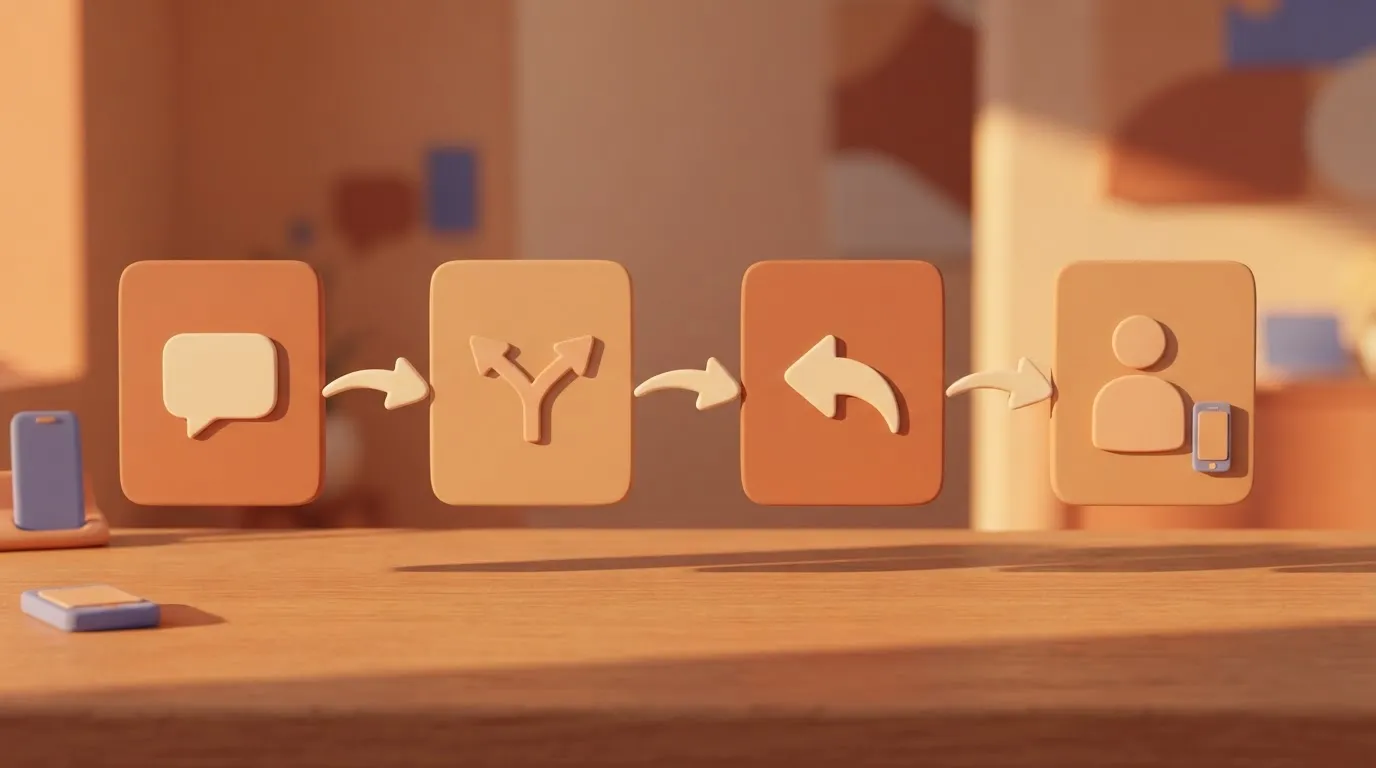
A WhatsApp workflow is an automated message sequence
- A trigger, the event that starts everything: a customer sends the word "refund".
- A rule, the condition that decides what happens: the message arrives outside opening hours.
- An automated reply, what the customer sees: an approved template confirming you'll respond at 9:00.
- A handoff, where a human or system takes over: a ticket is created and assigned to the support queue.
Fastest WhatsApp workflow setup for small teams
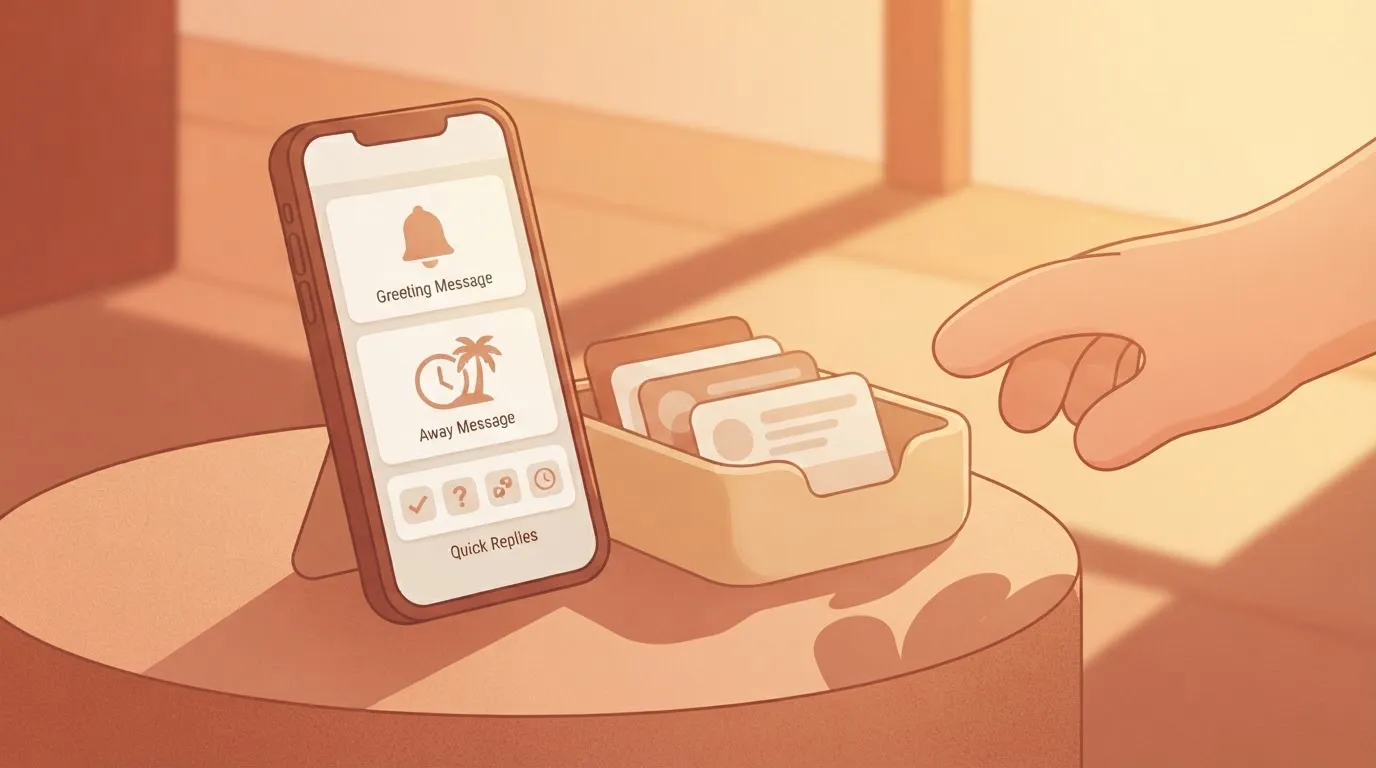
Start with the free Business app if one phone handles your volume: greeting, away message and quick replies cover trigger, rule and reply.
Once you need a ticket or CRM handoff, Activepieces builds that handoff as a flow, with unlimited flows on every plan, including free.
Move to the Platform API only when volume or custom logic outgrows both.
Sources behind the WhatsApp workflow facts
Figures here were checked on 12 November 2026 against Meta's and vendors' own documentation. Reach differs by country, and the SBA Research WhatsApp census shows how much:
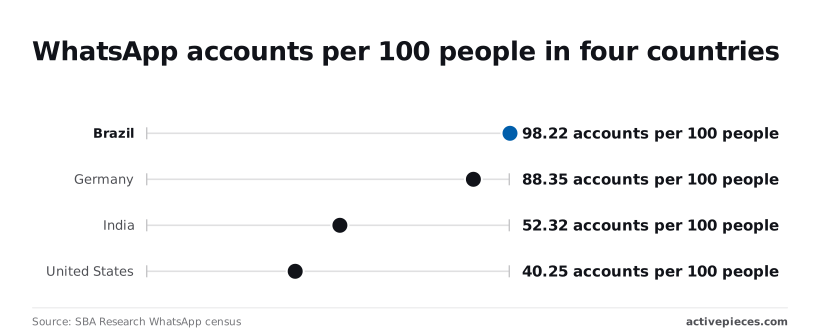
- Brazil has 98.22 accounts per 100 people, so almost every customer there is reachable.
- Germany has 88.35, still a default channel.
- India has 52.32, so roughly half the population is reachable, and you need a fallback for the rest.
- The United States has 40.25, so WhatsApp there suits opted-in customers better than a general audience.
Everything below works on Activepieces' free plan. Start without code or a credit card.
Three routes to a WhatsApp workflow compared
Pick the Business app below a few dozen chats a day, the Cloud API once you send outbound at volume, and an automation tool on the API when someone without developers must own the flows.
| Business app tools | Platform (Cloud API) | Automation tool on the API | |
|---|---|---|---|
| Who it suits | Solo operators, small shops | Teams with developers | Ops teams without developers |
| Setup effort | Minutes, in the app | Days: account, webhooks, code | Hours: connect, build flows |
| Volume ceiling | Whatever one person can answer | Set by your messaging limits and rate limits | Same as the API, plus the tool's plan limits |
| Outbound template requirement | None for chats you handle by hand | Approved template outside the 24-hour window | Same, inherited from the API |
| Cost model | Free | Per-message fees | Per-message fees plus a tool subscription |
| What breaks first | Anything beyond greetings, away messages, quick replies | Unhandled errors and rejected templates | Tool limits and a template you can't edit |
Business app built-in automations
You get greeting, away message and quick replies for free. They can't route, look up an order or trigger anything outside the app, so a second inbox owner is your signal to move.
Business Platform with Cloud API
10,000 marketing messages cost about $118 in India but $1,365 in Germany, making region selection a 10-fold cost factor.
Botcadence lists per-message prices, marketing down to utility: India $0.0118 to $0.0014, US $0.025 to $0.0034, Brazil $0.0625 to $0.0068, Germany $0.1365 to $0.055, so cost optimization requires careful attention to both region and message category. Price by recipient country before you budget.
10,000 marketing messages cost about $118 in India but $1,365 in Germany, making region selection a 10-fold cost factor.
Automation tool on top of the API
You trade a subscription for speed: no webhook code, visual flows. Templates, the window and rate limits still apply, so design flows around them.
Workflow setup on the WhatsApp Business app
Nothing here needs code or approval from Meta: seven steps, all set up inside the app on your phone, cover a basic workflow, meaning any user can complete setup without special technical training.
WhatsApp Business app profile and catalog steps
- Fill in the business profile: name, description, category, address and website.
- Set your business hours.
- Build a catalog of products or services with photos and prices.
- Create labels such as "new", "awaiting payment" and "resolved". Labels are your only pipeline view in the app.
Steps 5 to 7: greeting, away message, quick replies
- Turn on the greeting message. It sends once to a new contact or one who has been quiet for a while.
- Turn on the away message and schedule it against your hours. State when a human will answer.
- Save quick replies, each with a short shortcut. Write them for your five most repeated answers.
When to stop and move to the API
Stop when a person has to be present for every conversation to move. Signs include several staff sharing one inbox, replies that must hit a CRM or order system, and campaigns you want to send to a list.
When the app runs out, the next route is a connected automation tool. The Platform API sits beyond that, for teams that need full control.
Workflow setup on the WhatsApp Business Platform
When you set up on the Platform API, the seven steps come in a fixed order, and each blocks the next, so do them in sequence.
- Create the business portfolio in Meta Business Suite and start verification.
- Create the developer app and attach the WhatsApp product.
- Add a phone number.
- Generate the access token.
- Verify the webhook.
- Send a first message.
- Submit templates.
Start verification first, because it is the step people start last and wait on longest; build while it processes.
You can't add a number that's already registered on the WhatsApp consumer or Business app. If it's, you'll have to delete that account first, and the chat history on it goes with it.
The temporary token in the developer console expires quickly, so your workflow will fail overnight without warning. Create a system user in the portfolio and generate a permanent token for it instead.
WhatsApp webhook setup and first message
Before it'll send anything, Meta calls your webhook URL with a verification request, and your endpoint must echo back the challenge value.
Once it passes, send the first message to a test recipient. Without an open conversation window, only a template will deliver, which is why the first send usually uses the pre-approved sample template.
WhatsApp templates and the 24-hour window
Once a template is filed under a category, such as marketing, utility or authentication, Meta can still recategorize it on review, which changes what it costs you. Approval isn't instant, and rejections are common for vague variables.
When a customer messages you, a 24-hour window opens in which you can reply freely. After it closes, only an approved template can reach them.
Easier to see it running than to read about it: set it up free, no card.
Connect WhatsApp to your CRM, sheets and helpdesk
Connect WhatsApp to your CRM, sheets and helpdesk by pointing Meta's webhook at an automation tool that looks up the sender, logs the message, and replies with an approved template.
The pattern: trigger, lookup, action, reply
Whatever the flow, it comes down to the same four steps:
- Trigger: Meta sends an inbound message to your webhook URL, either directly or through Zapier, Make or Activepieces.
- Lookup: Search your CRM or a sheet for the sender's phone number, and create a contact if none exists.
- Action: Post a Slack alert, open a helpdesk ticket or append a sheet row.
- Reply: Send a template message back, since a freeform reply only works while the window is open.
Watch the lookup step. Meta delivers the same event more than once if your endpoint is slow to return a success response, so a flow that blindly creates contacts will make duplicates.
Match on the phone number before you create anything, and acknowledge the webhook first and do the work after.
Generating missing CRM and helpdesk connectors
If the CRM or helpdesk step you need has no connector, Activepieces lets you generate one with AI and add it privately to your own instance, so no vendor release stands between you and the flow.
The catalogue is 747 integrations counted straight from the open-source monorepo, and roughly 60% of them were contributed by the community.
Its WhatsApp connector works with the Platform API only, so if you run the Business app, you won't be able to connect it this way.
WhatsApp workflow errors, limits, and fixes
Once you know which one fired, most WhatsApp failures take minutes to fix: each traces to a window, template, token, webhook or quality rule, and only a handful of codes cover them.
| Problem | Symptom | Cause | Fix |
|---|---|---|---|
| Error 131047 | Free-form send rejected | More than 24 hours since the customer's last message | Send an approved template instead |
| Error 131026 | Message undeliverable | Number not on WhatsApp, or recipient hasn't accepted updated terms | Verify the number; don't retry blindly |
| Error 132000 | Template send fails | Parameter count doesn't match the template | Match variables to the approved text |
| Webhook verification failure | Meta won't save your callback URL | Verify token mismatch, or the challenge isn't echoed back | Return the challenge value on the GET request |
| Expired token | Calls fail with an auth error | Temporary token lapsed | Switch to a system user token |
| Quality or limit hit | Sends throttled or paused | Blocks, reports or a tier cap | Pause, trim the audience, wait |
| Opt-in problem | Low delivery, rising blocks | Contacts never agreed to hear from you | Capture and store consent first |
WhatsApp window, template and opt-in errors
131047 is the one your automation will hit first, because any delay past 24 hours turns a reply into a template send.
WhatsApp webhook and token errors
If your endpoint never echoed Meta's challenge, verification fails and nothing you build downstream will ever receive events.
WhatsApp quality rating and message limits
A 1,000-person broadcast will stall on day one, because a new number may message 250 customers per 24 hours, per Meta for Developers. The scaling path then reaches 2,000, which suits a small list.

Auto tier 1 allows 10,000 and auto tier 2 allows 100,000, so volume rises only if quality stays healthy.
Launching your first workflow on Monday
Pick the route that fits your volume, write your three messages, and submit templates before anything else, because template approval is the one step you can't hurry. The order below keeps a rejection from stalling the whole launch:
- Pick the route from the table: Business app automations, Platform API, or a connected automation tool.
- Write the three messages: greeting, template, and handoff.
- Submit the templates for approval.
- Test with a test number.
- Recheck Meta's pricing and limits pages.
Monday to Wednesday
Choose the route first, since it decides who can edit the workflow later and where its limits sit.
Then write the three messages as plain text. The greeting is free-form and only goes out when a customer has messaged you.
The template is the message you send when you start the conversation, so it must say what the customer asked for and why you're writing.
The handoff names who picks up and what they'll already know, so nobody has to ask the customer to repeat themselves.
Submit the templates the same day you finish them. A rejection costs you a rewrite and a wait, and you want to discover that on Tuesday, not on launch day.
Testing your WhatsApp workflow Thursday and Friday
Send every message to a test number you control, and watch for the failures that only show up live: a template that arrives with its variables unfilled, a handoff that routes to nobody, a reply that falls outside the window in which free-form messages are allowed.
Finish by rechecking Meta's pricing and limits pages. Both change, and a figure you read last quarter may not be the one you'll be billed against.
What Activepieces does about this
Activepieces is the connected-automation route from the table, built for the step where the Business app runs out. Its WhatsApp connector works with the Platform API only. You still bring your own approved templates, and the 24-hour window and Meta's rate limits apply as before.
What it removes is the code around them. The inbound message, the CRM lookup, the helpdesk ticket and the template reply are steps in one visual flow, so a duplicate-safe lookup is a step you add rather than a service you write.
The core is open source under the MIT licence, with unlimited flows on every plan, including free. If your CRM has no connector among the 747 in the monorepo, you can generate one with AI and keep it private to your own instance.
Frequently asked questions
Checked against Meta's published documentation on 2026-11-12, the answers below still need a second look, because pricing and limits change. Confirm on the linked page type before you commit.
Is a WhatsApp workflow free?
Partly. The WhatsApp Business app and its built-in automations cost nothing to use, but the Platform API charges per message sent, depending on template category and recipient country.
Replies inside an open customer service window aren't charged, so a support-heavy workflow costs far less than an outbound campaign. Meta's pricing page is the source.
Can I automate my personal WhatsApp account?
No, not through any official route. Automations belong to the Business app or the Platform API. Scripts that drive a personal account break Meta's terms, so expect a ban rather than a workaround.
How many messages can I send per day?
It depends on your messaging limit tier, which sits on your business portfolio and rises as you send quality traffic.
A low quality rating can stall or reduce that tier, so complaints and blocks cost you capacity. Check the limit in Meta Business Manager rather than assuming one.
Do I need a developer to build a WhatsApp workflow?
Not for the first two routes. Business app automations are settings screens, and connected automation tools use visual builders. You need a developer when you call the Platform API directly, mainly for webhooks, template submission and error handling.
In almost every setup, three more questions come up, each answered in one line with the Meta doc to read:
- Do I need a template inside the 24-hour window? No, free-form replies are allowed while it's open; templates are for reopening a closed one (Meta's customer service window documentation).
- Can I message anyone with their number? No, recipients must have opted in (Meta's WhatsApp Business messaging policy).
- Does a rejected template block my account? Rejection blocks only that template, but repeated low-quality sends affect limits (Meta's message template guidelines).
Those three are the ones that surface as errors instead of warnings, so read their pages before launch.