

Overview
A tier is a named group of models that builders pick instead of a raw model id, for example Expert or Everyday. Each tier has:- A name, an emoji and a short description. Builders see these when they pick a model.
- A main model, tried first.
- Up to 4 fallbacks, tried in order when the main model can’t serve a request. Fallbacks can come from different keys and providers.
- A thinking budget: Default, Off, Low (5,000 tokens), Medium (10,000 tokens) or High (20,000 tokens). Only models that support reasoning use it.
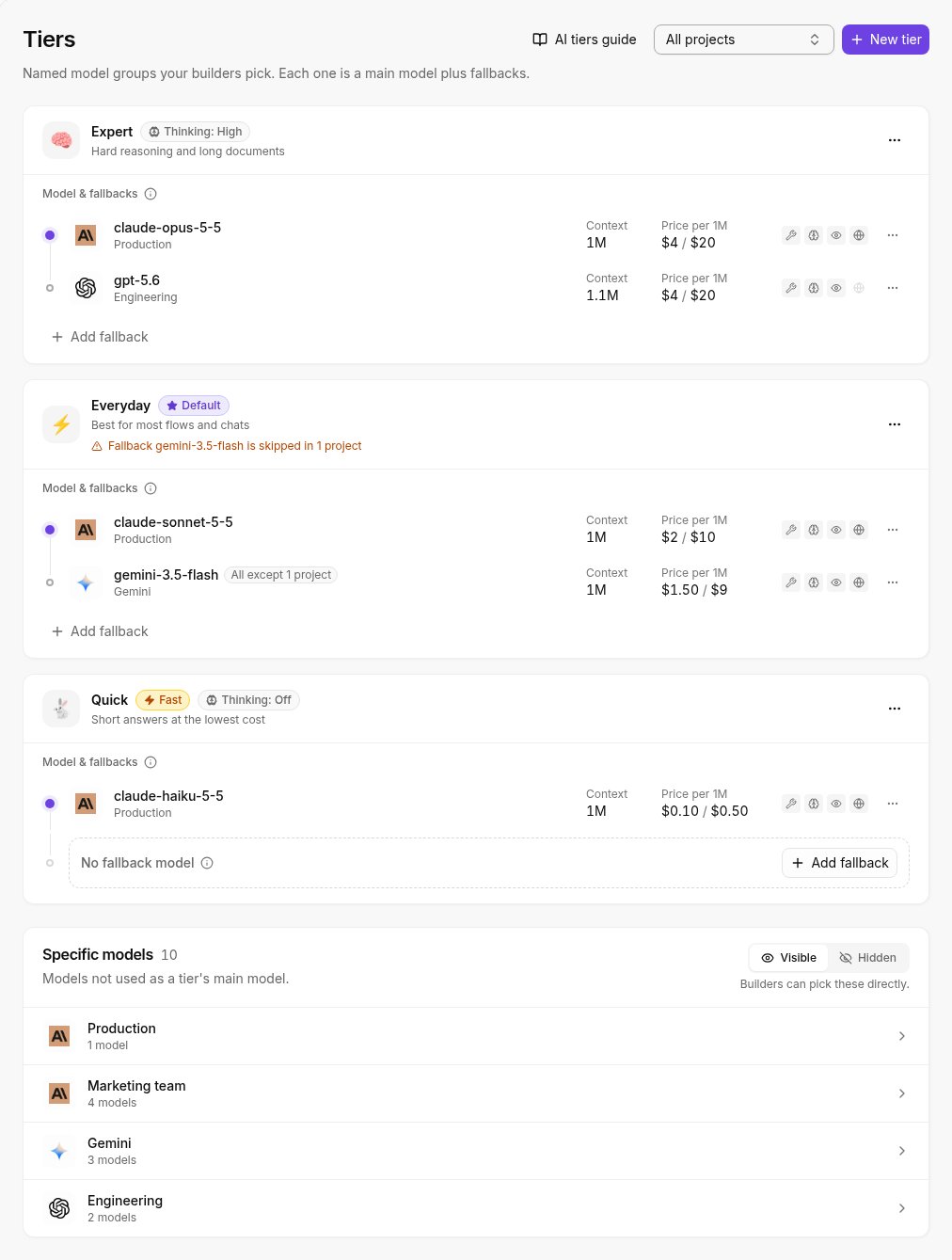
On Cloud, Tiers is in the AI Center menu. On self-hosted, open it by URL:
/platform/ai/tiers. Tiers are built from your own keys, so add a key on the Providers page first.Create a tier
1
Start a new tier
Click New tier.
2
Name it
Pick an emoji, enter a name (up to 40 characters) and an optional description (up to 120 characters).
3
Pick the main model
Choose the main model from any of your keys. Only models the key allows are listed.
4
Set thinking and save
Choose a thinking budget, then click Save tier.
5
Add fallbacks
On the tier card, click Add fallback and pick a model. Repeat for up to 4 fallbacks.
Default and fast tiers
Use the … menu on a tier card:- Make default: the tier builders get when they haven’t picked a model. It is marked Default.
- Use as fast model: chat and agent runs use this tier for quick, light steps. It is marked Fast.
Reorder and edit
The order of the cards is the order builders see. Use Move up and Move down in a tier’s … menu to change it. Use Edit to change the name, emoji, description or thinking. To change the main model, use Change main model in the model row’s … menu.Delete a tier
Click Delete in the tier’s … menu, then pick a tier under Move them to. Everything that used the deleted tier now runs on the tier you picked. If the deleted tier was the default or the fast tier, the tier you picked takes that role. You can delete your last tier without picking a replacement. Anything still using it stops working until someone picks a new model. If you had hidden specific models, they are shown to builders again, so builders still have something to pick.Tiers follow key project access
Each key can be limited to some projects (see Access). Tiers respect that:- A tier is offered in a project only when its main model’s key serves that project.
- A fallback whose key doesn’t serve a project is skipped there.
Specific models
Below the tiers, Specific models lists the models on your keys that are not a tier’s main model. Builders can pick these directly. Click Make a tier on a model to start a tier from it. Use the Visible / Hidden switch to choose what builders see:- Visible: builders can pick tiers and specific models.
- Hidden: builders only see tiers. You need at least one tier first.
Related
- Providers and keys
- API reference: list tiers, create, reorder, update, delete.