
Amazon WorkSpaces Pricing: AutoStop vs AlwaysOn (2026)

Nov 21, 202616 min read
WorkSpaces prices every desktop bundle in one of two ways: a flat monthly fee (AlwaysOn), or a smaller monthly fee plus an hourly rate for each hour connected (AutoStop), and teams that track usage in automated reports, perhaps built with Activepieces, can see quickly which side of the line each desktop falls on. Which one is cheaper depends on hours used per desktop, not on the bundle's list price.
Amazon WorkSpaces is AWS's managed virtual desktop service. You pick a bundle (a fixed combination of CPU, memory and storage), an operating system and a region, and AWS runs the desktop for your users.

The meter is the desktop per month or per hour, and it sits next to separate charges for directory, licences and data transfer. Count the metered unit before you read the price.
Amazon WorkSpaces pricing today, plan by plan
The pricing table, checked against the AWS pricing page
The table below lists each bundle, the workload it targets and the billing modes it supports.
It lists rates that differ by region, so the AWS WorkSpaces pricing page for your region is the source to price from.
| Bundle | Operating system | Typical role | Billing modes |
|---|---|---|---|
| Value | Windows | Light task work, shared-style use | AlwaysOn or AutoStop |
| Standard | Windows | General office work | AlwaysOn or AutoStop |
| Performance | Windows | Heavier multitasking | AlwaysOn or AutoStop |
| Power | Windows | Developers, analysts | AlwaysOn or AutoStop |
| PowerPro | Windows | Most demanding CPU and memory work | AlwaysOn or AutoStop |
| GraphicsPro | Windows | GPU workloads, 3D and rendering | AlwaysOn or AutoStop |
| Power | Ubuntu | Linux development desktops | AlwaysOn or AutoStop |
Read down the last column: the choice of billing mode applies to every row, so it's a decision you make per user group, not per bundle. The next subsection defines both modes so you can match them to usage.
Monthly versus hourly billing, defined
If staff use the desktop most of the working day, AlwaysOn suits them. It charges one monthly fee whether or not anyone logs in.
AutoStop charges a monthly fee that covers storage and infrastructure, plus an hourly rate while the user is connected, and the desktop stops itself after a period of inactivity. Part-time and occasional users are where AutoStop can win, and full-time users are where it loses.
AWS has offered a time-limited free tier for new accounts, restricted to specific bundles and capped in usage hours.
It's built for a trial, not for running a team, and it doesn't cover the add-ons around the desktop. Confirm the current allowance on the pricing page before you plan a pilot around it.
If you are running this arithmetic for your own team, see what the same workload costs on Activepieces.
What WorkSpaces costs at scale
Take the Standard Windows bundle in us-east-1: AlwaysOn (flat monthly billing) costs $35 per user.
That puts 10, 50 and 200 users at $350, $1,750 and $7,000 a month before directory, licence, storage and transfer charges, which means these baseline costs are only part of the total monthly bill.
Those add-ons ride on top at every size.
A user below that costs less on AutoStop and a user above it costs less on AlwaysOn.
At 84 hours, AutoStop works out to $9.75 plus $25.20, or $34.95, which is the flat rate to the cent. That crossover is about four working days of eight hours a week.
The decision is per user, not per company, and the rest of this section applies it at three headcounts.
WorkSpaces cost for 10 full-time users
Ten people at a desk all day run well past 84 hours each, so AlwaysOn is the cheaper mode for every one of them. The bill is $350, and the interesting question is not the desktop rate.
With ten seats, a directory service that costs a fixed amount per month is a large share of the total, so the choice of directory provider becomes a major cost lever. Price it before you compare against laptops.
WorkSpaces cost for 50 mixed-schedule users
Here the split matters. Staff who log in a few hours a day sit under the 84-hour line and belong on AutoStop. Count them separately and multiply each group by its own rate.
Put all 50 on AlwaysOn and the bill is $1,750, which overpays for every part-timer, meaning the model penalizes flexible staffing.
Put all 50 on AutoStop and every full-timer is overpaid, and the penalty grows with each extra hour, at $0.30 apiece, which means each full-timer's cost depends entirely on hours worked.
Audit actual connected hours for a month before you commit. Guessed hours are where mixed fleets go wrong.
200 users: shift work and pooling
A flat $7,000 at 200 users only makes sense if every seat is in use for most of the month, which makes the model fragile to staffing swings.
Shift teams break that assumption: three shifts can share one desk's worth of hours, yet per-user billing charges for each person.
Pooled sessions, where desktops are shared and not assigned to named people, change the unit you pay for from people to concurrent sessions.
Check the pricing page for the pooled rate and its limits, then compare it against 200 individual AutoStop users at your real hours.
Pooled sessions, where desktops are shared and not assigned to named people, change the unit you pay for from people to concurrent sessions.
Identify hidden WorkSpaces costs and limits
Even a correct comparison of per-desktop rates leaves out charges that bill separately: the directory, Office licensing, storage, and data transfer, plus quotas that cap how far you can scale. Five items matter most, and none appears in the desktop price.
- AWS Managed Microsoft AD, at about $0.12 to $0.40 an hour
- AD Connector, free until 30 idle days
- Microsoft 365 Apps, BYOL
- Extra storage
- Data transfer out
The directory is the one to check first, because AWS meters it by the hour whether or not anyone logs in. The rest of this section covers each item and the limits around it.
WorkSpaces directory, licensing and application add-on costs
Run AWS Managed Microsoft AD around the clock at about $0.12 to $0.40 an hour and it comes to roughly $88 to $292 a month. That's a fixed cost, so it's a rounding error across 200 users and a visible line across 10.
AD Connector, a proxy to a directory you already run, is free until it sits idle for 30 days. A pilot you abandon then starts billing without anyone noticing, so put a calendar reminder on it.
Microsoft 365 Apps on WorkSpaces is bring-your-own-license (BYOL). Your Microsoft agreement carries that cost, not the AWS invoice, so a comparison that leaves it out flatters WorkSpaces against a competitor that bundles Office.
Confirm that your licensing covers hosted desktops before you count it as zero.
WorkSpaces storage and data transfer costs
Every desktop ships with root and user volumes at a set size. AWS bills a larger root or user volume per desktop, per month, so a blanket "bigger disk for everyone" policy multiplies by headcount. Size the exceptions, not the whole fleet.
AWS meters data transfer out by the gigabyte leaving AWS. Streaming the desktop to the user isn't what bills here. Downloads, syncs, and backups to systems outside AWS are.
A team moving large files off the desktop pays for volume, so find your heaviest exporters before rollout.
WorkSpaces service quotas and regional limits
If a rollout assumes it can launch everything at once, it may stall until a quota increase is approved. AWS sets per-account and per-region quotas on WorkSpaces and related resources, and the limits differ by region.
Rate cards also vary by region, so pricing one region and deploying in another puts a wrong number in the budget. Request increases before the migration date and price each region you'll use.
Worth checking against a plan that does not meter every step: one credit covers a whole run on Activepieces.
Compare WorkSpaces with Azure and Windows 365
Per seat, WorkSpaces is the simplest of the four to price. It loses to Azure Virtual Desktop when sessions can be pooled, and to Windows 365 when you already hold Microsoft licences.

Pricing is per bundle and region, so you only get a real number after the region pricing above.
The table shows how each product meters the desktop and what you still have to buy or run yourself. Read the licence and overhead columns first: they decide which line items land outside the vendor's headline rate.
| Entry price per user per month | Fixed or consumption | Licences included | Management overhead | Best fit | Check date | |
|---|---|---|---|---|---|---|
| WorkSpaces | Set per bundle and region | Either: monthly fixed or hourly | Windows in the bundle; Office and directory extra | Low: AWS runs the fleet, you run the directory | Steady seats on AWS, or part-time users on hourly | 21 Nov 2026 |
| Azure Virtual Desktop | No service fee; you pay for the VMs, storage and network | Consumption | None; needs an eligible Windows or Microsoft 365 licence | High: you build host pools, images and scaling | Many users sharing sessions on Azure | 21 Nov 2026 |
| Windows 365 | Set per Cloud PC size | Fixed | Windows licence required; Intune and Entra are part of the setup | Low: Microsoft manages the Cloud PC | Microsoft-centred shops wanting a flat bill | 21 Nov 2026 |
| Citrix | Citrix licence on top of your cloud or datacentre costs | Mostly fixed licence plus consumption underneath | Citrix only; Windows and infrastructure are separate | Highest: two vendors, two bills | Hybrid estates, many sites, tight policy control | 21 Nov 2026 |
Each row comes from the vendor's own pricing and documentation pages, and it describes billing structure, not a quote. Check the page for your region before you commit.
Here is where WorkSpaces gives ground. Azure Virtual Desktop can undercut it when many users share a VM, because you pay for compute, not for a dedicated desktop per person.
Windows 365 gives a flat per-user bill that finance can forecast, with no hourly arithmetic. Citrix only makes sense when control and hybrid reach outweigh two bills.
Treat review-site opinions as a small, self-selected sample. People who write reviews skew toward the very happy and the very angry, and they rarely report headcount or usage pattern. Your own seat count and hours decide the result, not their star ratings.
Automate WorkSpaces onboarding and offboarding with Activepieces
Activepieces runs the HR- or ticket-triggered steps that create, stop or terminate a WorkSpaces desktop, and it flags idle ones.
If the WorkSpaces step you need isn't in the catalogue, you don't wait on a vendor release: you have AI generate the integration and add it privately to your own instance, and about 60% of the existing integrations were built by the community rather than by Activepieces staff.
It doesn't change what AWS bills.
Activepieces lets you pick a trigger, chain steps after it and branch on conditions, across 750 integrations counted directly from the integrations directory of its open source monorepo on GitHub, under an MIT-licensed core, so you won't need custom code for most of the services you use.
That matches the lifecycle problem behind the earlier cost argument: a desktop that nobody provisioned on time, or nobody stopped on departure, keeps billing whatever the list price says. Three flows cover it:
- A new-hire record or ticket triggers desktop provisioning, then posts a confirmation to the requester.
- A departure record or ticket triggers a stop or termination, then notifies IT so the decision isn't left to memory.
- A scheduled check lists desktops with no recent sessions and alerts an owner, who decides whether to stop them.
The screenshot below is a different workflow, one that categorizes support tickets, but its shape is the one you would reuse.
A HubSpot trigger (HubSpot's a CRM with a ticketing module) fires on a new ticket.
Two AI steps rewrite and classify it, a router sends it down one branch or an "Otherwise" path, and each path ends in a Slack message, so tickets never get lost in unmapped logic.
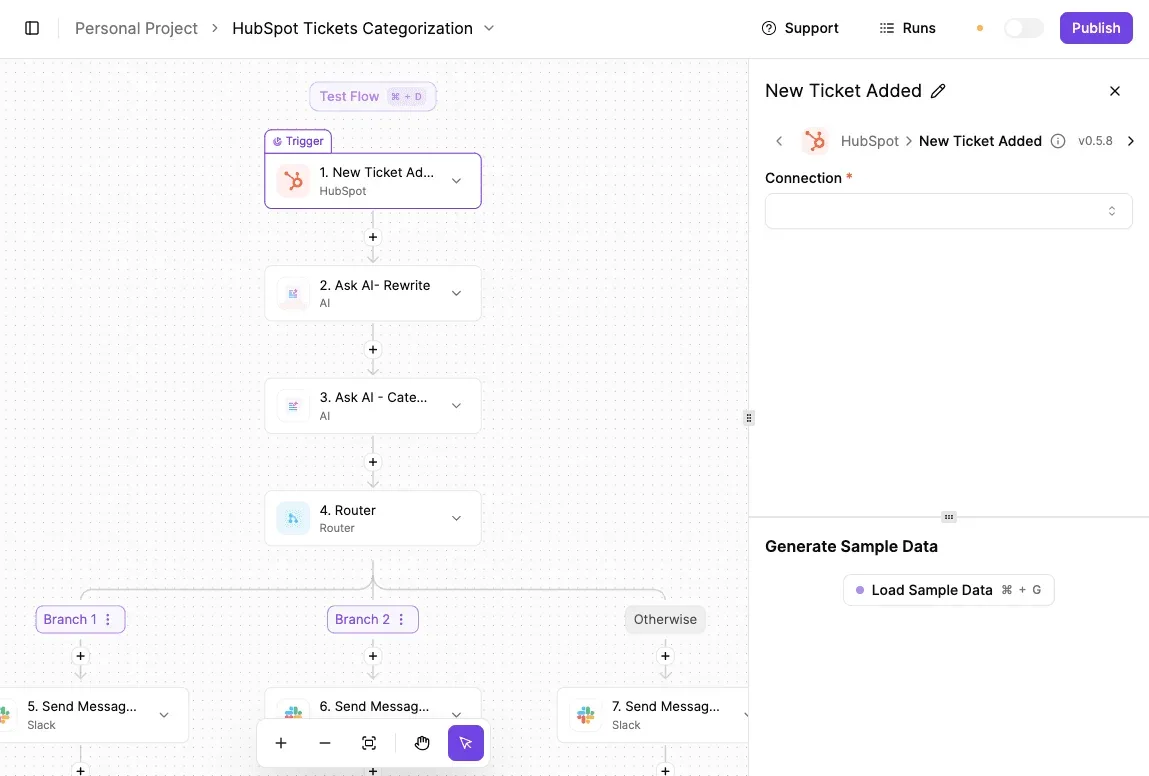
Swap the trigger for an HR event, replace the AI steps with a lookup of the employee's role, and the router becomes "which desktop bundle, or none".

I can't point to a ready-made WorkSpaces step in that builder. The AWS call itself would go through a generic HTTP request step or a small function you host in AWS. Treat that as work you own.
Before you commit, check which unit your plan meters.
On Activepieces a run is 1 credit however many steps it has, so a router with several branches doesn't multiply what each hire or exit consumes; AI steps are the exception, at 2 credits on a fast model.
Flows are unlimited on every plan, and the free plan includes 1,000 credits a month.
What to do before choosing WorkSpaces
Measure real usage first, then price the whole stack and set alerts, because hours per user decide whether WorkSpaces beats your alternatives at your headcount.
The six steps below run in that order, and each one feeds the next, so you can't rearrange them without breaking the logic.
- Measure hours per user.
- Pick AlwaysOn or AutoStop per group by break-even.
- Price directory and licences in the AWS Pricing Calculator.
- Trial on the free tier.
- Set budget alerts.
- Re-check the pricing page.
Measure WorkSpaces usage hours per user
Pull login and session data from whatever your people use today: VPN logs, VDI records, or even badge-in data for office staff. Group users by pattern, such as full-time staff, part-time shifts and occasional contractors.
AlwaysOn is the flat monthly bundle price, and AutoStop is a small monthly fee plus an hourly meter that runs only while the desktop is in use. Each group's average monthly hours decide which mode is cheaper.
Where a group sits close to the break-even, choose AlwaysOn if you want a predictable invoice, and AutoStop if you expect usage to fall.
Price the full stack in the AWS calculator
Open the AWS Pricing Calculator and build one estimate per group. Add the bundle and billing mode, then the directory service, any Microsoft licences, extra root and user storage, and outbound data transfer.
Take the rates from the WorkSpaces pricing page rather than from memory or a blog post, including this one. Then run the free tier trial with a handful of real users, not just IT, and compare the metered hours against your step-one estimate.
Set WorkSpaces budget alerts and review dates
Create an AWS Budgets alert on the WorkSpaces account so an idle fleet or a runaway data transfer shows up in days, not at month end. Tag each desktop by group so you can see which mode is overspending.
Then put a recurring date in the calendar to re-read the pricing page and re-run the estimate. Rates, bundles and regional prices change, and so does your headcount.
Frequently asked questions
Is there a free version of Amazon WorkSpaces?
Only a limited trial, not a free plan. AWS has offered new accounts a capped allowance of hourly usage on selected bundles, and anything past the cap is billed at normal rates.
The first bill can still contain charges, because the trial doesn't cover add-ons such as a directory or extra storage. Check the allowance on the pricing page before you rely on it.
Can I bring my own Windows licence to WorkSpaces?
Sometimes. Bring your own licence (BYOL) depends on whether your Microsoft agreement allows virtual desktop use. WorkSpaces then runs those desktops on dedicated hardware, and that tenancy is billed separately from the desktops.
The licence you save has to outweigh the dedicated capacity you pay for, so BYOL tends to suit larger, steady fleets. For a small team, the bundled licence is usually the cheaper route.
Does WorkSpaces charge for stopped desktops?
Yes, on hourly billing, though less than for running ones. On hourly billing, AutoStop stops billing once the AutoStop Time period expires after a desktop disconnects.
AutoStop also does nothing to the directory, which is a separate service billed whether or not anyone is logged in.
On monthly billing, stopping saves nothing, because you pay the flat rate regardless. Hourly billing only wins if people actually spend part of the month disconnected.
Is Amazon WorkSpaces cheaper than Windows 365?
It depends on how the desktops are used. Windows 365 charges a flat monthly rate per user, so the bill is easy to predict. WorkSpaces can undercut it for part-time users on hourly billing.
If people work full days all month, the gap narrows or reverses once you add the directory, storage and data transfer.
Price both for your own mix of heavy and light users. Regional rates differ too, so use the figures for the region where your users sit.
How do I cancel a WorkSpace without extra charges?
Terminate the desktop. Stopping it doesn't end billing. Do it before a new billing month begins, because a monthly desktop is charged for the month it's in.
Then remove what outlives it: custom images, snapshots and backups of user volumes. If no desktops remain, deregister and delete the directory, which otherwise keeps billing.
Running the numbers
See what the same workload costs here.
Free forever plan, and every paid plan self-hosts at no extra cost.
See pricing Talk to sales