Zoom Calendly Integration: How to Set It Up (2026)

Nov 17, 202614 min read
A Zoom Calendly integration is two layers: Calendly's own Zoom connection adds a meeting link to each booking, and an automation tool, such as Activepieces, handles everything that happens around the meeting.
Two-layer Zoom Calendly integration
Connect Zoom to Calendly and every booking on that event type gets a Zoom link in the confirmation and the calendar invite. That's the whole job.
It doesn't record the booking anywhere else, register the invitee in Zoom, or react when someone cancels. If a link is all you want, stop here and spend nothing more.
69.6% of booked B2B meetings took place in a Growthcab study, so the link did its job less than seven times in ten.

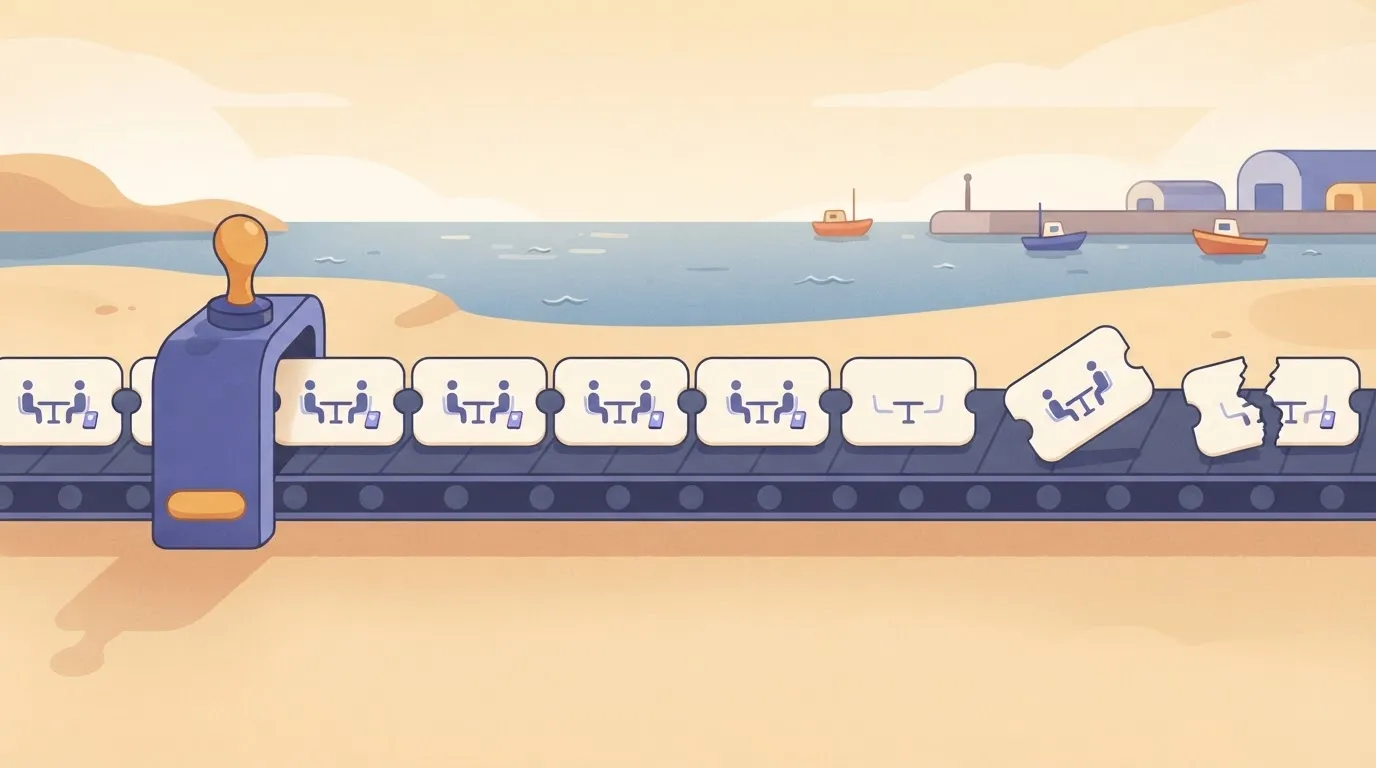
That leaves 30.3%, which split into 14.6% no-shows, 11% reschedules and 4.7% cancellations. Each of those is a booking that changed state after the link existed, and the native connection doesn't do anything about any of them.
When a step isn't covered by a built-in trigger or action, it can go through an HTTP request or webhook.
You need a Calendly account with Zoom already connected, a Zoom account, and somewhere to write the booking, such as a sheet or CRM.
You also need an automation tool; this guide uses Activepieces, whose free plan includes unlimited flows and 1,000 credits a month. Have one real test booking ready, because the triggers only prove themselves on live data.
This takes minutes, not a project: automate it in Activepieces free.
Ways to connect Zoom and Calendly compared
Use the native connection if you only need a Zoom link on each booking. Reach for an automation tool or a custom build when something must happen before or after the call.
| Route | Cost model | Code needed | Steps | Open source / self-host | Failure handling |
|---|---|---|---|---|---|
| Native connection | Included in your Calendly seat | None | One setting | No | Calendly flags a broken link; no retry logic you control |
| Open-source workflow builder | Free self-hosted or hosted plan; check the vendor plan page | None for the basics | Trigger plus one or more actions | Yes | Run history, replay, error branches |
| Other automation tools | Usually metered per task; check each plan page | None to low | Trigger plus actions | Mostly no | Varies; often email alerts and manual replay |
| Custom webhook/API | Your hosting and time | Yes | Whatever you write | Your code | Whatever you build |
Prices and plan limits checked against activepieces.com and activepieces.com on November 17, 2026.
If the job is writing invitees to a CRM, posting to a team channel, or sending follow-ups after the meeting ends, you need the invitee-created and invitee-canceled triggers, with an HTTP request or webhook for anything the app lacks.
A hosted tool fits when you want no servers; a self-hosted one fits when booking data must stay in your infrastructure.
You need paid plans on both accounts. Journal Arta puts the cheapest paid seat at $4 per user per month for Microsoft Teams, $7 for Google Meet, $10 for Calendly and $14.16 for Zoom.

That puts Calendly plus Zoom at about $24 per person monthly before any automation, so budget the seats first.
Five Zoom and Calendly workflows worth building
Nobody has to migrate, and five small workflows justify keeping both tools. Three of the five start from the same "Event Scheduled" trigger in Calendly, and the table shows each one's trigger, actions, optional branch and the work it removes.
| Workflow | Trigger (owning app) | Actions | Filter or branch | What it saves |
|---|---|---|---|---|
| Team notification | "Event Scheduled", Calendly | Post booking details to team chat | None | Checking the calendar for new bookings |
| Sheet or CRM row | "Event Scheduled", Calendly | Add a row with invitee, time, event type | Skip internal invitees | Copying details by hand |
| Cancellation cleanup | "Event Canceled", Calendly | Update the row, send an alert | None | Orphaned rows and surprise no-shows |
| Follow-up | A Zoom meeting event | Send a thank-you email | Only for external guests | Writing follow-ups from memory |
| Routing | "Event Scheduled", Calendly | Send to a different action per event type | Branch on event type | One catch-all process for every call |
When a booking comes in, the invitee, time and event type post to a team channel. Whoever owns the call sees it without opening Calendly.
Off the same trigger, a row is added. A filter keeps internal test bookings out, so the sheet holds only real leads.
Leave a cancelled booking in the sheet and it looks like a live meeting. Update the row and alert the owner.
When the Zoom event fires, the follow-up email goes out as the call ends rather than when someone remembers.
Send a discovery call and a support call down different paths with one branch per event type, which is where the workflow starts doing real work.
One Zoom Calendly workflow built step by step in Activepieces
Build it in five stages, each tested before the next: one Calendly trigger, a lookup of the booked event and a check against Zoom, then an HTTP request that hands the details to whatever sends your reminders and follow-ups.

Add the Zoom piece and the Calendly piece from the connections page and authorize each. In this workflow Calendly is the trigger: a new booking starts the flow, and a Zoom step then finds the meeting Calendly created.
A run costs 1 credit however many steps it has, so the lookups below add nothing to the credit count.
Activepieces lets you generate a missing integration with AI and add it privately to your own instance, so if an integration you need is missing, you can generate one with AI and add it privately to your own instance.
The 750 integrations in its catalogue are counted from the packages/pieces/community directory of the open-source monorepo on GitHub, whose core carries an MIT licence, and roughly 60% of those integrations were contributed by the community.
That directory is public, so you can see whether a Zoom trigger or a Calendly action already exists before you build around the gap.
Choose Calendly's "Event Scheduled" trigger. The builder puts the trigger on top, the first action beneath it, and opens the selected step's settings in a panel on the right, as the screenshot shows for a different workflow.

- Add Calendly's "Get Event" and map the event reference from the trigger output. This gives you the full booking record, not just the invitee.
- Add Zoom's "Find Zoom Meeting" to confirm the meeting Calendly created natively, rather than creating a second one with "Create Zoom Meeting".
- Add an HTTP request step. Map the invitee email, the start time, and the join link from the earlier steps into the body, and point it at the endpoint that sends your reminder or follow-up.
If a field you need is missing from the dropdown, the step before it hasn't been tested yet. Test it first.
Book a slot on your own Calendly page using a second email address. A sample payload won't show whether the join link in the body matches the link in the confirmation email, and a real booking will.
Publish, then open the run history after the first genuine bookings. Look for empty mapped fields and for the HTTP step returning an error status.
A cancellation is a separate trigger, "Event Canceled", so build it as its own small flow, or reminders will still go out for meetings that no longer exist.
You can follow the rest of this with the builder open. Start free, no card.
Zoom Calendly limits and errors
When a Zoom and Calendly flow fails, it is usually one of five things: missing scopes, plan restrictions, retried deliveries that duplicate runs, time zone drift, and connections that quietly expire.
Authorisation and plan restrictions
When an account is connected without the meeting-creation scope, it passes the connection test and then returns an authorisation error when the flow tries to create or update a meeting, because Zoom grants access by scope. Reconnect and approve the scopes the flow needs.
Before you debug the trigger, check your Calendly setup: webhooks are available on all plans, but you need a personal access token or OAuth application.
Zoom API rate limits and duplicate Calendly runs
Backfill reminders for a whole calendar and you can hit a limit that a single booking never would, because Zoom sorts its API calls into Light, Medium and Heavy categories and the allowance for each depends on your plan.
Space those calls out and retry on a rate-limit response.
More common is the duplicate. Both Zoom and Calendly retry webhooks they believe failed, and a reschedule fires its own events.
If your endpoint is slow to answer, the same event arrives twice and a reminder goes out twice. Return a success response quickly, and key each run on the Calendly event identifier so a repeat is recognised and dropped.
Zoom Calendly time zone and field mapping mistakes
If you map the start time straight into an email, the invitee reads it in the wrong zone, because Calendly sends timestamps with an offset while a hand-typed field in a message template may not.
Convert it to the invitee's time zone, which Calendly supplies, before it reaches the message.
When a password changes, an admin revokes the app, or the connected user leaves the account, tokens lapse.
The symptom is a flow that ran for weeks and then fails on every step. Reconnect the account, then re-run one test booking to confirm the trigger and the action both work.
Unlisted steps and workarounds
If a step isn't in the connector's listed triggers and actions, treat it as not ready-made. Use an HTTP request step against the vendor's API, or a webhook trigger, and accept that you now own the request format.
How fast the catalogue grows
Check before you build around a gap, because the catalogue moves fast. The library stood at 25 integrations in Feb 2023 and 48 in Mar 2023, according to the published integrations list. That's a fast early pace, so an early gap could close quickly.

By Jun 2024 the library had reached 200 and by Mar 2025 280, which means a workaround written in 2024 may now have a proper action behind it.
Then 400 in Sep 2025 and 500 in Nov 2025: 100 integrations in about two months, so roughly 50 integrations per month. Re-check the integration's action list before you commit to custom requests.
Integration count versus Zoom Calendly action depth
Do not mistake a bigger count for depth. An integration can exist for Calendly or Zoom and still lack the one action your workflow needs, such as removing a Zoom meeting when an invitee cancels.
Ready-made action or HTTP request for Zoom Calendly
Side by side below are the two routes from a Calendly booking to Zoom. One goes through a ready-made integration action. The other is a separate HTTP request or webhook step straight to the vendor API, where you hold the request format.

The ready-made route is faster to set up and cheaper to maintain.
The HTTP route takes more setup: you read the vendor's API reference, supply authentication, write the method, URL and JSON body, and map each booking field into it yourself.
If the vendor changes the API, your step breaks and nothing warns you.
Your first Zoom Calendly task
On Monday, pick the one task you copy by hand after every booking, build only that, and test it with a real booking before you add anything else. The sequence is short enough to follow as written:
If the vendor changes the API, your step breaks and nothing warns you.
- Pick the most copy-heavy task: the one where you paste the same invitee details into another place after each booking.
- Build that one workflow in your automation tool, starting from the new-booking trigger.
- Book a real test meeting on your own event type, using a second email address, and check every field arrived where you mapped it.
- Leave it running for a week and read the run history for failures or blank fields.
- Add a second workflow only once the first has run clean.
Look at the chores around the meeting first. They include logging the invitee into a CRM or spreadsheet, alerting a chat channel, sending a prep or follow-up email, and handling what comes out of the call afterward.
Where your tool has no ready-made action for one of these steps, an HTTP request or webhook step fills the gap.
- Admin access to the Calendly account that owns the event type
- A Zoom login that is already connected as that event type's location
- A login for the app that will receive the data
- One event type you can book freely for testing
- A second email address to book with
Frequently asked questions
Does Calendly create Zoom meetings without any automation tool?
Yes. Calendly's own Zoom integration, set up once in the event type's location setting, generates a unique Zoom link for every booking and puts it in the invite. An automation tool isn't needed for that.
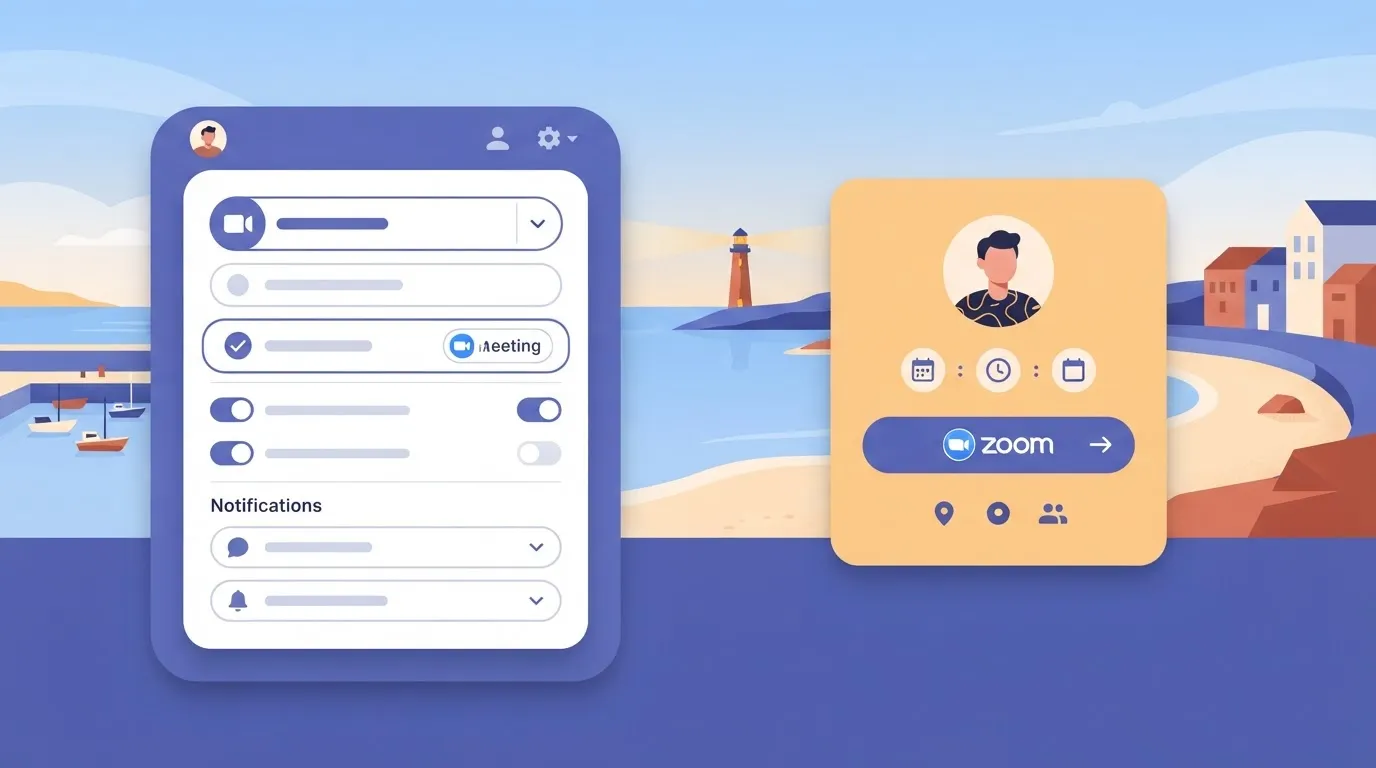
What it adds is everything around the meeting: reminders, CRM updates, follow-ups, notes.
Can I connect Zoom and Calendly for free?
For the native link, you only need the two accounts and whatever plans they require for the Zoom location option. For the surrounding workflow, free tiers of automation platforms usually cover a small flow like this one.
Check the task or run limits on your plan before you rely on it. A flow that fires on every booking will eat through a low cap faster than you expect.
Can I self-host the automation that links Zoom and Calendly?
Yes, if you pick an automation platform that offers a self-hosted edition. The flow itself doesn't change: a Calendly trigger, a Zoom action, and an HTTP request or webhook for anything the connectors don't cover.
What changes is that you now maintain updates, backups and uptime. Your inbound webhook also needs a public address Calendly can reach, so a server behind a firewall needs a proper tunnel or reverse proxy.
Why did my Zoom link not appear in the Calendly invite?
Most often the event type's location isn't set to Zoom, or the Calendly-to-Zoom authorization has lapsed and needs reconnecting. Check the event type first, then the connected account.
A second cause is a flow of your own that creates a separate Zoom meeting, which leaves two links in play. If your workflow makes meetings, the native link should be switched off for that event type so the invitee sees only one.
Can I add an AI summary after a Zoom meeting booked through Calendly?
Yes, as an extra step after the meeting ends. Trigger on the Zoom event that signals the meeting finished, fetch the transcript or recording details, and pass the text to a language model through an HTTP request.
Claude Sonnet 5.5 is a sensible pick for summaries, balancing speed and quality.
This only works if the meeting was actually recorded or transcribed. No transcript means nothing to summarize, so confirm that setting in Zoom before you test.
Related reading
References
Build it
Set this up in minutes.
No code required. Connect your accounts, and Activepieces runs it from there.
Start free Talk to sales