
Adobe Creative Cloud Automation: A 2026 Guide

Nov 15, 202614 min read
Fastest Creative Cloud automation paths by job
Direct answer and what you'll have working
The fastest path is to match each job to its layer:
- in-app actions for repeat work inside one app
- Adobe's cloud APIs for image processing at volume
- outside workflow tools for handoffs between systems
Here, Creative Cloud automation means any setup that takes repeat work off a designer's hands, through the app's own tools, Adobe's APIs, or an external tool that triggers them. By the end you'll know which layer to try first for each recurring job.
Which layer fits which job
Compare the three layers in the table on what each automates, who can build it, what it costs and where it runs.
The cheapest layer is the one you already pay for, so leave it only when a job crosses an app boundary or outgrows one machine.
| Layer | What it automates | Skill needed | Cost | Where it runs |
|---|---|---|---|---|
| In-app actions | Repeat steps inside one app, such as batch exports | Designers can record them | Included in the Creative Cloud subscription | On the user's own machine |
| Adobe cloud APIs (Firefly Services, Photoshop API) | Image edits and generation at volume, called from code | Developer | Billed separately from the app subscription | Adobe's cloud |
| Outside workflow tools (Zapier, Make and similar) | Handoffs: a form, a file drop or an approval triggering the next step | Low-code builder | A separate subscription per tool | The tool's cloud, or your own server for self-hosted options like Activepieces |
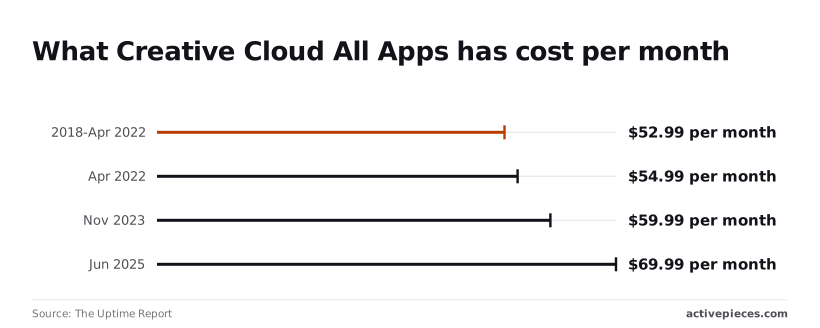
That separate bill matters because the seat itself keeps getting dearer. According to The Uptime Report, Creative Cloud All Apps cost $52.99 a month from 2018 until April 2022, then $54.99, then $59.99 from November 2023, then $69.99 from June 2025.

That's $17.00 more per month, about 32% above the 2018 price, for the same seat.
On 15 November 2026, product behavior in this article was checked against Adobe's own pages. Prices come from The Uptime Report's history, cited above. Adobe revises plans and API terms often, so confirm current pricing on Adobe's site before budgeting.
This takes minutes, not a project: automate it in Activepieces free.
Stage 1: Photoshop and Illustrator actions and batches
Before you buy or build anything else, exhaust this layer: Photoshop Actions and Batch cost nothing beyond the app you already pay for.
How to record a Photoshop action
When you want Photoshop to replay the same commands on any open file, you record an Action. The first two steps below are the recording itself.
First, open one representative file, then open Window > Actions and click the new-action button. Name it, assign it to a set, and press Record.
Second, perform the edits once, slowly, then press Stop. If you finish with Save As, you're recording a file path, which the Batch dialog can override later.
Record on a typical file, not your cleanest one. An action built on a tidy file often fails on the messy ones, which are the files you actually needed automated.
- Choose File > Automate > Batch. Pick your set and action under Play, then set Source to Folder and select the input folder.
- Set Destination to Folder and choose an output location. Tick Override Action "Save As" Commands so files land there and not at the path you recorded.
- Under Errors, choose Log Errors To File rather than Stop For Errors, then click OK. A single unreadable file will otherwise halt the run and leave you guessing where it stopped.
- Open the output folder and the error log. Spot-check a few files, including the odd ones, before you call it done.
Photoshop droplets and scripts for repeat jobs
If the job needs only resizing or format conversion, File > Scripts > Image Processor skips the recording step. It converts a folder to JPEG, PSD or TIFF at a chosen size, and it can run an action as well.
For work you repeat weekly, File > Automate > Create Droplet turns an action into a small application. Colleagues drop files onto it without opening Photoshop's menus.
In Illustrator, the Actions panel sits under Window > Actions, and its Batch command lives in the panel's flyout menu. For anything conditional, both apps accept JavaScript through File > Scripts. That's where this layer ends and the cloud APIs begin.
Stage 2: Adobe Firefly Services and Photoshop API calls
To call Adobe's cloud APIs you take five steps: a Developer Console project, an added API, server-to-server credentials, an access token, and one request. Most of the effort goes into the first three, because that's where permissions and ownership get decided.
Only the last two steps run in code, so the first three are an admin task you can finish before an engineer is involved.
- Create a project in the Adobe Developer Console.
- Add the Firefly Services or Photoshop API to that project.
- Generate OAuth Server-to-Server credentials for the project.
- Exchange those credentials for an access token.
- Call Remove Background with that token.
Create credentials
Someone with the right administrative rights in your Adobe organization has to be in the room, and in many companies that person sits in IT, not in the creative team that asked for the automation.
Adding the API to the project is what entitles it to those services. If the organization has no entitlement for Firefly Services or the Photoshop API, the option won't appear. Check entitlement first.
Choose OAuth Server-to-Server when you generate credentials. It issues a client ID and a client secret that belong to the project, not to a person.
That means a scheduled job keeps running when the employee who set it up leaves. Store the secret in a secrets manager, not in a workflow tool's plain-text field.
Get a token and make the first call
Send the client ID and secret, with the scopes the console lists for your project, to Adobe's authentication service. You get back a short-lived access token. Build your code to request a fresh one when it expires, not to paste one in by hand.
Two things go on each request: the token as a bearer credential, and the client ID as the API key header.
You don't send a file in the request body to Remove Background. Instead you point it at an input image in cloud storage that Adobe can reach, and name a location for the output.
The call returns a job, and you poll it until it finishes.
Before volume work, confirm limits and pricing on Adobe's pages, since both differ by plan and change over time.
You can follow the rest of this with the builder open. Start free, no card.
Stage 3: Connecting Creative Cloud to your other tools
Inside Adobe's own apps, the connections already exist through Libraries, shared storage and built-in integrations. Reach for an outside tool only when a job has to cross into software Adobe doesn't own.
Between Photoshop, Illustrator and InDesign, colors, logos and character styles travel through Libraries without any automation. Adobe's integrations with products such as Slack and Microsoft Teams cover review and sharing.
When an outside workflow tool is the right choice
When the job starts or ends somewhere Adobe's own features can't reach, an outside workflow tool is the right choice. That means a folder where clients drop files, a chat channel, a spreadsheet, a project tracker.
Tools like Zapier, Make and open-source alternatives all do the same basic work: watch for an event, call a service, pass the result along.
They don't edit inside Photoshop. What they can do is call Adobe's cloud APIs, which process files on Adobe's servers.
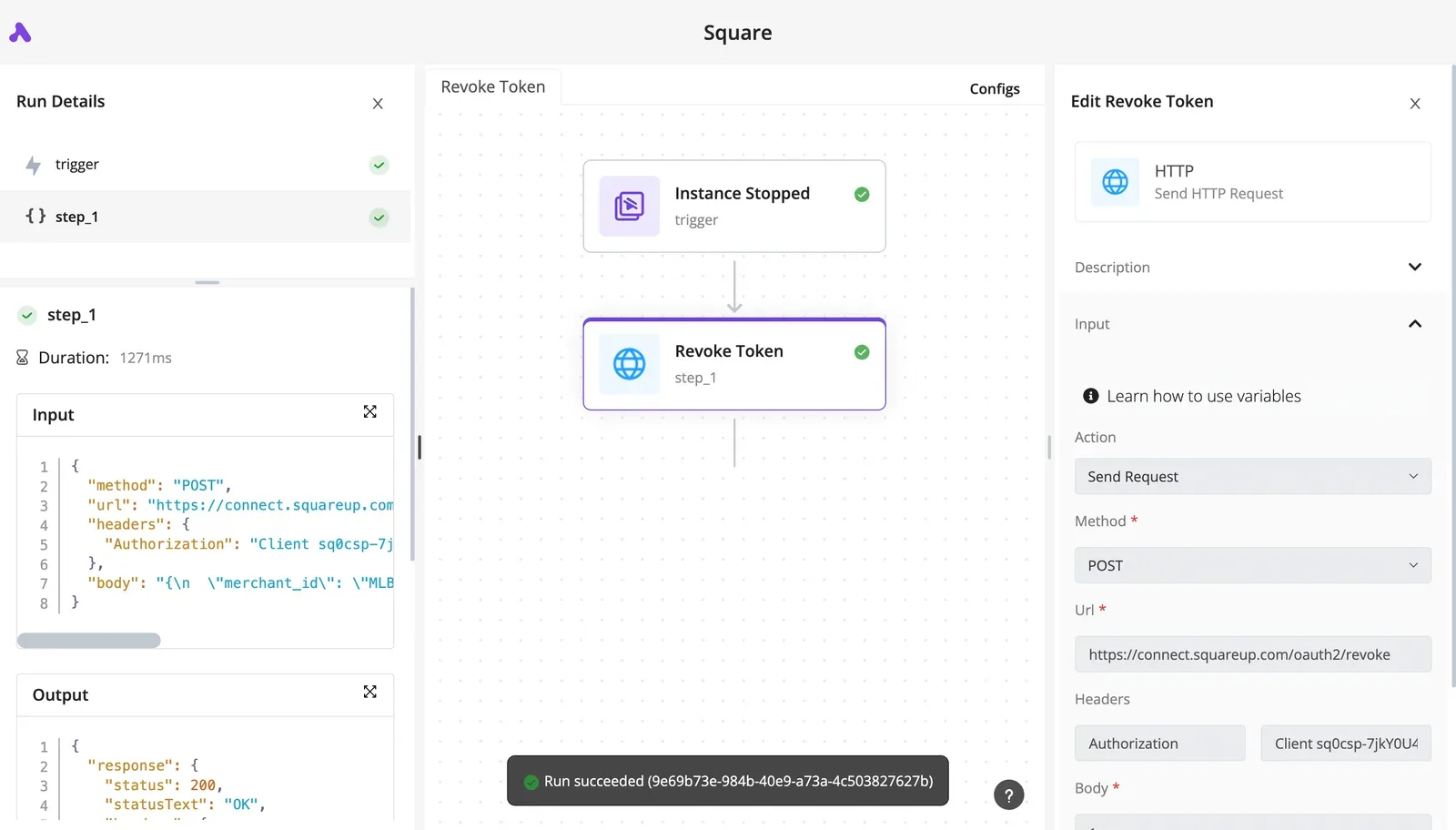
Build the workflow: trigger, Adobe API call, notify
In the flow below, the file starts at a folder, goes to an Adobe API and ends in a chat message. The automation runs entirely in the cloud and never touches your desktop session.
(illustration)
That separation tells you how to build it:
- Set the trigger to a new file in the shared folder where assets arrive. Filter by file type so stray documents don't start a run.
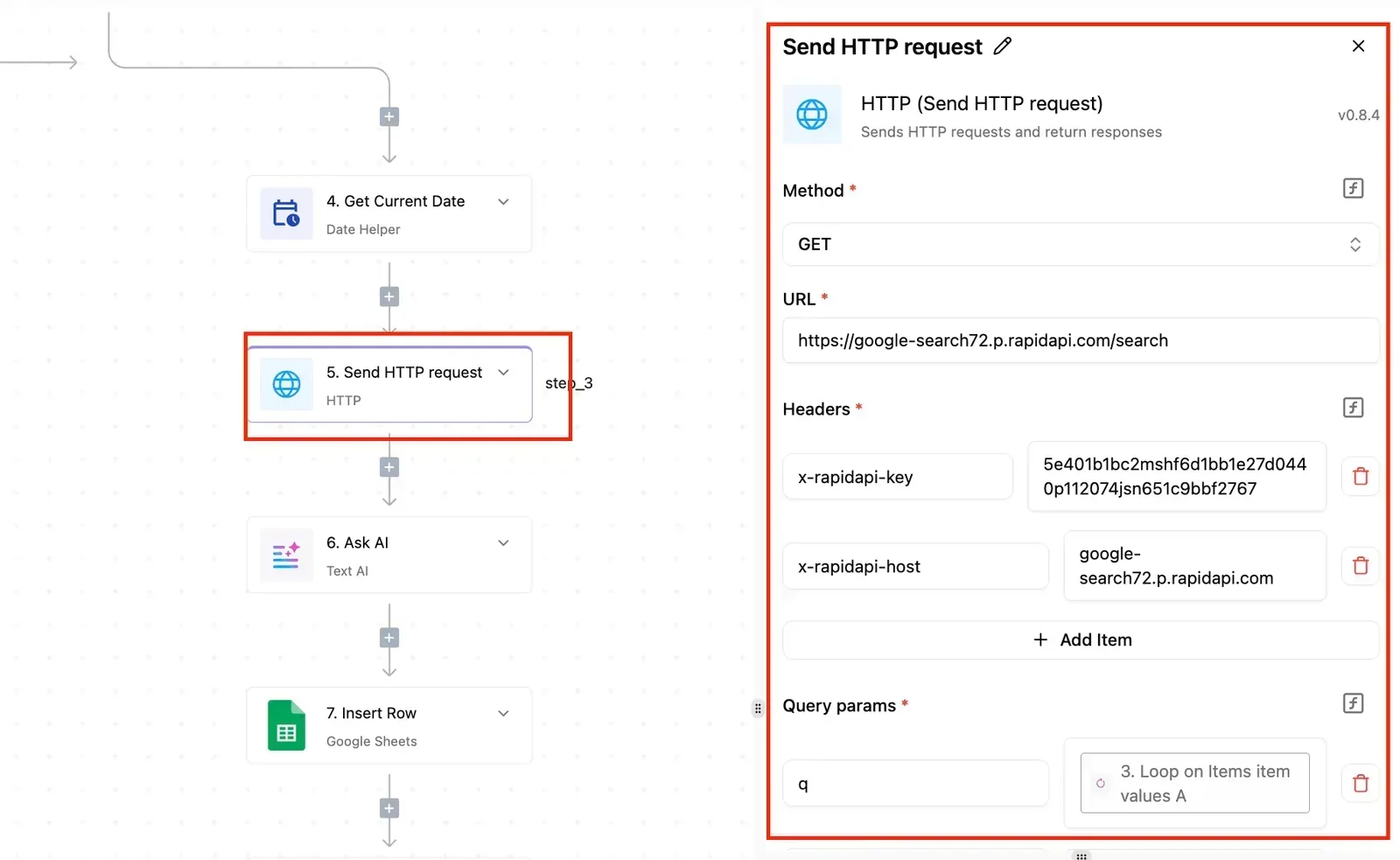
- Add an HTTP request step that sends the file to the Adobe API suited to the job, such as background removal or format conversion. Store your Adobe credentials in the tool's connection settings, never in the step itself.
- Add a step that posts the result link to a Slack channel, the team chat where reviewers already work, so the output reaches them without anyone checking the folder.
- Run it on a handful of test files and read the failures before you trust it. Most breakage comes from credentials that expired or file types the API rejects.
Activepieces fits this layer for the routing only, and it answers the question a closed connector list leaves open: what if the Adobe-side or chat-side connector you need isn't there?
A catalogue that only grows when its vendor decides to grow it leaves you waiting on someone else's roadmap, whereas Activepieces lets you generate the missing integration with AI and add it privately to your own instance, with no release to wait for.
It starts from 748 integrations counted directly from its MIT-licensed open source monorepo, and roughly 60% of them were contributed by the community, not by us, so scaling requires contributions outside the core team's direct control.
MoneyGram, Moneypenny, Alan and FundingSocieties run it in production.
Treat it as the connective tissue between in-app actions and Adobe's APIs, and give each layer only the work it can actually do.
Creative Cloud automation limits and errors with fixes
When a Creative Cloud automation fails, seven causes account for most cases, and each is fixed at the layer that raised it: the action, the API call or the account.
The table pairs each symptom with its cause and fix, so you can tell which layer to repair first.
| Symptom | Cause | Fix |
|---|---|---|
| 401 or 403 response | Expired or mis-scoped access token | Request a fresh token and check the scopes on the credential |
| 429 response | Rate limit hit; Firefly allows 4 requests per minute | Queue calls, back off and retry |
| File rejected | Unsupported format or size above the 5GB cap | Convert or split the file before submitting |
| Text reflows or substitutes | Fonts missing on the machine running the job | Activate the fonts there first |
| Batch halts mid-run | A dialog is waiting for a click | Suppress dialogs in the action or script |
| Sign-in refused | No free seat on the plan | Reassign or buy seats in Admin Console |
| Calls fail suddenly | Trial quota used up | Move to a paid allocation |
Photoshop batch and action errors with fixes
When a batch stops overnight, it's almost always waiting on a dialog nobody saw. Missing fonts are the quieter version: the job finishes, the output is wrong, and nobody notices until a client does.
Check fonts and file size before the batch starts, not after it fails.
API authentication and rate limit errors
If you get a 401 or 403, the credential is the problem, not the request, so retrying the same call wastes time. A 429 means the opposite: the call is fine and you're sending too many.
Per developer documentation, at Firefly's 4 requests per minute, a 200-image job needs about 50 minutes, so schedule it rather than watch it.
Trial quota ends abruptly, so a pilot that worked in testing can fail in production.
Creative Cloud licence and admin restrictions
When seats run short, it's a budget question as much as a technical one. According to The Uptime Report, All Apps cost $52.99 a month in 2020, so a plan sized then has been repriced three times since.
According to Theuptimereport, the April 2022 rise was $2 a month, which few people noticed.
November 2023 added $5, and June 2025 added $10, the largest step and five times the first.
Today the price is $69.99 a month, $17 or roughly a third above 2020.
A service account holding a seat for a stalled pilot costs the same as a designer. Audit seats in Admin Console before you ask for more.
Frequently asked questions
Can I automate Photoshop without writing code?
Yes: Photoshop's Actions panel records your steps and replays them, and Batch or Droplets apply that recording to a folder of files without any scripting. Most teams stop here, and for resizing, sharpening and export presets, they should.
The gap I see in rollouts is that one person builds a good action and it never leaves their laptop. Export it, name it clearly and put it on a shared drive, or you have automated one person's week and nobody else's.
Is Creative Cloud automation included in my plan?
In-app automation such as actions, batch processing and scripting comes with the app subscription you already pay for. Generative features draw on a credit allowance that differs by plan, so check yours in Admin Console before a team leans on them.
Adobe's cloud APIs are a different matter: they're generally licensed separately from seats, so don't assume a Creative Cloud for teams subscription covers them. Ask your Adobe contact before anyone builds a workflow on that assumption.

Does Adobe Creative Cloud work with Zapier or Make?
You can connect either Zapier or Make to Adobe services. They do so either through native connectors where one exists for the action you need, or through their generic web request modules calling Adobe's APIs.
Check the connector's action list against your actual job before you commit, because a connector that exists isn't the same as one that does what you need.
Where Adobe's API is involved, the API licensing above applies no matter which tool sits in front of it.
Can I run Adobe automation on a schedule?
Not from inside the apps themselves. Actions and Batch run when someone opens the app and starts them.
For unattended runs, put the schedule in the layer built for it: an outside workflow tool that fires on a timer and calls Adobe's APIs, or your operating system's task scheduler launching a script on a machine that stays on.
That machine becomes infrastructure someone has to own, which is the part executives forget to budget for.
What should I set up first on Monday?
Pick the single most repetitive job your team does by hand and record it as an action. Run it on a real batch, and note who still has to touch the files afterward.
If the answer is one person on one machine, you're done and the in-app layer was the right call.
If the work crosses people, tools or a clock, that's your evidence for moving up a layer, and you'll have a concrete case to put in front of whoever approves the spend.
Related reading
References
Build it
Set this up in minutes.
No code required. Connect your accounts, and Activepieces runs it from there.
Start free Talk to sales