Automate Acumatica Sales Order Approvals via Slack

Oct 9, 202612 min read
By shifting the decision interface to Slack or Microsoft Teams, organizations move from a reactive state (where orders sit in a queue) to a real-time fulfillment model, often facilitated by workflows built with Activepieces, that prevents inventory allocation delays.
Acumatica sales order automation uses external webhooks to trigger approval logic in third-party communication tools, eliminating the need for managers to log into the ERP to release a hold.
Acumatica sales order approvals via chat automation
The cost of manual ERP approval cycles
35 EUR per B2B order is the average cost of manual processing according to GoAutonomous, a figure that reflects the heavy administrative burden of chasing signatures and re-keying data.

According to goautonomous.io, best-in-class automated organizations reduce this to 12 EUR per order, effectively tripling their processing capacity without increasing headcount. The following data highlights the shift in turnaround speed:
| Processing Method | Turnaround Time (Days) | Cost Per Order |
|---|---|---|
| Manual Email-Based Routing | 3–7 days | 35 EUR |
| Chat-Based Automation | <0.1 days | 12 EUR |
How webhooks bridge Acumatica and chat apps
The moment a sales order status changes to "Pending Approval," webhooks serve as the primary messenger, sending a JSON payload from Acumatica to an automation platform.
Per-seat pricing rations automation, but consumption pricing doesn't; Activepieces provides unlimited flows on every plan, so adding every regional manager to the approval platform costs nothing until they actually run an automation.
Funding Societies and Alan run production workflows on Activepieces, where the credit-based structure ensures that a growing sales team never creates a licensing bottleneck.
This eliminates the "polling" method where a system checks for updates every hour. The workflow typically follows these steps:
This takes minutes, not a project: automate it in Activepieces free.
Role of the automation engine
An automation builder acts as the central host for the webhook URL and the logic engine that translates raw ERP data into interactive chat blocks. Without this middleware, the JSON sent by Acumatica remains unreadable code that cannot interact with Slack or Teams.
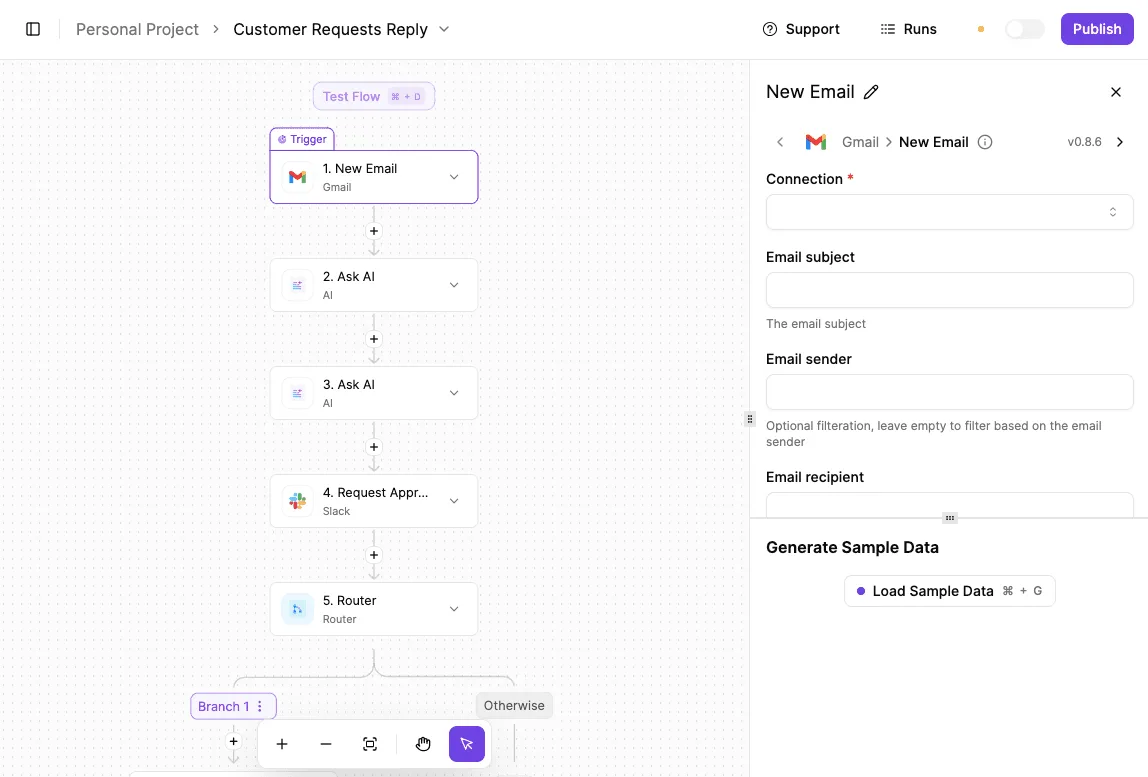
The builder receives the signal, parses the order details, and formats them into a visual interface that managers can understand and act upon instantly.
- The Acumatica Push Notification engine detects a specific field change.
- A webhook sends the order total, customer name, and margin data to the chat app.
- Interactive buttons allow the manager to "Approve" or "Reject" within the chat thread.
- The automation sends a PATCH request back to the ERP to update the record status.
Security requirements for remote approvals
Because chat apps are outside the ERP firewall, organizations must implement specific guardrails:
- OAuth 2.0 authentication: Ensures the automation platform has scoped, revocable access to the ERP.
- Verified User Mapping: Matches the Slack member ID to the Acumatica User ID to prevent unauthorized approvals.
- Audit Logs: Captures the metadata of the chat interaction to satisfy financial compliance auditors.
Financial impact of manual order processing
Comparing manual vs. automated order costs
Manual order processing creates a measurable drag on working capital by extending the time between a customer’s intent to buy and the final invoice generation. Automated workflows decouple transaction volume from administrative costs, allowing the existing team to handle seasonal surges without incurring overtime expenses.
Identifying the 'hidden' labor in ERP navigation
The true cost of manual processing is buried in 'context switching,' where managers must leave their primary work environment to navigate deep sub-menus within the ERP.
- The login and multi-factor authentication sequence delays the start of the review process.
- Searching for specific purchase order numbers across multiple modules consumes minutes.
- Manual data cross-referencing between emails and the ERP interface increases the probability of entry errors.
Why chat-based approvals reduce friction
Decisions happen faster when you deliver the necessary data points directly to the manager's active communication channel.
By maintaining a version history of these automated flows, teams can audit changes to the approval logic in real-time to ensure compliance standards are met during rapid scaling.
This immediate access transforms approval from a scheduled chore into a background task, effectively eliminating the queue time that typically stalls order fulfillment.
**By maintaining a version history of these automated flows, teams can audit changes to the approval logic in real-time to ensure compliance standards are met during rapid scaling.
Step 1: Configure the Acumatica webhook trigger
The moment a record meets approval criteria, the Acumatica webhook trigger establishes a real-time data bridge that pushes specific document events to your chat automation layer.
Acumatica's built-in data extraction tools
Acumatica provides native utilities within its browser-based interface to facilitate these external connections. The Generic Inquiry tool is a built-in reporting engine used to query the database and extract specific data sets without writing SQL code. The Push Notification screen is a dedicated management area that monitors these inquiries and sends real-time alerts to external webhooks when data changes occur.
Creating the Generic Inquiry for orders
The Generic Inquiry acts as the data source that filters for Sales Orders sitting in a 'Pending Approval' status.
By defining this inquiry, you specify exactly which fields (such as Total Amount, Customer Name, and the Approver ID) are bundled into the notification, so the manager receives all necessary context without having to open the ERP.

Configuring the Acumatica Push Notification destination
The Push Notification screen in Acumatica maps your Generic Inquiry to a specific external URL provided by your automation platform.
You must select the 'Insert' and 'Update' checkboxes to ensure that both newly created orders and modified existing orders trigger an alert, preventing high-priority changes from stalling in the queue.
Testing the Acumatica webhook payload delivery
Validation involves triggering a manual status change on a test Sales Order to confirm the external endpoint receives a valid JSON packet.
Successful delivery is confirmed when the automation logs show a 200 OK status, signifying that the handshake between the ERP and the chat interface is active and data-rich.
You can follow the rest of this with the builder open. Start free, no card.
Step 2: Build the interactive chat notification
Mapping order totals and customer names
Interactive notifications translate complex ERP records into a digestible summary.
By mapping the 'Total Amount' and 'Customer Name' fields from a JSON payload into the message header, the system provides the specific context required for a financial guardrail check.
Designing Slack or Teams Block Kit buttons
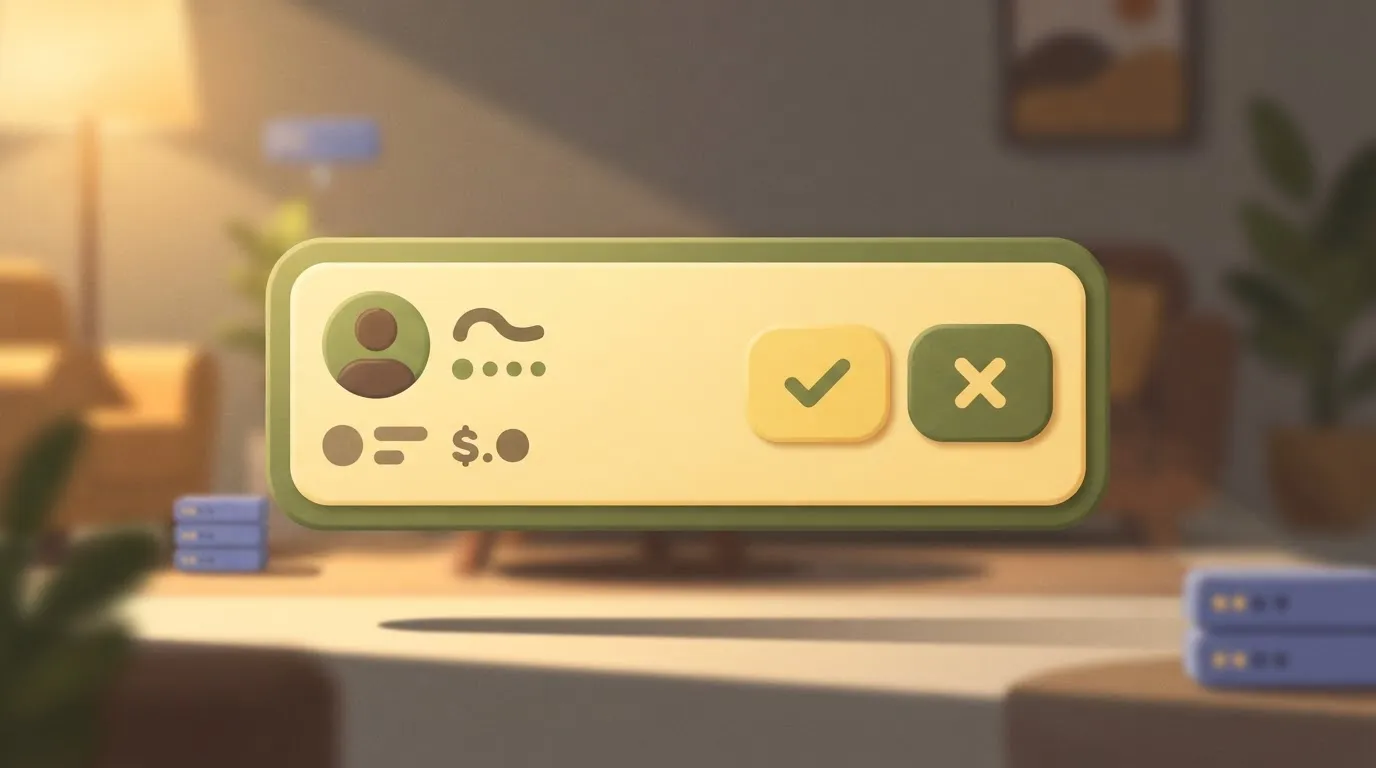
Actionable buttons in chat interfaces convert a passive alert into a functional endpoint for the ERP. The following components are required to build a functional approval block:
- An 'Approve' button styled with a green background to signify a positive workflow advancement.
- An 'Reject' button styled with a red background to signal a hard stop on the transaction.
- An embedded 'Action ID' that carries the specific Order ID, ensuring the response is tied to the correct database record.
Processing the Slack approval response automatically
When a manager clicks 'Approve', the chat platform sends a POST request containing the decision payload to the middleware, which then updates the status in the system of record without requiring a manual login.
Step 3: Update the sales order status automatically
The final stage of the automation involves sending a PATCH request back to the Acumatica API to update the order status based on the chat interaction.
Authenticating the API callback to Acumatica
Before any data can be modified, the middleware must establish a secure session with the Acumatica ERP, a cloud-based accounting and resource planning platform.
To execute this, the system follows a rigid PATCH request sequence:
- Receive Slack interaction payload
- Extract Order ID and Action
- Authenticate with Acumatica API
- Send PATCH to /SalesOrder endpoint with updated status
Updating the Order Status field via PUT/PATCH
The system updates the status field within the ERP to reflect either "Approved" or "Rejected," triggering the next stage of the fulfillment workflow.
By using a PATCH request rather than a full PUT, the automation modifies only the status attribute, which reduces the payload size and avoids the accidental overwriting of shipping addresses.
Notifying the sales rep of the final decision
The automation concludes by posting a confirmation message back to the original sales representative, closing the communication loop.
This immediate feedback means the sales team can move to invoicing or customer outreach without manually checking the ERP for updates.
How Activepieces manages the Acumatica approval flow
Using the Acumatica integration for authentication
Activepieces reaches the Acumatica Cloud ERP through a pre-built connector that handles OAuth 2.0 authentication among its 735+ integrations, removing the need for custom-coded middleware.
By selecting this connector, the platform team maps the ERP instance URL and client credentials directly into a visual interface. This centralized credential management ensures that when a manager triggers a workflow, the system uses a verified service account rather than a fragile, user-specific token.
Building conditional branches for Approve vs Reject
The visual canvas allows the procurement team to build two distinct logic paths (Approve and Reject) directly following the chat interaction block so that the ERP status updates automatically based on the manager's button click.
- The Approve branch executes a PATCH request to the Acumatica API to update the document status to "Open," which triggers the next stage in the fulfillment cycle.
- The Reject branch prompts a mandatory text input in the chat interface, which then pushes the reason for denial back into the Acumatica "Notes" field so the requester knows exactly why their order was stalled.

Logging approval history for audit compliance
Every execution through the Activepieces flow generates a permanent run log that maps the chat user's identity to the specific Acumatica record ID, providing a verifiable trail for internal auditors.
Every agent tool call and deterministic flow step is traced in the Run Details UI, ensuring that even complex AI-assisted approvals are as auditable as fixed workflow steps.
Deployment checklist for Acumatica approval automation
Rolling out automated approvals requires a synchronized configuration of the ERP service layer and the communication interface to prevent authentication failures.
Verify user permissions in Acumatica Service Accounts
Within the Web Service Endpoints screen, the Acumatica Cloud ERP service account must be granted specific "Put" and "Post" permissions. To ensure the environment is ready, follow this sequence:
- Verify "Push Notifications" service is active in Acumatica.
- Confirm Slack or Microsoft Teams bot has "Write" permissions.
- Test the end-to-end flow with a $0.01 test order.
- Set the API token in the production environment.
Establish a fallback for timed-out requests
A defined expiration logic must be set so that orders not approved within a specific window are automatically rerouted to a human supervisor’s dashboard.
Frequently asked questions
Can I approve orders from the Acumatica mobile app instead?
The Acumatica mobile app allows for approvals but requires managers to navigate away from their primary communication streams, which typically results in longer response times compared to chat-based interfaces.
When a manager has to switch contexts, log in, and locate the specific notification, the friction often leads to batch-processing at the end of the day rather than real-time execution.
By contrast, bringing the approval button into the chat tool ensures the decision happens where the conversation is already occurring.
What happens if two managers click approve at once?
Standard concurrency controls in the ERP API prevent duplicate processing by locking the record the moment the first request is received.
This means that if two managers attempt to approve the same document simultaneously, the system will validate the first request and return a "Record Updated" error to the second user.
This safeguard prevents double-entry errors and ensures the audit trail reflects a single, definitive action.
Does this work with custom Acumatica fields?
Because the automation layer queries the WSDL (Web Services Description Language) definition, any user-defined field added to a sales order or purchase requisition becomes available for display in the chat notification.
The integration supports custom fields by mapping the specific Web Services Endpoints defined in the Acumatica Integration Services screen.
This allows teams to include niche data points, such as project codes or specific shipping instructions, that are critical for informed decision-making.
How do I handle multi-level approval hierarchies?
Multi-level hierarchies are managed by triggering sequential notifications based on the "Pending Approval" status updates within the ERP’s native workflow engine. The automation follows the logic defined in the Acumatica Approval Maps:
- The first authorized signer receives a chat notification.
- Upon their approval, the ERP updates the record status.
- The change in status triggers a new notification to the next manager in the chain.
Related reading
References
Build it
Set this up in minutes.
No code required. Connect your accounts, and Activepieces runs it from there.
Start free Talk to sales