
Automate Gemini 4 Carbon: API Setup, Limits & Pricing

Nov 15, 202616 min read
You need a Google API key, the model ID gemini-4-carbon copied from Google's model page, and one trigger that calls it. That's about 30 minutes of work, and the time goes to checking limits, not writing code.
Set up Gemini 4 Carbon automation
What Gemini 4 Carbon is, per Google's own docs
On Google's model list, Gemini 4 Carbon is the strongest reasoning model, with Gemini 4 Argon beside it as the efficient frontier-reasoning option. Both were checked against the model page and changelog on 2026-11-15 (Quotadex).
The two IDs as published are gemini-4-carbon and gemini-4-argon, and both have a 1,048,576-token context window and a 65,536-token default output cap. Copy the code exactly, because a mistyped or guessed ID is the most common reason a first call fails.
Because of the context window, a whole document set can usually go into one request, so you rarely need to chunk input.
The output default works the other way: a long generated report can stop at 65,536 tokens, and a truncated reply will look like a model fault when it's a setting.
Since both models carry the same limits, choosing between them is a question of reasoning strength and cost, not capacity. If the ID is ever missing from the page, use the nearest documented model and say so in your workflow notes.
Three ways to automate it: script, no-code workflow, scheduled job
If you already maintain code, a script gives you full control over retries and logging.
A no-code workflow puts the call behind a visual trigger, such as a form submission or incoming email, and a platform with 750 integrations behind it builds that kind of flow, so you're unlikely to need custom code for the tools your team already relies on.
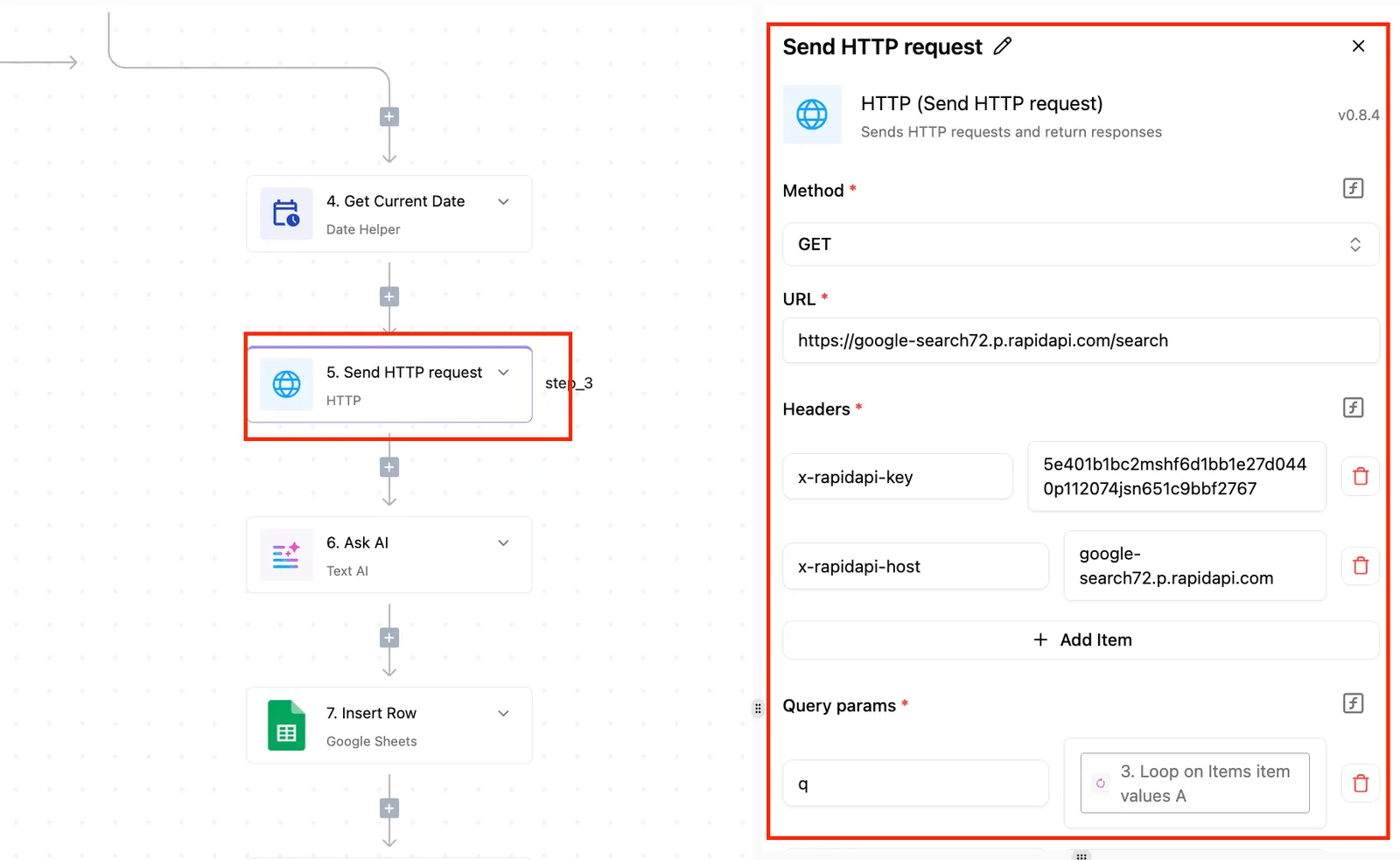
A scheduled job runs the same script or workflow on a timer, which fits nightly summaries and reports.
Pick by trigger, not by model, because all three make the same API call. They differ in what starts it.
What you need to automate Gemini 4 Carbon
Have a Google API key ready, stored as a secret and never pasted into a shared workflow, along with the exact model ID from above.
You also need one trigger, whether an event, a webhook or a timer, and a test input you can run in a throwaway environment first.
An automation that hasn't been reproduced there's a guess, and its failures show up in front of users.
If you are running this arithmetic for your own team, see what the same workload costs on Activepieces.
Get an API key and test the call
Whichever trigger you chose, the model call underneath is the same, and you can prove it works in six steps before wiring anything to a trigger.
Run it by hand first, because a call that fails here will fail the same way inside an automation, only with less visible output. The list below is the whole path from nothing to a reply.
- Open Google AI Studio.
- Click Get API key.
- Create the key in a project.
- Per LiteLLM, copy
gemini-4-carbonfrom the models page. - Send a
generateContentrequest with that model ID. - Read the reply text.
Expect each step to go wrong in one place, and those places are below.
Create the key in Google AI Studio
When the report is "the key doesn't work", the cause is usually that it was created in the wrong project or copied with a trailing space. Create it inside a project you'll recognize later, and store it somewhere your automation tool can read it.
Don't paste it into a workflow field that gets exported or shared. Treat a key that's appeared in a screenshot as burned and replace it.
Copy the Gemini 4 Carbon model ID
When a 404 or "model not found" error comes back, it nearly always traces to a typed name rather than a copied one. LiteLLM warns that the display name, Gemini 4 Carbon, isn't what the API accepts.
LiteLLM specifies that the ID is gemini-4-carbon, lowercase and hyphenated, and Google's models page is where you confirm it.
Slip by one word and you get a different model without any error, since, as Ai notes, neighboring models such as Gemini 4 Argon and Gemini 4 Hydrogen have similar names. Check the ID against the page, not against a blog post, this one included.

Send your first Gemini 4 Carbon API request
Send a POST to the generateContent method for that model, with the key in the request header and a single text prompt in the body. Keep the prompt trivial: ask for one sentence back. You're testing the plumbing, not the model.
If a workflow reads only the top level of the response, it will see structure but no answer, because a successful reply nests the answer inside a list of candidates. The text sits in the first candidate's content parts.
If you get an error body instead, read its message before changing anything, since it usually names the missing key, the bad model ID, or the exceeded limit directly.
Once one hand-sent request returns text, the next stage's putting that same call behind the trigger you picked.
Connect the call and capture results
Put the same call behind a trigger by choosing one event that starts it, filling four fields in the Gemini step, and writing the reply somewhere you can read back. Most failures here are silent: the run "succeeds" and nothing useful lands.
Choose the trigger
Read the table as a trade between setup speed and who owns the failures. It compares the four routes on what you will feel in the first week and the sixth month.
| Route | Setup time | Cost control | Error handling | Maintenance burden |
|---|---|---|---|---|
| Script with cron (a scheduler on a machine you run) | Longest | Fullest, since you cap calls in code | Whatever you write | Yours: host, keys, dependencies |
| Google's own tooling (a Google scheduler calling the API) | Moderate | Strong, tied to your Google project | Retries available, alerts need setup | Moderate |
| Zapier (hosted, no-code) | Shortest | Weakest, billed per task by plan | Built-in replay, little detail | Low, but plan limits bite |
| n8n (workflow tool, hosted or self-run) | Short | Good, you see each node | Dedicated error workflows | Moderate if self-run |
| Activepieces (open source, MIT-licensed, on Activepieces Cloud or self-hosted) | — | Credit-based: a run is 1 credit however many steps, with 1,000 credits a month on the free plan and unlimited flows on every plan | — | — |
If nobody can be paged when a run fails, choose the route with built-in replay. The cheapest route is the one whose failure you will actually notice. Pick one trigger and wire only that.
Some builders let you describe the job to a built-in chat in plain words (a form submission, a Gemini step, a row written to a sheet) and what comes back is a live flow in your account, not a draft or a diagram.
Each run of that flow leaves a run trace showing what happened at every step, which is how you catch the run that "succeeded" and wrote nothing.
The flow sits under the same RBAC and audit logs as a hand-built one, and companies such as MoneyGram, Moneypenny, Alan and FundingSocieties run this kind of tooling in production.
It reaches Carbon only if the Gemini step lists the model ID or accepts it typed in, which the section on running these workflows below tests.
Configure the Gemini step: exact fields and values
Four fields matter, and each fails in its own way.
Copy the model ID string for Gemini 4 Carbon from Google's model page, character for character. A typo returns an error, and a stale ID points you at an older model.
In the system instruction, state the task and output format in one fixed block, so every record gets the same framing.
Set temperature low for extraction or classification. Higher values make identical inputs produce different outputs, which breaks any downstream comparison.
Set max output tokens to a ceiling that fits your expected reply. Too low truncates the reply mid-sentence with no error, which is how a half-written summary ends up in a spreadsheet.

Check Google's rate-limit page for your tier before you schedule anything frequent.
Write the output and test with one real record
Add a write step after the Gemini step: a sheet row, a database insert, or a file. Store the model's text, the input record's ID, and a timestamp, so any bad output traces back to its source.
Then run exactly one real record, not a sample you wrote to look tidy. Open the destination and confirm three things: the text's complete, the ID matches, and nothing was written twice.
Only after that single record passes should you widen the trigger to the full stream.
Worth checking against a plan that does not meter every step: one credit covers a whole run on Activepieces.
Fix Gemini 4 Carbon quota errors
When you widen the trigger, the limits bite. Tier 1 allows 1,000 requests per minute, prices double on Nov 30, and most failures are a 429 or a mistyped model ID, so your current tier becomes twice as expensive in sixteen days.
Documented limits by tier, checked 2026-11-15
Here are the paid Tier 1 limits as of 2026-11-15. They're 1,000 RPM, a 1,048,576-token context window, a 65,536-token output cap, and $2.00 input and $10.00 output per 1M tokens.
Build your batch sizes from the RPM and output cap, because a trigger that fires faster than 1,000 calls a minute will be throttled. A response needing more than 65,536 tokens will be cut off.
I didn't confirm free-tier rate numbers, so read them from your own project's limits page before you size a test run. The rest follows from the prices.
What the tiers cost, and what changes on Nov 30
Come Nov 30, the $2 input and $10 output rate ends, because it's an introductory price.
Google AI Studio lists $2 to $4 per 1M input tokens and $10 to $20 per 1M output tokens across the change, meaning output tokens drive your bill more than input tokens.

Any workload you budget today costs twice as much in December.
If the job can wait, Batch/Flex's the only listed tier cheaper than today's introductory rate.
**Any workload you budget today costs twice as much in December.
LiteLLM lays out the tiers: Batch/Flex at $1 to $5, Priority at $3.6 to $18, and Standard from Dec 1 at $4 to $20 per 1M tokens, so the Standard tier establishes a $4 minimum for workloads deployed after December 1.
Against rivals, Frontierterm puts input at $1.32 for DeepSeek V4 Pro, $2 for Gemini 4 Carbon, $8 for Claude Fable 5.2 and $10 for GPT-6 Astra, meaning the vendor you choose determines whether a million tokens costs $1.32 or $10.
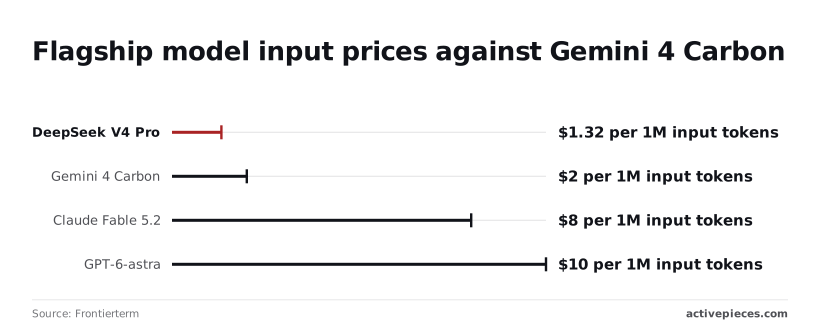
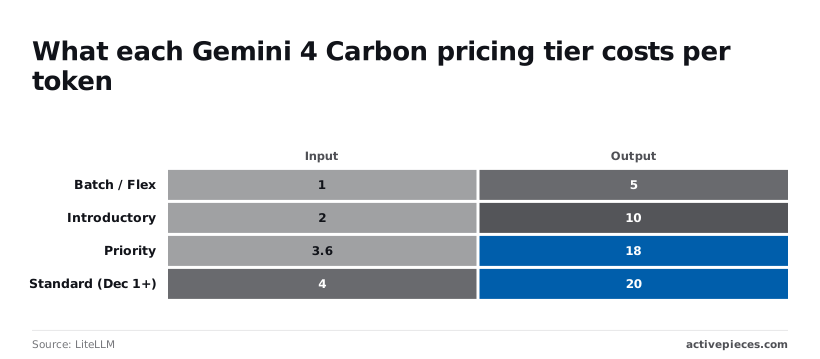
After Nov 30, Carbon's $4 is still under both of the last two.
Gemini 4 Carbon API errors and fixes
On a 400, compare your payload with the docs, since it means a malformed request or an unsupported parameter.
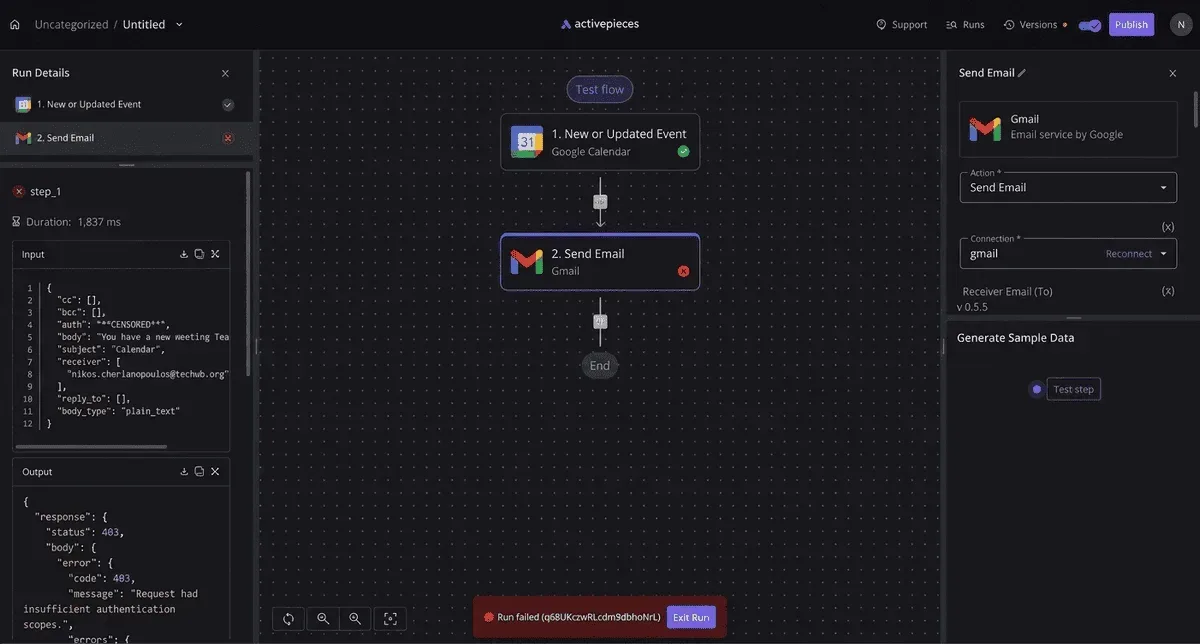
A 403 means the key lacks access to the model or project; check the key's project and enabled API. A 404 means the model ID's wrong, so copy it exactly from Google's model page.
Slow down and retry on a 429, which means you exceeded RPM or quota. A 500 or 503's a server-side fault or overload, so retry with backoff.
A blocked response means a safety filter returned no text; check the finish reason before parsing, or your workflow will pass on an empty string.
Gemini 4 Carbon retries, backoff and cost limits
Retry only 429, 500 and 503, and wait longer after each attempt, with some random jitter. Never retry a 400, 403 or 404, because the same request fails the same way and you pay for the attempts.
Cap the retry count, set a maximum output length on every call, and set a spend alert below your monthly budget so a looping trigger stops before the invoice does.
Run Gemini 4 Carbon workflows with Activepieces
Through its Google Gemini integration, Activepieces runs Gemini 4 Carbon as a no-code step. It fits if the integration lets you choose or type the exact model ID from Google's docs; if it only offers a fixed dropdown, you may not reach Carbon at all.
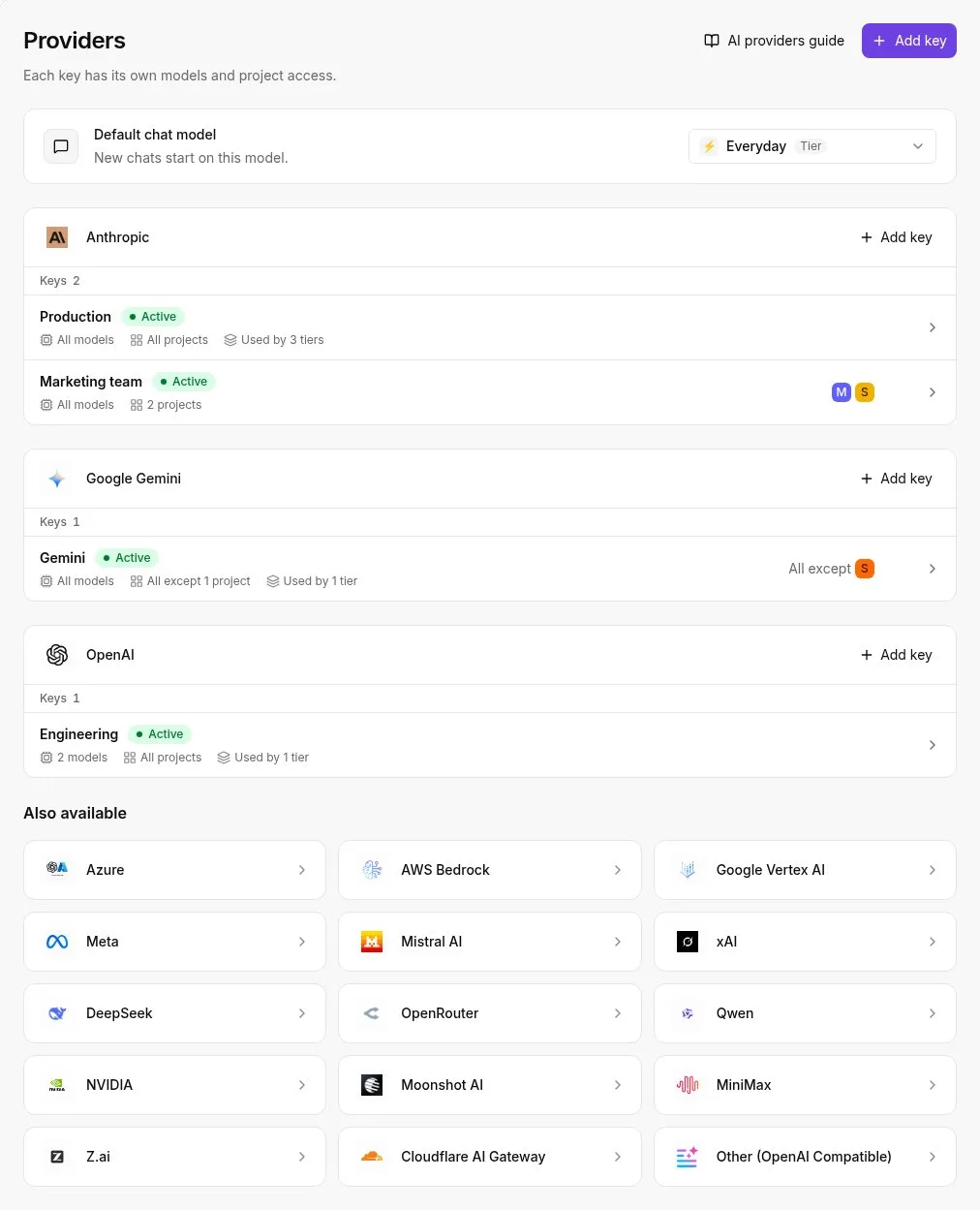
Check that before you build anything on top of it.
Connect your Gemini key
Create the key in Google AI Studio, then add a Google Gemini step in Activepieces and paste the key into the connection field.
Bringing your own AI key starts on the Plus plan at $20 a month, and with it every AI step costs 1 credit while the model spend lands on your own Google bill, so you'll need to monitor your Google Cloud account for these charges.
Then open the model field and look at what it offers. Two outcomes are possible. If it's a dropdown, scroll for Gemini 4 Carbon; if Carbon's missing, the integration's list is behind Google's current catalog and you can't call the model from that step.
Enter the model ID exactly as it appears on Google's model page if the field accepts typed text. A one-character difference returns a not-found error rather than a fallback to another model.
Run a test on the step before wiring anything else, so a naming problem surfaces now and not on the first scheduled run.
Rebuild the stage 2 workflow
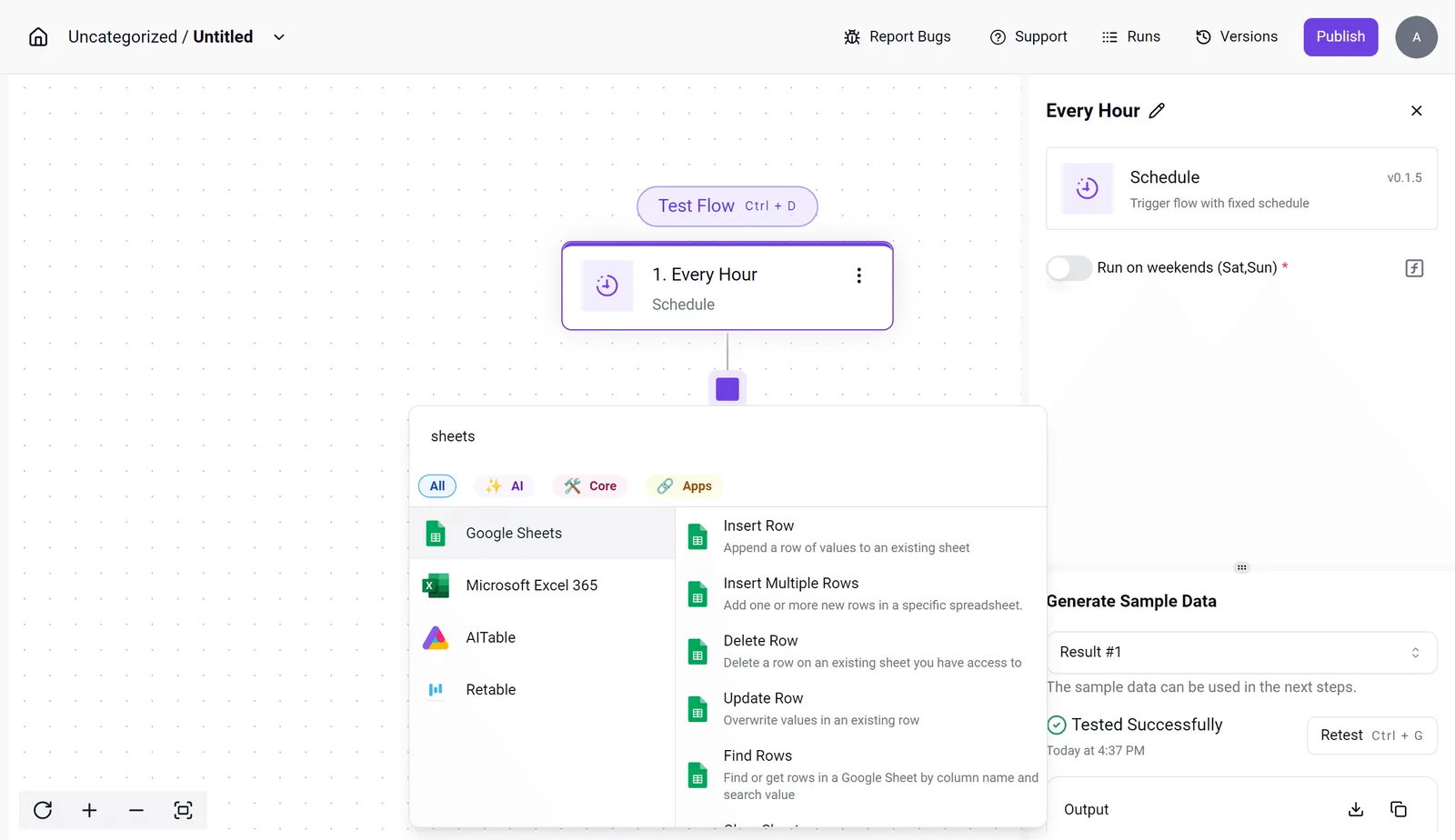
In the screenshot, the builder shows the Schedule trigger set to "Every Hour" selected, the integration selector open on spreadsheet apps, and a successful sample-data test in the settings panel.
That passing test's the point: the trigger fires and returns data before any model call exists, so a later failure's isolated to the model step.
Rebuild the flow in this order:
- Set the Schedule trigger to every hour, and decide whether "Run on weekends" should stay on. Leaving it on means the flow, and its spend, runs through days nobody reads the output.
- Add a Google Sheets step with Find Rows to pull only the rows that need processing, so each run sends the model new work rather than the whole sheet.
- Add the Gemini step with your model ID and a maximum output length, matching the cap from the previous section.
- Add an Update Row step that writes the result back and marks the row done, so the next hourly run skips it.
Without a done marker, the same rows are resent every hour and the invoice grows with no error to warn you. Step 4's the one people skip.
When a script is the better choice
Use a script when the integration can't select Carbon. Use one also when you need to set generation parameters the step doesn't expose, or retry and backoff behavior stricter than the flow's built-in handling.
A short script calling the model ID directly gives you every setting Google's API documents.
Keep Activepieces for the trigger and the spreadsheet plumbing if you like, since every plan, including free, allows unlimited flows and a throwaway test flow costs you nothing extra, but test whichever path you pick in a throwaway sheet before it touches real data.
Frequently asked questions
Settle these on a Google page before you build, because each showed up first as a symptom in a test sheet.
Is Gemini 4 Carbon free to use in automations?
Don't assume so. Google's Gemini API pricing page lists, model by model, whether a free tier exists.
Read the Carbon row itself, because the strongest model in a family's the one most likely to be paid-only. If the row shows no free tier, your first scheduled run's a billed run.
Why does my workflow say the model was not found?
Check the ID string first, because it's almost certainly wrong. The marketing name "Gemini 4 Carbon" isn't the identifier the API expects.
Copy the ID from Google's models page, character for character, and check that you didn't paste the Argon entry, which sits next to it. If the ID is correct, check that the key belongs to a project with access to that model.
Can I automate it without writing code?
Yes. A no-code builder with an HTTP request step, or a built-in Gemini action if your tool offers one, can send the prompt and read the reply.
You still supply the API key and the exact model ID, so the previous answer applies. Run it against the throwaway sheet first and confirm the reply lands in the column you expect.
How do I stop a workflow exceeding my budget?
Limit what each run can spend, then set an alarm for the case where that limit fails. Cap the rows processed per run, cap the output length in the request, and keep the trigger manual until the test sheet behaves.
Then set a budget alert in your Google Cloud billing settings. An alert on its own only notifies you.
Check Google's billing documentation for whether your account type can also enforce a hard stop, and don't assume it can.
Will the model ID change after 2026?
Plan for it. Google publishes a deprecations schedule alongside its models page, and older IDs are retired on it. Look at whether your ID is a pinned version or an alias that follows the newest release.
Until it's retired, a pinned ID keeps behaving the same.
An alias can change the output of your workflow without any edit on your side. Store the ID in one cell or variable so a change is a single edit, and check the deprecations page when you review the workflow.
Related reading
References
Running the numbers
See what the same workload costs here.
Free forever plan, and every paid plan self-hosts at no extra cost.
See pricing Talk to sales