
AWS WorkSpaces Pricing in 2026 and What Seats Really Cost

Nov 23, 202616 min read
WorkSpaces is AWS's managed virtual desktop service, sold in five forms. According to Microsoft, the cheapest depends on hours: a Standard Windows desktop is $35 AlwaysOn, or $9.75 plus $0.30 an hour on AutoStop.
So you need to know your monthly usage to make the right choice.
By the arithmetic, $35 minus $9.75 is $25.25, and at $0.30 an hour that buys about 84 hours, which means costs equalize at 84 hours monthly.
Below roughly 84 hours a month per user, AutoStop is cheaper, so anyone below 84 hours monthly should select AutoStop. Above it, AlwaysOn wins.
AWS WorkSpaces Plans, Bundles and Rates Compared
Every other option below is a variation on that trade.
Only the Personal AlwaysOn mode publishes a flat figure you can budget from directly, and that is the takeaway from the table, which shows each option's price basis, what it includes and where it limits you.
Microsoft reports that rates were last checked on 2026-11-23, and the AWS pricing page is the source for every row.
| Option | Price | Inclusions | Usage limits | AWS link | Checked |
|---|---|---|---|---|---|
| Personal AlwaysOn | $35 (Standard Windows), flat monthly | Persistent desktop, always running | One desktop per user | Pricing | 2026-11-23 |
| AutoStop | $9.75 + $0.30/hr (Standard Windows) | Persistent desktop, stops when idle | Hourly meter runs only while in use | Pricing | 2026-11-23 |
| Pools | Hourly, set by bundle | Shared, non-persistent desktops | Sessions, not owned desktops | Pricing | 2026-11-23 |
| Core/BYOL | Infrastructure-only rate | Compute for your own VDI software | You supply licences and tooling | Pricing | 2026-11-23 |
| Graphics | Above Standard rates | GPU-backed desktops | Sized for rendering and design work | Pricing | 2026-11-23 |
Which of these fits a given user is the next question, starting with whether the desktop should belong to one person.
When someone logs in, Pools hand out a desktop from a shared set. Personal desktops, by contrast, are assigned to one user and keep their state between sessions.
Choose Personal when people customise their machines. Choose Pools for shift workers or short sessions where a clean desktop each time is a feature.
Monthly versus hourly billing
Pick monthly billing for steady, full-time use and hourly billing for irregular use, but hourly makes the bill depend on behaviour you have to measure.
If you have no usage logs, you can't yet say which mode is cheaper.
Activepieces runs unlimited flows on every plan, including free, and a run is 1 credit against the free plan's 1,000 a month, so a daily collection flow uses about 30 of them, but the hours come first.
Before comparing a quote against the headline figure, check what each bundle already includes. A bundle fixes the compute, memory and base storage, and the rates above scale with it. Extra storage and the operating-system licence can add to the total.
If you are running this arithmetic for your own team, see what the same workload costs on Activepieces.
WorkSpaces costs at different user volumes
Check the bundle first, then price the base rate:
- In us-east-1, Standard Windows costs $350 a month for 10 users AlwaysOn, $1,750 for 50 and $7,000 for 200
- AutoStop only undercuts that below 84 hours per user, so assess your average hours per user against this threshold
- That figure comes from $35 minus the $9.75 base fee, divided by $0.30 an hour, establishing the point where both models cost the same
- Past it, you pay more for stopping the desktop

WorkSpaces costs for 10 users
On AlwaysOn, ten desktops cost $350. On AutoStop, a user at 40 hours a month costs $21.75. The team costs $217.50, a saving of $132.50.
That 40 hours is also the free tier cap, so anyone beyond it is on the paid meter.
At 100 hours, a heavier but realistic case, a user costs $39.75, so ten cost $397.50, which is $47.50 more than AlwaysOn.
50 users, mixed hours
Suppose 30 users sit at 40 hours and 20 at 100 hours, splitting your team across the 84-hour threshold. AlwaysOn is $1,750. AutoStop then costs $652.50 plus $795, or $1,447.50, which saves $302.50 a month.
If the heavy group grows by a few hours each, the saving disappears. It's real but modest. Measure real session hours before choosing one mode for everyone.
WorkSpaces costs for 200 users
For 200 users, AlwaysOn is $7,000. A full-time worker on an annual basis logs 150 hours a month, which is $54.75 on AutoStop. So 200 of them cost $10,950, or $3,950 more than AlwaysOn.
On a weekly basis it's 181 hours, $64.05 each and $12,810 in total, so you'd pay $5,810 more than AlwaysOn.
Which model saves money depends on your user composition, because seasonal staff who log under 84 hours are the only ones for whom AutoStop wins.
Read the chart by finding where your own users sit, not where the average sits. It plots monthly cost per user against hours used, from 0 to 150, with the two lines crossing at 84 hours.
Once you know which side of that crossing each group falls on, the comparison with other options becomes much simpler.
AWS WorkSpaces free tier limits and trial use
If all you want is to test how a desktop feels over your network, AWS offers new customers a short, capped trial of WorkSpaces. It is not enough to run anyone's actual workday.
Use it to measure latency, then price the real thing on the hours your users work.
By design the allowance is small, and each limit decides what you can test:
- Two Standard WorkSpaces on AutoStop billing, so you can compare two users or two setups side by side, but not a team.
- 40 combined hours a month across both, so one person working a normal week would use the whole month's allowance. Test in deliberate sessions, not as a daily desktop.
- An 80 GB root volume and a 50 GB user volume, enough to load your core applications and a sample of working files, not a full production profile.
- Up to 3 months, for new customers only, so check that your account qualifies before you plan a pilot around it.

Those limits make this a latency and compatibility check. It tells you whether your applications and connection hold up, and nothing about whether the monthly bill will.
What ends the WorkSpaces free tier
Two things end it: the months run out, or the combined hours do. Past either, usage is billed at the standard rate for the bundle and billing mode you chose, and I haven't found a separate, softer rate for overage.
Forget to terminate a desktop and it keeps existing, and stopped AutoStop desktops still carry a storage charge.
So treat the trial as a cost-free way to gather one input, and delete the test desktops when you finish. What you learn about real hours per user is what the rest of the pricing turns on.
Hidden WorkSpaces Charges That Inflate the Bill
Look outside the per-desktop rate and you find what inflates a WorkSpaces bill. It's directory fees, data transfer out, networking, storage, licences and, above all, AlwaysOn desktops that bill while nobody is logged in. Your hours-per-user count decides which of them matter.
What you learn about real hours per user is what the rest of the pricing turns on.
Data transfer and directory fees
Because every WorkSpaces deployment needs a directory, and that fee is flat, it doesn't shrink when you have fewer users. A small team carries the whole cost across a handful of desktops and the per-seat figure looks worse than the price list implies.

If desktops reach the internet from private subnets, the NAT gateway is billed separately, and so is data transfer out to the internet. Neither appears on the desktop's pricing line.
When users pull large datasets or stream video, a quiet line item becomes a visible one. Check AWS's WorkSpaces pricing page and the VPC pricing page for the current rates before modelling it.
WorkSpaces licences and add-on charges
Give Microsoft Office to everyone by default and you pay for it on desktops where nobody opens a spreadsheet. It is an add-on charged per WorkSpace per month, on top of the bundle price.
Whether or not anyone fills them, the volumes you enlarged "just in case" keep billing, because extra root and user storage is billed per gigabyte-month.
Each add-on is small alone. Multiplied across a fleet, together they can outweigh the saving you chose a cheaper bundle for.
Idle desktops and quota limits
Worked or not, every hour of the month is billed on AlwaysOn at a fixed monthly amount. A desktop used part-time pays for all those hours anyway.

The chart compares hours billed with hours actually worked per user, and the gap between the two bars is the money you're spending on nothing.
Where that gap is wide, AutoStop billing is the first thing to test, because it charges by the hour with a small monthly base fee.
Finally, WorkSpaces enforces account quotas, and raising them takes a support request. Do that before a rollout, not on launch day.
Worth checking against a plan that does not meter every step: one credit covers a whole run on Activepieces.
WorkSpaces against virtual desktop services
Run the hours test above on each rival, and WorkSpaces wins only for people at their desks most of the month; for part-time users, the metered options undercut it. The table shows which billing model each service uses and what its quote leaves out.
| Service | Entry price per user per month | Fixed or metered | What the quote omits | Best fit | Check date |
|---|---|---|---|---|---|
| WorkSpaces | $25 (Value), $35 (Standard) | Fixed monthly or hourly | Add-ons, storage upgrades | Full-time staff | 2026-11-23 |
| Azure Virtual Desktop | Metered by the hour | Metered | VM, storage and licensing lines | Shift or part-time users | 2026-11-23 |
| Windows 365 (2 vCPU/4 GB) | $31 | Fixed | Larger sizes cost more | Predictable, always-on seats | 2026-11-23 |
| AppStream 2.0 | Metered by the hour | Metered | Idle session time | A few apps, not full desktops | 2026-11-23 |
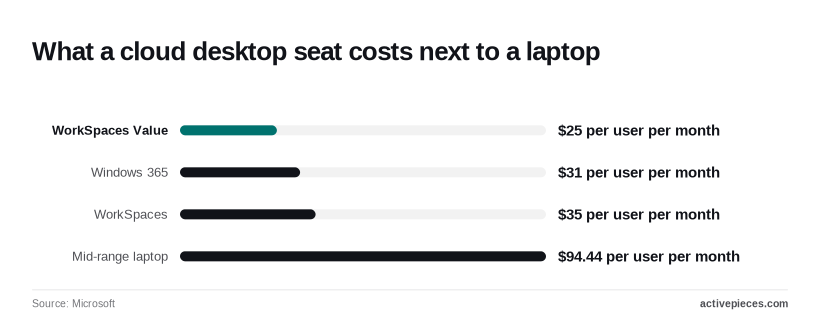
Read the fixed rows first: WorkSpaces Value at $25 sits $6 under Windows 365 at $31, so across 100 seats that is $600 a month before add-ons.
When usage is high and steady, a flat seat wins, because the bill never moves.
WorkSpaces Standard at $35 is still well under a mid-range laptop at $94.44 per user per month, roughly 37%, so for full-time staff the seat is the cheaper line. The catch is that people still need some device to connect.
When hourly WorkSpaces billing is cheaper
When a seat sits idle most of the month, metering wins. A flat $25 buys no discount for a contractor who logs in ten hours, while hourly billing charges only for those ten.
Don't choose a fixed WorkSpaces seat for irregular hours, seasonal peaks or a handful of shared apps. Price Azure Virtual Desktop or AppStream 2.0 by actual hours instead.
Automate WorkSpaces Chores with Activepieces
Do not expect Activepieces to lower your WorkSpaces rate. It can stop you paying for desktops nobody uses, because a $35 AlwaysOn seat left running for someone who has gone costs $35 every month until a person remembers to terminate it.
Pricing mode and add-ons still decide the bill; a workflow only keeps your headcount honest.
If you pay a fixed monthly seat for a person who left, the platform doesn't care, and the charge continues until someone terminates it.
In Activepieces, a no-code automation tool, you chain a trigger to a series of steps. Its connector library, shown below, lists 502 integrations at the time of capture, sorted by popularity, with Webhook, Google Sheets, Gmail and a generic HTTP integration at the top.
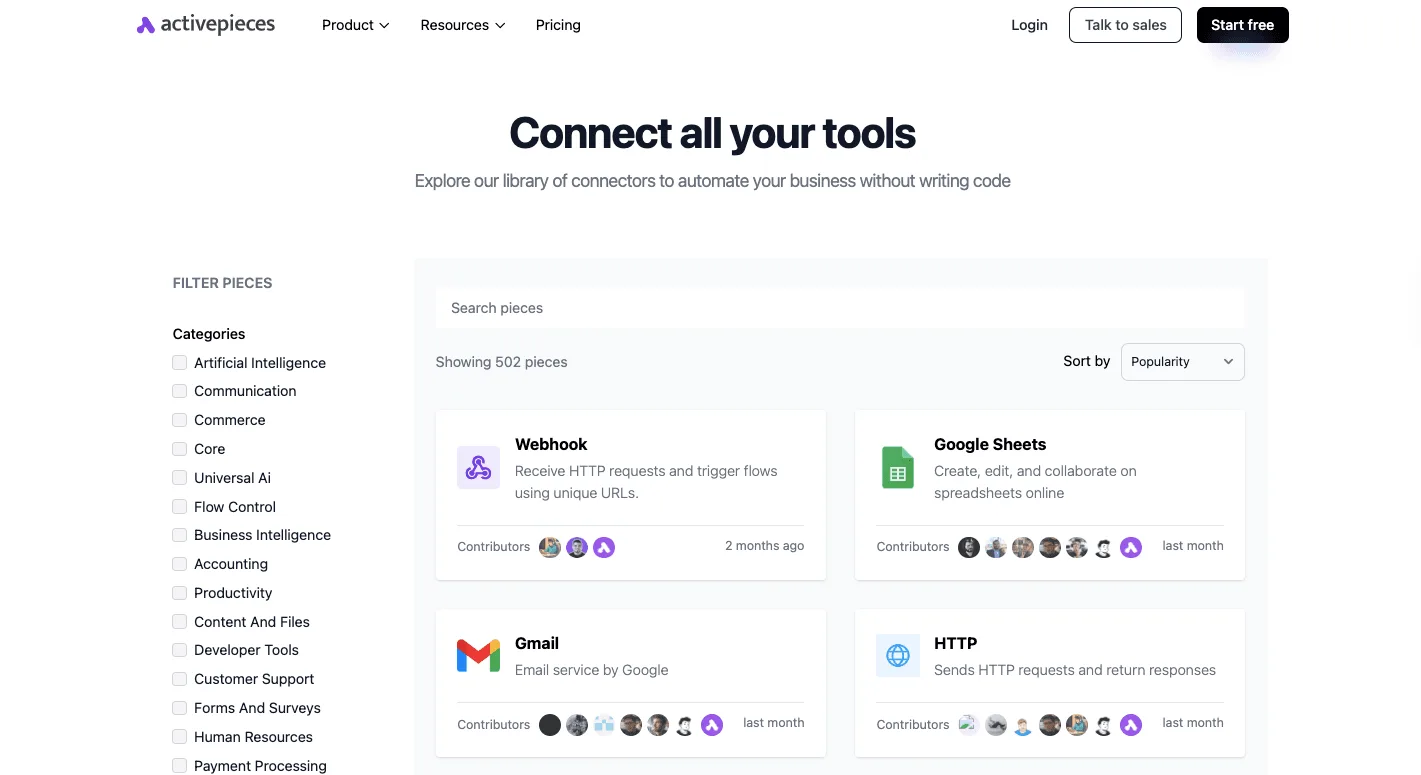
Those four are the steps of the offboarding flow below: Webhook starts it, HTTP calls the AWS API, Google Sheets logs the saving and Gmail sends the confirmation.
A flow run is 1 credit on Activepieces whether it has four steps or ten, so adding an approval check before termination costs nothing extra, while Zapier's per-task billing and Make's per-module billing both charge for each added step.
Good offboarding means many small, checkable steps, and pricing that rises with step count taxes exactly that habit; here the run is the meter, and what happens inside it is not.
Broad as the library is, check it for an AWS WorkSpaces integration before assuming one exists, and expect to fall back on HTTP calls.
Build these two flows first.
Offboarding that removes the desktop
When someone's employment ends, your HR system fires a webhook. The flow receives it, looks up the user's WorkSpace, and calls the terminate action. A confirmation email goes to IT, and a row goes into a sheet so finance can see the saving.
Nobody waits for the next audit: a departed employee's seat stops billing the day they leave. Keep a human approval step before termination if the desktop holds data, since termination isn't reversible.
Weekly idle-desktop report
Every week a scheduled flow runs, lists every WorkSpace, and pulls the last-active time for each. Anything untouched beyond your threshold goes into a report emailed or posted to a team channel.
This is where the billing-mode question from earlier gets answered with evidence. A desktop that sits idle on a fixed monthly seat is a candidate for hourly billing or removal, and the report names it. The flow only flags; deciding stays with you.
Pre-commitment WorkSpaces evaluation steps
Start with one number you can pull on Monday: the hours each user actually works in a month. Then work through five steps in order:
- Pull real usage hours per user.
- Price AlwaysOn and AutoStop in the AWS calculator.
- Run the free-tier trial with two users.
- Set a budget alert and a quota review.
- Set a re-check date.
Measure WorkSpaces usage hours first
Whether anyone logs in or not, an AlwaysOn desktop bills 730 hours a month. The break-even against AutoStop is 84 hours of use, so below that AutoStop is cheaper and above it AlwaysOn is.
Full-time staff land well past it: 150 hours a month on the OECD basis, 181 on the BLS basis. For them AlwaysOn is the likely winner.
Below 84 hours, paying for 730 hours is waste, and that is where part-time users and occasional contractors fall. Take your own login data, sort users into those two groups, and enter each group separately in the AWS calculator. Averaging them hides the split.
Give two users desktops under the free-tier trial, mixing heavy and light workers. Five is enough to show whether real hours match your estimate. It's too few to size the fleet, so treat the result as a check on step one, not a forecast.
Set WorkSpaces budget alerts and review dates
Set a budget alert at roughly 80 percent of your expected monthly bill, so a stuck AlwaysOn desktop or a forgotten add-on shows up in days, not on the invoice.
Review service quotas at the same time, because a quota that blocks a new hire costs a morning of someone's work.
Then put a re-check date on the calendar, perhaps 60 days after launch. Hours drift as teams change, and the right billing mode drifts with them.
Frequently asked questions
Commitment and minimums
Hours drift, so the practical questions about commitment, switching and idle time come up again and again. AWS answers each on its own pages, and the short versions are below.
Is there a minimum number of WorkSpaces I have to buy? No. WorkSpaces Personal has no minimum fleet size and no upfront fee, so one desktop is billed on the same terms as a hundred.
The WorkSpaces pricing page sets out the rates by bundle and region.
Switching billing modes
Can I switch a WorkSpace between monthly and hourly billing? Yes, the billing mode is a property of each WorkSpace and can be changed. The direction matters, because AWS applies the change on different schedules depending on which way you go.
Check the billing-mode section of the WorkSpaces Administration Guide before you flip a whole fleet near month end.
Licences
Does AWS WorkSpaces include Windows and Office licences? Windows bundles include the Windows desktop licence in the bundle price.
Microsoft Office is a separate matter: it comes as a paid add-on or a higher bundle, so budget for it per user. Bring-your-own-licence is a distinct option with its own prerequisites, and AWS documents it separately.
Stopped desktops and discounts
Do I pay while a WorkSpace is stopped? It depends on the mode. A monthly WorkSpace bills the same whether it is running or stopped, so stopping saves nothing.
An hourly WorkSpace stops accruing the hourly usage charge, but a fixed monthly infrastructure fee still applies. Stopping is therefore a saving only in hourly mode, and only for the usage portion.
Are Savings Plans or reserved discounts available for WorkSpaces? I couldn't find WorkSpaces listed among the services covered by AWS Savings Plans, so don't plan around one.
The monthly billing mode is the committed-use rate: you give up flexibility for a lower effective price at high hours. Confirm against the pricing page, since AWS changes these terms.
Related reading
References
Running the numbers
See what the same workload costs here.
Free forever plan, and every paid plan self-hosts at no extra cost.
See pricing Talk to sales