
DeepInfer Workflow: How It Works and Its Limits (2026)

Nov 11, 202614 min read
You configure a chain of steps once and run it on your own input, much as you would in a builder like Activepieces. That is a DeepInfer workflow, and the fastest path is the vendor's documented setup, in order, with its stated limits read first.
I haven't confirmed DeepInfer's own one-line definition, so I don't quote one here.
DeepInfer workflows and fastest setup path
What you'll have working at the end
By the end you should have:
- an account that can authenticate
- one working call with a sample input
- a first workflow run end to end
- the limits that apply to your plan written down before you scale
Plan for one sitting. That holds only if you don't skip the order.
What you need before starting
You need an account, an API key and one small sample input. Which plan you need isn't confirmed here, so check DeepInfer's pricing page first.
Starting on the wrong plan is a documented-limit problem, and it surfaces as an error message after you've built the workflow.
Nobody has to be hired to untangle that afterwards: MoneyGram and Alan run Activepieces in production, and there you describe the process in the built-in chat and it publishes a live flow, an ordinary flow in your account rather than a special case.
Starting on the wrong plan is a documented-limit problem, and it surfaces as an error message after you've built the workflow.
It sits under the same RBAC and audit logs as every flow a person built by hand, and each failed run leaves a trace anyone can read.
Where the facts come from and when checked
I checked every claim here against DeepInfer's own pages on 2026-11-11, and anything I couldn't confirm is marked as unconfirmed. That matters because the project is new.
According to buildradar.dev, its GitHub stars went from 11,950 on Oct 20 to 17,753 on Oct 21, so a day of attention added about 5,800 people watching the project. By Oct 23 it was 21,069, and by Oct 26 it was 22,996.
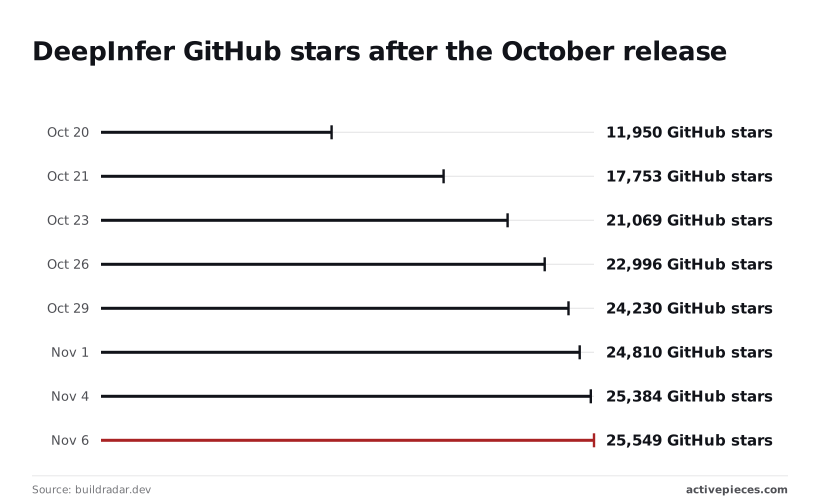
By Oct 29 stars stood at 24,230, and on Nov 1 at 24,810, a gain of 580 in three days. The rush has slowed, but a project that doubled in 12 days is still changing its docs, so documentation is always chasing the actual code.
Re-read the limits page on the day you build.
Everything below works on Activepieces' free plan. Start without code or a credit card.
Create account, first workflow, and first run
Keep the limits page open in a second tab, because the first run is where a skipped limit shows up as an error. The order below is the order that works, and each step leaves something you can check before moving on:
- Create an account.
- Open the dashboard.
- Click the new-workflow button and fill in its named fields.
- Run the workflow once on sample input.
- Read the result.
Take a screenshot of the dashboard, the editor and the first result, since they're the three places a setup step done out of order becomes visible. Keep them in your own notes with the date.
Create your DeepInfer account and get access
Create the account with an address you can receive mail at, confirm it, and stop at the dashboard. Don't build anything yet.
What you leave with is a signed-in dashboard that shows your plan, and that plan is the one whose limits you just re-read.
If the dashboard shows something different from what the limits page described, you've found the discrepancy before it cost you a failed run.
Stage 2: build the workflow with exact field values
Click the new-workflow button and fill every named field using the wording in the vendor's setup guide, not your paraphrase of it. Copy values rather than retyping them.
A field filled with a near-match is accepted at save time and rejected at run time, and the error will point at the run, not the field. You leave this stage with a saved workflow in the editor and nothing yet executed.
Stage 3: run it once and read the result
Run the workflow once on a small sample input, then read the full result before changing anything. Use a sample deliberately smaller than any stated limit, so that a failure can't be blamed on size.
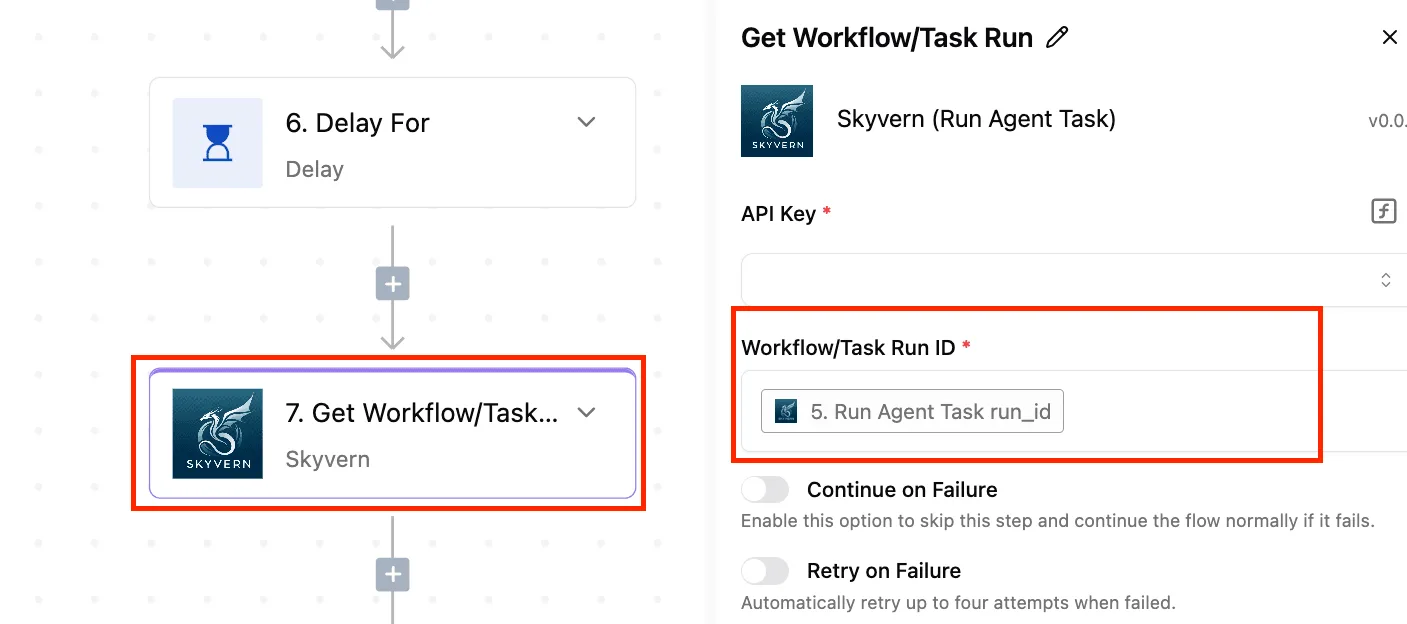
A clean result means the account, fields and input all agree. A failure message is the useful outcome here, because it can be checked against the limits page you already have open.
The next section moves from this single run to the limits themselves.
Set up inputs, outputs, and launch
When a real input reaches the workflow, a real output leaves it, and the run history records both, it is finished. However complete the canvas looks, it proves none of that.

Everything before this point was setup. These two stages are where the setup gets tested.
Stage 4: connect real input and output
Use the input type the docs name for your case: an API call, a file, or a trigger. Don't substitute a neighbouring type because it looks easier.
Most "it ran but nothing came out" reports trace back to an input the workflow was never configured to receive. Read the docs entry for your chosen type before you touch the settings, then work in this order:
- Select the input type and supply exactly the fields the docs list for it, in the format they show.
- Map each output to the destination field it feeds. An unmapped output doesn't raise a warning you'll notice. It produces an empty result.
- Set defaults for every optional value, using the docs' stated defaults as your starting point. A missing default is a blank the workflow fills in on its own terms, not yours.
Stage 5: turn it on and confirm it ran
Check which action the docs say makes the workflow live, because saving and deploying are separate actions in many tools. A saved but undeployed workflow will accept nothing. Then:
- Save or deploy, as the docs specify.
- Trigger one run with a small, known input, so you can recognise the result.
- Open run history and find that run. Then open its logs and read the entry, not just the status label.
Don't take a green status over an empty log as confirmation. Confirmation is your known input appearing in the log and your expected output at the destination.
Once that match exists, you have a working baseline. The limits are easier to read against it, because you can tell which failures are the workflow's and which are the platform's.
DeepInfer workflow limits and settings
As of 2026-11-11, DeepInfer's documentation states no value for any of the six limits below, so a number you haven't seen in the docs is a number you shouldn't build around.
You'll have a one-page limits sheet for your workflow, filled in from the docs or marked as unpublished, before you wire anything together. It shows which settings you can plan around and which you must measure yourself.
The table below lists each setting, the value stated, the plan it applies to, and where it's documented. Where the docs are silent, take that as a prompt to test it, not as permission to assume.
| Setting or limit | Value | Plan | Docs location |
|---|---|---|---|
| Rate limit | not stated in docs | not stated in docs | not stated in docs |
| Timeout | not stated in docs | not stated in docs | not stated in docs |
| Payload size | not stated in docs | not stated in docs | not stated in docs |
| Concurrency | not stated in docs | not stated in docs | not stated in docs |
| Quota | not stated in docs | not stated in docs | not stated in docs |
| Pricing tier | not stated in docs | not stated in docs | not stated in docs |
Left blank, each one is a failure you would otherwise discover in production, so each needs a load test of your own.
You need access to the current documentation, your expected request volume, and your largest realistic payload. Without those, you can't tell whether a failure belongs to your workflow or to the platform.
On 2026-11-11 the table reflected the vendor's documentation. Performance context comes from one independent test on 8×B300 hardware, published on dev.to by kbespalov.
In it, vLLM ran prefill 9 times faster than DeepInfer, throughput at 8K→1K 4.3 times faster, and decode at 1K→1K 2 times faster. Prefill is the widest gap in that comparison, so long prompts are where DeepInfer would cost you the most latency.

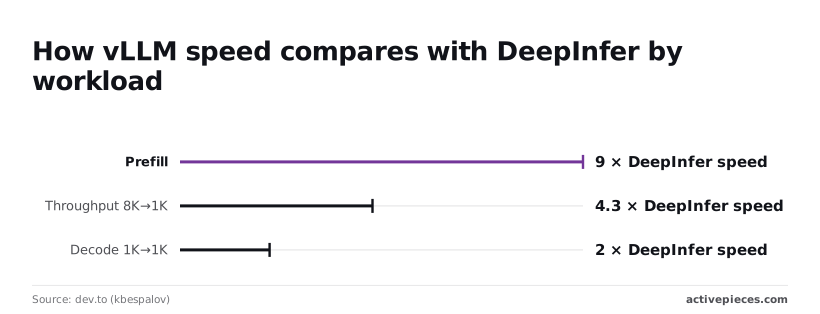
This is a single test on one configuration, so treat it as a reason to benchmark your own prompts, not as a verdict.
Easier to see it running than to read about it: set it up free, no card.
Common DeepInfer workflow errors and fixes
Check these five failure types in the order below, because together they cover most broken DeepInfer workflows and rule out the cheapest causes first. The table gives symptom, cause and fix for each.
Match your message against DeepInfer's error reference in its docs before you change anything, because the documented wording tells you which row you're in.
| Check order | Failure | Symptom | Cause | Fix |
|---|---|---|---|---|
| 1 | Authentication failure | Rejected request, unauthorized or forbidden response | Missing, expired or wrong-scope key, or a setup step done out of order | Regenerate the key, confirm its permissions, rerun setup in the documented sequence |
| 2 | Rate limit or quota response | Calls succeed, then start failing under load | Plan limit reached | Slow or batch requests, retry with backoff, or raise the plan |
| 3 | Timeout | Run stalls and then errors | Step or payload exceeds a documented limit | Shrink the input or split the step |
| 4 | Malformed input | Validation error naming a field | Payload does not match the expected schema | Compare against the documented format |
| 5 | Workflow never triggers | No run, no error | Trigger inactive or misconfigured | Activate it and check the trigger's event settings |
Below, each group covers what the table can't hold.
DeepInfer API key and permission errors
Even a key that works in one place can still fail in another. Check the key itself, then its permissions, then whether you completed setup in the order the docs give. Many "broken" keys are steps taken out of sequence.
Rate limit, quota and timeout errors
In the logs these three look alike, so read the status before you retry. A limit response means slow down. A timeout means the work is too large. Retrying a timeout unchanged just repeats it.

Input format and trigger problems
When input is malformed, the error names a field; a dead trigger names nothing. When there's no error at all, assume the trigger and check that it's active before you look at the workflow's logic.
When to contact DeepInfer support
Contact support once you've matched your message to the error reference and the documented fix failed. Send the exact error text, the time it occurred, and the steps you already tried.
Connect a DeepInfer workflow to other apps with Activepieces
If DeepInfer's documentation shows neither an API nor a webhook, use a native integration or a script instead. If it shows one, Activepieces connects DeepInfer to Slack, Google Sheets or any of its 747 integrations through an HTTP step.
Check the docs for that first, because the whole route depends on it.
If DeepInfer lists a native integration, use it and skip the rest. If it documents an API or webhook, an automation tool can call it.
If it documents neither, a hand-written script is the remaining option, and it makes you the maintainer of every retry and failure.
By the end, a flow runs on a trigger, calls DeepInfer over HTTP, and writes the result to a Google Sheet or a Slack message.
The screenshot below shows an Activepieces flow named "Test Flow" with ten numbered steps: a weekly schedule, a Google Sheets read, a loop over the rows, a date helper, an HTTP request, two AI text steps, a sheet insert, a router with "Branch 1" and "Otherwise" paths, and a Gmail send.
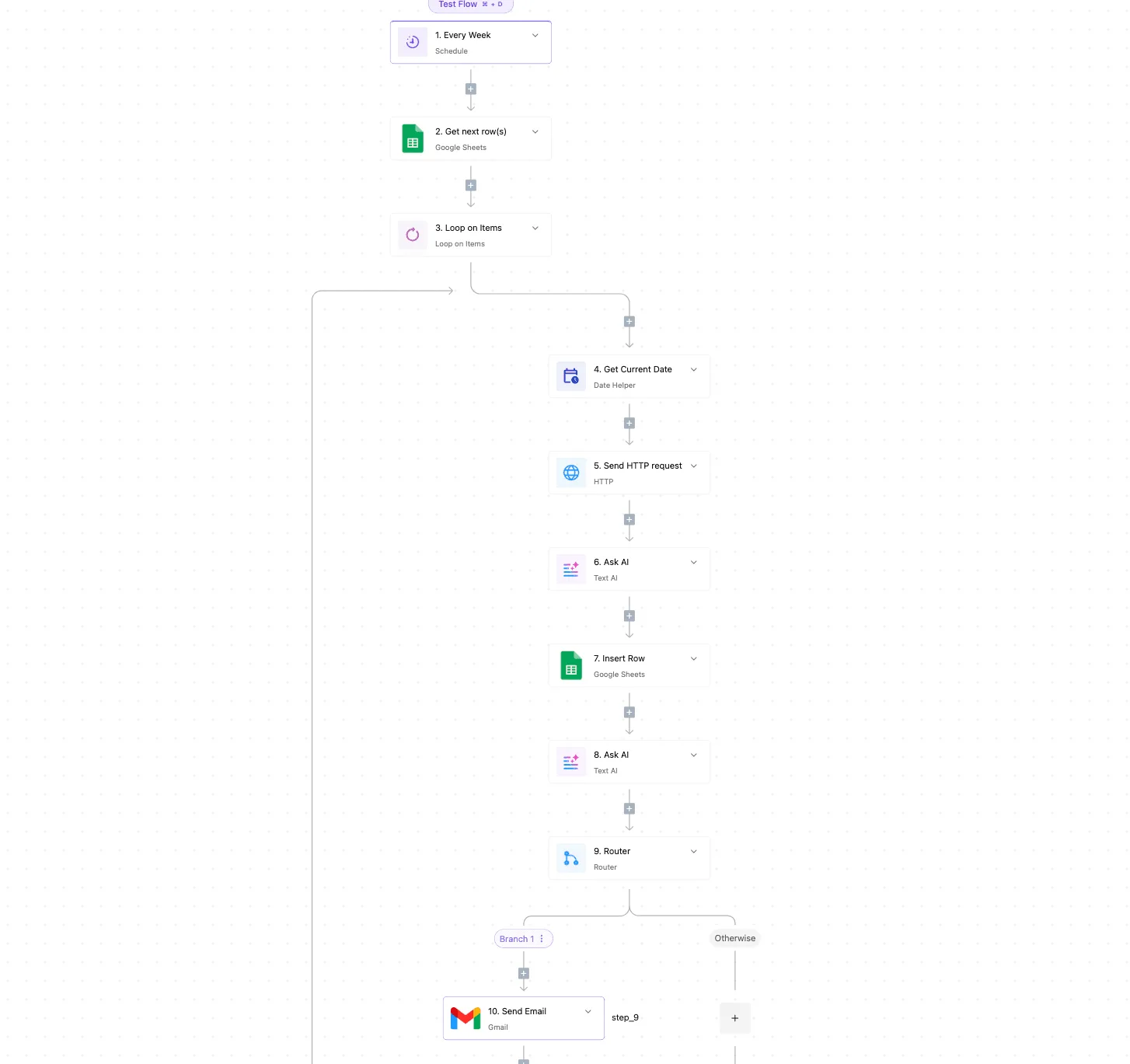
Step 5, the HTTP request, is where a DeepInfer call would sit, so the rest of the canvas is the plumbing around it. Your flow needs fewer steps than this one.
You need an Activepieces account, a DeepInfer credential, and the endpoint and request format from DeepInfer's docs. The cost of the account depends on the plan, though every plan, free included, allows unlimited flows:
- Free is 0 $ per month, enough to build and test this flow before you spend anything.
- Plus is 20 $ per month, the first paid step if the free plan's limits stop you.
- Team is 200 $ per month, ten times Plus, so move up only when a documented limit forces you.
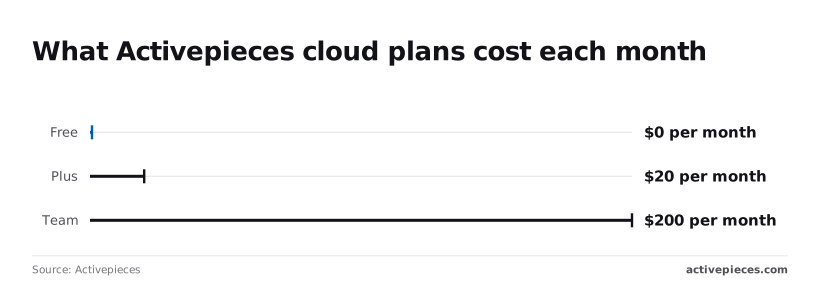
Checked on 2026-11-11, plan prices come from the Activepieces pricing page, and they can change. DeepInfer's endpoint, authentication and limits must come from DeepInfer's own documentation, so confirm them there before you build.
Frequently asked questions
Is DeepInfer free to use for workflows?
Read DeepInfer's pricing page before you build, because whether a free tier exists, and what it allows, is stated there. A workflow that passes testing can still stop at a plan limit nobody checked, and the failure then looks like a bug in your setup.
How long does a DeepInfer workflow take to set up?
If you follow the documented steps in their stated order, one sitting is realistic. The time usually goes on rework: a call written before the key was issued, or a request that breaks a limit on page two of the docs.
Reading the limits first is the cheapest step.
Can I run a DeepInfer workflow on a schedule?
If the tool that makes the call can fire on a timer, scheduling is available, because the timer lives in that tool. Whether DeepInfer has its own scheduler is a question for its documentation.
Check it, because a job you assumed was recurring and that ran once is a gap you find days later.
Where do I see why a DeepInfer workflow run failed?
Start with the error response from the failed call, then the run history of the tool that sent it. The response carries the status and message, which usually name the limit or setup step you missed.
DeepInfer's documentation says where its own logs are shown. Keep the full response text, since a paraphrase loses the detail support will ask for.
Does DeepInfer have an API for workflows?
Confirm this in DeepInfer's API documentation rather than from a third-party summary. The endpoint, authentication method and limits are defined there, and a guessed URL or auth header fails with an error that points nowhere useful.
If the documentation lists the endpoint you need, build against that and nothing else.