
Excel Automation: What It Is and How to Do It (2026)

Oct 16, 202615 min read
When the refresh, cleanup, calculation and delivery of a workbook happen on their own, on a schedule or trigger, that is Excel automation.
Excel's built-in tools do this well inside the file and stall at its edge, where the report has to reach an inbox, a chat channel or a shared folder, which is the point at which people often reach for a workflow tool such as Activepieces to carry it onward.
Vendor facts below come from Microsoft's own pages, checked 16 October 2026.
The sections below take one coordinator's Monday and automate it one hand-off at a time, using the lightest tool that reaches each.
Excel automation is repeating spreadsheet work without hands
What counts as Excel automation
Four built-in tools cover the ground. Macros record or script repeated clicks. Power Query pulls in and reshapes data on refresh.
Office Scripts run saved steps against a workbook in Excel for the web. Power Automate starts flows from Excel or on a timer.
The test for whether something counts is simple: after setup, does anyone still have to touch it? If a person still opens the file to press a button, you have a shortcut, not automation.
The weekly workflow we will automate
Meet the finance coordinator. Every Monday she refreshes one report workbook, checks the totals, emails it to her manager, posts a note in the team chat, and saves a dated copy to the shared drive.

None of it is hard. All of it is repetitive, and it breaks the week she's out.
In the illustration she sits at her desk with the workbook in the middle. Arrows run to the inbox, the chat app and the shared drive, and a small clock is set to Monday 8am.
Read it for the arrows, not the workbook: three of the four jobs happen outside Excel, and the clock is the trigger that should replace her memory, which means most of the workflow will run automatically without her needing to remember.

Everything that follows automates those hand-offs, one at a time.
What Excel's own tools do well and where they stop
Inside the workbook, the built-in tools are solid. Power Query handles repeatable data prep, and a macro or Office Script handles formatting and calculation steps without fuss. Those are the parts of her Monday that Excel already owns.
Then the hand-off arrives, and the trouble starts.
A macro that sends mail depends on a desktop mail client being set up on her machine. An Office Script runs in Excel for the web, so it needs the file stored where the web version can open it.

Further out, Power Automate reaches more, but a flow that crosses into a chat app or a non-Microsoft drive depends on whether a connector exists for that exact action.
A long connector list says little about that. Check the specific trigger and action you need before committing.
Keep the in-workbook work in Excel and hand each outbound step to the lightest tool that reaches it. That is the sensible move.
This takes minutes, not a project: automate it in Activepieces free.
Compare the four Excel tools and requirements
Four tools, four different skills, four different places to run, and Power Automate's licence cost depends on which connectors your flow touches.
The table below puts the four side by side, so you can see which ones can reach outside the workbook before you commit to one.
| Tool | What it automates | Skill needed | Where it runs | Licence required | Checked against |
|---|---|---|---|---|---|
| Macros/VBA | Anything inside the Office desktop object model: formatting, calculations, file saves | Programming in VBA, or the macro recorder | Desktop | Comes with desktop Excel | Microsoft Learn, Office VBA reference |
| Power Query | Pulling, cleaning and reshaping data from files, databases and web sources | Point-and-click, with the M language for edge cases | Desktop, with more limited refresh support on the web | Comes with Excel | Microsoft Support, Power Query for Excel |
| Office Scripts | Repeatable workbook edits written in TypeScript | Light scripting, or the Action Recorder | Excel on the web, with desktop support on some plans | Eligible Microsoft 365 business or education plan | Microsoft Learn, Office Scripts overview |
| Power Automate | Triggers and actions that link Excel to other services | Low-code flow building | Cloud service | Microsoft 365 for standard connectors, a paid Power Automate plan for premium ones | Microsoft Learn, Power Automate docs |
Read the "where it runs" column first. It's the quickest filter, because a desktop-only tool can't be triggered by something happening in another app.
For raw capability inside a desktop workbook, VBA wins, and it is also the oldest option. It can do almost anything the Excel interface can.
It also needs someone who can maintain code, and it doesn't run in the browser, so a macro can't be the step a cloud trigger calls.
When the job is inbound data, Power Query is the tool. It connects to a source, cleans it, and refreshes the result, reshaping data well with no code for common transforms. It doesn't send anything out, and it doesn't wait on events in other apps.
Record or write workbook actions in TypeScript, and Power Automate can call them. That makes a script the workbook-side half of a cross-app flow. The catch is the licence: Office Scripts depend on an eligible Microsoft 365 business or education plan.
Only one of the four is built to connect Excel to other services, and that is Power Automate. Read the connector list for your actual trigger and action, because premium connectors raise the licence requirement.
Six stages that automate one person's Excel week
Count the hand-offs in one person's Excel week and you get six, each with its own trigger. The list below shows them in the order they fall, so you can see which ones leave the workbook.
- When a new email with a spreadsheet attached arrives in Gmail, filter by sender, then save the file.
- On a Monday morning schedule, read the saved file and append its rows to Google Sheets.
- When new rows land, test for blank required fields and duplicates, and flag failures.
- When the checks pass, total by category in the sheet.
- When the report is ready, email the approver in Gmail and wait for a reply.
- When approval arrives, post the totals to a channel in Slack.
To build the integrations that carry this list, work through the stages below; each one leaves a working flow behind. Screenshot the trigger setup and the test result at every stage, because they're your proof it fired.
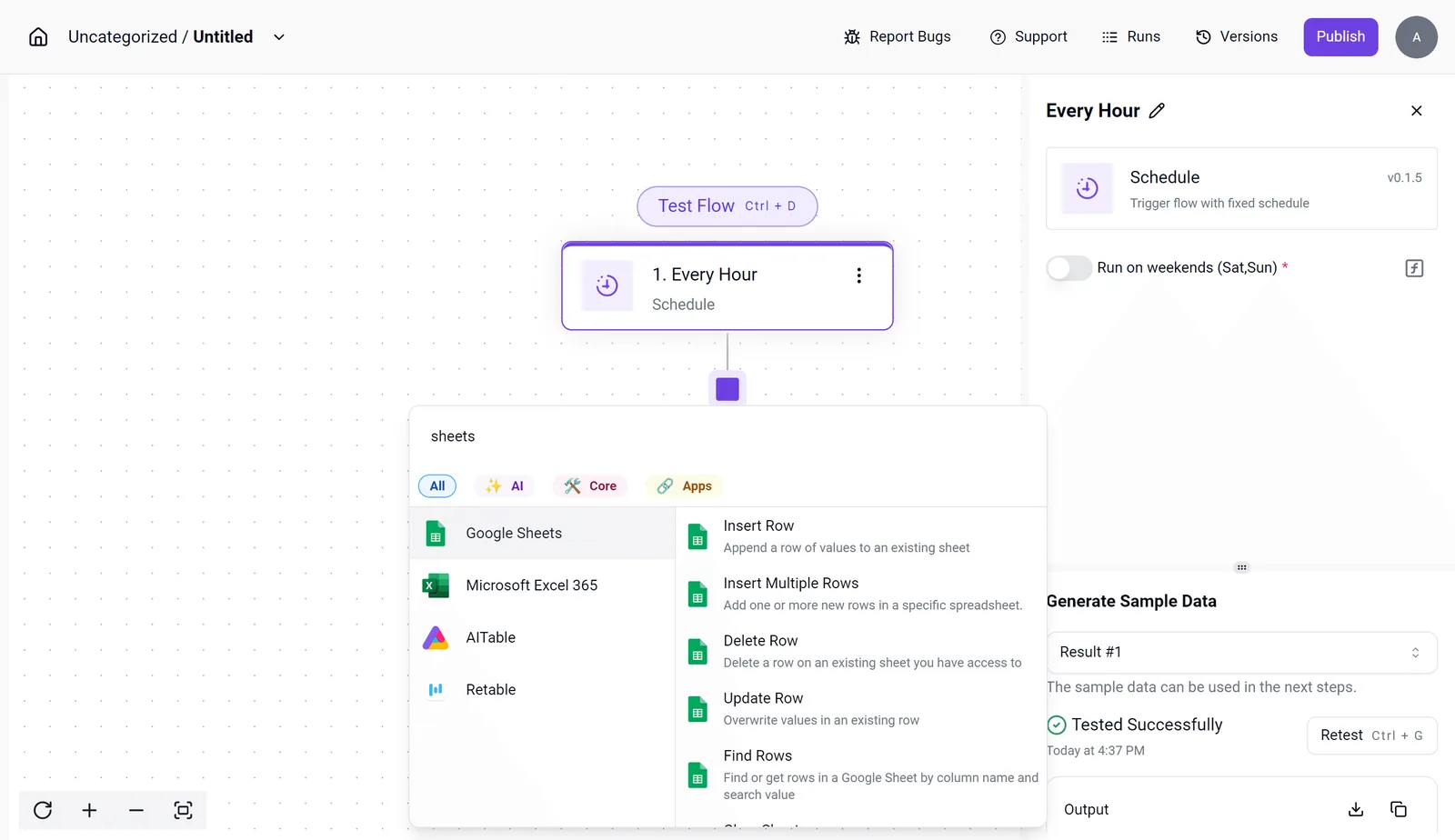
Trigger on a new Gmail message with an attachment. Filter on the sender's address, or the flow will ingest every newsletter PDF. Then add one row to Google Sheets with sender, date and file name. Test with a real email.
For the Monday totals, stage 2 appends the saved file's rows to Google Sheets. Use a schedule trigger, not an email. Read the sheet, sum the column you care about, and send one Slack message to a named channel. Check the test message shows the total, not an empty field.
To keep bad data out of the sheet, stage 3 tests for blank required fields and duplicates. Trigger on the same attachment.
Pass the text to an AI step that returns vendor, date and amount, then map each to its own column. Map by field name, and review the first few results by hand, since extraction can misread a total.
In stage 4, once the checks pass, the sheet totals by category. Trigger on a new row whose amount crosses your threshold. Pause the flow and email the approver, then write "approved" or "rejected" back to the row. Rows below the threshold skip the wait.
Stage 5: the approver is emailed in Gmail and the flow waits for a reply
Without that key you get duplicates. Confirm the ID column is mapped before you run it.
If your whole team is on Microsoft 365, Power Automate and Office Scripts can do most of this natively. The flows here earn their place when Gmail, Slack or a CRM sits in the chain.
You can follow the rest of this with the builder open. Start free, no card.
Build the cross-app stages with Activepieces
You don't hire for this, you describe it: at the hand-off, where a workbook's data has to reach Gmail, Slack or a CRM, you tell Activepieces' built-in chat that an emailed attachment should become rows in a sheet, and it publishes the flow a builder would have wired by hand, leaving everything inside the workbook alone.
MoneyGram, Moneypenny, Alan and FundingSocieties run Activepieces in production, and it reaches 741 integrations, roughly 60% of them community-contributed, so Gmail, Slack and most CRMs are already covered.
It's a flow builder: a trigger starts a run, and each step passes its output to the next app.
A flow published that way runs under the same RBAC and audit logs as every other, and each run leaves a trace anyone can read without any certification, which you can confirm by signing up on the free plan and opening the first run.
Set up the first workflow in about 15 minutes
Log each incoming email as a spreadsheet row and announce it in a channel, so the people who need to act see it without opening the sheet. Read the field mapping in steps 4 and 5 closely, because that's where flows like this usually fail.
- Sign up for the free plan at the link above.
- Create a new flow from the dashboard.
- Pick the Gmail trigger for new emails, and connect your account when prompted.
- Add the Google Sheets insert-row step. Map sender, subject and received time from the trigger's output to separate columns, not one lump of text.
- Add the Slack send-message step, choose the channel, and insert the subject and sender from the trigger.
- Run the test. Confirm the row landed in the right columns and the message shows real values instead of blank fields.
- Publish the flow so it runs without you.
If a test passes with an empty field, the mapping is wrong, not the connection, so fix it before publishing.
Once the pattern works, swapping the sheet or channel is a small edit. A schedule trigger can replace the email trigger when the job is a weekly pull rather than a reaction.

What the free plan covers
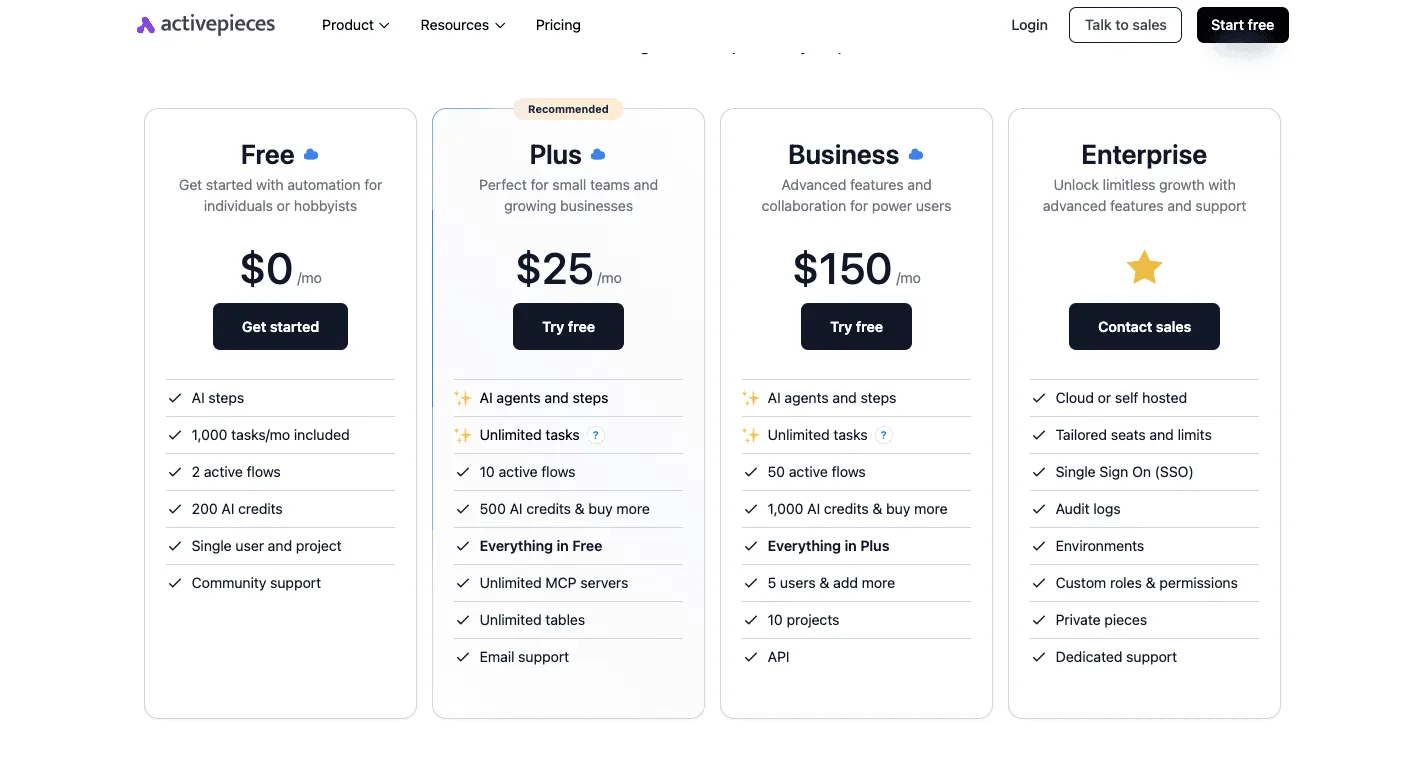
Because the free plan costs nothing and asks for no card, the first flow carries no financial risk. Limits can change, though, and I haven't confirmed current task or flow allowances. Read the pricing page before you commit a team's weekly process to it.
Do the same for any AI or approval step: open that app's integration page and read which actions it actually offers. A long catalogue says little about whether the one trigger or action you need exists.
Keep macros and Power Query for work that stays inside the workbook: reshaping columns, merging tables, cleaning imports and recalculating a model.
They run next to the data and need no connection to anything outside it. Activepieces covers the rest:, so a weekly hand-off to another app doesn't cost more for being one of many.
Identify common Excel automation mistakes and costs
Before any script runs, the workbook underneath was already wrong in most automation failures. Audits from the 1990s found errors in 91 to 100% of the spreadsheets they examined, meaning you should assume any given sheet probably contains a mistake.
Before any script runs, the workbook underneath was already wrong in most automation failures.
Louise Pryor's roundup cites three: Coopers & Lybrand's 1997 audit found errors in 91% of the spreadsheets they examined, KPMG's 1997 audit found errors in 91%, and Lukasic's 1998 study found errors in 100%, though it covered only two spreadsheets, meaning that if your organization used spreadsheets, virtually all of them contained errors.
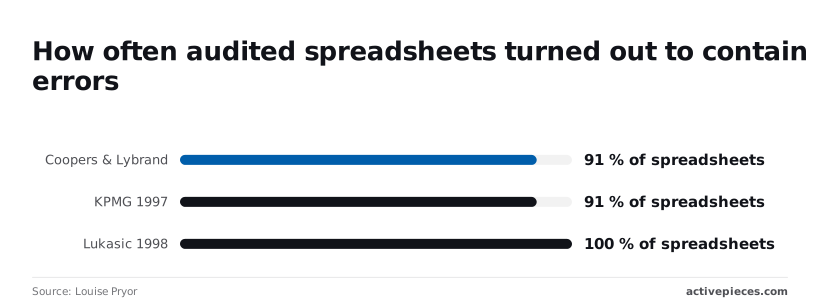
Automating a sheet like that doesn't fix it; it runs the error faster and on a schedule.
Treat those studies as old and narrow, since they sampled particular business spreadsheets, not every workbook. The consequence still holds: assume your file has a flaw before you wire it into anything.
{{chart}}
Automating a process nobody has written down
If the steps live in one person's head, the macro or flow encodes that person's habits, including the workarounds.
Before building, write the steps out: which file arrives, from whom, which columns get touched, and who approves the result. A one-page list is enough.
Skipping it means the automation breaks the first time the person who "just knows" is on leave, and nobody can say what it was supposed to do.
Write to Sheet1!C14 from a macro and it works until someone inserts a row. Then it writes to the wrong cell and reports success. The fixes are cheap:
- Convert data ranges to Excel tables and refer to columns by name, so inserted rows don't shift the target.
- Use named ranges for single input cells such as a date or a threshold.
- Add a check step that compares a row count or a total against the source and stops the run if they differ.
- Send an alert on failure, by email or a chat message, so a broken Monday run is noticed on Monday.
Do not skip the last one. A job that fails quietly leaves last week's numbers in place, and people keep making decisions from them.
Secure Excel macros and shared credentials
Treat a macro-enabled file from an unknown sender as code, not a document. Open such files only from locations you have marked as trusted, and keep Microsoft's default of blocking macros in files downloaded from the internet.
If a macro must be distributed, have it signed so recipients can see who published it.
When a flow runs on one colleague's login, or a password sits in a cell or in the macro itself, that person leaving breaks the job, and anyone who opens the file can read the secret. Credentials are the other weak point.
Use a dedicated service account with the narrowest permissions the task needs, and store the secret in the automation tool's connection settings, not in the workbook.
Frequently asked questions
Can Excel automate tasks without coding?
Yes, for work inside the workbook. The macro recorder captures clicks into VBA without you writing it, and Power Query builds repeatable data-cleaning steps through menus.
The limit is that a recorded macro replays exactly what you did, so a changed column layout can break it. Anything that leaves the workbook, such as sending a file or updating another app, needs a connector-based tool.
Is Excel automation free?
Nothing beyond the Excel licence you already hold is needed for the built-in integrations that ship with desktop Excel, macros and Power Query.
Office Scripts and Power Automate depend on your Microsoft 365 plan, so check what your admin has enabled before you design around them. A platform with a free plan is enough to prove a single hand-off before you commit to anything.
Does Excel automation work in Excel for the web?
Partly. VBA macros don't run in Excel for the web, so a workflow built on them stays on the desktop. Office Scripts is the web-side replacement, though it requires an eligible Microsoft 365 plan.
Flow tools that read a workbook stored in OneDrive or SharePoint work regardless of which Excel the user has open, because they act on the file, not the app window.
Where will your workflow hand off?
Pick by where the other end of the hand-off lives. If the workbook sits in OneDrive or SharePoint and the next step is another Microsoft service, Power Automate is the shorter path.
Read the trigger and action lists for both tools against your actual use case.
That applies if the next step is a non-Microsoft tool, or if you want an AI step or an approval in the middle. A large connector count means little if the specific trigger you need, such as "new row in a table," is missing.
Will AI replace Excel macros?
Not as a drop-in swap. AI is good at drafting a script or formula from a plain description, which lowers the cost of writing a macro or Office Script.
It's a poor choice for the step that must produce the same result every run, such as a payment total.
The practical split is to let AI write or classify, and let a deterministic script or flow do the repeatable work. Review whatever it generates before it touches real data.
Related reading
References
Build it
Set this up in minutes.
No code required. Connect your accounts, and Activepieces runs it from there.
Start free Talk to sales