Gmail Monday Integration: How to Set It Up (2026)

Nov 24, 202616 min read
You can connect Gmail to monday.com in one afternoon if each workflow, built in a no-code tool like Activepieces, starts from one listed trigger and ends in one listed action.
On SaaS Price Alerts, seats on monday.com run $9 to $24 per month depending on tier and billing, checked 2026-11-24, meaning you'll need to select a tier to establish your monthly per-seat budget.
A Gmail monday.com integration is a workflow that watches one event in Gmail, such as a new email. It performs one action in monday.com, such as creating an item on a board.
If a step is not in the connector's list, you don't get it by assuming it exists.
Picture the common pattern: a customer message lands in a labelled inbox and a row appears on a board. The reverse also gets built, where a board change sends an email.

Connect Gmail to monday.com quickly
Build one of these first, because a two-way sync doubles the failure cases you have to test.
Requirements for connecting Gmail to monday.com
Check the setup times against your own accounts, because they are rough estimates. The table lists four requirements.
| What you need | What it is | Setup time |
|---|---|---|
| Automation account | A workspace on your automation platform where the workflow runs | A few minutes |
| Gmail account | The mailbox the trigger watches, authorised through Google sign-in | A few minutes |
| monday.com plan with integrations | A paid seat that lets outside tools write to boards | Depends on approval |
| One board | A single board with the columns your action will fill | About ten minutes |
Prices and plan limits checked against activepieces.com and activepieces.com on November 24, 2026.
If anything stalls you, it will be the plan row. According to SaaS Price Alerts, Basic costs $9 to $12 per seat per month, Standard $12 to $14, and Pro $19 to $24, which means your monthly spend scales with every new team member.

Pay yearly and you get the lower figure in each range; pay monthly and you get the higher. That makes yearly roughly a quarter cheaper on Basic, but it commits you to a year before you know whether the workflow survives testing.
Pay monthly until it does.
Confirm that the tier you pick allows the integration before you buy seats, because the price ranges alone don't show that.
- Connect Gmail and pick one trigger, such as a new email matching a label.
- Connect monday.com and pick one action, such as creating an item on your single board.
- Map the sender, subject and body to three board columns, then send yourself a test email.
- Check the item on the board. If a field is blank, fix the mapping before adding anything.
Expect a first working workflow in under an hour if the plan question is already settled. If you need something the listed steps don't cover, use a plain HTTP request step. That comes after this four-step version works.
This takes minutes, not a project: automate it in Activepieces free.
Five Gmail and monday.com workflows worth building
Five workflows cover most of what teams want from this pairing, and each one runs from a single listed trigger to a single listed action.
The Gmail integration lists 4 triggers and 11 actions, and the monday.com integration lists 2 triggers and 9 actions, according to the public integrations API listing.

With only 2 monday.com triggers (per that same integrations API), anything that starts on the board side has just two options, so the choice is quick. Gmail's four triggers are where the real decisions sit.
| Trigger | Action | Optional filter | What it saves |
|---|---|---|---|
| Gmail "New Email" | monday.com "Create Item" | Subject or sender contains a keyword | Retyping each request onto the board |
| Gmail "New Labeled Email" | monday.com "Create Item" | None; the label is the filter | Sorting inbox from board work by hand |
| Gmail "New Attachment" | monday.com "Create Item" | File type, such as PDF | Opening invoices and logging them one by one |
| monday.com "New Item in Board" | Gmail "Send Email" | Group or owner equals a given value | Writing the "this was assigned to you" message |
| monday.com "Specific Column Value Updated in Board" | Gmail "Send Email" | Status equals "Done" | Chasing status in email threads |
Incoming Gmail message creates a monday.com item
Start with the first row. "New Email" fires on every message, so an unfiltered run creates an item for each newsletter. Map the subject to the item name and paste the body into a text column. Run it for a day before you trust it.

Because only mail you tag reaches the board, the "New Labeled Email" row avoids the noise.
Flip the direction and you get the two board-side rows. "New Item in Board" tells an owner something landed. "Specific Column Value Updated in Board" fires on the column you name, so pick the status column and nothing else, or every edit sends mail.
Put a condition between trigger and action, such as sender domain or status value. The workflow is then still one trigger and one action, but it ignores most of what arrives. Branching to a second action belongs after the first path has run cleanly.
Use HTTP requests for missing monday.com actions
Expect gaps: the nine monday.com actions don't cover, for example, anything beyond the listed create and get steps. Use an HTTP request step instead. Post a GraphQL query to https://api.monday.com/v2, with your API token in the Authorization header.
With a token and a query in hand, the step is done and the rest of the workflow is unchanged. Once these five run cleanly, add the second action.
Build a Gmail-monday.com workflow step by step
Build it in four stages, each ending with something that works: a trigger chosen, both accounts connected, two fields mapped, and a real item on the board. The list below shows the order, and the stages after it give the detail for each.
- Connect Gmail.
- Connect monday.com.
- Pick the board and group.
- Map subject and sender.
- Test.
- Publish.
- Check the item arrived.
Keep to that order. If a step fails, you know which stage broke it. Next come the stages themselves.
You can also skip the clicking: describe the workflow to the built-in chat in Activepieces, say a labelled Gmail message should create an item on one monday.com board, and it publishes the same flow you would have assembled by hand.
What it publishes is a live flow in your account, wired from Gmail and monday.com integrations that are two of the 750 integrations counted directly from the open source monorepo.
The run trace for each execution records the subject and sender of the email that triggered it and the monday.com item that came out, so the result is something you read rather than take on trust.
It runs under the same RBAC and audit logs as any flow built manually. MoneyGram, Moneypenny, Alan and FundingSocieties run an open source automation platform of this kind in production.
Create a new workflow and pick Gmail's "New Email" as the only trigger. Don't add a filter yet. An unfiltered trigger shows you immediately whether Gmail is delivering anything at all, which a filter would hide if it were wrong.
Stage 2: Connect your monday.com and Gmail accounts
Connect Gmail first, then monday.com. Each opens an authorization dialog. Take a screenshot of that dialog before you click Allow, because it lists the permissions you are granting.
If a connection fails, the error text in that dialog is the evidence to keep, and it tells you more than "it did not work" does.
Use a mailbox you can send test messages to. A shared inbox you don't control makes the later check unreliable.
Add the monday.com action and map Gmail fields
Add monday.com's "Create Item" as the single action. Choose the board, then the group the item should land in. Then map two fields: item name takes the email's subject, and a text column on your board takes the sender's address.
If the sender column is a different column type, such as a people column, the mapping may be rejected or leave the cell empty. Use a plain text column for this first run.
Take a screenshot of the field-mapping panel with both values filled, so you can compare it against the result.
Test and publish your Gmail-monday.com workflow
Send yourself an email with a distinctive subject, run the test, and capture the test result screen. It should show the subject and sender the trigger picked up. Publish only after that looks right.

Then verify outside the builder. Send one more email, open the monday.com board, and look in the group you chose. The item should carry that subject as its name and the sender in the text column.
If the item is missing, check the trigger's run history first. That tells you whether the email was never seen or the item was never created.
You can follow the rest of this with the builder open. Start free, no card.
Fix Gmail-monday.com limits and errors
Once you know which side failed, the cause is almost always one of five, and each has a fix you can apply in minutes:
- An expired or under-scoped Gmail connection: reconnect the account and approve every permission it asks for.
- A Gmail trigger that never fires: confirm the email lands in the inbox or label the trigger watches.
- A wrong board or column ID: pick the board from the dropdown again instead of pasting an ID.
- Duplicate items from re-runs: check for an existing item before creating one.
- A rate or sending limit: cut the number of emails the workflow sends.

Connection and permission errors
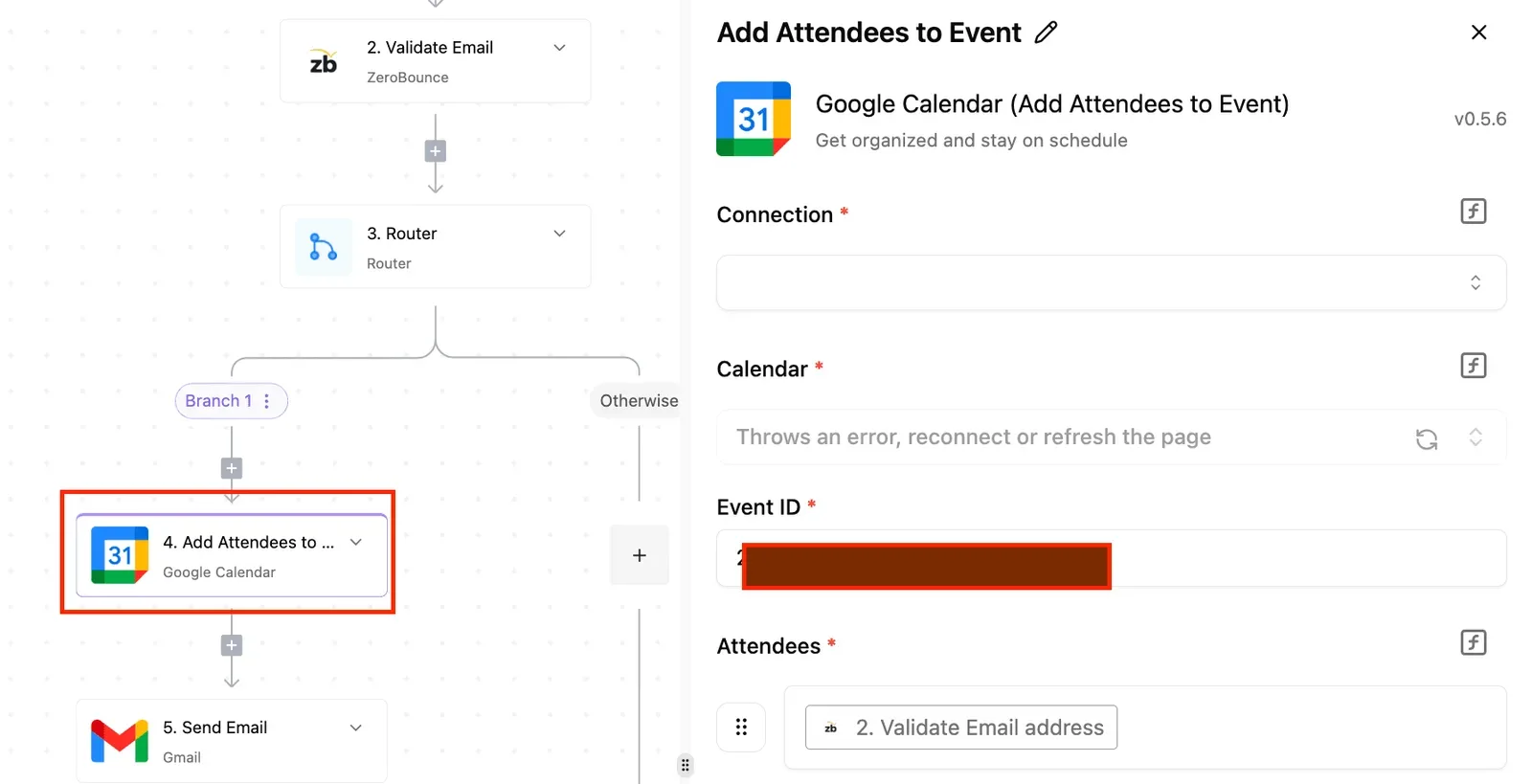
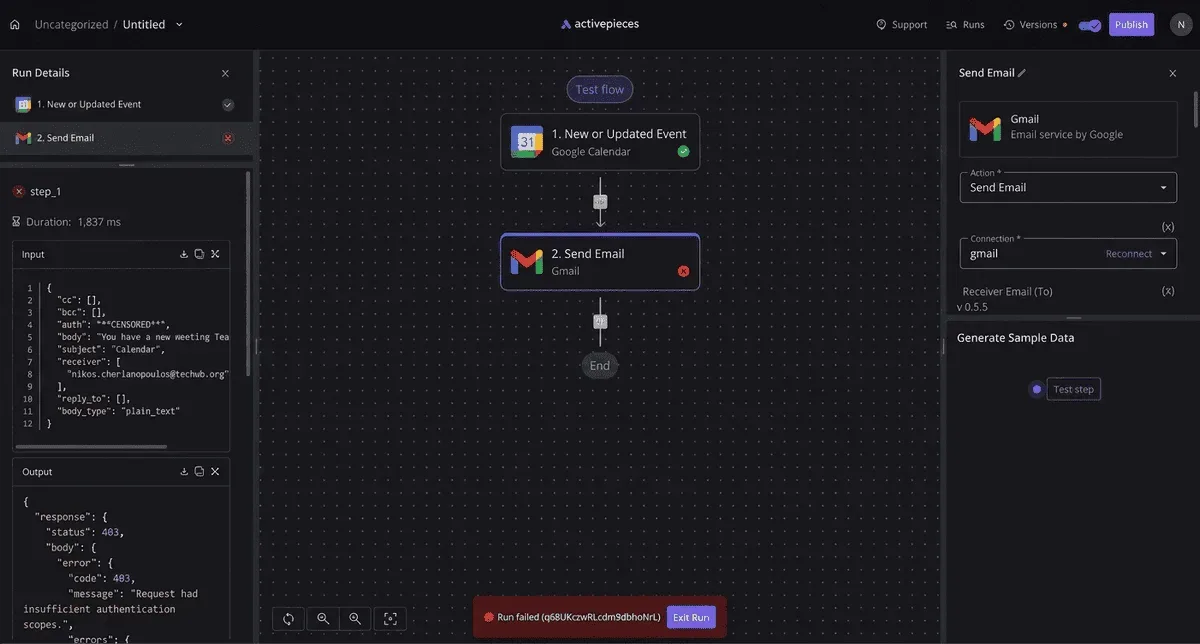
Even when a connection reads "connected", it can still lack the permission a step needs. If a read step works but a send step returns a permission error, the Gmail connection was approved with narrower access than the send step requires.
Disconnect it, reconnect, and tick every permission box on the Google consent screen.
Do the same when a run that worked last week suddenly fails: the authorization has expired or been revoked.
Gmail trigger fires twice or not at all
When a trigger never fires, the test email usually didn't match what it watches. Look for the wrong label, a message in spam, or a send from the same address you are testing against.
Send a fresh email that clearly matches, then run the trigger test again.
When a trigger fires twice, it is usually a re-run of the same email. Store the Gmail message ID in a monday.com column and search for it before creating an item. A repeat run then finds the existing item and stops.
monday.com field mapping and column type errors
With a wrong board or column ID, you get an error naming the missing column, or an item with an empty field. Column IDs aren't column titles, and a board you duplicated has new IDs. Reselect the board and columns from the step's dropdowns.
Write exactly one of the status column's existing labels, because it rejects any label it doesn't have.
Gmail sending limits and monday.com rate limits
Send enough email in a day and Gmail cuts you off, and the cap depends on account type. According to TrulyInbox, free Gmail and trial Workspace accounts get 500 emails a day, while paid Workspace gets 2,000.
At item 501 on a free or trial account, a workflow that sends one email per new monday.com item stops working. On a paid account it stops at item 2,001.
Every send after that fails until the limit resets. Test with a handful of items, then multiply by your real volume before you widen the workflow.
When a listed step doesn't expose what you need, add a plain HTTP request step.
For monday.com, send a GraphQL request to https://api.monday.com/v2 with your API token in the authorization header. The same approach reaches any Gmail API call the listed steps leave out.
Activepieces versus other tools for Gmail and monday.com, and what to do Monday
Of the several tools that connect Gmail and monday.com, Activepieces fits best when you want to host the automation yourself or run long workflows without a step limit.
The same trigger-to-action test applies to every tool in this category, so the choice is narrower than the marketing suggests.
When no-code integration works better
Activepieces connects a Gmail trigger to a monday.com action, two of its 750 integrations counted from the open source monorepo, and other automation platforms list them too, so neither distinguishes Activepieces from competitors.
If one of them already runs your workflows, the pair isn't a reason to switch.
Check the listed trigger and the listed action first, in whichever tool you use, because that check decides whether the workflow is buildable without custom work.
In three situations Activepieces fits better:
- You want open source code you can read, so you can see what a Gmail or monday.com step does rather than trusting a description of it.
- You need to self-host, so email content and board data pass through infrastructure you control instead of a vendor's cloud.
- Your workflow needs many steps, and Activepieces' docs describe steps as unlimited, so a long chain isn't forced into a plan upgrade. Confirm this against the current docs before you commit, since plan terms change.
Here the HTTP request step matters too. When a Gmail or monday.com action isn't in the integration's list, you call the API directly from the same flow instead of leaving the tool.
That works in other platforms as well, so it's a convenience and not a reason to choose one over another.
Keep the plan small enough that you can say what went wrong if it fails.
- Pick the manual step that eats the most time, such as copying a customer email into a board. Write it as one sentence: "When this email arrives, create this item."
- Build one workflow with one listed Gmail trigger and one listed monday.com action. Map only the fields you need, and send a real test email through it.
- Run it for a week and watch the run history each day. Failed runs and wrongly mapped columns show up here, and each one tells you what to fix before you add anything.
- Once the week is clean, widen it by one condition, one extra field, or one second workflow. Change one thing at a time so a break has one cause.
After the week you have a tested workflow and a record of where it failed, which is a better basis for expanding than a large build you can't debug. Start the first workflow in Activepieces.
Change one thing at a time so a break has one cause.
Frequently asked questions
Can I connect Gmail to monday.com without code?
Yes, for any workflow that starts from a listed Gmail trigger and ends in a listed monday.com action. A new-email trigger feeding a create-item action is two steps and a field mapping, with no code, so non-technical team members can build this automation.
Code only enters when you need a step the lists don't cover, and even then it's usually one HTTP request.
Does it work with Google Workspace or a shared inbox?
Yes, with Workspace, but the trigger watches the mailbox of the account you authorize, not "the company inbox" in the abstract. For a shared inbox, authorize an account that can read it and test with a real message sent to the shared address.
A blocked consent screen usually means an admin setting, not a broken workflow, since Workspace admins can restrict which third-party apps may request access.
Can one workflow cover several monday.com boards?
Technically yes, but I wouldn't build it that way. Route to several boards and you need a branch, and a branch means the workflow no longer has one trigger and one action.
Build one workflow per board. If two boards genuinely need the same email, make two small workflows that share the trigger condition. When one breaks, the run history then points at one board and one mapping instead of a tangle.
What if the trigger or action I need isn't listed?
Use a plain HTTP request step to call the service's own API. monday.com exposes a GraphQL API. The request is a POST to its endpoint with your API token in the header and the query in the body.
For Gmail, the same approach works against Google's REST API.
Test the request on its own first. If the response comes back with an error, read the message before wiring it into the workflow, because the error text tells you which field or permission is wrong.
Then replace only the missing step and leave the listed ones alone.
Is the connection secure on a self-hosted install?
It's as secure as the machine you run it on, because the stored Gmail and monday.com credentials sit on your server instead of a vendor's.
Self-hosting means you own the basics: serve the install over HTTPS, keep it updated, restrict who can open the dashboard, and back up the database with the same care as the credentials inside it.
Grant the Google connection only the access the workflow needs. A workflow that only reads incoming mail has no reason to hold permission to send it.
Related reading
References
Build it
Set this up in minutes.
No code required. Connect your accounts, and Activepieces runs it from there.
Start free Talk to sales