
Salesforce Zendesk Integration: A Setup Guide for 2026

Nov 14, 202612 min read
A Salesforce Zendesk integration functions as a bidirectional data pipeline, often managed through platforms like Activepieces to maintain consistency, which ensures customer support agents and sales representatives operate from a unified record of truth.

By connecting these systems, organizations eliminate the manual data entry that leads to duplicate records. It also ensures that a customer’s commercial history in Salesforce informs the technical support they receive in Zendesk.
Salesforce Zendesk integration use cases
Syncing Salesforce Leads to Zendesk Users
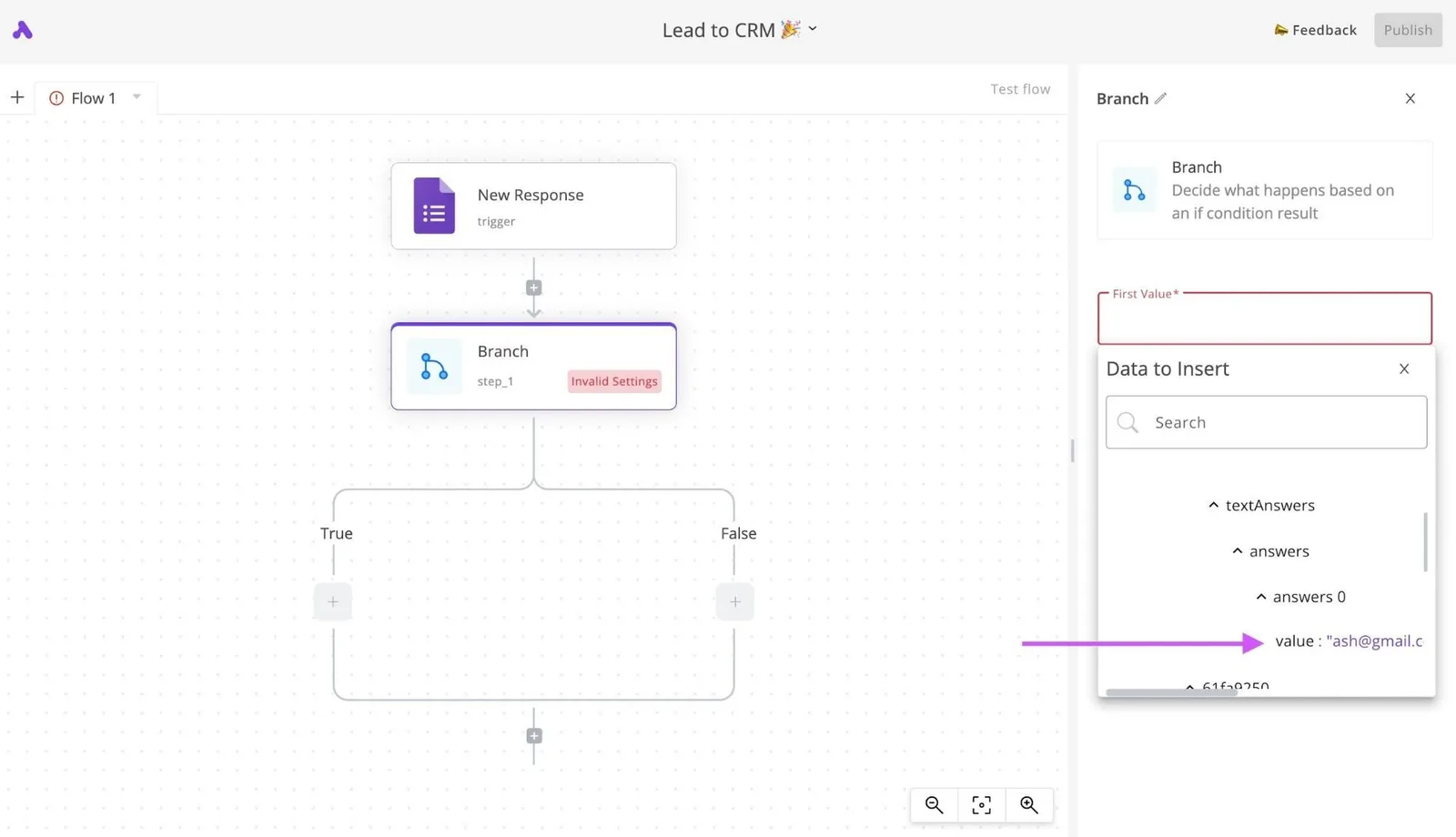
When you create a prospect in Salesforce, effective lead syncing ensures their identity and contact details become immediately available to the support team. This prevents the "unknown user" scenario.
A potential buyer submits a technical inquiry, and the system treats them as a cold contact because their record only exists in the CRM. Teams maintain a consistent identity across the funnel by mapping Salesforce Lead fields to Zendesk User fields.
Companies like MoneyGram, Moneypenny, Alan and FundingSocieties run Activepieces in production to maintain this consistency as contact information moves between departments.
Creating Zendesk Tickets from Salesforce Cases
Technical teams resolve issues within their preferred environment when Salesforce Cases are mapped to Zendesk Tickets. It keeps the account owner informed, too.
When a salesperson logs a functional gap or a bug as a Case, the integration triggers a corresponding Ticket in Zendesk. It carries over the priority level and specific attachments.
Nobody notices a gap in communication because the visibility prevents sales teams from over-promising on timelines. The status updates from the support agent sync back to the original Salesforce record.
Updating Salesforce Accounts from Zendesk Activity
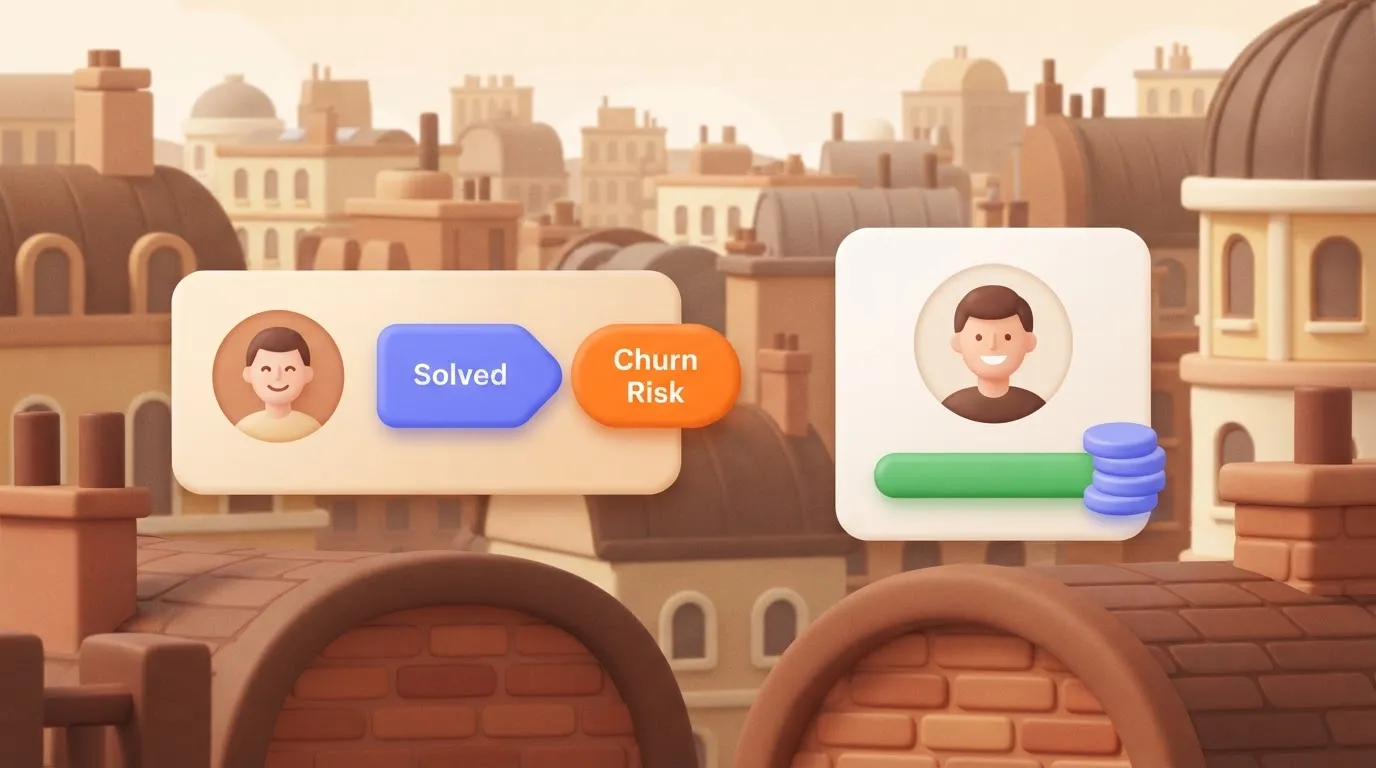
Recent support interactions are reflected in the commercial health of an account through bi-directional updates. When an agent marks a Zendesk ticket as "Solved" or applies a specific tag like "Churn Risk", the integration updates the corresponding Salesforce Account record.
Agents spend less time toggling between tabs to find account details. The CSAT lift reflects a smoother customer experience where the user doesn't have to repeat their history.
Account managers can enter renewal conversations with full knowledge of every technical hurdle the client faced during the quarter.
Escalating High-Value Support Tickets to Sales Teams
The moment a Tier 1 customer submits a high-priority ticket, the system can route urgent support issues from Zendesk directly to the Salesforce Opportunity owner.
It does this by filtering tickets based on the "Annual Contract Value" field in Salesforce, triggering a Slack notification or a Task for the Sales Rep. Commercial teams can then intervene or provide executive outreach.
They can do this before a technical delay impacts a pending renewal or expansion deal.
This takes minutes, not a project: automate it in Activepieces free.
Syncing Salesforce leads with Zendesk tickets
Automating the flow between Salesforce and Zendesk requires a bidirectional understanding of lead status and support availability. By building a multi-step workflow, you ensure that high-value prospects identified in your CRM are immediately visible to the technical support staff. They'll handle their initial onboarding queries.
- Configure the salesforce new lead trigger: Select the Salesforce integration and choose the New Lead trigger to initiate the workflow whenever a prospective customer enters the CRM. You must authenticate using an OAuth 2.0 connection. This grants the integration permission to monitor the Lead object without exposing your primary administrative password. Once connected, the builder allows you to select specific lead sources or statuses. This ensures the sync only fires for leads that require immediate support attention rather than every marketing-qualified contact.
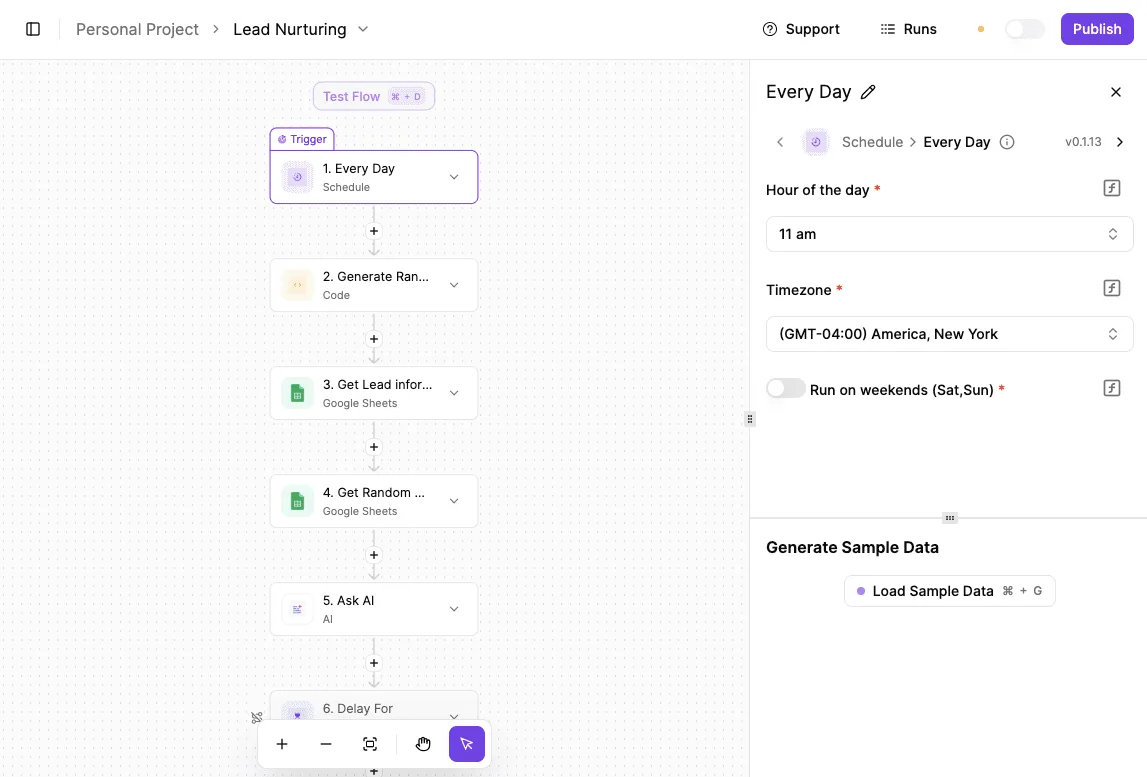
- Add the zendesk create ticket action: Insert a new step using the Zendesk integration and select the Create Ticket action to generate a corresponding record for the support team. This step is the destination for the lead data. It creates a placeholder in the support queue before any manual entry is required. By placing this action immediately after the trigger, you minimize the latency between a lead’s creation in Salesforce and their visibility in the Zendesk agent dashboard. The workflow builder provides a visual canvas where logic lines link these steps. It shows exactly how data moves from the initial CRM entry through to the final support ticket.
- Map lead data to ticket fields: Use the data mapper to link specific Salesforce lead attributes to the required Zendesk ticket fields. This way, agents have context without switching apps. You must map the following pairs to ensure record integrity: Lead Email to Requester Email, Lead Name to Ticket Subject, Lead Company to Ticket Description, and Lead Phone to a custom Zendesk field for callback priority. This mapping ensures that when a support agent opens a ticket, they see the prospect’s company history and contact details immediately.
- Add validation and error handling:: Building a robust Lead-to-Ticket automation requires an execution engine that can handle complex data mapping without escalating costs as the workflow grows. An automation platform that versions every flow functions as this engine, allowing you to map Salesforce CRM data directly to Zendesk support fields without requiring custom Apex code. Because the published pricing page specifies 1 credit per flow run regardless of the number of steps, you can build granular, ten-step validation sequences for the same cost as a simple two-step sync. This contrasts with Zapier’s per-task billing or Make’s per-module billing, where every additional logic gate increases the monthly invoice.
The workflow builder provides a visual canvas where logic lines link these steps, showing exactly how data moves from the initial CRM entry through to the final support ticket.
Building a Lead-to-Ticket Automation
Building a robust Lead-to-Ticket automation requires an execution engine that can handle complex data mapping without escalating costs as the workflow grows.
Activepieces functions as this engine, allowing you to map Salesforce CRM data directly to Zendesk support fields without requiring custom Apex code or specialized middleware developers.
If the specific connector you need for a legacy Salesforce custom object is missing, the platform lets you use AI to generate the integration and deploy it to your own instance instantly.
This ensures you never wait on a vendor release queue to finish a sync. A majority of the 748 integrations in the catalogue are community-contributed, which you can verify by checking the open-source monorepo on GitHub.
You can follow the rest of this with the builder open. Start free, no card.
Select the right integration platform
Choosing the right tool depends on whether you prioritize immediate deployment of standard fields or the ability to scale complex, multi-step logic without hitting execution limits.
While basic connectors handle simple record mirroring, they often fail when workflows require conditional routing or data enrichment from external sources.
When to use the native Zendesk for Salesforce app
Available on the Salesforce AppExchange, the native Zendesk for Salesforce app is a managed package. It's the most direct way to view ticket data within a lead record.
It's a pre-built interface for support agents to see CRM details without switching tabs. This reduces the friction of manual data entry.
Custom scripts and third-party database queries are where this connector reaches its limit. If you need to execute a custom script before updating a ticket, the native app offers no way to inject that logic.
It's a synchronization tool for standard objects, not a workflow engine for complex business processes.
Self-hosted and high-volume automation needs
An automation platform allows teams to maintain complete control over their data residency by offering a self-hosted version via Docker, with the core of the platform available under the MIT licence. This architecture ensures that sensitive customer information from Salesforce never leaves your private network.

Because it's open-source, developers can build custom integrations to handle specific API endpoints that commercial connectors might ignore. The following table compares how different platforms handle the trade-off between hosting, volume, and cost:
| Platform | Monthly Price | Ticket Capacity | Hosting |
|---|---|---|---|
| Activepieces | $0 to $299 | Unlimited | Cloud vs Self-hosted |
| Zapier | $0 to $299 | 750 tickets | Cloud |
| Macha | $0 to $299 | 750 tickets | Cloud |
Prices and plan limits checked against activepieces.com and activepieces.com on November 14, 2026.
A self-hosted approach removes the bottleneck of per-task billing for high-volume environments. By shifting to an infrastructure where you aren't penalized for every successful sync, you can build more granular workflows that check for updates every minute.
Evaluating Zapier and Make for simple syncs
Connecting Salesforce to a wide library of niche apps with minimal configuration is where Zapier and Make excel. They're ideal for "if-this-then-that" scenarios, such as alerting a Slack channel when a Zendesk ticket priority changes to urgent.
The trade-off for this ease of use is a lack of network isolation. Your CRM data must pass through their servers to be processed.
While these tools are excellent for prototyping a sync in under ten minutes, they become difficult to manage when a single ticket update requires five or more steps. The cost per execution scales linearly with the complexity of the workflow.
Troubleshooting common Salesforce and Zendesk sync errors
Reliable Salesforce and Zendesk synchronization requires addressing the hard technical constraints of each platform’s API. You can't treat the connection as a simple "set and forget" toggle.
Hitting a documented platform ceiling or a data structure mismatch is almost always the cause when a sync fails. It's rarely due to a logic error in the workflow.
Hitting a documented platform ceiling or a data structure mismatch is almost always the cause when a sync fails.
Resolving Salesforce API Request Limit Exceeded errors
Salesforce enforces strict daily limits on the number of API calls an organization can make. This means a high-volume Zendesk sync can inadvertently lock out other business-critical integrations.
The integration has consumed the total allocation for the 24-hour rolling window if you receive a REQUEST_LIMIT_EXCEEDED error. To resolve this, you must transition from a "polling" architecture to a webhook-based architecture using Salesforce Outbound Messages or Change Data Capture.
This shift ensures that an API call is only consumed when an actual record change occurs. This prevents the sync from wasting the budget on empty checks.
Fixing Zendesk 'invalid field' mapping errors
Zendesk will reject incoming data payloads if the field types or character limits don't align perfectly with the target attributes in the Ticket or User object. A common failure point occurs when attempting to sync Salesforce CaseComments into Zendesk.
The comment body is simply truncated if it exceeds the 64kB limit enforced by Zendesk, rather than causing the API call to fail. To fix these errors, audit the field types to ensure a Salesforce "Picklist" is mapping to a Zendesk "Drop-down" with identical internal tags.
Implement a truncation script in your middleware to cap text strings at the maximum character count allowed by the destination field. Verify that "Required" fields in Zendesk aren't receiving null values from Salesforce, which triggers a validation error that halts the sync.
Fixing Salesforce Zendesk OAuth token expiration errors
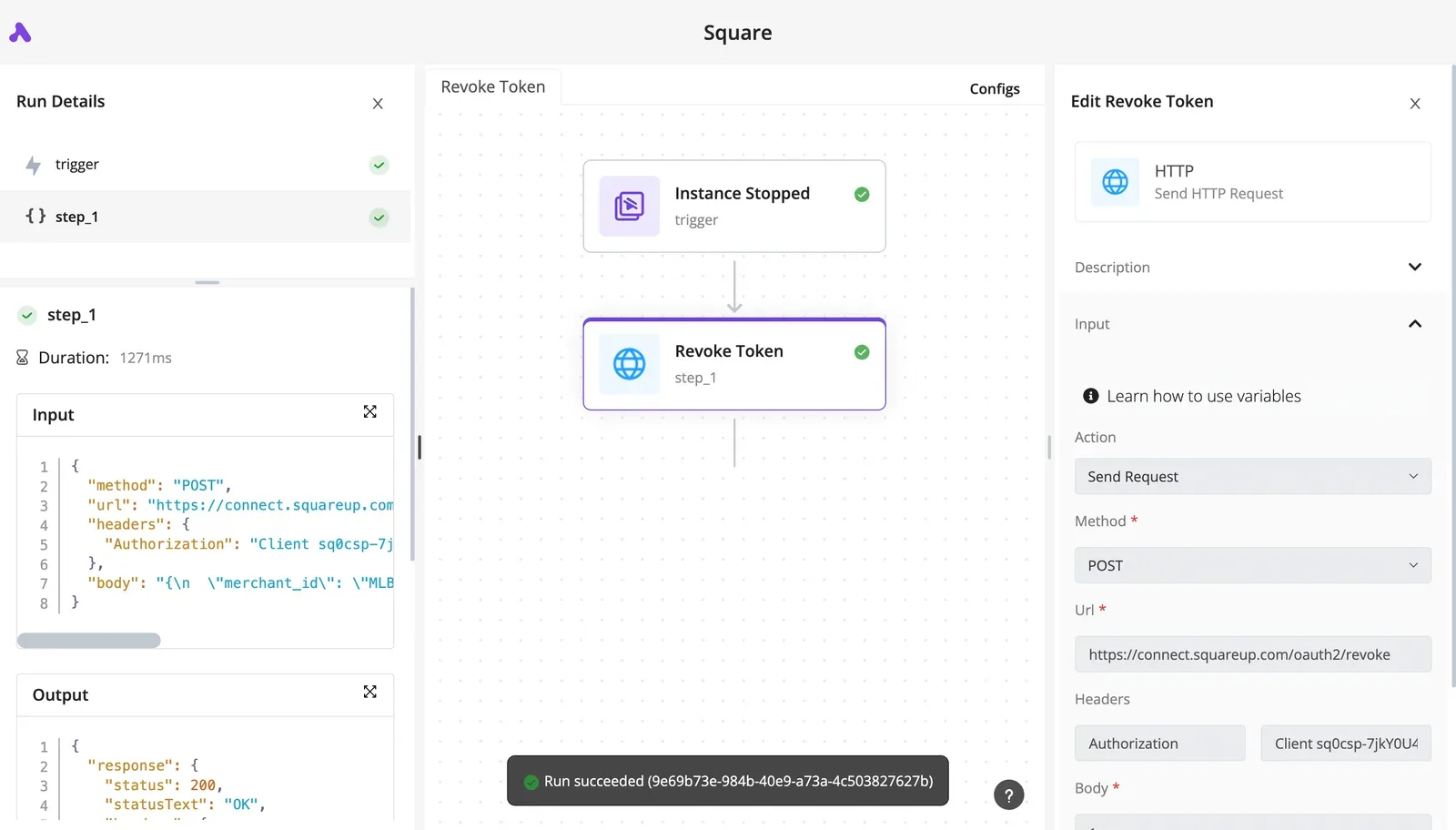
Authentication failures occur when the secure handshake between the two platforms is interrupted. This is typically due to the expiration of the OAuth 2.0 refresh token.
April 2027 is the definitive deadline set by Salesforce to retire older authentication methods in favor of enhanced JWT (JSON Web Token) flows. Any integration relying on legacy username/password strings will cease to function.
To maintain uptime, you must configure your integration to use a "Refresh Token" flow. This allows the system to request a new access token automatically without requiring a manual login from an administrator every time the session times out.
Frequently asked questions about Salesforce Zendesk sync?
Does this integration work in real-time?
Within seconds of a record update, real-time synchronization between Salesforce and Zendesk ensures support agents see current account status. When a "New Lead" event triggers in Salesforce, the corresponding "Ticket Created" event appears in Zendesk almost instantly, as shown in the following timeline.
This two-second interval represents the network latency and API processing time required for the two systems to handshake. Following this initial creation, any subsequent field updates rely on webhook listeners to maintain parity across the tech stack.
Can I sync historical Salesforce data to Zendesk?
By running a one-time bulk job that iterates through existing Salesforce objects, you can migrate historical records and map them to Zendesk users or organizations. This process is necessary because standard triggers only fire on "create" or "update" events.
Data created before the integration was active remains invisible to Zendesk until a manual import is performed. To handle the scale of thousands of legacy records without hitting API rate limits, use a batch-processing workflow that staggers the requests.
Is my CRM data secure during the integration process?
By utilizing TLS 1.2 or higher for all transit between the Salesforce and Zendesk APIs, data remains secure. This prevents middle-man interception of sensitive customer details.
Because the integration uses OAuth 2.0 scopes, you grant the system permission to read only the specific objects required for the workflow. This avoids exposing the entire database.
If your organization uses Gemini 3.8 Flash to categorize incoming tickets, the data is processed via encrypted endpoints that comply with SOC2 Type II standards.
Do I need a Salesforce Developer license to connect Zendesk?
You don't need a dedicated Salesforce Developer license, but the user account performing the authentication must have "API Enabled" permissions and "Modify All Data" or specific object-level access. In Salesforce Professional Edition, API access is often a paid add-on.
It's included by default in Enterprise and Unlimited editions. Without the API enabled on the specific Salesforce instance, the Zendesk connector will return a "REST_API_DISTINCT_PERM_REQUIRED" error during the initial handshake.
Build it
Set this up in minutes.
No code required. Connect your accounts, and Activepieces runs it from there.
Start free Talk to sales