
Google Drive Automation Beyond Built-In Rules (2026)

Oct 21, 202614 min read
Inside Drive, built-in automation applies rules to files and folders, and it does that reliably.
At the Drive boundary it stops: it can't message another app, log to another tool, or pause for a person's sign-off, which is the gap that workflow tools such as Activepieces are usually brought in to cover.
Understand Google Drive automation rules for files
Google Drive automation is the practice of using rules and triggered workflows to handle file and folder tasks automatically, from built-in actions inside Drive to workflows that connect Drive to other apps, AI steps and human approvals.
When a file is uploaded, shared, or a request is answered, the trigger fires and the result stays inside Drive. Shared-drive rules file and label content as it lands.
File requests let outsiders drop documents into a folder without browsing your Drive. Workflow notifications tell the right person something changed.
If your whole job is keeping Drive tidy, you may not need anything else.
Where built-in automation stops
Once a signed contract lands in Drive, someone still has to tell the account team, record it in a tracker, and get a manager to approve the next step. Most real processes don't end in a folder.
Drive handles the first event, then leaves you to do the rest by hand. Here's the split, four things Drive does natively against three it can't:
Most real processes don't end in a folder.
- Native: shared-drive rules
- Native: file requests
- Native: workflow notifications
- Native: Gemini summaries
- Not native: posting to Slack, the team chat tool where people actually notice things
- Not native: writing a row to Sheets, the spreadsheet where the tracker lives
- Not native: waiting for approval before the next step runs
Without an approval wait, a step that needs a person's yes either runs unchecked or gets chased through email.
Where there's a gap, a small, separate workflow does the job, with one trigger and one result you can see.
What you will have working by the end
You'll have one flow working, built in a single sitting. A new file in a chosen Drive folder triggers it, and a visible result appears in another app, a message or a spreadsheet row you can open and check.

From the second flow on, the shape stays the same and an AI step or an approval is added. Vendor pages cited here were checked on 2026-10-21, so features may have moved since.
Everything below works on Activepieces' free plan. Start without code or a credit card.
How Drive automation triggers, actions and permissions work
One trigger fires one or more actions; that is all a Drive automation is.
The trigger is an event such as a new file landing in a folder, and an OAuth grant decides which files those actions can touch. The limits sit in the quotas, not the trigger.
A trigger is the event that starts a run:
in:foldergets a new file- a file is edited
- a form response arrives
An action is what happens next:
- copy the file
- send a message
- ask a model to summarise it
Keep it to one trigger per flow. Two triggers feeding one flow is where duplicate runs start, and you'll only notice when someone gets the same email twice.
Drive features, Apps Script and workflow tools compared
Because quotas bite hardest on polling and bulk jobs, the table below sets the three approaches side by side.
| Skill needed | Reach beyond Google apps | Behaviour on failure | Quota limits | |
|---|---|---|---|---|
| Drive built-in features | None; settings and rules in the interface | Little; built for work inside Drive | Limited visibility into why a rule did not run | Not exposed as numbers you manage |
| Apps Script | JavaScript | Any service with a web API, via code you write | Errors land in execution logs unless you add alerts | Per-execution and daily runtime caps |
| No-code workflow tool | Point-and-click setup | Connectors to many outside apps | Failed runs are listed per step, so you can retry | Set by the tool's plan, plus Google's own limits |
Prices and plan limits checked against docs.claude.com and claude.com and openai.com and gemini.google on October 21, 2026.
Underneath all three, the Drive API limits apply. Google for Developers lists 1,000,000 quota units per minute for a whole project. That's a shared pool, so one busy automation can starve every other flow on the same project.

For each user within that project, Google for Developers also lists 325,000 units per minute. One user's flow can therefore use roughly a third of the pool, and about three heavy users will exhaust it, so any team with significant growth will outrun capacity.
Spread bulk jobs across time, not accounts.
Google Drive permissions and OAuth scopes for automation
Approve a scope that reads all of Drive and the connected app can read all of it, not just the watched folder. OAuth consent sets that ceiling.
Prefer narrower scopes where the tool offers them, and check the list under your Google account's third-party access page after setup.
To see how much headroom a single user really has, the next chart plots those two quota figures against each other.
Five Google Drive workflows you can build today
If one of these flows fails, it shows up as a missing Slack post or Sheets row rather than a silent miss, because each of the five has one trigger and one visible result. Together they cover most cross-app Drive work.
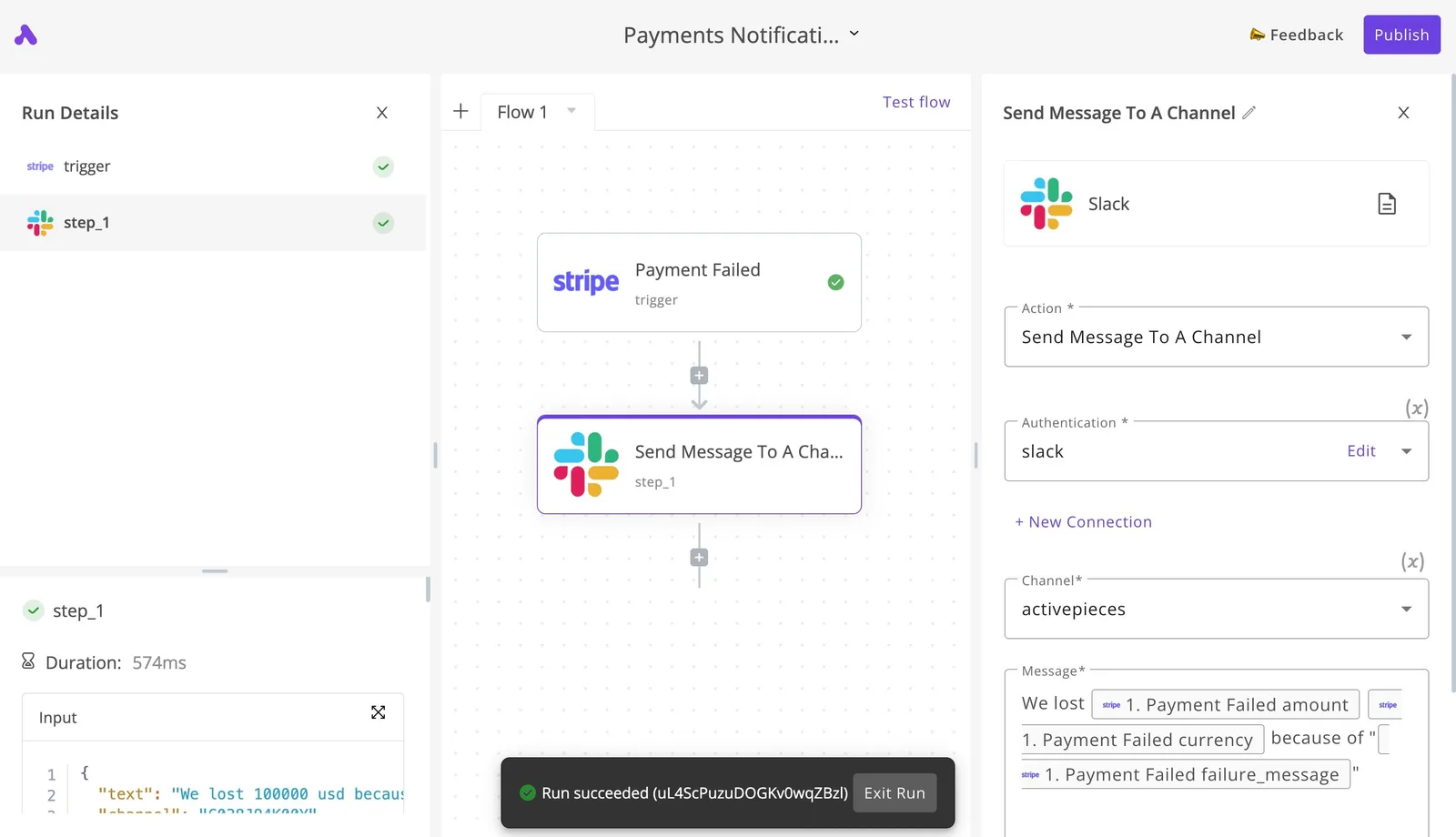
Flow 1 posts new files to Slack. Trigger: Google Drive "New File" on your Incoming folder. Step: Slack "Send Message" to #incoming-files, text {{name}} uploaded: {{webViewLink}}. The visible result is the message, so nobody has to refresh a folder to find out.
2. Extract invoice PDF data into Google Sheets
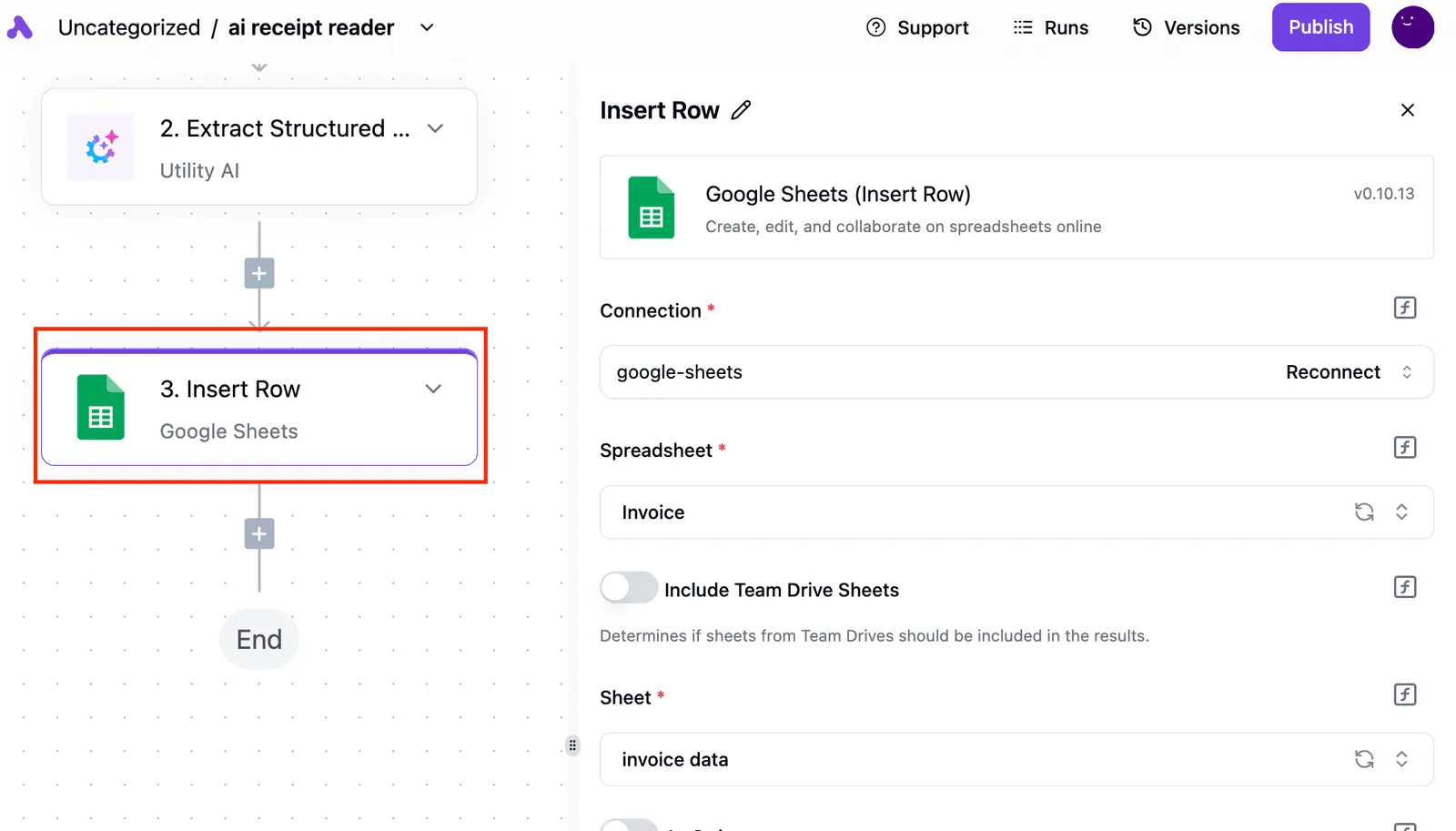
Trigger: new PDF in an Invoices folder. Steps: an AI step extracts vendor, invoice number, date and total, then Google Sheets "Insert Row" writes them to columns A to D.
Picture the pattern in the next screenshot: a trigger, an AI extraction step selected so its fields are open, then a row insert. Select the extraction step first, because field names there become your column headers.
45 to 3 minutes per task is what Aurora Designs, NoblQ and Al's Made AI Simple report for invoice entry, and 24 to 5 for invoice extraction alone, meaning each document still requires multiple minutes even in optimal conditions.
3. New CRM client creates a Drive folder
Trigger: a new contact or deal in HubSpot. Steps: Drive "Create Folder" named {{company}} - {{year}}, then write the folder link back to the CRM record.
Naming by rule means no one files into "Acme (new)" again. The same case studies put deal intake at 45 minutes before and 2 after.

If the CRM or tracker your flow has to reach isn't in the catalogue, a platform that lets you generate that integration with AI and add it privately to your own instance spares you a vendor release to wait on.
An open source catalogue of this kind can already stand at 743 integrations counted straight from the monorepo, and roughly 60% of them were written by community contributors, which means more than half the integrations rely on volunteer maintenance.
Flow 4 holds a file for approval before it moves to Approved. Trigger: new file in a Review folder. Steps: Gmail sends the reviewer the file link and waits for an approve or reject response.

On approve, Drive "Move File" goes to Approved. On reject, a second email goes to the uploader. Nothing moves without a human answer, so the Approved folder can be trusted.
5. Weekly folder digest by email
Trigger: schedule, Mondays at 08:00.
Steps: Drive lists files modified in the last 7 days, rendering modifications older than a week invisible. An AI step summarizes them into a short list, and Gmail sends it to the team. One email replaces a weekly "what changed?" thread.
Across these cases, the chart of minutes per task before and after shows the largest gains where a person re-keyed data between apps. Pick the flow with the most re-keying and build it first.
Easier to see it running than to read about it: set it up free, no card.
Build the first workflow in Activepieces step by step
Start with a Google Drive New File trigger feeding a Slack Send Message step. You can build it in Activepieces on the free plan, which is $0 with no card and includes 1,000 credits a month, in one sitting.

Re-keying is the cost you're removing: nobody retypes "a file landed" into chat again. Slack is the team chat app where the alert will appear.
Sign up at cloud.activepieces.com. Activepieces runs each flow as one trigger followed by steps, shows you every step's result, and puts no cap on the number of flows on any plan, free included, which also seats up to 5 users.
Check the pricing page for current plan limits before you rely on the free plan for volume, because they change.
In the first four steps, all you build is a trigger watching one folder, and nothing else, leaving the workflow logic and integration mapping for you to construct.
- Sign up and open your dashboard.
- Create a new flow and name it after the job, such as "New invoice to Slack".
- Pick the Google Drive trigger called New File, then connect your Google account and approve access.
- Choose the folder to watch.
Pick a dedicated folder, not your whole Drive. A narrow folder means every alert is meaningful, and a noisy trigger trains people to mute the channel.
Next, drop a real file into the watched folder, then run the trigger test.
Use a genuine document, not a blank placeholder. The test returns the file's actual fields, such as its name and link, and those are what you'll paste into the Slack message.
If the test finds nothing, the folder choice is the first thing to recheck, since the connected account may not have access to it.
Stage 3: Add the Slack message and publish
- Add the Slack action Send Message and connect your workspace.
- Choose the channel, then build the message from the test data: file name plus link.
- Publish the flow.
Put the link in the message. An alert that says only "new file" sends people into Drive to hunt for it, which is the manual step you set out to remove.
When the result stays inside Drive, such as sharing or organizing files, Drive's own tools are the better choice. The moment the outcome has to reach another app, a flow like this one earns its place.
With the flow live, drop in one more file and confirm the message arrives.
Avoid mistakes that break Google Drive automations
When a Drive automation breaks, one of five mistakes is usually behind it: wasted quota, endless loops, orphaned connections, exposed files, or silent failures.
Watching too much, or the folder you write to
Point a trigger at "My Drive" and every edit anywhere fires a run, so you burn your automation platform's task allowance on files you never cared about. Watch one named folder instead.
When your flow saves a renamed PDF or a summary back into the trigger folder, that new file is a new event, and the flow fires again on its own output.

It repeats until stopped, using a task each pass. Send results to a separate output folder, or have the first step check a filename prefix and exit.
Connecting Google Drive automation to a personal account
When that person leaves, a flow connected through their personal login stops, because their Google account is suspended and the token dies with it. Every run after that fails. Connect through a shared service mailbox or a dedicated automation account.
Expect that account to be a paid seat. Google Workspace lists Starter (30 GB) at $7 per user per month, Standard (2 TB) at $14, and Plus (5 TB) at $22.

Starter is enough for a flow-only seat, and $7 a month is far less than rebuilding connections after someone departs.
Until a contract or payroll export lands in the folder, a step that sets "anyone with the link" on every new file is convenient.
Then it's public to anyone holding the URL. Share only to named addresses, and put an approval step before any link goes outside your domain.
Missing failure alerts for Drive automation runs
Without a failure notification, an expired connection or a renamed folder means files pile up unprocessed and nobody knows for days. Add an error branch that emails or messages a person with the flow name and the file that failed.
Frequently asked questions
Is Google Drive automation free?
Yes, the basics cost nothing. Apps Script runs on a personal Google account, and Activepieces has a free plan at $0 with no card, 1,000 credits a month and unlimited flows, so you can build a first flow at https://cloud.activepieces.com/sign-up.
Costs show up later, when a flow calls an AI model per run or hits the usage limits on whichever tool you chose. Check those limits before you point a flow at a busy shared folder.
Can Google Drive automate file renaming?
Yes, with a small flow or script. Trigger on a new file in a folder, build the new name from the file's details or from fields in another app, then run a rename step. In Apps Script, the file's setName method does the same job.
By hand is all the Drive interface itself offers for renaming, so treat automated renaming as something you add. Test on a scratch folder first, because a bad naming pattern applied to a live folder is tedious to undo.
Do I need Google Workspace to automate Drive?
No. A personal Google account can authorize a workflow tool or run Apps Script against its own Drive. Workspace matters when your organization's admin controls which third-party apps may connect.
If a connection is blocked on a work account, the admin settings are the usual reason, not your flow. Ask the admin to allow the app instead of looking for a workaround.
Is it safe to connect Drive to a third-party tool?
It's safe when you control the permissions. The connection runs through Google's sign-in screen, which lists exactly what access you are granting. Read that list.
A tool that only needs to watch one folder shouldn't ask for everything in your Drive. Use a dedicated folder for automation where you can, and revoke access from your Google account's third-party connections page when a flow is retired.
Forgotten connections are the real risk, not the tools themselves.
What is the difference between Apps Script and a workflow tool?
For custom logic that stays within Google apps, Apps Script fits: it is code you write and host inside Google's environment. A workflow tool is a visual builder with ready-made connections to other apps, AI steps and approvals.
Choose a script when you need precise control over Drive and Docs behavior. Choose a workflow tool when the flow crosses into other apps, so a teammate can read each step and see what happened without opening code.