
Google Sheets API: How to Use It (2026 Guide)

Nov 19, 202617 min read
Within its quotas, the Google Sheets API costs nothing. It's a REST API at sheets.googleapis.com that requires no paid plan, and is enabled per project in Google Cloud using an ordinary Google account.
Google Sheets API access, scope and cost
What the Sheets API is and what it can do
It's a programmatic interface to spreadsheets: you read and write cell values, append rows, format ranges, manage tabs, and bundle many edits into one batch request.
The ceiling's the same whether you call it from your own code or through Activepieces, whose Google Sheets integration sits in an MIT-licensed open source repository and calls the same API.
Treat the last row as a design constraint, because a sheet you append to daily has an end date you can calculate. The table below lists what Google's documentation states on endpoint, cost, access, capabilities and cell limit, and which page says it.
| Item | What Google's docs state | Source page |
|---|---|---|
| Endpoint | REST API at sheets.googleapis.com | Google Sheets API reference |
| Cost | No charge for API use; requests are governed by quotas | Sheets API usage limits |
| Access method | Enable the API in a Google Cloud project; authorize with OAuth 2.0 or a service account | Sheets API overview |
| Capabilities | Read, write, format and batch-update spreadsheet data | Sheets API reference |
| Cell limit | 20 million cells per spreadsheet | Google Sheets Help, spreadsheet size limits |
Prices and plan limits checked against docs.claude.com and claude.com and openai.com and gemini.google on November 19, 2026.
Checked 19 November 2026. Nothing in this table asks for a billing plan, so the remaining question is how to switch the API on.
You create or choose a project in the Google Cloud console and enable the Google Sheets API for it. Then create credentials: an OAuth client if people sign in, or a service account if a server acts alone.
The project is the unit Google counts quota against, so every script sharing one project shares one allowance.
Nobody sends you a bill for a request. Google's usage-limits page describes quotas, not a price list, so the practical risk is throttling.
The bill you can avoid worrying about is the API's; the failure you should plan for is hitting a quota and needing retries.
Nobody sends you a bill for a request. Google's usage-limits page describes quotas, not a price list, so the practical risk is throttling.
Which Google account or Workspace plan you need
Start with a free Google account; it's enough. Workspace is optional, and only worth it for admin controls or shared domains.
Per Justin McKelvey's pricing breakdown, Business Starter is $7 per user per month, which is the cheapest step if you want a managed domain, so professional email doesn't require a large budget.
viz type=step title="What Google Workspace plans cost per user" unit="$ per user per month" source="Justin McKelvey - https://justinmckelvey.com/blog/google-workspace-pricing"4 and $22 per user a month on annual billing; the Sheets API itself needs none of them." Business Starter: 7 Business Standard: 14 Business Plus: 22
According to Justin McKelvey, Business Standard is $14, double that, and Business Plus is $22, over three times Starter.
Pay for them only for what they add outside the API, because none of those upgrades unlocks a different Sheets API.
This takes minutes, not a project: automate it in Activepieces free.
Authentication for the Google Sheets API in Python
When a first-day call comes back as a 401 or 403, it's usually authentication, and the fix is to pick the right credential type before writing any code. Paying for a bigger Google plan doesn't change this; the credential decides what your script can reach.
Service account or OAuth client: which to pick
Use a service account when a script runs unattended against sheets you control. Use an OAuth client ID when the script must act as a specific person who's present to approve access.
Ask who the caller is, not which option is easier to set up. The table below compares the two on who owns access, the consent screen, token refresh and best fit.
| Service account | OAuth client ID | |
|---|---|---|
| Who owns access | The service account itself, an identity with its own client_email |
The human user who approves the request |
| Consent screen | None; nobody clicks anything | Required; the user sees and approves the scopes |
| Token refresh | The client library mints new tokens from the key file | A refresh token is stored and reused after the first approval |
| Best fit | Servers, cron jobs, pipelines | Tools that read or write a user's own sheets |
Once you know which row you're in, the setup differs only in what you create and how the spreadsheet becomes visible to it.
Create the credentials and download the JSON
In the Google Cloud console, create or select a project, then enable the Google Sheets API from the API library. Without that step, calls fail with a 403 even when the credentials are valid.
For a service account, open the credentials area under IAM and Admin, create a service account, add a key of type JSON and download it. That file contains a private key, so keep it out of version control.
For an OAuth client ID, configure the consent screen first, then create a client ID of type desktop app and download its JSON.
Request the narrowest scope that does the job. Use the read-only Sheets scope if you only read; the full spreadsheets scope's needed for writes.
A read-only scope on a write call produces a 403 that looks like a permissions problem on the sheet but is really a scope problem.
Share a Google Sheet with the service account
Out of the box, a service account has no access to your sheets. Open the spreadsheet, choose Share, and add the client_email value from the JSON file as an editor, or as a viewer for read-only use.
Skipping this is the most common cause of a 403 or "not found" error with an otherwise correct service account setup. It's a separate step from the console work, and nothing in the console will remind you.

With an OAuth client you skip this step, because the user's own access applies.
Install the Python client libraries
Install google-api-python-client and google-auth. Add google-auth-oauthlib if you chose the OAuth client ID, since it handles the browser consent flow and token storage.
Load a service account with service_account.Credentials.from_service_account_file, passing the path to the JSON and your scope list. Then build the Sheets service from those credentials. With that in place, the remaining failures are quota and retry problems rather than authentication ones.
Minimal script for reading and writing sheets
Group the calls badly and you hit the ceiling fast, because every call in the script below is one request against your quota.
It builds an authenticated service once, then calls four methods in order. The numbered steps show the order; the subsections that follow give the code for each.
- Build the service from your credentials.
- Call
values.geton an A1 range. - Call
values.appendwith avalueInputOption. - Call
values.updateon a range. - Combine writes with
batchUpdate.
Start with the service object. Load the credentials you set up in the previous section and pass them to build:
from googleapiclient.discovery import build

service = build("sheets", "v4", credentials=creds)
sheet = service.spreadsheets()
SPREADSHEET_ID = "your-spreadsheet-id"
Build it once and reuse it. Rebuilding it inside a loop adds work and gains you nothing.
Read a Google Sheets range with values.get
Read Sheet1!A1:C10 and you get at most ten lists of three values each, because values.get returns the cells in an A1 range as a list of rows.
result = sheet.values().get(
 spreadsheetId=SPREADSHEET_ID, range="Sheet1!A1:C10"
).execute()
rows = result.get("values", [])
Ask for a range wider than the data and the rows come back shorter than the range, because trailing empty cells and fully empty rows are dropped from the response.
Index defensively, or your script will fail on the first sparse row. Reference: the spreadsheets.values.get page in Google's Sheets API docs.
Append a row to Google Sheets with values.append
When you append, values.append finds the end of the table in the range you give it and writes below it, and valueInputOption decides how your input is interpreted.
sheet.values().append(
 spreadsheetId=SPREADSHEET_ID,
 range="Sheet1!A1",
 valueInputOption="USER_ENTERED",
 body={"values": [["2026-11-19", "Widget", 4]]},
).execute()
USER_ENTERED parses input as if typed into the UI, so a date string becomes a date and =SUM(...) becomes a formula. RAW stores exactly what you send, so the same string stays text.
Choose deliberately; the wrong one silently changes your data. The call is required to set this option, and omitting it returns an error.
To overwrite a specific range, use values.update; values.batchUpdate does the same for many ranges in a single request.
sheet.values().update(
 spreadsheetId=SPREADSHEET_ID,
 range="Sheet1!B2",
 valueInputOption="USER_ENTERED",
 body={"values": [["Gadget"]]},
).execute()

sheet.values().batchUpdate(
 spreadsheetId=SPREADSHEET_ID,
 body={
 "valueInputOption": "USER_ENTERED",
 "data": [
 {"range": "Sheet1!B2", "values": [["Gadget"]]},
 {"range": "Sheet1!B3", "values": [["Sprocket"]]},
 ],
 },
).execute()
Ten single-cell updates cost ten requests; one batchUpdate carrying ten ranges costs one. Make batching the default habit now, because retrofitting it after you hit quota errors means rewriting every write path.

Finding the Google Sheets spreadsheet ID
Copy the spreadsheet ID from the address bar rather than from the file name: it's the long string between /d/ and /edit in the sheet's URL.
If your service account isn't shared on that sheet, every call fails with a permission error, whatever the ID. With the script running, the next question is what the API does when you push it too hard.
You can follow the rest of this with the builder open. Start free, no card.
API quotas and error limits
You hit a ceiling in seconds and recover within a minute, because Google's quotas are per-minute only, with no daily cap.
Per-minute read and write quotas
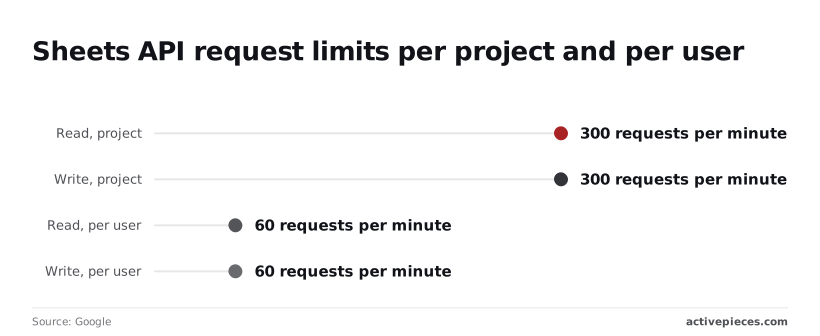
Per Google's usage limits page, a project gets 300 read requests and 300 write requests per minute. That's 5 calls a second shared by every user of your app, so a busy integration can exhaust it with no single user doing anything unusual.
Each user gets 60 reads and 60 writes per minute, which is one call a second. A script looping over rows with one call each will trip that user limit in the first minute.
The absence of a daily cap helps only because the minute window resets quickly.
Google Sheets API 400 and 404 errors
Retrying never helps with either code, because both mean the request itself is wrong. A 400 points to a malformed request, usually a range in bad A1 notation or an invalid argument. A 404 means the spreadsheet ID doesn't resolve.
Check the ID against the URL segment between /d/ and /edit, and confirm the tab name in the range exists, including quotes around names with spaces.
Google Sheets API 401 and 403 errors
When you get a 401, your credentials are missing, invalid or expired, so refresh the OAuth token or check the service account key.
Get a 403 and Google has recognised you but refused access. The usual causes are a missing scope, the Sheets API not being enabled in the project, or a spreadsheet not shared with the account making the call.
Share the file with the service account's email address and request the spreadsheets scope.
429 and 5xx: backoff and retry
Only the last two rows are worth retrying automatically; the rest need a change to the request or credentials, and blind retry logic wastes API quota. The table shows each status code with its documented cause and fix.
| Code | Documented cause | Fix |
|---|---|---|
| 400 | Invalid argument or malformed request, such as a bad range | Correct the A1 range or request body |
| 401 | Missing, invalid or expired credentials | Refresh the token or reissue the key |
| 403 | Insufficient scope, API not enabled, or no access to the file | Add the scope, enable the API, share the sheet |
| 404 | Spreadsheet or resource not found | Verify the spreadsheet ID and tab name |
| 429 | Per-minute quota exceeded | Retry with exponential backoff |
| 500/503 | Transient error on Google's side | Retry with backoff; escalate if it persists |
Waiting a little longer after each failure is exponential backoff, for example 1, 2, 4 and 8 seconds plus random jitter, which means each step doubles the wait time.
By your tenth attempt you're waiting over 500 seconds for a single retry, so you're waiting over 8 minutes between attempts.
The jitter keeps parallel workers from retrying in lockstep and hitting the quota together.
Fix the cause in production as well, because backoff treats the symptom. Batch reads and writes with batchGet and batchUpdate so 500 rows cost one call instead of 500, which means you're not constantly burning through your API quota.
Processing a million rows then costs only 2,000 API calls. Cache ranges that rarely change, and never write a per-row loop.
Google Sheets without code through Activepieces
If the work is a scheduled sync or a row-by-row update, Activepieces lets you describe it in chat instead of writing the auth layer yourself, and the free plan's 1,000 credits a month, at 1 credit a run however many steps it has, is enough to try a first sync.
It won't spare you from Google's quotas.
Available sheet operations and triggers
You get a new-row trigger and three actions from the Google Sheets integration: insert row, update row and find rows. That's enough for the two jobs most teams actually have, so you don't need to pay for unused features.
The first job is a scheduled sync, where a flow runs on a timer, reads rows from a source and writes them to a sheet.
The other is an event-driven update, where a new row in a sheet starts a flow that pushes the data somewhere else.
Describe one of those jobs to the built-in chat, such as appending each new source row to a sheet, and it publishes a live flow in your Activepieces account whose run trace lists every step and what it returned.
The Google Sheets integration is one of the 750 integrations counted in the open-source monorepo, whose core is MIT-licensed, so the trigger and actions above are code you can read, not a description to take on trust.
The trace is the part to read closely. When a run fails, you see which step failed and what it returned, rather than inferring it from a log you had to remember to write.
There's no service-account JSON key to create, store or rotate, because authentication is Google sign-in and you approve access with your Google account. The connection is managed for you, and so is the error handling around it.
Quotas still apply
Read the limits as well as the pitch. The flow still calls the same Google Sheets API, so the same per-project and per-user quotas apply.
A flow that inserts one row per trigger is the per-row loop the previous section warned against, only drawn as boxes.
A run costs Activepieces 1 credit whatever its length, but each row it inserts is still one write against your 300-per-minute project quota.
When to stay with Python instead
Stay with Python when the sheet is part of an application rather than the end of a pipeline. That means custom batching across large ranges, caching reads in your own process, backoff tuned to your traffic, or logic that doesn't fit find, insert and update.
If you need the exact behavior of a batch request, you want the client library in your hands, not an integration's abstraction of it.
I'd work in the order below, because each item depends on the one before it.
- Confirm the Google project and scopes: the right project, the Sheets API enabled, and only the scopes the job needs.
- Move to batched writes, so one request carries many rows instead of one request per row.
- Add retry with backoff on 429, so a quota hit slows the job down instead of killing it.
- Share the sheet with the right account: the signed-in Google user for Activepieces, or the service account for Python.
- Pick Activepieces or Python: Activepieces for syncs and row-triggered updates, Python for anything that's an app feature.
Frequently asked questions
Is the Google Sheets API free?
Yes: Google doesn't charge per request for the Sheets API, so you pay nothing to call it. What you do pay with is quota, and that is where the free label stops meaning much.
A script that's free at ten rows can start returning rate-limit errors at ten thousand, because every project has per-minute limits on reads and writes. Treat the quota as your real price, and design batching and retries around it from the first commit.

Can I use an API key instead of OAuth?
Only for reading a spreadsheet that's shared publicly. An API key identifies your project and nothing more, so Google has no user or account to check permissions against. Any write, and any read of a private sheet, needs OAuth or a service account.
Expect a key-only prototype to work on a public test sheet and then fail the moment you point it at real data.
If the sheet belongs to a person, use OAuth. If it belongs to your own system, use a service account and share the sheet with that account's email address.
Should I use gspread or the official client library?
Use gspread if your work is a Python script that reads and writes cells and you want short, readable code.
Use the official Google client library if you need the full surface of the API, such as fine-grained formatting requests, or if you're working in a language gspread doesn't cover.
The trade-off is control. gspread hides the request structure, which is pleasant until you need to see exactly how many calls it made against your quota. Check how it batches before you trust it on a large sheet.
The official client leaves you to build that structure yourself, which costs more code but means you decide what counts as a request.
Can I raise the Google Sheets API quota?
Sometimes, by requesting an increase through the Google Cloud console for your project. Approval isn't guaranteed, and the request isn't instant, so it's a poor fix for a script that's failing today.
Cut your request volume first: combine reads and writes into batch calls, cache what you have already fetched, and back off when you hit an error.
Ask for more quota only after those changes, and bring your measured usage to the request. A specific, documented need is easier for Google to approve than a general wish for more headroom.
Related reading
References
Build it
Set this up in minutes.
No code required. Connect your accounts, and Activepieces runs it from there.
Start free Talk to sales