
Salesforce Constant Contact Integration Without Code

Nov 15, 202614 min read
Connecting Salesforce, where your sales team keeps leads and contacts, to Constant Contact, where you send email, means a Salesforce record change triggers a Constant Contact action, which you can set up with an automation tool like Activepieces.

The fastest path is one job, built from existing steps, with an HTTP request step only where no step exists. This was checked on 15 November 2026.
You can build the flow in a no-code automation platform without writing code. The Salesforce integration supplies the triggers and the Constant Contact integration supplies the actions.
Salesforce Constant Contact integration overview
What people automate between the two apps
Each job below is one trigger and one action, so pick one and ignore the rest until it works.
| Job | Salesforce trigger used | Constant Contact action used |
|---|---|---|
| Add new leads to a list | New record (Lead) | Add contact to list |
| Sync updated contacts | Updated record (Contact) | Create or update contact |
| Add contacts to a campaign | New record (Campaign Member) | Add contact to list |
| Report export | Scheduled run, then a Salesforce report request | HTTP request to the reporting endpoint |
Prices and plan limits checked against activepieces.com and activepieces.com on November 15, 2026.
Check the last row's run trace line by line; a wrong field in an HTTP request fails quietly.
Before you start, you need four things:
- A Salesforce login that can read the records you want to trigger on, and an administrator who can approve the connection.
- A Constant Contact account with the list you plan to fill already created.
- An agreed field match, such as Salesforce email address to Constant Contact email address, written down before you build.
- Consent rules settled: decide which records are allowed to be emailed at all.
Of the four, the last matters most. A flow that adds every new lead, including people who opted out elsewhere, sends mail to the wrong audience before anyone notices.
To take the fastest path, make four moves:
A flow that adds every new lead, including people who opted out elsewhere, sends mail to the wrong audience before anyone notices.
- Pick one job from the table and write it as a single sentence.
- Describe that sentence in chat, then review the flow it publishes.
- Run it on one test record and read the run trace, checking each field landed where you expected.
- Switch it on, and only then add a second job.
Everything below works on Activepieces' free plan. Start without code or a credit card.
Five Salesforce and Constant Contact workflows worth building
Five workflows cover most of what teams want:
- add new contacts to a list
- keep records in sync
- write email activity back
- branch on lead status
- call endpoints the steps don't cover
The catch comes first. According to Activepieces, Salesforce offers 27 actions and 9 triggers, while Constant Contact offers 2 actions and 0 triggers.
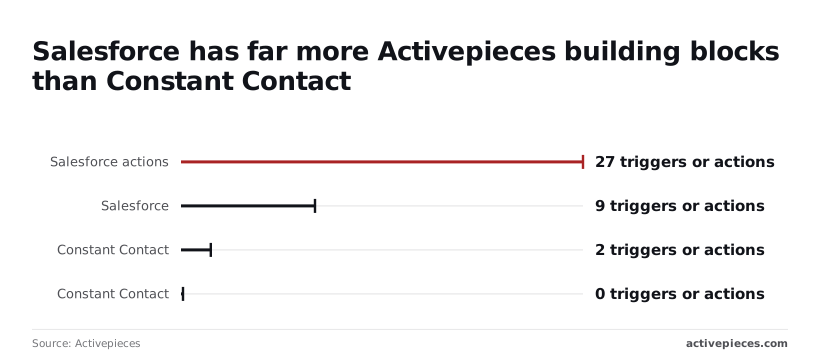
Nothing can start from a Constant Contact event, so every flow begins in Salesforce or on a webhook. The table shows each flow's starting point and whether it needs an HTTP request.

| Salesforce trigger | Constant Contact action | What it does | Listed or HTTP |
|---|---|---|---|
| "New Contact" | "Create or Update Contact" | Adds the new contact to Constant Contact | Listed |
| "New or Updated Record" | "Create or Update Contact" | Pushes field changes so both systems agree | Listed |
| None (a webhook starts it) | "Custom API Call" | Fetches email activity, then a Salesforce action records it | Needs HTTP |
| "New Lead" | "Create or Update Contact" | Routes leads by status before syncing | Listed |
| "New Contact" | "Custom API Call" | Reaches any endpoint the two actions don't cover | Needs HTTP |
Walking through each workflow
For a new Salesforce contact going onto a Constant Contact list, "New Contact" fires, and "Create or Update Contact" sends the record across. Because that action updates when a match exists, a re-run won't create duplicates, which is what saves you after a retry.
To keep Constant Contact in sync with updated records, "New or Updated Record" covers both creates and edits in one trigger. Limit it to the fields Constant Contact uses, or every unrelated edit triggers a run.
To write Constant Contact activity back to Salesforce, note that with 0 triggers on the Constant Contact side, opens and clicks can't start a flow from a listed step.
A webhook receives them instead, and "Custom API Call" handles any lookup.
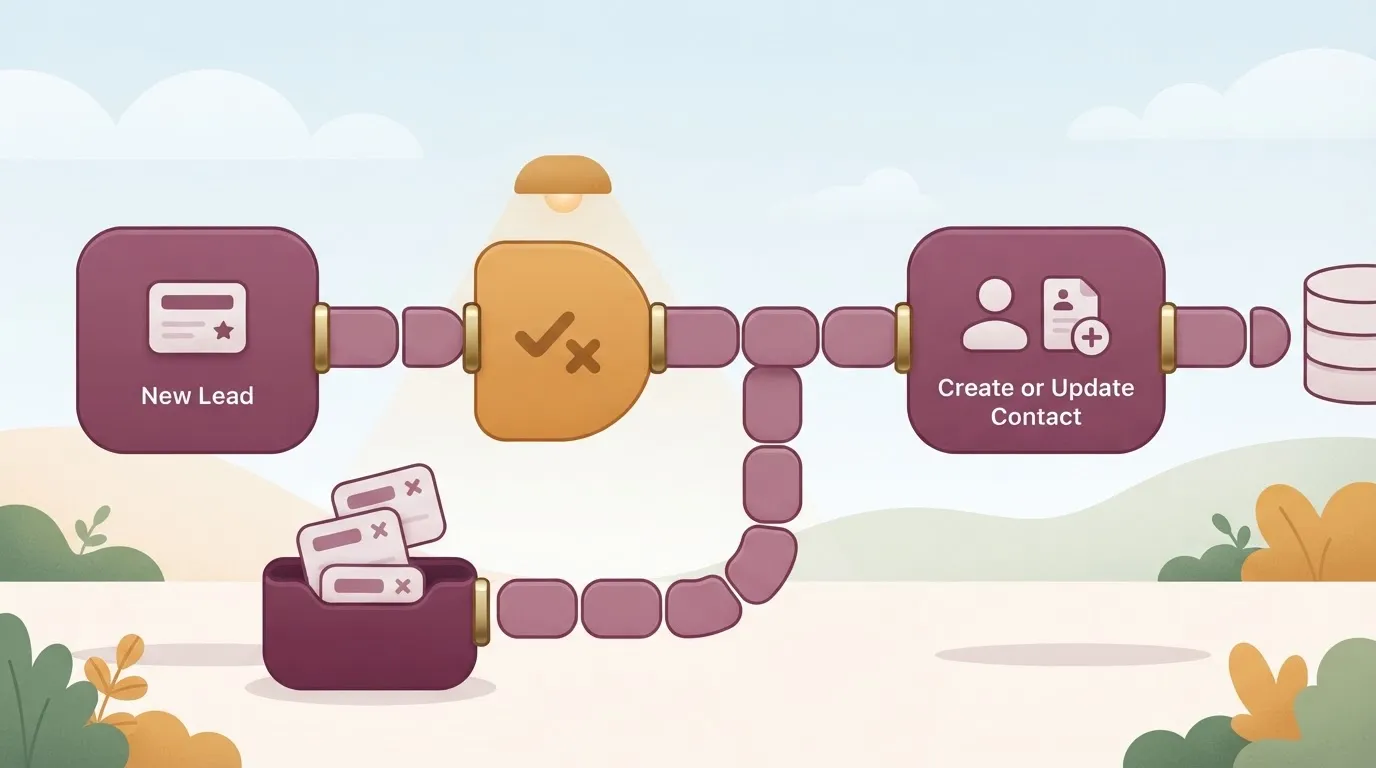
For a flow filtered by lead status, "New Lead" starts the flow, and a branch checks the status field. Only qualified leads reach "Create or Update Contact," so your list isn't filled with junk.
When a step is missing
Where a step is missing, the HTTP request or webhook route fills the gap. With just 2 Constant Contact actions, most of its API sits outside the listed steps.
"Custom API Call" sends a raw request, and a webhook catches inbound events.
Building the Salesforce Constant Contact sync
Build the sync in four stages. Each leaves something that works: connected accounts, a trigger with real data, a mapped action, then a published flow you've checked in both apps.
You can also skip the clicking for the standard steps.
Describe the job to a platform's built-in chat, such as "add each new Salesforce lead to my Constant Contact list", and it publishes a live flow in your account: the same trigger, the same "Create or Update Contact" action and the same field mappings you would have assembled by hand, each visible in the editor.
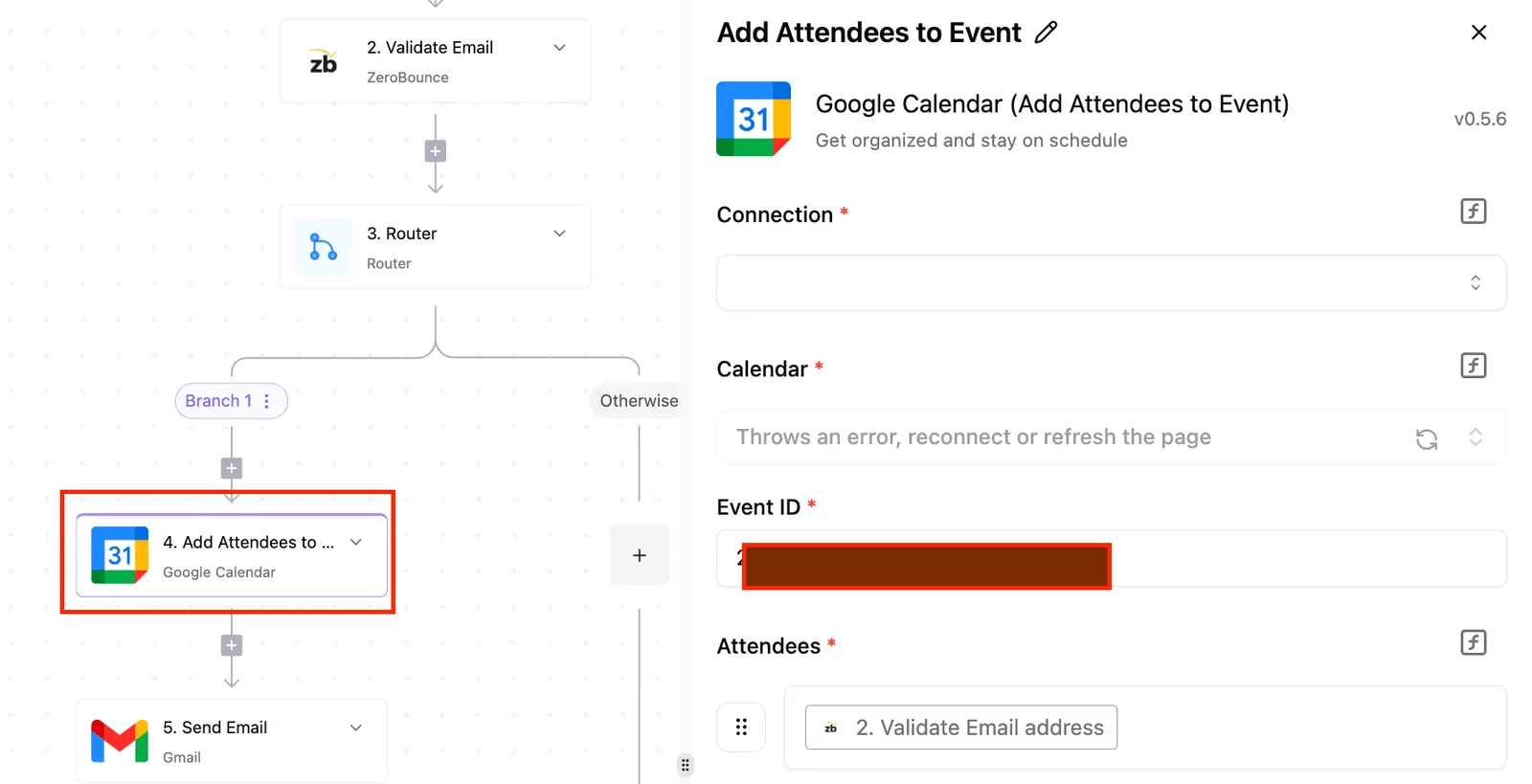
Every run of it leaves a trace showing what each step received and what it sent on.
That flow sits under the same RBAC, audit logs and run traces as one built by hand, and companies such as MoneyGram, Moneypenny, Alan and FundingSocieties run automation platforms of this kind in production.
Keep the six-step sequence below beside you as you build. It shows the order the flow runs in, from connecting both accounts to publishing, so you can see where each stage leaves something to check.
Connecting Salesforce and Constant Contact accounts
Sign in to Salesforce, the system that holds your leads, and to Constant Contact, where the email lists live. Authorize each connection with an account that can actually see the leads and edit the target list.
A connection made with a read-only login looks fine until the action step fails.
Stage 2: add the Salesforce trigger and load sample data
Add the New Lead trigger and select your Salesforce connection. Then run the trigger's test so it pulls a real lead record from your org.
Pick a lead whose email, first name and last name are all filled in, because a sparse record gives you a mapping step with nothing to choose from.
In stage 3, add the Create or Update Contact action and select your Constant Contact connection. Map four fields from the trigger's sample data:
- First name
- Last name
- List
Choose the list by name from the dropdown rather than pasting an identifier. Map email first, since it's what Constant Contact uses to recognize a contact it already has.
In stage 4, run the action's test with the sample lead, then publish. Open the run trace and confirm each step shows the values you expect.
To verify, look in both apps. In Salesforce, open the lead you used and confirm the email and name match what the trace shows. In Constant Contact, search for that email and confirm one contact exists, with the right name, on the right list.
If the contact appears twice or lands on the wrong list, the mapping is the culprit, not the trigger. Fix it there and republish.
Easier to see it running than to read about it: set it up free, no card.
Salesforce Constant Contact limits and fixes
When the sync stalls, the cause is Constant Contact's 10,000 API requests a day, the tighter limit in this connection, not anything on the Salesforce side. Fix it there first.
Checked 15 November 2026. Per Developer, Salesforce's API limits cheat sheet lists base daily allowances by edition: Enterprise gets 100,000 requests a day, while Unlimited and Performance each get 500,000, so any organization on Enterprise must actively monitor usage to avoid quota exhaustion.
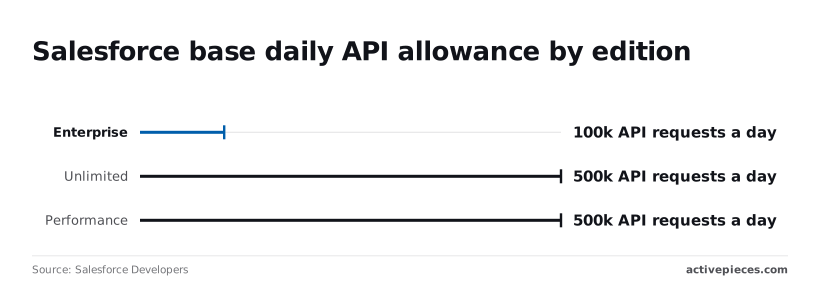
Set against Constant Contact's 10,000, even Enterprise has ten times the headroom. A flow that updates one contact per request will hit the Constant Contact cap long before Salesforce notices. Batch where you can, and keep the first job narrow.
When a 401 comes back, it almost always means an expired or revoked connection token, so reconnect the account and rerun.
A 403 usually means the Salesforce user lacks API access, or the Constant Contact account lacks permission for that list.
Salesforce Constant Contact duplicates, unsubscribes and bad emails
When two Salesforce records share one email address, they collapse into one contact, because Constant Contact identifies contacts by email address, and the later update overwrites the earlier.
A contact who has unsubscribed won't be quietly re-subscribed by an API call, so a flow that "succeeds" can still leave someone off your list.
Filter blank and invalid emails before the Constant Contact step, not after, because malformed addresses fail the step outright.
Retrying a failed Salesforce Constant Contact run
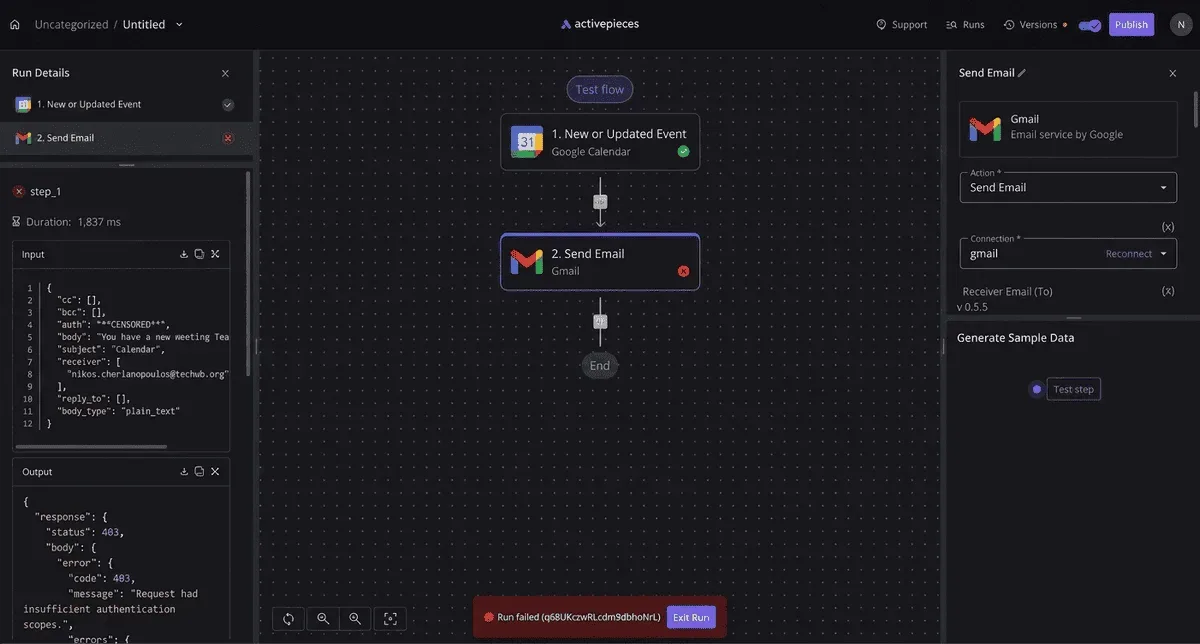
In the screenshot below, a run has failed. Run details on the left give each step's execution time and its input and output JSON, and the failure message sits at the bottom next to an Edit Run button.
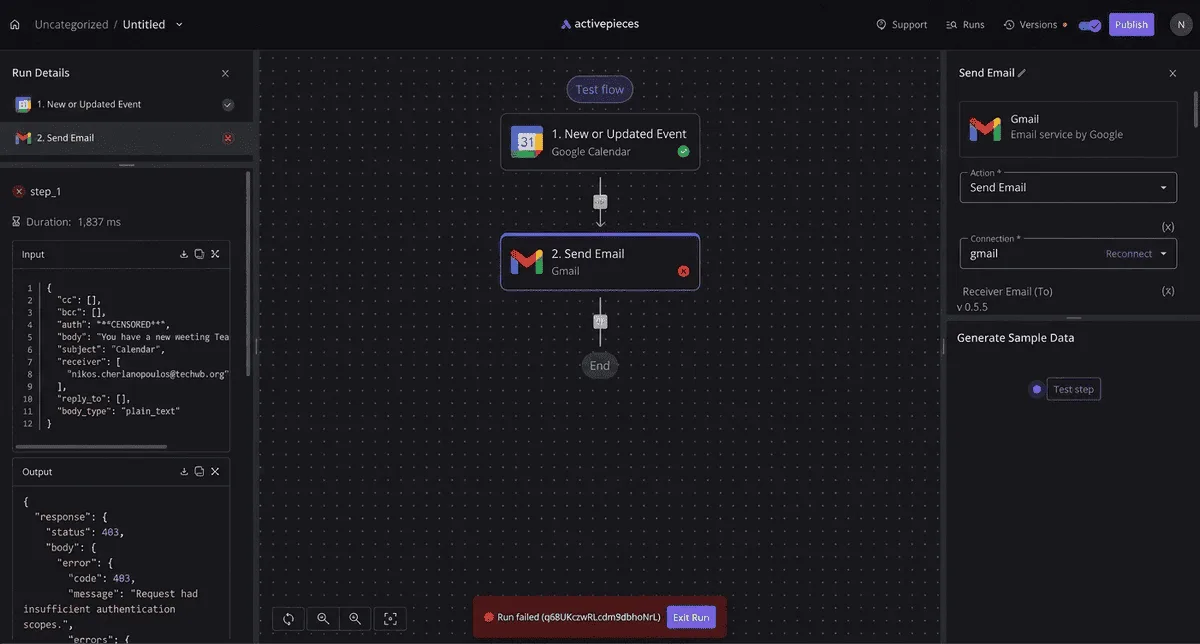
Look at the step that failed, because that's where the cause lives, and the output JSON usually names it.
Open the failing step and compare its input with what the vendor expected. A blank email field or a stale token shows up there in seconds.
Once you've fixed the cause, rerun from the run history rather than re-triggering from Salesforce. That avoids creating a second record, and a second request against your daily cap.
Other ways to connect the two apps and when Activepieces fits
Other automation tools and native connectors can also link Salesforce, the CRM, and Constant Contact, the email marketing platform. Activepieces fits best when you want open source, self-hosting and no cap on steps per flow.
Native connectors, marketplace apps and other automation tools
Look in the vendors' app marketplaces first: both list prebuilt integrations, and general-purpose automation tools offer Salesforce and Constant Contact steps as well.
If a native connector already does your one job, such as adding a new Salesforce contact to a Constant Contact list, use it.
Before you commit, check what the connector syncs, how often it runs, and which fields it maps.
Read the plan terms before you build a long flow, because hosted automation tools usually meter usage by plan, and a cap you hit mid-campaign stops the flow.
Read the Activepieces row as documented, and the other two as questions to put to each vendor. The table compares the three options on the points that decide the choice.
| Option | Open source | Self-hosting | Steps limit | Where it fits best |
|---|---|---|---|---|
| Activepieces | Yes, MIT-licensed core | Yes | Unlimited flows on every plan; a run is 1 credit however many steps | Flows you want to own, host and extend with an HTTP request step, drawing on 750 integrations, roughly 60% of them community-contributed |
| Other automation tools | Varies by product | Varies by product | Varies by plan | Teams already standardized on one hosted tool |
| Native connectors | Set by the vendor | Set by the vendor | Set by the vendor | One fixed job the connector already covers |
When infrastructure control and code visibility matter
Choose Activepieces when any of three needs applies. You want to read the source behind your automation.
You need to run it on your own infrastructure, so contact data stays in your environment. Or your flow is long enough that a step cap would shape the design.
It also fits the approach in this article. You describe the process in chat, review the published flow, and read the run trace to see what each step did.
That is how the standard Salesforce and Constant Contact steps are checked. The gaps you fill with an HTTP request step are the part to inspect by hand.
To start, pick one job, such as sending each new Salesforce contact to a Constant Contact list. Describe it in chat, publish the flow, and run it once with a test record.
Open the run trace and confirm each field landed where you expected. Add an HTTP request step only when the existing triggers and actions can't do the job.
Frequently asked questions
Does Salesforce connect to Constant Contact without code?
Yes. You build it from the triggers and actions already offered for both apps, and you describe the job in plain language rather than writing a script.
Start with one job, such as adding a new Salesforce contact to a Constant Contact list, and publish that before you add anything else.
Can the sync run both ways?
It can, but build it as two separate flows, not one. The first sends Salesforce changes to Constant Contact, the email marketing platform. The second sends Constant Contact changes, such as an unsubscribe, back to Salesforce, the CRM.
Check that the second flow has a trigger to start from. If it doesn't, the HTTP request step covers that gap.
Watch for a loop: a change written by one flow can fire the other, and the two then bounce the same record back and forth. Give each flow a condition that skips updates it made itself, and watch the first runs closely.
What happens if the contact already exists in Constant Contact?
That depends on which action you chose, so don't assume. An action that only creates a contact may fail or produce a duplicate when the email address is already on file.
Look the contact up first, then update it if found and create it if not; that is the safer design.
Test with an address you know is already in the account before you point the flow at real records. The run trace shows you which branch it took.
Can I self-host the workflow instead of using the cloud?
Whether you can depends on the automation platform you build on, not on Salesforce or Constant Contact. Confirm that your platform offers a self-hosted edition before you plan around it.
Self-hosting moves the workflow engine onto your own server, along with the upkeep of updates and backups. Both apps stay cloud services either way, so the flow still calls out to them over the internet.
How do I handle a step the integration does not offer?
Use an HTTP request step, and use it only after you've confirmed no existing action does the job.
On the return, the dashed path is the HTTP request, which goes straight to an app's own API when the built-in steps run out.
Those steps need more checking than the standard ones. You supply the endpoint, the authentication and the body yourself, so a wrong field name won't be caught for you.
Run it against a single test record and read the response in the run trace before you let it touch a list.