

Find a template
You can find the template library in the Explore tab. Browse templates by category or search for a specific workflow using its name or description. Each template gives you a quick overview of what the automation does and the apps it uses, so you can find a workflow that fits what you want to automate. They also show an estimate of the time and cost they can save, helping you understand the potential value of automating that process.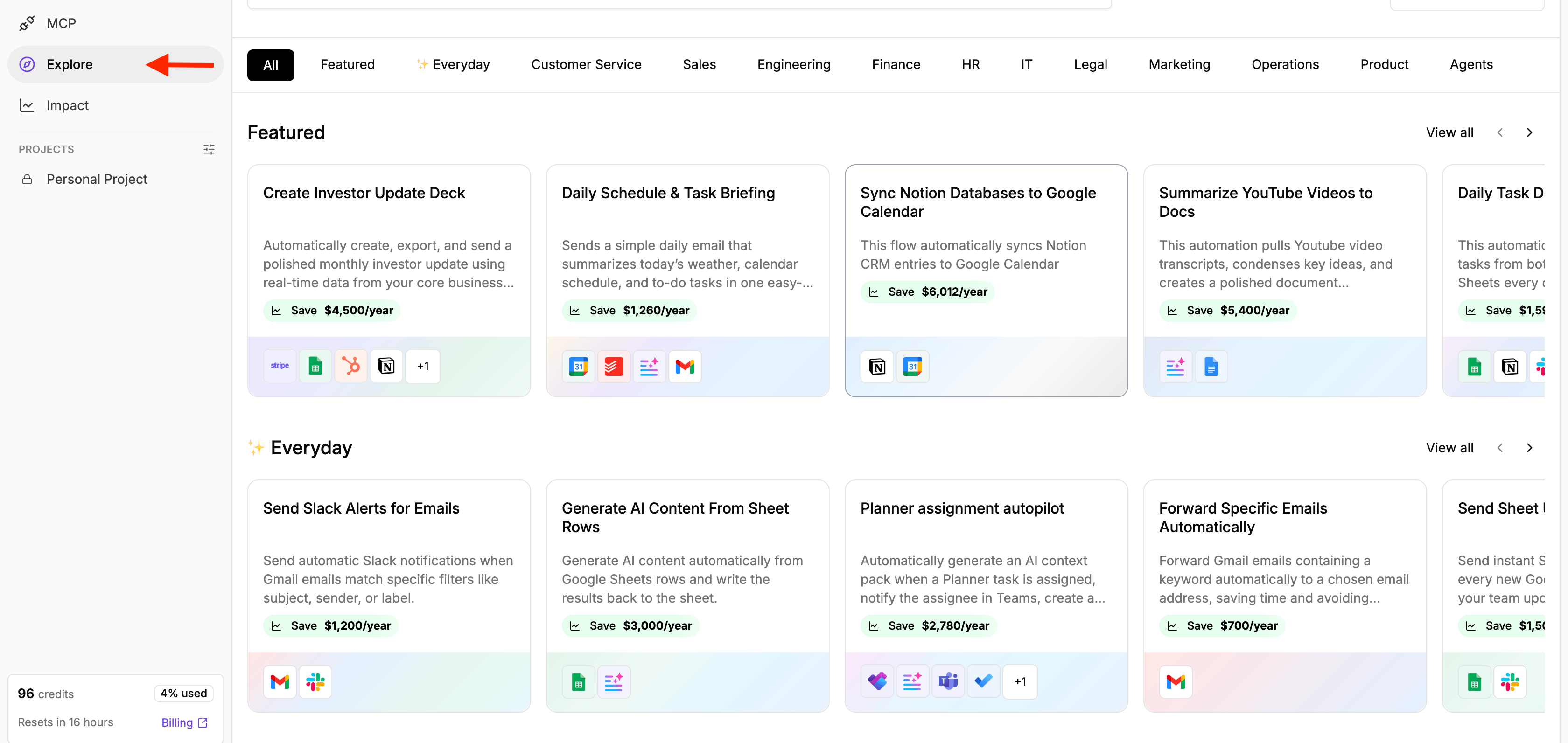
Preview a template
Click on any template to see how the automation works before adding it to your project. The template page shows:- About this template: An overview of the process the template automates.
- What’s included: The flows included in the template.
- Used Pieces: The apps and integrations required by the automation.
- Flow preview: A visual preview of the steps in the automation.
- Setup guide: Additional instructions for configuring the template, when available.
Use a template
When you find a template you want to use:- Open the template.
- Review the flow and the pieces it uses.
- Click Use template to start using the template
- To learn more about the set up and how to connect your own credentials to use the template, click Set Up Guide and follow the setup instructions to configure the required connections and settings for your use case.