
Airtable Shopify Integration Without Code

Nov 22, 202617 min read
An Airtable Shopify integration copies store data into Airtable bases. The fastest way to build one is a Shopify trigger feeding an Airtable action in Activepieces, with no code written.
An Airtable Shopify integration is an automated connection that sends Shopify store data, such as orders, products and customers, into Airtable records, usually through a no-code automation platform's triggers and actions, or through a webhook or HTTP request where those fall short.
Start with one flow that turns a new order into a new row, confirm it runs, and only then add more.
I'd give any assistant helping with this the narrow prompt: "When a Shopify order is created, add a row to my Airtable Orders table."
The broad one, "sync Shopify and Airtable," is the version that fails. It gives you no direction, so you get a vague answer about two-way sync that nobody can build on day one.

Fastest Airtable Shopify sync
You can test one trigger and one action as a unit.
What people automate between Shopify and Airtable
None of the same four jobs needs the one before it, because each is a single trigger paired with a single Airtable action, and each comes up again and again. The list below shows them in the order I'd build them.
- New orders to order rows
- New customers to contacts
- Updated products to a catalog table
- Abandoned checkouts to a follow-up table
Start with orders, because an order is the event you'll check by eye: place a test order in your store, then look for the row. Customers and products follow the same pattern with different tables.
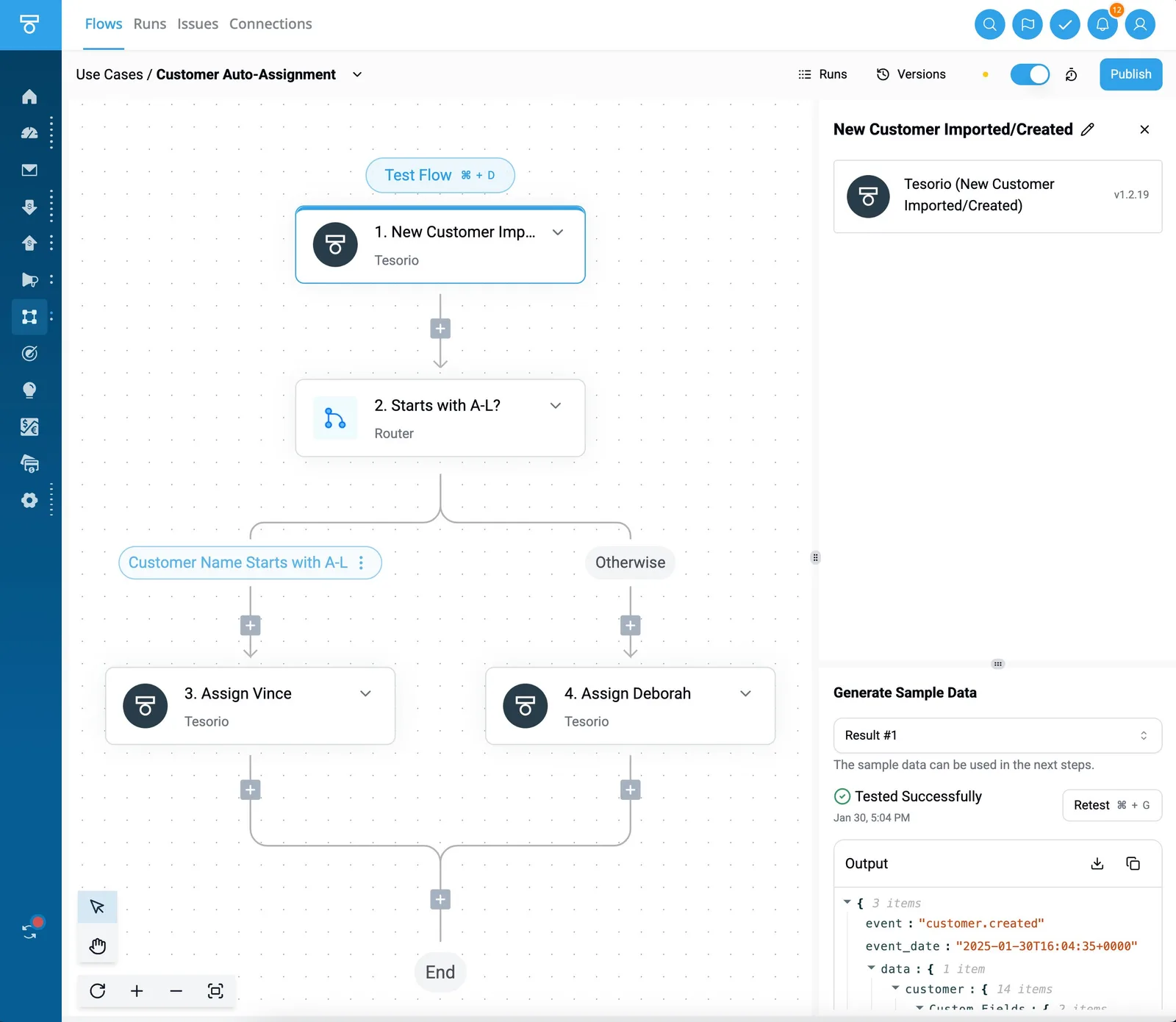
Leave abandoned checkouts for last, since they depend on how your store records an unfinished checkout, and you should confirm what the trigger list has before you plan around it.
Where a job has no matching trigger or action, a webhook or HTTP request step covers the gap, which a later section walks through.
You need three things in place, and a missing one is the usual reason a first flow fails at the connection step.
- A Shopify store where you can authorize an app connection, so the trigger can read orders, customers and products.
- An Airtable base with a table ready to receive rows, with a field for each value you plan to copy. Create the fields first; a flow can't write into a column that doesn't exist.
- An Activepieces account with both connections added. The Shopify integration page and the Airtable integration page list the triggers and actions each side has, so check them against the job you picked.
Name your Airtable fields to match the Shopify values they hold, such as order number or customer email. When you map them later, matching names mean you can see at a glance which field takes which value.
These details were checked on 22 November 2026. Trigger and action lists change as integrations are updated.
If a step named here is missing when you open the builder, trust what the builder shows and use a webhook or HTTP request step for the part it doesn't cover.
Everything below works on Activepieces' free plan. Start without code or a credit card.
Five Shopify and Airtable Workflows in Activepieces
When you build the order-to-record sync in Activepieces, five workflows cover it, and only the fifth needs the webhook or HTTP request step the builder's gaps call for.
The table gives each flow's trigger, action and job, so you can see which ones run on listed steps alone.
| Shopify trigger | Airtable action | Job done | Webhook/HTTP step needed? |
|---|---|---|---|
| "New Order" | "Create Airtable Record" | One row per order | No |
| "New Customer" | "Find Airtable Record", then "Create Airtable Record" | Customer list without duplicates | No |
| "Updated Product" | "Update Airtable Record" | Product table stays current | No |
| "New Paid Order" | "Create Airtable Record" | High-value orders land in a review view | No |
| None listed (refunds) | "Update Airtable Record" | Mark an order refunded | Yes |
Prices and plan limits checked against activepieces.com and activepieces.com on November 22, 2026.
Start at the top row and work down, since each later flow reuses the pattern of the first.
Set Up Each Shopify Airtable Workflow
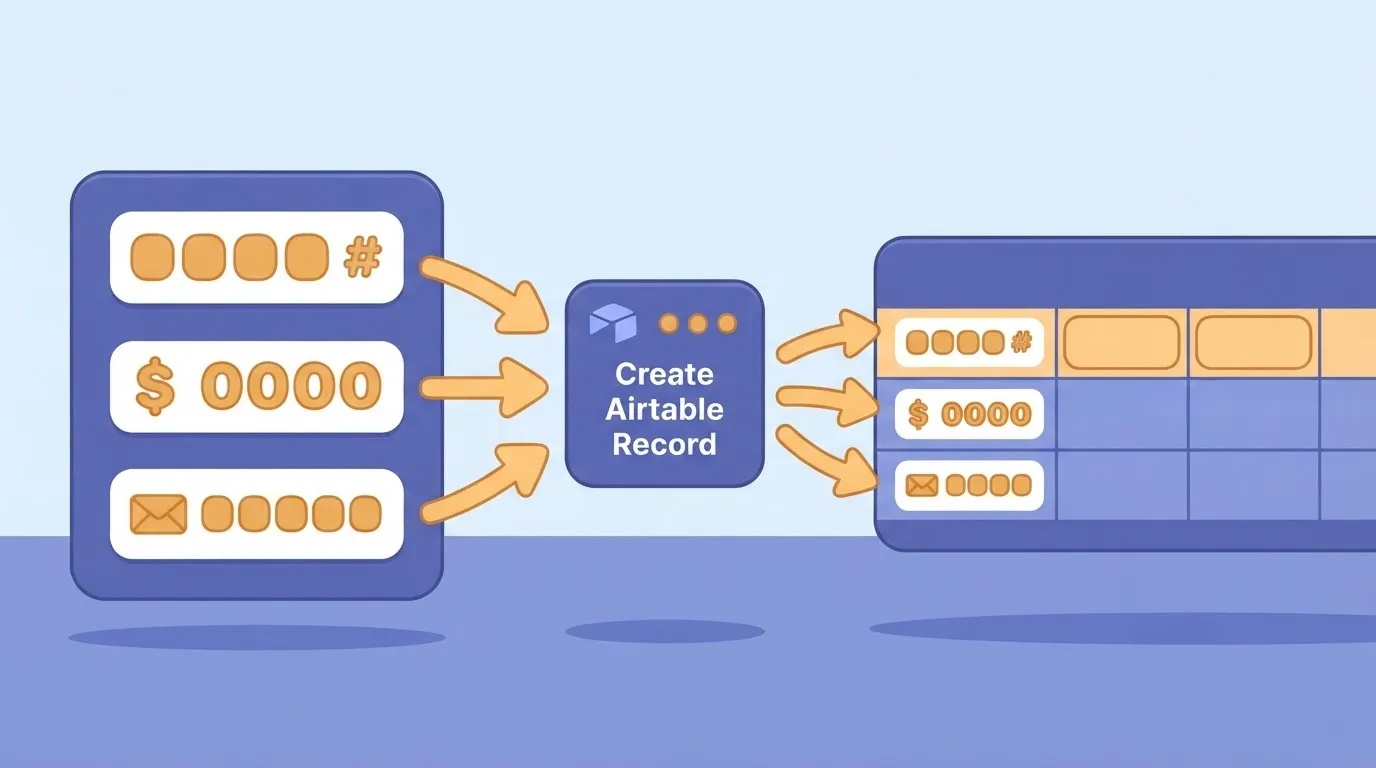
Use "New Order" as the trigger and "Create Airtable Record" as the action, then map order number, total and email to fields. Test with one real order before mapping anything else.
Use "New Customer", then "Find Airtable Record" on the email field before "Create Airtable Record". Skipping the lookup is how duplicates get in.
When a product changes, "Updated Product" feeds "Update Airtable Record".
For stock going the other way, Airtable's "New or Updated Record" trigger can drive Shopify's "Adjust Inventory Level". That matters because the Activepieces Airtable piece lists only two triggers, "New Record" and "New or Updated Record", so nearly all Airtable-to-Shopify work runs through those two.
Trigger on "New Paid Order", add a branch on the order total, and create the record only on the high-value path. A filtered Airtable view then becomes the queue.
Steps the integrations don't list
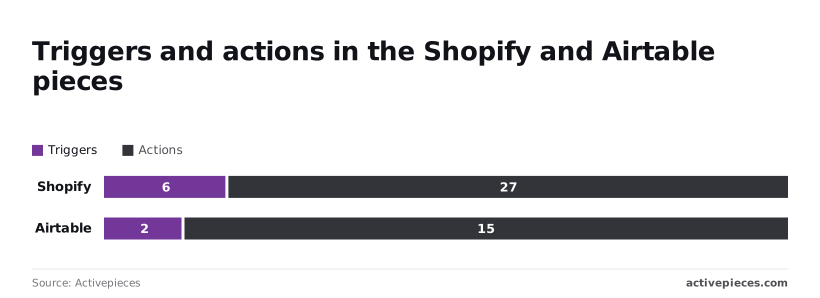
6 triggers and 27 actions: that is what the Activepieces Shopify piece lists. Shopify can do far more than it can announce, so flows that start in Shopify are the constrained ones.
Airtable lists 2 triggers and 15 actions, so it's even thinner on the starting side. Plan every flow around the trigger you need and check it exists before you build.
Take refunds. None of the six Shopify triggers is a refund event.
Register a refund webhook in Shopify, point it at Activepieces's "Catch Webhook" trigger, and finish with "Update Airtable Record". If the destination step is also missing, "Send HTTP Request" calls the Airtable API directly.
A short trigger list only stays short if you wait for the vendor to lengthen it.
Activepieces has 750 integrations, a count taken from the packages/pieces/community directory of its MIT-licensed open source monorepo on GitHub rather than quoted as a marketing figure, and roughly 60% of them were contributed by the community rather than built in-house, so the community has contributed more integrations than the in-house team.
If a Shopify refund trigger is the integration you need, you can generate it with AI and add it privately to your own instance without waiting on a release.
See the chart that follows for this imbalance across both integrations.
Build the Order-to-Airtable Workflow Step by Step
Because of that imbalance, you build from the side that has the most to offer.
The build is a Shopify "New Order" trigger feeding a "Create Airtable Record" action, finished in six steps, each leaving something that works, so you can test each piece of the workflow independently.
- Connect both apps.
- Add the "New Order" trigger and load sample data.
- Create the Airtable columns.
- Map fields in "Create Airtable Record".
- Test.
- Publish.
Read the list as the whole build. Stages 1 and 2 give you a trigger that sees a real order, stages 3 and 4 give you a record that fills itself, and stages 5 and 6 prove it and switch it on.
The four sections below cover them in that order.
Stage 1: Connect both apps
Authorize Shopify with your store's address, then authorize Airtable and grant it access to the base you'll write to. Pick a base that is empty or disposable.
If the connection is wrong, you want to find out before it can touch a table anyone relies on. You're done when both apps show as connected and nothing else has happened yet.
Stage 2: Add the Shopify trigger and load sample data
Add "New Order" as the trigger and let the builder pull in sample data. Open the sample and read it before you map anything. It shows the exact field names your later steps can pick from, so you stop guessing what Shopify calls things.
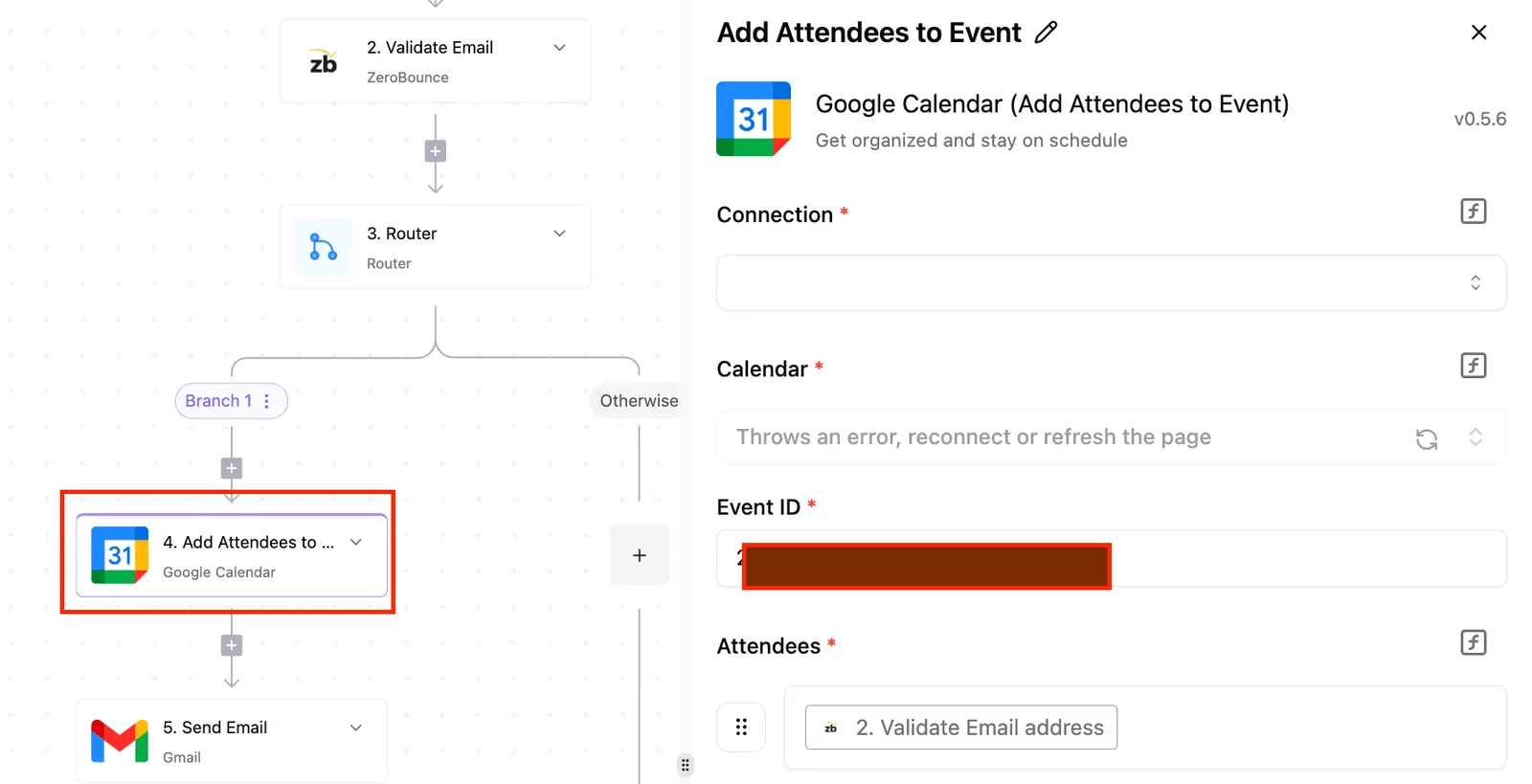
In the sample, nested items such as the line items inside an order appear as one grouped field. You'll need that in the next stage.
Stage 3: Map order fields to Airtable columns
Create the Airtable columns first, from what the sample showed. Start small: order number, customer email, total, and created date. Then add "Create Airtable Record" and point each column at its sample field.

My first attempt was lazy. I typed this into an AI chat: "Give me Airtable columns for a Shopify order." It returned fifteen columns, half of them irrelevant.
So I narrowed the ask, and this prompt worked: "Here is a sample Shopify order. Suggest the four columns I need to see a new order at a glance, with an Airtable field type for each."
The shorter list meant fewer mappings that could go wrong. Where a field type was wrong, such as a total mapped into a text column, I changed the Airtable column rather than fighting the mapping.
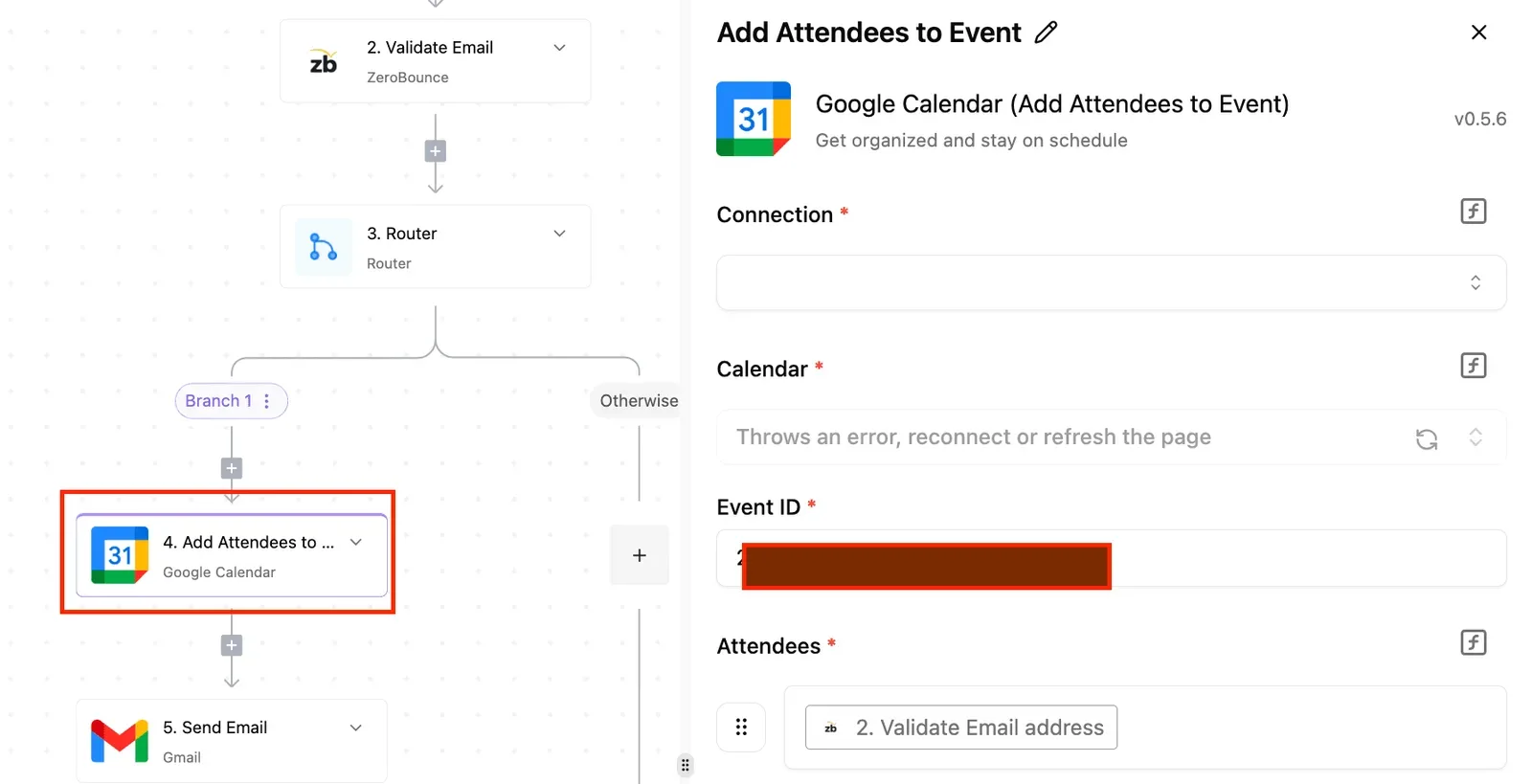
Test and Publish the Shopify Airtable Workflow
Run the test from the sample data first. Check that one new row appears in Airtable and that every column holds what you expect.
If a cell is blank, the usual cause is a mapping pointed at the wrong sample field, or a column type that rejects the value. Fix it, delete the test row, and run again.
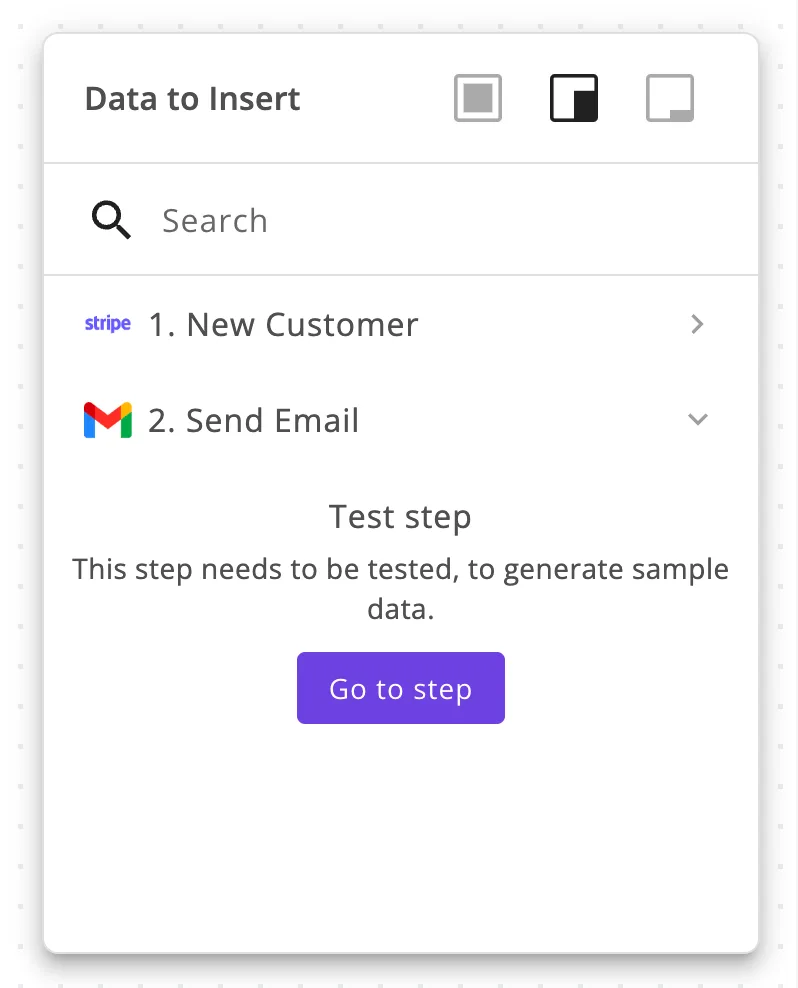
When the test row is clean, place a real test order in your store if you can, and confirm it arrives without you touching anything.
Then publish. From that point, every new order becomes a record. Fields the trigger doesn't expose are for a later step, where a webhook or HTTP request can fill the gap.
Easier to see it running than to read about it: set it up free, no card.
Shopify Airtable Sync Limits, Errors and Fixes
When a no-code Shopify-to-Airtable sync fails, it is usually one of five places: request rates, Airtable record caps, webhook retries, mismatched field types, or permissions. Each has a fix that needs no code.
When a run fails, match the error to a row in the table below, checked 22 November 2026, and apply the fix.
| Limit or error | Cause | Fix |
|---|---|---|
| Shopify rate limit (429) | Too many calls for your plan | Slow the flow or batch the backfill |
| Airtable 5 requests per second per base | Several flows writing to one base | Queue writes or split bases |
| Record cap: Free 1,000, Team 50,000, Business 125,000 | Orders outgrow the plan | Archive old orders or upgrade |
| Webhook retries | Receiver was slow or down | Answer quickly, then process |
| Field-type mismatch | Text sent to a number or select field | Match types or use a text field |
| Permissions | Token lacks scope or base access | Re-authorize with the right scopes |
For the short version, read the rows; the sections below say how each one shows up.
Shopify and Airtable API Rate Limits
5 requests per second per base is Airtable's ceiling, and it matters more than Shopify's. On Shopify's REST rate limits, Standard allows 2 requests per second and Advanced 4, so both sit under Airtable's ceiling and Shopify throttles first.
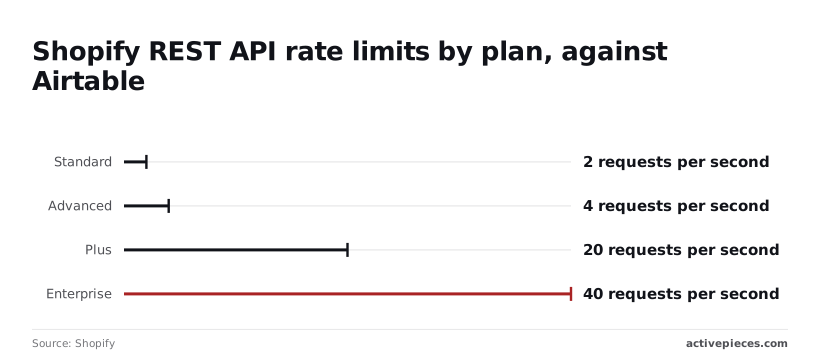
On Plus the allowance is 20 and on Enterprise 40, so Airtable becomes the bottleneck on a bulk backfill. Past 5 requests per second, expect a 429 status code, which means your integration must back off and wait 30 seconds before retrying.
Airtable Field Type and Permission Errors
My first test sent a Shopify order total into an Airtable number field and it worked. The second sent a tag list into a single select field and failed, because the option didn't exist.
Fix it by mapping to a text field or adding the option first.
When the flow connects and then fails on write, that is a permission error. Re-authorize and confirm the token covers the base and the Shopify order scope.
Duplicate or Missing Airtable Records
When duplicates appear, the trigger usually fired twice, often because Shopify retried a webhook that your receiver was slow to acknowledge. Add a find-record step on the order ID before create.
If records go missing, suspect the caps. At 1,000 on Free, a busy store stops syncing within weeks, which looks like a broken flow but is a full table. Team's 50,000 and Business's 125,000 buy more room, but still need archiving.
At 1,000 on Free, a busy store stops syncing within weeks, which looks like a broken flow but is a full table.
When a field or event isn't in the listed triggers and actions, a webhook step receives Shopify's raw payload, and an HTTP request step calls an API endpoint directly.
Both count against the same limits above, so add them to your request budget before you build.
Other Shopify Airtable Connectors and When Activepieces Fits
You can connect Shopify and Airtable with Zapier, Make and dedicated sync apps too, and the real difference is what each one counts against your budget as orders grow. That's why the limits you just budgeted decide which tool is cheapest for you.
Shopify Airtable Integration Options and Costs Compared
Ask what one order costs at 100, 1,000 and 10,000 orders a month. The answer depends on what each tool counts as a unit of work.
Read the table for hosting and for the unit each limit is measured in. Take from it that you're comparing different units, not the same number with different labels. Check each vendor's own pricing page for the current entry price before you commit.
| Tool | Hosting | What the limit counts |
|---|---|---|
| Activepieces | Cloud, self-hosted, open source | Tasks (steps that run) |
| Zapier | Cloud only | Tasks |
| Make | Cloud only | Operations |
| Dedicated sync app | Usually cloud | Records or rows synced, set per app |
Now the cost. In the Stackworkbench pricing dataset, a workflow that spends one task per order costs between $0 and $19.99 a month at 100 orders. That means a small shop can run this sync for free on at least two of the three tools.
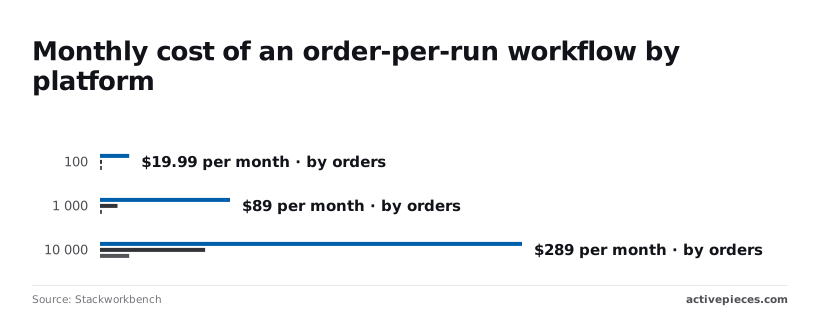
At 1,000 orders the range is $0 to $89, with the middle tool at $12, so the spread is already wide enough to matter.
At 10,000 orders it runs from $20 to $289, so the cheapest option costs about one-fourteenth of the most expensive.
When Activepieces is the better fit
As volume heads toward the high end of that range, Activepieces lets you run unlimited flows on every plan, including free, and its MIT-licensed core runs on your own server.
Its open-source, self-hosted option is the only one in the table where you can remove the per-task bill entirely, at the cost of running a server yourself.
If you'd rather not maintain one, the cloud version still keeps you in the same low-cost band.
Activepieces also fits if your gap is a webhook or HTTP request step, because those steps sit in the same builder as the triggers and actions.
Zapier or Make is the better fit if you already pay for either one and stay under a few hundred orders, since switching saves you almost nothing at that size.
A dedicated sync app suits you if the job is mirroring whole tables rather than reacting to single orders.
Build the one order-to-record flow first, and nothing else yet.
- Create a flow with the Shopify "new order" trigger.
- Add the Airtable "create record" action.
- Map order number, customer email and total to three fields.
- Place one test order and check that the row appears.
Once that row lands, add a second flow only if a listed trigger or action covers it. Where none does, use a webhook or HTTP request step.
Frequently asked questions
Can I sync Airtable back to Shopify?
Yes, but only as far as Shopify's available actions reach. A change in an Airtable record can trigger a flow that updates a Shopify order, product or inventory level, provided your automation tool lists a matching action.
The prompt I'd start with is the plain one: "When this Airtable field changes, update this Shopify field."
If the tool has no action for that field, use an HTTP request step against Shopify's API instead. Start with one field you can check by eye, such as an order note, before you touch inventory.
Does the Airtable Shopify integration need code?
No, not for the order-to-record flow this article builds. You pick a Shopify trigger, map its fields to an Airtable table and turn the flow on.
When you need something the listed triggers and actions don't cover, code enters. Even then, a webhook or HTTP request step is a form you fill in, not a program you write. You paste a URL, choose a method and map the fields.
How often does the sync run?
It depends on the trigger type. A trigger that listens for a Shopify event, such as a new order, fires within moments of that event.
A trigger that polls checks on a schedule set by your plan, so a new order can appear in Airtable late.
Once you move to webhooks, two behaviours matter. Airtable webhooks expire unless they're refreshed, so a flow that worked last week can go quiet without an error.
Shopify retries failed webhook deliveries for a limited window and then gives up. If your receiving flow is down past that window, those orders never arrive on their own. When the table stops updating, check whether the webhook still exists before you rebuild the flow.
Can I import past Shopify orders into Airtable?
Yes, but not through the live trigger. A trigger only fires on new events, so it ignores orders already in the store. Export your past orders from Shopify as a CSV file and import it into the Airtable table. Then turn the live flow on.
Check the order ID column first, because an import that overlaps with new orders can create duplicates. A lookup on order ID before each create step prevents that.
Is Activepieces free for this?
For pricing, check the section of this article devoted to that tool rather than relying on a figure here. Whichever tool you pick, count your steps first.
If a flow creates one Airtable record per order, it uses far fewer runs than one that also looks up, updates and notifies. The step count is what decides whether a free allowance is enough.