
Shopify Mailchimp Integration: Setup Guide (2026)

Nov 15, 202614 min read
Build one workflow first: a Shopify "new customer" trigger that feeds a Mailchimp "add or update subscriber" action. It doesn't need code and takes under an hour, whether you wire it in a visual builder such as Activepieces or another tool.
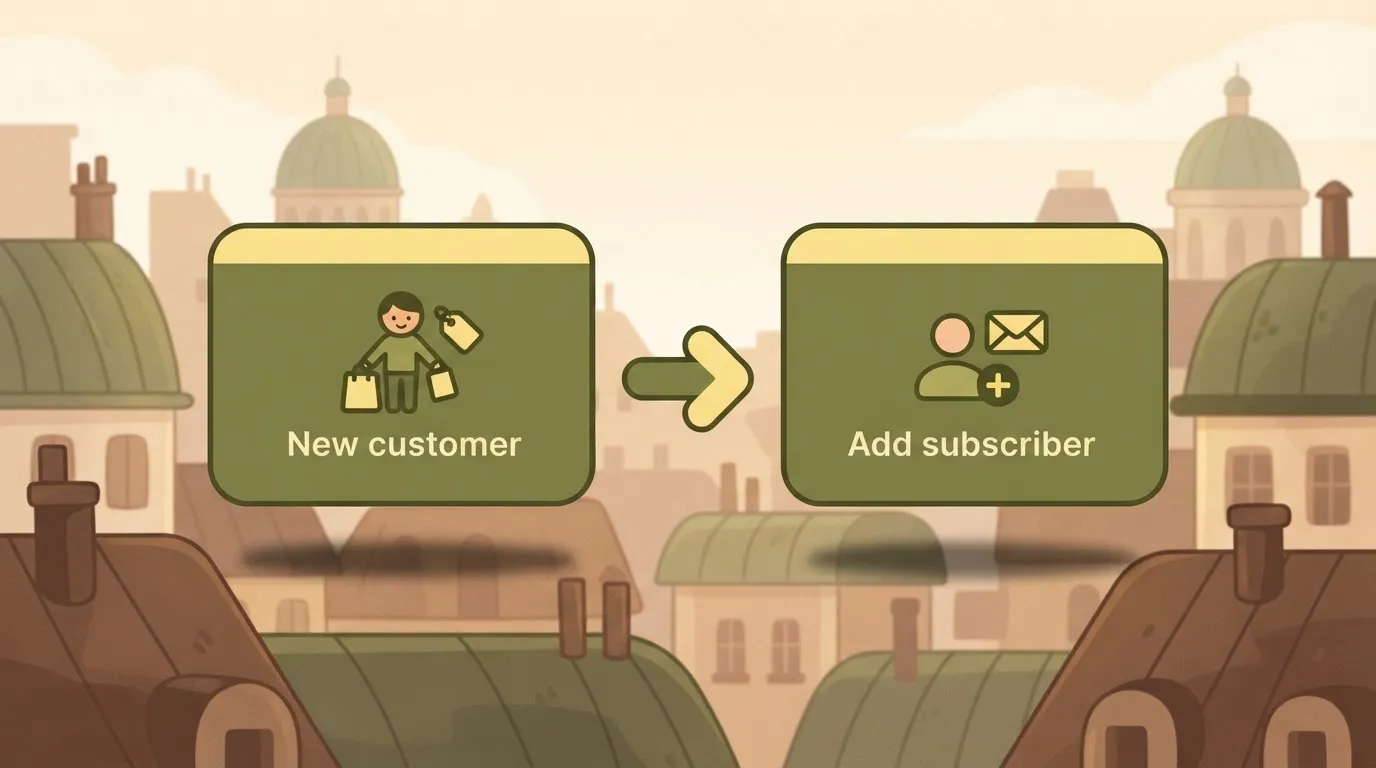
Everything else you automate is a variation on that pattern, checked against vendor facts on 15 November 2026.
A Shopify Mailchimp integration is a set of event-to-action rules: something happens in the store, and Mailchimp changes in response. Most stores automate the same four things:
The fastest Shopify Mailchimp integration
- New customers into an audience
- Paid orders into purchase tags
- Abandoned checkouts into a reminder
- Cancelled orders into a follow-up segment
The first is the foundation for the rest, because the other three only work on contacts who already exist in the audience.
What you need before you start
You need admin access to the Shopify store, a Mailchimp account with one audience created, and a decision about consent.
Decide whether customers join the audience automatically or only when they tick a marketing box. That choice determines who you are allowed to email.
What Mailchimp costs as your list grows
When a store syncs every customer automatically, it climbs the price scale without anyone deciding it should, because Mailchimp's price follows your list size.
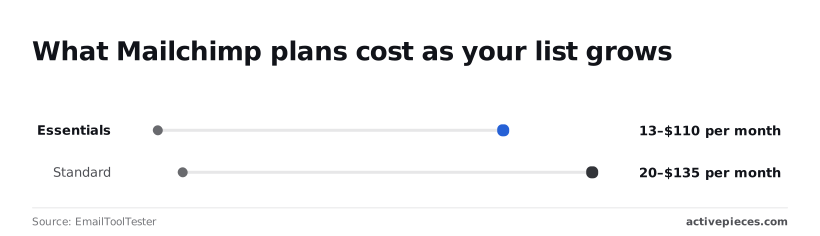
According to EmailToolTester, Essentials runs from $13 to $110 per month as the list grows, so every subscriber you add increases your email infrastructure costs.
EmailToolTester reports that Standard runs from $20 to $135 per month, a modest premium.
$350 per month is where EmailToolTester puts Premium across the same range, more than double Standard's top figure, so it is a decision about features rather than list size.
It shows how each tier's monthly price moves as the list grows.
Native connection or workflow tool
Use the native connection if all you want is customers and orders flowing into Mailchimp. Activepieces lets you choose which events create contacts and which tags they receive, and it allows unlimited flows on every plan, including free.
Either way, start with the new-customer flow and confirm one test order lands as one subscriber before adding anything else.
What the workflow can and can't do
It can't fix a messy audience: if duplicates or unconsented contacts come in, the flow simply copies the mess faster.
This takes minutes, not a project: automate it in Activepieces free.
Five Shopify and Mailchimp Workflows Worth Building First
Build the five workflows below in order: new customer, new paid order, abandoned checkout, cancellation, then a webhook fallback. Each one pairs a Shopify event with a single Mailchimp action.
Read the first three rows of the table as the ones that grow your audience and the last two as the ones that keep it clean, meaning you manage two distinct email marketing functions.
The table shows each workflow's Shopify trigger, its Mailchimp action, and the job it does.
| Shopify trigger | Mailchimp action | Job done |
|---|---|---|
| "New Customer" | "Add or Update Subscriber" | Puts every new customer in your audience |
| "New Paid Order" | "Add or Update Subscriber" | Marks the person as a buyer |
| "New Abandoned Checkout" | "Add or Update Subscriber" | Feeds a follow-up email to people who left |
| "New Cancelled Order" | HTTP request to Mailchimp's API | Stops marketing to a cancelled order |
| Any event with no trigger | Webhook, then HTTP request | Covers refunds and other gaps |
Nothing here needs code beyond the HTTP request in the last two rows, covered at the end of this section, and most of this automation you can build yourself, which means no specialized developers are needed.
Customers, orders and abandoned checkouts
When Shopify creates a customer record, the "New Customer" trigger fires, and "Add or Update Subscriber" writes that email address into your audience. Map email, first name and last name, and use update rather than add-only so a returning address doesn't throw an error.
Only subscribe people who agreed to marketing.
Because "New Paid Order" fires only once payment clears, unpaid or failed attempts never reach Mailchimp. Run "Add or Update Subscriber" again and tag the person as a buyer.
If the step has no tag field, send the tag through an HTTP request.
When someone starts checkout and leaves, "New Abandoned Checkout" fires. Add them with "Add or Update Subscriber" and a tag that says they abandoned, then let a Mailchimp automation triggered by that tag send the reminder.

Add a filter that stops the flow when the checkout has no email address.
Handling Shopify cancellations and refunds in Mailchimp
Shopify gives you a trigger for cancelled orders, but Mailchimp has no matching action, so you use an HTTP request to change the contact's status or tag.
Refunds have no trigger of their own. Handle them with the webhook route below.
When a Shopify event has no trigger, register a Shopify webhook for it and point it at a webhook trigger.
When Mailchimp has no ready-made action, call its API with an HTTP request. Keep that to the gaps, because every custom step is one you have to maintain.
The new customer Mailchimp workflow
This flow doesn't need a custom step: a Shopify "New Customer" trigger feeds a Mailchimp "Add or Update Subscriber" action, with email, name and status mapped, then tested and published.
Stage 1: Shopify trigger and store connection
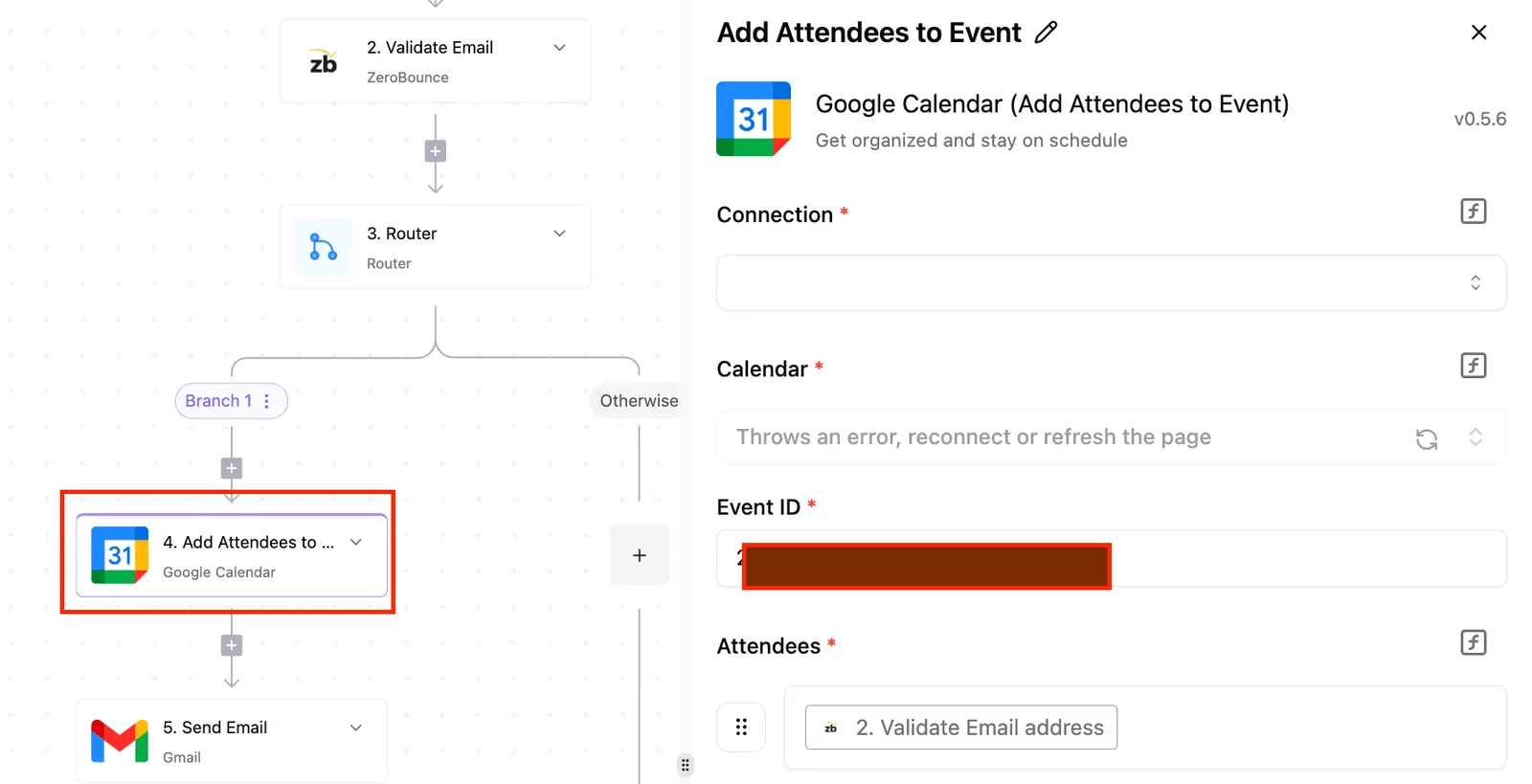
Pick Shopify as the trigger app and choose "New Customer". Then connect your store, which opens a Shopify authorization dialog.
Approve it while logged into the right store. If you manage several, a wrong login here connects the wrong shop, and the flow will run happily against it.
Once connected, pull a sample customer. If the sample comes back empty, create a test customer first.
Stage 2: Mailchimp action and audience
Add Mailchimp as the action and choose "Add or Update Subscriber". "Update" matters: a returning customer who already exists in the audience is changed, not duplicated and not rejected.
Connect your Mailchimp account through its own authorization dialog, then select the audience. A Mailchimp account can hold more than one, and the dropdown won't warn you if you pick the wrong one.
Mapping Shopify fields and consent status in Mailchimp
Map the email address first. It's the identifier Mailchimp uses to decide whether a subscriber is new or existing. Then map first and last name from the Shopify customer fields.
Slow down on status. Don't hardcode "subscribed" for everyone. A new customer has bought something, which isn't the same as agreeing to marketing email.
Map status from the customer's marketing consent where the sample data exposes it. If you want a confirmation email sent first, use "pending", which makes Mailchimp ask for double opt-in.
** A new customer has bought something, which isn't the same as agreeing to marketing email.
Testing and publishing the Mailchimp automation
Run the test with the sample customer from Stage 1. Then open the Mailchimp audience and confirm the contact is there with the right name and status.
When the test run goes green, all it means is that the action finished. The audience tells you it did the right thing. Fix any mismatch in the mapping, rerun, and publish only when the contact looks correct.

Activepieces gives you something to hold that audience up against.
Describe this flow in its built-in chat, a Shopify "New Customer" trigger into Mailchimp "Add or Update Subscriber", and what it publishes is a live flow in your account with the same four stages you would have assembled by hand, plus a run trace showing exactly what each step did with the sample customer.
Anyone on the team can read that trace without a certification, and MoneyGram, Moneypenny, Alan and FundingSocieties run Activepieces in production with those traces sitting under the same RBAC and audit logs as every other flow there.
You can follow the rest of this with the builder open. Start free, no card.
Limits and Errors in the Shopify Mailchimp Connection
Five failure modes account for most broken runs: consent rejections, Shopify rate limits, expired connections, bad emails, and flows that run twice.
The table shows what each looks like in run history.
| Symptom | Cause | Fix |
|---|---|---|
| Contact missing from the audience, run marked failed | Consent or status rejection: the contact was unsubscribed, cleaned, or never opted in | Check the contact's status in Mailchimp; add only people with marketing consent |
| Runs fail in bursts during sales or imports | Shopify rate limit, which differs by plan tier (Standard, Advanced, Plus) | Space out runs, or reduce how many steps call Shopify per order |
| Every run fails at once, nothing changed in the flow | Expired connection or revoked permission | Reconnect the account and re-save the flow |
| One contact fails, the rest pass | Duplicate or invalid email | Fix the address, or update the existing contact instead of creating one |
| Customer gets two welcome emails | Flow ran twice for the same event | Add a check for existing membership; remove overlapping triggers |
When every run fails at the same moment, suspect the connection before the flow. Authorizations expire or get revoked when someone changes a password, removes an app, or loses admin rights on either side.
Reconnect, re-save, then replay one failed run to confirm.
Mailchimp contact and consent errors in Shopify
Try to re-add someone who unsubscribed and Mailchimp will refuse; it won't treat a cleaned address as a fresh contact either.
Sometimes a customer is "accepts marketing" in one system and blocked in the other, because Shopify's marketing consent flag and Mailchimp's subscription status are separate records.
Don't try to force these contacts through. Invalid or duplicate emails fail the same way, one contact at a time.
Shopify and Mailchimp rate limits and duplicate runs
If failures cluster at busy moments and then succeed on retry, that is throttling. Shopify throttles API calls per second, and the ceiling rises with your plan tier.
I'm not quoting a figure here because I can't confirm one against current vendor documentation, so check Shopify's developer docs for your plan.
Double runs are a different problem. They usually come from two triggers covering the same event, such as "order created" and "order paid" both feeding one audience. Keep one trigger per flow, and let the audience's own duplicate check absorb the rest.
When Activepieces Fits and When Another Tool Does
If you want open-source software you can host yourself and no cap on steps per flow, Activepieces fits. If you want the shortest path or full control, the Mailchimp native app or your own API code fits better.
Other ways to connect the two apps
Activepieces isn't the only route. Mailchimp has its own Shopify connection, and other automation tools link the two apps as well.
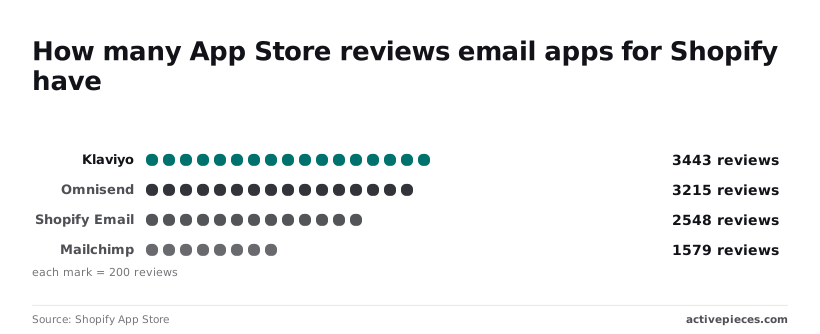
Per the Shopify App Store, Klaviyo has 3,443 reviews, Omnisend 3,215, Shopify Email 2,548 and Mailchimp 1,579. Mailchimp has the smallest count of the four, so plenty of stores send from elsewhere.
You should confirm which audience your customers actually land in before you build anything.
| Setup time | Cost | Self-hostable | Step limits | Best for | |
|---|---|---|---|---|---|
| Activepieces | Within the hour, no code | Free if you self-host | Yes | Unlimited on its plans, per its docs | Flows that go beyond a plain sync |
| Mailchimp native Shopify app | Under 10 minutes | Part of your Mailchimp setup | No | Fixed sync, no custom steps | The fastest basic connection |
| Custom API code | 15-30 minutes | Developer time | Runs wherever you deploy it | Whatever you write | Logic no tool exposes |
When workflows need unlimited automation steps
Choose it when the flow will grow past one trigger and one action. Per its docs, its plans have no step limit.
A branch that tags a customer, checks an order total and then adds them to a second audience won't hit a ceiling partway through.
Nothing announces it when a capped tool fails. The early steps run and the later ones never do, and you find out from a support ticket.
Self-hosting is the other reason. Customer emails pass through the tool, so running it on your own server keeps that data on infrastructure you control. It costs you the upkeep, including updates and uptime.
If you only need new customers in one audience, the native app is faster. Come back to Activepieces when the second flow arrives.
Create a new flow with Shopify's new customer event as the trigger, then add Mailchimp's add-subscriber action pointed at your audience. Test it with one real order before you turn it on.
Frequently asked questions
Does the Shopify Mailchimp integration work on every Shopify plan?
It depends on what your Shopify plan lets you connect, not on Mailchimp. The workflow only needs Shopify to announce a new customer or order and your automation tool to be authorized on the store. If your plan allows that connection, the flow runs.

Try authorizing the store before you build anything else; that is the quickest check. If the connection is refused, you know before you've spent time on the rest.
Can I sync existing Shopify customers to Mailchimp, not just new ones?
Yes, but not with the flow itself, because it only fires when a new event arrives. Export your customer list from Shopify as a CSV and import it into the same Mailchimp audience.
Import only people who agreed to marketing, and check the export's consent column first. Anyone without a yes belongs in a separate, non-marketing group or stays out.
Will customers be added to Mailchimp without their consent?
Only if you build it that way. Add every buyer as "subscribed" and you will email people who never opted in, and that's how complaints and spam flags start.
Put a condition step ahead of the Mailchimp action that checks the customer's marketing consent from Shopify.
Subscribe those who said yes, and either skip the rest or add them with a status that blocks marketing sends. Consent rules vary by country, so confirm yours separately.
Can I self-host the workflow instead of using a cloud service?
Yes, if the automation tool you pick has a self-hosted version. You gain control over where the data passes through.
You also take on the work the cloud service was doing for you: keeping the server running, applying updates, and giving Shopify a public address it can reach.
If the server goes down, new-customer events can go unprocessed. For a first flow, the hosted route is simpler. Move later if you have a reason to.
What happens to the workflow if Mailchimp is down?
When Mailchimp is down, the run fails at the Mailchimp step, and the customer isn't added at that moment.
Whether it retries on its own depends on your automation tool, so read its settings rather than assuming. Shopify may also resend events that go unacknowledged, but don't rely on that as a safety net.
Make a habit of opening the run history after any outage, finding the failed runs, and replaying them. A customer who failed once is easy to recover. One nobody noticed is lost.
Related reading
References
Build it
Set this up in minutes.
No code required. Connect your accounts, and Activepieces runs it from there.
Start free Talk to sales