
How To Automate Lead Qualification Appointment Requests

Oct 9, 20253 min read
Manually qualifying appointment requests can take a lot of time. One reviewer says yes, another says maybe later, and before you know it, your inbox is a graveyard of missed opportunities. That inconsistency not only slows down your sales pipeline but can also cost you valuable leads.
That’s where automated lead qualification comes to the rescue. With this AI-powered appointment screening workflow, you can evaluate every client request quickly, fairly, and with zero manual bias.
Each form submission is analyzed by AI, categorized into relevant types like Sales, Inquiry or General Question, and instantly routed to the right next step, whether that’s alerting a salesperson or sending the lead more information.
Let’s dive into how it works.
Get the template: https://cloud.activepieces.com/templates/RmJp9wPwQucv5mWbCDbK9
Step 1: Click on New Response from Google Forms.
Connect your account and select the specific form you want to work with
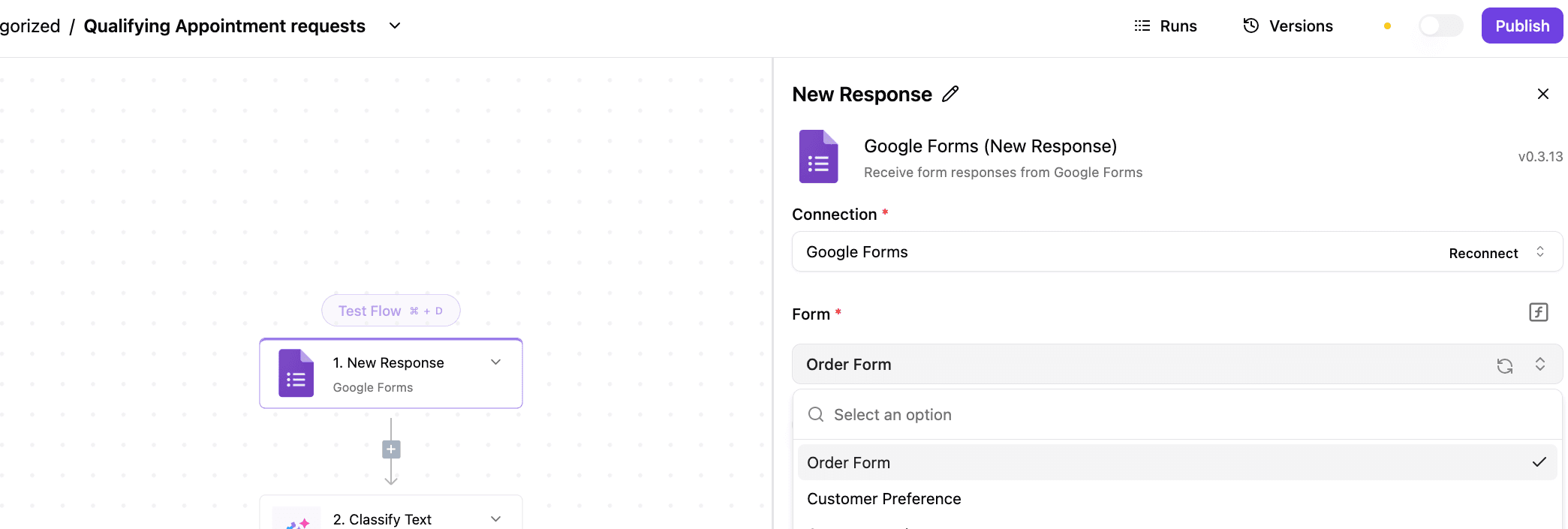
Step 2: Test the step (Load sample data)
This will load data from the most recent submissions on your selected form and enable you to proceed to the next steps

Step 3: Click on Classify Text from the native Utility AI piece
Select your desired AI provider and Model
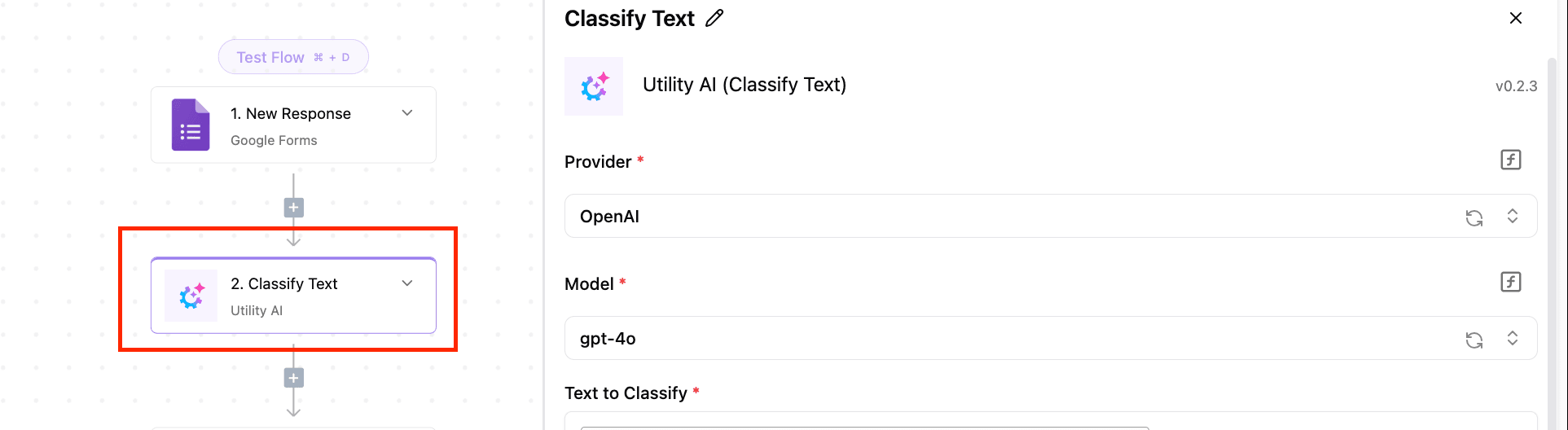
Step 4: Add the text to be classified

Step 5: Add the categories you want AI to classify your form input into
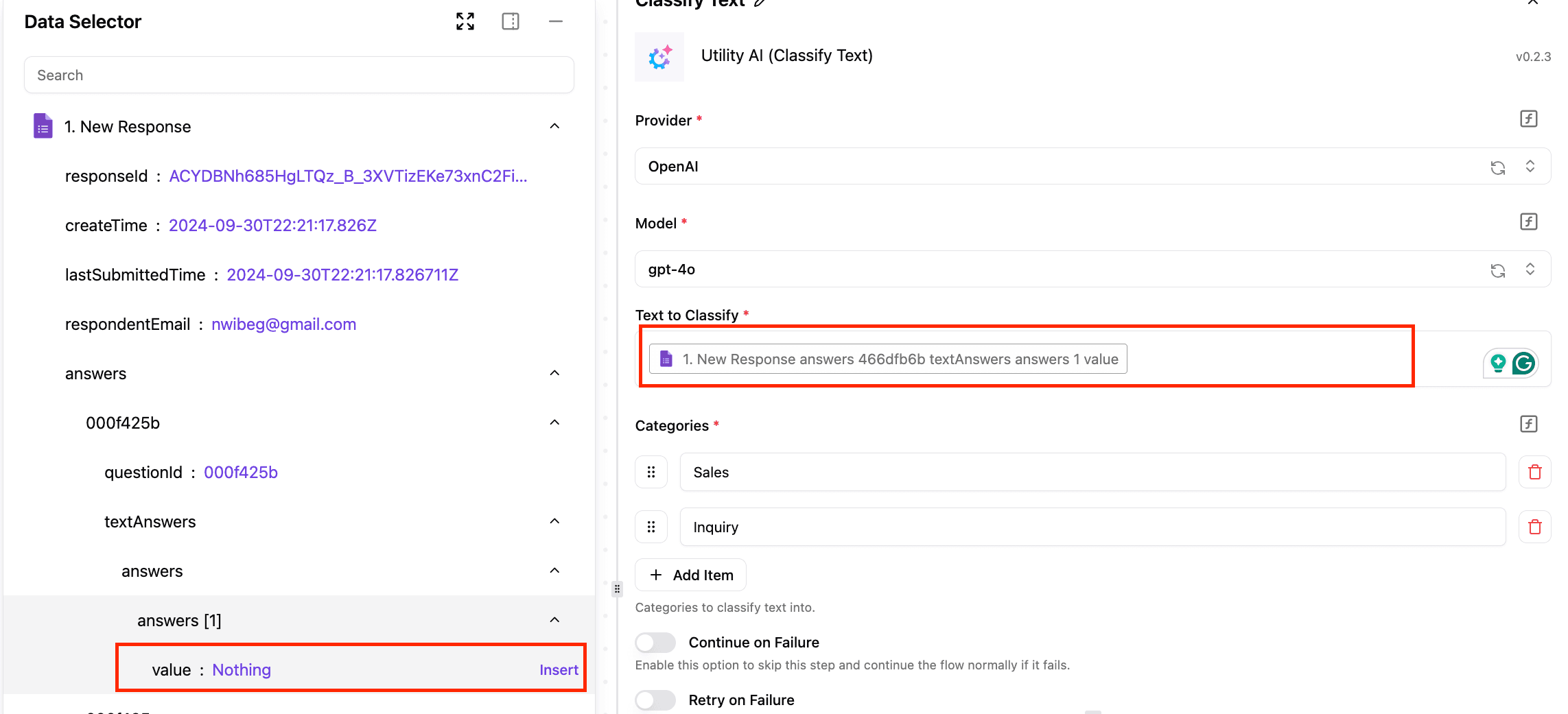
Step 6: Test the step

Step 7: Click on Router
This helps you to add “if-else” conditions to your automation

Step 8: Add conditions for branch 1
Branch 1 checks if the data in the form exactly matches Sales

Step 9: Test the step

Actions Under Branch 1
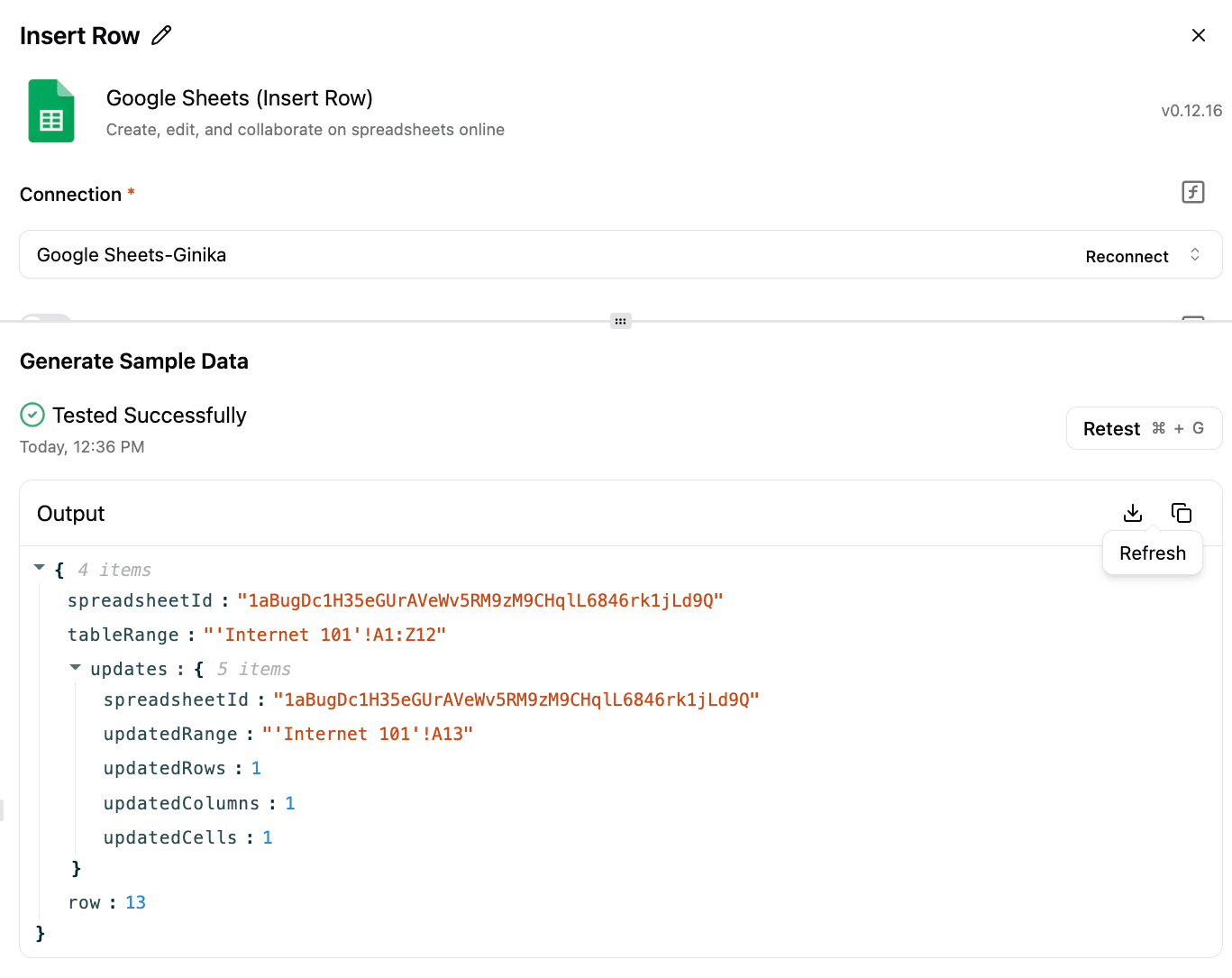
Step 10: Click Insert Row from Google Sheets
Here, we need to log the details of the form response to a Google sheet for record purposes.
Connect your Google Sheet account, select your spreadsheet, and your target sheet.

Step 11: Test the step
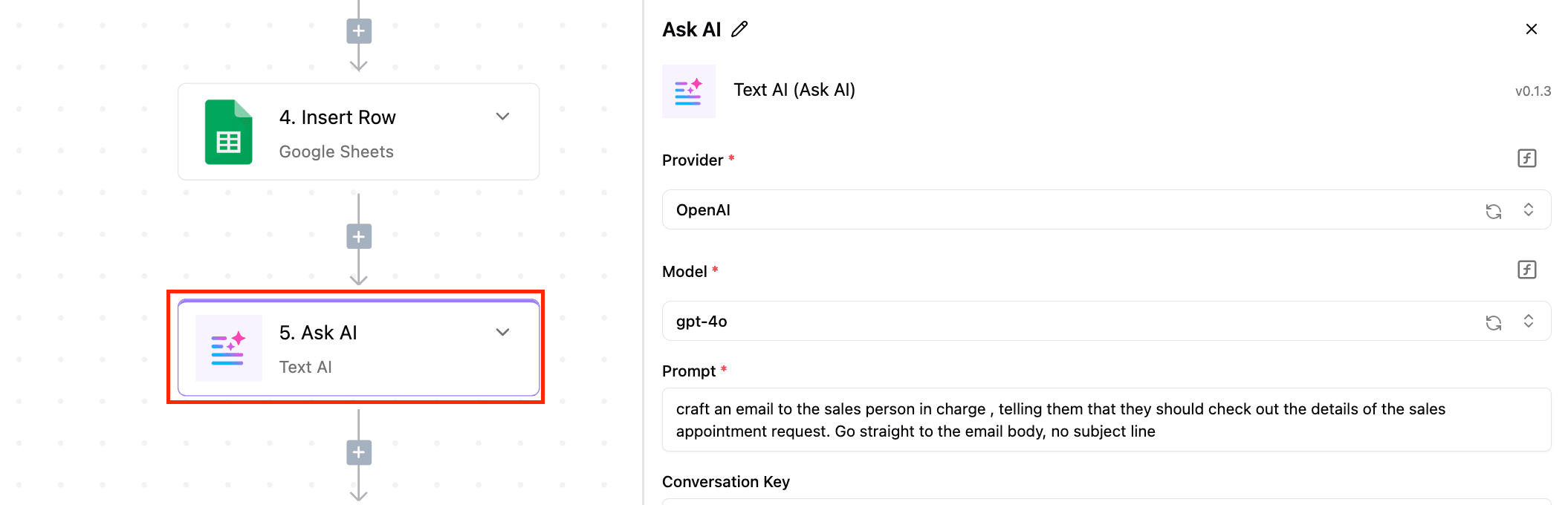
Step 12: Click Ask AI from the Text AI Piece
This step uses AI to draft an email to the salesperson to check the details of the sales appointment request.
Select the AI provider, the model, and the prompt.
Step 13: Test the step

Step 14: Click on Send Email from Gmail
This is where we pass in the email generated by AI in the previous step as the email body

Actions Under Otherwise
Step 14: Click on Ask AI from Text AI
This is where we use AI to write an email to the lead, providing other resources and options other than a qualification call.
It is important when the lead is just making enquiries and not necessarily ready to make a purchase.
Select your desired AI provider, AI model, and Prompt

Step 15: Test the Step

Step 16: Click on Send Email
Pass in the email written by AI as the email

Step 17: Test the Step
Build it
Set this up in minutes.
No code required. Connect your accounts, and Activepieces runs it from there.
Start free Talk to sales