
Azure Virtual Machines Integration: How to Connect

Nov 18, 202614 min read
Azure virtual machines integration is three jobs done in order: open network access to the VM, give it a managed identity, then automate it through Azure Resource Manager, whether by script or through a workflow tool like Activepieces. Expect about 30 minutes end to end.
Microsoft Learn was last checked on 18 November 2026.
Azure virtual machines integration: the fastest path
What Azure virtual machines integration means
"Connect" covers three different things, and the fix for one does nothing for the others:
- Access is whether your traffic can reach the VM at all: network security group rules, public or private addressing, and the port you need.
- Identity is who the VM is when it calls other Azure services, without a password stored on the machine.
- Resource Manager control is whether something outside the VM can start it, resize it, tag it or delete it through Azure's management API.
- Open network access. Add one inbound rule for the port you need, scoped to your own address. It works when you can reach that port from your machine and a deliberately blocked address can't.
- Give the VM a managed identity. Enable the system-assigned identity and grant it a role on one target resource. It works when a call made from inside the VM to that resource succeeds with no stored credential.
- Automate through Azure Resource Manager. Call the management API from a script, a pipeline or a workflow tool. It works when a start or stop request changes the VM's power state, and you can see it in the activity log.
You need four things before stage 1:
- An active Azure subscription you can create resources in.
- A role that allows both creating the VM and assigning roles. Owner covers it, and Contributor plus User Access Administrator also works. Contributor alone will get you through stages 1 and 3 but stall in stage 2, when you grant the identity its permission.
- A resource group to hold the VM. Use a fresh one so cleanup is a single delete.
- A region for the VM. Keep the target resource in the same region where you can.
This takes minutes, not a project: automate it in Activepieces free.
Stage 1: Create the VM and open an access path
Create the VM on the Basics tab with the availability and disk settings that match the uptime you need, then open exactly one access path (RDP, SSH, Bastion or just-in-time) and log in once before moving on.
Configure the Azure VM Basics tab
Work top to bottom: subscription, resource group, VM name, region, availability options, image, size, administrator account, then inbound port rules. Pick the region closest to the people who will log in, since you can't move a VM there without rebuilding it.
To see what uptime you're buying, look at the availability options and the OS disk type (set on the Disks tab).
According to Azure VM SLA summary, a single VM on HDD is covered at 95%, which allows roughly 18 days of downtime a year, so treat it as a throwaway test box.
Standard SSD lifts that to 99.5%, and Premium SSD to 99.9%, which is the minimum I'd accept for anything a colleague depends on.
99.95% is what an availability set gives, and Availability Zones give 99.99%, per Azure VM SLA summary.
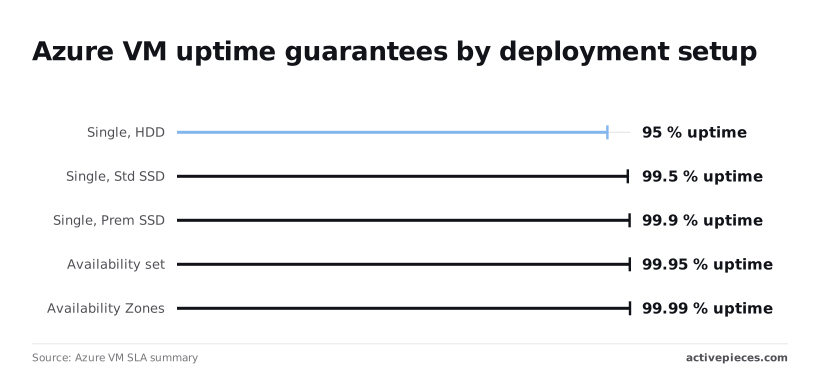
It also means you're paying for a second VM, so choose it only when an outage costs more than that.
Leave the inbound port rules on "None" if you plan to use Bastion or just-in-time. Otherwise allow only 3389 or 22, never both.
Connect with RDP or SSH
If you want the simplest path, use a public IP. Windows VMs take RDP on port 3389, and Linux VMs take SSH on port 22.
For SSH that looks like ssh azureuser@<public-ip>.
It works in minutes, but those two ports are among the first that internet scanners probe.
Restrict the network security group rule to your own IP address, or you're relying on a password alone.
If you'd rather not expose 3389 and 22 at all, Bastion and just-in-time access both keep them closed to the internet.
| Option | Exposure | Cost | Setup effort |
|---|---|---|---|
| Public IP + RDP/SSH | Port open to whatever the rule allows | No extra service | Lowest |
| Azure Bastion | No public IP needed on the VM | Separate hourly-billed resource | Moderate: a dedicated subnet |
| Just-in-time access | Port opens on request, for a set window | Needs Microsoft Defender for Cloud's server protection | Moderate: enable and request access |
Choose Bastion when many people connect regularly. Choose just-in-time when you want to keep a public IP but shrink the exposure to a few minutes.
Stage 2: Give the VM a managed identity
With the login working, switch on a system-assigned identity, grant it a role under Access control (IAM), and fetch a token from 169.254.169.254, so code on the VM never holds a secret.

System-assigned vs user-assigned managed identity
A system-assigned identity is created with the VM, deleted with the VM, and belongs to that one VM only.
A user-assigned identity is a standalone resource that outlives any VM and can be attached to many VMs.
Start with system-assigned for a single VM.
Pick user-assigned when a fleet needs the same permissions, or when you want to grant the role before the VM exists.
When a script stamps out 200 identities in a burst, it will be throttled partway through. Microsoft Learn lists 80 create operations per 20 seconds per subscription, so the script needs retry with backoff.
The tenant-wide create limit is 400 per 20 seconds, which only bites if many subscriptions create at once.
Assign a role and test the VM identity
- On the VM, open Identity, set System assigned to On, and save.
- On the target resource (a storage account, say), open Access control (IAM), choose Add role assignment, pick the narrowest role that does the job, and select the VM's identity as the member.
- From a shell on the VM, request a token:
curl -H "Metadata:true" "http://169.254.169.254/metadata/identity/oauth2/token?api-version=2018-02-01&resource=https://management.azure.com/"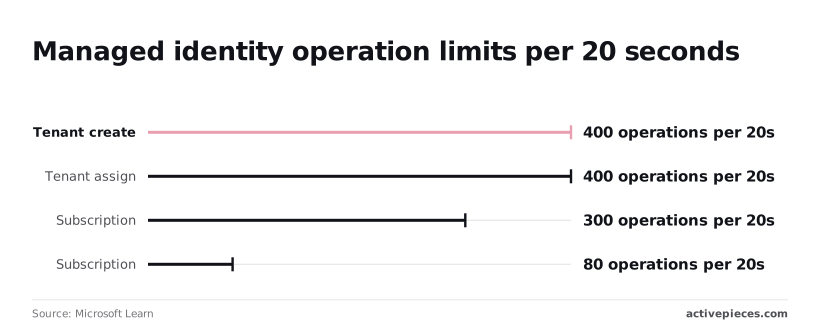
My first run returned a token, but the next call to the resource returned 403. The token only proves the identity exists; the role assignment decides what it can do.
Role assignments are throttled too: 300 per 20 seconds per subscription, 400 per tenant, so assign in batches if you're scripting.
My first run returned a token, but the next call to the resource returned 403. The token only proves the identity exists; the role assignment decides what it can do.
Stage 3: Control and automate the VM from outside
With Virtual Machine Contributor on the resource group, a service principal can start and deallocate the VM through the Azure CLI or REST, with no password in your code.
Azure CLI and REST call
- Create a service principal with
az ad sp create-for-rbac. - Assign Virtual Machine Contributor at the resource group that holds the VM.
- Sign in with
az login --service-principal, passing the app ID, secret and tenant. - Call
az vm start. - Call
az vm deallocate. - Confirm with
az vm get-instance-viewthat PowerState readsrunning, thendeallocated.
To do the same over REST, POST to the VM's start or deallocate action, carrying the same token as a bearer header.
You will hit a ceiling quickly, because Resource Manager throttles by request type.
Per Microsoft's request limits documentation, reads burst at 250 requests, while writes and deletes burst at 200 each.

Past the limit you get HTTP 429 and a Retry-After header, so honour that header instead of retrying immediately.
Azure-native schedulers
If the trigger is only the clock, stay inside Azure. The VM's built-in auto-shutdown setting handles the evening deallocate.
Azure Automation runbooks and Logic Apps handle the morning start on a schedule, and both can authenticate as a managed identity, which removes the stored secret entirely. These tools batch and pace their calls, so you rarely meet the burst limits by hand.
Trigger Azure VM automation from business apps
When the real trigger is an approved ticket, a calendar booking or a submitted form, a clock doesn't help.
Activepieces can run steps like those above, and if the app that raises your trigger has no connector, you generate one with AI and add it privately to your own instance rather than waiting on a vendor release; about 60% of its 750 integrations were already built by the community.
You can follow the rest of this with the builder open. Start free, no card.
Azure VM connection limits and errors
Match the error text to its layer before you change anything, because almost every error here is a limit on one of the three layers, network, identity or quota.
| Error | Cause | Fix | Official doc |
|---|---|---|---|
| RDP/SSH timeout | A network security group rule or missing public route blocks the port | Allow your source address on the port, or go through Bastion | Microsoft Learn: "Troubleshoot Remote Desktop connections to an Azure virtual machine" and "Troubleshoot SSH connections to an Azure Linux VM" |
| AzureBastionSubnet | The subnet is misnamed or too small | Create a subnet named exactly AzureBastionSubnet and size it to Bastion's stated minimum |
Microsoft Learn: "Azure Bastion configuration settings" |
| AuthorizationFailed | Your identity lacks the role at that scope | Assign the role the action needs at the VM, resource group or subscription | Microsoft Learn: "Troubleshoot Azure RBAC" |
| SkuNotAvailable / vCPU quota | The size is restricted in that region, or the regional vCPU quota is used up | Pick another size or region, or request a quota increase | Microsoft Learn: "Resolve errors for SKU not available" and "Virtual machine vCPU quotas" |
| Dynamic IP change | The public IP is dynamic and changes when the VM is deallocated | Use a static public IP or a DNS name | Microsoft Learn: "Public IP addresses" |
| IMDS token error | Managed identity is not enabled, or the request is not made from inside the VM | Enable the identity and call the metadata endpoint from the VM | Microsoft Learn: "Use managed identities for Azure resources on an Azure VM to acquire an access token" |
Network and access errors
When you see a timeout, packets never arrived, so check the network security group, then the public IP, then Bastion. If SSH worked yesterday and times out today after a stop, the address changed, not your key.

Azure VM permission errors
Paste the exact AuthorizationFailed text into your prompt rather than paraphrasing it. It names the action that was denied and the scope it was denied at.
The error usually wants a narrower role at a specific scope, not Owner.
Don't confuse SkuNotAvailable with a vCPU quota failure; they look alike but differ. The first says the size is unavailable where you asked. The second says your subscription has used its regional allowance.
What Activepieces does about this
Activepieces works on the third stage, control-plane automation, and only once the first two checks pass. It will not open a port or enable an identity for you, so if a start request times out, go back to stage 1 before you blame the workflow.
Once the VM is reachable, has its role, and answers a manual az vm start, a flow can take over the same calls.
A flow does what the manual steps above do. It requests a token with the service principal's credentials, then POSTs to the VM's start or deallocate action, and a later step reads PowerState to confirm the change.
The secret sits in the flow's connection, not in the business app that fired the event. Scope the service principal to Virtual Machine Contributor on one resource group, as in stage 3, and a leaked connection reaches only that group.
The trigger is where it earns its place. Approved tickets, calendar bookings and submitted forms are events a clock can't see, and Activepieces has about 750 integrations to listen for them, around 60% built by the community.

If your app has no connector, you can generate one with AI and add it privately to your own instance instead of waiting on a vendor release.
Add a delay or a queue step to the flow, so a busy form firing hundreds of triggers in a minute doesn't spend your write budget and draw HTTP 429.
The core is open source under the MIT licence, so you can self-host it inside the same Azure subscription and keep the credentials on infrastructure you control. For a clock-only schedule, the Azure-native tools above are simpler, and I'd still use them.
Frequently asked questions
Do I need a public IP to connect to an Azure VM?
No. A private IP is enough as long as your traffic can reach the virtual network through a VPN, ExpressRoute, peering from a network you already reach, or Azure Bastion. Bastion is one option, not a requirement.
Without any of those paths, Run Command and the serial console still let you act on the VM through the control plane, though neither is a substitute for network access.
Yes, you can connect to an Azure VM without a password.
Linux VMs accept SSH keys, and both Linux and Windows VMs can use Microsoft Entra ID sign-in through a VM extension, so you log in with your directory account and never set a local password.
Don't confuse this with managed identity, which lets the VM authenticate to Azure services. It doesn't log you in.
How much does it cost to leave an Azure VM connected?
Staying connected costs little, but the integrations you build to make it work can bill while they exist. Compute and disks are the baseline.
A Bastion host, a VPN gateway or a public IP address each add their own charge whether or not anyone is connected. Managed identity adds no charge.
Before you leave a setup running, list what you deployed for access, not just the VM, and check each resource's pricing page.
Shutting down from inside the guest operating system doesn't stop billing. It leaves the VM stopped but still allocated, so compute billing continues.
Deallocate it from the portal, CLI or API to release the compute. Even then, disks keep billing, and a static public IP may too. If the bill didn't drop after a shutdown, this is almost always why.
Can I connect an Azure VM to non-Microsoft apps?
Yes, and the three stages each handle it differently.
For network access, any application that can reach the VM's address and port can talk to it. Nothing about the VM requires a Microsoft client.
For identity, managed identity issues tokens for Azure resources that accept Microsoft Entra authentication. A third-party service usually needs its own credential, which you can keep in Azure Key Vault and let the VM's identity retrieve.
For control-plane automation, any tool that can call the Azure REST API, directly or through the CLI, with a service principal can start, stop or run commands on the VM.
If an outside app can't connect, work out which of the three it's failing at before changing anything. Most of the time it's a network rule, and the fix is a single line.
Related reading
References
Build it
Set this up in minutes.
No code required. Connect your accounts, and Activepieces runs it from there.
Start free Talk to sales