Best Opus Clip Alternatives in 2026 (Ranked & Tested)

Nov 11, 202615 min read
The main Opus Clip alternatives are Vizard, Submagic and Klap, and which fits depends on whether credit pricing, moment selection or editing depth is what you're leaving over, and on whether you'd rather pass finished clips along through a workflow tool like Activepieces or publish them by hand.
1. Opus Clip alternatives compared on price and limits
An Opus Clip alternative is a different AI video repurposing tool that automatically cuts long videos into short social clips, chosen by people who want to avoid Opus Clip's credit-based pricing, gain more control over which moments are clipped, or get deeper editing options.
Opus Clip is an AI tool that cuts long videos into short vertical clips and charges by credits.
Sorted, the complaints come to three:
- Credits that run down faster than the footage you upload
- Little say over which moments become clips
- A thin editor once the clip exists

Read the reviews and the same split shows up. According to Trustpilot:
- Vizard holds 4.7 stars out of 5
- Submagic holds 4.5 stars
- Opus Clip sits at 4 stars: That puts Opus Clip last of the three, but the gap is 0.7 stars at most, so it points to friction rather than failure. These are self-selected reviews, not a test of clip quality.

Before you trust the table, know where it comes from: every cell comes from the vendor's own pricing or product page, read on 11 November 2026. I looked at three things:
- The unit the plan meters (credits, minutes, videos or tasks)
- What the tool does best
- Where its own page admits a limit

I didn't test clip quality, so the table says nothing about how good the clips are. Where a page gives no figure, the cell names the metering unit instead of guessing a price.
To match each tool against the pain that sent you looking, use the table, which lines up the four clippers and one automation platform, Activepieces, whose core is MIT-licensed and whose plans, free included, allow unlimited flows.
| Tool | Entry price | Core strength | Main limit | Who it suits |
|---|---|---|---|---|
| Opus Clip | Credit-metered plans | Fast automatic clipping of long videos | Credits drain with volume; little control over chosen moments | Occasional clippers with short source videos |
| Vizard | Plans metered by processing minutes | Clip editing with transcript-based control | Minute caps rise with plan tier | Creators who want to adjust clips themselves |
| Submagic | Subscription plans by video count | Captions and short-form styling | Built around finishing clips more than finding them | Editors who already have their moments |
| Klap | Plans metered by exports | Quick conversion of long videos to shorts | Fewer editing tools than the editing-led tools above | Solo creators wanting speed |
| Activepieces | Free to self-host; free cloud plan with 1,000 credits a month | Automating the steps after a clip exists | Doesn't cut clips itself | Teams that already have a clipper |
The fastest way to settle a shortlist is to try one. Activepieces is free to try, no credit card.
2. Activepieces: automating what happens after the clip
Don't expect a clipper. Activepieces is open-source workflow automation with an MIT-licensed core and 747 integrations: it takes each finished clip and handles the log, the review and the scheduling handoff, so those steps stop being manual.
Whatever clipper you choose has to export to a folder or fire a webhook, or there's nothing for it to pick up.
Where Activepieces fits and where it does not
It doesn't find moments, cut video or caption anything. If your pain with Opus Clip is control over which moments get clipped, or editing depth, this tool changes neither.
It earns its place when the pain is metered cost, because the unit being billed is a run, one execution of a workflow.
Every plan, free included, allows unlimited flows, so the number of workflows you build is never what you pay for. The free cloud tier comes with 1,000 credits a month, and there is also a free self-hosted Community edition.
Credits are what meter usage: a run costs 1 credit however many steps it has, and AI steps cost more. That makes the bill track how much work the workflow does rather than how many clips or flows you have.
Because the core is MIT-licensed, you can also self-host it, which gives you a way out if its pricing ever changes.
A clip-to-review workflow in four steps
From folder to approval, each clip passes through the same path, shown in the flow below. The one place a human is involved is the approval step, where the run waits for a decision.
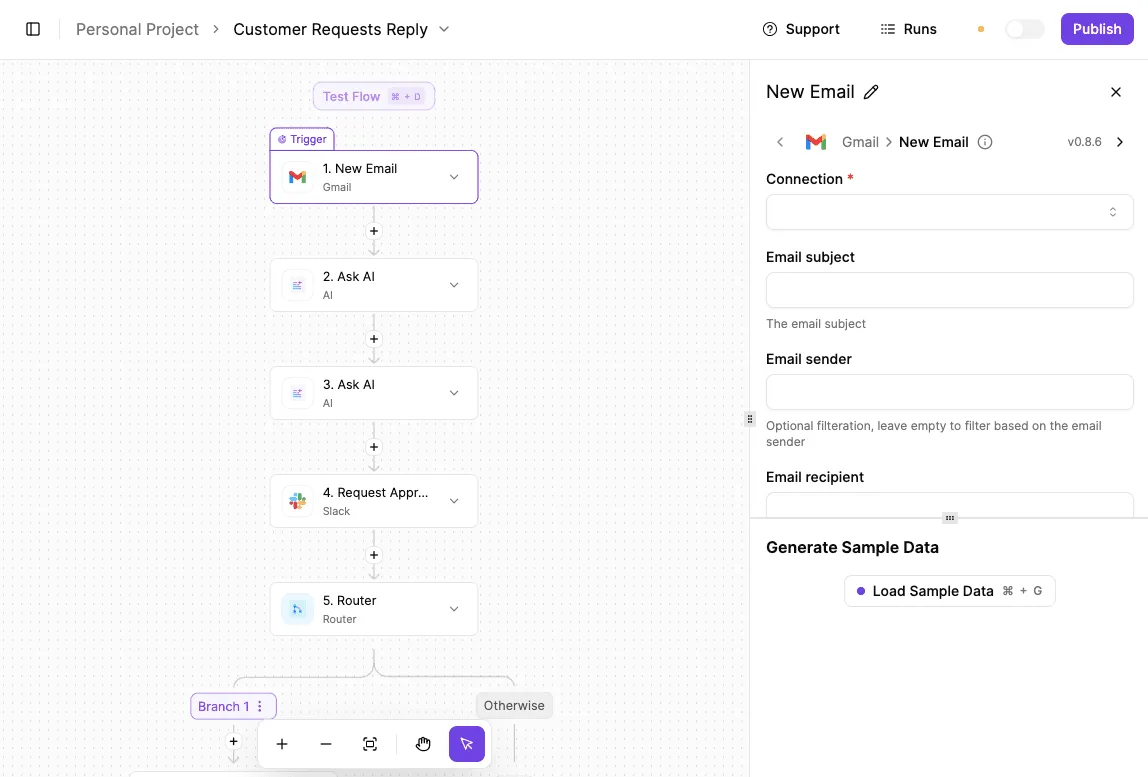
- A finished clip lands in a shared folder, and the folder trigger fires.
- The workflow adds a row to a log sheet with the filename, the date and a status of "pending".
- The reviewer is notified, and an approval step holds the run until they approve or reject the clip.
- Approved clips move on to your scheduling tool; rejected ones stay in the log with their status updated.
Count runs before you commit. If every clip is one run, 10,000 runs is 10,000 clips. If your clipper sends one webhook per batch, the same budget stretches much further.
What to do this week
Start with the export. Check that your clipper can write to a folder or call a webhook, because that decides whether this workflow is possible at all. Then build steps one and two only, and run a week of real clips through them.
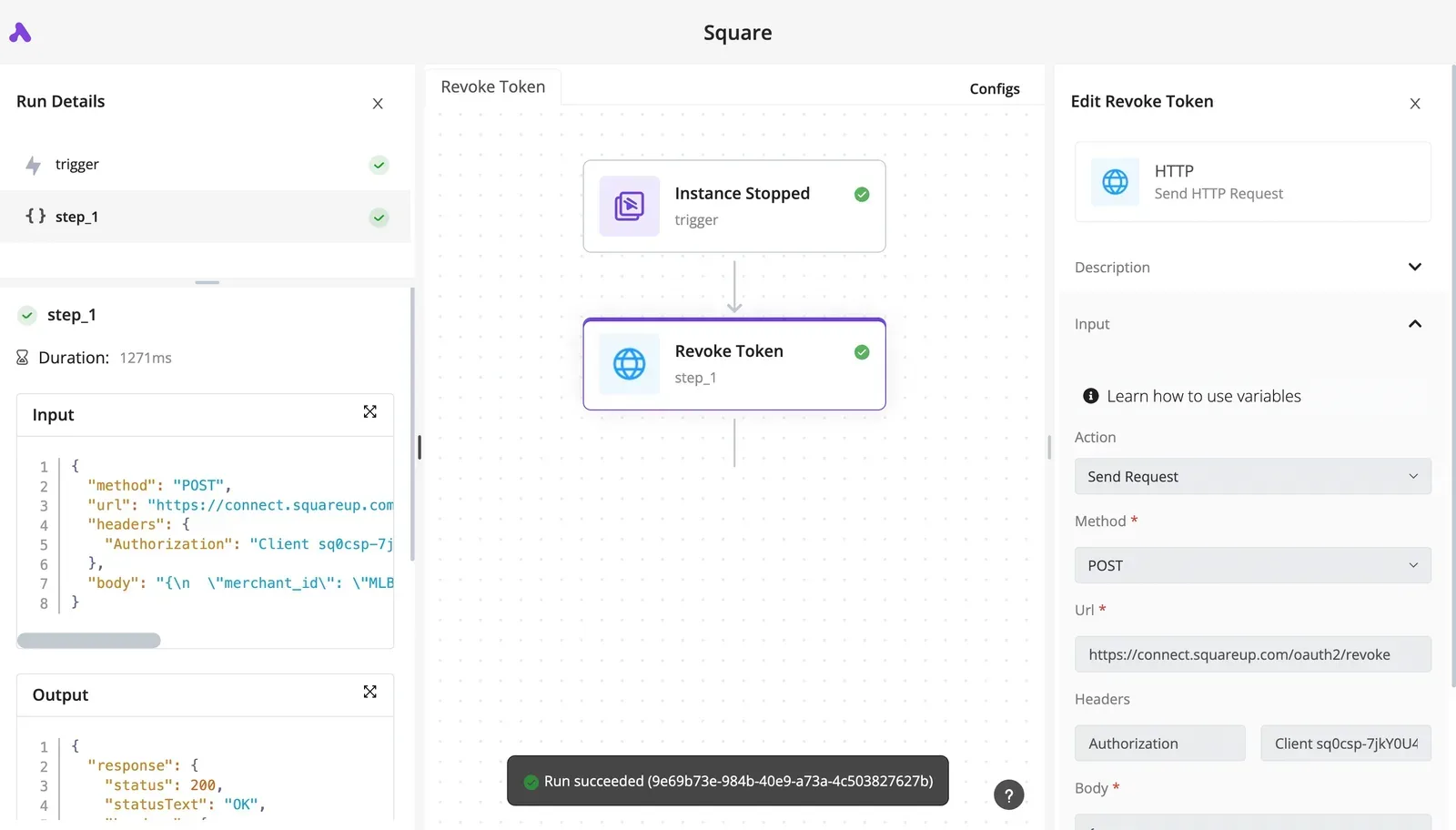
Once the log sheet fills up correctly, add the reviewer notification and the approval step, and connect scheduling last.
That order lets you see your actual run count before you pick a plan, so you pay for the volume you measured, not the one you guessed.
Activepieces is the better fit for teams that want the work after each clip, the logging, review and scheduling handoff, to stop being manual, judged on how far its integration catalogue can stretch to cover those steps.
It is not a clipper and changes nothing about which moments get picked or how deep the editing goes, so anyone whose problem is clip selection or editing control should look elsewhere.
For the narrower job of automating what follows a finished clip, an open-source, MIT-licensed core with 747 integrations that can be counted directly in the monorepo gives the catalogue as a floor rather than a ceiling.
3. Vizard: the closest like-for-like replacement
Of the alternatives, Vizard is the nearest swap. It keeps the same workflow: you upload a long video, it transcribes it, and it returns a batch of ranked short clips with captions and reframing.
If you leave Opus Clip for pricing or editing reasons, nothing about how you work has to change.
What Vizard does the same
You paste a link or upload a file, and the model picks candidate moments, scores them and crops them to vertical. Captions are generated automatically, and a built-in scheduler can push finished clips to social accounts, so the publishing step lives in the same tool.
In selection, too, it is the same kind of black box, and the published tests show it.
Opus Clip ranged from 2-3 of 20 in one run to 13 of 20 in another, while Vizard kept 6 of 22.
The spread within Opus Clip is wider than the gap between the two products, so expect to review every batch whichever tool you pick.
Because the gap between the tools is smaller than the variation between runs, switching won't fix a clip-selection complaint. It addresses the other two pains.
**Because the gap between the tools is smaller than the variation between runs, switching won't fix a clip-selection complaint.
Where it differs on pricing and editing
Read the pricing page for the metered unit before you compare plans.
On editing, Vizard has a transcript editor. You cut by deleting words in the text, and the video follows.
That's faster for trimming a rambling intro, but it's not a timeline with layered tracks. Anything beyond trims, captions and reframing still means exporting to a separate editor.
Who should switch from Opus Clip to Vizard
Switch if credit-metered billing is your main complaint and you want the same upload-and-review loop under a different plan structure. Switch if trimming by transcript would save you the export-to-editor step.
Stay put, or look at the other sections, if your pain is control over which moments get clipped.
Vizard's picks are still the model's picks, and the main limit is that you can't steer them much. In that case the tools covered in the next sections fit better.
Reading a table only gets you so far. Build the same workflow in Activepieces and compare it yourself.
4. Submagic: for caption styling and fast polish
Don't expect Submagic to find moments inside a long recording. It's a caption and finishing tool for creators who already have the clip.
Strengths
Its pull is the finish. It adds animated captions, B-roll and light edits to a clip you bring, so a rough cut becomes something postable without opening a timeline editor. That matters if your pain with Opus Clip was editing depth rather than clip selection.
Check the language figure first. According to Vizard's transcription comparison, Submagic captions in 120 languages. That's 60 fewer than Vizard's 180, but 68 more than Klap's 52.

If your audience speaks a major language, 120 is unlikely to be the constraint.
Limits
Here is the limit this article keeps returning to: Submagic isn't a full clip finder. It polishes what you give it. It doesn't read a two-hour episode and decide which three minutes deserve to be shorts.
If control over which moments get clipped was your complaint, this tool doesn't address it, and you would still need another step upstream.
Open Submagic's own pricing page and read the unit being metered, such as minutes or videos, before you multiply it by your weekly output.
Who Submagic suits as an Opus Clip alternative
It suits creators who record, cut or pick their own clips and want the last 10 percent done fast: caption style, emphasis, B-roll, which means the creator handles the first 90 percent of production work themselves.
It suits them less if they hand over hours of footage and expect candidates back.
You can automate the clip-to-caption step too. A handoff flow has a trigger when a new clip lands, then a code step that reads a stored variable, such as a key or product label, through a data selector.
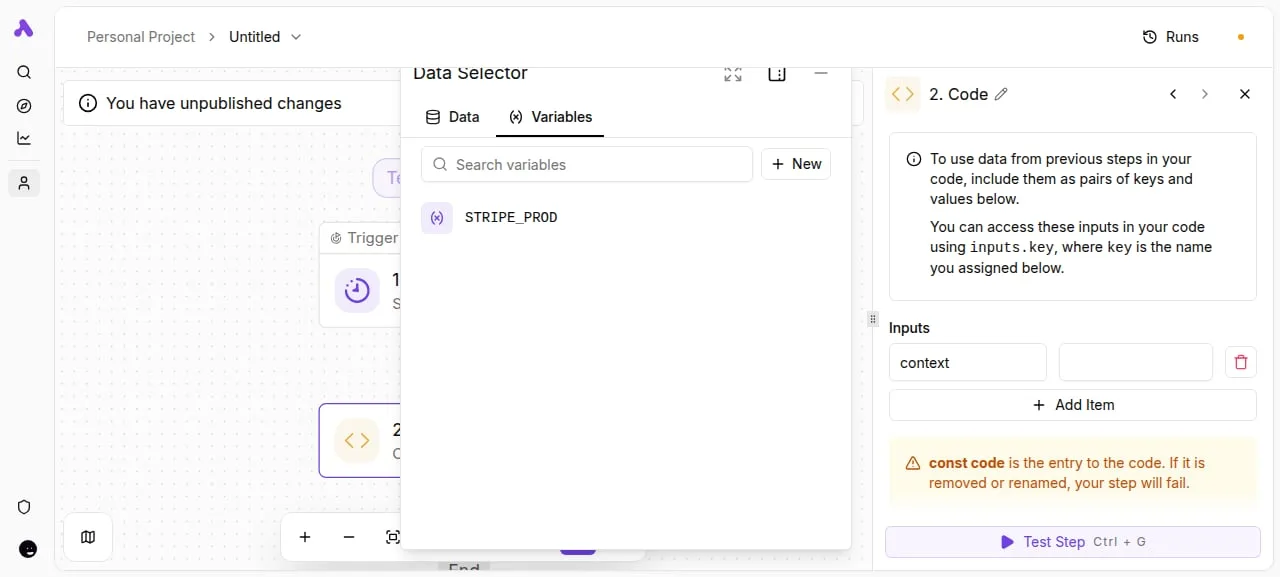
The screenshot below shows that setup, with the variables list open beside the code step's inputs.
What if the captioning tool you settle on has no connector? Activepieces lets you generate the missing integration with AI and add it privately to your own instance, so the handoff doesn't wait on anyone's release schedule.
The catalogue is 747 integrations, counted from the packages/pieces/community directory of the MIT-licensed activepieces/activepieces repository on GitHub rather than quoted from a marketing page, and roughly 60% of them were contributed by the community, numbers any reader can verify by checking the source code directly, so integrations are being actively added by community members rather than just the vendor team.
MoneyGram, Moneypenny, Alan and FundingSocieties run it in production.
5. Klap: a simpler clipper for small teams
For teams that want one tool to cut and caption in a single pass, Klap fits. It leaves everything after export to you, which is the gap the handoff above fills.
What Klap does
You give Klap a long video, and it finds the segments it judges shareable, reframes them to vertical, and adds captions. The reframing follows the speaker, so a talking-head recording or a podcast turns into a short without you drawing crop boxes.
That one-pass design is the appeal. It's also where Klap is thinner than Opus Clip. Klap's site describes clip selection as automatic, and it gives you less room to steer which moments are chosen.

Editing after generation covers trims and caption fixes, but not deeper timeline work. If your pain with Opus Clip was control over moment selection or editing depth, Klap doesn't solve it.
Pricing and limits
On its pricing page, Klap lists subscription plans with usage caps. Before you compare it with anything else, find the unit the cap counts, whether that's minutes processed or clips exported.
This matters if credit-metered billing is what drove you out of Opus Clip. A subscription cap is easier to forecast than credits that drain per job, but it only helps if the cap fits your upload volume.
Klap fits a small team or solo creator publishing a steady stream of talks or podcasts, where "good enough clips with little effort" beats fine control. It fits less well if an editor needs to choose exact moments or rework the cut.
Whichever clipper you pick, the clips land in a folder or a download page, and a person has to move them on.
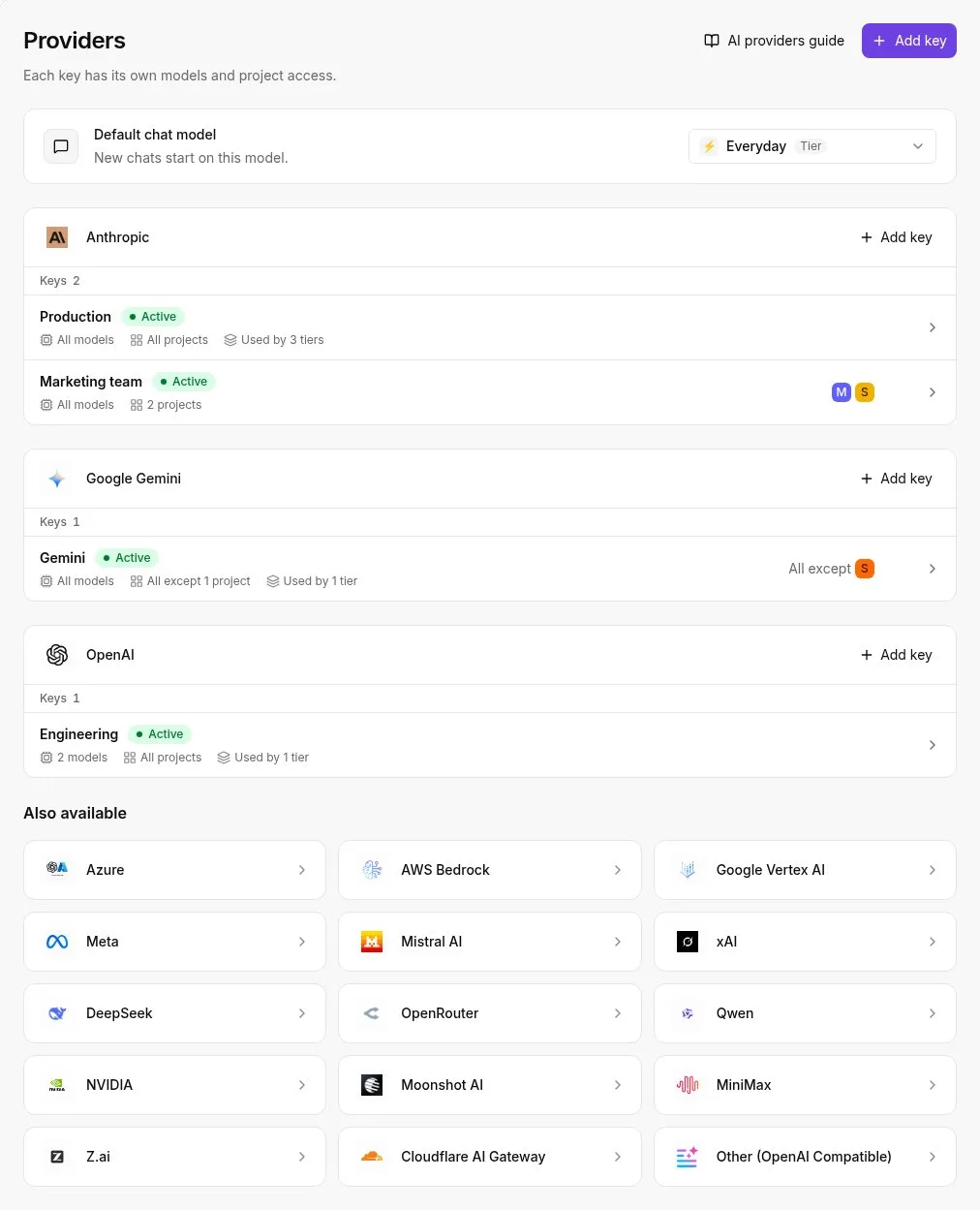
If the next step is a language model that writes titles and descriptions, that step needs provider keys held somewhere your workflow can reach.
Look at the panel below to see what that looks like: several providers with active keys, each tied to a team, plus a longer list of providers that can be added.
6. Opus Clip: when staying put is the right call
Opus Clip is the tool the others are measured against, and for some workloads it is still the sensible pick.
Its strength is the one the table gives it: fast automatic clipping of long videos, with captions and vertical reframing done in one pass and almost no setup.
Where Opus Clip credit pricing still works
Credit pricing hurts at volume but suits the opposite case.
If you clip a few short source videos a month, paying by credit can cost less than a subscription sized for output you never produce, and the free plan lets you try it on your own footage first.
The selection complaint is also less decisive than it sounds. Opus Clip's picks vary from run to run, but so do Vizard's, so a rival doesn't buy you steadier selection. Either way you review every batch.
Who should stay with Opus Clip
Stay if your source videos are short, your volume is low and reviewing each batch is already part of your routine. Switch when credits run out before the month does, or when you keep exporting clips to another editor to finish them.
At that point the earlier sections tell you which pain to pick by.
Frequently asked questions
Once you know your run count, four practical questions are left, and each has a short answer.
Is there a free Opus Clip alternative?
Yes, but a free tier is a metered trial, not a free workflow. Opus Clip has its own free plan, metered in credits, so it stops when the credits do.
Most alternatives follow the same pattern with a different unit: minutes of source video or exports, often with watermarked output. A watermarked clip is a draft, not something you can publish.
Can I cancel Opus Clip and keep my clips?
Once downloaded, clips are files on your own drive, and cancelling doesn't reach them. What you lose is the project inside the tool: the transcript, the caption styling and the ability to re-render or re-cut.
So download every export you may need, plus the source files, before you cancel. If any clips came from a free tier, read the current terms for commercial use, because they can differ from paid exports.
Which alternative is best for podcasts?
On podcasts, the most weight falls on the second pain point, control over which moments get clipped.
A long conversation has a few strong segments and a lot of filler, and an automatic picker tends to choose by delivery rather than by what your audience cares about.
Look for transcript-based selection, so you mark the passage in text rather than scrubbing a timeline, and speaker detection, so a two-person frame follows whoever is talking. Test each candidate on one full episode you already know well and compare its picks with yours.
Do these tools post to TikTok, Shorts and Reels directly?
Some do, but coverage varies by tool and by platform, so check all three destinations you need rather than assuming one connection implies the others.
Direct publishing is also usually a plan feature, which means it can sit behind the same metering you were trying to escape.
If a tool exports files but doesn't post, or posts to only some platforms, the gap is a handoff problem. An automation tool can pick up the finished file and send it to the remaining destinations, which is the setup the earlier sections describe.
Related reading
Still comparing
The fastest way to settle it is to build something.
Open source under MIT, so you can self-host the same thing later.
Start free Talk to sales