Cursor Workflow: How to Set One Up (2026 Guide)

Nov 12, 202616 min read
A Cursor workflow is a loop you repeat in the Cursor editor: rules, plan, one agent task, diff review, commit.
You can set up a working one in 30 to 45 minutes, meaning you could complete it in one uninterrupted work session, much like Activepieces users who build an automation flow in a single sitting.
My first attempt was a single prompt: "Build me a settings page." It came back as a sprawling diff touching files I never mentioned.
The prompt wasn't the problem. Nothing existed around it to constrain the model, check its work or give me a way back.
You get three ways to write code in Cursor, and the loop uses all of them. Tab is the autocomplete that predicts your next edit. Inline edit lets you select code and describe a change to just that selection.
Set up your Cursor workflow quickly
The prompt wasn't the problem. Nothing existed around it to constrain the model, check its work or give me a way back.
Agent reads files, edits several at once and runs commands, so it's the one that needs guardrails.
Before going further, two terms. Rules are written instructions Cursor attaches to requests, such as your stack and conventions. Context is everything the model can see for a given request: your rules, open files and selections.
What you'll have working at the end
By the end you'll have a rules file, a habit of approving a plan before code exists, and a commit history made of small, reviewed steps.
The numbered list below shows the five steps in order, each with its outcome and a time budget. The budgets total 30 to 45 minutes, so one sitting covers a complete pass.
- Write rules (about 5 minutes): a short file stating your stack and conventions, so Agent stops guessing at them.
- Plan (5 to 10 minutes): a written step list you approve before any code, so wrong turns show up as text you can fix, not code you must untangle.
- Run one agent task (10 to 15 minutes): one small change from the plan, which keeps the result small enough to review.
- Review the diff (8 to 10 minutes): every changed line read, so errors are caught before they spread.
- Commit (2 to 5 minutes): a checkpoint you can return to if the next task goes wrong, light enough that you won't hesitate to commit code regularly.

Each step gets its own section next, starting with the rules.
The loop in one line: rules, plan, agent, review, commit
Write the rules once, then repeat plan, agent task, review and commit for every change. Nothing in the loop depends on a particular prompt wording, which is why it holds up across projects.
If you later want the commit step to trigger something outside the editor, such as a ticket update, Activepieces has 747 integrations to pick it up with, but the loop needs nothing beyond Cursor and git.

If a label looks different on your screen, that is probably a release change. The steps and terms here were checked against the Cursor editor on 12 November 2026, and menu labels and settings names change between releases.
Look for the idea behind it: a place for rules, a way to plan first, and a diff view.
This takes minutes, not a project: automate it in Activepieces free.
Which Cursor plan fits you
For a solo user, Pro at $20 a month is enough, so you can upgrade without second-guessing the cost. A team that needs SSO has to look above Pro, and heavy agent use lands on Ultra at $200.
Those two prices come from the Cursor legacy plans docs, so they describe legacy plans and may not match your screen. Like the menu labels, the idea matters more than the exact name.
Read the catch column first: it tells you whether a fix carries over to your setup. The table maps each situation to a plan, the price as checked on 12 Nov 2026, and the catch that would push you up a tier.
| Situation | Plan | Monthly price (checked 12 Nov 2026) | The catch |
|---|---|---|---|
| Solo trial | Pro | $20 | You pay the full month to test the loop. |
| Solo daily | Pro | $20 | Included usage runs out if agent tasks get large. |
| Team of 5 | Pro, one per person | $100 (5 × $20) | Each person's usage is capped separately. |
| Team of 25 needing SSO | A business tier above Pro | Not in the legacy chart | SSO isn't part of Pro. |
| Heavy agent use | Ultra | $200 | The cost is ten times Pro, with $400 of included usage. |
That ten-to-twenty-times gap is the thing to plan around, so the paragraphs below take each situation in turn.
Start on Pro at $20 for a solo trial and for daily use. It costs the same either way, so the trial question is only whether your agent tasks stay small.
A team of 5 buying one Pro each pays $100 a month, which is a reasonable price for a group that doesn't need central controls.
At 25 people, per-person accounts stop making sense. SSO and admin controls sit on a higher tier than Pro, so you're choosing a team plan rather than multiplying $20 by 25.
The legacy chart gives no price for that tier, so get the seat price and any seat minimum from Cursor before you budget.
If small agent tasks still exhaust your included usage, Ultra is the next step. It runs $200 a month, so confirm you're hitting the cap before you pay for it.
Splitting a big task into smaller ones, as the loop already asks, often removes the need.
Install Cursor and write project rules
Smaller tasks help, but only if the agent starts each one knowing the project. Both stages cut down what the agent has to guess: install confirms the tools respond, and rules put your conventions in writing before the first task.
Stage 1: install, sign in and confirm Tab works
Install Cursor and sign in, then accept the offer to import your VS Code extensions and settings. Then test two things before touching a real task.
Open a scratch file, type a function signature, and check that a grey suggestion appears and Tab accepts it. Open Chat with Cmd/Ctrl+L and ask "what files are in this project?"
If either stays silent, fix it now, because every later stage assumes both work.
Stage 2: create a rule file the agent obeys
The agent agreed and changed nothing. That was my first rule, the vague one: "write clean code." The version that worked was specific: "Use pnpm, never npm. Components are function components with named exports. Tests live next to the file as *.test.ts."
Put rules in .cursor/rules/, one short file per concern. If you also use other agent tools, an AGENTS.md at the repo root is a plain-markdown alternative Cursor reads too.
Look at Cursor's own agent screen and at the configuration view in the screenshot below: both keep the same split, a standing instruction block separate from the task you hand over.

The screenshot shows that instructions are a persistent field, not part of the request, which is how a rule file should behave.
Next, confirm it. Start a fresh chat and ask: "Install a date library." If the agent reaches for pnpm add, the rule loaded. If it types npm install, the rule didn't.
| Type | When it loads | Context cost |
|---|---|---|
| Always | Every chat, automatically | Paid on every request |
| Auto-attached | When files matching its glob are in play | Paid only for matching work |
| Agent-requested | When the agent judges its description relevant | Small until pulled in |
| Manual | Only when you @-mention it | None until you ask |
Start with one short always rule for the non-negotiables, such as package manager and test location. Move anything specific to one folder or file type to auto-attached, and keep long reference material agent-requested or manual so it doesn't crowd every prompt.

You can follow the rest of this with the builder open. Start free, no card.
Plan, run agent and review diff
With the rules in place, every task runs the same three moves: ask for a plan, hand the agent one small piece of it, and read the diff before anything is committed.
Stage 3: get a plan before any code
When I typed "add refunds to billing," the agent started editing six files at once. The prompt that worked was: "Read @src/billing/invoice.ts and @docs/billing-rules.md. Write no code. List the files you would change, in order."
Pin exactly the context the plan should rest on with @ mentions, and let Cursor's Plan mode keep the agent from touching files. Edit the plan until each step is small enough to review alone.
Paste one step of the plan into Agent, not the whole plan. Agent pass rates fall as codebases grow, so a narrow task is the one lever you control.
- Give the step and name the files with @.
- Read every terminal command before approving it.
- If the result drifts, restore the checkpoint instead of arguing with it.
Read the full diff, including files you didn't expect to change. Run the tests yourself, then commit that one step with its own message. A commit per step means a bad step costs you one revert, not an afternoon of untangling.
Optional: commands, MCP servers and background agents
When you keep retyping a prompt, a custom command saves it. MCP servers give the agent tools it lacks, such as a database or a ticket tracker. Background agents work in a separate environment while you do something else, which suits long jobs.
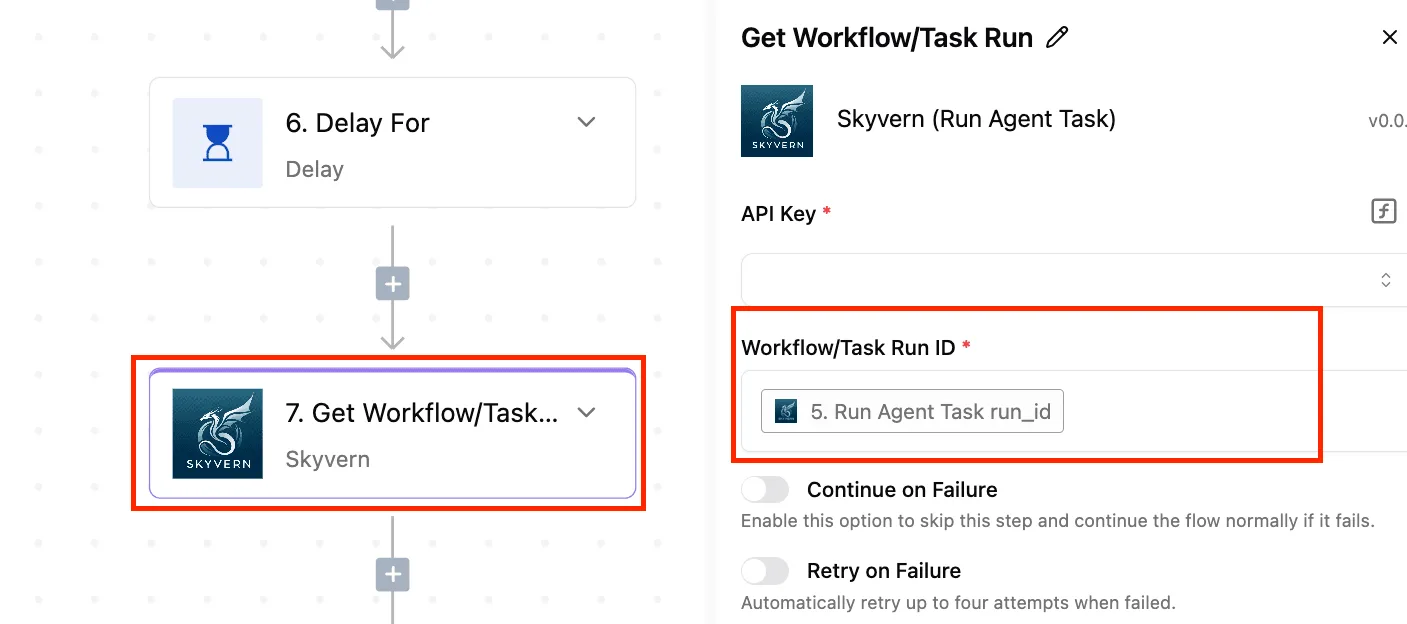
Outside Cursor, long jobs share a shape too. The canvas below is an automation flow built around Skyvern, a service that runs browser tasks with an AI agent.
Its last step, Get Workflow/Task Run, is selected, and the panel on the right wants an API key and the run ID produced by the earlier "Run Agent Task" step.
Beneath those fields sit toggles for Continue on Failure and Retry on Failure. Start the work, then fetch the result by ID, and decide up front what a failure should do.
That wait-then-check habit is what keeps background agents reviewable: their output still gets the same diff review as any other change.
Fix Cursor limits and errors
Most Cursor failures trace back to seven causes, each fixable in minutes, though usage limits, context and model availability shift with your plan and model.
Read the last column first: it tells you whether a fix carries over to your setup. The table pairs each failure with its cause, symptom and fix.
| Problem | Cause | Symptom | Fix | Varies by plan or model |
|---|---|---|---|---|
| Usage limits | Plan allowance used up | Requests refused or slowed | Use a lighter model for small tasks; check your usage page | Yes, plan and model |
| Long-chat context | Window fills with old turns | Agent forgets earlier decisions | Start a fresh chat per task | Yes, model |
| Rules not applying | Rule not attached or scoped wrongly | Agent ignores your conventions | Check the rule's scope; restate it in the prompt | No |
| Indexing stuck | Index stalled on a large repo | Search misses files | Re-index; exclude build folders | No |
| Terminal hangs | Command waits for input | Agent stops mid-task | Stop the command and rerun it non-interactively | No |
| Model unavailable | Model not offered on your plan | Model missing from picker | Pick another model or change plan | Yes, plan and model |
| Sign-in errors | Stale session | Login loops or fails | Sign out, sign back in | No |
Where one line isn't enough, the three groups below cover the failures.
When you hit a limit, your plan's allowance is spent, so the fix is spending it differently. Send small, well-scoped tasks to lighter models and keep the strongest model for planning, so one runaway chat can't exhaust your month.
Fix Cursor context loss in long chats
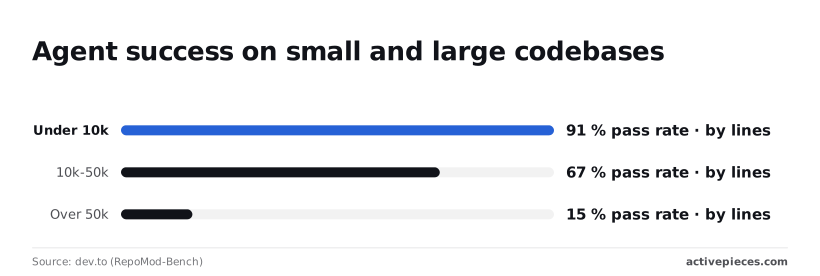
91% on codebases under 10k lines, 67% at 10k-50k lines, 15% above 50k: that is how far agent pass rates fell as repos grew, according to RepoMod-Bench.
A prompt that worked in a small repo won't transfer to a large one, so scope each task to a few files.
Not every model gets the same window size. Per Cursor SDK bundled context windows, Gemini 3.1 Pro and Claude 4.5 Opus had 200,000 tokens, GPT-5.2 had 272,000 and Claude Opus 4.8 had 300,000 at the time of that listing.
A bigger window delays the forgetting but doesn't prevent it, so start a new chat per task.
When a rule is ignored, check its scope before rewording it. A rule that's not attached to the files you're editing never loads.
For stuck indexing, re-index and exclude generated folders. For terminal hangs, stop the command and rerun it so it doesn't wait on a prompt.
Automate the work around Cursor with Activepieces
When a ticket lands in a team channel, or a merged pull request becomes a summary post, that is a handoff Activepieces can automate, and the free plan already allows unlimited flows. It does nothing inside the editor itself.
Where a workflow tool fits and where it doesn't
Test this prompt first, and note that it is not for Cursor at all: "When something happens in tool A, tell the team in tool B." That's the whole job.
Activepieces builds it as a trigger followed by actions, and a run counts as 1 credit however many steps it has, against 1,000 free credits a month. None of it touches your rules file or your diff review.
Here is the shape, in the screenshot below. The trigger is "Event Canceled" from Calendly, a scheduling tool, and it feeds two actions: "Send Message To A Channel" in Slack, the team chat, and "Send Email" in Gmail.
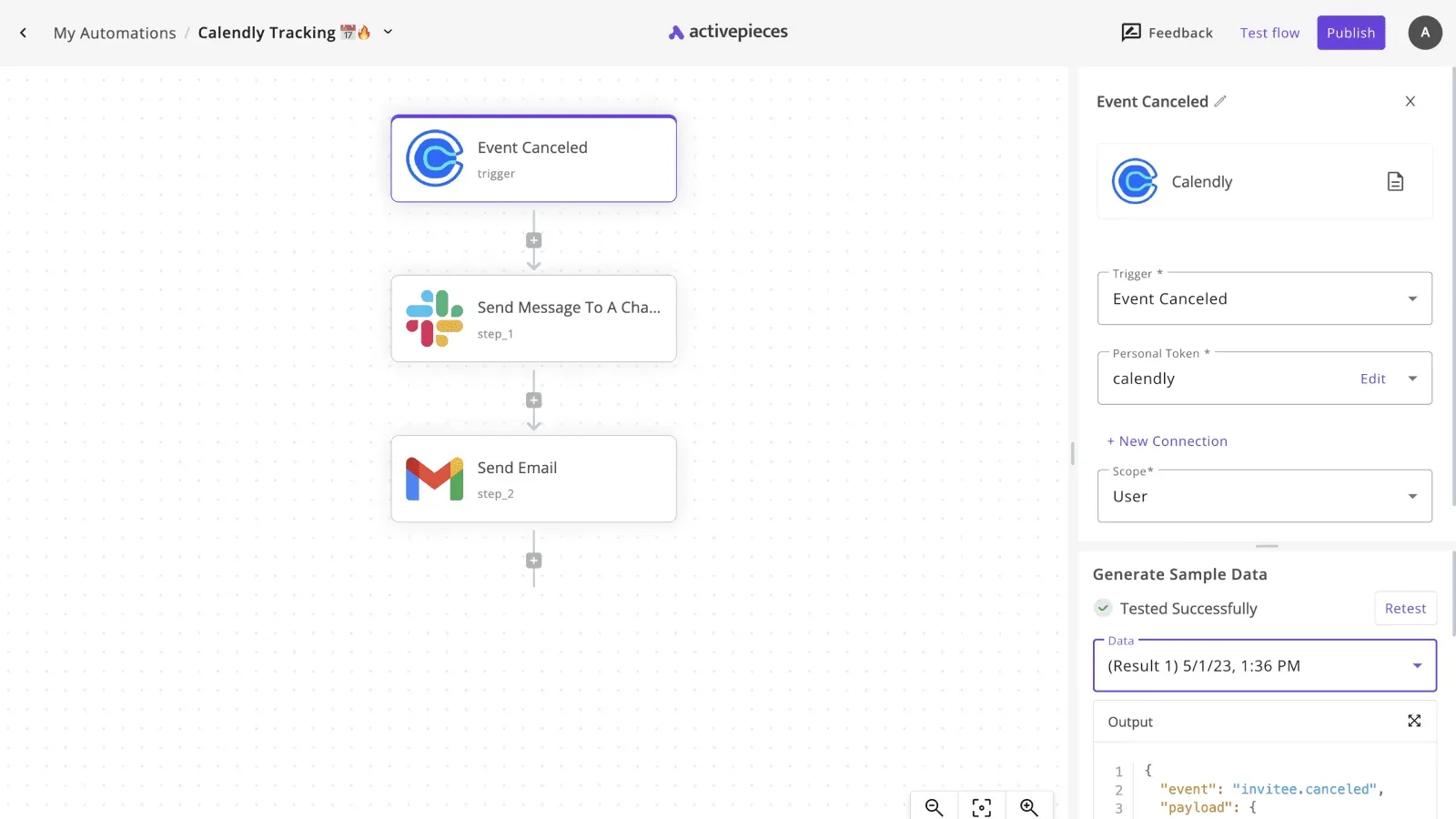
On the right, the panel holds the trigger setup, with the personal token set to "calendly" and the scope set to "User".
In the sample data, an "invitee.canceled" event is marked "Tested Successfully". Take from it the order of work: connect the account, test the trigger until real sample data comes back, and only then build the actions that use it.
Swap the trigger for a new ticket or a merged pull request and the pattern is identical. What it won't do is write code, review a diff, or fix a failed agent run.
Code judgment stays in your Cursor loop, but if a handoff needs some, like wording a summary of a merged pull request, Activepieces places an Agent step among the fixed steps of the same flow, so one run trace logs the whole execution instead of two systems bridged by a webhook, on an MIT-licensed core.
- Pick one handoff you do by hand each week, such as pasting a ticket link into the team channel.
- Write it as one sentence: "When X happens, send Y to Z."
- Build the trigger first and run the test until sample data appears.
- Add a single action, send one real message, and check what the recipient sees.
- Add a second action only after the first one behaves.
- Leave your Cursor rules and diff review exactly as they are.
Run it for a week before adding anything else. If the message is noisy or arrives in the wrong place, change the trigger or the channel, not the whole workflow.
Frequently asked questions
When the loop stalls on a setup question, the fix is usually one setting or one file, not a new workflow.
The five answers below come from Cursor's docs and are the ones that tend to block a team before it commits to the loop. Each is short enough to settle the question in a single read.
Can I use my own API key in Cursor? Yes. Cursor lets you add your own key for supported model providers in its settings.
Some features, such as its tab completion, still run on Cursor's own models, so a key replaces only part of the setup.
Does Cursor train on my code? Not with Privacy Mode on. In that mode, Cursor says your code isn't used for training and isn't stored by its model providers.
Turn it on before the first session, since the setting governs what happens to code you send from then on.
Check the current policy in the docs before you put proprietary code through it.
Do my VS Code extensions work in Cursor? Mostly, yes. Cursor is built on VS Code, so it can import your extensions, themes and keybindings in one step.
Extensions that depend on Microsoft-specific services may behave differently, so test the ones your team relies on before you drop your old editor.
How do I share Cursor rules across a team?
Commit your project rules to the repository, in the .cursor/rules folder. Everyone who clones the repo gets the same rules, and changes to them go through the same review as code.
Cursor's team plans also have team-wide rules set from an admin dashboard. Use those for conventions that should apply across every repository, and keep repo-specific rules in the repo.
Does Cursor work offline?
Only partly. You can open, edit and search files without a connection because it's a local editor. The AI features need to reach a model over the network, so chat, the agent and completions stop working when you are offline.
Related reading
Build it
Set this up in minutes.
No code required. Connect your accounts, and Activepieces runs it from there.
Start free Talk to sales