
Granola MCP Server Setup for Claude, ChatGPT, Cursor

Oct 19, 202611 min read
The Granola MCP server is a remote connector that lets an AI client read your Granola meeting notes, whether that client is a chat assistant or a workflow tool like Activepieces. Add one URL to the client, sign in through the browser, and you're done.
Nothing to install is the norm here, since Tanod counts 27,612 public MCP servers that are remote only, against 15,650 that are package only and 2,181 offered both ways. A URL-only setup is the common case.
Connect Granola MCP server quickly
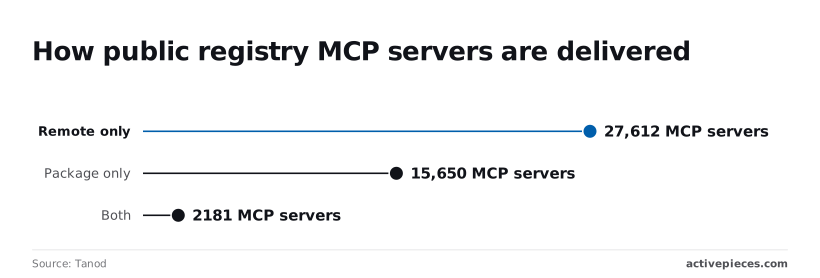
The same Tanod data puts remote-only servers at 60.1% of the total, package-only at 34.1% and both at 4.7%.
Roughly six in ten servers need no local install at all, so if a guide asks you to run a package for this one, it's describing the minority route.
What the server exposes to your AI client
Whichever client you connect gets your Granola notes, through the account you sign in with. The client sees what that account can see, so a wrong sign-in produces an empty or partial answer rather than an error.
Four things have to be in place, and a missing first item explains most failed first attempts:
- A Granola account on a plan with MCP access
- A supported client: Claude, ChatGPT or Cursor
- A browser for the sign-in step
- The remote URL: https://mcp.granola.ai/mcp
Everything after this is configuration in the client, and that's where the remaining failures sit.
The requirements come from Granola's docs and pricing page as they stood on 19 October 2026. Plan access is the item most likely to change, so check the pricing page again before you blame the server.
Everything below works on Activepieces' free plan. Start without code or a credit card.
Step-by-step: connect Granola MCP to your AI client
Once your plan covers it, setup is one remote URL, https://mcp.granola.ai/mcp, and one browser sign-in, and each stage below leaves something working before you move on.
For Stage 1, check that Granola has notes to read. Open Granola and confirm at least one meeting note exists in the account you'll sign in with.
An empty account connects without any error and then answers every question with nothing, which looks exactly like a broken server. Fixing that now saves you from debugging the wrong layer in Stage 4.
An empty account connects without any error and then answers every question with nothing, which looks exactly like a broken server.
Stage 2 is adding the server in Claude. The steps below are the full path, since nothing is installed locally and the sign-in is the only point where you leave Claude.
- Open Claude Settings, then Connectors.
- Choose Add custom connector.
- Paste
https://mcp.granola.ai/mcpas the URL. - Finish the sign-in in the browser window that opens, using the Granola account from Stage 1.
- In a chat, open the tools menu and enable Granola.
- Run a test prompt (Stage 4).
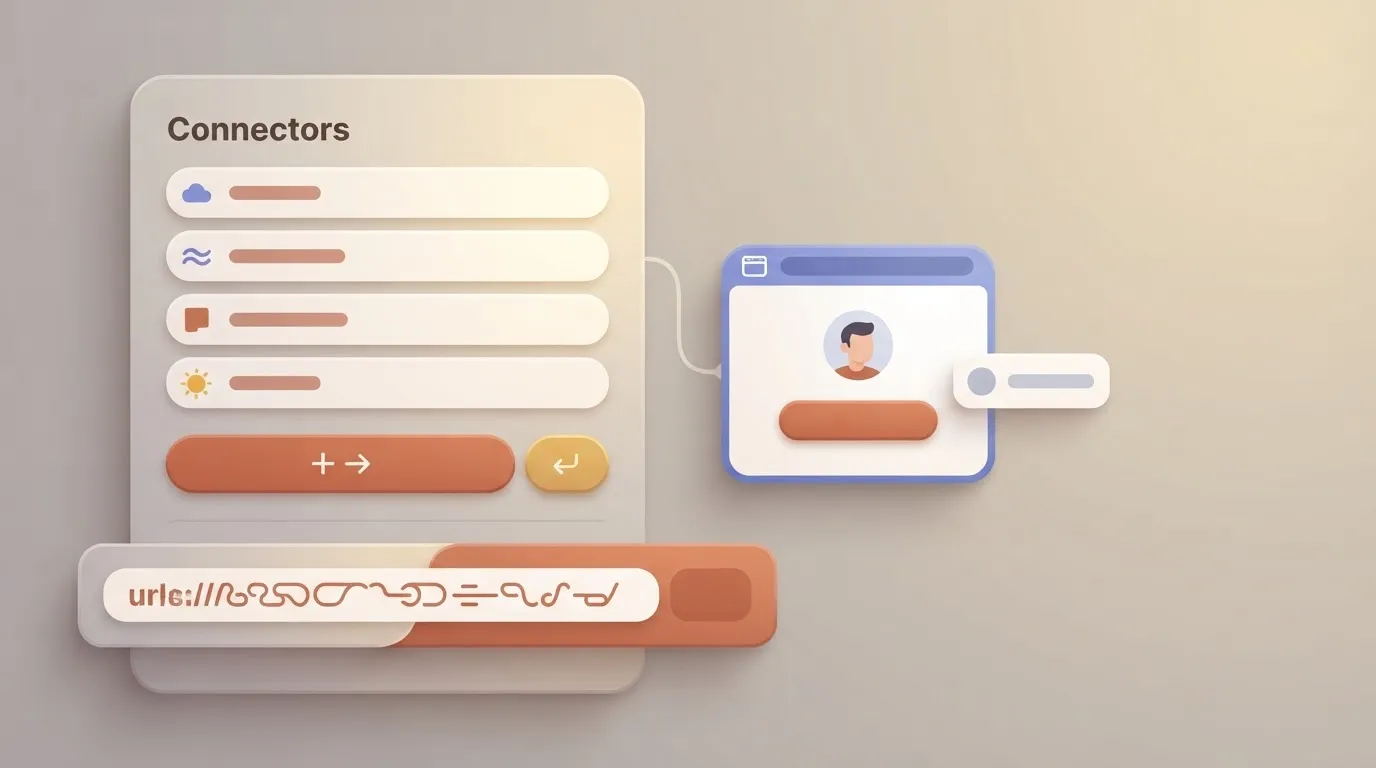
Step 5 is the one people skip. A connector that's signed in but not enabled in the chat is invisible to the model.
Stage 3: Add the server in Cursor or another client
Cursor takes the same URL in its mcp.json. Add an entry named granola whose url is https://mcp.granola.ai/mcp, save the file, and complete the browser sign-in when Cursor prompts.
Because the server is remote, there's no command to run and no package to keep updated. A typo in the JSON is therefore the most likely fault, so check the file before you suspect Granola.
Claude, ChatGPT and Cursor are the clients covered here. Any other client that supports remote MCP servers with browser sign-in should accept the same URL, but we haven't tested them, so treat them as unverified.
Test Granola MCP with a first prompt
Ask something that can only be answered from your notes, such as: "Using Granola, list my most recent meetings and summarise the latest one."
A real meeting title in the reply means the whole chain works. If the reply says it has no Granola tool, go back to the tools menu or the client config. If it finds nothing, go back to Stage 1.
Review Granola plan, rate, and data limits
Granola MCP plan and history limits
A meeting from five weeks ago returns nothing on a Basic plan, because the history window is 30 days, and it looks exactly like a broken connection. That's why Stage 1 can come back empty when the server itself is healthy.

The table below sets out what Granola's docs and pricing page state for each plan, with "not documented" wherever they're silent. The practical reading is that history is the one limit you can plan around, and everything marked "not documented" is a limit you can't.
| Plan | MCP access | History window | Transcript availability | MCP rate limit |
|---|---|---|---|---|
| Basic | not documented | 30 days | not documented | not documented |
| Business | not documented | Unlimited | not documented | not documented |
| Enterprise | not documented | Unlimited | not documented | not documented |
Business and Enterprise lift the window entirely, so if a search for an old meeting fails on Basic, upgrading changes the result. Re-running the connection doesn't.
Rate limits and what the server can read
Granola's documentation says MCP rate limits vary by plan and tool and currently average around 100 requests per minute across all tools, though they are subject to change, so a client that stalls under a burst of requests may be hitting that limit.
Treat a stall as a possible rate limit, space out your calls, and remember Granola says its limits are subject to change.
What the server can read depends on the account you signed in with. It reads that account's notes within its plan's history window.
A meeting held in a different account won't appear, however many times you reconnect. Whether transcripts come back on every plan is likewise not documented, so a notes-only reply isn't proof of a fault.
What Granola MCP cannot do
Anything older than your plan's history window is out of reach, which on Basic means nothing past 30 days. A meeting from an account other than the one you authenticated won't show either.
And neither a rate limit nor a transcript guarantee can be checked, because neither is documented. Before you blame the server, check these three: your plan, your account and your client configuration.
Easier to see it running than to read about it: set it up free, no card.
Run this in Activepieces: send new Granola notes onward
Once a client can read your notes, a four-step Activepieces flow can carry action items from each new Granola note to Slack or Notion without anyone opening the app, built on the 741 integrations in Activepieces' MIT-licensed core. The steps run in this order:
- Start the flow on a schedule, or on a webhook if another tool can signal that a meeting has ended.
- Fetch new Granola notes through its MCP server or an HTTP request.
- Add an AI step that extracts the action items from each note.
- Post those items to a Slack channel or a Notion page.
If step 2 returns nothing, check the plan, account type and client config first, because those cause most failures here. The flow itself is rarely the problem.
Activepieces runs its own per-project MCP server, so the Claude or Cursor client you already connected to Granola can create, edit and explain this flow too, with no builder UI opened, and the flow's run history and audit logs show what happened when it runs.
That is a second connection, separate from Granola's, and MoneyGram, Moneypenny, Alan and FundingSocieties run Activepieces in production.
The free plan on Activepieces Cloud is $0 with unlimited flows and 1,000 credits a month, so building this flow costs nothing.
Fix Granola MCP errors
Nearly every Granola MCP error traces to one of five causes, and each is fixed on your side of the connection, not by changing the server.
The table pairs what you see with why it happens, so start from the row that matches your client's message.
| Symptom | Cause | Documented fix |
|---|---|---|
| Sign-in loop | OAuth consent not completed, or wrong account chosen | Restart the sign-in and finish the consent screen in the browser |
| Failed connection | Wrong URL or outdated client | Copy the remote URL from Granola's docs and update the client |
| Empty results | Meetings fall outside your plan's history limit | Query within the history your plan covers |
| Account mismatch | Signed in with a different account than the one holding the notes | Re-authorize with the account you use in Granola |
| Client needing a remote bridge | Client only supports local servers | Connect through a bridge that relays to the remote URL |
The paragraphs below cover what each row means in practice.
When authorization fails or keeps looping, the cause is usually unfamiliarity. Only 1% of MCP servers use OAuth sign-in, according to NimbleBrain, so a browser consent screen is the step most people haven't met in an MCP setup.
Finish it in the same browser profile as your Granola account. If the client reports a failed connection before any browser opens, check the URL character by character against the docs.
When the server connects but returns no meetings, that clean connection with an empty list isn't a server fault.
Granola limits how far back your plan lets you read, so older meetings return nothing even though the sign-in worked. Check the plan first, then ask for a recent meeting you know exists.
If your client doesn't support remote servers, it can only launch local ones. Granola's server is remote, so those clients need a bridge that relays to the URL. Without one, the client has nothing to start and fails at connection.

If you signed in with the wrong account, remove the server from the client and add it again, then complete the sign-in with the correct account. Re-authorizing replaces a bad session, which is usually faster than debugging one.
Frequently asked questions
Most of these answers turn on your plan, your account type and your client, not on the server, so check Granola's current docs before you rely on any of them.
Cost and client support
Is the Granola MCP server free to use? Connecting costs nothing extra: it's one remote URL and one sign-in.
What you can reach through it depends on your Granola plan, because the plan decides how much note history your account holds. If a query returns less than you expect, check the plan before you suspect the connection.
Does the Granola MCP server work with ChatGPT? It can, but the limit sits on the ChatGPT side.
ChatGPT accepts custom remote servers only on certain plans and settings, and a workspace admin may switch that off. If the option is missing, the cause is your ChatGPT account, not Granola.
What the server can do
Can Granola MCP edit or create notes? In the docs checked, the server is for reading: searching and retrieving your meeting notes, and nothing documented lets an assistant rewrite a note or start a new one.
Treat it as read-only unless Granola's tool list says otherwise.
Does Granola MCP need a desktop app running? No, as far as the docs show.
The server is hosted and you sign in through the browser, so querying works with the app closed. The app matters earlier, when it records and produces the notes you later query.
Accounts and open questions
If a colleague gets results you don't, compare accounts before you debug the client. The server sees what your signed-in account can see, so a different account type or workspace sees a different set.
Four questions stay open because the docs checked don't settle them:
- Which clients does Granola document as supported?
- Do notes that are still processing appear in results?
- Does Cursor's 40-tool cap affect Granola?
Until Granola answers them, test each in your own client and note the date you tested.


