
Zendesk MCP Server Setup Guide for Claude (2026)

Oct 18, 202612 min read
The Zendesk MCP server is a connector that lets an AI client such as Claude read and act on your Zendesk data through the Model Context Protocol, much as tools like Activepieces let other apps hand work to an AI model.
Setup is short if three things are in place first.
Set up your Zendesk MCP server
What the Zendesk MCP server does
It exposes Zendesk operations, such as looking up tickets, as tools your client can call, so the assistant works with live data instead of pasted exports. It doesn't fix bad permissions or a broken client config. It only passes along whatever access you gave it.
It grew fast. dataku.ai counted 50 public MCP servers in November 2024, 180 in January 2025, 520 in March and 1,100 in May. The count reached 1,800 in July and 2,600 in September 2025.
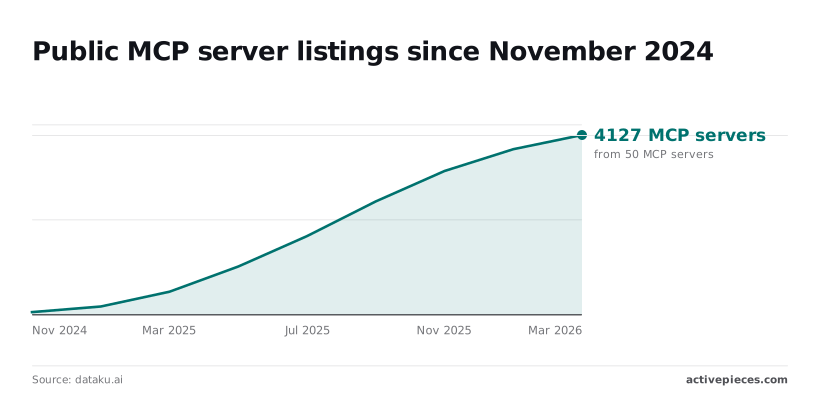
Because listings grew in every period, you'll find several Zendesk options. Most are third-party and uneven in quality, so check who maintains the one you pick.
They differ most on cost.
Swifteq, a vendor selling its own Zendesk MCP server, charges 49 € a month for the base plan, then 9 € for the second seat and 9 € for the third.
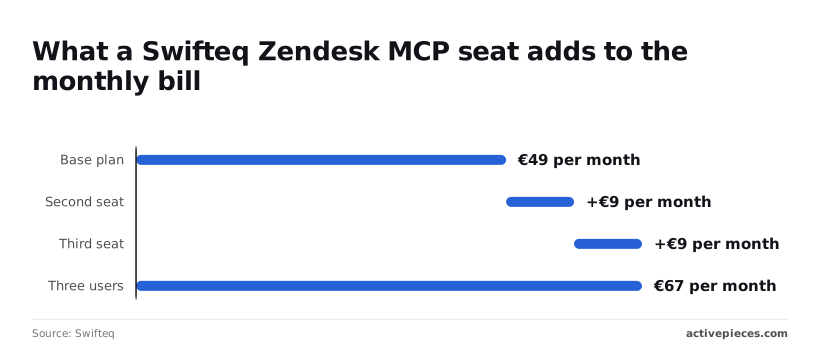
According to Swifteq, three users therefore cost 67 € a month, and the entry fee is the main cost, not the extra seats.
With the official server, I can't find a per-seat add-on from a third party, but I can't confirm that it simply follows Zendesk's own plan terms.
If a setup fails, it is almost always one of three prerequisites. Activepieces, with 741 integrations counted from its open source repo, can reach Zendesk without MCP, but if you want MCP, these are the checks, and "done" means:
- The feature is enabled in Admin Center, and the setting shows as on for your account.
- The credentials are authorised under a role that can read what you plan to query, and a test call returns data instead of a 401 or 403.
- The client config points at the right server and loads cleanly, with the Zendesk tools listed in the client.
Work through them in that order. A client config that's perfect still fails against a feature that's switched off.
If the official server follows Zendesk's plan terms, availability depends on your plan. I couldn't verify the exact plan-by-plan matrix, so confirm it in Admin Center before you budget time.
On roles, the assistant sees only what the authorising user can see. If a ticket is invisible to that role, it's invisible to the model too.
This takes minutes, not a project: automate it in Activepieces free.
Connect Zendesk to your MCP client
Four steps, and each leaves something working, so you can identify which step broke.
The four are access enabled in Admin Center, a credential that authenticates, a client that lists the server's tools, and one read that returns a real ticket.
The role you authorise as in step 2 is the one the model sees through, so pick it deliberately.
Open Admin Center, go to Apps and integrations, then APIs, then the Zendesk API page. Switch on token access there. If you skip this, every later call fails with a 401 that looks like a bad credential but is a switched-off feature.
When the toggle is on and saved, the account will accept API requests, which is all this step has to leave you with.
Step 2: Authorise the connection
On the same page, create an API token and copy it immediately, because Zendesk shows it once. If your server uses OAuth instead, create an OAuth client in the same area and record its client ID and secret.
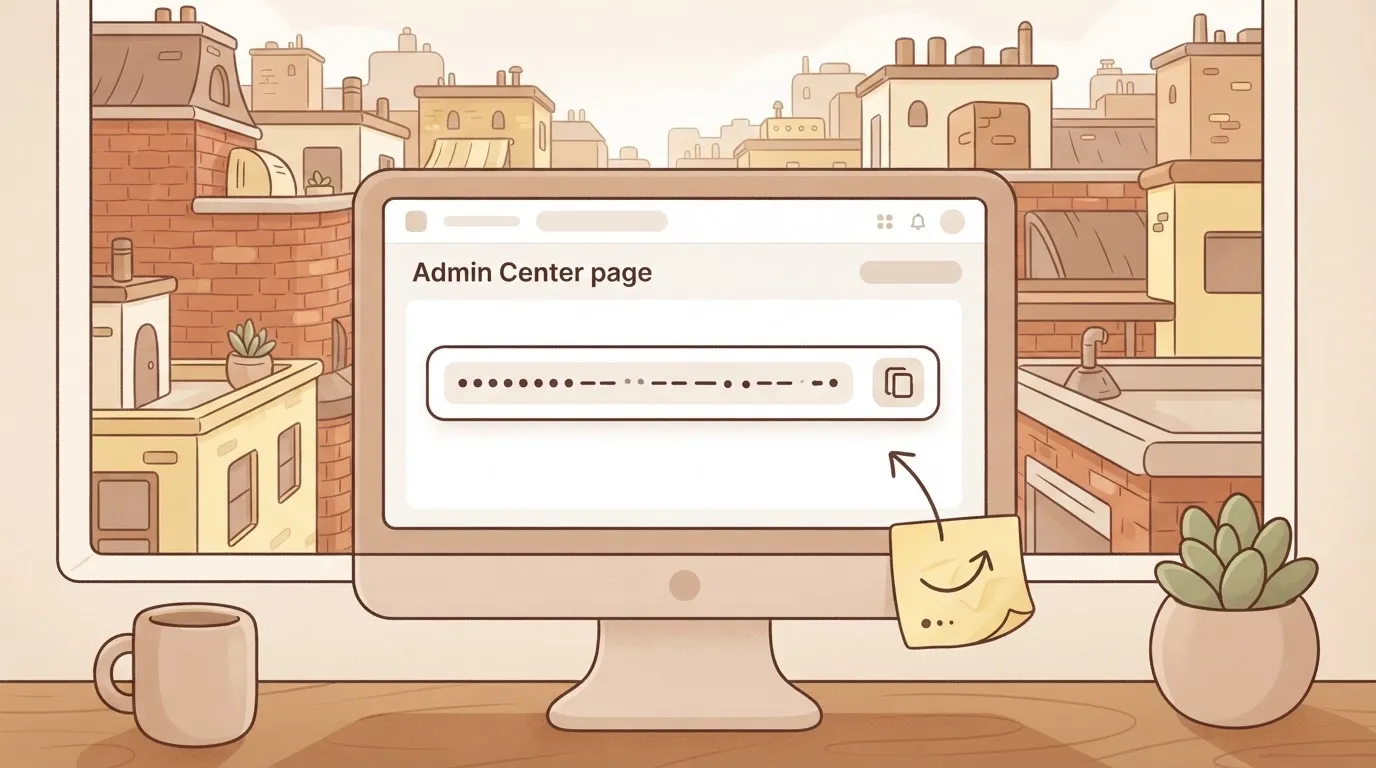
Authenticate as a user whose role can see the tickets you care about, not as a full admin by default. You now hold a credential you can test with a plain HTTP request before any MCP client is involved, and you should.
Step 3: Add the server to your MCP client
In the client's MCP configuration, add one entry with a name, the command and arguments (or URL) from your server's documentation, and an env block.
Put your Zendesk subdomain, the email of the authorising user and the token in that block, using the variable names the server documents.
Keep the token out of any file you commit. Restart the client fully, since most only read the config at launch. Success is the server appearing in the tool list with its Zendesk tools.
Test your Zendesk MCP server read-only
Ask the client to list a few recent tickets or fetch one by ID. Don't test with anything that writes. A correct answer means all three layers hold; an empty result usually means the role can't see those tickets.

Afterwards, check that the test touched nothing. An audit log lists each resource, the action taken, who performed it and when, so a read-only test should leave no created, updated or deleted rows.
If the log is clean and the ticket came back, you're done; if not, the fault is in the prerequisites, the permissions or the client config, in that order.
Fix Zendesk MCP server limits and errors
When something breaks here, it is a rejected credential, a throttled request, or a server that never exposed the tool you asked for.
The table maps each symptom to its cause and fix, and marks whether the advice comes from Zendesk's documentation or from general MCP troubleshooting.
| Symptom | Likely cause | Fix | Source |
|---|---|---|---|
| 401 unauthorised | Wrong subdomain, revoked or mistyped API token, token access disabled | Regenerate the token, confirm the subdomain, check API access is enabled | Zendesk docs |
| 429 rate limited | Too many requests inside the plan's window | Honour the Retry-After header, batch calls | Zendesk docs |
| Tools missing | Server exposes a small tool set, or client cached an old list | Check the server's tool list, restart the client | General MCP troubleshooting |
| Empty results | Agent role can't see those tickets, or the query is too narrow | Test the same search in the Zendesk UI as that user | Zendesk docs |
| Write refused | Read-only role or scope | Grant a role that can edit tickets | Zendesk docs |
If you see a 401, Zendesk rejected the credential, so fix the token or subdomain before touching the client. A refused write is different: the login worked, but the role behind it can't edit.
When a 429 comes back, Zendesk is telling you to slow down, and the response carries a Retry-After header saying how long. A loop that asks for every ticket one at a time will hit it quickly, so ask for fewer, wider calls.

Fix missing tools or empty Zendesk results
Expect enormous differences in tool counts between community servers. BusyBee3333 exposes 89 tools, Swifteq 41 and fruggr 37. mattcoatsworth has 17, Mindstone 16 and markusvankempen 14.
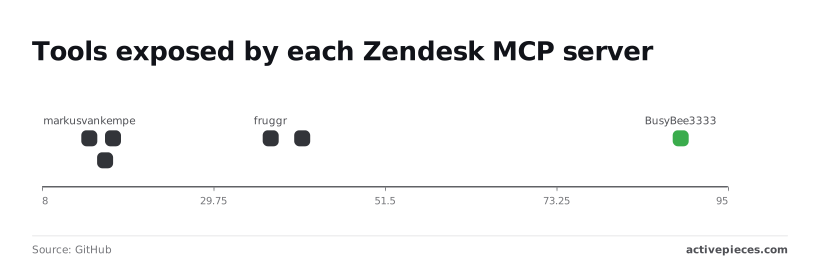
That's a gap of more than sixfold, so a prompt written against the 89-tool server can ask for something the 14-tool one simply doesn't have.
Before blaming your config, list the tools your server actually registers.
When results come back empty, it usually means the authenticated agent can't see the data, not that the data is absent.
Suspect the client config if the server runs from a terminal but the client shows no tools. The usual causes are a wrong path, a missing environment variable, or a client that wasn't fully restarted. Read the client's MCP log first.
You can follow the rest of this with the builder open. Start free, no card.
Run this in Activepieces for ticket work around the server
Once the log shows the server answering, Activepieces comes at the missing-tools problem from the other side: connect Zendesk once and the same integration runs as a flow step and as a tool schema on the project's MCP server, which Claude, ChatGPT, Cursor or an agent you wrote yourself can call, so no second catalog ever needs publishing.
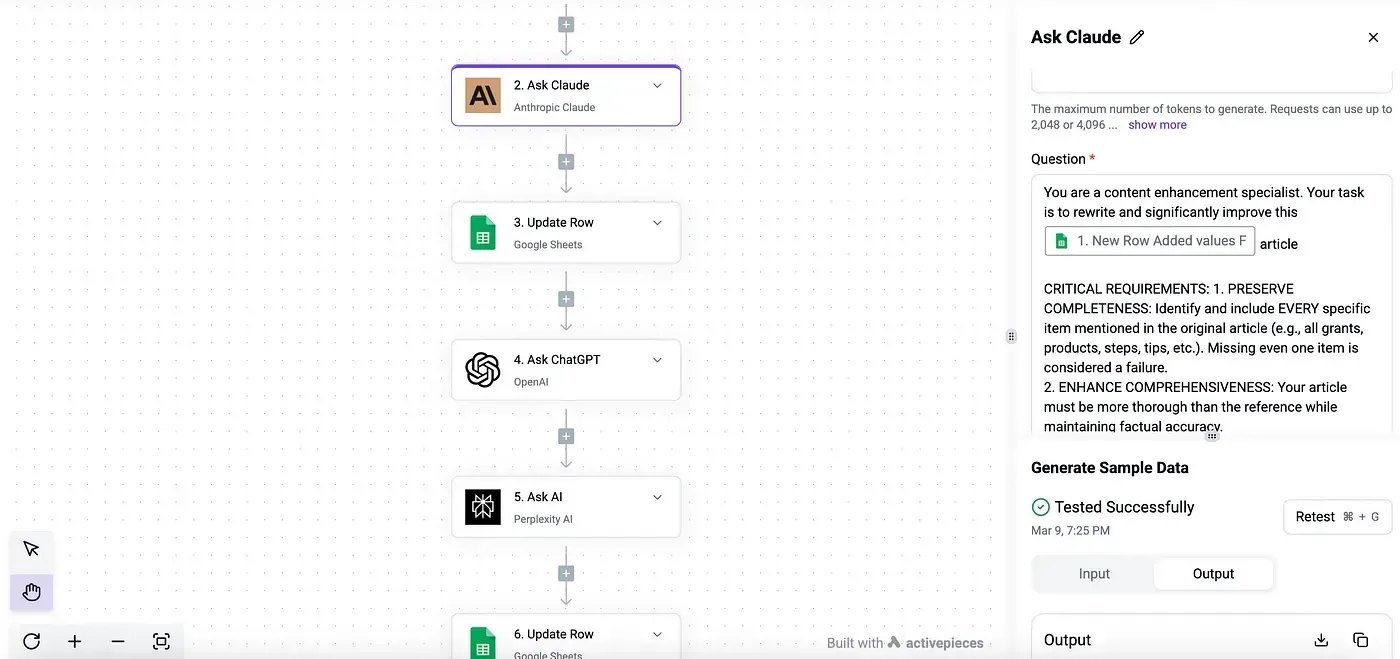
The action in packages/integrations that a flow runs is the one the agent invokes, across 741 integrations, so there is one action to check, not two.
The flow below shows that split: Activepieces supplies the trigger and the delivery through integrations, roughly 60% of them community-contributed, and the model only drafts.
- A new Zendesk ticket starts the flow.
- An HTTP request, or your Zendesk MCP server, pulls the requester's history and the ticket's comments.
- An AI step turns that context into a short summary for whoever picks the ticket up.
- A Slack step sends the summary to the support channel.
If step 2 returns nothing, step 3 summarizes an empty ticket, so fix the permissions from earlier before blaming the model.
Nothing here replaces the server. It only keeps the server from sitting idle until someone remembers to ask, and the free plan on Activepieces Cloud includes unlimited flows and 1,000 credits a month, with no card needed.
Check your Zendesk MCP setup on Monday morning
Run five checks: confirm the agent's role is least-privilege, rerun the read-only test, review what it can write, recheck Zendesk's docs, and record the date you did it. A scheduled flow keeps the server busy, but it doesn't keep the setup correct.
When something breaks later, it mostly shows up as a 403 Forbidden on a call that worked last week. The cause is rarely the server.
Someone widened the agent's role to get past an earlier error and never narrowed it again, or someone tightened it and forgot the agent depended on the old scope.
When something breaks later, it mostly shows up as a
403 Forbiddenon a call that worked last week. The cause is rarely the server.
Either way, the setup has drifted from what you tested, and MCP won't tell you. It has no built-in way to flag that an agent's permissions changed underneath it.
Of the five, the write review matters most. Reading tickets is hard to get badly wrong.
Writing is where an agent can reassign a queue, post a public reply, or close something a customer was still waiting on. Look at which tools your client exposes and ask whether each one is something you'd hand an unsupervised new hire on day one.
Here's the Monday list, in the order that catches the most problems first:
- Confirm the agent runs under a least-privilege role, and that nobody has widened it since the last check.
- Rerun the read-only test: a simple ticket lookup should succeed, and a write attempted under that same read-only setup should be refused.
- Review every write action the agent can take, and remove any you can't justify.
- Recheck the Zendesk documentation for changes to authentication, scopes, or the MCP server itself.
- Note the date. This article was last checked on 18 October 2026.
That last line is a caveat, not decoration. Zendesk's behavior can change after that date, and anything here that disagrees with their current docs should lose to the docs.
If all five pass, you're done until next week. If one fails, go back to the part of the setup it belongs to: prerequisites, permissions, or client configuration. The fix is almost always in one of those three.
Frequently asked questions
Is the Zendesk MCP server free to use?
I can't point to a separate MCP charge in Zendesk's docs, so don't budget for one, and don't assume there isn't one either.
What you're certain to pay for is the Zendesk plan the server runs against and whatever the AI client costs on its own side.
Confirm with your Zendesk account contact before a rollout, because availability can depend on plan.
Can the Zendesk MCP server create or edit tickets, or only read them?
That depends on which tools the server exposes and what the authenticated account is allowed to do, and both are checkable.
Read the tool list your client shows after connecting. If a write tool is missing, the server may not offer it.
If it's there but errors out, look at the permissions on the role or credential behind it. A 403 on an update is almost always the second case, not a bug.
Does the Zendesk MCP server work with Claude, ChatGPT and Cursor?
In principle, yes for any client that speaks MCP, and all three have MCP support in some form. In practice, each one takes its own configuration format, and its own way of handling authentication.
Copying a working config from one client into another is how people end up with a server that "connects" and lists no tools.
Follow the client's own MCP setup docs, not a generic snippet. I won't claim an official, tested walkthrough exists for each of the three, because I can't back that up.
Giving an AI agent access to Zendesk data is as safe as the permissions you hand it, and MCP does nothing to narrow them for you.
Tickets contain customer names, emails and whatever people paste into a complaint, and anything the agent reads goes to the model provider your client uses. So:
- Give it a dedicated account with the narrowest role that does the job.
- Start read-only.
- Test against a sandbox before production data.
- Don't enable write tools until you've watched what the agent does with them.
None of that is solved by the protocol. It's on you.
Related reading
Build it
Set this up in minutes.
No code required. Connect your accounts, and Activepieces runs it from there.
Start free Talk to sales