
Gmail Mailchimp Integration: How to Set It Up (2026)

Nov 20, 202616 min read
A Gmail Mailchimp integration is a workflow, which you can build in a tool like Activepieces, that watches one side for an event and changes the other.
Either an email arrives and an audience record changes, or an audience event fires and an email goes out.
The fastest path is to build only those handoffs in a no-code tool, using each connector's listed triggers and actions. Where the connector has no step for what you need, you add an HTTP request step.
Look at the picture below for the two directions and the workflow that sits between them. Take from it that the workflow is the only place the logic lives, so every rule you write belongs in that middle box and not inside either app.
Once both connectors are in place, a first working flow fits in one sitting. Gmail and Mailchimp each have a connector in any no-code tool worth using, and a workflow joins one to the other.
Get Gmail Mailchimp integration running fast
Next, the handoffs people build most often.
What people automate between Gmail and Mailchimp
Whichever way you start, most flows run in one of two directions. In the first, a message that matches a rule, such as a label you apply to signup requests or a search like label:newsletter-signup is:unread, adds or updates a subscriber.
In the second, a Mailchimp event sends a personal email from your own inbox.
From any of the triggers the Mailchimp connector lists, a Gmail message can go to your team or to the subscriber: a member subscribing, a member unsubscribing, a subscriber being updated, a link click, an email open and a new campaign.
Requirements for Gmail Mailchimp integration
You need a Gmail account you can authorize, a Mailchimp account with at least one audience, and permission to connect both. Decide your matching rule first, whether a label or a search query, because that rule decides which emails reach the audience.
Check whether the Gmail trigger accepts a label or a query before you design around either. Gmail's API can behave differently from what the search box suggests, so test with a real message before trusting the filter.
Sources and date checked for Mailchimp triggers
Checked on 2026-11-20. The Mailchimp triggers named above come from the public pieces API of Activepieces, read that day and mirrored on the Mailchimp piece page.
Gmail's API can behave differently from what the search box suggests, so test with a real message before trusting the filter.
Where the listed steps don't cover something, it is marked as an HTTP request step. That tells you which parts rest on a listed trigger or action and which depend on a call you write yourself.
This takes minutes, not a project: automate it in Activepieces free.
Five Gmail and Mailchimp workflows worth building
Four workflows come first: enquiry to contact, event to message, label to audience, and reply to note. Each marks where it needs an HTTP request step.
| Workflow | Trigger | Action | App of the action | Work saved | HTTP request step? |
|---|---|---|---|---|---|
| Enquiry to contact | "New Email" | "Add or Update Subscriber" | Mailchimp | Retyping senders into the audience | No |
| Event to message | Mailchimp webhook | "Send Email" | Gmail | Hand-writing follow-ups | Yes, for the trigger |
| Label to audience | "New Labeled Email" | Mailchimp API call to set tags | Mailchimp | Manual tagging | Yes |
| Reply to note | "New Email" | "Add Note to Subscriber" | Mailchimp | Pasting replies into records | No |
| Approval by email | Mailchimp webhook | "Request Approval in Email" | Gmail | Chasing sign-off | Yes, for the trigger |
Prices and plan limits checked against activepieces.com and activepieces.com on November 20, 2026.
How to read the Gmail Mailchimp trigger table
Take that as a map of where to test first: Gmail supplies a listed trigger in every row, and the Mailchimp side mostly uses listed actions.
Add Gmail enquiries as Mailchimp contacts
Search to:[email protected] -from:me to see what the enquiry flow catches. "New Email" fires on each match, and the "Add or Update Subscriber" action then adds or updates the sender as a Mailchimp member. Filter out your own address first, or you'll subscribe yourself.
Event to message
When the event-to-message flow starts from a Mailchimp webhook, "Send Email" writes from your own mailbox. Mailchimp's benchmark data shows Non-Profits opening at 40.04%, Education at 35.64%, Business + Finance at 31.35% and Ecommerce at 29.81%.
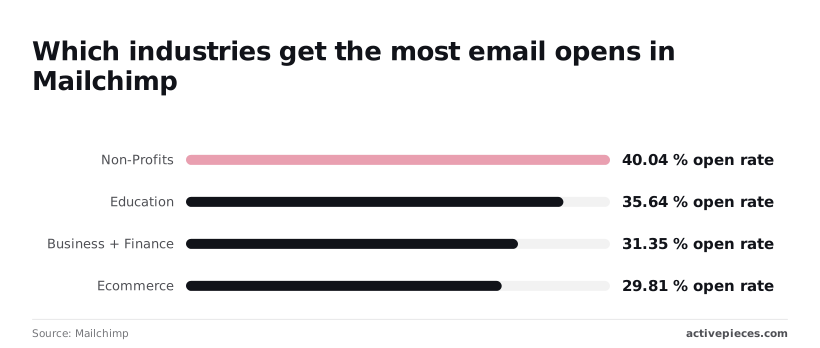
Judge your own list against its sector, because a ten-point spread means a follow-up cadence tuned for one sector will misfire in another.
Add labeled Gmail emails to a Mailchimp audience
Because "New Labeled Email" fires only when a message gets a label, your Gmail filter, not the automation, decides who counts. Keep the filter strict. A loose one tags the wrong people, and a wrong tag in an audience is slow to unpick.
Save Gmail replies as Mailchimp notes
For classified replies, "New Email" passes the body to a classification step, and the result goes to Mailchimp as a note through the "Add Note to Subscriber" action.
Use a small model such as Claude Haiku 5.5, since this is high-volume, latency-tolerant sorting. A person should still read anything labelled as a complaint.
What the connectors list
17 actions and 9 triggers for Mailchimp, 11 actions and 4 triggers for Gmail: that is what the public connector listings show.
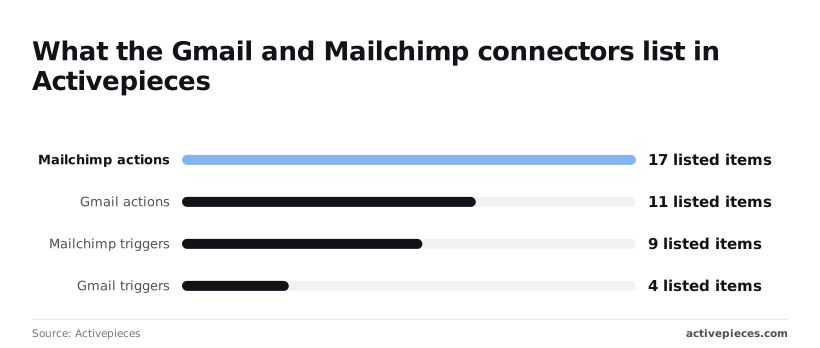
Gmail's four triggers are the whole list of ways an inbox event can start a flow. Anything outside them, and any Mailchimp operation without a listed action, goes through an HTTP request step or a webhook you configure yourself.
Build the enquiry-to-subscriber workflow in Activepieces
To build it, you connect both accounts, add the trigger, add the action, then test and publish. None of that needs the HTTP fallback, because Activepieces lists a Gmail trigger and a Mailchimp action that cover this handoff.
You can also skip the clicking: describe the handoff in plain language to the built-in chat, for instance "when an email arrives under the enquiry label, add the sender to my audience", and it builds and publishes the flow for you.
What it publishes is a live flow in your account, the same kind of flow the four stages below produce, and each execution leaves a run trace showing exactly what happened.
It runs under the same RBAC and audit logs as a flow built by hand, and MoneyGram, Moneypenny, Alan and FundingSocieties run Activepieces in production.
Stage 1: connect Gmail and Mailchimp
Before opening the builder, create a Gmail filter on to:[email protected] that applies a label such as enquiry. The label keeps newsletters and replies out of the flow, so only real enquiries reach Mailchimp.

In Activepieces, open Connections, add Gmail and approve the Google consent screen, then add Mailchimp and authorise it. Both should show as connected before you build anything.
Stage 2: add the Gmail trigger and load sample data
Create a new flow and choose the Gmail integration's New Email trigger. Select your Gmail connection and restrict it to the enquiry label if the trigger offers that field. Then use the load sample data option.

If your inbox has no matching message, send yourself one first, because the trigger polls rather than fires instantly and the sample comes from a real email.
Open the sample and confirm you can see the sender address, the sender name and the subject. Those are the values you map next.
Stage 3: add the Mailchimp action and map fields
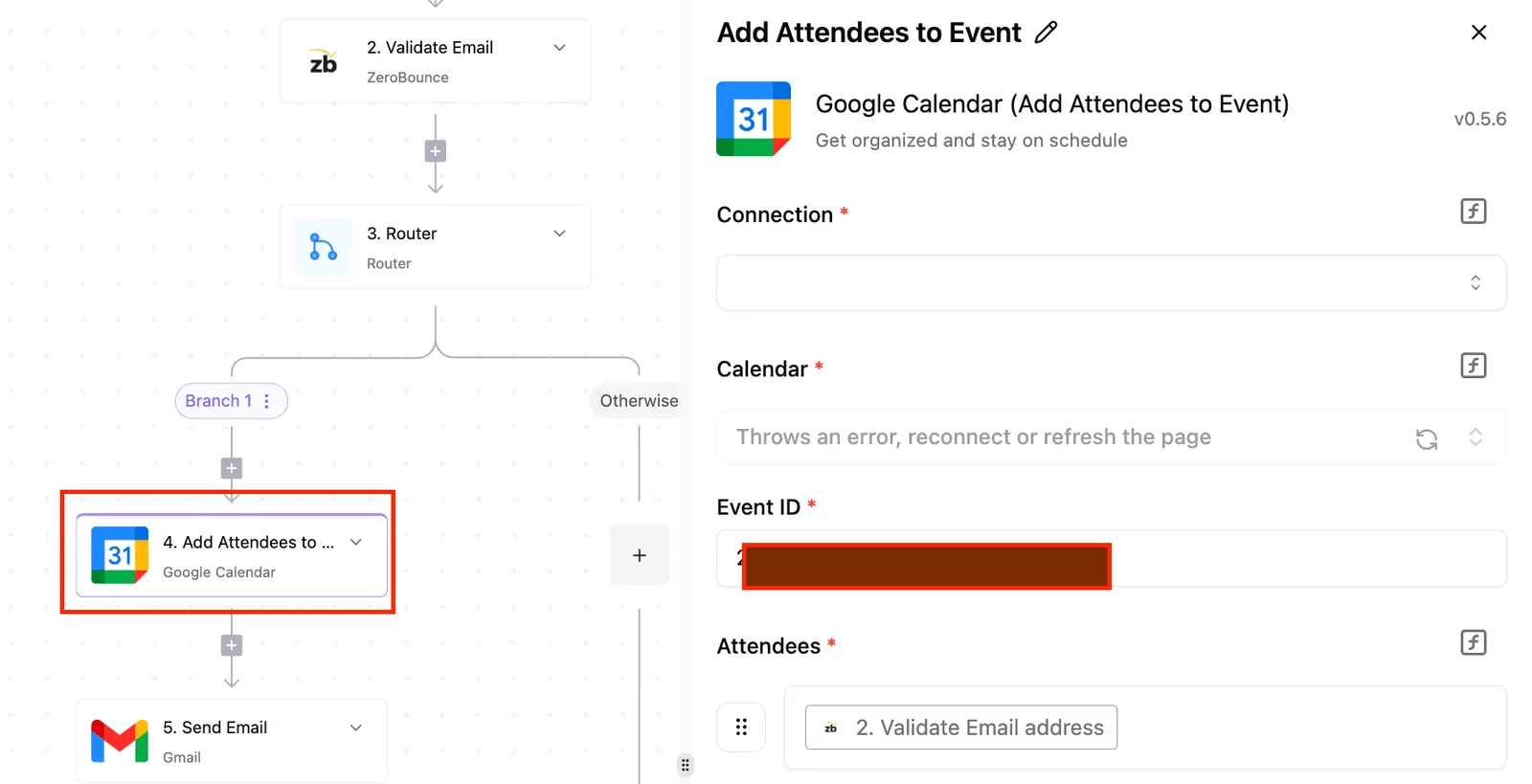
Add the Mailchimp integration's Add or Update Subscriber action. If your version words it differently, pick the action that adds a subscriber to an audience. Fill the fields in this order:
- Choose the audience that should receive enquirers.
- Map the email field to the sender address from the Gmail step.
- Map the first name to the sender name, if the action exposes a name field.
- Set the status to subscribed only if the person has agreed to marketing. Otherwise use a transactional or pending status, so an enquiry isn't treated as consent.
On the canvas below, a step sits between a trigger and a mail action. A loop feeds an Ask AI step set to the Anthropic provider, and its output goes to Gmail's Send Email.
The Model field still reads Select an option, and that step won't run until you pick one. You would insert a step like this between Stages 2 and 3 only if you wanted to clean up the sender name before it reaches Mailchimp.
With the fields mapped, the flow is ready to test.
Stage 4: test, check Mailchimp, publish
Run the test on the Mailchimp step, using the sample from Stage 2. Then open your audience in Mailchimp and look for the contact. A real address and name in the audience means the flow works.
If the contact is missing, check the status you set and whether the address already existed. Once it appears, publish the flow, send one fresh email to the enquiries address, and watch the run complete.

You can follow the rest of this with the builder open. Start free, no card.
Limits and errors in Gmail to Mailchimp workflows
When the test run fails or does nothing, the cause is almost always one of eight things, each with a fix below, and none of them needs a rebuild.
Read the source column first, because limits change and the vendor page wins over this article. The table pairs each symptom with its likely cause, the repair, and the vendor documentation to check.
| Symptom | Cause | Fix | Source |
|---|---|---|---|
| Run fails with an auth error after working for a while | Expired or revoked authorization | Reconnect the account and rerun | Google account security settings |
| Gmail step reports insufficient permission | Connection granted without the needed scopes | Delete the connection, recreate it, tick every requested scope | Gmail API docs, authorization |
| Same person appears twice | Add step creates instead of updating | Use the add-or-update action, keyed on email | Mailchimp Marketing API docs, members |
| Contact isn't added or never receives the campaign | Status is unsubscribed or cleaned | Don't force a resubscribe; get fresh consent | Mailchimp help, subscriber status |
| Intermittent failures under load | HTTP 429, too many requests | Slow the flow, retry with a delay | Mailchimp Marketing API docs, limits |
| HTTP request step fails on a slow call | Request exceeds the step's timeout | Make the call lighter or split it | Your workflow tool's limits page |
| Flow fires on the wrong messages | Trigger watches too much mail | Narrow with a label or search filter | Gmail help, search operators |
| Outbound mail stops or bounces | Gmail daily sending limit reached | Wait for reset; send bulk mail through Mailchimp | Google Workspace limits page |
Those rows are the checklist. The paragraphs below explain which one to suspect first.
When a password changes or an app grant is revoked, a flow that ran fine yesterday breaks, which is why authorization failures come first: they arrive without warning. Reconnecting fixes it.
If the error is about scopes, it appears on the first run, and it means the connection was created with fewer permissions than the step needs.
Use add-or-update keyed on the email address, so a second enquiry from the same person changes a record instead of creating one. An unsubscribed contact is a consent decision, not a bug, so don't write around it.
When Mailchimp answers with a 429, it is throttling you, so add a delay and retry.
Gmail's daily sending cap applies to mail sent from the mailbox, so never use it for newsletters. Triggers that poll rather than push also arrive late, which is why a fresh test email may not start a run at once.
Check the trigger before the action. If the run never started, the filter is the suspect: test it in Gmail search with to:[email protected] -from:me and confirm your test email shows up.
If it started and stopped, open the failed step and read the error against the table.
Start your first Gmail Mailchimp workflow on Monday
Pick one handoff where an email changes an audience, or an audience change sends an email, and build only that. Zapier and Make can connect these two apps as well, so the choice of tool matters less than the choice of handoff.
Self-hosted tools for Gmail Mailchimp workflows
Read the first two columns first: a tool whose core is MIT-licensed can run as a hosted cloud service or on your own server, which is the part that matters when a Gmail trigger is reading customer mail.
The table shows what each tool publishes about licensing, hosting and how fast its Gmail trigger notices new mail.
| Tool | Open source | Self-hostable | Free tier | Gmail trigger polling interval |
|---|---|---|---|---|
| Activepieces | Yes | Yes | Yes | Not published |
| Zapier | No | No | Yes | 15 minutes on free; 1 to 15 minutes on paid |
| Make | No | No | Yes | Set by each scenario's schedule |
When you need to run the workflow on your own server because inbound mail contains customer data, an open-source, self-hostable tool fits better.
Such a tool also fits when you expect long flows and don't want step counts to shape the design, provided its docs describe steps as unlimited.
If neither applies, the hosted tools are a reasonable choice, and the rest of this section works in any of them.
What to build first
Choose the handoff that costs you the most when it fails silently.
For most teams that's the unsubscribe or "please remove me" email that lands in a shared inbox and never reaches Mailchimp, because a person has to notice it, open Mailchimp and make the change by hand.

Start with a Gmail filter so the trigger sees only what matters:
label:remove-me newer_than:1d -from:me
Apply that label with a Gmail filter on the phrases people actually write. The trigger then watches the label rather than the whole inbox, which keeps you well away from the Gmail API's per-user quotas.
Those quotas are the hidden limit that turns a busy shared mailbox into throttled, delayed runs.
Next, add the Mailchimp action that updates a member's status. If the action you need isn't listed in your tool's connector, use its HTTP request step against the Mailchimp API. Finish by sending yourself a notification, so you see every run for the first week.
Use Mailchimp's open-rate benchmarks for your industry as background only. They tell you whether your list is behaving normally, not what to automate.
Once removals flow cleanly, you can build the reverse handoff: a campaign event that opens a Gmail draft for a human to review.
Frequently asked questions
Can Gmail and Mailchimp connect without code? Yes. A no-code workflow can connect them using only the triggers and actions each connector lists: a new email starts the flow, and a Mailchimp action adds or updates the contact.
You map fields by clicking, not scripting. Anything the connectors don't list needs the HTTP step covered below.
Does the integration work with Google Workspace accounts?
Yes, with one caveat. The Gmail connector signs in through Google's standard consent screen, so a Workspace account can authorize it like a personal one.
Where Workspace admins restrict which third-party apps reach company mail, the sign-in may be blocked. The fix is an admin allowing the app, not a change in your workflow.
Check Google's current sending-limit page before you build anything that sends in bulk, since limits also differ between free Gmail and Workspace, and a flow that loops over a large audience can hit a daily cap partway through and fail on the remaining recipients.
Can I send a Mailchimp campaign from Gmail? Not as a campaign. Mailchimp sends campaigns from its own infrastructure, and Gmail sends individual messages.
What you can build is the handoff from the previous section: a campaign event creates a Gmail draft, and a person reviews and sends it. That suits replies to a subscriber who responded, not mass mailings. Use Mailchimp's own campaign tools for those.
What do the three billing models cost?
Whether it is "free" depends on all three, because the workflow platform, Mailchimp and Gmail each bill separately. Each vendor publishes its own free allowance, and those change. I haven't confirmed current figures, so read each pricing page before committing.
Two things to check. First, whether the platform's free allowance counts every step or only whole runs, since a flow with several steps burns through it at different speeds.
Second, whether Mailchimp's free plan covers the audience size you need. Both can end a free setup earlier than you expect.
How do I add a Mailchimp step that is not listed? Use an HTTP request step that calls the Mailchimp Marketing API directly. The steps are:
- Create an API key in your Mailchimp account settings.
- Build the request URL with the data center suffix from your key, since Mailchimp's API address includes it.
- Choose the method and endpoint from Mailchimp's API reference for the action you need.
- Send the key in the authorization header and put the data in the JSON body.
- Test with a throwaway contact before pointing it at your real audience.
Where the connector doesn't expose an action, this route covers it, but you own the error handling. A bad request returns an error body you have to read yourself.
Related reading
References
Build it
Set this up in minutes.
No code required. Connect your accounts, and Activepieces runs it from there.
Start free Talk to sales