HubSpot Gmail Integration Workflows Without Code

Nov 15, 202614 min read
The HubSpot Gmail integration is two layers: HubSpot's own inbox connection logs email against contact records, and a workflow tool such as Activepieces handles everything the connection doesn't.
The HubSpot Gmail integration is the connection between a HubSpot CRM account and a Gmail inbox that logs email conversations to contact records, extended by a no-code workflow tool that uses triggers and actions to automate tasks between the two apps, such as creating deals or sending alerts.
If you want work done rather than email filed, start with the second layer. Vendor facts here were checked on 15 November 2026 against HubSpot's documentation and Gmail's behavior.
HubSpot Gmail integration layers and path
What HubSpot's own Gmail connection does and does not do
Per HubSpot's docs, the connection links your Gmail inbox to the CRM so sent and received messages are logged on the matching contact. That's a record-keeping feature.
You will not find a trigger or an action in it. Nothing says "when a message arrives with this label, create a deal," or "when a deal stage changes, send this template from Gmail."

The sentence to hold onto is that logging only records what already happened, while a workflow decides what happens next.
Common HubSpot and Gmail automation use cases
The requests cluster around a short set of jobs:
- Creating or updating a HubSpot contact when a new email arrives from an unknown sender
- Sending a Gmail message when a HubSpot deal reaches a chosen stage
- Adding a note or task to a contact when a labeled thread appears
- Alerting a teammate when a contact replies after a long silence
Each one needs a named trigger on one app and a named action on the other. That's why a catalogue of connected apps tells you little.
Check these before you build anything:
- Admin access to the HubSpot account, or at least permission to connect apps.
- A Gmail or Google Workspace account that you can sign into and authorize.
- The inbox connection already switched on, so logging and your workflow don't fight over the same messages.
- One concrete job from the list above, written as "when X happens in one app, do Y in the other."
The last item matters most.
Pick one job and test it with a real message before adding a second; a no-code builder can handle it, and a free plan at $0 with unlimited flows and 1,000 credits a month, where a run costs 1 credit however many steps it has, means roughly 1,000 monthly automation runs, so each additional workflow will divide this shared monthly allowance.
Everything below works on Activepieces' free plan. Start without code or a credit card.
Five HubSpot and Gmail Workflows Worth Building
Five flows cover most of what people want between the two apps, and the first is HubSpot's New Contact trigger feeding Gmail's Send Email action. The table below gives each flow's exact trigger and actions, which app owns each step, and what it saves.
| Workflow | Trigger (app) | Actions (app) | Saved |
|---|---|---|---|
| Welcome email | New Contact (HubSpot) | Send Email (Gmail) | One hand-typed welcome per new contact |
| Inbound mail to CRM | New Email (Gmail) | Create Contact (HubSpot) | Copying senders into HubSpot by hand |
| Deal alert | Updated Deal Stage (HubSpot) | Request Approval in Email (Gmail) | Chasing sign-off in chat threads |
| Attachment follow-up | New Attachment (Gmail) | Create Ticket (HubSpot) | Remembering to follow up on files |
| Missing step | Catch Webhook (workflow tool) | HTTP request to HubSpot's API | Waiting on a vendor to add the block |
Prices and plan limits checked against activepieces.com and activepieces.com on November 15, 2026.
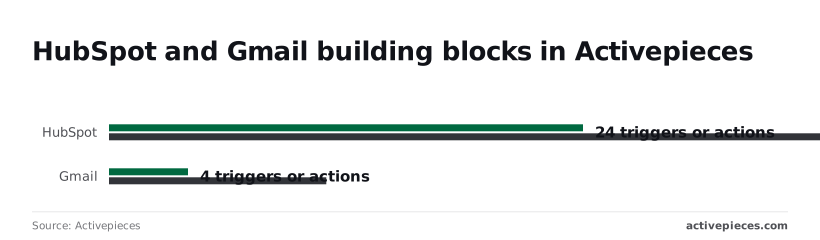
Four of the five start in HubSpot or end there, because HubSpot has the deeper catalogue. Activepieces lists 24 to 45 triggers or actions for it against 4 to 11 for Gmail.
How the first four workflows run
In the welcome flow, the trigger is New Contact, the action is Send Email, and the email goes out from the sender's own Gmail account.
Gmail's New Email trigger hands HubSpot the sender and subject, and Create Contact does the rest. Gmail's trigger list also offers New Labeled Email, so narrow this to one label. Otherwise every newsletter becomes a contact.
When a deal moves, Updated Deal Stage fires, and Request Approval in Email asks a manager to approve before anything proceeds. Filter on one stage, or the alert fires on every move.
When a file arrives, New Attachment fires, and a HubSpot task reminds the owner to act on it. New Label does the same job when a person tags a message by hand. Tagging is the cheaper trigger to maintain.
When HubSpot has no block
If HubSpot has no block for the record you need, use a webhook trigger or an HTTP request step against HubSpot's own API.
Build the first flow before you reach for it.
Building HubSpot Gmail workflows step by step
One workflow that sends a Gmail message to every new HubSpot contact takes seven stages, and each leaves something you can check before you start the next.
If a check fails, fix it there instead of building on top of it.
- Connect HubSpot. The tool lists your HubSpot account as an active connection.
- Connect Gmail. The tool lists your Google account as a second active connection.
- Add the "New Contact" trigger. The tool can pull a real contact from HubSpot as sample data.
- Add the "Send Email" action. The Gmail step exists and asks for a recipient, subject and body.
- Map the email and name fields. The recipient and greeting fill from the sample contact.
- Run Test. A real message arrives in a mailbox you control.
- Publish. The workflow fires on its own when a new contact is created.
When the tool asks for a connection, choose HubSpot, then sign in and approve the permissions it requests. Read that approval screen. If the tool asks for contact access and you decline it, the trigger later has nothing to read.
Add Gmail the same way, signing in with the Google account that should appear as the sender.
Pick carefully: the account you authorize here is the address recipients see, and changing it later means reconnecting and remapping.
Add the trigger, map the fields and test
Add the HubSpot "New Contact" trigger and select your connection. Then load sample data.
The tool fetches a recent contact, which shows you the exact field names HubSpot sends. Those names are what you map in the next stage, so a contact with a blank first name is worth fixing now.
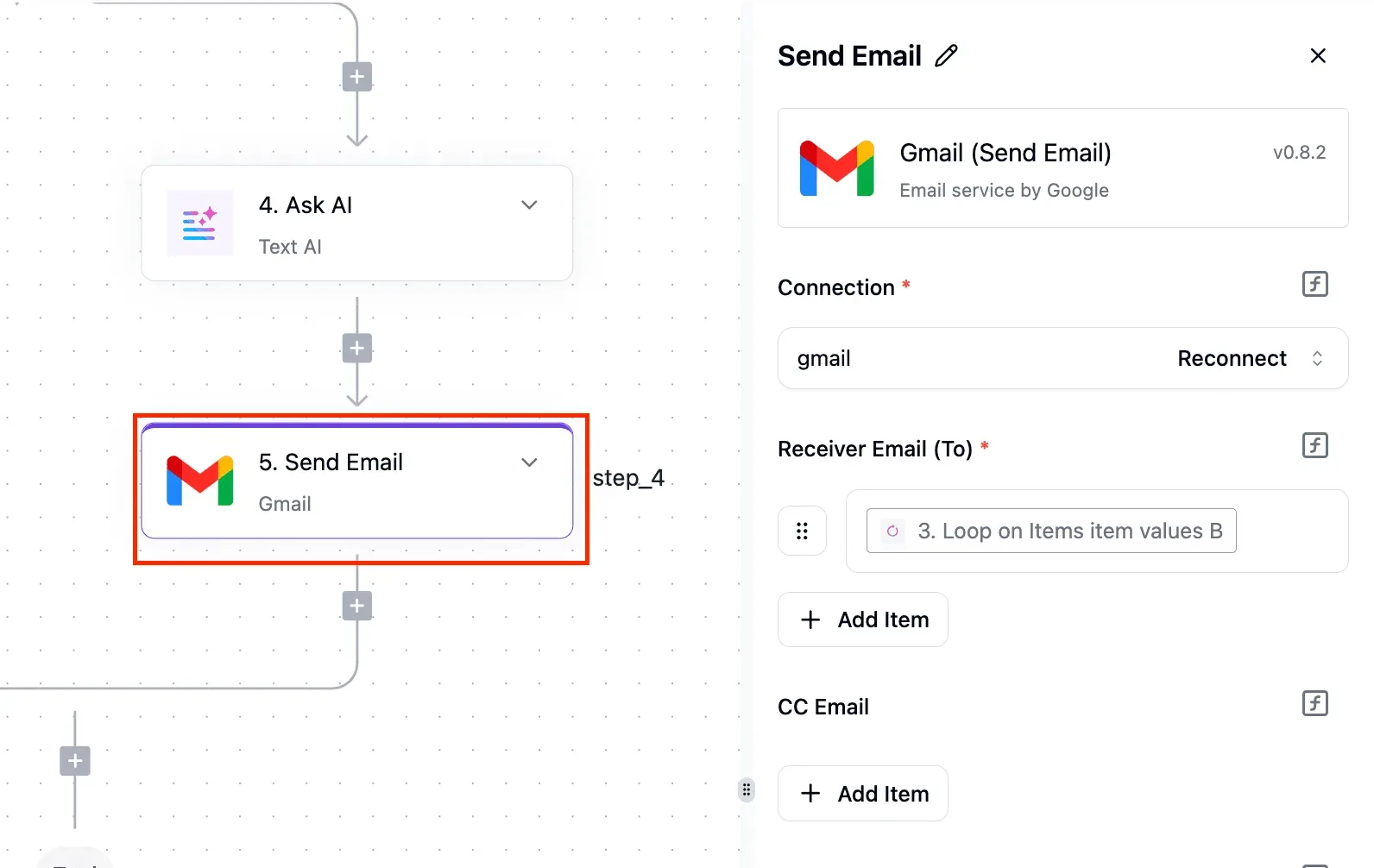
Map the contact's email property into the recipient field and the first name into the greeting in the body.
Map the field that holds the address, not a similarly named one such as a secondary email. That's the mapping most likely to quietly send mail nowhere useful.
Run Test against the sample contact, ideally with a contact whose email is your own so the message lands in a mailbox you can open. Check the recipient, the greeting and the sender.
If all three are right, publish. From then on, each new HubSpot contact triggers one email from your Gmail account.
You can also skip the manual build: in a platform's built-in chat, describe the job as "when a HubSpot contact is created, send a Gmail message from my account", and what it publishes is a flow in your account with a New Contact trigger and a Send Email step, the same flow you just assembled by hand.
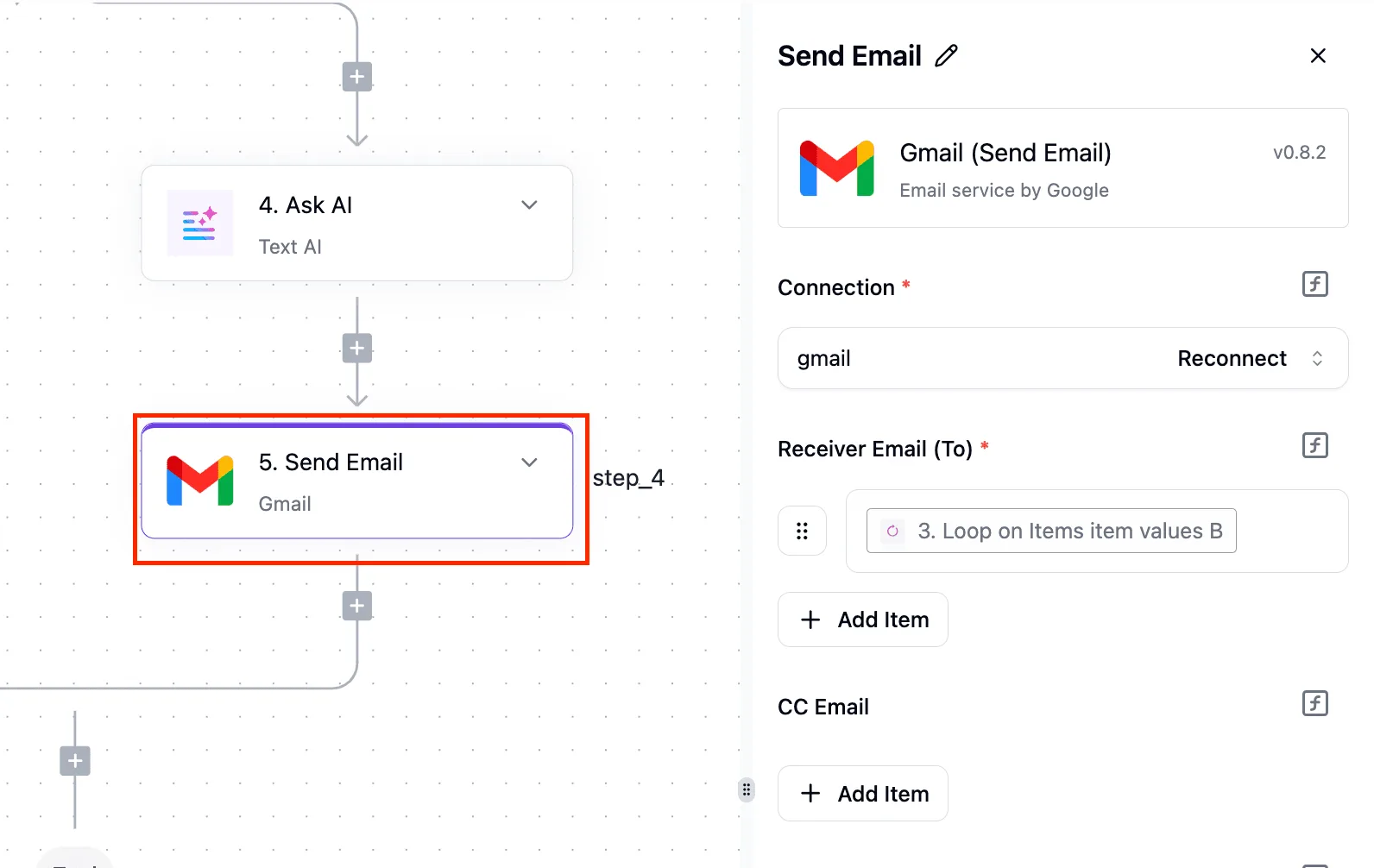
Every run of it leaves a trace you can open and read step by step. That flow runs under the same RBAC and audit logs as a hand-built one. MoneyGram, Moneypenny, Alan and FundingSocieties run a platform of this kind in production.
Easier to see it running than to read about it: set it up free, no card.
HubSpot and Gmail Connection Limits and Errors
Two sets of limits decide whether the contact-triggered email keeps running: daily sending caps on the Gmail side and API request allowances on the HubSpot side.
Most errors beyond those come from expired authorization, empty fields and duplicate records. Figures below were checked on 15 November 2026.
Gmail sending limits and daily caps
500 emails per day is where Google's support page puts a free Gmail account. Google Workspace is at 2,000. HubSpot Sequences on Professional allow 500 per user, and on Enterprise 1,000 per user, which means Enterprise provides double the sequence capacity per user.
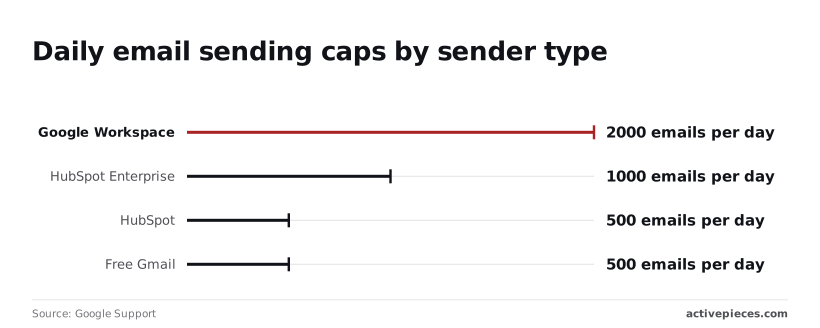
The chart compares the four.
Past 500 new contacts in a day, a free Gmail sender stops delivering, and nothing in the workflow warns you.
Workspace gives the most headroom for a single sender, so anything sending from one shared mailbox belongs there.
HubSpot API rate limits
Every run of a workflow tool calls HubSpot's API. Scopious Digital reports daily allowances of 250,000 requests on Free and Starter, 625,000 on Professional and 1,000,000 on Enterprise.
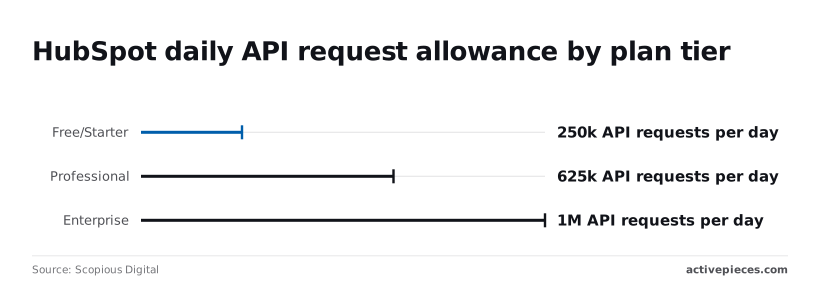
That's a third-party source, so confirm the numbers against HubSpot's developer documentation before you size anything around them.
One email per new contact costs only a few calls, so a quarter of a million requests is ample.
The allowance runs out when a tool polls HubSpot on a timer or a bulk import pushes thousands of contacts through at once. Prefer a real trigger over polling, and spread imports across days.
Authorization and expired connection errors
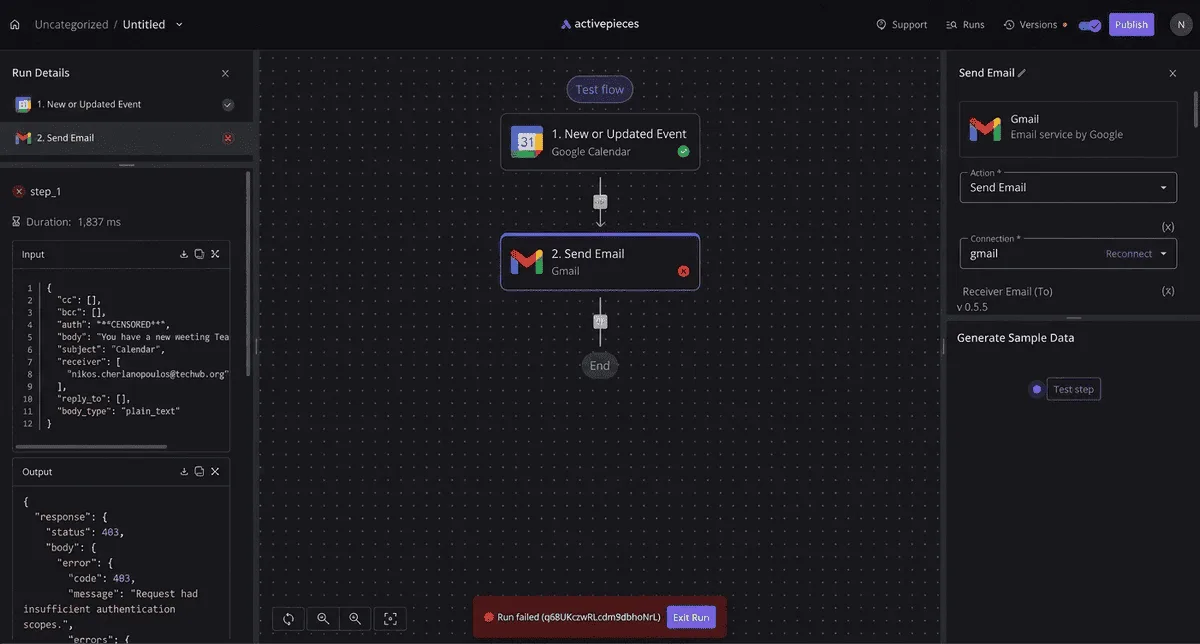
When runs start failing with an authorization error, the Google connection has usually lapsed. A password change, revoked app access or an idle token all invalidate it. Reconnect the Google account inside the workflow tool, then re-run the failed items.
If reconnecting is refused outright, a Workspace admin may be blocking third-party app access. The admin has to allow the app in the Google Admin console; nothing on your side overrides that.
Fixing empty fields and duplicate HubSpot contacts
A Gmail send action needs a recipient. A contact created without an email address makes the step fail, so add a filter before it that continues only when the email field is known.

Do the same for any merge field in the body, or the message goes out with a blank where the first name should be.
When a contact is updated, re-imported or re-enrolled, it can fire the workflow a second time and send a second email. That is where duplicates come from.
Switch off re-enrollment on the trigger, and have the workflow stamp a property such as "welcome email sent" that the filter checks on every run.
How Activepieces Handles HubSpot and Gmail Workflows
Activepieces runs the whole welcome-email pattern, including the trigger, the "welcome email sent" check, the Gmail send and the property stamp, as one no-code flow, and its MIT-licensed core is something you can host yourself.
Its HubSpot integration supplies the triggers and the property write-back that the guard depends on.
The reasons it fits this job, as far as the HubSpot piece listing and the docs show:
- It's open source, so you can read what an integration does before you trust it with customer contacts.
- It's self-hostable, so contact data can pass through a server you control instead of a vendor's cloud.
- The docs describe unlimited steps, so a flow with a filter, a lookup, a send and a stamp doesn't hit a step ceiling.
- The HubSpot integration lists 24 triggers and 45 actions. That's enough to start on "New Contact" or "New Email Subscription Change" and finish with an action that writes the stamp property back.
- Flows are built without code, so whoever owns the HubSpot admin work can maintain them.
- Make, Zapier or n8n fits better in the cases covered below.
Be wary of any platform's catalogue count. What decides this job is whether the trigger you need exists and whether the update action can write your custom property. Check those two items on the integration page before you commit.
Be wary of any platform's catalogue count.
When another tool or HubSpot's native workflows is enough
If the email can go out from inside HubSpot, use HubSpot's own workflows and skip the second tool.
The Gmail connection already logs the inbox side, so you only need an outside tool when the work crosses into other apps or needs Gmail actions that HubSpot doesn't take.
When your team already runs on Zapier and the flow is short, Zapier fits, because the migration cost outweighs anything you would gain. Make fits when the flow needs heavy branching and you want to see the paths drawn out.
If you want self-hosting like Activepieces, whose core is MIT-licensed, but expect to write code inside the flow, n8n fits. Any of the three can build this workflow, so pick on how your team works rather than on the app pair.
This week, build only the welcome-email flow and nothing else:
- Pick the trigger, such as "New Contact", and turn off re-enrollment.
- Add a filter that stops the run if "welcome email sent" is already set.
- Add the Gmail send step.
- Add the HubSpot update step that stamps the property.
- Test with one contact you created yourself, then run it a second time to confirm the filter blocks the repeat.
Leave it on only after that second run sends nothing.
Frequently asked questions
Once a second run sends nothing, the setup is safe to leave alone. The questions people type next are mostly about cost, accounts and what the native connection will and won't do.
Is the HubSpot Gmail integration free? The connection itself is available without a paid plan, so linking a Gmail inbox and logging email to contact records costs nothing on its own.
What you pay for is the automation layered on top, which is a separate question below.
Can I connect more than one Gmail account to HubSpot? Each person connects their own inbox to their own HubSpot user, so a team of five means five connections, not one shared pipe.
A shared mailbox such as a sales@ address is a different case: it needs its own handling, and you should confirm how it behaves before you rely on it for logging.

Does HubSpot log Gmail emails automatically? Once the inbox is connected, mail to and from people who already exist as contacts gets logged without anyone clicking anything.
Mail from addresses HubSpot has no record of is the gap. It won't create a contact for you, which is exactly the job a workflow tool takes over.
Can I send Gmail emails from a HubSpot workflow?
Not through the native connection. A HubSpot workflow can send a marketing email or a task notification, but it has no action that sends a one-to-one message from your Gmail account.
To do that, a workflow tool listens for the HubSpot trigger, such as a contact entering a list or a deal changing stage, then runs a Gmail send-email action that maps the contact's email, first name and deal fields into the message.
Do I need a paid HubSpot plan to automate with Gmail?
It depends on where the automation lives. Workflows built inside HubSpot require a paid tier that includes them.
A workflow tool outside HubSpot instead depends on which HubSpot triggers and actions its connector exposes on your plan, so read that connector's trigger list before you commit.
If a connector only offers a "new contact" trigger, it won't cover a deal-stage use case, whatever the catalogue count says.