
HubSpot Automation Workflows: Examples You Can Set Up Today
Learn all you need to know about HubSpot automation workflows, including the examples in marketing, sales, and customer support, that you can set up.

Dec 17, 202514 min read
Early HubSpot conversations often include automation as a selling point. Someone mentions workflows during a kickoff call, another team shares how they reduced follow-ups, yet no one explains what happens behind the scenes.
HubSpot automation workflows turn your routine tasks into structured steps that run quietly in the background. Leads move forward, internal alerts are sent on time, and records are updated without reminders.
In this article, you'll learn how HubSpot automation workflows work and which examples teams rely on first.
TL;DR
- HubSpot automation workflows run repeat marketing, sales, and support steps automatically based on triggers like forms, page views, and data changes.
- Different workflow types handle different records, including contacts, companies, deals, tickets, and custom objects, so automation matches how teams actually work.
- Marketing teams use workflows for lead nurturing, scoring, and personalization, while sales teams rely on them for follow-ups and pipeline control. Customer success and support teams use workflows for onboarding and ticket routing to keep responses fast and consistent.
- When native limits appear, Activepieces extends HubSpot workflows with deeper logic, AI steps, and integrations with tools like Google Forms and MailChimp.
Everything below works on Activepieces' free plan. Start without code or a credit card.
What Are HubSpot Automation Workflows?
HubSpot automation workflows run repeat steps for marketing, sales, and service teams with less human intervention.
A workflow is like a set of instructions you define once. One event happens, HubSpot responds, and the next steps follow.
Almost every workflow uses enrollment triggers to decide when a record enters. These triggers often rely on a:
- Form submission
- Page visit
- Lst change
- Contact property update
Breeze, HubSpot's AI, can help generate your workflow's enrollment triggers during setup. Once triggered, HubSpot enrolls records automatically and allows you to enroll contacts, companies, deals, and more in a series of automations.
After enrollment, workflow actions run in sequence. These actions send marketing emails, update lifecycle stage values, create tasks, and notify sales reps, which helps you automate repetitive tasks.
Types of HubSpot Automation Workflows
HubSpot offers more than one workflow type, and each one focuses on a different kind of record, so automation matches how teams actually work.
Contact-Based Workflows
Contact-based workflows focus on a single person in your CRM and handle most day-to-day communication. Many use this workflow type to send marketing emails, update contact data, and guide people through lead nurturing or follow-ups.
A common setup starts when someone downloads a guide through a form. The workflow sends a thank-you email, waits a few days, then checks engagement before sending the next message.
Exit rules stop the flow if they purchase your product or unsubscribe from all marketing emails. That logic keeps messages relevant.
Company-Based Workflows
Company-based workflows center on account-level data. These flows work well for B2B teams that manage multiple contacts under one organization.
Triggers are based purely on company properties or associated record activities, such as deal updates tied to that company. Once enrolled, actions can sync fields across associated records, alert account owners, or assign tasks based on firm size or revenue.
Deal-Based Workflows
Deal-based workflows track progress inside the sales pipeline and react to changes in the deal stage or value. Teams often use them after a deal closes or when a deal stalls.
One common action sends a Slack message or internal email notification to kick off onboarding. Other steps assign tasks, update lifecycle stage values, or enroll related contacts into follow-up workflows.
Ticket-Based Workflows
Ticket-based workflows manage support requests from start to finish. Each workflow reacts to ticket status, priority, or response time.
A typical flow waits twenty-four hours, checks ticket status, and alerts a manager if no reply appears. Other actions raise priority or assign tasks so no request gets missed.
Custom Object Workflows
Custom object workflows support teams with unique data needs. These workflows automate work around custom objects like subscriptions, properties, or orders.
Each flow follows rules tied to that object and runs actions that fit the business model, such as assigning tasks or notifying teams when status changes.
Why Businesses Create Workflows in HubSpot
As volume rises, small delays compound and errors creep in. Considering that, a lot of businesses create workflows in HubSpot since:
- Workflows support business processes by running repeat steps the same way every time, which reduces missed actions and uneven handoffs.
- Automation removes manual data entry, so records update on time, and people stop making avoidable mistakes.
- Marketing tasks move on schedule since emails, list updates, and follow-ups run without reminders.
- Faster responses improve customer engagement by reaching people while interest stays high.
- Consistent experiences help customer retention since every contact receives timely messages and clear next steps.
- Automation improves the team's efficiency by shifting effort from checking boxes to real conversations.
- Shorter response times significantly improve outcomes by reducing the time between interest and action.
- Clear routing places each qualified lead with the right sales representative as soon as intent appears.
HubSpot Automation Workflow Examples for Marketing Teams
Each example below shows how marketing automation supports real activity from first interest through handoff.
Lead Nurturing Automation Workflow
A lead nurturing workflow supports people who show early interest but are not ready to talk yet. The flow usually starts after a form submission, when a contact submits a download or request.
You can use the "Form Submissions" criteria to define which form starts the sequence so the workflow reacts right away.
A typical setup follows an order, such as:
- Send a first email as soon as the form submission happens
- Wait a short period to avoid overload
- Send a second message that builds on the original topic
- Check engagement and adjust the next step
If interest stays strong, the workflow supports lead assignment so marketing and sales teams know when to step in. The flow stops once intent changes, such as when they purchase your product or unsubscribe from all marketing emails.
That rule helps nurture leads without sending messages past their relevance.
Lead Scoring Automation Workflow
Lead scoring workflows measure intent using rules tied to behavior and profile data. Each rule updates a score stored on the contact record, which helps you focus on the right people.
Common scoring signals include:
- Page visits to pricing or product pages
- Repeated form submissions
- Job role or company size
One rule can increase a contact property value called "HubSpot Score" by 20 points after strong buying signals appear. When the score crosses a set limit, the workflow marks the contact as a sales-qualified lead, so follow-up happens at the right moment.
Content Personalization Workflow
Content personalization workflows adjust messaging based on known details. A form response or page visit updates data tied to the contact, such as lifecycle stage or industry.
That same data shapes:
- Email copy and subject lines
- Landing page sections
- Follow-up messages and social media posts
Each contact sees content that matches their needs, which keeps engagement high without adding manual work.

HubSpot Automation Workflow Examples for Sales Teams
Sales teams use workflows to remove delays, keep follow-ups consistent, and support sales automation without relying on memory.
Sales Follow-Up Automation Workflow
Sales follow-up workflows keep deals active when attention slips. These workflows step in when activity drops and make sure no opportunity fades out of the sales funnel.
The system watches deal activity and reacts when a sales rep has not logged movement after several days.
A common setup follows a simple pattern:
- Detect inactivity based on deal activity
- Create a task that reminds the sales rep to act
- Send notifications when follow-up doesn't happen
When the deal stays idle, the workflow escalates and sends notifications to keep visibility high. The workflow can also trigger a follow-up email or place contacts into re-engagement flows so conversations restart before interest cools.
Deal Pipeline Automation Workflow
Deal pipeline automation workflows manage the movement of deals through your defined sales process without manual steps. Each change inside the sales pipeline follows clear rules tied to deal data and activity.
A typical flow includes:
- Enrollment when a deal reaches a key stage
- Internal notifications that provide immediate confirmation to the prospect, and an internal notification
- Checks that the required data exists before movement
As the enrollment criteria meet the rules, the workflow handles the deal stage progression automatically. If required data stays missing, tasks notify the owner and alert the sales manager so nothing advances without context.
Easier to see it running than to read about it: set it up free, no card.
HubSpot Automation Workflow Examples for Customer Success and Support
Customer teams use workflows to guide people after the sale and handle support requests without delays.
Customer Onboarding Automation Workflow
Customer onboarding workflows start the moment a deal closes and focus on helping new customers reach early success. It creates a seamless transition from sales to support.
Common onboarding flow:
- A welcome email is sent right after purchase
- Short delays followed by setup tips
- Checks for product activity to adjust messaging
- Tasks created for customer success when accounts need personal outreach
Since customers know what to do next, it reduces confusion and keeps engagement high during the first days.
Support Ticket Routing Workflow
Support ticket routing workflows react the moment a request arrives. Each ticket enters a flow that checks details like issue type, priority, or source before assignment. That logic sends the ticket to the right team.
A typical routing setup includes:
- Enrollment when a ticket is created
- Conditional checks based on issue category
- Assignment to the correct queue or agent
- A confirmation message was sent to the customer
Faster routing shortens response times and keeps service consistent, even when volume spikes.
Limitations of HubSpot Workflows
HubSpot workflows solve many repeat tasks, but they do not fit every situation. Some limits include:
- Workflows primarily operate within HubSpot and focus on CRM data rather than complex actions outside the platform.
- External tasks often need extra tools or a custom setup, which adds time and technical effort.
- Timing relies on scheduled checks, so actions don't always run the moment an event happens.
- Large workflows with many branches become harder to review, fix, and maintain over time.
- Data handling works best for simple updates and struggles with advanced calculations across records.
- Each workflow runs steps in order, which means changes during a delay wait until the next step.
How to Extend HubSpot Automation Workflows With Activepieces
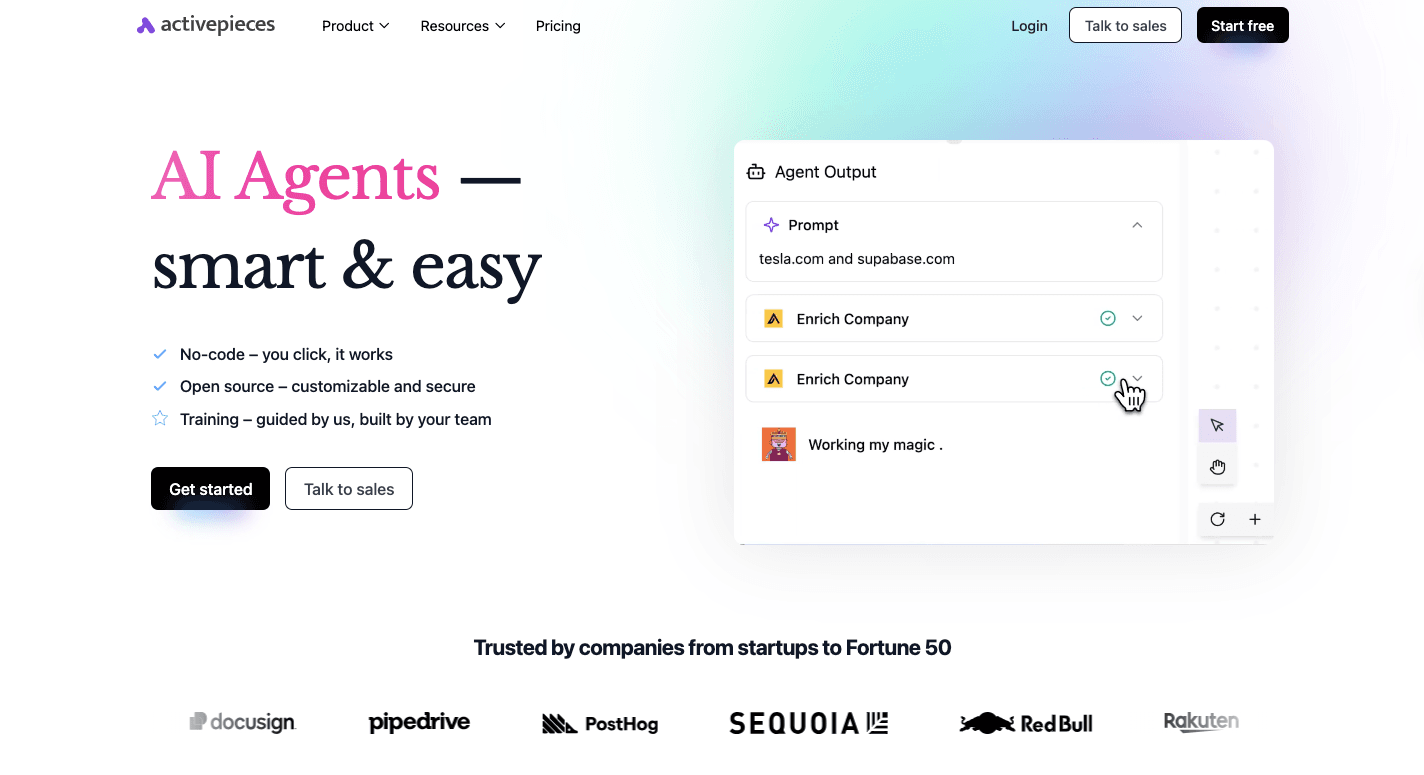
HubSpot workflows cover a lot, but some use cases need more flexibility than the platform allows on its own. Activepieces fills that gap by acting as workflow automation software that connects HubSpot with third-party tools.
Instead of replacing HubSpot, Activepieces works as an added workflow tool that expands what automation can handle.
Key Activepieces features that extend HubSpot workflows:
- Pre-built integrations, called pieces, that connect HubSpot with 544 apps without custom code.
- Webhook support that lets HubSpot trigger actions in other systems the moment a workflow step runs.
- Data transformation steps that clean, reshape, or calculate values before sending them back to HubSpot.
- AI-ready components that work with models and agents to act on customer data in real scenarios.
- Self-hosted and cloud options that give teams control over security and deployment.
HubSpot and Activepieces Working Together
HubSpot and Activepieces connect through a shared data bridge.
HubSpot triggers flows based on activity, and Activepieces responds by acting across other systems while preserving customer data consistency. When HubSpot integrates with Activepieces, workflows reach far beyond native limits.
In one direction, a deal update inside HubSpot can trigger actions elsewhere. Activepieces receives the data and creates invoices, posts updates, or syncs records. Otherwise, events outside HubSpot update records and enroll contacts back into workflows.
Both paths support end-to-end automation without breaking reporting or ownership inside HubSpot.
Leads from Google Form to HubSpot Workflow Powered by Activepieces
Leads often need different paths depending on intent. A simple automation can separate early marketing contacts from sales-ready leads without manual review. Activepieces handles the logic while HubSpot and MailChimp receive the right data.
Prerequisites
Before building anything, make sure these tools are ready:
- An Activepieces account where the automation will run
- A Google Form that collects lead details
- A HubSpot account for sales leads
- A MailChimp account with an audience for email campaigns
Step 1: Create an Activepieces Account
Automation lives inside Activepieces. After signing up, the builder becomes the workspace where every step connects and runs.
Step 2: Create a New Automation Flow
From the dashboard, select "Start" to create a new workflow. Some teams begin with a workflow template, but a blank flow works better for custom logic. Give the automation a name so it stays easy to find later.
Step 3: Set Up the Google Form Trigger
Select Google Forms as the first step and choose the "New Response" trigger. Connect the Google account, then pick the form that collects leads. Load sample data so form fields appear in later steps.
Step 4: Check the Email Type With a Condition
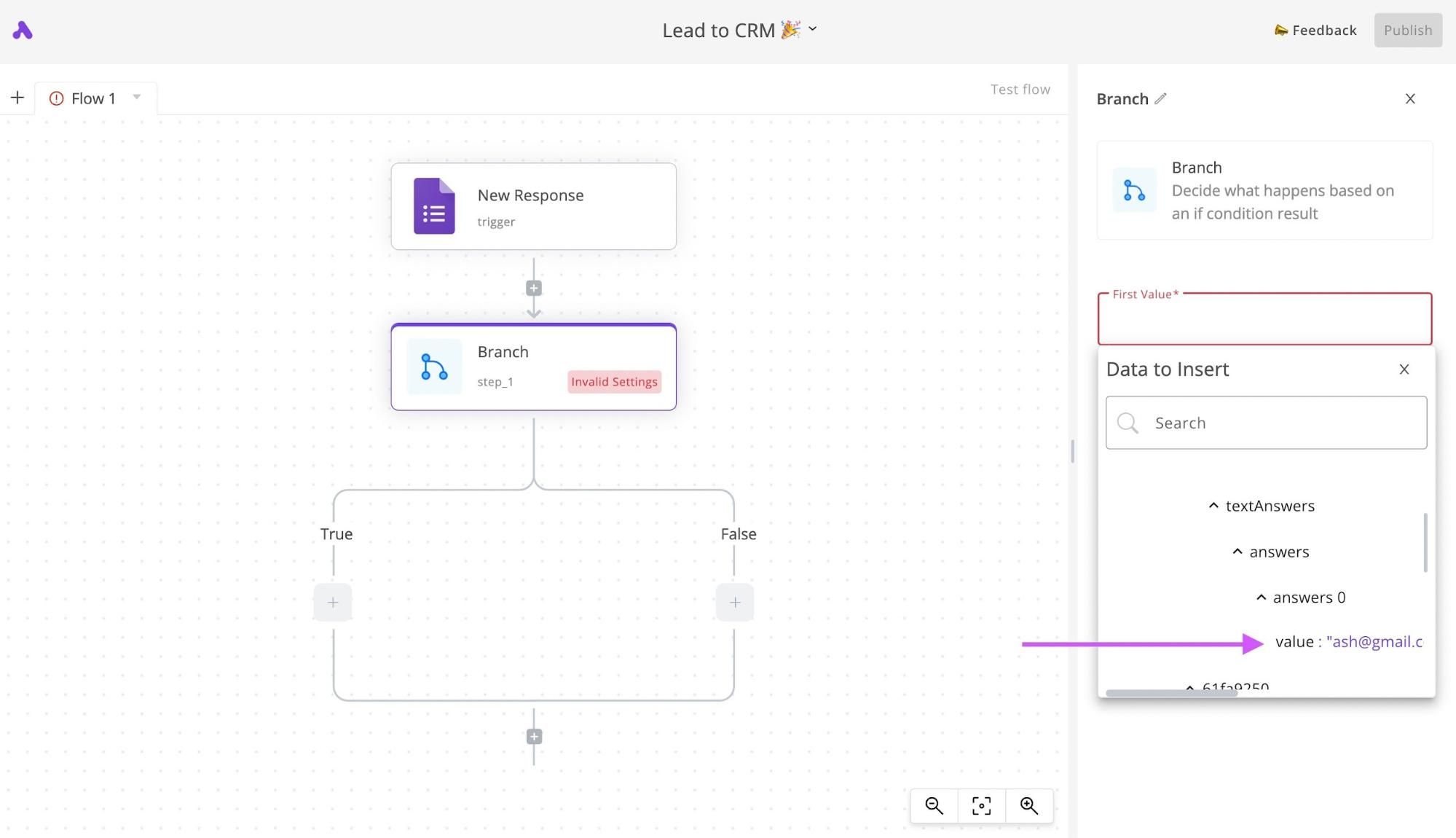
Add a "Branch" step to split logic. Use the email field from the form and check whether it ends with "@gmail.com." This condition decides which system receives the lead.
Step 5: Add Gmail Leads to MailChimp
Under the "True" branch, add a MailChimp step and choose "Add Member" to an "Audience." Map the email field and set the status to "Subscribed." Testing confirms the contact appears in the selected audience.
Step 6: Add Other Leads to HubSpot CRM
Under the "False" branch, add the HubSpot "Create Contact" action. Map first name, last name, and email from the form fields. These leads enter HubSpot ready for sales follow-up.
Step 7: Send an Email Notification for Every Lead
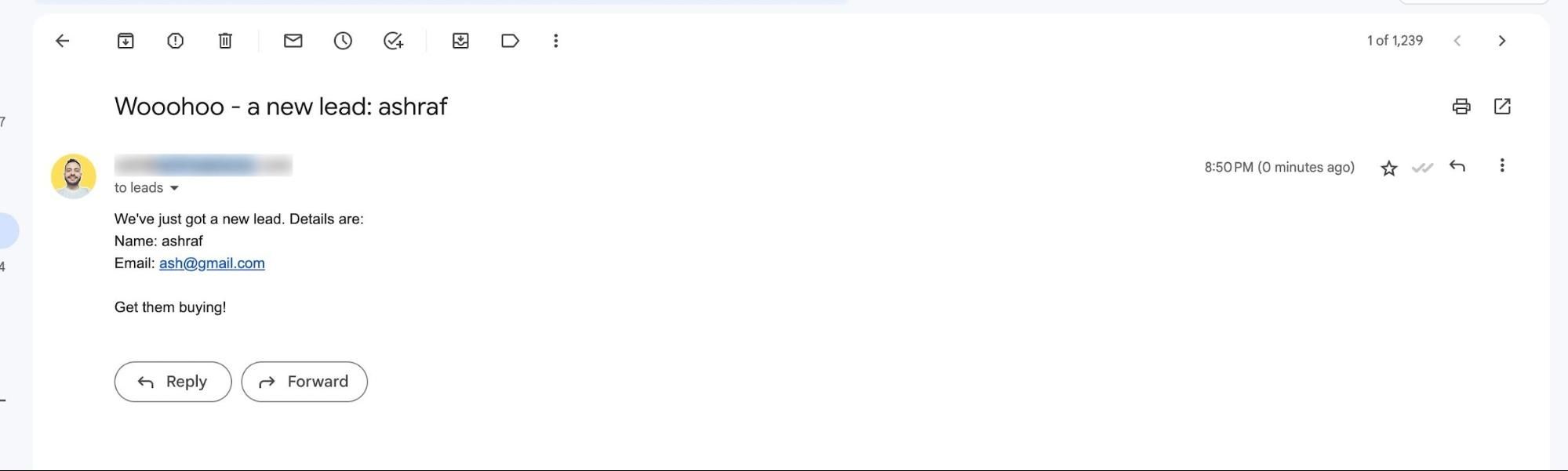
After both branches reconnect, add a "Gmail Send Email" step. Email notifications go out for every submission, so visibility stays high across teams.
Step 8: Test and Publish the Automation
Submit a test entry through the form and confirm each step runs as expected. Once everything succeeds, publish the flow.
Step 9: Start Routing Leads Automatically
After publishing, form submissions route themselves. Gmail addresses enter MailChimp, business emails land in HubSpot, and notifications arrive without delay.
Connect Google Forms, HubSpot, and MailChimp in one clean flow. Try Activepieces today!
Design Advanced HubSpot Automation Workflows With Activepieces
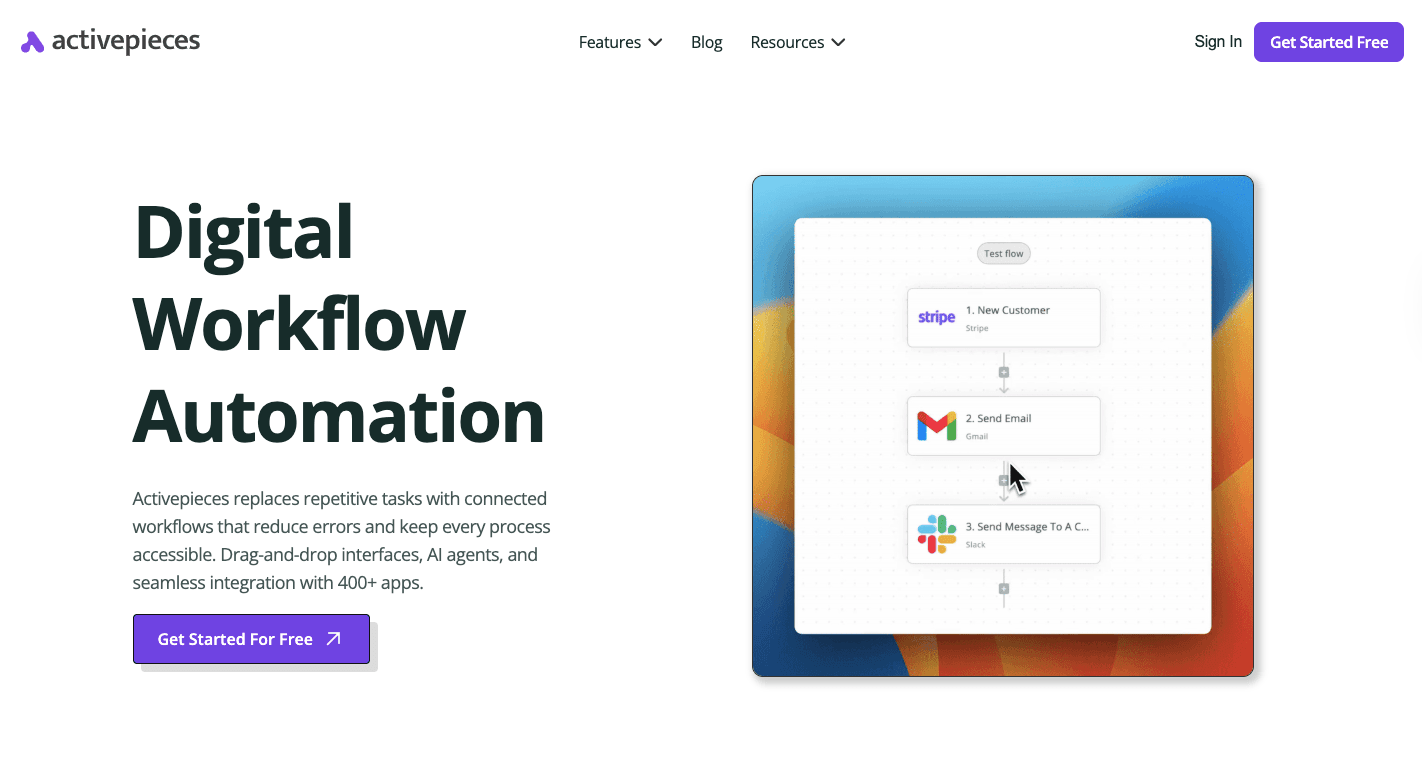
Advanced workflows start when HubSpot logic needs more depth and reach.
Activepieces supports that step by working alongside HubSpot as a workflow automation tool. You keep HubSpot as the system of record while Activepieces handles complex logic, data integrations, and AI-driven steps.
Besides that, non-technical users rely on a visual editor that stays easy to follow, while developers extend behavior using TypeScript when custom logic matters. Every integration stays open source, which makes changes faster and avoids lock-in as needs evolve.
You can further add agents, prompts, and decision steps directly into flows. Then, human approval steps, chat inputs, and form triggers add control where automation should pause.
Lastly, the clouds and self-hosted setups fit any security needs, and pricing stays predictable even as automation volume increases.
FAQs About HubSpot Automation Workflows
Does HubSpot have workflow automation?
Yes. HubSpot includes workflow automation that lets teams run actions automatically when data or activity changes. These workflows support follow-ups, record updates, and task creation across marketing campaigns, sales, and support.
What are the three automated workflows?
HubSpot commonly uses contact-based, deal-based, and ticket-based workflows. Each one focuses on a different record type and supports different stages of lead qualification, sales follow-up, or customer support.
Can you automate tasks in HubSpot?
Yes. HubSpot automates tasks like sending emails, assigning owners, updating fields, and notifying teams. These automations reduce manual work and keep records consistent as activity increases.
What are the three types of workflows you can create in HubSpot?
The main workflow types are contact-based workflows for people, deal-based workflows for opportunities, and ticket-based workflows for support cases.
What is the difference between HubSpot Marketing, Sales, and Service Hub Professional?
Marketing Hub Professional focuses on automation for lead capture, nurturing, and reporting. Then, Sales Hub Professional centers on deal tracking, pipeline automation, and rep productivity. Service Hub Professional, on the other hand, adds workflows for tickets, routing, and customer support operations.