
How to Automate Captions With Auto Caption Tools in 2026

Nov 22, 202616 min read
Switch on your platform's built-in auto captions, then spend a few minutes correcting the output before publishing, and if you like to chain steps like that together, a workflow tool such as Activepieces can handle the hand-offs.
According to Desi Captions, that gets you captioned video in about 30 minutes.
The review step is what keeps the result usable, which means you can't skip review and stay on the 30-minute timeline.
Automate captions with built-in tools
Details below were checked on 22 November 2026.
What automatic captions are and what they are not
What you get from automatic captioning is a first draft, not a finished transcript: speech recognition that turns your audio into timed text. It mangles product names, drops punctuation and guesses at speakers, and nobody tells you where.
Most people skip the fix. A Caption-X study of popular YouTube videos found 72.3% rely on auto-captions alone, so most viewers are reading unreviewed machine output.
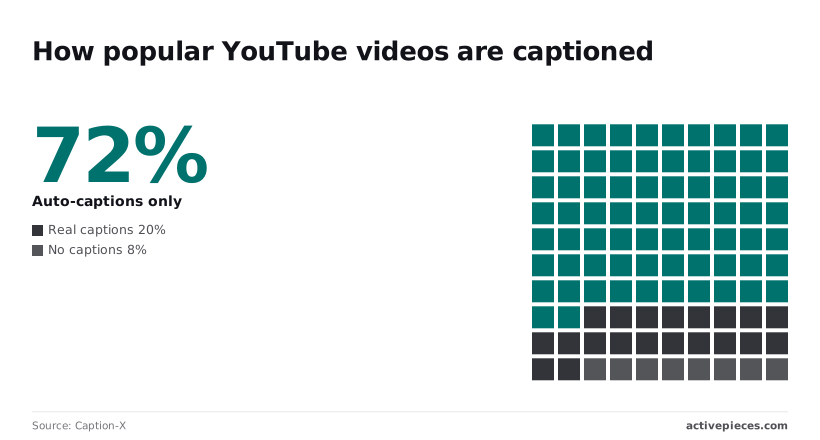
Caption-X found that only 19.8% have real captions, and 7.9% have none, meaning most videos don't have adequate captions. A short review pass puts you in the minority that did the work.
Compare auto caption tools by cost and control
Read the table by how much control you want. The built-in route is fastest, but you control the least. Each step toward a standalone tool or API buys control over the output.
| Platform built-in | Standalone tool or API | Workflow automation | |
|---|---|---|---|
| Setup time | Minutes | Under an hour | A few hours |
| Cost | Usually included with the platform | Subscription or per-minute fee | Depends on the transcription service you call |
| Accuracy control | Edit in the platform's editor | Edit before export; some accept custom vocabulary | Add a review step before publishing |
| Export formats | Varies by platform | SRT and VTT | Whatever the transcription step returns, typically SRT or VTT |
| Working at the end | Captions live on one video | A caption file you can upload anywhere | Captions generated for every new video |
With the third route, a new video triggers the whole sequence without you: Activepieces chains transcription, review and upload steps in one flow, and it has 750 integrations to draw those steps from, roughly 60% of them community-contributed, which means you can almost always find the connector you need.
Choose the right auto caption tool
Pick the built-in tool if you publish to one platform and want captions today. Your cost is a review pass, and you accept that exports may be limited.
Pick a standalone tool or API if you publish to several places. An SRT or VTT file travels with the video, so you correct once and reuse it everywhere. It also suits teams with specialist vocabulary.
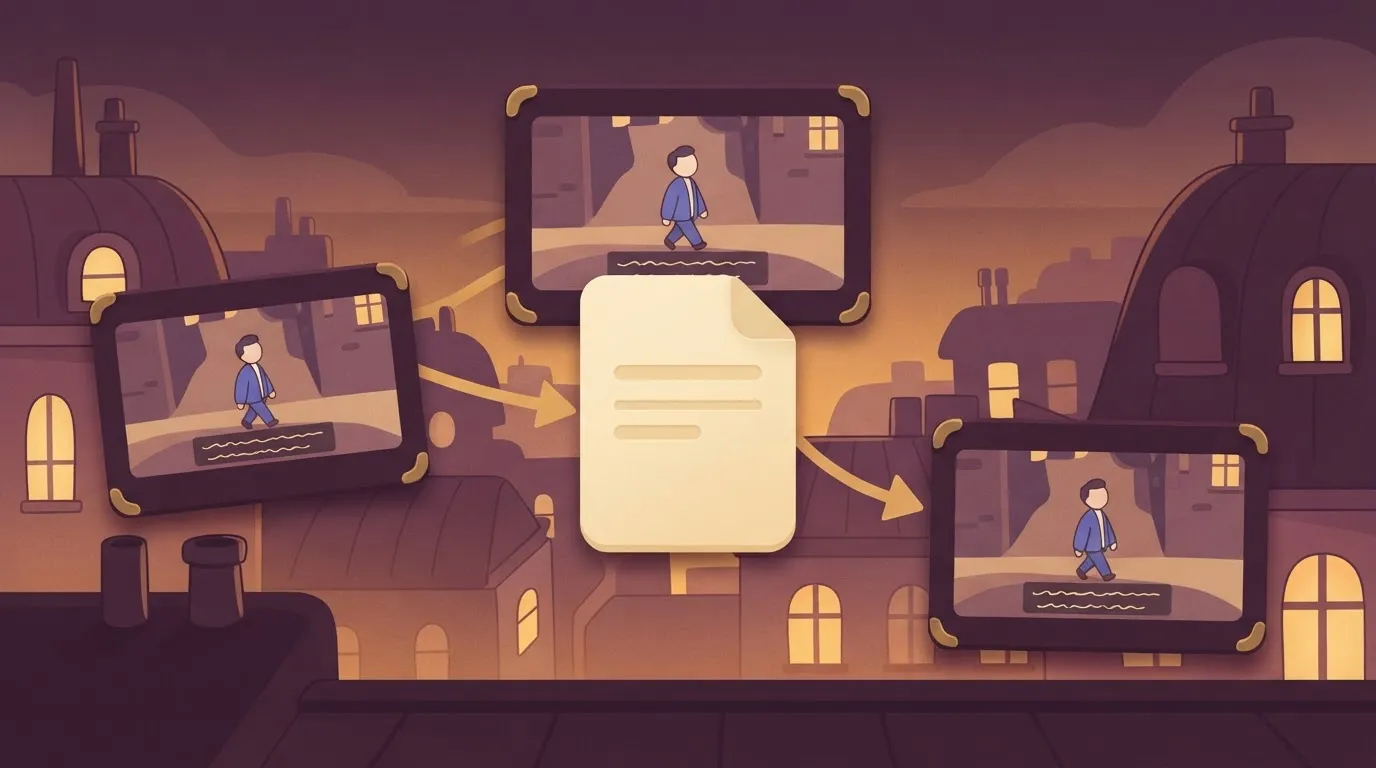
Pick the workflow if you publish on a schedule. Setup takes longer, but the review step becomes a fixed part of the process instead of something you remember on a good day.
Whichever you choose, put the review in from the start. Skipping it is how a quick automation turns into 72.3% of videos shipping with errors nobody caught, so you end up with broken content at scale.
This takes minutes, not a project: automate it in Activepieces free.
Turn on automatic captions per platform
Switch on the caption tool inside each platform you already publish to. It costs nothing and runs on upload, so what you get is a draft track to review, not a blank one.
Menu labels change between releases, so confirm each path against the vendor's current help page before you write it into a team checklist.
Before anything else on YouTube, set the spoken language, because automatic captions depend on it being right.
- In YouTube Studio, open Settings, then Upload defaults, then Advanced settings, and choose the video language you normally speak.
- Upload the video and let processing finish.
- Open Content, select the video, and choose Subtitles.
- Find the automatic track, open it, and edit the text directly.
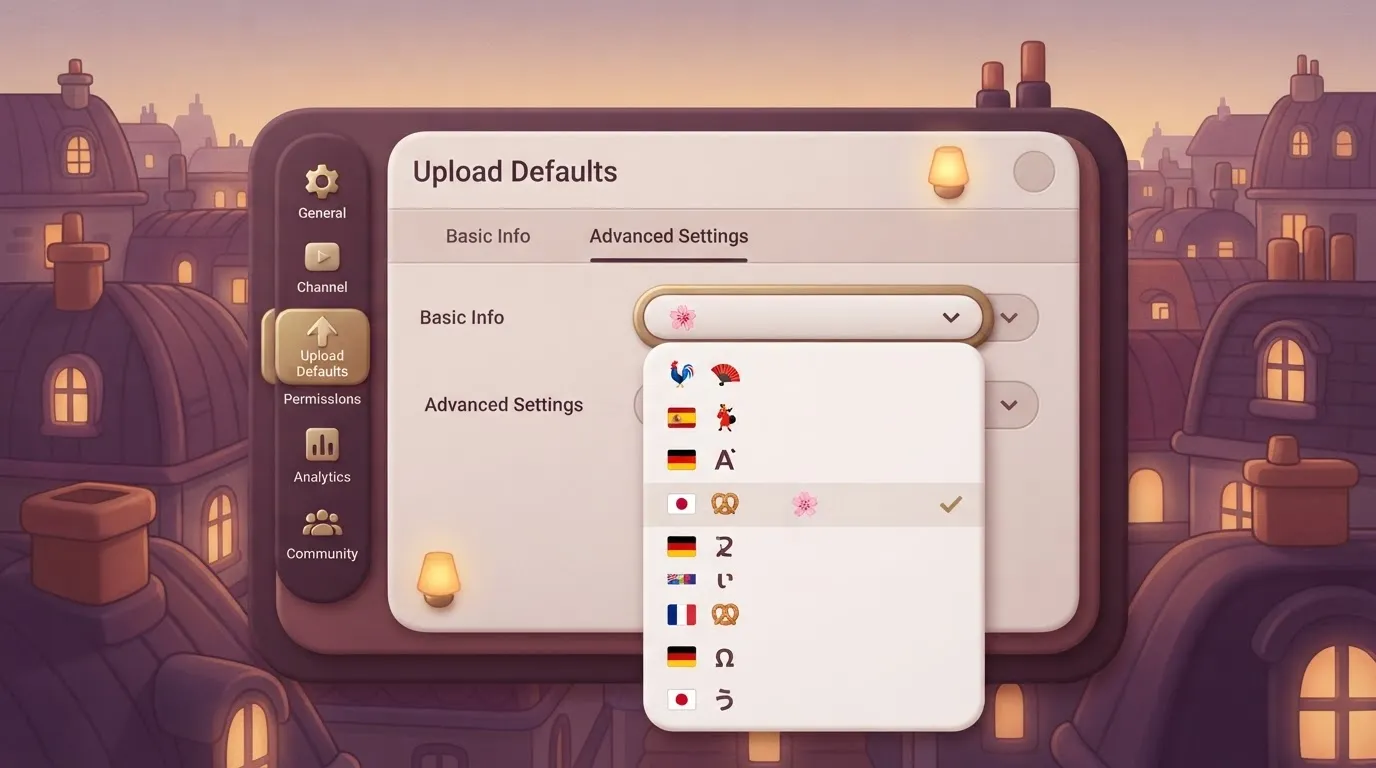
When the track comes out as nonsense, the usual cause is a wrong language setting. It fails quietly, so check it on the first upload.
On TikTok, Instagram and LinkedIn the captions sit in different places, and each one treats the output as editable text.
- TikTok: in the editing screen, use the Captions option to generate text, then correct it before posting.
- Instagram: add the Captions sticker to a Story or Reel, then tap into the text to fix it and pick a style.
- LinkedIn: when you upload a video, open the caption options and choose auto-generate, then edit the result.
On all three, the generated text is a starting point, not the finished file. Burned-in sticker captions also can't be fixed after publishing, so a typo means deleting and reposting. Review before you hit publish, not after.
Meeting tools: Zoom and Teams live and recorded captions
Enable both if you want both, because live captions and recorded transcripts are separate features.
- In Zoom, go to Settings, then Meetings, then In Meeting (Advanced), and turn on automated captions. Zoom's recording transcript is a separate cloud recording setting.
- In Teams, open More actions during a meeting, go to Language and speech, and turn on live captions.
- In Teams, start recording and transcription from the same menu if you want a saved transcript.
If the option is greyed out for you, that's a policy, not a bug, and the fix is a request to your admin. Admins can lock these settings at the account or tenant level.
Once the toggles are on, every video you publish arrives with a draft track.
Generate and export bulk captions
Upload the files, set the language, generate, export SRT or VTT: that is bulk captioning. A hundred files through a tool you configured once beats a hundred files through a tool you reconfigured each time.
Upload settings: language, speaker labels, custom vocabulary
Set the language yourself instead of trusting auto-detect. A wrong guess on file one becomes a wrong guess on every file in the batch, and you find out at review.
Turn on speaker labels for interviews and panels, because unlabeled dialogue is hard to follow once it's cut into caption blocks.
Add a custom vocabulary of product names, people and jargon. Those are the words a general model misspells most, and fixing one misspelling a hundred times is the kind of cleanup that erases the afternoon you saved.
Export settings: SRT, VTT, burned-in captions
Export SRT or VTT as separate files whenever you can. Both are plain text, so you can correct them after review without regenerating anything.
Burned-in captions are pixels in the video, so every typo means a re-render. Use burned-in only for platforms that ignore caption files, and only after the text is approved.
The spread in price is wide. OpenAI's Whisper API, an earlier speech-to-text service, was priced at $0.006 per minute, about 36 cents per hour of video, which showed large-scale transcription could be economically viable.
ZapCap, a short-video captioning tool, charges $0.10, or $6 an hour. Rev AI is $0.25 and Amara's AI tier is $0.35, so $15 and $21 an hour.
At the human end, 3Play charges $1.90 and Rev's human captions $1.99, roughly $114 and $119 an hour. Human work costs about 330 times the cheapest AI option, which is why the review step in this article is cheaper than buying accuracy up front.
| Service | Type | Price per minute |
|---|---|---|
| Whisper API | AI | $0.006 |
| ZapCap | AI | $0.10 |
| Rev AI | AI | $0.25 |
| Amara AI | AI | $0.35 |
| 3Play | Human | $1.90 |
| Rev | Human | $1.99 |
viz type=stripplot title="What a minute of captioning costs, AI versus human" unit="$ per minute" source="Rev - https://support.rev.com/hc/en-us/articles/18893487380365-Pricing".90 to The table shows price only, and price is the least likely thing to stop a batch. Limits do that.
Auto caption tool limits to check first
Before you queue a batch, check four things on each vendor's pricing and help pages: free-tier minutes, maximum file length, supported languages and export formats.
Descript, Kapwing, VEED and Rev each publish these, and they change often. Write down the date you checked.
A batch that fails at file sixty because of a length cap costs more than the per-minute rate ever did.
Once the files are generated and exported, you have drafts, not captions. Review is what makes them captions.
You can follow the rest of this with the builder open. Start free, no card.
Stage 3: Automate the hand-off with Activepieces
A new video lands in a folder, the captioning service gets called, and a reviewer is pinged with the SRT. Activepieces, which MoneyGram, Moneypenny, Alan and FundingSocieties run in production, does the carrying for you. It doesn't write captions itself.
The Drive, HTTP and Slack steps all sit in one flow, with an Agent step placed in that same flow beside them, and the run trace for that flow is a single logged execution from the new file to the Slack message, not two systems bridged by a callback.
A missing SRT link points to the exact step that dropped it.
Because the text comes from the captioning tool, the errors you plan to review come from there too.
What Activepieces removes is the manual download, upload and "did anyone check this?" message that otherwise eats the afternoon you saved, and a run costs 1 credit however many steps it has, so the free plan's 1,000 credits a month and unlimited flows cover a thousand runs a month.
The flow below shows the whole chain in six steps, so you understand how the steps connect. The thing to take from it is that review is built in as the last human-facing step, not left as a habit.
- Google Drive, New File trigger on the watched folder.
- HTTP call to the captioning service with the file.
- Poll for the result until the job finishes.
- Save the SRT back to the Drive folder.
- Post to Slack with a link to the SRT.
- Run the Test step.
In the editor, each stage maps to one block, and the next three subheadings take them in order.
Trigger: new video in a watched folder
Pick the Google Drive integration and its New File trigger, then point it at one dedicated folder.
Keep that folder for videos only; a trigger watching a busy shared folder will fire on every stray document and spend your plan's credits on files that were never meant for captioning.
If your team uses Dropbox, the equivalent new-file trigger works the same way. Either way, the trigger hands the next step the file's name and ID, and those are the fields you map from here on.
Action: send to the captioning service and wait for the result
Add an HTTP action that sends the video, or a link the service can read, to your captioning tool's API. Map the file name and link from the trigger into the request.
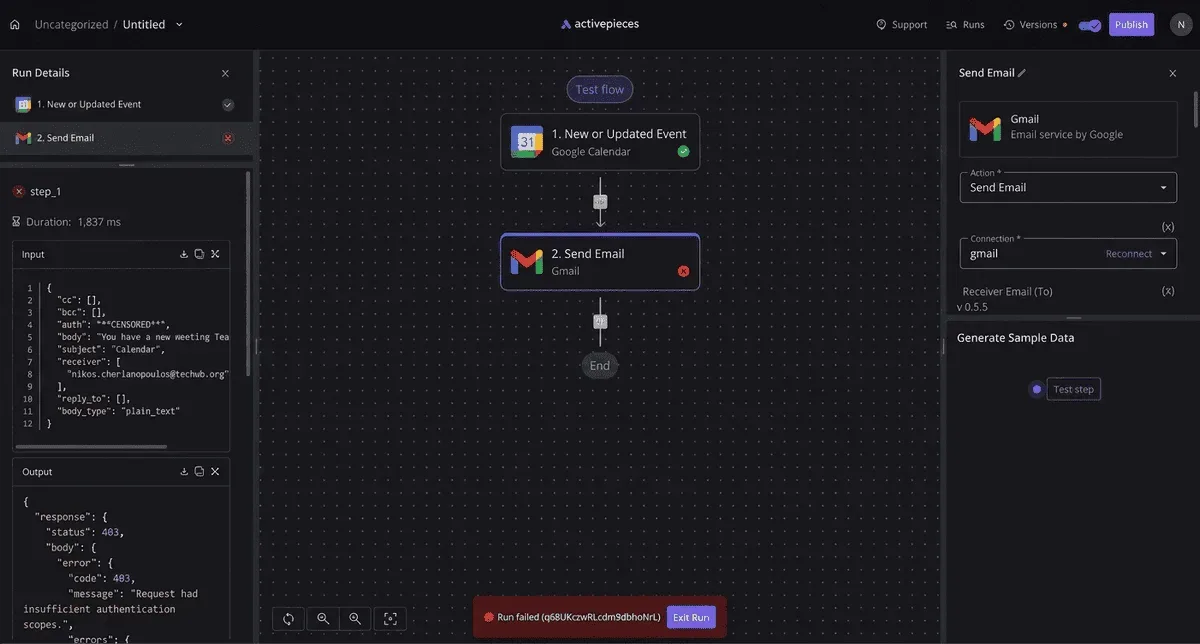
Captioning jobs rarely finish instantly, so follow the call with a polling step that checks the job status and continues only once the transcript is ready.
Check how your plan counts steps before you set the polling interval. A loop that checks every few seconds can burn through credits on a long video, and a slower interval costs you only a short wait.
Action: save the file and notify a reviewer
Once the result arrives, add a Drive action that saves the SRT into the same folder as the video, named to match it. Then add a Slack message to the reviewers' channel with the file name and a link to the SRT.

Test the flow with a short clip before trusting it, using the Test step to confirm each mapped field carries real values. A blank link in a Slack message is the kind of silent failure that lets unreviewed captions go live.
Fix caption errors and limits
When auto captions fail, they fail in four predictable places: noisy audio, timing and format on upload, hard limits on length or language, and the names and terms the engine has never heard. Each is cheap to catch if you plan for it.
Fix caption accuracy errors in names and jargon
In that benchmark, Whisper Large v3, an open speech-to-text model, averaged a 5.1% word error rate on clean audio and 8.4% on noisy audio, so roughly one word in twenty was misrecognized on clean audio. Background noise adds roughly three wrong words per hundred.
In every engine tested, the gap shows up. Deepgram Nova-3 runs 4.8 to 6.9%, Google US English 4.1 to 6.2%, and ElevenLabs Scribe 3.7 to 5.9%, meaning the choice of provider materially affects transcription quality.
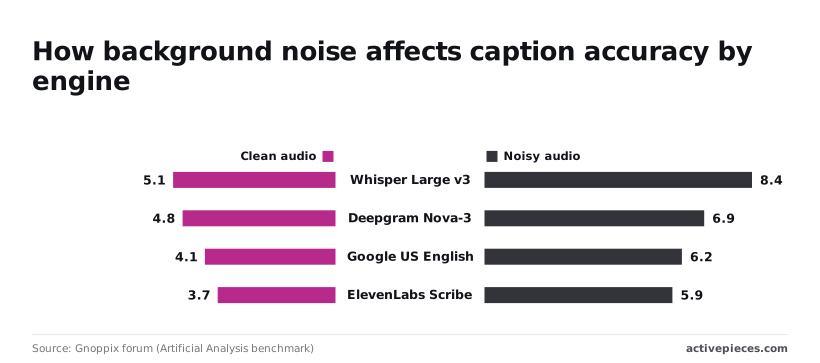
Even the best engine on clean audio misses a few words per hundred, and they're rarely the easy ones. Proper nouns, product names, jargon and strong accents fail first, which means the errors that embarrass you cluster in exactly the words you care about.
When captions are accurate but drift out of sync, or arrive in a file format the platform rejects, they fail silently or not at all.
Check the first and last caption against the audio, and confirm the platform accepted the file type you exported. A file that uploads without an error message can still be unreadable on screen.
Auto caption tools cap video length, file size, supported languages and monthly usage.
Read those caps before you queue a batch, because a run that stops halfway leaves you with some videos captioned and some not, and nobody notices which. Compare your longest file and your least common language against the documented limits first.
What a short human review step should check
It's in proofreading that the time saving holds up. Desi Captions puts manual typing for a 10-minute video at 100 to 200 minutes, against 20 to 30 minutes for auto captions plus a proofread.
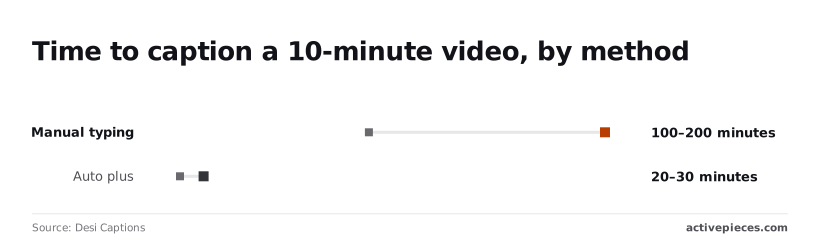
Review is worth doing because it saves roughly an hour or more per video, not because it's free.
A five-minute routine, in order:
- Search the transcript for every proper noun, product name and acronym you know appears.
- Play the first 30 seconds and the last 30 seconds to confirm sync, so you can verify both endpoints without watching the entire file.
- Scrub through the noisiest stretch, since that's where errors concentrate.
- Confirm the file format and language setting match what the platform expects.
- Open the published video and check that captions display, not just that the upload succeeded.
When captions are your accessibility accommodation for deaf or hard-of-hearing viewers, accuracy becomes a legal matter. At that point a wrong word is a compliance gap, not a typo, and the review step is the control that covers it.
When captions are your accessibility accommodation for deaf or hard-of-hearing viewers, accuracy becomes a legal matter.
Frequently asked questions
Are automatic captions good enough for accessibility compliance?
Usually not on their own, because compliance turns on whether the captions are accurate, not on whether they exist. A raw auto-generated track that garbles names, product terms or numbers leaves deaf and hard-of-hearing viewers with a broken version of your content.
A person reading the draft against the audio and fixing what the tool got wrong is what makes the track defensible. If a legal obligation applies to you, check what it requires with whoever advises you on it.
Can I automate captions for free? Yes, for the generation step. Many video platforms and editing tools include auto captioning at no extra charge on their standard plans, though limits vary by tool and plan.
The cost you don't see on the pricing page is the review time. Free captions that nobody checks are a liability you've deferred, not a saving.
How accurate are auto captions compared with human captions?
On proper nouns, technical vocabulary, overlapping speakers, heavy accents and poor audio, human captioners are generally more accurate. Auto captions do well on clear, single-speaker recordings and degrade as the audio gets messier.
Treat the machine output as a strong first draft. The errors cluster in the same places each time, so your review can target them: names, acronyms, numbers and anything a viewer would act on.
Can captions be translated automatically into other languages? Yes. Many caption tools can machine-translate a finished track into other languages.
The catch is that translation inherits every mistake in the source captions and adds its own, so fix the original-language captions first. Have a fluent reader look over anything customer-facing or high-stakes. Idioms, humor and domain terms are where machine translation fails most visibly.
Do I need to caption live streams differently?
Yes, because there's no review window. Live auto captions reach viewers as the tool produces them, errors included.
For low-stakes streams, that may be acceptable if you load a glossary of names and terms ahead of time, when the tool supports one. For events where accuracy matters, a human live captioner is the safer choice.
Either way, correct the captions on the recording before you publish it, since the replay is the version people will keep watching.
Related reading
Build it
Set this up in minutes.
No code required. Connect your accounts, and Activepieces runs it from there.
Start free Talk to sales