
How to Automate Google Workspace With Apps Script

Nov 12, 202614 min read
Start with the tools already in your plan.
Gmail filters, Sheets notification rules and Apps Script cover most routine jobs in about 45 minutes, so you can have one running before lunch, and you can always move to a dedicated builder like Activepieces later if a job outgrows them.
Built-in Workspace automation tools
What counts as Google Workspace automation
If a rule or script runs inside Gmail, Sheets, Drive, Calendar or Forms and acts without you clicking, it counts as Google Workspace automation.
That covers a filter that labels invoices, a Sheets rule that emails you when a cell changes, and an Apps Script trigger that files form responses.
Docs were checked on 2026-11-12.
Which tool fits which task
When a long loop over a large sheet runs in Apps Script, it ends with "Exceeded maximum execution time", so the job has to be split into batches.
The table shows where each tool fits and where it stops.
| Tool | Best-fit task | Skill needed | Plan required | Where it stops |
|---|---|---|---|---|
| Gmail filters | Labeling, archiving, forwarding incoming mail | None | Any Gmail account | Acts only on incoming mail and can't touch other apps |
| Sheets notification rules | Emailing you when cells change or a form is submitted | None | Any Google account | Sends alerts only and can't edit data or call other services |
| Apps Script | Custom logic across Gmail, Sheets, Drive and Calendar | Basic JavaScript | Any account; quotas are higher on Workspace | Runs into execution-time and daily quotas, and reaches outside services only through code you write |
| Workspace Studio / AppSheet | Multi-step flows and simple apps without code | Low; point-and-click | Depends on your edition and admin settings | Limited to the connectors and steps Google provides |
| Outside workflow tools | Jobs that must reach apps Google doesn't connect, such as Activepieces | Low to moderate | Separate account, often separate billing | Adds a second system to monitor and a credential to protect |
Read the table from the top down and stop at the first row that covers the whole job.
What you need before you start
You need edit access to the mailbox or sheet you're automating, and an account that can open the Apps Script editor from Extensions in Sheets.
For Workspace Studio or AppSheet, ask your admin whether it's switched on for your edition, because the answer decides whether that row is available to you at all. Keep one test sheet and a few sample emails, so your first run touches no live data.
This takes minutes, not a project: automate it in Activepieces free.
No-code Gmail and Drive automation
Run two built-in features against your test data first: a Gmail filter that labels and archives incoming mail, and a Sheets notification rule that emails you when a sheet changes.
According to Gemini, neither costs anything beyond the plan you already have, and a free Google Account includes 15 GB shared across Gmail, Drive, and Photos. Archived mail still counts toward that storage, so archiving tidies your inbox but frees no space.
- In Gmail, click the Show search options icon at the right end of the search bar.
- Fill in the fields that identify the mail, such as From, Subject, or Has the words. Click Search to confirm the results are your sample emails and nothing else.
- Click Create filter.
- Tick Skip the Inbox (Archive it), then tick Apply the label and choose a label or New label.
- Tick Also apply filter to matching conversations if you want existing mail sorted too, then click Create filter.
Archived mail still counts toward that storage, so archiving tidies your inbox but frees no space.
Set up Google Sheets notification rules
Open the test sheet and choose Tools > Notification settings. Under Notify me when, pick "Any changes are made" or "A user submits a form". Under Notify me with, pick "Email – daily digest" or "Email – right away", then click Save.
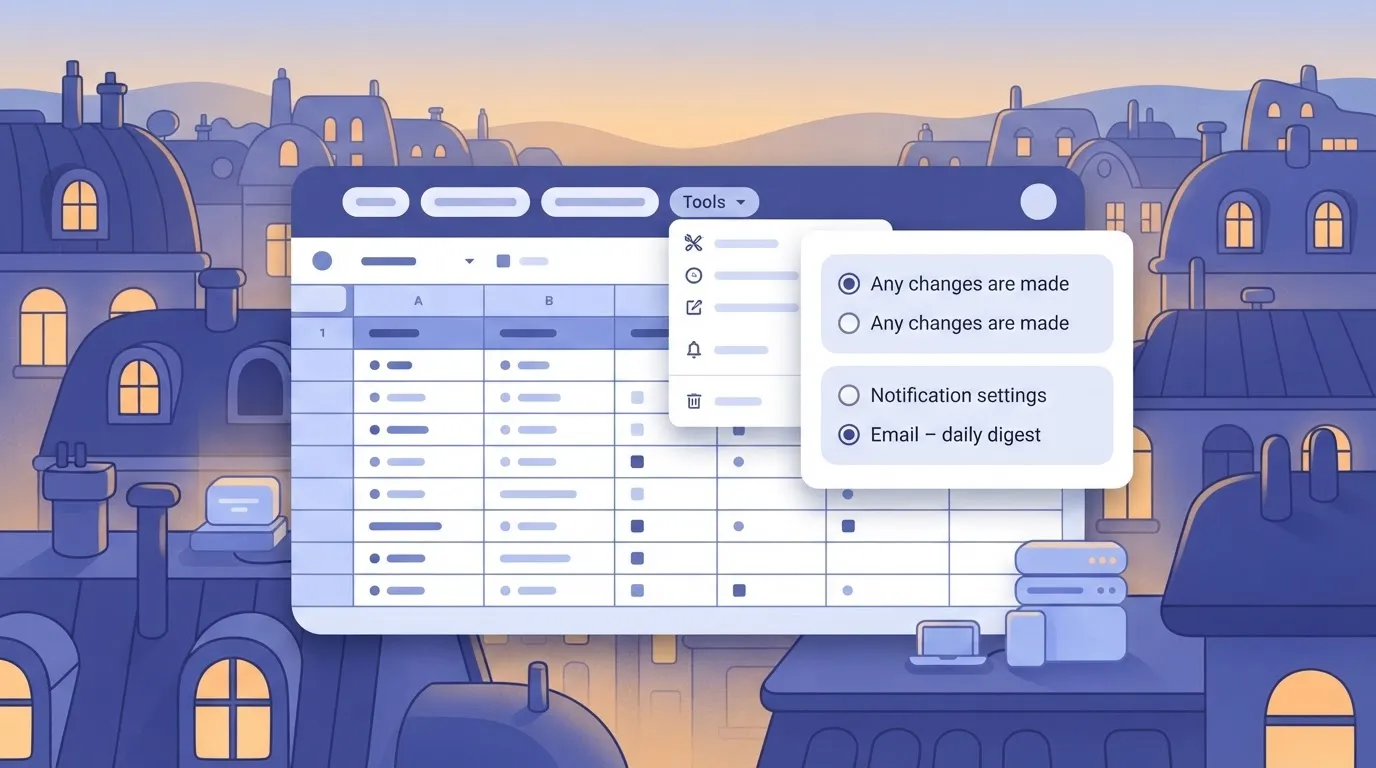
Set right-away email on a busy sheet and you will be buried, because the rule watches the whole file, not a single column. Start with the daily digest and tighten it only if you miss something.
Fix missing Workspace automation options in Admin console
If a menu item is absent on a Workspace account, the cause is usually an admin setting rather than a bug. Ask an administrator to open the Admin console, go to Apps > Google Workspace, and select Gmail and Drive and Docs.
Each service's status must read On for your organizational unit.
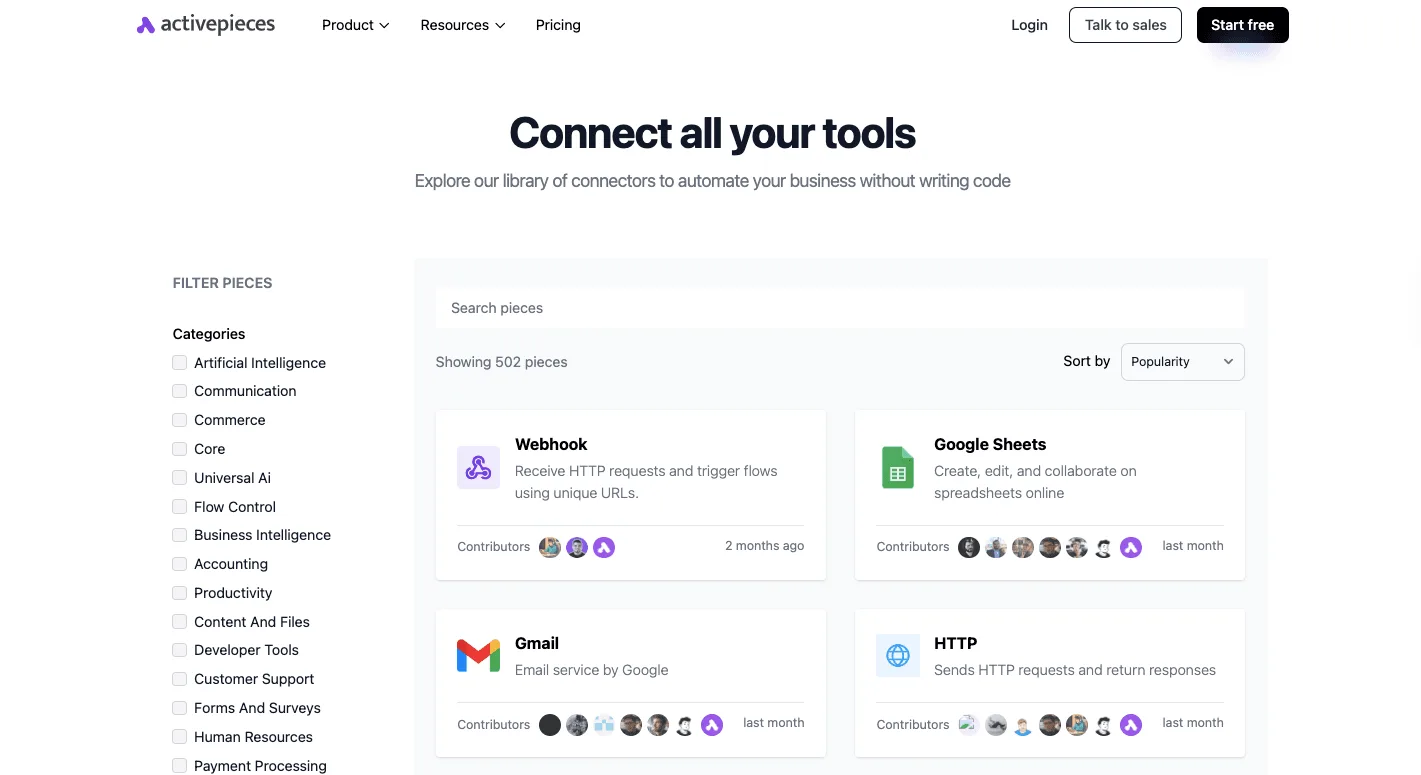
502 integrations is what one outside workflow tool's connector library lists, and Gmail and Google Sheets are among its most popular, so your main workflow tools are probably already connected.
Scheduled Apps Script automation
With a bound script in the Google Sheet you already have, plus one trigger, your job runs unattended with nothing installed or paid for. The whole setup is five steps, and the subsections below explain what each does and where it fails.
- Open the Sheet and choose Extensions > Apps Script.
- Paste the append-row or email-summary function.
- Run it once and accept the consent screen.
- Open Triggers in the left sidebar.
- Choose Add Trigger and set a time-driven schedule.

Opening the editor from inside the Sheet makes the script bound to it, so SpreadsheetApp.getActiveSpreadsheet() works without an ID.
Paste a function that either appends a row with a timestamp (sheet.appendRow([new Date(), "checked"])) or builds a short summary and sends it with MailApp.sendEmail.
Keep it to one job. A trigger runs exactly one named function, so a function that does too much is harder to debug when it fails.
Authorize Apps Script scopes and permissions
Run the function once by hand from the editor. Google shows a consent screen listing the scopes the code touches, such as spreadsheet access and sending mail.
Because the script is yours and unreviewed, you'll likely see "Google hasn't verified this app." Choose Advanced, then continue.
Skip this manual run and the trigger will fail later with "Authorization is required to perform that action," and nobody will be there to click the screen.
Add a time-driven Apps Script trigger
In Triggers, choose Add Trigger, select your function, set the event source to Time-driven, then pick a timer type such as day or hour. The trigger runs as you, with the scopes you just approved.
When a run fails, the Executions page shows the exact error, so check it first. Look there too for "Exceeded maximum execution time," which means the function is doing too much per run and should be split.
Add an on-form-submit Apps Script trigger
For a Google Form feeding this Sheet, add a second trigger with the event source "From spreadsheet" and the event type "On form submit." Your function receives an event object, usually named e, and reads the answers from e.namedValues.
Running that function by hand from the editor passes no event, so you'll get "TypeError: Cannot read properties of undefined (reading 'namedValues')." That error is normal. Test it by submitting the form instead.
You can follow the rest of this with the builder open. Start free, no card.
Workspace integration with external apps
When to stay inside Google
Stay inside Google while every app in the job is a Google app. On your existing plan, Apps Script triggers, Gmail filters and Sheets rules run with no second login, no task meter and no extra vendor to audit.
At the first step that needs an app Google doesn't connect, such as posting a Sheets row into Slack, the case for an outside tool starts.
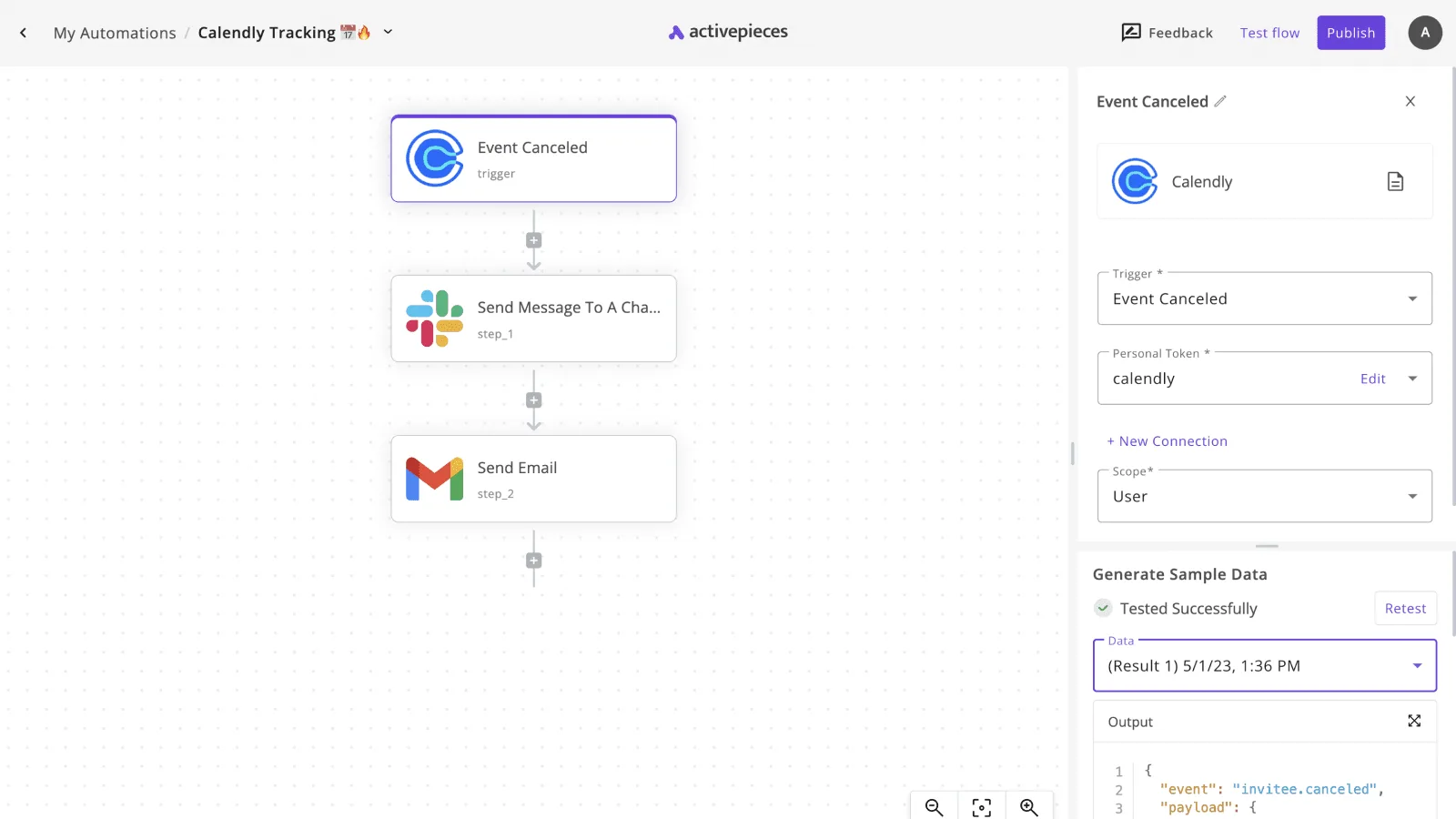
Activepieces handles that Sheets-to-Slack step, and the harder question is what happens when your app isn't on the list.
Its 747 integrations are counted directly from the packages/pieces/community folder of the open source monorepo on GitHub, whose core is MIT-licensed, and roughly 60% of them were contributed by the community, so the catalogue is counted from that folder rather than published as a marketing figure.
If the connector you need is missing, you can generate one with AI and add it privately to your own instance, with no vendor release to wait on.
Budget a short sitting rather than a project: the workflow is two steps with a test between them, thus you can finish both in an afternoon.
- Create a flow and choose Google Sheets as the trigger, set to fire on a new row, then pick the spreadsheet and the tab.
- Add Slack as the action, send a message to a channel, and map the row's columns into the message text.
- Add a test row to the sheet and confirm the message lands in the channel with the right values.
- Publish the flow. An unpublished flow never fires, so a test that passed isn't the same as a live automation.
Workspace automation alternatives to Apps Script compared
Whether a tool can reach your app at all comes down to integration count. Make lists 2,100 app integrations, n8n 2,000 and Power Automate 400, which means Power Automate covers about a fifth of what Make does.
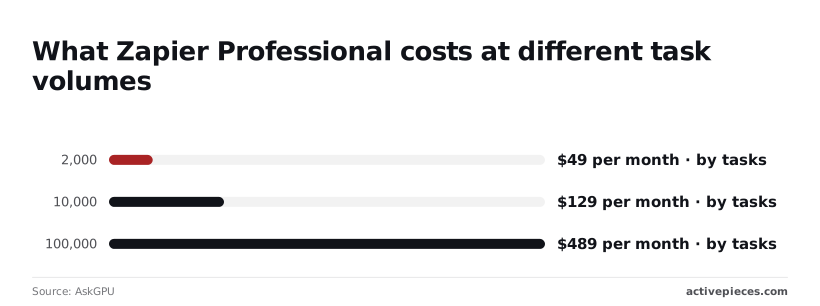
Price is the other divider. The table below shows Zapier's plans by monthly task allowance.
| Zapier plan | Tasks per month | Cost per month |
|---|---|---|
| Free | 100 | $0 |
| Professional (annual billing) | 750 | from $19.99 |
| Professional | 2,000 | $49 |
| Professional | 10,000 | $129 |
| Professional | 100,000 | $489 |
Prices for the larger Professional tiers come from AskGPU. At 2,000 tasks you pay about 2.5 cents a task. At 100,000 you pay about half a cent.
A flow that fires on every row of a busy sheet can use up 750 tasks in days, which is far faster than you might assume when setting up the flow.
Limits and errors that stop Google Workspace automations
When an automation stops, it is usually one of three things: a daily quota, an authorization or admin block, or a trigger that quietly disables itself. The quota is the one you can check before you build.
Quota table by plan
According to appscript.dev, URL Fetch calls rise from 20,000 a day on a consumer account to 100,000 on Workspace.
| Daily quota | Consumer Gmail account | Workspace |
|---|---|---|
| Email recipients | 100 | 1,500 |
| URL Fetch calls | 20,000 | 100,000 |
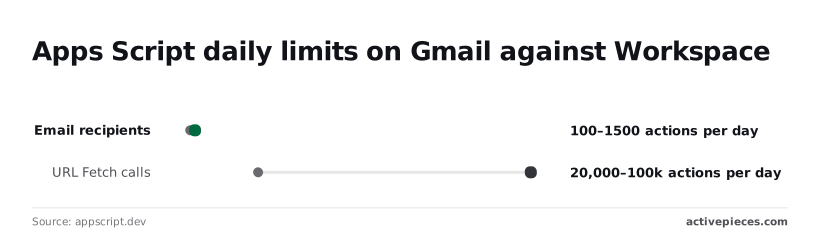
At the ceiling, the exact error is "Service invoked too many times for one day: urlfetch" (or "…: email" for mail).
Once it appears, every call fails until the quota resets, so a script that emails 120 people a day works on Workspace and breaks on a personal account at recipient 101.
The practical reading: the email limit is the tight one. A 100-recipient cap is exhausted by one modest newsletter, while 20,000 fetches covers most polling jobs. Count recipients, not messages, because one message to 40 people spends 40.
If the error is about authorization or an admin block, a bigger quota fixes nothing, because it comes from permissions, not volume. The table lists the messages you're most likely to see.
| Message | Cause | Fix |
|---|---|---|
| "Authorization is required to perform that action" | The script's scopes were never approved, or a new scope was added | Run the function once from the editor and approve the prompt |
| "This app is blocked" | A Workspace admin restricts third-party or unverified apps | Ask the admin to allow the app in the Admin console's API controls |
| "Service invoked too many times for one day" | Daily quota spent | Wait for the reset, batch the work, or split it across accounts |
| "Exception: You do not have permission to call UrlFetchApp.fetch" | The script.external_request scope is missing from the manifest |
Add the scope and reauthorize |
Apps Script triggers that silently stop running
A trigger that fails raises no alarm in the spreadsheet. The only trace is in the Apps Script executions log and in a failure email that goes to the trigger's owner. If that owner has left, the failure notice goes to a mailbox nobody reads.

Two causes recur. A trigger belongs to the account that created it, so suspending that user kills the automation. And a time-driven trigger that throws on every run is eventually reported as failing in that digest, not paused with a banner.
The consequence: put a shared owner on production triggers and check the executions page weekly.
Frequently asked questions
Ownership is only one of the reasons automations stall, and four narrower questions come up alongside it. Each gets one line here:
- Does Apps Script cost anything extra? No, it's included with your Google account or Workspace plan, though quotas apply.
- Are personal Gmail quotas the same as Workspace? No, personal accounts get lower daily limits, so a script that works for a paid domain can hit a quota error on a free account.
- Should I use AppSheet or Apps Script? Use AppSheet when you want a no-code app or bot over a Sheet, and Apps Script when you need custom logic or API calls.
- Who owns a trigger when its creator leaves? The creator's account does, so the trigger stops when that account is suspended or deleted, and someone must recreate it under a shared account.
The fuller answers below cover the questions that sit around those four.
Is Google Workspace automation free? The built-in tools cost nothing beyond your existing plan: Gmail filters, Sheets notification rules, and Apps Script all come with it.
You pay only if you move to an outside workflow tool, and then pricing is set by that vendor, usually by task or run volume.
Can I automate Google Workspace without coding? Yes. Gmail filters, Sheets conditional notifications, Forms response rules, and AppSheet bots all work without writing a line of code.
You hit the ceiling when a job needs conditional logic across several files or a call to an outside API. At that point a short Apps Script is usually easier to maintain than a stack of workarounds.
Does Apps Script work on a personal Gmail account?
It does. You can write scripts and use most services on a free account, triggers included.
The difference is headroom: daily quotas for email sends and runtime are tighter than on Workspace.
If a script fails with "Service invoked too many times for one day," you have reached a quota, and the fix is to batch operations or move the script to a Workspace account.
Why did my Google Workspace automation stop running? Check these causes in order:
- Open the executions page and read the error on the last failed run. It usually names the cause.
- Confirm the trigger's owner account is still active, since a suspended or deleted owner silently stops it.
- Look for an expired authorization. Scripts need reauthorizing after a permission change or a new scope.
- Compare the failure against daily quotas, which show up as explicit quota errors.
- Check that the file or label the script references hasn't been renamed or moved.
Most stalls trace to the first three, which is why the weekly executions check pays for itself.
Related reading
References
Build it
Set this up in minutes.
No code required. Connect your accounts, and Activepieces runs it from there.
Start free Talk to sales