Magnific AI Automation (2026 Guide)

Nov 21, 202613 min read
Replacing manual image enhancement, Magnific AI automation is a programmatic pipeline that delivers consistent visual fidelity across thousands of assets simultaneously. By moving the upscaling process into a headless environment, studios eliminate the human bottleneck that's inherent in the browser-based interface.
What Magnific AI automation accomplishes
The shift from manual sliders to API calls
Modern production requires a move toward structured orchestration. An API key and Activepieces allow teams to define enhancement parameters once and apply them to entire batches.
Uniformity is the primary benefit. By ensuring that the "Creativity" and "Resemblance" settings remain fixed across a series, teams prevent the visual drift that occurs when different freelancers interpret a style guide subjectively.
Core capabilities of the Magnific Image Upscaler API
The API is a direct link to the engine’s generative upscaling. Developers can trigger high-resolution passes as a background task.
Uselamina reports that it supports deep integration with existing asset managers.
An image generated by GPT-Image-2.6 Sunburst can be automatically routed to Magnific for a 4x detail injection without a human ever downloading the file, which means the entire upscaling workflow operates with zero manual oversight.

Textures that didn't exist in the source are added via "Fractal Upscaling." This programmatic control allows low-resolution drafts to meet professional print or 4K display standards automatically.
Current pricing and credit costs for automation
Automating the workflow fundamentally changes the unit economics of high-end image production by replacing high hourly rates with predictable per-image API costs. A manual freelancer costs $10–$25 per image with low throughput, so scaling production requires significant capital and time.
Automating the workflow fundamentally changes the unit economics of high-end image production by replacing high hourly rates with predictable per-image API costs.
An automated API costs $0.02–$5 per image with high throughput, allowing for the rapid processing of massive visual datasets at a fraction of the traditional expense, which means businesses can scale their operations without incurring prohibitive overhead.
Scaling massively is the advantage of the API model. While a manual workflow incurs the cost of a specialist’s time for every iteration, the only variable here is the credit consumption per megapixel.

This takes minutes, not a project: automate it in Activepieces free.
Step 1: Authenticate and send your first image
Standardizing creative production requires moving beyond the Magnific web interface and into the API, where authentication serves as the handshake for every automated upscale. The API is a headless processing environment where a programmatic call replaces human intervention.
Locating your API key in the dashboard
The API key acts as your secure credential for every request. Within the Magnific user settings, you must generate a unique string that identifies your account to the server.
For high-volume requests outside of the browser, this key is the only method of authorization. Its loss or exposure necessitates an immediate rotation to prevent unauthorized billing.
Identifying the Magnific API endpoint
The destination for your image data is the Magnific REST API, which is hosted at https://api.magnific.ai/v1/upscale. This URL is the gateway for all enhancement requests and must be targeted by your POST calls to initiate the generative process.
You can verify the current version of the endpoint by consulting the "API Documentation" link in your account sidebar.
If the service migrates to a newer version, the base URL will update to reflect the change, ensuring your pipeline remains compatible with the latest model improvements.
Handling local file uploads for processing
The Magnific API requires a publicly accessible URL to ingest and process your assets. If your source images are stored on a local drive or a private server, you must first bridge the gap between your local environment and the cloud engine.
You can resolve this by uploading the local file to a public storage bucket, such as Amazon S3 or Google Cloud Storage, and passing that generated link to the API.
Alternatively, if your orchestration tool supports multipart/form-data, you can stream the binary data directly to an intermediary server that hosts the file temporarily for the duration of the upscale.
Configuring the POST request to the upscale endpoint
Submitting an image for enhancement requires a structured POST request to the Magnific upscale endpoint to initiate the cloud-based rendering process.
This request must include the image URL and specific parameters like 'creativity' or 'resemblance' to define how the model interprets the source file. The following 4-step sequence establishes the link between your local environment and the Magnific processing engine:

- Generate API Key in Magnific dashboard to establish your unique authorization token.
- Set Auth header to pass your key securely within the HTTPS request metadata.
- POST the image URL along with the required 'creativity' and 'resemblance' numeric values in the JSON body to transmit the source file and processing instructions.
- Store the returned generation ID to track the status of the asynchronous task.
Understanding the Magnific AI Task ID response
A successful request returns a Task ID, which is the specific reference number used to retrieve your final upscaled asset. Without capturing this ID, your application can't query the status of the job.
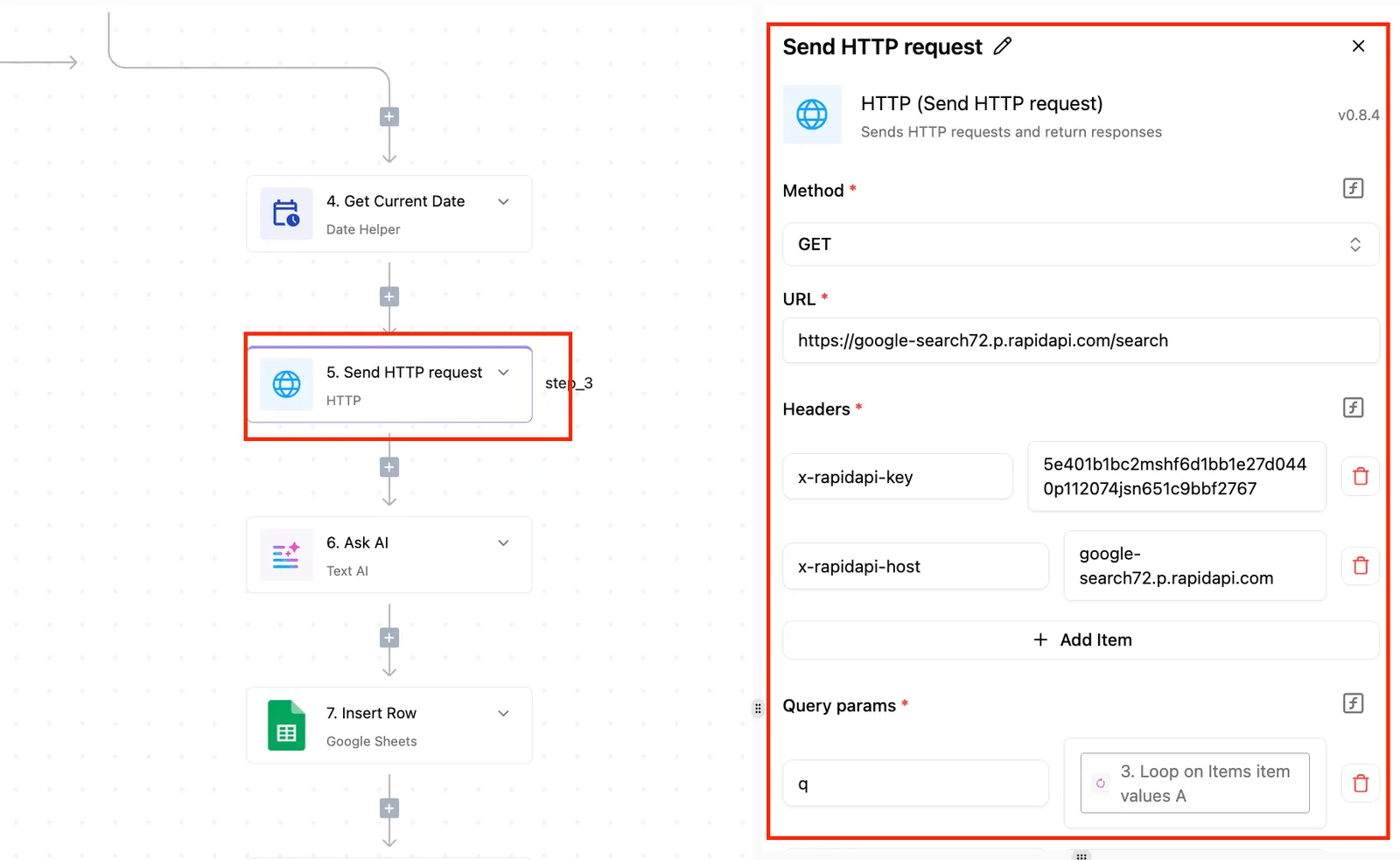
This identifier is the bridge between the initial upload and the final delivery. It ensures that your production pipeline can programmatically download the result once the enhancement is complete.
Step 2: Retrieve the enhanced image via polling
Polling the Magnific API allows your script to monitor the progress of a heavy-compute task without blocking your entire production pipeline. Because upscaling is an asynchronous process, your system must periodically query the status of the job until the high-resolution asset is ready for ingestion.
Checking Magnific AI task status via API
To monitor a job, your script sends a GET request to the task endpoint using the unique identifier obtained during the initial upload.
This request requires the same API key used for the POST call. The following diagram illustrates the standard loop where a client script checks the endpoint, receives a status update, and repeats the process until the final asset is available.
Interpreting 'pending' versus 'completed' states
The API returns a JSON object where the status field dictates the logic branch your script should follow. A status of "pending" or "processing" means the engine is still calculating the image, so your script should pause and retry.
You can implement exponential backoff by using a high-reasoning model like Gemini 4 Carbon to write this retry logic. Only when the status is "completed" will the payload include the final image data.
Downloading and storing the upscaled image URL
The "completed" response is a temporary URL pointing to a Content Delivery Network (CDN) that hosts the upscaled image.
You must programmatically download this file to your own storage (such as an Amazon S3 bucket) because these CDN links are transient and expire after a set period.
The link will break if your script fails to move the file to permanent storage immediately. This forces you to pay for the enhancement a second time to regenerate the asset.
You can follow the rest of this with the builder open. Start free, no card.
Step 3: Fine-tune the enhancement parameters for consistency
Automated orchestration requires mapping subjective artistic goals to the strict numeric ranges defined by the Magnific API to prevent hallucination at scale.
Magnific AI Creativity and Resemblance settings explained
The relationship between Creativity and Resemblance is an inverse weight system where higher values in one often necessitate a reduction in the other to maintain structural integrity.
Setting Creativity to its maximum allows the model to invent new geometry. Resemblance acts as a spatial anchor, forcing the upscaler to adhere to the source pixels. If this is set too high, the model lacks the room to add the high-frequency detail that justifies the computational cost of the API call.
| Parameter | Range | Impact on Output |
|---|---|---|
| Creativity | 0–10 | Controls the volume of new visual information and details hallucinated by the model. |
| Resemblance | 0–10 | Dictates how strictly the output must adhere to the shapes and colors of the source image. |
| HDR | 0–10 | Adjusts the dynamic range and local contrast intensity within the enhanced textures. |
| Max Resolution | 10,056px | The hard ceiling for the long edge of any single generated output asset. |
Selecting the right 'engine' for your image type
Choosing the correct engine is the primary filter that determines how the model interprets noise. The "Universal" engine is a generalist. Specialized engines for "Portraits" or "Film" apply specific logic to skin pores or cinematic grain.
Mismatched engines result in "uncanny valley" artifacts that require manual cleanup. This occurs when applying a "3D Render" logic to a flat vector illustration.
Implementing 'fractality' for high-detail textures
Fractality governs the complexity of the patterns generated during the upscaling process. In high-volume production, this is the most dangerous parameter to leave unmanaged.
Excessive fractality in a landscape shot will create hyper-realistic foliage. Noisy, unrealistic micro-textures will be introduced if you apply the same level to a smooth surface like a car hood. Successful API orchestration uses metadata tags to apply high fractality only to organic subjects.
Automate Magnific AI workflows using Activepieces
Activepieces transforms Magnific AI from a standalone enhancement tool into a functional node within a broader business logic engine. By treating the API as a discrete step in a visual workflow, you eliminate the manual hand-off between storage, processing, and distribution.
The moment a Magnific integration is connected in Activepieces, an agent can call it as a tool. Registering a integration once allows it to run as a step in a flow or as a tool schema on the per-project MCP server, reachable from an agent you built yourself. Check the Integrations Framework in the open source repo to see how the same action that runs in a flow is exposed as an MCP tool. This allows a creative agent to trigger an upscale directly from a chat interface without a separate integration step.
Triggering upscales from new Google Drive uploads
Automated ingestion ensures that every raw asset intended for production undergoes high-fractality enhancement without a designer manually moving files between browser tabs.
When a new file lands in a watched Google Drive folder, Activepieces captures the file metadata and passes the public URL directly to the Magnific API. A photographer can sync a local folder to the cloud and trigger a fleet of upscales simply by saving a file.

Sending enhanced images to Slack or Discord for approval
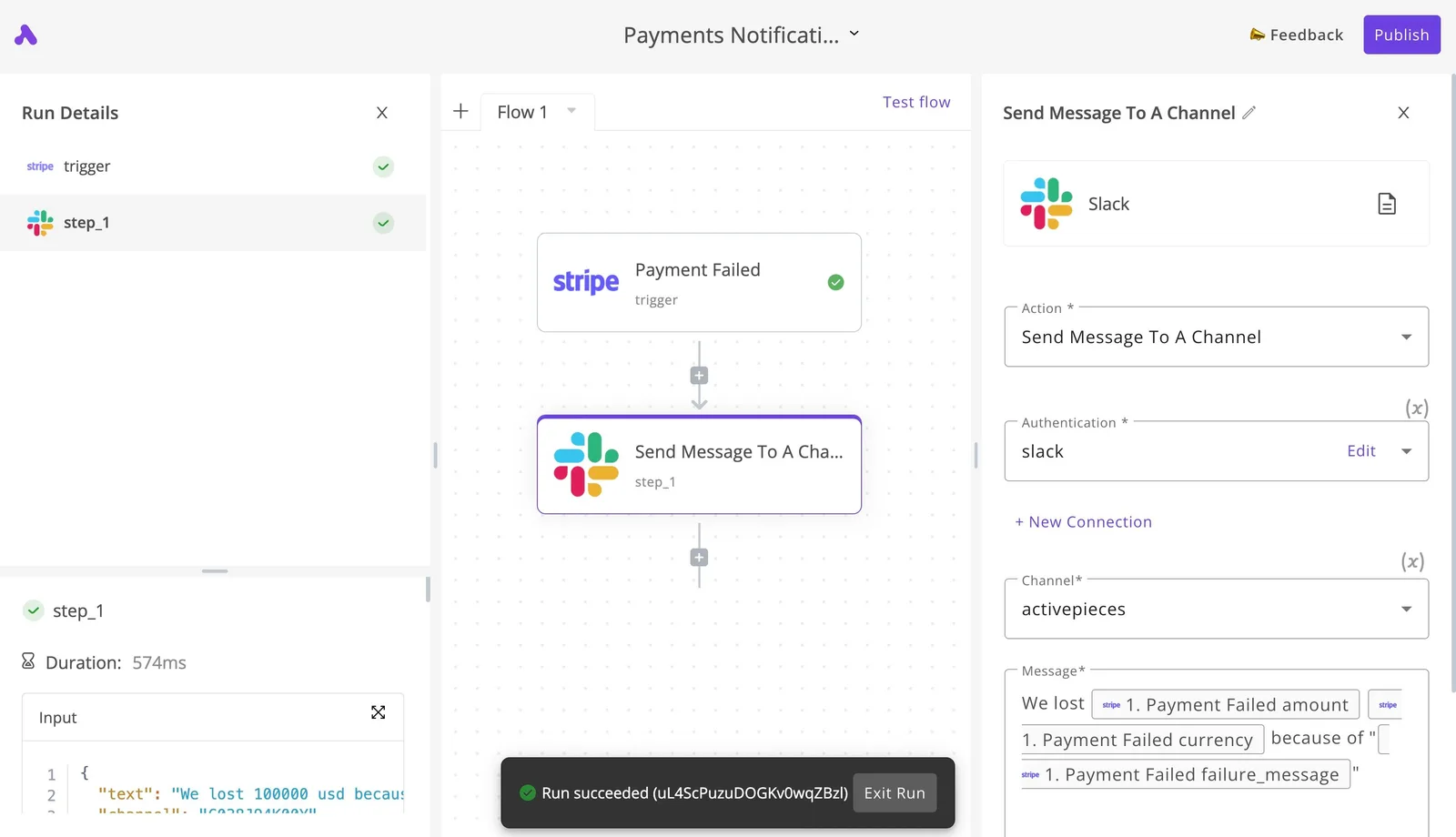
The visual workflow below demonstrates how a production pipeline handles external events by routing success or failure notifications to the teams that need them.
The canvas illustrates a Stripe failure trigger, but the logic remains identical for creative workflows. A "Job Completed" signal from Magnific triggers a Slack "Send Message to a Channel" action.
Activepieces records every agent tool call, the specific image data it processed, and the sequence of its logic in a unified trace alongside the fixed workflow steps. Check the Run Details and Debugging UI for this per-step agent decision trace, which ensures that an agent's choice of Magnific parameters is reviewed the same way a workflow's steps are. MoneyGram and Moneypenny run Activepieces in production to manage these complex environments where auditability is required.
Bulk processing Airtable records with Magnific AI
Relational databases like Airtable are the source of truth for high-volume creative campaigns. Activepieces iterates through these records, sending the image URL to Magnific and then writing the enhanced output back into an attachment field once the API returns the result.
This structured approach permanently links every upscaled version to its original metadata and project ID.
Common Magnific AI API errors and their fixes
Robust error handling transforms a fragile script into a resilient production pipeline by preemptively managing the friction points of high-volume upscaling.
Resolving 429 'too Many requests' errors personally
A 429 error indicates that the current request volume has exceeded the account's allocated rate limit. To resolve this, developers must implement exponential backoff.
This is a strategy where the system waits for a progressively longer duration before retrying the failed call. This prevents a "thundering herd" scenario where repeated, immediate retries continue to trigger the limit and extend the lockout period.

Fixing Magnific AI image too large errors
The 413 Payload Too Large error occurs when the input file size exceeds the maximum threshold allowed by the endpoint.
An automated preprocessing step is necessitated by this error to resize or compress the source image before the API call is initiated. By integrating a library to downscale dimensions, the pipeline ensures every file meets the ingestion requirements.
Fixing Magnific AI Task ID failure states
When a Task ID returns a failure state or a 504 Gateway Timeout, the system has failed to process the upscale within the expected window. These errors are managed through the following logic:
- Verify the 401 Unauthorized status to confirm the API key is active or the JWT has been refreshed.
- Increase the polling interval for 504 errors to allow the server more time to complete heavy compute tasks.
- Log the specific failure reason returned in the task metadata to identify if the prompt or settings triggered a safety filter.
Frequently asked questions about Magnific AI automation
Magnific AI automation requires a transition from interactive UI experimentation to a protocol-driven environment where file handling and scaling limits are defined by API endpoints.
Does Magnific AI support video automation?
Magnific AI has dedicated endpoints for video enhancement. Users can automate the temporal upscaling of frames through structured API calls.
To manage these heavy compute loads, developers typically utilize Gemini 4 Hydrogen to handle the logic of splitting video files into manageable segments and reassembling them after the enhancement process is complete.
What is the maximum resolution for API upscales?
The maximum resolution for an automated upscale is determined by the specific engine selected and the aspect ratio of the source file. Your output dimensions will vary based on the original image's pixel count.
High-fidelity outputs are restricted by the processing tier of the API key. For complex reasoning regarding these resolution constraints and cost-optimization logic, Claude Opus 5.5 is the preferred model for long-running agentic knowledge work.
Can I use Magnific AI automation on a trial plan?
API access is restricted to paid subscription tiers. A user on a trial or free plan can't generate the necessary credentials to authenticate automated requests.
When configuring these paid environments, developers often use GPT-6.2 Sol to balance the intelligence and cost of the integration scripts that connect the creative studio's local storage to the Magnific AI cloud.
Build it
Set this up in minutes.
No code required. Connect your accounts, and Activepieces runs it from there.
Start free Talk to sales