
Opus Clip Automation: How to Set It Up (2026 Guide)

Nov 11, 202614 min read
Opus Clip's own clip generation, brand templates, scheduler and API do the clipping; an outside workflow tool, Activepieces, whose core is MIT-licensed, only moves files and notifications around them.
Choose your Opus Clip automation path
Opus Clip automation is the practice of using Opus Clip's built-in clip generation, brand templates, scheduler and API to turn long videos into short clips with little manual work, adding an outside workflow tool only to hand files and notifications to and from it.
This was checked against Opus's official pages on 11 November 2026, and by the end you'll have clips generating and posting from one source video with no manual hand-off in the middle.
When Opus schedules a post while an outside tool also posts it, you have double-published, and it is the commonest failure here. Pick one owner for publishing before you connect anything.

Do not quote this as a market size. PlayPlay's chart of marketers using AI to repurpose video into clips shows a figure of 3 with no unit stated, so treat it as evidence the practice exists.

Read the table for where each capability lives, and which rows you can leave inside Opus and which need another system.
| Capability | Built into Opus Clip, or needs API/outside tool | Plan required per pricing page |
|---|---|---|
| Clip generation | Built in | Check the plan rows on Opus's pricing page |
| Brand templates | Built in | Check the plan rows on Opus's pricing page |
| Scheduling and auto-posting | Built in | Check the plan rows on Opus's pricing page |
| API access | Needs the API | Check the plan rows on Opus's pricing page |
| Outside workflow tool | Needs an outside tool | Not an Opus plan; billed by the tool |
Clip generation, brand templates and scheduling with auto-posting all run inside Opus.
If you want to trigger clips from another system, you need the API. Hand-offs such as alerting a channel or filing finished clips need an outside tool. Neither replaces the built-in rows.
You need an Opus account on a plan that covers the rows you use, connected social accounts, one brand template, and a decision on who publishes.
This takes minutes, not a project: automate it in Activepieces free.
Stage 1: Generate and export your first clips
Submit a link or file, set the clip options, generate, review the scores, and export. The review step is the only one that needs your judgment, because the other steps are choices Opus applies automatically.
Sign in and paste a source link or upload a file from the dashboard. Check Opus's current help and pricing pages for input limits first, since they differ by plan and change.
Set these before you generate, because changing them afterward means regenerating:
- Clip length, so the output fits the platform you'll publish to.
- Language, so captions match what is spoken instead of a wrong guess.
- Captions template, which is where your brand template from the prerequisites gets applied.
- Aspect ratio, matched to the destination feed.
- Topic prompts, which steer which moments get picked.
The quietest failure here raises no error. With the wrong language set, the clips render and look finished, and the captions are wrong. You find out after publishing.
Review and export Opus Clip clips
Opus scores each clip, but the score is a ranking that tells you what to watch first, not an approval.
Watch every clip you intend to ship, including the high scorers, and check the caption text and the cut points. Export only the ones you would publish by hand.
Opus scores each clip, but the score is a ranking that tells you what to watch first, not an approval.
Keep this step manual on the first run.
Once you export, an outside workflow tool takes over. Its agents page lists named workers, here a blog-author agent and an SEO writer, each with a one-line job description.
Automate Opus Clip branding and publishing
Set the brand template, connect your accounts, and schedule from inside Opus Clip, so clips leave the dashboard already styled and routed without a manual hand-off.
The failure to design against is an unbranded clip going out on the wrong account because someone exported by hand at the end of a long day.
Save an Opus Clip brand template
Style one clip the way you want every clip to look: captions, fonts, colors, logo placement. Then save that styling as a brand template from the editor's template controls.
Before you build around it, confirm the menu labels and which plan unlocks custom templates on Opus's pricing page, since both change. Once the template is saved, new projects can start from it, and nobody restyles captions per clip.
Connect social accounts to Opus Clip
Link each destination account from the dashboard's account or integrations settings, signing in as the account owner. Connect only the accounts this workflow publishes to. A stale or personal login left attached is how a clip lands on a profile it was never meant for.
A cap on connected accounts quietly stops a multi-channel plan, so check the pricing page for how many your plan allows.
Schedule or auto-post clips
Pick a finished clip, choose the connected account, set the date and time, and confirm the caption. That leaves one scheduled clip and one saved template, which is the exit condition for this stage.
If your plan supports auto-posting, use it for clips you trust the template to handle, and keep manual scheduling for anything that needs a human read first.
For the posting itself, Opus's scheduler is enough.
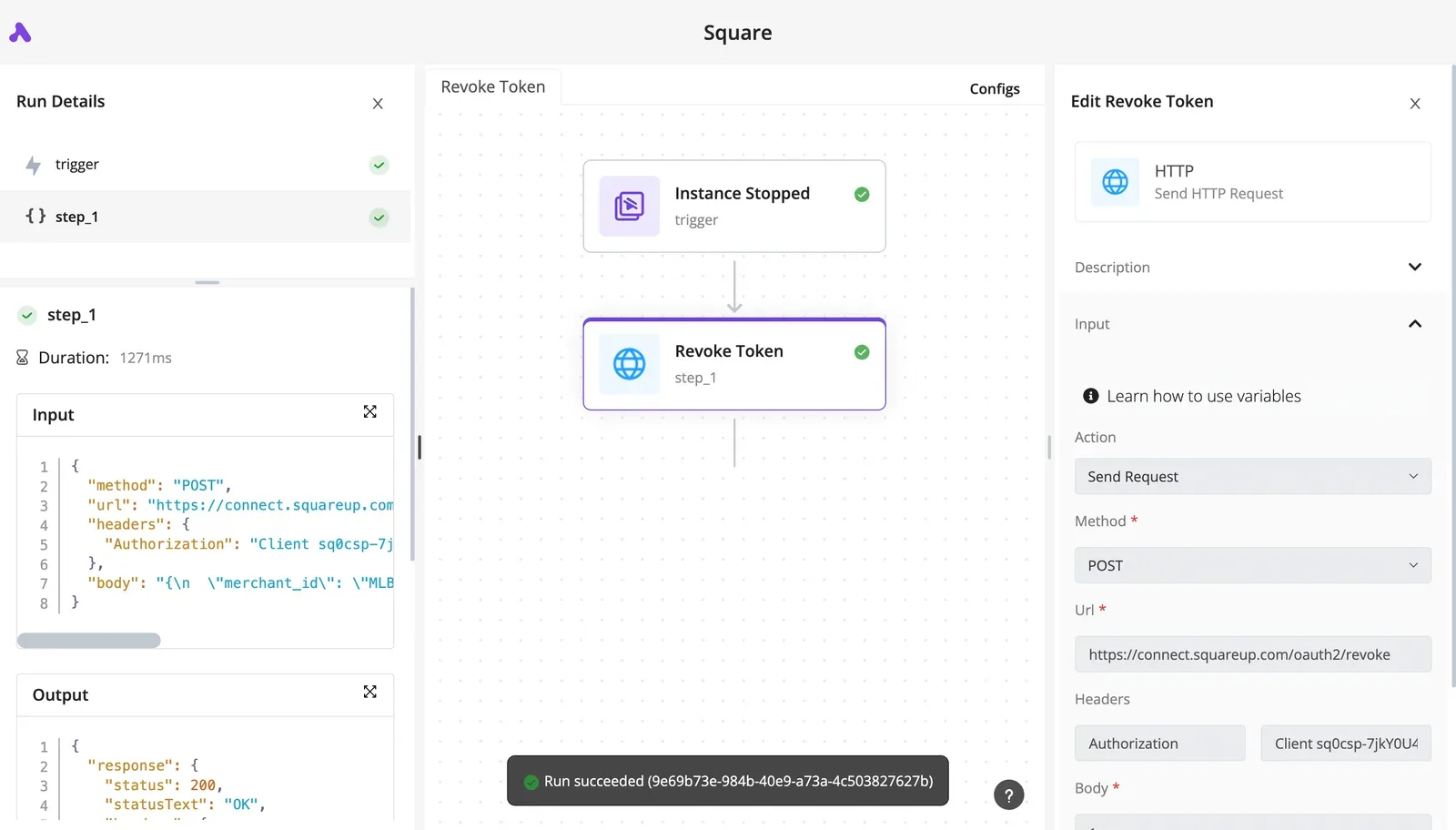
For the steps around it, such as pulling the next topic from a spreadsheet, a connector you need may not exist in a closed catalogue, and then you wait on the vendor's priorities; Activepieces has AI build the missing integration and keeps it private to your own instance, and roughly 60% of its 747 integrations were contributed by the community, which you can count in the open-source monorepo.
Picture that pattern on the canvas below.
A weekly trigger set for Monday at 10 am New York time starts a six-step flow that reads the next spreadsheet row, asks an AI step for copy, stamps the date, and creates and then finds a Google Docs document.

Trigger Opus Clip with code
Code or a workflow tool can start Opus Clip work through the official API, using a key tied to your account. The failure to guard against first is a key that leaks or a request that runs under the wrong account.
Get API access and a key
Check Opus's official API page before writing anything, because access has been gated by plan and by approval, and the terms change. If your account has no access, nothing below will work, so confirm that first.
Once issued, the key goes in an environment variable or your tool's credential store, never in a shared script. Anyone holding it can spend your processing credits and read your projects.

Create a project and fetch clips
The flow has two calls. Create a project by sending a source video with your key in the request's authorization header. Then fetch clips for that project once processing finishes.
Processing is asynchronous, so the create call returns an identifier, not clips. A script that fetches immediately gets an empty result and may record the job as failed when it's only unfinished.
Poll the fetch endpoint at a sensible interval until the project reports completion. Store the project identifier so a retry doesn't submit the same video twice and double-charge your credits.
The table compares the three routes. 30 requests per minute per API key and 50 concurrent projects are the limits that matter most for the script and the workflow tool, because both are the ones that can exceed them.
| Route | Setup effort | Plan needed | Main failure points |
|---|---|---|---|
| Native features (templates, scheduling) | Lowest; configured inside Opus | Your current plan | Cannot take input from other systems, so hand-offs stay manual |
| Own script | Highest; you write auth, polling and retries | A plan with API access, confirmed on Opus's pages | 30 requests per minute per key: a tight polling loop gets rejected calls. 50 concurrent projects: a large batch fails past that count unless you throttle |
| No-code workflow tool | Moderate; you map the calls visually | API access, plus the tool's own paid tier if its trigger requires one | Same two limits, plus silent retries that resubmit a project |
You can follow the rest of this with the builder open. Start free, no card.
Fix Opus Clip errors and limits
Hand-offs fail in a small number of documented ways, and the table maps each symptom to its cause and fix. Use it to decide whether the fault sits inside Opus Clip or in the step you built around it.
| Symptom | Documented cause | Fix |
|---|---|---|
| Out of credits | Monthly allowance used up | Wait for renewal or upgrade |
| Upload over 10GB or 30GB | File exceeds the size cap | Compress or trim, or submit a link |
| Bad link | Source URL private, removed or unsupported | Use a public link or upload the file |
| Stuck processing | Job not completing | Resubmit; contact support if it repeats |
| Caption language wrong | Language set incorrectly | Set the source language before processing |
| Free-plan watermark | Free plan output | Upgrade before exporting |
| Expired social token | Account authorisation lapsed | Reconnect the account |
| API 429 or auth error | Rate limit hit, or key rejected | Back off and retry; check the key |
A 30-minute video uses 50, 20 or 10 percent of a monthly allowance, depending on plan, according to the Opus Clip Help Center.

The 10 percent plan therefore allows five times as many such videos monthly as the 50 percent plan.
One long recording can empty the smallest allowance, since a 60-minute video uses 100, 40 or 20 percent. A 120-minute video uses 200, 80 or 40 percent. On the first plan that is twice the allowance, so check length before queueing.
Size caps, unreachable links and wrong caption languages all fail at submission, so validate the link and set the language before the job starts. A stuck job costs credits you can't see, so cap your resubmissions.
The clip exists but nothing publishes. An expired social token breaks scheduled posts quietly, so reconnect the account, and check the schedule after any password change on the platform side.
A 429 means you're sending too fast, and an auth error means the key is wrong. Opus's API page lists the rate limit; build your retry delay around it.
Automate the hand-off around Opus Clip with Activepieces
Let Opus Clip do the clipping and use Activepieces only for the steps around it: the trigger that submits a video and the message that announces the result. Both can be separate flows, since every Activepieces plan, free included, has unlimited flows.
The retry delay from the rate limit above belongs in the Activepieces flow, not in Opus.
Where an outside workflow tool helps
When the same Drive file fires the trigger twice, two projects get created and you pay for the clips twice. That is the failure to design against.
An Activepieces flow can check for a duplicate before anything is sent, and a run is 1 credit however many steps it has, so the check adds nothing to the bill. If Opus's own scheduling or templates cover a step, use those.
If its API doesn't expose a step you need, a step that calls the API directly can reach the endpoint, and the free plan's 1,000 credits a month are enough to test that call. Confirm what Opus's API page currently exposes first.
How much you can hand off depends on credit allowances. Activepieces' pricing page lists monthly credit allowances: 1,000 credits on Free, 10,000 on Plus and 50,000 on Team. A plain run is 1 credit, while AI steps cost more.

Zapier's comparable tiers come to 100, 750 and 2,000.
Within a week of steady uploads, a free Zapier account may run out, since each polling check, submission and notification can count against the allowance. Check both pricing pages before you commit, because plans change.
The flow below runs in order, and the wait step is where your retry delay goes.
- Trigger on a new file in a Drive folder.
- Send an HTTP request to Opus's create-project endpoint with the file's link.
- Wait for the project to complete, polling at the interval your rate limit allows.
- Fetch the finished clips.
- Post a Slack message or add a sheet row so a person can approve.
Flows break at step 3, because a loop that polls too fast hits the limit and fails midway. Approval comes last on purpose, so nothing publishes without a person's sign-off.
Start on Monday with these four steps:
- Read the rate limit and the exposed endpoints on Opus's API page.
- Build the five steps above with one test video.
- Upload the same file twice and confirm only one project is created.
- Compare your monthly upload count against the credit allowances above, then pick a tier.
Frequently asked questions
Several failures happen before a clip ever reaches the queue, and approval gates only catch what a person can see. Each answer below names the Opus page that settles it, and the check date belongs in your own runbook.
Plans, channels and the API
Is Opus Clip automation available on the free plan? Don't assume it is.
Plan limits are the first thing to change, so read Opus's pricing page and record the date you read it.
If API access or scheduling is absent from the free tier there, any workflow you build on it fails at the first run, not at design time.
Can Opus Clip auto-clip every new video on my channel? Only if Opus's own help center lists a feature that watches a channel and imports new uploads. Check that page before building anything.
If the feature exists, use it. If it doesn't, an outside tool can hand each new video's link to Opus, but that makes the tool the trigger, not the clipper.
Does Opus Clip have an official API? Settle this on Opus's official developer documentation, not a forum thread or a third-party listing.
If you can't find public documentation or an access-request path there, treat the API as unavailable to you. A workflow built on an unofficial endpoint can break without notice, and nobody owes you a fix.
Zapier and Make
Can I use Zapier or Make with Opus Clip? Yes, for hand-offs around Opus, but not as a replacement for its clipping.
Look on Opus's integrations page and in each tool's app directory for a native connector. If neither lists one, the connection depends on API access, which brings you back to the previous question.
Keep these tools to moving files, sending notifications and requesting approval.
Late or missing posts
Why did my clips post late or not at all? Start with four causes, in this order:
- A pending approval is holding the clip.
- The connected social account's authorization has expired.
- A plan limit has blocked the job.
- The outside tool's run failed, so Opus never received the trigger.
Opus's scheduling and account-connection pages tell you which of these applies. Check them before you rebuild anything.
Related reading
References
Build it
Set this up in minutes.
No code required. Connect your accounts, and Activepieces runs it from there.
Start free Talk to sales