
Outlook Automation: One Missed Rule

Oct 16, 202613 min read
Outlook automation is mail handling that runs without you:
- rules sort and file messages inside Outlook
- Power Automate extends that across Microsoft services
- outside tools, such as Activepieces, cover everything else
Each layer breaks differently, and the break is usually silent. Details here are current as of 16 October 2026.
Rules and workflows that power Outlook automation
What Outlook automation means in plain terms
It's a condition, an action, and an assumption about incoming mail that nobody wrote down.
"If the sender is the supplier, move it to Invoices" looks like two parts, but the sender address staying the same is a third, and it's the one that fails first.

The Monday a shared-mailbox rule stopped
At 9:04 on a Monday, a rule that filed invoices from a finance mailbox stopped matching. The usual cause is the assumption inside the condition: the rule keyed on a sender address or a subject phrase, and a supplier changed it.
The obvious answer is a second rule to catch the strays. It only moves the mess. The fix is to remove it:
- one named owner
- a cap on what the automation may touch
- an alert when a run fails or finds nothing it expected
The three layers: rules, Power Automate, outside tools
Start with rules: they are the Layer for sorting inside one mailbox. Power Automate is the next step when mail has to trigger something elsewhere in Microsoft's services.
Outside tools matter when the flow crosses into other apps, adds an AI step, or needs an approval.
Everything below works on Activepieces' free plan. Start without code or a credit card.
What went wrong in the first 72 hours
Nobody inside the company noticed until a supplier wrote in, because a rule that stops matching raises no error.
The table follows the same mailbox hour by hour, with no invoice counts, because the point is the shape of the backlog and not its size.
Nobody noticed until Thursday morning, because a rule that stops matching raises no error.
| When | What the rule did | Invoices unprocessed (cumulative) | Who noticed |
|---|---|---|---|
| Mon 9:04 | Stopped matching after a supplier changed its subject line | None yet | No one |
| Mon end of day | Skipped everything from that supplier | A handful, buried in the inbox | No one |
| Tue | Kept skipping, while other mail filed normally | Growing, and still invisible | A supplier, by email |
| Wed | Still skipping | Large enough to need a full sort | The team lead, by chance |
| Thu morning | Still skipping | The full backlog, now countable | The team, once someone looked |
Every row says "skipped" and none says "failed", which is why the alert never fired.
On Tuesday a supplier wrote to ask why an invoice was unpaid. That was the first signal, and it came from outside the company.
By Wednesday the team lead saw a stretch of invoices sitting unfiled and traced them to the rule's condition. Rework meant reading each message by hand, since nothing logged what the rule had skipped.

Only when someone counted it did late-payment exposure become real. That cost came from the missing alert, not from the broken rule, and the flows below are built to prevent it.
What Outlook's built-in rules and Power Automate cover
When Outlook's own automation stops, it says nothing, and it handles only mail inside Microsoft's walls, so the alert you were missing is yours to build. Rules sort mail within one mailbox; Power Automate adds triggers and steps across Microsoft services, under daily action caps.
Rules and their documented limits
When a message arrives or is sent, a rule fires, then moves, flags, categorises or forwards it. The assumption that breaks first is that the rule sees everything: it acts on mail in the mailbox, never on an attachment's contents or a system outside Outlook.
There's also no owner field and no failure notice, so a rule that stops matching just stops.
Power Automate and the Outlook connector
The connector triggers on events such as a new email and can act on other Microsoft services. Its daily cap comes from the licence.
Per Alpeniq, the Microsoft Learn licensing FAQ gives Microsoft 365 seeded licences 6,000 actions per day. A flow that loops over every message in a busy shared inbox can exhaust that cap and halt.
For a flow touching many items per run, Premium allows 40,000 actions per day. Process allows 250,000, which suits a flow serving a whole team rather than one person.
Outlook automation licence requirements and costs, October 2026
Rules and the connector stay inside Microsoft, and only Premium reaches outside it; the table shows where each option stops. Take from it that the price of crossing that edge is a licence, not a setting.
| Trigger | Reach outside Microsoft | Documented limit | Licence and price | |
|---|---|---|---|---|
| Outlook rules | Message arrives or is sent | None | Acts on mailbox items only | Included with Outlook |
| Power Automate Outlook connector | New email and other mailbox events | Microsoft services | 6,000 actions per day | Microsoft 365 seeded licence |
| Power Automate Premium | Same, plus premium connectors | Yes, via premium connectors | 40,000 actions per day | $15 per user/month |
| Copilot | You prompt it | Limited to what it is given | Not a scheduled trigger | Separate Copilot licence |

Copilot is the odd row because it answers when asked and never fires on its own, so it can't be your unattended automation. The flows below stay within the smallest row that does the job.
Why the rule failed with common errors
None of it was a Microsoft bug. The rule failed for ordinary reasons: each of the five mistakes below is one a small setup can make, and each has a cheap fix.
- With no named owner, nobody notices the rule stopped, so the first sign is a missed message.
- A rule that depends on one person's account or on the desktop client stops when that account is disabled or Outlook is closed.
- With no failure alert, errors pile up silently and you find them by their effects.
- With no test after a folder rename, the rule keeps pointing at a destination that no longer matches what people expect.
- With no volume cap, one bad trigger can move or send mail in bulk before anyone looks.
Client-only rules and a departed owner
A closed laptop means a silent rule, because Microsoft's documentation says client-only rules run only while Outlook is running on that computer.
When the person who created a Power Automate flow leaves and the account is disabled, the connection breaks and the flow stops with it, since the flow runs on the credentials of the connection its creator signed in with.

Add a named owner and a co-owner, and prefer server-side rules and flows that run under a shared or service mailbox where your licensing allows it.
No alert when a run fails
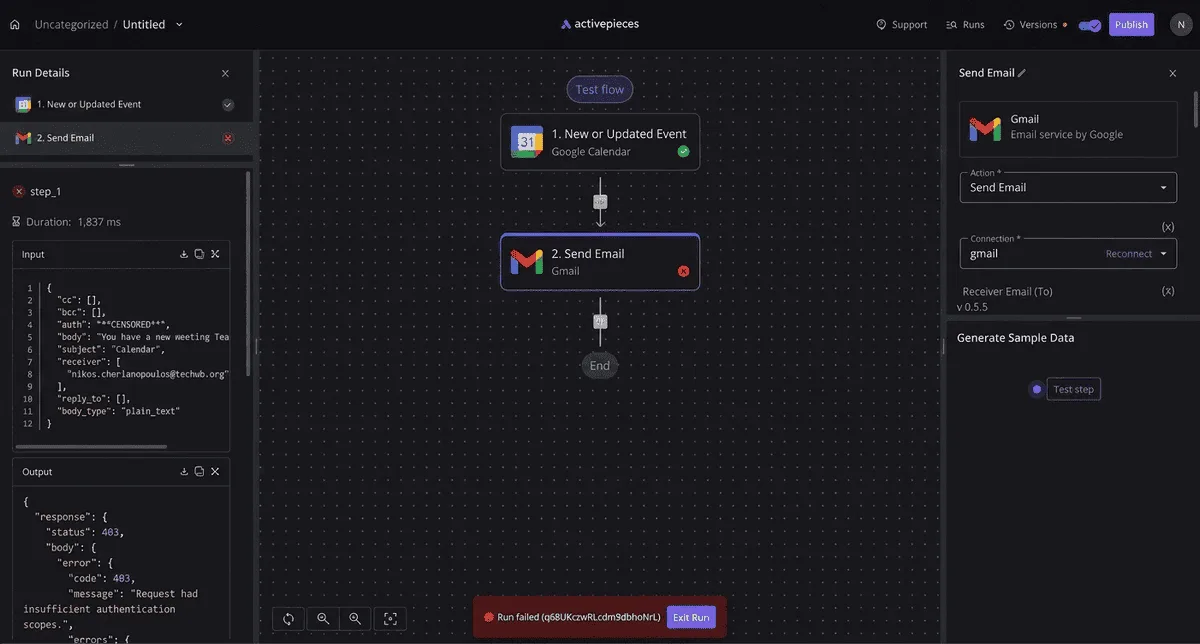
Unless someone is told, a failed run leaves a log entry and not a conversation, and the failure surfaces only when a customer asks why nothing arrived.
Send failures to a shared address the owner and co-owner both read, and put a catch step in each flow that does the same.
After any folder rename, send one test message through and confirm it lands where intended. Add a cap in the flow itself, such as a limit on items per run, so a loop can't run away.
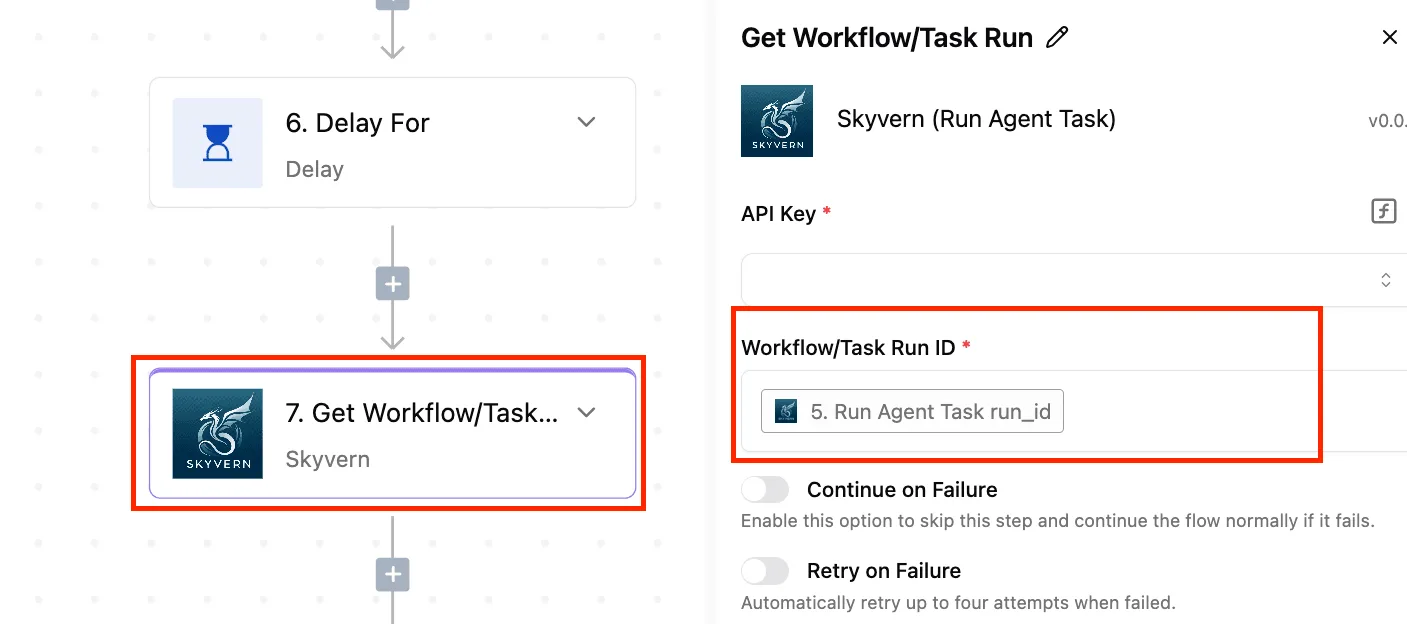
Write the trigger, the action and the owner in three lines first. That page is what the next person reads when the rule breaks.
Easier to see it running than to read about it: set it up free, no card.
Five Outlook workflows reaching other apps
Once that page exists, the flows worth documenting are the ones that leave Outlook, and these five cover most of them.
The table shows what starts each flow, what it does, which app it reaches, and whether a built-in rule could do the job instead.
| Flow | Outlook trigger | Steps | Connected app piece | Outlook alone suffices? |
|---|---|---|---|---|
| Invoices | New mail from a vendor | Extract fields, append row, post alert | Google Sheets, Slack | No |
| AI triage | New mail in shared inbox | Classify, create record | Notion | No |
| Approvals | Draft reply flagged | Ask approver, send or stop | Slack | No |
| Calendar digest | Daily schedule | List events, post summary | Slack | No |
| Attachment filing | New mail with attachment | Save file, move message | Google Drive | Only within Outlook folders |
Four of these five need more than Outlook, and Activepieces runs the app steps, the AI classification and the approval wait in a single workflow, with audit logs and run traces, per-team cost caps and role-based access behind it, on self-hosted or cloud alike.
That keeps the owner and the failure record in one place instead of one per vendor, and MoneyGram, Moneypenny, Alan and FundingSocieties run it in production.
Owners and failure alerts for Outlook workflows
Every row needs a named owner and a failure alert, because a flow that stops quietly looks identical to a quiet week.
How to build each Outlook workflow
For the invoice flow to Google Sheets and Slack, trigger on mail from known vendor addresses. Pull the vendor, amount and due date, append a row to the sheet, then post a link to Slack.
Assume the invoice layout changes first: a changed template yields empty fields, so alert on any blank amount rather than writing a blank row.
For AI triage of a shared inbox into Notion, trigger on each new message. Have a model label it as request, complaint or noise, then create a Notion record carrying the label and a link back to the message.
Keep the label list short and fixed, since open-ended categories just move the sorting mess into Notion.
For approval before an outbound reply, trigger when a draft is flagged. Send the draft text to an approver in Slack and wait. Send on approval, stop on rejection. Set a timeout that alerts the owner, or an unanswered request becomes a silent stall.

For the daily calendar digest to Slack, trigger on a morning schedule. Fetch the day's events, format them as one message, and post it to a team channel.
For attachment filing to cloud storage, trigger on mail with attachments. Save each file to Drive under a predictable folder name, then move the message. If you only need the mail sorted inside Outlook, a rule is enough and this flow is overkill.
Rules that now guard every Outlook automation
Every Outlook automation now has a named owner with a backup and a volume cap.
It also has a failure alert that lands in a channel, a daily heartbeat check, and a written test after any folder or mailbox change. A quarterly review keeps them honest.
The five rules now in force
If the owner is on leave, the backup is the person who gets the alert and can act on it.
A flow that loops on its own output, or a rule that matches every message in a shared mailbox, stops at the volume cap instead of sending until someone notices.
Failure alerts and heartbeat checks for Outlook workflows
Failure alerts go to a channel the team already watches, not to the owner's inbox. An alert sitting in the inbox of the very mailbox that's broken is an alert nobody reads.
Some failures raise no error at all: the flow simply stops firing. The heartbeat check covers that case. A daily confirmation that it ran, or an alarm when it didn't, turns silence into a signal.
After any folder or mailbox change, the written test runs: it sends a known message through and records where it should end up.
Order for putting Outlook automation safeguards in place
Do these in order, because each step depends on the one before it:
- Write down the owner and the backup for each automation, and tell both of them.
- Set a volume cap on every flow that sends, forwards or moves mail.
- Route failure alerts to a shared channel, and confirm someone other than the owner can see it.
- Add a daily heartbeat check that reports when a flow hasn't run.
- Write the test for any folder or mailbox change, and run it after the next one.
- Book the quarterly review in the owner's and backup's calendars.
Frequently asked questions
Is Outlook automation free?
Rules cost nothing extra: they ship with Outlook itself. Power Automate flows that use standard connectors are generally covered by an existing Microsoft 365 subscription, while premium connectors need a separate paid license.
Check which connector tier a flow touches before you build it, because a flow that silently depends on a premium connector becomes a licensing problem later.
Can Outlook rules run when the app is closed?
It depends on the rule type. Rules that run on the server, such as moving mail to a folder or forwarding it, keep working with Outlook closed. Rules Microsoft marks as client-only, such as playing a sound or printing, need the desktop app open.
If a rule matters, make it server-side, or move the job into a flow that runs in the cloud.
Do I need Power Automate or can I use another tool?
You need Power Automate only when the job crosses Microsoft's boundary or needs steps a rule can't express. Rules cover sorting, flagging and forwarding inside the mailbox. For anything touching another app, a third-party automation tool can do the same work.
The test is the same either way: does it have an owner, a cap and a failure alert? A tool that fails with no alert just moves the mess somewhere else.
Can automation read emails with AI safely?
Safely enough, if you limit what the AI step can do. Email bodies are untrusted input, so a message can contain instructions aimed at your model.
Let the AI step classify or summarize, and keep sending, deleting and forwarding behind a fixed rule or a human approval.
Also check what your organization's policy says about sending mail content to an external model before you wire one in.
How do I stop an automation failing silently?
Make failure produce a message somebody sees. Send an alert to a team channel, not a personal inbox, whenever a run errors.
Add a heartbeat as well: a periodic check that confirms the flow ran at all, because a disabled or expired connection throws no error.
Name one person as owner, so the alert has somewhere to land. The failures that hurt are the ones where nothing happened and nothing said so.