ProtonVPN Automation in 2026: Setup Steps and Fixes

Nov 24, 202614 min read
Because Proton doesn't publish a public API for controlling servers, "automation" means the apps' own auto-connect, kill switch, saved profiles and the Linux command line, rather than the kind of Activepieces flow you might wire up for other services.

Each is a setting you can verify, not a script you must trust.
ProtonVPN automation is auto-connect, not an API
Fastest ProtonVPN automation path per platform
If you can't find the named setting, you're on an older build or the wrong screen, and nothing downstream will work. The table shows the quickest route on each platform and the setting to look for.
| Platform | Fastest automation path | Exact setting name | Checked |
|---|---|---|---|
| Windows | Connect on app start | Auto-connect | 24 November 2026 |
| macOS | Connect on app start | Auto Connect | 24 November 2026 |
| Android | Android's system VPN controls | Always-on VPN | 24 November 2026 |
| iOS | Connect on launch, with the kill switch on | Kill Switch | 24 November 2026 |
| Linux CLI | Run a connect command from a script | protonvpn connect |
24 November 2026 |
22,180 servers, as of October 2026, so you're working with historical data. Proton reports the network grew from 1,800 servers in November 2022 to 11,000 in January 2025, and then reached 20,000 in April 2026.
Auto-connect picks from that pool, which is roughly twelve times the 2022 size, so "fastest" now chooses among far more servers, and the one you got last week may not be the one you get today.
What Proton does not automate
Nothing in the list above lets an outside tool tell Proton to switch servers. A workflow in Activepieces can run on a schedule and call your connected apps, but it can't reach into the ProtonVPN desktop or mobile apps.
Plan limits are the other quiet failure: if your plan caps simultaneous connections, a second device can fail to connect and nothing warns you.
Everything below works on Activepieces' free plan. Start without code or a credit card.
ProtonVPN auto-connect failure for a remote team
In this worked scenario, a small remote team opened their laptops on café and home Wi-Fi with the VPN disconnected. Auto-connect was on, but nothing ever launched the app to use it. The team is a composite, not a measured case.
Symptoms of the ProtonVPN auto-connect failure
Everyone believed auto-connect was on, and in the settings it was. Then one person noticed the VPN toggle read "Disconnected" while the browser loaded pages normally.
Nobody was harmed: nobody touched an account, and no one found a leak.
But the team had been working unprotected on shared Wi-Fi without any warning, which is the quiet failure this article is about.
The next question was why the protection was missing, and what the team tried first.
Early ProtonVPN fixes that didn't work
They treated it as a flaky connection and ran the obvious fixes:
- They clicked the toggle by hand. It connected, so they assumed the fault was a one-off.
- They reinstalled the app on one laptop. The toggle worked again, and the same laptop disconnected after the next restart.
- They re-selected the auto-connect option. It already had that option, so the click changed nothing.
None of the fixes tested the real condition, a cold start on an untrusted network, though each passed on the spot. A manual connect proves the tunnel works, not that it starts itself.
Auto-connect only acts once the app is running, and the app wasn't set to start with the system. The kill switch was also off, so traffic kept flowing whenever the tunnel dropped.

Cost of a dropped ProtonVPN tunnel
With the kill switch off, the dropped tunnel cost four things, and none of them raised an error: lost work hours, devices running unprotected, logins to rotate, and support time.
I have no measured counts for this case, so what follows is the ledger's structure, not its totals.
Work hours lost to VPN failure
Reproduce it the same way each time: the tunnel drops, auto-connect doesn't bring it back, and the app still shows a normal-looking state. Nobody files a ticket for that.
People notice only when an internal resource stops loading, and by then the gap has stayed open for an unknown stretch.
Log three timestamps per incident: when the tunnel dropped, when someone noticed, and when someone fixed it. The span between the first two is the real loss, because it's time spent working on an unprotected connection without knowing it.
Multiply it across everyone affected and the quiet failure stops looking quiet.
Devices exposed when ProtonVPN drops
Count devices, not people. Each device that sent traffic outside the tunnel while the kill switch was off is one entry, and a person with a laptop and a phone is two.
The plan's simultaneous-connection limit matters here: a device that was never connected because the limit was hit counts as unprotected just like one whose tunnel dropped.
Then list every login used on those devices during the gap. Each one goes on the rotation list, because without a kill switch you can't prove the traffic stayed private. Assume exposure, rotate the credential, and record the time that took.
Auto-connect failure causes and limits
When the tunnel is down and the app still looks healthy, it comes down to one of six causes. That's why rotating a credential alone proves nothing: you still have to find out why the connection wasn't protecting you.
Three of the six causes are settings:
- The auto-connect trigger is wrong. Change it to the event you actually mean, such as connecting on launch or at sign-in.
- The kill switch is off. Turn it on, or traffic leaves unprotected the moment the tunnel drops.
- A permission or another system VPN profile conflicts with Proton's. Grant the VPN-configuration permission and disable the competing profile.
Plan and device-connection limits
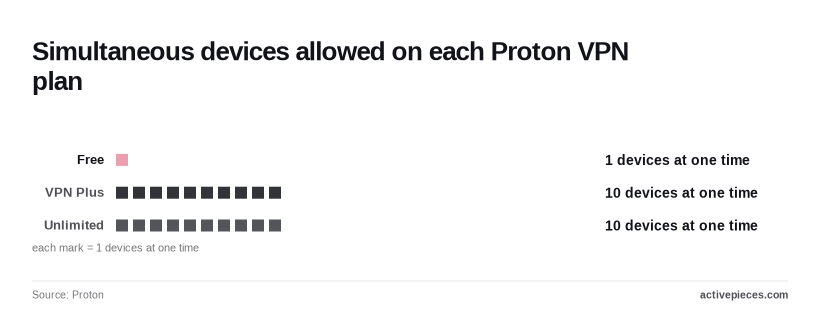
A laptop and a phone can't both be protected on the free plan, because Free Proton VPN allows 1 device at one time.
Proton's plan pages list VPN Plus and Unlimited at 10 devices each, which means a shared account stops working at the eleventh connection.
Count every machine and test rig signed in to the account, then sign out the ones you don't need.
When a network blocks the default protocol, the app fails to connect or keeps retrying. Switch the protocol manually, to Stealth or WireGuard over TCP for example, and re-test on the blocking network. Don't trust a result from your home connection.
On Linux, the command-line client doesn't do anything at boot unless you enable its service. Enable it, reboot, and confirm the tunnel is up before you log in. A connection that works only after you run a command by hand isn't automation.
Fix all six, then re-test from a cold boot.
Easier to see it running than to read about it: set it up free, no card.
Setup steps for each platform
Until you turn it on, each platform's switch for connecting without you and blocking traffic when the tunnel drops stays off.
On Windows and macOS, open the app's settings and enable auto-connect, then enable the kill switch in the same area. Without the kill switch, a dropped tunnel sends traffic out over your bare connection, and nothing tells you.
ProtonVPN always-on setup on phones
On Android, open the system VPN settings, not just the app, and turn on Always-on VPN for Proton. Also enable the option that blocks connections without the VPN, or a drop leaks.
**Without the kill switch, a dropped tunnel sends traffic out over your bare connection, and nothing tells you.
On iOS, enable the app's on-demand or always-on connection option so the system reconnects it after sleep and network changes. Check the plan's device allowance first, because a phone that can't connect fails quietly.
On Linux, the command-line client doesn't start itself just because you installed it. Set it to start at boot, using the app's own auto-connect or a systemd service that runs the connect command. Then confirm the kill switch is enabled through the client's settings.
Test ProtonVPN auto-connect after reboot
Passing this check is the only evidence the setup works. Running it shows whether the settings survive a cold start and a hostile network, which a demo on your home connection can't show. Do it on every device:
- Reboot the device and log in. Don't open the VPN app.
- Check the app or
statusoutput and confirm it shows connected. - Join an untrusted Wi-Fi network, such as a phone hotspot or a café network.
- Look up your public IP in a browser and compare it with the address you noted before enabling the VPN.
- Disconnect the tunnel on purpose and confirm that traffic stops instead of leaking.
If the address matches your old one at any step, that device isn't covered, and the next section lists the plan limits most likely to be the cause.
Fix surrounding tasks with Activepieces
Because it can't connect, configure or repair ProtonVPN, Activepieces, an open-source workflow automation tool with an MIT-licensed core and 750 integrations in its public repository, is limited here to the checking work around the app: reminding someone to verify, recording what they found, and raising the alarm when a check fails.
Every silent failure described so far came from a setting nobody re-checked, and that is the reason to keep the boundary clear. Auto-connect gets switched off after a reinstall. The kill switch is never enabled on a new laptop.
A device falls outside the plan's connection limit.
None of these produce an error. They produce a person who assumes the tunnel is up. A scheduled reminder fixes the assumption, not the setting.
I would build the flow in three steps, and the order matters:
- A schedule trigger fires once a month and sends each device owner the checklist from the previous section: confirm auto-connect, confirm the kill switch, compare the public address against the old one.
- The owner submits a form that logs the device name and what they confirmed. A device with no entry for the month is, by definition, unchecked.
- If a form reports a mismatch, or a device never reports, Activepieces posts a message to the team channel or opens a ticket.
Look at the illustration below: three connected boxes, with the VPN app drawn beside them and no arrow running into it.
Take the gap literally: the workflow reads reports from people and never touches the client, so whatever it says about a device is only as good as the check the person performed.

That limit is a feature of the design. The automation produces a record and a nag, and the configuration itself stays in the app, where it can be seen.
The whole flow also fits the free plan, which allows unlimited flows and 1,000 credits a month, and a run costs 1 credit however many steps it has.
If the team later wants a record of who edited the flow, the Ultimate plan carries audit logs and event streaming, custom RBAC, SCIM, releases with Git sync and secret managers, while SSO and standard roles arrive on Team.
Every plan runs on Activepieces Cloud or on your own servers. What follows is the short checklist those forms should ask for.
Weekly ProtonVPN checks to catch failures
Run five checks every Monday, and the quiet failures show up as a failed line on a list instead of an exposed laptop. Start with the plan, because the price moves with the billing term.
Between 9.99 and 2.99 $ per month: that is the range Proton's pricing page gives for VPN Plus, depending on how long you commit.
That's more than three times the cost at the short end, so a renewal that lands on a different term changes the bill and the device allowance you budgeted for.
Unlimited runs from 12.99 to 6.49 $ per month according to Proton, about double at the short end. Check the term you're actually on, not the headline rate you remember.
The list below is the whole routine, and each line can be marked pass or fail by someone who didn't set it up:
- Confirm the plan's device limit still covers the number of devices in use, at the price for your billing term.
- Set auto-connect and the kill switch on every device, and open each one to confirm the setting is on.
- Record the date you checked, next to the device, so a stale check is visible.
- Re-test after every Proton app update by dropping the network and confirming traffic stops rather than leaks.
- Name one owner, a person and not a team, who signs the list.

Since updates can reset or move a setting without telling you, the re-test is the only way to find out. A failed line gets fixed the same day, and the date is written only after the fix.
Frequently asked questions
Test each answer below on your own machine before trusting the setup, which is how the dated log earns its entries. The table gives the short version and where to confirm it; the answers after it say what to check.
| Question | Short answer | Proton docs page |
|---|---|---|
| Is there an API? | No public automation API; use app settings and the Linux command line | Proton VPN support: Linux command-line tool |
| Auto-connect to a country? | Yes, in the app's auto-connect setting | Proton VPN support: Auto-connect |
| Auto-connect on Free? | Supported, but with the Free plan's server choices only | Proton VPN support: Free plan |
| Blocked after reboot? | Kill switch is usually on while nothing has connected | Proton VPN support: Kill Switch |
| Router or server? | Yes, through config files or the Linux tool | Proton VPN support: Router setup |
API and country selection
The table is a map, not a proof. The answers below are the checks.
Does ProtonVPN have an API for automation? Not a public one that I could find for controlling connections. Automation means the app's auto-connect, its kill switch, and the Linux command-line tool. Anything scripted around those is you driving the app, not Proton offering an endpoint.
Can I auto-connect ProtonVPN to a specific country? Yes. Set the auto-connect option to a country in the app's settings, then restart the app and confirm the connected location. A setting you didn't verify after a restart hasn't been tested.
Free plan and reboot behaviour
Does ProtonVPN auto-connect work on the free plan? Auto-connect itself is available, but the free plan limits which servers you can pick. A country choice may fail quietly if that country isn't in your plan, so check the connected location rather than the toggle.

Why does ProtonVPN say it can't connect after reboot? The usual cause is a kill switch blocking traffic while the app hasn't yet connected.
Reproduce it: reboot, leave auto-connect off, and watch the network stay blocked. Turning on auto-connect, or disabling the kill switch, removes that state.
Routers and servers
Can I run ProtonVPN on a router or server? Yes. Routers use Proton's configuration files, and headless Linux machines can use the command-line tool. Both skip the desktop app, so the app's auto-connect and kill switch settings don't apply there.