
TickTick Automation Setup and Plan Limits in 2026

Nov 17, 202614 min read
Start with TickTick's own recurring tasks, reminders and email-to-task, and add a connector only when you need a trigger from outside the app, such as a workflow built in Activepieces. As of 17 November 2026, that covers most setups.
Follow TickTick's fastest automation path
What counts as TickTick automation
In this article, automation means TickTick creates, changes or reminds you of a task without you typing it, in the following forms:
- A recurring task does this
- An email forwarded into your inbox list does this
- A connector where a service outside TickTick, such as a form or a calendar, fires an action inside it
25 hours a week for marketers, 20 for IT professionals, 16 for customer service and 8 for HR professionals: that is the time at stake, according to Zapier, and it varies by job.

These figures are for automation in general, not TickTick, so treat them as a ceiling.
Three routes compared: built-in, native integration, connector
The lightest route that covers your trigger is the right one, because each step down the table adds an account, a login and a place for a run to fail.
| Route | Setup time | Plan needed | Triggers possible |
|---|---|---|---|
| Built-in features (recurring tasks, reminders, smart lists) | Minutes, inside the app | Check which features your TickTick plan includes | Time and date only |
| Native integrations (email-to-task, calendar sync) | Minutes, one address or one account link | Check your TickTick plan | An incoming email, or an event on a linked calendar |
| Connectors (IFTTT, Zapier, Make, Activepieces) | Longer: a second account, authorisation, a test run | A connector account plus your TickTick plan | Anything the connector service can detect |
Only the last row lets a trigger come from outside TickTick.
What to check on your plan before you start
Before building anything, open your TickTick account and confirm that the feature you want appears for your plan. Then run one test with a throwaway task.
Everything below works on Activepieces' free plan. Start without code or a credit card.
Stage 1: Automate inside TickTick with built-in features
With no connector at all, repeating tasks, reminders, Smart Date parsing and Smart Lists handle most recurring-work automation in TickTick, and the four steps below follow that order.
- Create a task, open its date picker, choose Repeat, and set it to Weekly on Monday with Repeat From set to the due date. The task shows a small repeat icon beside its date.
- In the same picker, add a reminder at the time you want. A bell icon appears next to the date, and completing the task creates the next Monday's copy with the reminder already attached.
- In the quick-add box, type
Pay rent every month on the 1st at 9am. The date and recurrence phrase highlight as you type, and the saved task shows the parsed date and repeat icon. - Open the filter editor, set conditions such as a tag and a priority, and save. The filter appears in the sidebar and fills with matching tasks.
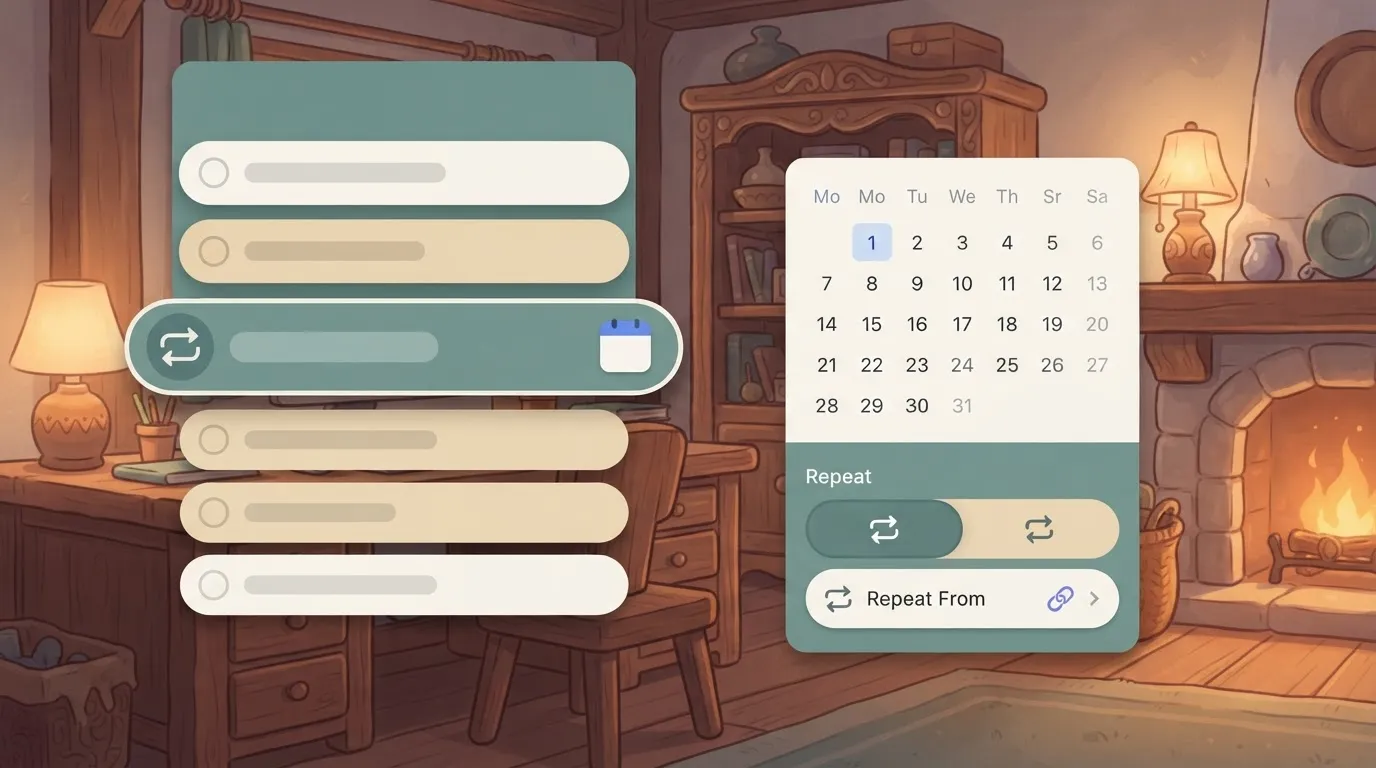
Create a repeating task with a reminder
If you miss a Monday, Repeat From decides what happens next. Anchored to the due date, a missed Monday doesn't shift next week's task. Anchored to completion, finishing late drags every later occurrence with it.
Pick the first for fixed obligations and the second for habits.
Some reminder options may sit behind Premium.
Type tasks in natural language
If a phrase isn't highlighted, TickTick didn't parse it, and the words stay in the title as plain text with no date set. Smart Date reads dates, times and repeat phrases from the title as you type, so check the highlighting before you press Enter.
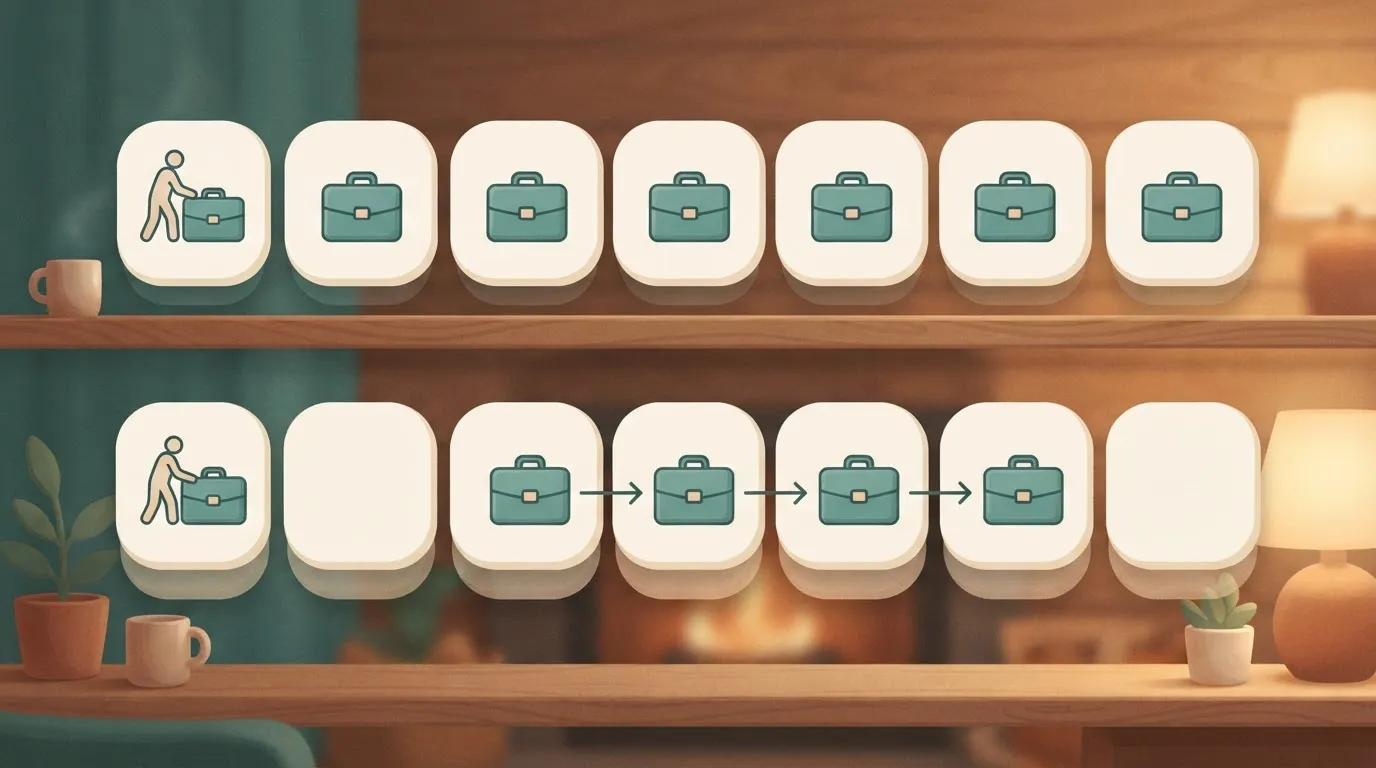
Create a TickTick Smart List with filters
Tasks enter and leave a saved filter as their tags, priorities and dates change.
A free plan may limit advanced conditions. If the editor blocks one, you can still save a simpler filter and test it against real tasks.
Stage 2: Send tasks in by email and calendar
Before adding a connector, check whether email or a calendar already carries your trigger, because TickTick takes both in without any outside tool.
Email a task into a list
Find the private address TickTick gives your account in Settings under the email-to-task option, and copy it. It turns incoming mail into tasks.
- Send a message from your registered email account to that address, with the task name as the subject line.
- Put any detail in the body, which becomes the task description.
- Open the Inbox list and look for the new task.
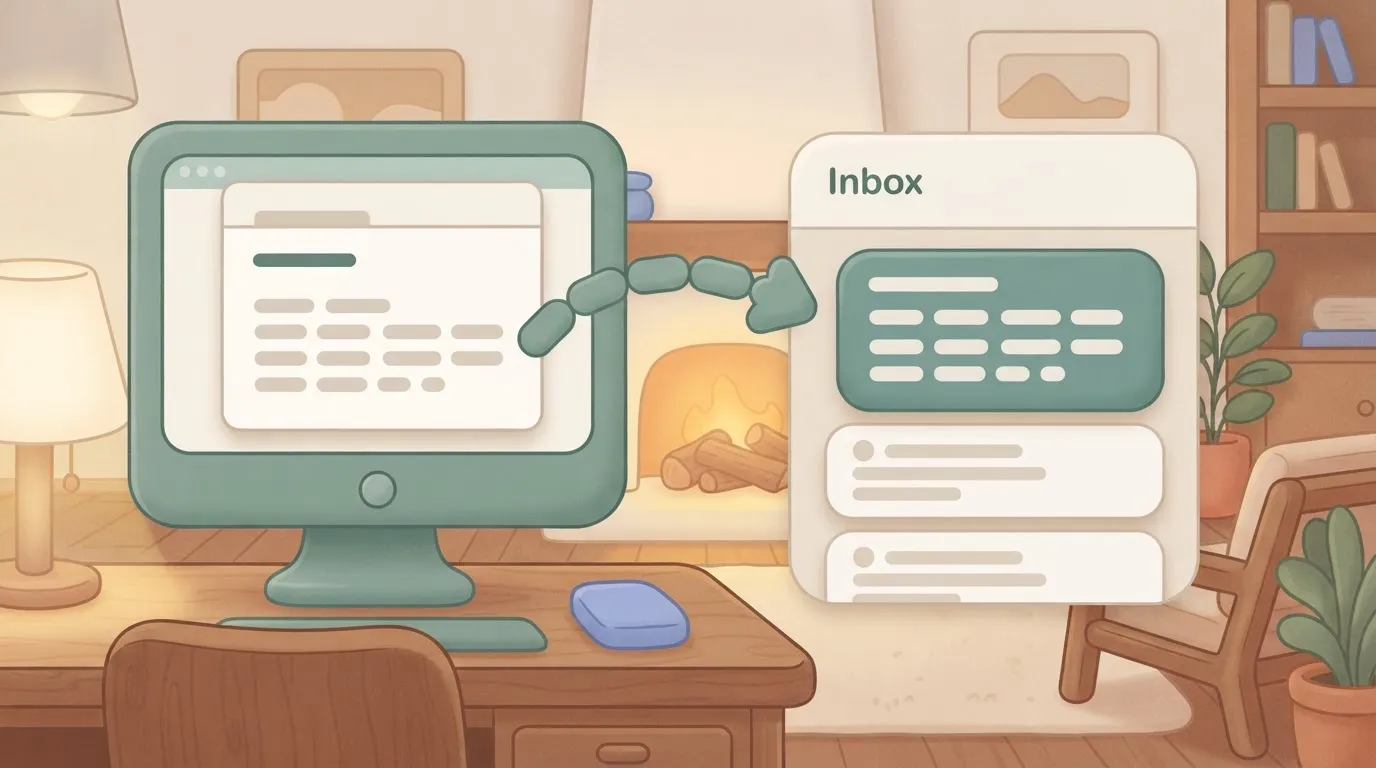
Expect it in the Inbox. To place it elsewhere, move it by hand or use the destination option next to the address, if your version shows one.
A message sent from an address TickTick doesn't recognize may not arrive at all, so test from the account you'll actually forward from.
Connect a calendar
Going the other way, calendar subscription brings events into TickTick, but they don't become tasks. In Settings, open the calendar section and add either your Google account or a calendar's feed link (the iCal URL most calendar apps publish).
Subscribed events appear beside your tasks but are display-only, with no checkbox.
If you need an event to produce a task, forward the invite to your email-to-task address from the previous step, and a task appears in the Inbox.
Check TickTick's Integrations settings first
Open Settings and read the Integrations page before you build anything. TickTick maintains whatever's listed there, so it needs no connector account and no webhook.
If an app is missing from that page, you need the connector layer. A searchable library of prebuilt connectors lists 450 integrations sorted by popularity, with Webhook, Google Sheets, Gmail and HTTP at the top of the grid, so the most-used tools appear without scrolling.
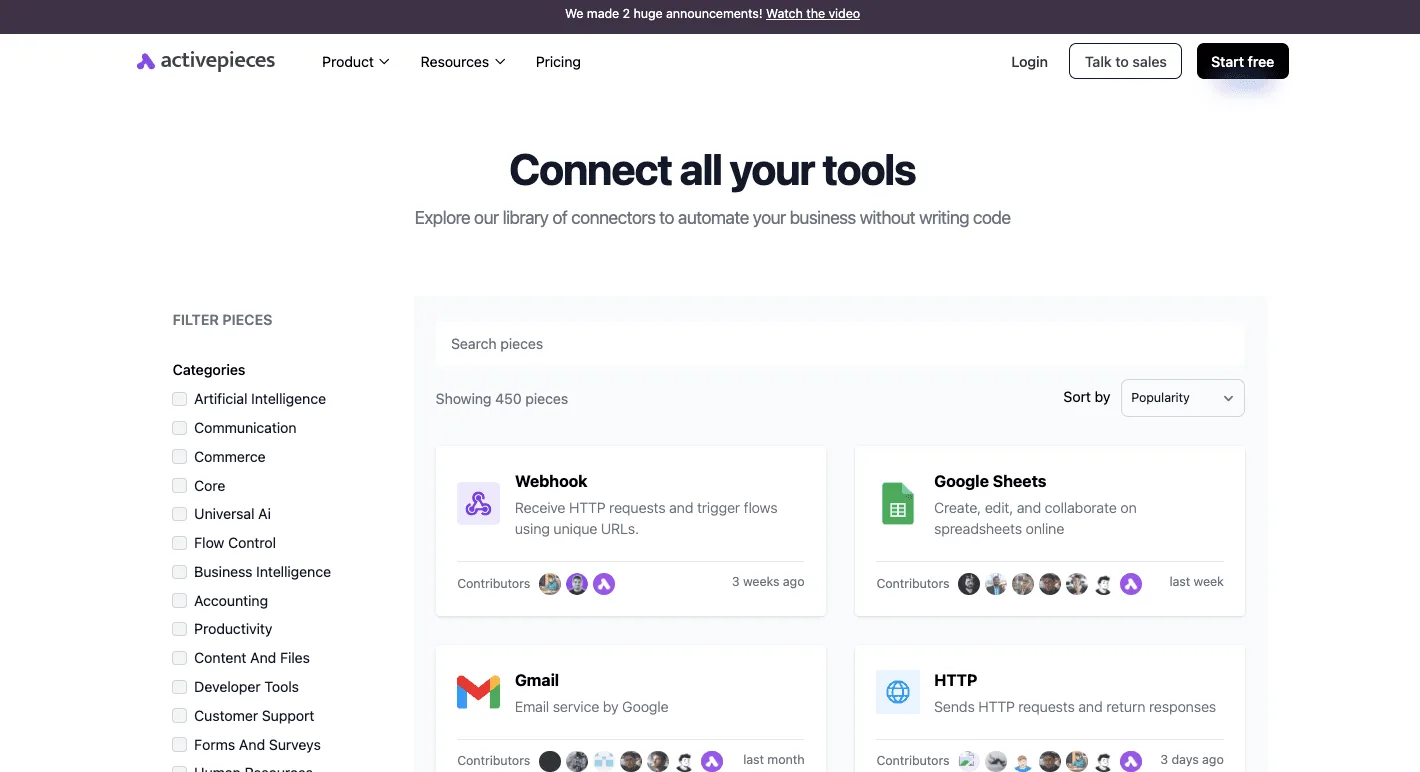
Easier to see it running than to read about it: set it up free, no card.
Stage 3: Trigger TickTick tasks from other apps
Use a connector (IFTTT, Zapier or Make) to watch the app where the work starts, then create the task in TickTick when something happens there.
Which connector covers which TickTick trigger
Pick by the shape of your trigger: one event to one task, or several steps with data reshaped in between.
| Connector | TickTick triggers | TickTick actions | What it cannot do |
|---|---|---|---|
| IFTTT | Basic task events, such as a new or completed task | Create a task | Pass fields between several steps |
| Zapier | Task and project events | Create and update tasks | Run cheaply at high volume, since each run is metered |
| Make | Task and project events, polled on a schedule | Create, update and delete tasks | Hide its complexity; the scenario editor takes longer to learn |
| Activepieces | — | — | Include SSO, roles or audit of who changed what in the free self-hosted Community Edition; those come with paid plans |
Price Make carefully. According to Twitterapi, its free plan costs $0 per month, which is enough to test one form-to-task scenario before paying.
Per Twitterapi, Core is $16 per month, Pro is $28 and Teams is $51.

Take one worked example: every form submission becomes a TickTick task in a chosen list.
- Create a scenario and add the form app's "new response" module as the trigger.
- Connect your TickTick account when Make asks for authorization.
- Add TickTick's create-task module and choose the destination project.
- Map the form's name or subject field to the task title, and the answers to the description.
- Set the schedule for how often Make checks for new responses.
Set the check to every 15 minutes and a response may sit unseen for up to 15 minutes, which means you're not monitoring in real-time.
Activepieces is an open-source AI automation platform with 750 integrations, counted straight from the packages/pieces/community directory of the open-source monorepo on GitHub, not taken from a marketing page, so the count is independently verifiable.
Look in that directory for a TickTick connector; if one is missing, you can generate a integration with AI and add it privately to your own instance.
About 60% of the catalogue was contributed by the community, so most of it is built by people outside the company. The core is MIT-licensed under the repository's LICENSE file, and every plan, free included, allows unlimited flows.
Test your TickTick automation and check the run
Submit one test response yourself, then run the scenario once manually. Open the run history and check each module's output bundle, not only the green tick.
If the mapped form field is blank, TickTick receives a task with no name, or the module errors. That is the usual first failure.
Pick the wrong project and the task lands in Inbox instead of your list. That is the second.
Once one clean run appears in the right list, switch the schedule on.
Fix TickTick automation errors and limits
Check your largest list against the table before blaming the connector. Most automation failures come from hitting a plan cap or a broken connector login, and the caps are the easier half because TickTick publishes them.
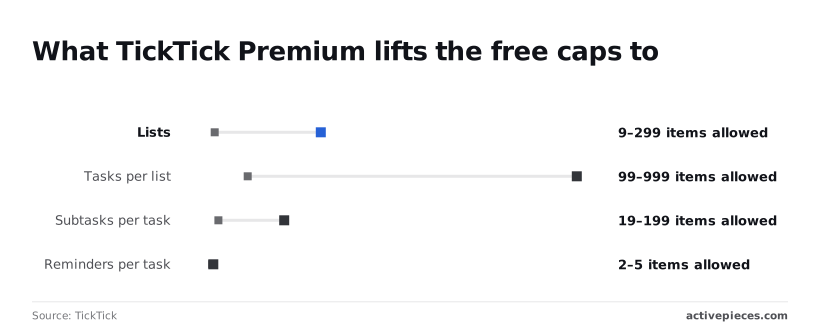
Plan and quota limits
| Limit | Free | Premium | Source page |
|---|---|---|---|
| Lists | 9 | 299 | TickTick upgrade |
| Tasks per list | 99 | 999 | TickTick upgrade |
| Subtasks per task | 19 | 199 | TickTick upgrade |
| Reminders per task | 2 | 5 | TickTick upgrade |
Most automation failures come from hitting a plan cap or a broken connector login, and the caps are the easier half because TickTick publishes them.
Create a list per client or per project and the automation stops working at the tenth, because the free cap is 9 lists.
Push every email or form entry into one inbox list and it will start failing once that list holds 99 tasks, the free cap per list.
At the twentieth subtask a checklist generator will break, because free accounts also stop at 19 subtasks per task.
The 2-reminder limit matters most if a connector adds a reminder at creation, because it leaves one slot for you.
TickTick authorisation and sync errors
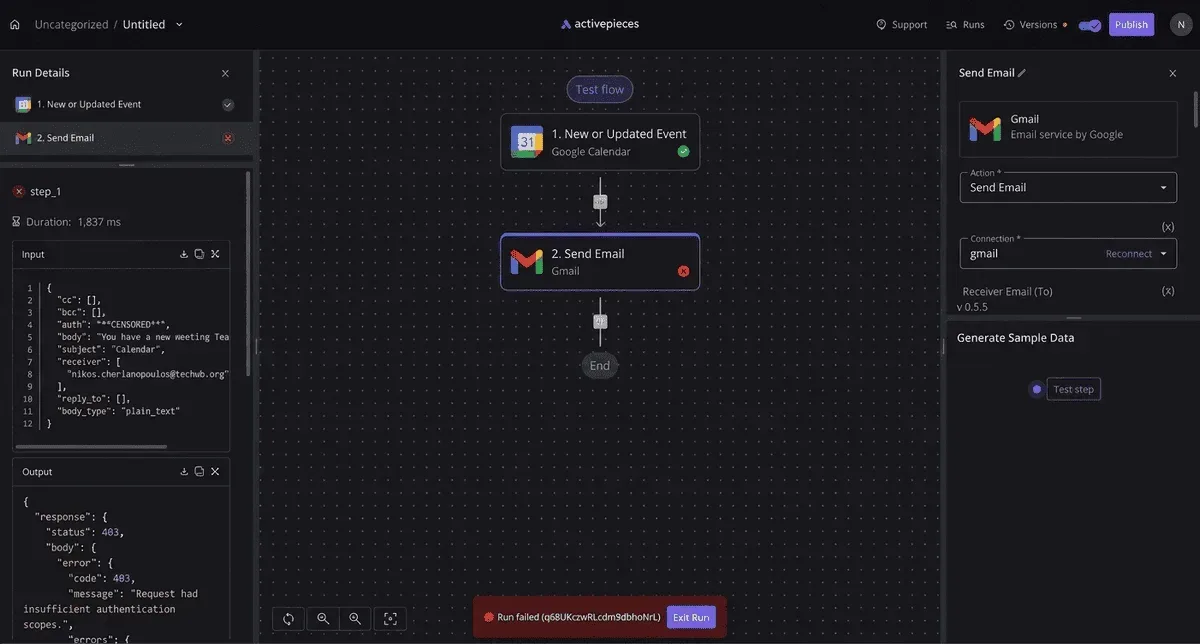
When a connector run fails with an authorisation error, reconnect the TickTick account inside the connector before changing anything else. A token that has expired or been revoked looks the same as a bad trigger, so reconnecting rules it out in under a minute.
If the run succeeds but the task never appears on your phone, the write went through and the app hasn't synced. Pull to refresh before you rebuild the workflow.
If a bulk import fails partway, split it into smaller batches and add a delay between runs. The TickTick pages I was given publish no API rate limit, so that's a workaround, not a documented threshold.
TickTick time zone and repeat task problems
When a connector sends UTC and your account is set to a local zone, tasks created with a due time can land hours off. Test with one task due "today at 17:00" and compare it with what the app shows.
If they differ, set the zone explicitly in the connector's field mapping.
Watch repeats as well, the other weak spot. A connector that creates a task with a repeat rule may not re-create it correctly when you complete it.
The sources I have don't describe how completion interacts with repeats, so test one repeating task through a full cycle before you rely on it.
What Activepieces does about this
Activepieces is our answer to the connector layer in Stage 3, for the case where a hosted connector's metering or missing TickTick trigger gets in the way. It is an open-source automation platform.
The core is MIT-licensed, so you can read the code, run it on your own server, and see what a flow does when it fails.
Its 750 integrations are listed in the packages/pieces/community directory on GitHub, and you can check the count there yourself, so you can confirm the number directly rather than taking it on trust.
The metering problem in the table above is the one we change most directly. Every plan, free included, allows unlimited flows, so a form-to-task flow or a calendar-invite flow doesn't cost more as you add triggers.
TickTick's own caps still apply: 9 lists, 99 tasks per list and 2 reminders per task on the free plan. No connector can lift those, so run the Stage 3 test with a throwaway task first.
Search the directory for a TickTick integration before you build, and don't assume one exists. If it's missing, you can generate an integration with AI and add it privately to your own instance.
About 60% of the catalogue came from the community, so gaps like this tend to get filled by people who use the app.
Frequently asked questions
Testing one repeating task through a full cycle also settles the first two questions below, which the sources I have leave only partly answered.
Does TickTick have a free automation feature? Yes, in a limited sense. Repeating tasks, reminders and smart lists are built into the app, and I didn't find a source that gates them behind a paid plan.
I have no confirmed list of which automation features sit behind Premium, so open the app's own plan comparison before you design a workflow around any one of them.
Can TickTick automate recurring tasks without Premium? Basic repeats should work on a free account, but I haven't confirmed it, so don't take my word for it.
Create one repeating task, complete it, and see whether the next instance appears. If the repeat option is locked or the next instance never arrives, you have your answer in about a minute.
Does TickTick have an official API?
Yes. TickTick publishes an Open API through its developer site, and it uses OAuth. That means a connector or your own script acts on your account with a token you granted, and the token can expire or be revoked.
I didn't verify which actions the API exposes, so check the endpoint list for the exact action you need before you build on it.
Is Zapier or IFTTT better for TickTick?
Neither wins in general. The better one is whichever offers your exact trigger and your exact action. Open each connector's TickTick page and read the trigger and action lists.
Then run a test with your real task, not a sample. A connector listing "create task" says nothing about whether it can set a due date, a list or a tag, and that gap is where most failures show up.
Why did my TickTick automation stop running? Start with the connection, not the workflow. These are the usual suspects, in the order I would check them:
- The authorization to your TickTick account expired or was revoked.
- Your plan changed and a feature the workflow relied on is no longer available.
- The list, tag or project the workflow points to was renamed, moved or deleted.
- The connector's own plan limits were reached.
Read the run history for the actual error message. It'll usually name the cause more precisely than any guess from the outside.