
Adobe Acrobat Automation Without Code in 2026

Nov 17, 202614 min read
Choose by who triggers the job:
- If a person at a desktop starts it, use Acrobat's Action Wizard
- If a system or schedule must start it with nobody sitting there, use Adobe's PDF Services API
- Workflow connectors, such as those in Activepieces, sit between the two, and they only make sense once you know which side your trigger falls on
Adobe Acrobat automation: the fastest path by task
What Acrobat automation means
When a PDF task runs from a saved definition instead of from you clicking through the same menus each time, that is Acrobat automation.
Typical tasks are combining files, running text recognition, compressing, adding a watermark, or stripping hidden data before a file leaves the building.
The trigger is the part people skip. "Automated" can mean a person pressing Start on a folder of 200 contracts, or it can mean a form submission on a website that produces a finished PDF at 3 a.m. Those are different jobs.

The first needs no code. The second needs something that can run unattended, and that changes your skill requirements, your plan and your failure modes.
I'm wary of anyone calling either one "set and forget." A saved sequence that works on clean test files can still stall on a scanned page with a skewed margin or a password-protected attachment nobody mentioned.
Three routes compared
It sets the three routes side by side on who starts the job, what plan it sits behind, what skill it demands and what volume it suits.
| Route | Who triggers it | Plan needed | Skill required | Suited volume |
|---|---|---|---|---|
| Action Wizard | A person at a desktop, starting a saved action on chosen files or folders | Acrobat Pro desktop subscription | None beyond using Acrobat | Batches a person is willing to watch and check |
| PDF Services API | Your own application, script or schedule, with no person present | Adobe developer account with PDF Services access | A developer who can call a web API | Ongoing, high-volume or on-demand processing |
| Workflow connectors (Adobe Sign, Power Automate, Activepieces, which has 750 integrations) | An event elsewhere, such as a signed agreement or a new file in a folder | The connector tool's own plan, plus whatever the Adobe side requires | Low to moderate; configuration rather than code | Event-driven flows between existing apps |

Check current plan names and limits on Adobe's pricing and developer pages before you commit. Vendors revise them, and this comparison reflects what was published when the article was last checked.
Choosing the right Acrobat automation route
Start with Action Wizard whenever someone on your team is already in Acrobat and the job fits a sequence of its built-in steps. You get a working batch the same afternoon, and the person running it sees problems as they happen.
Move to the PDF Services API when the job must start without that person. A customer uploads a document and a processed copy has to appear, or a nightly export must be converted whether or not anyone is at work.
Expect to involve a developer and to plan for errors the code must handle itself.
Reach for a connector when the trigger is an event in a tool you already use. The PDF step is one link in a longer chain, such as routing a signed agreement onward.
Everything below works on Activepieces' free plan. Start without code or a credit card.
Creating your first Action Wizard action
Open Tools > Action Wizard, choose Create New Action, add your steps, save, then point it at a folder of PDFs. The trigger is you clicking Start, and that's the whole design: a person at a desktop decides when the batch runs.
Pick a name that says what the action does to a file, such as "OCR and flatten", because a vague name is how someone runs the wrong batch on a client folder three months from now.

Adding steps and prompts in Action Wizard
Top to bottom, the editor lists steps in the order they run. Add each one from the left-hand categories, then set its options.
Where a step offers "Prompt User", that's your approval point: Acrobat stops and waits for a person before continuing, which is what you want for anything irreversible, such as redaction.
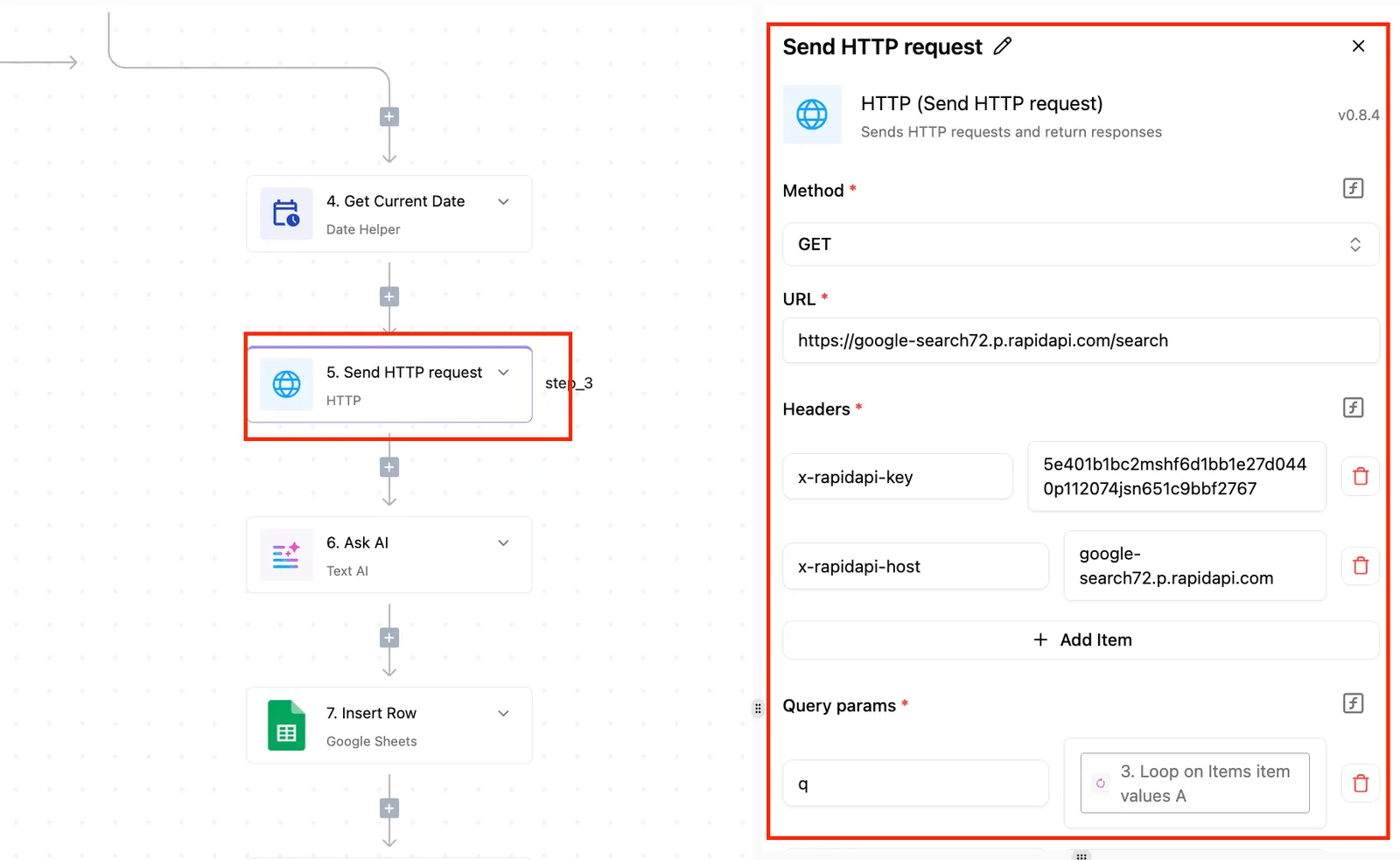
On a separate automation canvas the same anatomy shows at a glance: the step list runs down the left, and the selected step, "5. Page Audit", opens its configuration panel on the right.
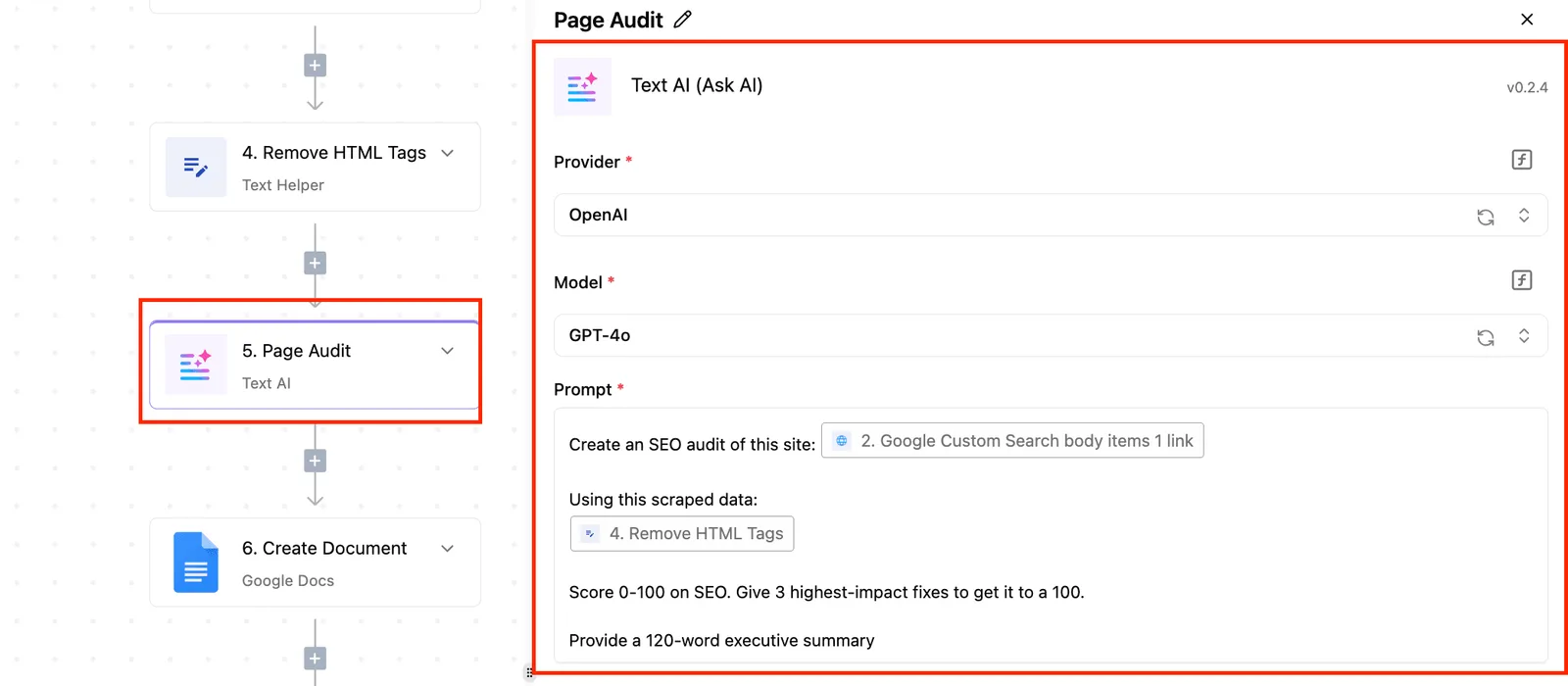
That step sends text to OpenAI's GPT-6.1 Sol with a prompt asking for a 0-100 score and a 120-word summary.
Apply the same takeaway to Action Wizard: each step's settings are visible and editable on their own, so when output looks wrong you open that one step instead of rereading the whole flow.
If OCR comes after a step that searches text, the search runs against pixels and finds nothing, so put OCR first. Order matters.
Running an Action Wizard action on a folder
Save the action, reopen it from Action Wizard, choose the files or folder, and run it. Then open a sample of the results before you trust the batch.
A messy file, such as a scan at an odd rotation or a password-protected PDF, is where a "set and forget" action quietly fails.
According to Wonder-Ware, the payoff is time: Action Wizard processes 100 PDFs in about 3 minutes. The same source puts a fast person doing it by hand at 50 minutes per 100 PDFs, and a slow one at 200 minutes.
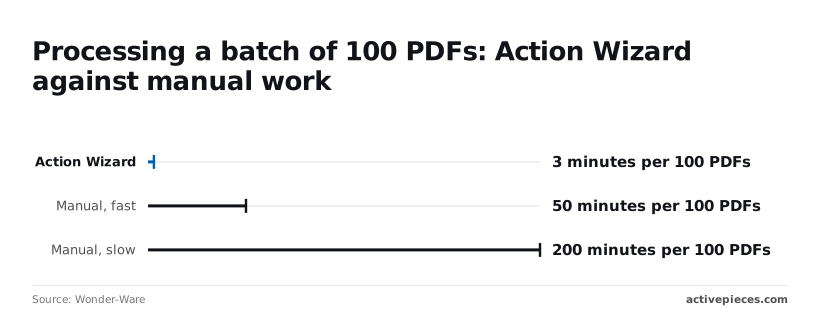
That makes the manual route roughly 17 to 67 times slower.
Running PDF jobs with Services API
When no one's at a desktop, PDF Services API runs the job: your code sends a file to Adobe's cloud, names an operation, and saves what comes back.
The path from nothing to a first output file is six steps, and the first three can't be skipped:
- Sign in to Adobe Developer Console.
- Create a project and add PDF Services API to it.
- Generate a client ID and client secret.
- Install the SDK for your language, or call the REST endpoints directly.
- Run one operation, such as compress, on a small test PDF.
- Save the output file and open it.
Run it once by hand before any scheduler touches it. A job that fails on a bad credential at 2 a.m. is far harder to diagnose than one that fails while you watch.
Because the client ID and secret are the only thing that identifies your job to Adobe, store them in environment variables or a secrets manager, not in the script.
Make the first call and save the output
Pick the smallest useful operation and a PDF you can inspect by eye. Compress is a good first test because the result is easy to check: the file should be smaller and still open.
Since the SDK handles uploading the input and downloading the result, your code mostly names the operation and the path where the output lands. Write that path explicitly. A job that returns a result nobody saved has done nothing.
Acrobat automation quotas, file limits and pricing
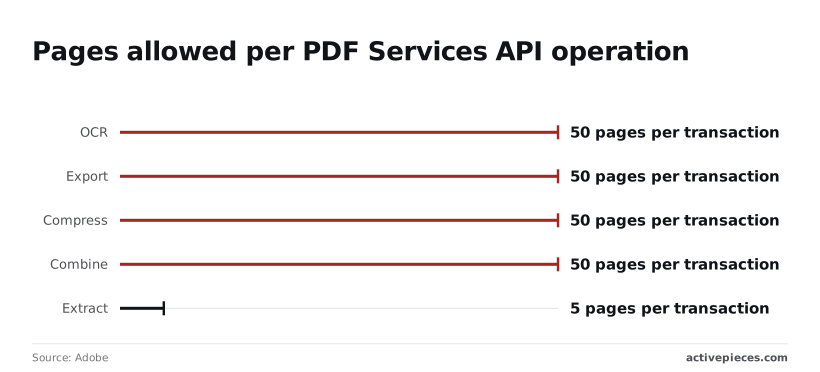
Before you design the job, know that page limits differ by operation. Per Adobe's limits page, OCR, Export, Compress and Combine each take 50 pages per transaction. A 200-page scanned contract therefore needs to be split into four integrations before OCR.
For a 40-page report, that means eight separate calls, because Extract, according to Adobe, takes only 5 pages per transaction.
Read the free-tier allowances, rate limits and pricing again before you build a schedule around them. They are published there too, and they change.
Easier to see it running than to read about it: set it up free, no card.
Connecting Acrobat to the rest of your workflow
Where an email, a form submission or a file landing in storage has to start the PDF work, that is the job that justifies code. Nobody is at a desktop to click Start.
Leaving that manual costs hours you can count. ResponseSource reports that UK health services staff lose 102 hours a year to paperwork, which is more than two and a half 40-hour weeks.
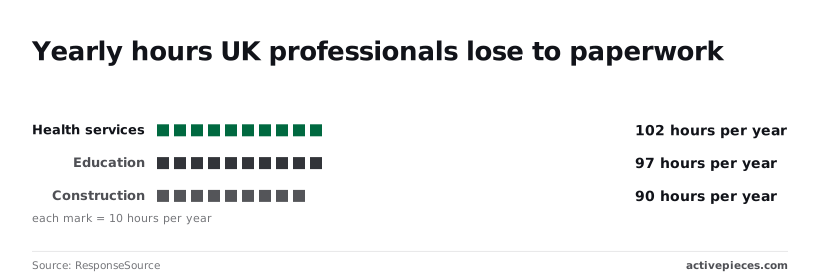
According to ResponseSource, education loses 97 hours and construction 90.
Options for triggering PDF jobs
Read the trigger column first, since that's the one that rules options out. The table shows what starts the job, how much work it takes to stand up, and how you pay.
| Option | Trigger type | Setup effort | Cost model |
|---|---|---|---|
| Adobe Sign workflows | A person sends an agreement or a signer submits a web form | Low: configured inside Sign | Part of the Adobe Sign subscription |
| Power Automate connectors | New email, new file in storage, new form response | Low to moderate: pick a trigger, map fields | Microsoft licensing, and some connectors sit behind premium plans |
| Activepieces calling the API | Webhook, schedule or app event | Moderate: you configure the API calls | Free plan with unlimited flows, or a paid plan, plus PDF Services API usage |
If your trigger is a signature, stay in Sign. If it's an inbox or a shared folder, Power Automate usually gets there first.
This flow takes an emailed attachment and writes a single processed PDF:
- Trigger on a new email in one named mailbox, filtered to messages with an attachment.
- Add a condition that the attachment ends in .pdf. Anything else goes to a review folder, because someone will eventually send a photo of a receipt.
- Save the attachment to a working folder in your storage.
- Run the PDF step, such as OCR or compression, through the connector.
- Write the result to an output folder with the sender and date in the filename.
Send three deliberately messy files through before you trust it: a scanned page, a password-protected file and an oversized one. A flow that only works on clean inputs hasn't been tested yet.
When your trigger or your destination has no ready-made connector and you need to call the PDF Services API directly, Activepieces covers it: its MIT-licensed core carries 750 integrations, counted from the packages/integrations/community folder of its public GitHub repository, roughly 60% of them contributed by the community, so the app you're missing may already have one.
For the email-to-folder flow above, a connector is enough.
Troubleshooting Acrobat automation errors and limits
When an Acrobat flow fails, the cause is nearly always one of three things: the file, the credentials, or a documented limit. The list below pairs each symptom with its usual cause and fix.
- Greyed-out Action Wizard step: the step doesn't accept the file type or the output of the step before it, or your Acrobat edition lacks the tool. Check the input and the edition first.
- Protected file: a password or permissions setting blocks editing. Remove it with the owner password before the batch runs.
- OCR failure: the scan is skewed, very low resolution, or the page isn't an image. Rescan or clean the page, and set the recognition language.
- 401: the credentials are missing, wrong or expired. Regenerate them and check what your connector actually sends.
- 403: the credentials are valid but not allowed to use that service. Confirm the service is enabled on the project.
- 429: you sent more requests than your quota allows. Back off, retry, and queue the rest.
- Size rejection: the file exceeds the documented cap. Split or compress it before upload.
- Timeout: the file or operation is too heavy for one call. Split the file and retry.
Fix the file problems first, because they masquerade as the others.
Desktop Action Wizard problems
When a step is greyed out, it almost always means the step can't follow the one above it, so reorder the sequence before you suspect the install.
Sort protected files into their own folder and handle them separately, since one locked document stalls the run until someone types a password.
PDF Services API error codes
Read 401 and 403 as two different questions. A 401 asks whether the credentials are right; a 403 asks whether they are permitted. When a connector reports only a generic failure, call the API directly with the same credentials to see which one you have.
Don't read a 429 as a fault in your file. It means the job needs pacing, so add a delay and a retry instead of resubmitting in a loop, which only extends the block.
Timeouts usually point to the document, not the network, so test with a smaller copy.
Limits you cannot raise without a paid plan
Because your plan sets quota and per-file caps, not your workflow, no retry setting will lift them. If 429s or size rejections keep recurring at normal volume, you've outgrown the tier.
Frequently asked questions
These are the questions those caps tend to raise. Where an answer is a vendor fact, it names the Adobe page to confirm it on, because plans and allowances shift.
Action Wizard and your Acrobat plan
Can Adobe Acrobat automate tasks without coding? Yes. Action Wizard in desktop Acrobat chains steps such as combining files, running OCR, adding a watermark and saving, and you build the chain by picking steps from a list.
The catch is that a person still starts it, which is the line between this and the API.
Is Action Wizard included in Acrobat Standard? No, Action Wizard is part of Acrobat Pro, not Standard. If your team is on Standard, the batch you planned won't run until someone upgrades the license, so check Adobe's plan comparison page before you promise a date.
Does Acrobat Reader support automation? No. Reader opens and fills PDFs but doesn't build or run Action Wizard actions. Anyone who needs to run a batch needs a Pro seat, and a colleague with Reader can only receive the output.
Scheduling and the PDF Services API
Can Action Wizard actions run on a schedule? Not by itself. Action Wizard has no built-in timer, so every run begins with someone opening Acrobat and choosing the action.
If the job has to fire at 2 a.m. with nobody logged in, that's the trigger problem the PDF Services API solves, because a server calls it and no desktop is involved.
Is PDF Services API free? It has a free tier, but only up to a capped allowance, and Adobe sets that cap, not this article.
Read the current limit and the paid terms on Adobe's PDF Services API pricing page before you size a project around it.
Run a real sample of your files through it first, since the way usage is counted decides whether the free allowance covers one week of work or one month.