
Google Cloud Storage Automation Without Code in 2026

Nov 11, 202617 min read
Four native tools cover most bucket jobs: lifecycle rules for aging data, Pub/Sub notifications and Eventarc for reacting to objects (including hand-offs to workflow tools such as Activepieces), and Storage Transfer Service for bulk copies. Each takes minutes to configure, with no code.
Docs checked 11 November 2026.
Automation here means something happens to an object without a person triggering it: it moves class, expires, announces itself, or gets copied. If the result stays inside Google Cloud, a native feature handles it.
The table shows what each tool is for and where it stops. The "can't do" column is the one to read before you commit.
Use four native tools for storage automation
| Mechanism | Job it suits | Setup time | Cost basis | What it can't do |
|---|---|---|---|---|
| Lifecycle rules | Change storage class or delete by age or condition | Minutes | No charge for the rule itself; class changes count as operations | Notify anyone or call another app |
| Pub/Sub notifications | Announce object create, delete or update events | Minutes | Pub/Sub message volume | Transform data or route by content |
| Eventarc | Route bucket events to Cloud Run, Workflows or other Google targets | Under an hour | Events delivered plus target compute | Reach a non-Google app without a handler you write |
| Storage Transfer Service | Scheduled or one-off bulk copies from other clouds, on-premises or other buckets | Under an hour | Transfer and operation charges | React to a single new object |
If your job sits in one row, stop there. A job that needs two rows plus an outside app is where custom code usually creeps in.
Choose storage classes before setting lifecycle rules
Choose the storage class first, because lifecycle rules only move data between classes you have priced. The nOps ranges run from regional to multi-region:
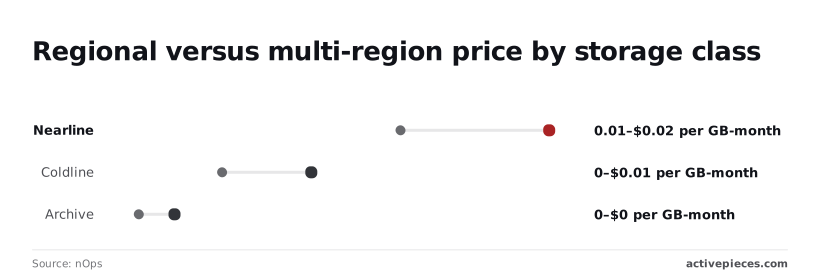
Standard costs $0.02–0.026 per GB-month, so 1 TB runs $20–26 a month.
Nearline costs $0.01–0.015, so the same terabyte is $10–15.
Coldline costs $0.004–0.007, or $4–7 per terabyte.
Archive costs $0.0012–0.0024, or $1.20–2.40 per terabyte.
Age data from Standard to Archive and its storage bill drops by roughly 90%, which means the majority of achievable storage savings hinges on implementing this transition. Pay for multi-region placement only when you need the redundancy, since it costs more in every class.
Also confirm that a project and a service account with the right roles exist.
When an event must reach a ticketing tool or CRM, Activepieces can take it from a webhook, and with unlimited flows on every plan, including free, giving each bucket its own flow adds nothing to the bill.
Everything below works on Activepieces' free plan. Start without code or a credit card.
Automate storage class changes with lifecycle rules
Events need a receiver. Data that simply ages does not: a lifecycle rule on the bucket moves or deletes objects by age and prefix, with no code. The Age and MatchesPrefix conditions pick the objects, and SetStorageClass or Delete is the action.
Add a lifecycle rule in the Cloud Console
Open the bucket, choose Lifecycle, then Add a rule. Per nOps, pick "Set storage class", select Nearline, and set the conditions to Age 30 days and prefix logs/, so logs older than 30 days automatically move to cheaper storage.

Add a second rule with the Delete action at 365 days.
The first rule halves the bill on every old log, about $10 instead of $20 per terabyte-month, because per nOps regional Standard costs $0.02 per GB-month and Nearline $0.01.
{
 "rule": [
 {
 "action": {"type": "SetStorageClass", "storageClass": "NEARLINE"},
 "condition": {"age": 30, "matchesPrefix": ["logs/"]}
 },
 {
 "action": {"type": "Delete"},
 "condition": {"age": 365, "matchesPrefix": ["logs/"]}
 }
 ]
}
Apply it with gcloud storage buckets update gs://BUCKET --lifecycle-file=lifecycle.json. The file can sit in version control, so the rule is reviewable instead of a console click nobody remembers.
Colder classes cut the price further: Coldline is $0.004 and Archive $0.0012 per GB-month (nOps), which is $1.20 per terabyte-month for data you almost never read.
Lifecycle rule timing and minimum storage durations
Don't test with a one-day Age and expect same-day results. Lifecycle actions run asynchronously, and Google's documentation says a new or changed rule can take up to 24 hours to take effect, so don't expect new policies to save money right away.
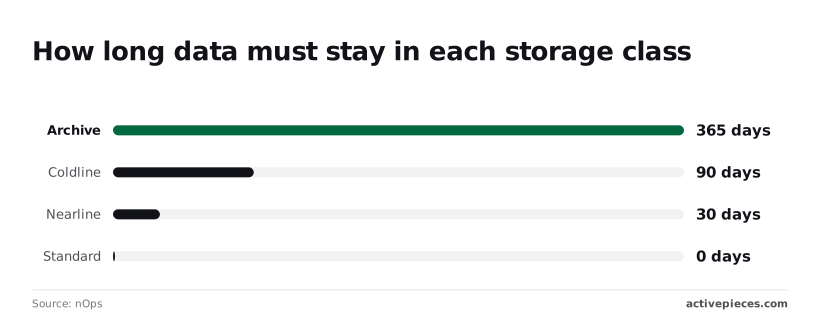
Minimum durations decide whether a rule saves money. - Per nOps, Standard has 0 days, Nearline 30, Coldline 90 and Archive 365, so only use Archive if you can verify the data won't be needed for at least a year.
Delete or move an object before its minimum and you're billed for the remainder anyway. Archiving at 30 days and deleting at 90 would pay for 365 days of Archive on data that lived 60 days there, so you're charged for 305 days of storage you no longer need.
**Delete or move an object before its minimum and you're billed for the remainder anyway.
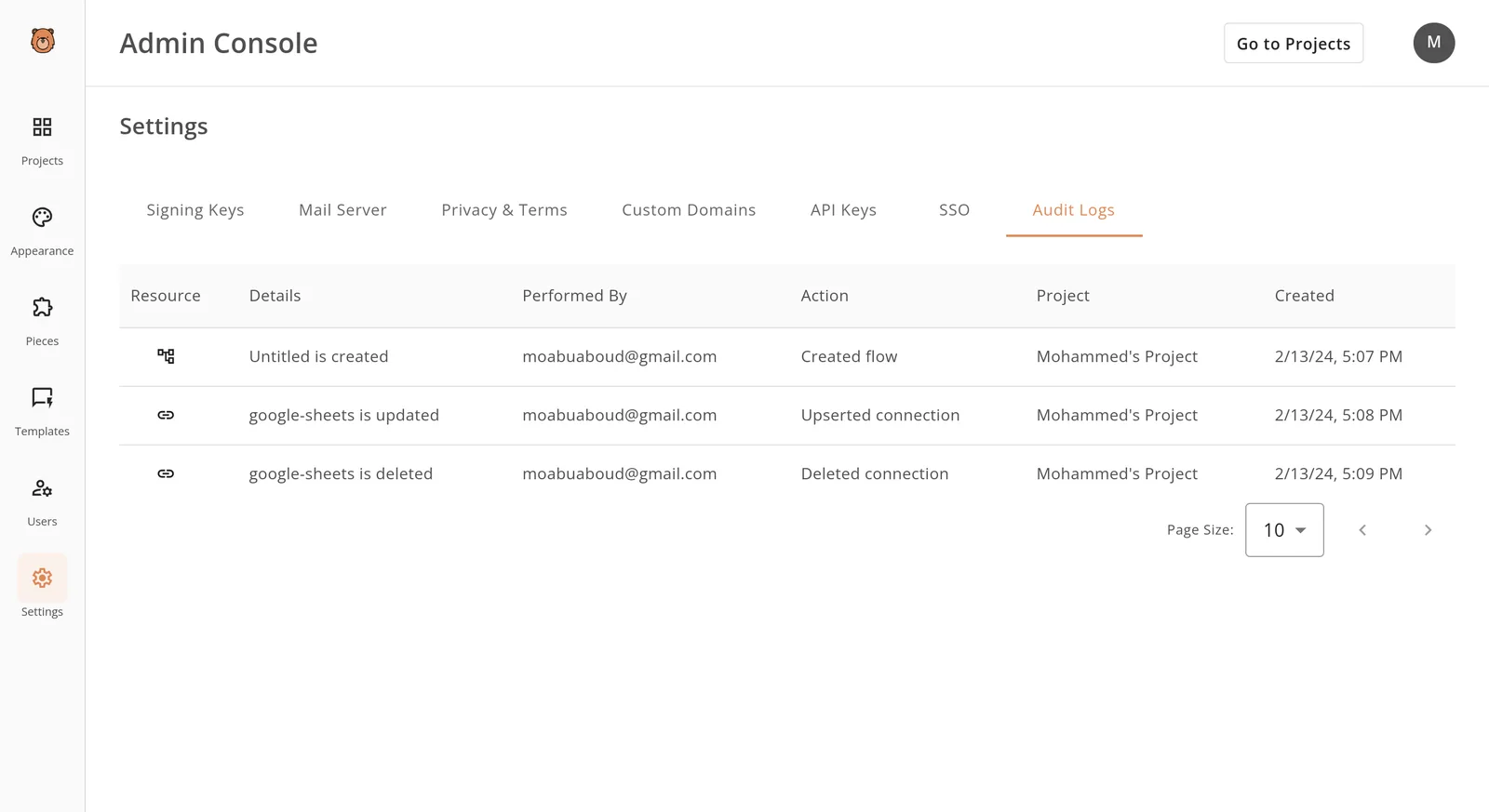
Once rules delete data unattended, you need an audit trail. The Settings page below, with the Audit Logs tab selected, lists Resource, Details, Performed By, Action, Project and Created.
Its three entries from 2/13/24 show a flow created, then a connection updated and deleted, each tied to a named user.
With nobody present to click anything, a Delete rule removes objects all the same, so lifecycle rules need the same accountability.
Trigger storage automation with Pub/Sub and Eventarc
When an upload lands with nobody watching, Google can react without polling code: a Pub/Sub notification or an Eventarc trigger fires when an object finishes writing.
The six steps below take a bucket from silent to logging every new file, and each stays small enough to check before the next, so you can stop at any point without wasted effort.
- Create a Pub/Sub topic.
- Grant the publisher role on that topic to the Cloud Storage service agent.
- Run
gcloud storage buckets notifications createwithOBJECT_FINALIZEas the event type. - Deploy a Cloud Run function that logs one line per event.
- Create an Eventarc trigger in the bucket's region.
- Upload a test file.

Both routes end in the same place, so the choice comes down to what you want to maintain. A notification publishes to a topic you own, so you can fan one event out to several subscribers.
Eventarc skips the topic and delivers straight to the function, which means less to configure but one destination per trigger.
Create the topic and notification
Create the topic first, then give the Cloud Storage service agent the Pub/Sub Publisher role on it. Skip the grant and the notification command may succeed on paper while no message ever arrives, which is the failure that looks like nothing happening.
Then run the notifications command against the bucket with OBJECT_FINALIZE only. That filters out deletes and metadata updates, so your subscriber sees completed uploads and nothing else.
Create an Eventarc trigger for Cloud Storage
Deploy the Cloud Run function before the trigger, because the trigger needs a destination to point at. The function only has to write a log line containing the bucket and object name.
Create the trigger with the Cloud Storage finalized event type, and put it in the same region as the bucket. A mismatch is the most common reason a trigger exists but doesn't fire. The trigger's service account also needs permission to invoke the function.
Copy any small file into the bucket, then open the function's logs. You should see your line with the object name. If nothing appears, check the three places things break: the publisher grant, the region match and the invoker permission.
Easier to see it running than to read about it: set it up free, no card.
Schedule copies and syncs with Storage Transfer Service
When data has to move between buckets, or in from other clouds or on-premises storage, Storage Transfer Service copies and syncs it on a timetable you set, with no code to write or host.
Create the transfer job
Pick a source type first: another Cloud Storage bucket, Amazon S3, Azure Blob Storage, a list of URLs, or a file system reached through an agent. Then pick the destination bucket.
A missing grant is the usual reason a first run fails. The service account Google manages for transfers needs read access on the source and write access on the destination.
The overwrite and delete options decide what kind of job this is. Overwrite only when the source differs keeps reruns cheap. "Always overwrite" rewrites everything.
Deleting objects from the destination that are missing from the source turns a copy into a true mirror. That also means a mistaken delete at the source propagates on the next run. Leave that option off until the job has run cleanly a few times.
Set the schedule and filters
You can narrow the job by object prefix, by name pattern, or by last-modified time. Use filters so a nightly job picks up only the folder you care about instead of rescanning the whole bucket.
Then choose a start time and a repeat: once, daily, or a custom interval. A job set to run once is a migration. A job with a repeat is a sync, so check which one you built before you save it.
When Cloud Scheduler plus a function is the better fit
If each run must rename files, check contents, call a third-party API or skip a run on a condition, Transfer Service is not enough. It moves objects and does nothing else to them.
Use Cloud Scheduler, Google's managed cron, to trigger a function that does that work.
The trade is ownership. Once your own code runs the job, you also own its retries, its failures and the visibility into both.
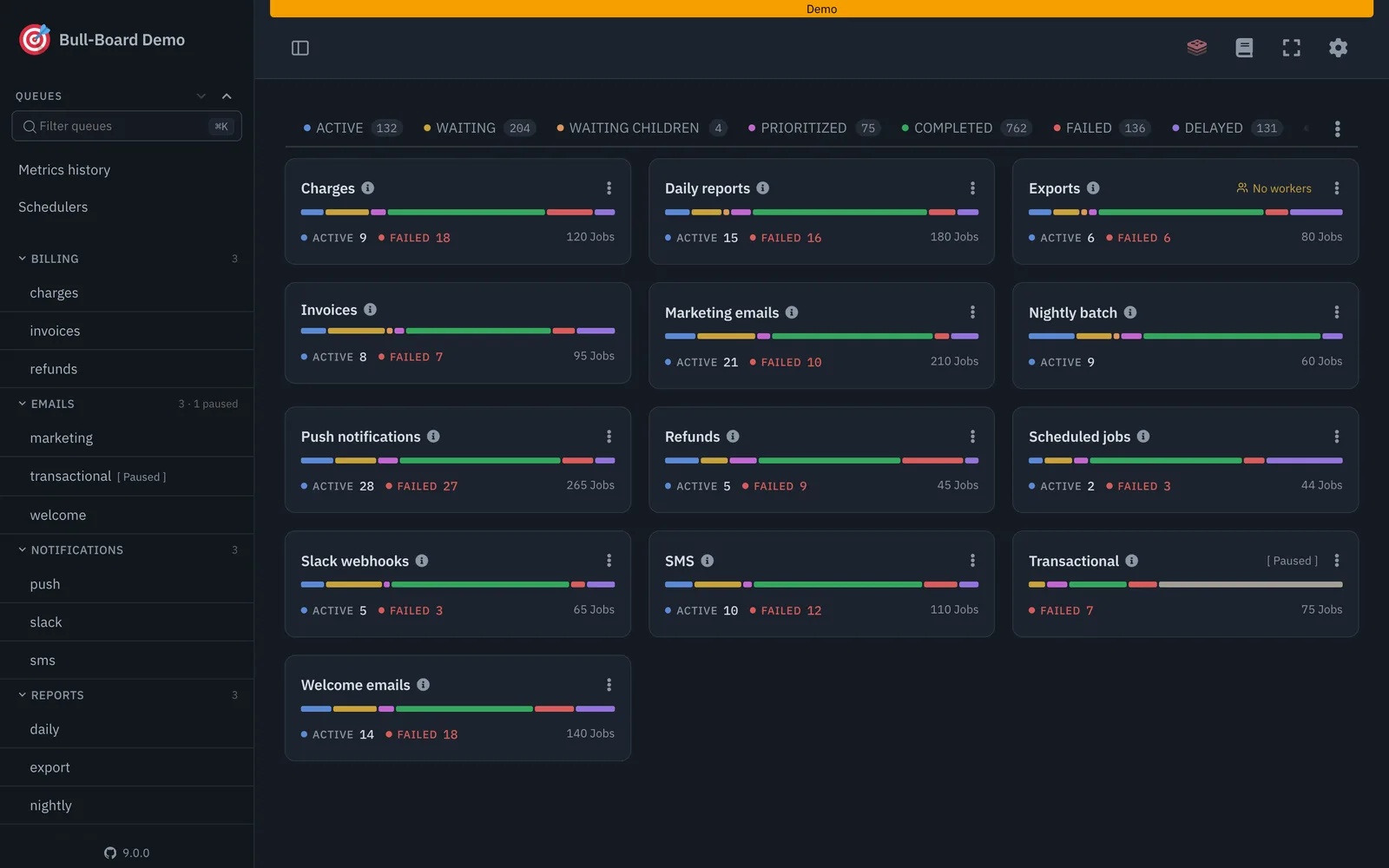
Look at a queue dashboard such as Bull-Board, which tracks jobs in Node queues, to see the cost: a dozen queues, each with its own count of active and failed jobs. Failures can pile up as quickly as the work in flight.

Nothing in a bare function tells you that, and Transfer Service gives you run history without building anything.
Pick the managed job whenever the work is only copying. The cases that remain are the ones where the data leaves Google's tools.
Fix Google Cloud Storage automation errors and limits
Inside Google's own tools, Cloud Storage automation fails for seven recurring reasons, and each has a known fix. The table below pairs every symptom with its usual cause, so match the error you see to a row before you change any configuration.
| Symptom | Cause | Fix |
|---|---|---|
| 403 missing roles | The identity making the call lacks the exact permission, often because the role was granted on the wrong project or bucket | Grant the narrowest role on the bucket to the identity that actually runs the call |
| 429 per-object write limit | Many rapid writes to the same object name | Back off exponentially, or write to unique object names |
| Notifications not firing | Event type or prefix filter excludes the object, or the topic is missing a publisher grant | Check the filters, then grant publishing rights on the topic |
| Pub/Sub duplicates | Delivery is at-least-once, so a message can arrive twice | Make the handler idempotent, keyed on object name and generation |
| Lifecycle delay | Rules are evaluated in the background, not at a fixed moment | Never depend on exact timing; run your own delete job if you need it |
| Retention or hold blocking delete | A retention policy or object hold is still in force | Wait for expiry or release the hold; a locked policy can't be shortened |
| 5 TiB object cap | A single object can't exceed the size limit | Split the data into several objects before upload |
When you see a 403, the caller is authenticated but not allowed. Check which identity actually ran the request, since a job often runs as a different service account than the one you tested with.
Notification setups hit this too: the Cloud Storage service agent needs permission to publish to your topic, and a missing grant fails quietly.
When a 429 or 503 comes back, it is a request to slow down, not a failure. Retry with exponential backoff and jitter so parallel workers don't hammer the service in lockstep.
If the 429 is tied to one object name, no amount of retrying fixes a design that overwrites the same object repeatedly. Change the naming.
When a rule seems silent, it is usually working as designed. Lifecycle actions run in the background, so an object can outlive its condition for a while. A retention policy or hold will also override a delete rule.
For events, confirm the filters first, then the topic grant, and treat duplicates as normal rather than as a bug.
Send new-object events into business apps with Activepieces
Once the follow-up to a new object has to leave Google Cloud, such as a Slack message, a Jira ticket or a spreadsheet row, a workflow tool earns its place. Inside Google Cloud, the native rules and transfers already do the job.
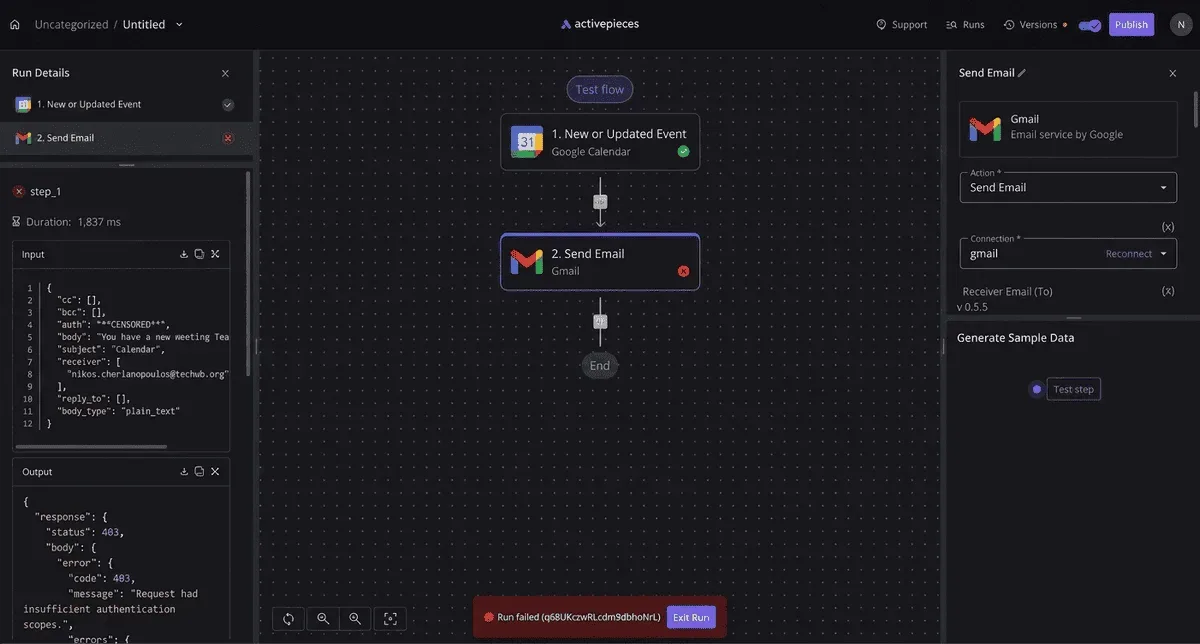
The decision is the split between the two. Lifecycle rules and transfer jobs sit separately underneath, untouched by the flow.
What to take from the diagram is that the workflow tool lives on the upper path only. The lower path stays with the tools built for it, and what follows is where the line falls and one flow worth building.
Where a workflow tool fits and where it does not
Deleting objects after a retention period, changing storage class, or copying data between buckets or from another cloud: these are lifecycle rules and transfer jobs.
They run inside Google's infrastructure, need no trigger and no credentials you must rotate, and a flow wrapped around them adds a failure point without adding a capability. Leave them alone.
When a workflow is the right fit
When the next step belongs to someone else's product, a flow fits. A scanned invoice lands in a bucket and a finance channel needs to know.
A model export finishes and a ticket should open. A partner drops a file and a row should appear in a tracking sheet.
Each of these cases needs a trigger, an action in a non-Google app, and a field mapping between them, and that's where integrations succeed or quietly fail.
Trigger actions when files land in buckets
When a file landing in a bucket should become a ticket, a Slack message or a sheet row, Activepieces' Google Cloud Storage integration handles that hand-off as a trigger step followed by actions.
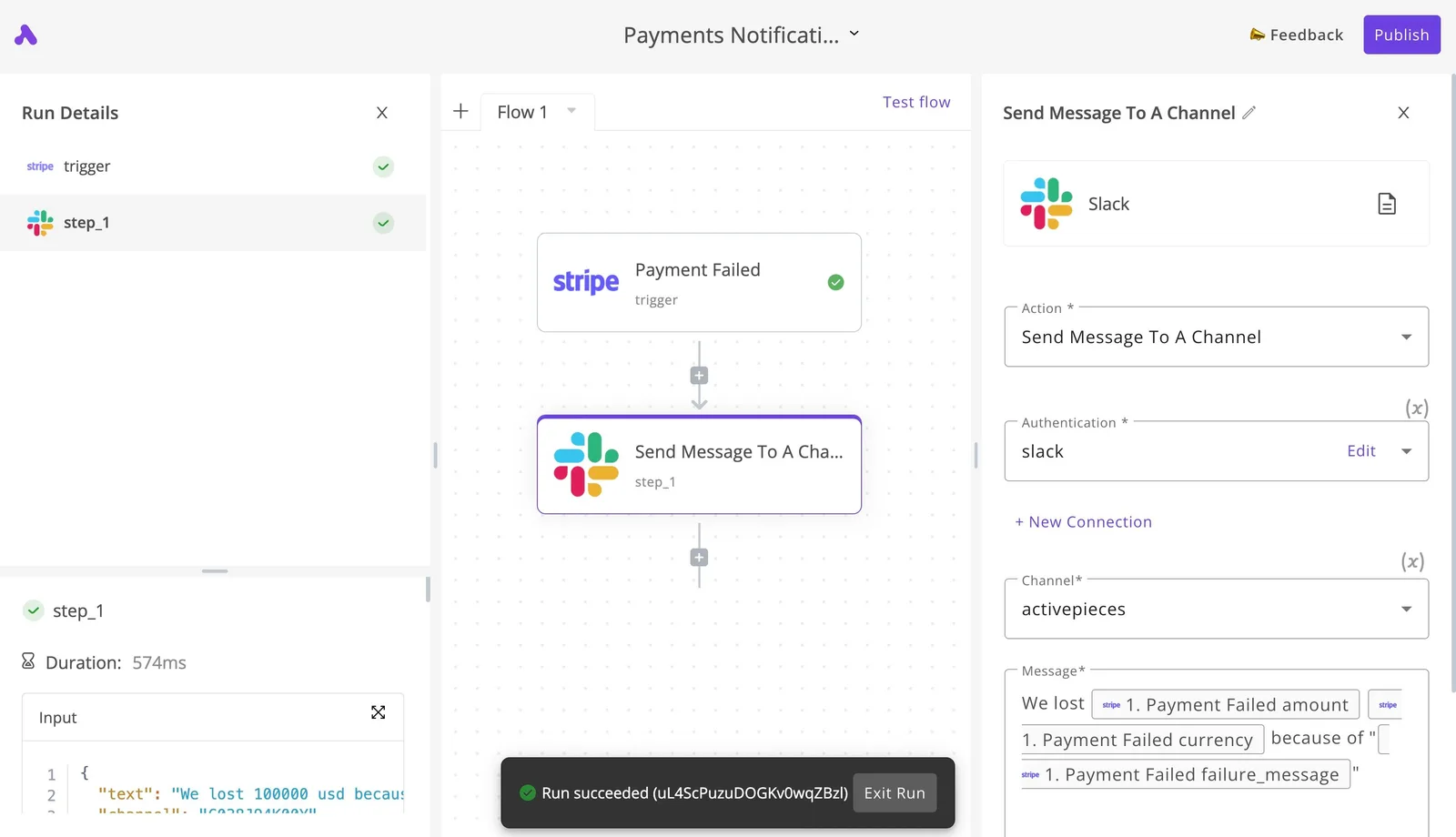
It is one of the 747 integrations counted directly from the open source monorepo, whose core is MIT-licensed, and it runs self-hosted or on cloud.
The governance features in the Activepieces docs, custom RBAC, SSO, SCIM provisioning, audit logs, log and event streaming, environments and git sync, are listed as one product, and the same list applies self-hosted or on cloud, with no cut-down version on either side.
MoneyGram, Moneypenny, Alan and FundingSocieties run it in production.
Someone will ask who changed a flow and when, because a flow that reads your buckets and posts into company chat is production infrastructure. The audit log answers it with the same columns shown earlier: Resource, Details, Performed By, Action, Project and Created.
Check the specific integration you need before committing, since a long catalogue says little about whether the one trigger or action you depend on exposes the fields you want.
Build the Slack workflow
Build the flow in this order:
- Make sure the bucket already publishes object-finalize events to a Pub/Sub topic, using the filters and topic grant from the previous section.
- Create a flow in Activepieces and choose a trigger that receives those events, either a webhook fed by a push subscription or a Google Cloud integration if it exposes the event you need.
- Map the bucket name, object name and event time from the payload. Test with a real upload and confirm these fields arrive populated.
- Add a Slack action that posts to the target channel, with the object name and a link to it in the message text.
- Add a check before the Slack step that drops repeat deliveries of the same object and generation, because duplicates are normal.
- Publish the flow, upload a file, and confirm one message arrives.
People skip step 5, and that's why a channel ends up with the same notice twice. With the first flow running, adding Jira or Sheets is another branch off the same trigger.
Frequently asked questions
Most questions left after setup come down to four: whether code is needed, what it costs, how files get in, and how fast rules act.
Can Google Cloud Storage trigger actions without writing code? Yes. Bucket notifications publish an event to Pub/Sub when an object is created, deleted or overwritten. Eventarc can route the same events to Workflows or a Cloud Run service.
Lifecycle rules handle deletion and storage-class changes on their own. You only write code when the reaction itself is custom logic.
Is Google Cloud Storage automation free?
The rules and settings carry no separate charge, but what they trigger does. You pay for stored data, the operations a rule performs, Pub/Sub messages, and any Eventarc target that runs.
If the data is touched too soon, a lifecycle rule that moves objects to a colder class still incurs early-deletion and retrieval charges, so check minimum storage durations before you write the rule.
How do I automate uploads to a bucket from my computer? Run gcloud storage rsync from a scheduled job, such as cron on Linux or Task Scheduler on Windows. It copies only new or changed files, so reruns are cheap.
For large or recurring on-premises transfers, Storage Transfer Service with its agent software handles retries and reporting that a bare script won't.
Does a lifecycle rule run immediately?
No. Google evaluates lifecycle rules asynchronously, so an object that meets a condition may still be there for a while.
If a deletion must happen at an exact moment, such as a compliance deletion with a hard deadline, don't use lifecycle rules. Trigger that deletion explicitly instead.
Three smaller questions come up once the flows are live:
- Can Pub/Sub deliver the same notification twice? Yes, delivery is at-least-once. Make every downstream step safe to repeat, or you'll create duplicate rows or tickets.
- What is the fastest Storage Transfer schedule? Hourly. Anything that needs to react within minutes should use an event trigger, not a scheduled transfer.
- Is a function needed to react to an upload? Not for routing or notification, since Eventarc and Pub/Sub can deliver the event to a target directly. It's needed only when you must transform the data in flight.