Google One Pricing 2026: Plans and Storage Costs

Nov 9, 202616 min read
According to Claude, Google One is a ladder of storage plans, from a free tier up through 100 GB, 200 GB and 2 TB and beyond.
The monthly and annual prices on Google's pricing page vary by country, so read yours there rather than from an article.
Google One is Google's subscription for extra storage. One pool's shared across Gmail, Drive and Photos, with a few member extras on top. The subscription doesn't add space to each app separately.

Because every email attachment, uploaded file and backed-up photo draws from the same pot, the sticker price tells you so little about what you'll end up paying.
The plan table, checked against Google's pricing page
Though prices shift by region, the table shows what stays the same everywhere: how much space each step gives you, what comes with it, and whether you can share it.
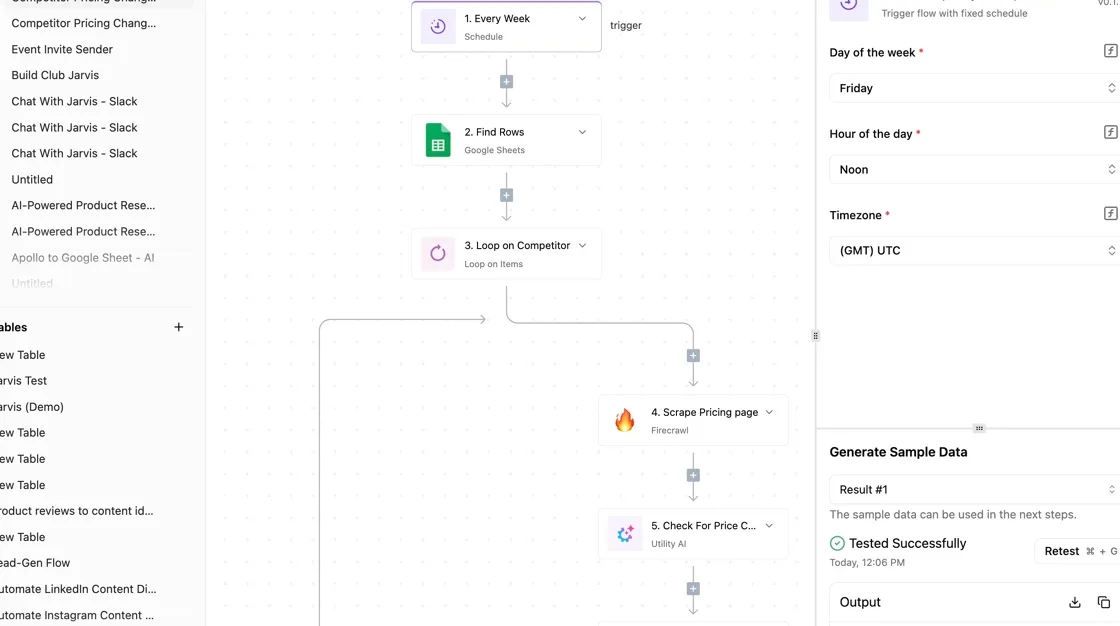
The takeaway's that the plans differ mostly in capacity, and the extras only start to matter at the top.
| Plan | Storage | Extras | Family sharing |
|---|---|---|---|
| Basic | 100 GB | Member benefits and access to Google support | Yes |
| Standard | 200 GB | Same member benefits, more room | Yes |
| Premium | 2 TB | Same benefits, room for large photo and video libraries | Yes |
| Higher tiers | Above 2 TB | Some tiers bundle Google's Gemini AI features with the storage | Yes |
Crossing from one of the smaller plans to the next is cheap. Crossing into the bundled tiers is where you can end up paying for extras you never open.
What the free 15 GB covers and what a paid plan adds
You start with 15 GB on every Google account, shared by Gmail, Drive and Photos. For someone who rarely sends attachments, that can last years. It'll run out faster than people expect, because phone photo backup and large email threads fill it quietly.

Once the account's full, you can't receive new mail, and uploads and backups stop. A paid plan adds room first and extras second. Doing nothing therefore has a cost: missed messages and photos that quietly stop saving.
Which plan fits which kind of person
If you're a single user with a modest photo library, one of the smaller plans usually fits, and it's worth checking how much space Photos alone takes before paying for more.
A family that backs up several phones is better served by one larger plan shared across the group than by separate plans for each person.
Watch the small-team case most closely. Family sharing's built for households, not offices, so a team that wants shared company storage should compare Google One with a business workspace plan before committing.
Next comes the part the table can't show: how quickly each app fills the pool, and what that does to your real cost.
Google One Cost at Realistic Storage Usage
To find your real cost, take the annual price of the smallest tier that covers your measured usage plus headroom, and per Quotafix that runs from 19.99 $ a year to 99.99 $. Four steps get you there:
- Open one.google.com/storage and read the Gmail, Drive and Photos totals.
- Add the three together.
- Pick the smallest tier above that sum plus about 20% headroom, so you can add more before needing to upgrade.
- Multiply the monthly price by 12, or use the annual price if one is offered.
Don't trust the single bar. The storage page splits your total into Gmail, Drive and Photos, and the split shows which app is growing, so add them yourself.
If Photos is most of the total, upgrading buys you a few more months, not a fix, and you should expect to move up a tier again.
Choosing a Google One Plan by Storage Needs
At 19.99 $ a year you get Basic 100 GB; Standard 200 GB costs 29.99 $, and Premium 2 TB costs 99.99 $. Headroom matters because a plan you outgrow in six months is a second purchase, not a saving.
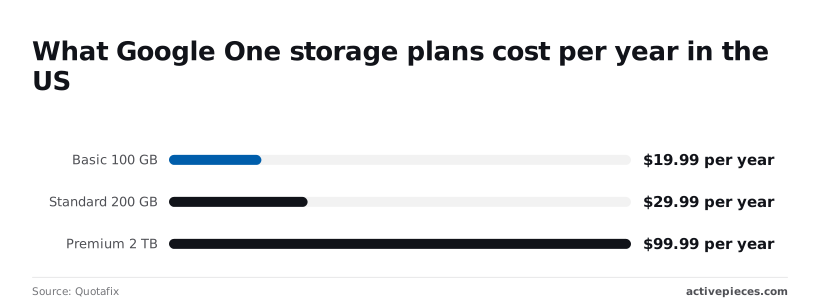
Skipping a tier to save money is what costs you when Gmail stops receiving mail.
This is where people overpay: the jump from Standard to Premium.
It shows 2 TB costing five times what 100 GB does, for twenty times the storage, so a household sitting at 210 GB pays 70 $ a year more than Standard's price for space it won't touch.

That gap is why you read the usage page before you pick.
Three worked examples: solo, family, five-person team
Treat these usage figures as illustrations, not averages.
At 60 GB used and a photo habit, a solo user adds 20% and lands near 72 GB. That fits Basic at 19.99 $ a year, meaning anyone can afford this option.
Doing nothing here means paying for 2 TB you won't fill, wasting money every month.
With 150 GB used across a family of four sharing one pool, you need about 180 GB with headroom, and the free tier won't cover it.
Four separate Basic plans would cost 79.96 $ for storage that can't be pooled.
If a team of five has 350 GB used between them, that's past Standard, so Premium at 99.99 $ is the fit.
Five Basic plans would cost 99.95 $, almost the same money, but each person would be capped at 100 GB, so heavy users quickly hit their ceiling.
The single pool is the better buy unless one person holds most of the data and needs the room.
If you are running this arithmetic for your own team, see what the same workload costs on Activepieces.
Hidden Costs and Limits in Google One Plans
That single pool's also where the hidden costs sit. Gmail, Drive and Photos all draw on one allowance, so the monthly price says little about when you'll hit the ceiling. Five limits decide whether a plan stays cheap:
- One quota's shared across Gmail, Drive and Photos.
- A family group of six shares one quota.
- Some benefits are one per plan, not one per person.
- Workspace accounts are ineligible.
- Regional and app-store pricing differs.
Without you noticing, years of phone backups and email attachments can fill the 15 GB across Gmail, Drive and Photos that a free account gets, and the first sign's often a bounced email, not a bill.
The missing early warning is the real hidden cost, and Activepieces covers the Google side of it: integrations for Google's apps are among its 747, a count taken directly from the open source monorepo on GitHub, where roughly 60% are community-contributed, so you likely have integrations for the services you use.
If a connector you need isn't in that catalogue, you can generate it with AI and add it privately to your own instance, with no vendor release to wait for.
What happens when you go over quota or cancel
Once the quota's full, you can't upload new files or back up photos, and Gmail can stop receiving mail. Google's policy also allows it to delete content if an account stays over quota for two years.
Cancelling drops you back to 15 GB, so anyone holding more than that lands over quota the day the plan ends. Doing nothing costs more than the fee you were avoiding. Trim or export first.
**Cancelling drops you back to 15 GB, so anyone holding more than that lands over quota the day the plan ends.
When six people share one family quota, one member's video library can squeeze the other five. Check which perks are one per plan before assuming everyone gets them.
If your Gmail address comes from an employer or school through Workspace, Google's business email product, you can't buy Google One on it. You would need a separate personal account.
Regional pricing and billing through app stores
Abroad, prices have moved sharply. African Insider and Technopat report that Nigeria's 100 GB plan rose 55% and its 200 GB plan 51.7%. A household that budgeted last year is now paying about half as much again for the same storage.

In Turkey, the AI Pro tier rose 74.7% and AI Plus 75.6%. Those are Google's tiers that bundle Gemini AI features with storage, and for those buyers the bundle now costs about three-quarters more than before.
Compare both before you commit, because buying through an app store can price differently from buying on Google's own site.
Google One Versus iCloud+, Microsoft 365 and Dropbox
After rises like those, the fair test is to price the same amount of storage elsewhere, and Google One doesn't win every time. It's cheapest only when you want storage alone and your household already lives in Gmail, Drive and Photos.
Price and storage side by side
Set side by side at about 2 TB, the four services show that the monthly price is only one column: sharing rules, bundled extras and how hard it's to leave change which plan's cheapest for you.
I've left exact prices out because they move, so confirm them on each vendor's own page the day you buy.
| Google One | iCloud+ | Microsoft 365 Family | Dropbox | |
|---|---|---|---|---|
| Price at about 2 TB | Dedicated 2 TB tier | Dedicated 2 TB tier | Storage's a side effect of the software bundle | Plus plan, built around 2 TB |
| Sharing | Family group shares one pool | Family Sharing shares one pool | Each person gets their own allowance | Individual plan; team plans cost more |
| Bundled extras | Photos editing tools, Gemini features on some tiers | Private Relay, Hide My Email, custom email domain | Word, Excel, PowerPoint, Outlook | Document signing and file-transfer tools |
| Best platform fit | Android, Gmail, Chromebooks | iPhone, iPad, Mac | Windows PCs and Office users | Mixed devices, work files |
| Lock-in | Photos and Drive links break when you leave | Photo library's tied to Apple devices | Office files open elsewhere, but the habit's sticky | Lowest; plain folders sync anywhere |
| Check date | Confirm on the day you buy | Confirm on the day you buy | Confirm on the day you buy | Confirm on the day you buy |
Read the table by asking what you'd buy anyway. If you already pay for Office, the Microsoft storage is close to free, and Google One's headline price looks worse than it's.
Match the plan to the household, because the cheapest plan is the one whose extras you'd otherwise pay for separately.
- Google One suits Android households and anyone whose mail and photos already sit in Google's apps, because moving them costs time as well as money.
- iCloud+ suits families on iPhones, since photo backup works with no setup and leaving later means exporting a whole library.
- Microsoft 365 Family suits households that need Office on several computers, with storage as the bonus rather than the product.
- Dropbox suits people who share work files across mixed devices and want the easiest exit later.
Doing nothing has a cost too. Staying on a plan you outgrew means paying for the next tier up, or a surprise when mail stops arriving.
Worth checking against a plan that does not meter every step: one credit covers a whole run on Activepieces.
Storage Alerts and Cleanup With Activepieces
It can't make Google One cheaper, but Activepieces, a workflow automation tool, can warn you weekly about the big files that are filling your storage, so you aren't surprised when the plan runs out.
It costs nothing to try: the free plan is $0 with unlimited flows and 1,000 credits a month.
Doing nothing means the first alert you get is the one that says mail has stopped arriving.
Build the weekly storage report workflow
Once a week, a workflow looks through your Google Drive for the largest files and sends you a short list, and that's the whole idea. You don't need to write code.
Activepieces builds workflows on a canvas, where each step's a box you fill in, and a run costs 1 credit however many steps it has, so a weekly report uses only a few of those 1,000 monthly credits.
Though the example below was built for a different job, summarizing employee feedback, its shape's the one you want. It starts with a schedule, reads from Google, passes the result to an AI step, and finishes by sending an email.
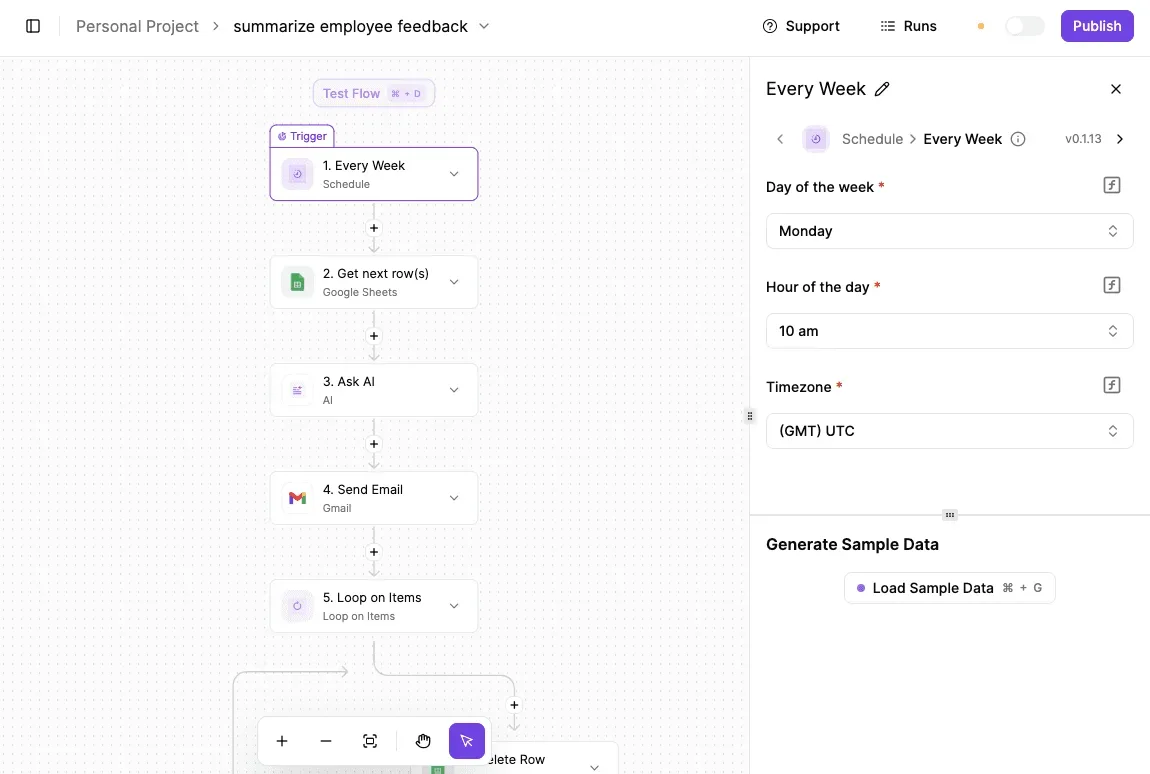
Set to run every Monday at 10 am UTC, the trigger step is the one selected in the screenshot. Copy that setup, and change the timezone to your own.

Below the trigger settings, a "Load Sample Data" button lets you test a step before you turn the workflow on. Use it. A report that fails quietly is worse than none, because you'll assume the silence means everything's fine.
For storage, the steps change as follows:
- Set the schedule trigger to run weekly, on a day you'll actually be at your desk.
- Add a Google Drive step that lists your files, sorted so the largest come first.
- Optionally add an AI step that turns the raw list into a few plain sentences, such as which folders are growing.
- Finish with a Gmail step, or a Slack message if you use Slack, that sends you the result.
Check the Drive step's options when you build it, or read its source in the open source monorepo's packages/integrations/community folder, since what it can sort or filter on is set by Activepieces, not by this article.
Gmail and Photos storage count against the same Google One total, and a Drive-only report won't show you the mail or photos side of it.
Treat the report as a checklist, not a to-do pile. Open it and work from the top.
- Look at the largest file first. Large videos and old backups are the usual culprits, and one deletion can free more room than a hundred small ones.
- Delete or move anything you no longer need. Move what you want to keep to a drive of your own before you delete it.
- Empty the Drive trash, because deleted files can keep counting until it's emptied.
- Check Gmail and Photos by hand in your Google storage page, since the workflow doesn't see them.
- If the same folders keep topping the list, that's your answer on whether a bigger plan is worth paying for.
All the workflow tells you is what's filling the space. What Google One charges for each tier is unchanged.
Frequently asked questions
With that in mind, a handful of practical questions remain, and the short answers below reflect Google One as checked on 9 November 2026.
Is Google One cheaper if I pay yearly?
Yes, on the plans where Google offers annual billing, the yearly rate works out lower per month than paying monthly.
The catch is commitment: if your storage needs are about to shrink, or you might move to a different tier, a discount on twelve months you don't use is no discount.
Pay yearly once your usage has settled and you've stopped bumping against a tier's limit.
Can I share Google One storage with family members?
Yes, you can share your plan's storage with people in your Google family group, but you share space, not files. Each person's Gmail, Drive and Photos stay private unless they choose to share something.
When one heavy user, such as someone backing up a whole phone's video library, fills the pool for everyone, that's the practical risk. Check who's using the most before you blame the plan.
Do I lose my files if I cancel Google One?
No, not immediately, but you fall back to the free storage allowance, and being over it has consequences. You can usually still open and download what you have, but you may be blocked from uploading, and Gmail can stop receiving new mail.
If an account stays over its limit, Google can eventually delete its content. Download what matters, or delete down to the free allowance, before you cancel rather than after.
Is Google One worth it if I already pay for Google Workspace?
Usually not. A Workspace account (Google's business subscription, with its own email address on your company domain) comes with its own storage, managed by the organization. Google One's built for personal Google accounts.
Paying for both only makes sense if you keep a personal account with real storage needs that your work account can't cover, and you shouldn't put personal photos on a work account in any case.
Does Google One include a VPN or Gemini?
Skip the VPN when you compare tiers, because Google retired that perk and it no longer comes with it. Gemini, Google's AI assistant, is bundled only in the higher, AI-branded tiers, not in the plain storage plans.
If you want the AI features, you're paying for more than storage, and you should price the plan that way. If you only need space, the cheaper storage-only tiers are the ones to compare.
Related reading
References
Running the numbers
See what the same workload costs here.
Free forever plan, and every paid plan self-hosts at no extra cost.
See pricing Talk to sales