
Approval Workflow Examples: Steps and Use Cases (2026)

Oct 15, 202614 min read
Use a form-triggered flow, built in a tool like Activepieces, that checks each claim against a spend limit, sends anything over it to one named manager, and pays out only after that manager approves.
An approval workflow is an automated process that routes a request to a named approver, sets a deadline for their decision, and applies a fallback if no answer comes, so the request moves forward only once it is approved.
1. Expense approval: best for spend under a limit
- An employee submits a claim through a form with amount, receipt and cost center.
- A condition step compares the amount to the limit. Under it, the flow skips to step 5.
- Over the limit, the flow messages the named manager with approve and reject buttons.
- If there's no answer by the deadline, the request goes to a fallback approver, not back into silence.
- On approval, the flow records the claim and triggers the payout. On rejection, it tells the employee why.

To wire it up with any platform that has connectors for these tools, Google Forms collects the claim, and Google Sheets holds the limits table and the claim log. Slack carries the approval request, and Gmail sends the outcome to the employee.
Common expense approval workflow mistakes
The flow ran, and nobody could say which manager. My first draft prompt had been "send expenses to a manager for approval." It had no approver field, no deadline and no fallback, so claims sat unanswered.

Naming all three fixed it: "Route to the cost center owner in the Sheets table; remind after the deadline; escalate to their manager if still unanswered."
Everything below works on Activepieces' free plan. Start without code or a credit card.
2. Purchase order approval: best for tiered budgets
Change one thing and the expense flow becomes a purchase order flow: the amount decides who signs, so the flow routes from manager to finance to executive as the price climbs.
It starts with a submitted request form with amount, vendor and cost center. The flow then:
- Reads the amount and picks the tier.
- Sends the request to that tier's approver with a deadline.
- Escalates to the fallback approver if the deadline passes.
- Writes the decision, approver and timestamp to a log.
At a mid-size company, per NFI Purchasing, the ladder runs $2,000 for a manager, $5,000 for a director and $10,000 for a vice president, so higher purchases require higher ranks.
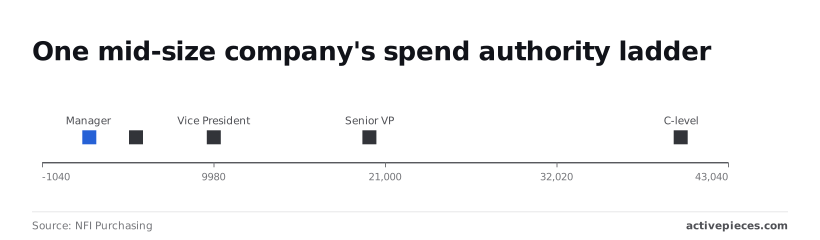
It reaches $20,000 for a senior VP and $40,000 for C-level. A $12,000 order therefore needs a senior VP, so build every rung, not just two.
According to Paperwise, enterprise limits, per SIG, start at $2,500–$5,000 for a Manager 1 and reach $15,000–$50,000 for a Manager 3, so any purchase exceeding $5,000 will require escalation from a Manager 1's approval authority.
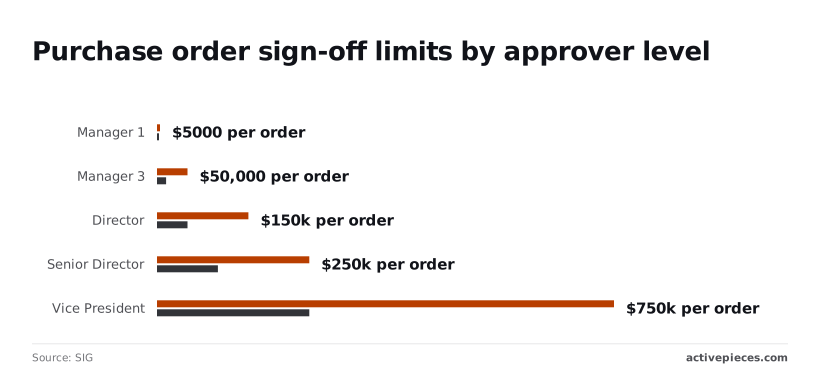
Further up, directors sign $50,000–$150,000, senior directors $100,000–$250,000 and vice presidents $250,000–$750,000. Those ranges vary by region and company, so store limits in a table you can edit, not inside the flow.
Go sequential when each approver needs the last answer, parallel when reviews are independent:

| Amount | Approver | Sequential or parallel | Deadline | Fallback approver |
|---|---|---|---|---|
| Under $1,000 | Manager | Single | 2 days | Director |
| $1,000–$10,000 | Manager, then finance | Sequential | 2 days each | Finance lead's deputy |
| Over $10,000 | Manager and finance, then executive | Parallel, then sequential | 3 days | CFO delegate |
To deliver the request, use Slack or Gmail; Google Sheets holds the limits table and the audit log.
3. Time-off request approval: best for small teams
Before the manager is asked anything, the time-off flow checks the team calendar for clashes. Each request then goes to the employee's manager, with a named backup if the manager doesn't answer.
It starts with a form submission or a chat message with dates and a reason. From there the flow runs in order:
- Read the requested dates and the employee's manager from the request.
- Look up the team calendar for overlapping time off.
- Send the manager an approval message that shows any clash alongside the dates.
- On approval, add the leave to the calendar and update the employee record in the HR system.
- Message the employee with the decision, and with the reason if it was declined.
To capture the request, use Google Forms or Slack. Google Calendar holds the team's leave and receives the approved entry. Slack or Gmail carries the approval request and the reply to the employee.
Handling absent approvers
The failure here is a request landing while the manager is on leave. Give the flow a deadline for a reply, and when it passes, route the request to a named backup approver rather than letting it sit.
4. Invoice approval: best for accounts payable
Carry the same absent-approver logic over to invoices. An emailed invoice is extracted, matched to its purchase order, sent to the budget owner, and posted to the ledger only once approved.
It starts when a new email with an attachment lands in the shared accounts payable inbox. The flow then runs in order:
- Extract supplier, invoice number, line items and total from the attachment.
- Look up the purchase order the invoice cites.
- Compare the invoice to the purchase order and the goods receipt.
- Send a clean match to the budget owner with a deadline and a named backup.
- Post to the accounting system on approval.
Invoice approval matching rules and exceptions
My first draft sent every invoice to the budget owner, so the approver ended up reading mismatches that a rule should have caught, and started approving without reading. Route exceptions before they reach the approver.
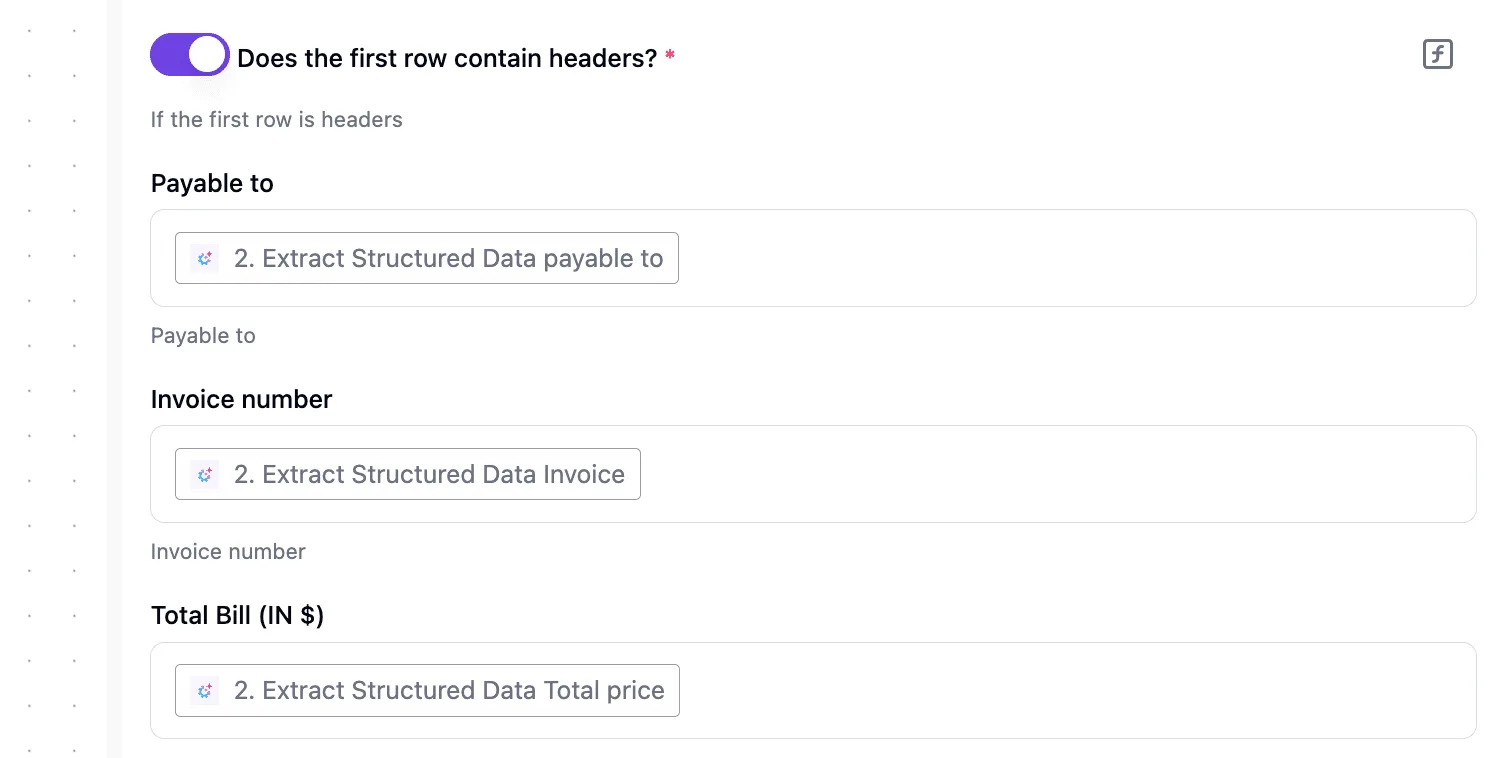
Four mismatches break most three-way matches, each with one destination:
- Price differs from the purchase order: back to the buyer who raised it, who either confirms the new price or disputes it with the supplier.
- Quantity received differs from quantity invoiced: to the warehouse contact, who corrects the receipt or tells the supplier to reissue.
- No matching purchase order found: to the budget owner, who must raise one after the fact or reject the invoice.
- Duplicate invoice number: held and sent to the accounts payable lead, never posted.
Put the supplier's name and the reason for the mismatch in the first line of the message, so the person can act without opening the invoice.
Easier to see it running than to read about it: set it up free, no card.
5. Content and design approval: best for marketing review
Because drafts pass through several hands, marketing review suits an approval flow. The request should lead the way the invoice alert did: name the asset and the question, so the editor can act without opening the file.
Start from this prompt: "When a file lands in the Drafts folder, ask the editor to approve. If approved, ask legal or brand. Save every comment. Publish only after the last yes."
A template library works like a search index: ask for a flow it doesn't hold and you get no results, or a feature request on someone's roadmap.
Activepieces skips the search, because its built-in AI chat takes a prompt like the one above and builds and publishes a runnable flow whether or not a template ever existed.
MoneyGram, Moneypenny, Alan and FundingSocieties run Activepieces in production, and a request with no template behind it, such as a failed Stripe payment that should open a HubSpot task and ping the account owner in Slack after the second failure, is just another prompt to the chat, not a search that comes back empty.
The 740 integrations those flows draw on are each listed in the MIT-licensed repository on GitHub, so the Stripe, HubSpot and Slack steps in that example can be found there by name.
This is the version that held:
- A new file in the drafts folder starts the flow.
- The editor gets a message with the asset name and what to check.
- On approval, the same request goes to legal or brand.
- Each reviewer's comment is written to a log beside the draft.
- If a reviewer is silent past the deadline, the request goes to a named backup.
- Final approval publishes the integration.
Pick the rule per step, not per flow:
| Rule | Speed | Risk | Accountability | When to use |
|---|---|---|---|---|
| Single-approver | Fastest, one reply ends it | A lone reviewer misses what another would catch | Clear, one name on the decision | Routine posts and minor edits |
| All-must-approve | Slowest, waits on the last person | Lowest, though one absence stalls it | Shared, so no one owns a miss | Claims, pricing and regulated copy |
| Any-one-approves | Fast, first reply wins | Higher, since others may never look | Falls on whoever answered first | Time-sensitive work with interchangeable reviewers |
For storage and the trigger, Google Drive holds the drafts and fires the trigger. Slack delivers the review requests and collects replies, and WordPress publishes the integration after final approval.
6. Contract and document signoff: best for legal review
In a fixed order, legal, finance and the business owner each review a contract, then it goes to e-signature, and the signed copy is filed with a renewal reminder set.
It starts with a contract request form, submitted with the document attached and a version label such as "v1". The steps run in this order:
- Contract request arrives with the file and version label.
- Legal reviews first, since their edits change the text everyone else reads.
- Finance reviews the amounts, payment terms and any commitment.
- The business owner approves that the deal is what they asked for.
- The approved version goes out for e-signature.
- The signed copy is saved to the shared contract folder.
- A renewal reminder is created for the contract owner.
Run these as all-must stages, one after another. If legal changes the text, the flow returns to the requester for a new version before finance sees it, so finance never approves a draft that no longer exists.
Once the e-signature step starts, lock the document so nobody swaps the file after approval.
7. Access request approval: best for IT and security
An access request flow works when the system's owner approves each request, access is granted without a manual step, and every grant carries an end date or a review.
It starts with a form submission: the employee names the system, the level of access and the reason. The steps then run in order:
- Look up the owner of the requested system from a fixed list.
- Send the owner the request with approve and deny buttons and a deadline.
- If the owner doesn't answer by the deadline, escalate to a named backup. Don't auto-approve.
- On approval, grant the access through the system's admin interface and record who approved it and when.
- Set the expiry or review date, and notify the requester.
Access request expiry and review
A grant with no end date quietly turns into permanent access, and the person who moved teams last year still holds it.
You will see the expiry step skipped for four reasons:
- Nobody owns revocation, so removal belongs to everyone and happens for no one.
- The grant is automated but the removal is still a manual ticket that waits in a queue.
- The expiry date is optional on the form, and a skipped field means no expiry.
- Reviews fall to the same busy approver who already handled the original request.
Nobody owns revocation, so removal belongs to everyone and happens for no one.
Make the end date a required field, give revocation a named owner, and automate removal the same way the grant was automated.
How to choose an approval workflow template
Choose by who you are and where your tools live.
Match the template to your situation
The table pairs four common setups with a starting template and platform type.
| Situation | Template to start with | Platform type | Reason |
|---|---|---|---|
| Small team | Single approver with a deadline and a named backup | Hosted no-code automation tool | One decision-maker keeps it fast, and you can set it up without an engineer. |
| Finance-heavy team | Tiered approval by amount, with a record of each decision | Hosted tool with audit trails and conditional branches | Spend limits need different approvers, and auditors will ask who approved what. |
| Microsoft 365 shop | Approval request sent through Teams or Outlook | Automation built into the Microsoft suite | Approvers already work there, so the request meets them where they answer. |
| Self-hosting | Single approver or tiered flow, run on your own servers | Open-source, self-hostable platform | Data stays under your control, which matters when requests contain sensitive details. |
Once you have a row, adapt the template to your own approver, deadline and fallback, and then test it against the mistakes below.
- A request with no deadline waits forever. Set a time limit and decide what happens when it passes.
- If the named approver is on leave and has no backup, the request stalls. Name a second person who receives it when the first doesn't respond.
- Approving by email reply is a mistake, because a reply such as "looks fine" is ambiguous and hard to match to a request. Use an explicit approve or reject action that the flow can read.
- Without a log of who decided, when, and on what request, you can't answer an audit or settle a dispute. Write every outcome to a place you can search.
Approval workflow FAQ
What is an approval workflow?
When a request has to pause until a named person says yes or no, then carry on with whichever answer comes back, that is an approval workflow: an automated path from request to decision.
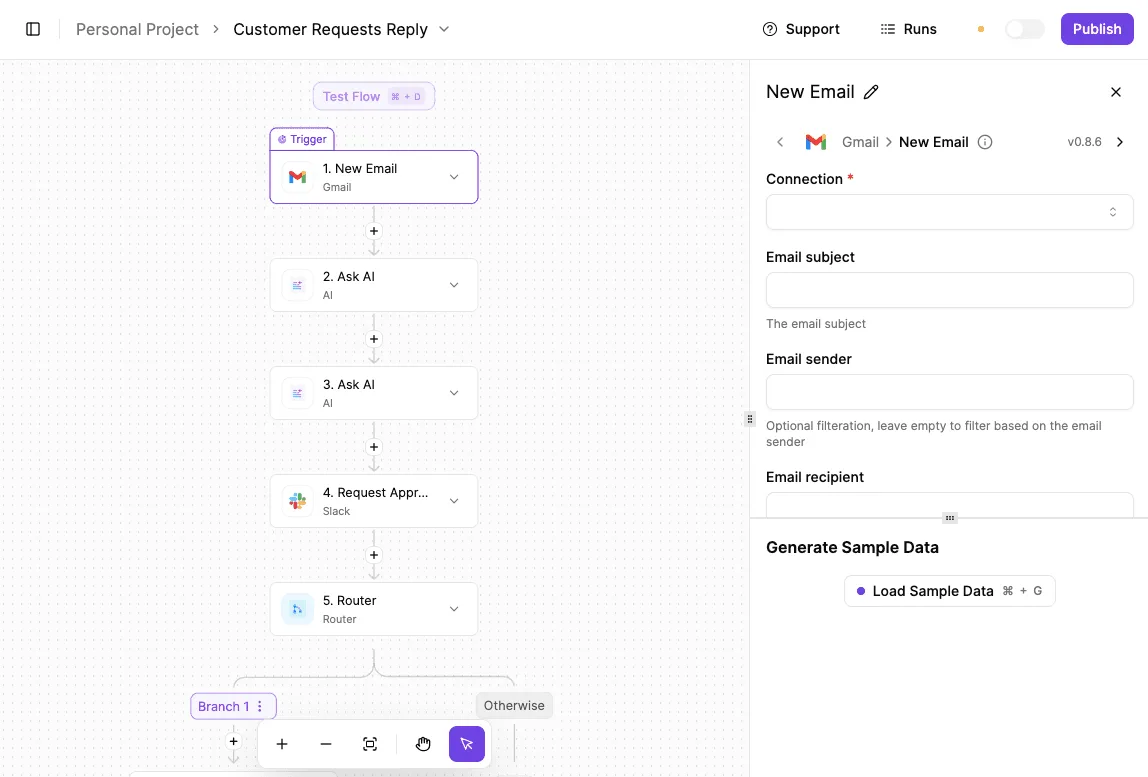
A working one has an approver, a deadline and a fallback. If any of those is missing, the request sits in someone's inbox and nothing moves.
What does an approval workflow cost to run?
Of the two costs, the platform plan is the smaller, and the larger one is the approver's time, which a badly designed flow wastes with vague requests and repeat reminders.
Check the pricing page of whichever tool you use for current plan limits, because those change. Then test the flow on one low-risk request before you pay for anything bigger.
What happens if the approver doesn't respond?
Whatever you designed for that case happens, and if you designed nothing, nothing happens. That's the failure to avoid. Pick one of these fallbacks and set it before launch:
- A reminder to the approver after a set number of hours
- Escalation to the approver's manager
- A named backup approver who takes over
- Auto-expiry, where the request closes and tells the requester it wasn't approved
Of these, reminders alone are the weakest choice, since they only repeat the first message. Pair one with a final step that ends the wait.
Can I run approvals in Slack or email?
Yes, both work, and most tools let you send the request to either place. Slack suits quick, low-stakes decisions because the approver sees the buttons in the channel they already watch.
Email suits approvers outside your workspace or requests that need a paper trail. Whichever you choose, make sure the reply is captured by the flow itself, not by someone typing "approved" in a thread.