
Customer Support Workflow Templates: Examples (2026)

Oct 19, 202617 min read
A customer support workflow template is a pre-built trigger plus two to four steps that you copy and adapt instead of building from scratch, which means you're configuring rather than coding, whether you start from one in a tool like Activepieces or from a teammate's export.
It saves you the first afternoon of wiring.
It doesn't know your ticket volume, your tags or who gets paged when it misbehaves, and that gap is where the damage happens.
Customer support workflow templates and the 02:14 failure
What a support workflow template contains
Strip any template down and you find the same parts:
- The trigger is the event that starts a run, such as a new ticket arriving in your helpdesk
- The actions are the work: send an acknowledgement, apply a tag, post to a team channel, or assign an owner
- A handful of assumptions nobody wrote down
- Most useful templates stop at four steps, which is why they feel safe to copy
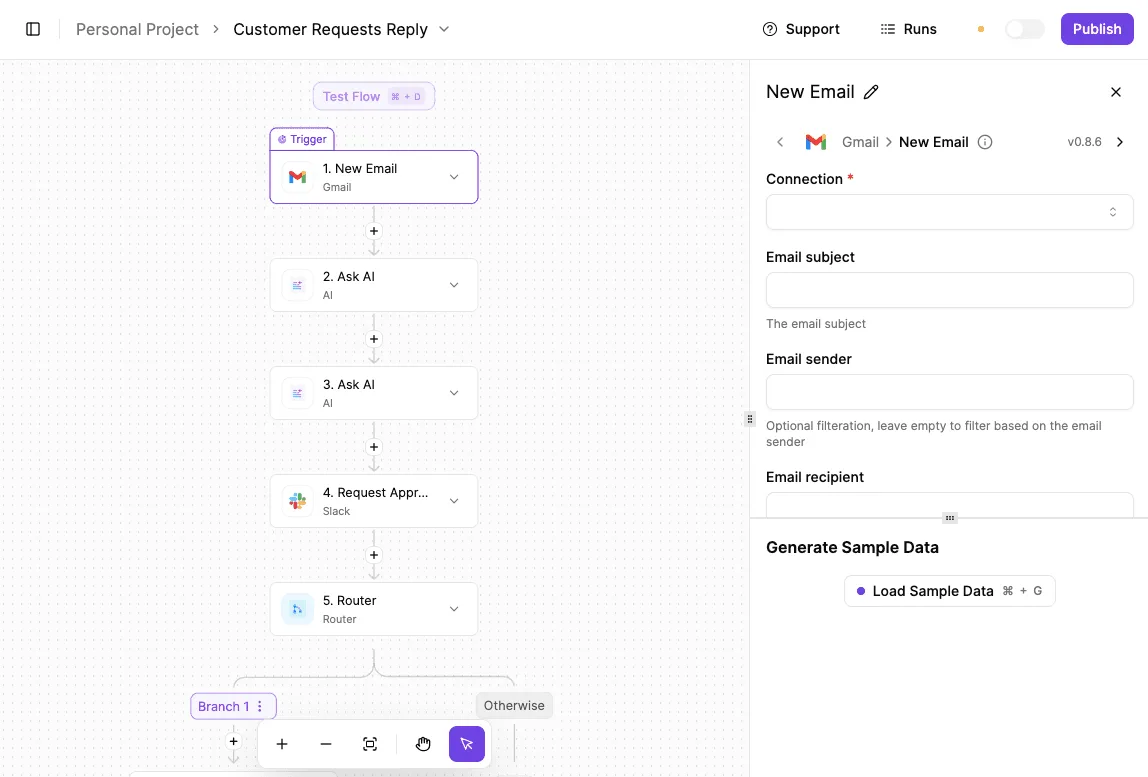
You won't see the assumptions, because nobody wrote them down. The template assumes your tags exist and mean what it thinks they mean. It assumes tickets arrive at a pace a single run can keep up with.
It assumes someone will notice if it misfires. None of that is in the template, so none of it comes with the copy.
The template the team copied
What follows is an illustrative composite, not a single real company. Picture a small support team of a few people, selling a subscription product, tired of customers waiting overnight for any sign that their message had landed.
They found a popular template: when a ticket is created or updated, send an auto-reply that says the request has been received, then add a tag so agents can see it has been handled.

They connected it to their helpdesk on a Friday afternoon, sent one test ticket, watched the reply arrive and the tag appear, and went home pleased.
The test passed because it exercised exactly one path: a new ticket, once. Nobody asked what happens when the automation's own action counts as an update.
How the template trigger caused duplicate replies
At 02:14 on Saturday a customer wrote in. The template fired and sent its acknowledgement. Then it added the tag. Adding a tag changes the ticket, and the helpdesk reported that as a ticket update, which is the very event the trigger was listening for.

So the automation started again, sent the acknowledgement a second time, added the tag again, and triggered itself once more.
No step in that loop is broken. Each one works as designed, and the loop exists only in how they connect, which is why a single-ticket test never shows it.
Nothing in the setup stopped it, and nobody was awake to. What follows is the cost to the customer and what the team had to put in place afterward.
No step in that loop is broken. Each one works as designed, and the loop exists only in how they connect, which is why a single-ticket test never shows it.
Everything below works on Activepieces' free plan. Start without code or a credit card.
Cost of a support workflow loop
By 08:30 the loop had put the same email into hundreds of inboxes, filled the queue with junk tickets, and cost the team a day of cleanup. The figures below are an illustrative composite, not a measurement of any one company.
Emails, tickets and customers affected
Read the table below as a worked example: the damage is mostly in who has to clean up, not in the send count. It shows the five units we count after a loop.
| Unit | Illustrative composite figure | How it was counted | Who felt it |
|---|---|---|---|
| Duplicate emails sent | 4,800 | Outbound log, minus the one intended send per customer | Customers |
| Customers reached | 310 | Distinct recipients in that log | Customers, then support |
| Polluted tickets | 190 | Tickets created or reopened by the loop | Agents |
| Agent cleanup hours | 22 | Timesheet entries tagged to the incident | Agents and team lead |
| Automation runs consumed | 5,100 | Run history for the overnight window | Whoever owns the bill |
That's about 15 duplicates per person, enough to trigger spam complaints and unsubscribes. Next to published runaways it's small.
An AI retry queue and a rogue email bot sent 12,000 and 2,412 messages, so ours sits at the low end. The same source's Mailchimp API bug sent 102,417 messages, which shows how far an uncapped loop can run.
Of the 190 polluted tickets, each needed roughly seven minutes to find, merge and close, which is where the 22 hours comes from.
Those hours are the cost customers never see but the team pays first, because no one can answer real tickets while the queue is full of fake ones.
Automation usage and plan limits consumed
5,100 runs vanished overnight, which means the incident went unnoticed for hours. On a metered plan, that's allowance gone before the day's real work starts, and it can stall legitimate automations until the next billing reset.
Count it in money and the large cases separate.
Clawproof puts an email bot at $34,200 lost, a Mailchimp bug at $12,400, LLM polling at $9,100 and an agent loop at $8,400 (all checked 2026-10-19), all of them incidents where uncontrolled automation incurred real costs, each a distinct failure type, suggesting no single safeguard eliminates this risk.
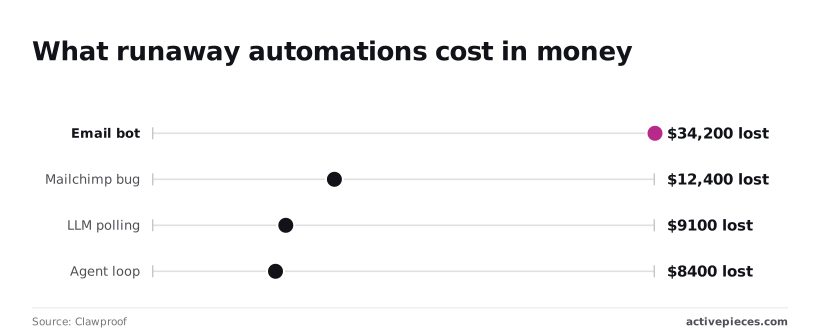
Even the cheapest of those would have wiped out a small team's quarterly tooling budget. Our loop was caught only when someone checked in the morning, not by any alert. A run cap would have stopped it without anyone watching.

Assumptions behind the support workflow template failure
We found four assumptions the template made that our helpdesk never guaranteed. It would only fire on customer events, something would cap its runs, our field values would match, and someone would be watching. We found them in that order.
Because the trigger was "ticket updated," our acknowledgment added a note, which updated the ticket, which fired the trigger again.
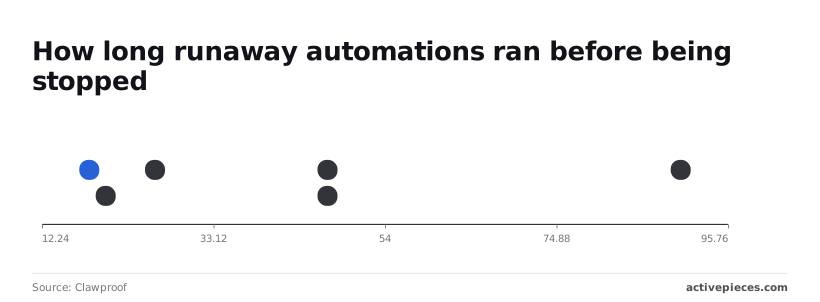
Clawproof's runaway-automation timeline puts a multi-agent loop at 18 minutes and a LangChain batch at 20, so a loop like ours can do its damage before your next meeting ends.
Nothing keyed a send to a ticket ID, and nothing limited runs per hour. That was the missing cap.
Clawproof's retry loop took 26 minutes, and its AI retry queue and a Mailchimp bug each took 47, durations in which errors compounded through repeated cycles, enough time for damage to grow far beyond the initial failure.
Without a cap, one customer simply receives the same email until someone notices.
Because the template routed on a priority value of "urgent" and our helpdesk uses "P1," every ticket fell through to the default branch and reopened. That was the field-value assumption. Defaults are where loops hide.
Missing workflow owner and failure alerts
Nobody was named, and nothing paged anyone overnight. The slowest case in Clawproof's data, a rogue email bot, ran for 90 minutes, by which point cascading damage had multiplied through thousands of cycles, making incident remediation far more complex than treating the original failure alone.
At night, with no alert, that becomes hours.
The table shows each template type's trigger, its usual failure and the test that catches it. Run the last column before any of them touches a real customer.
| Template | Trigger | Typical failure | Pre-launch test |
|---|---|---|---|
| Acknowledge | New ticket created | Fires again on its own note, sending duplicates | Create one ticket and confirm exactly one reply |
| Triage | Ticket created | Category or priority values missing from your helpdesk, so it misroutes or reopens | Feed it every real priority and category value you use |
| SLA escalation | Timer passes a threshold | Re-escalates every cycle, paging the same manager | Breach one test ticket and confirm a single escalation |
| CSAT | Ticket marked solved | Survey sent on reopened or merged tickets | Solve, reopen and merge a test ticket; count the surveys |
Every failure in the table traces back to one of the four assumptions, so each fix is a cap, an owner or a test.
Activepieces can build the triage and escalation templates from that table, with test runs, run history and a human-approval step, and it is one option beside helpdesk-native automation.
Most of its catalog wasn't built by its own staff: of the 768 integrations in the public monorepo, roughly 60% were contributed by the community, because the MIT-licensed core lets outsiders write a integration and submit it for merge, which Zapier and Make don't allow for their catalogs.
A triage flow that has to reach your odd billing tool or niche helpdesk therefore doesn't wait on a vendor's roadmap, and comparing packages/integrations/community against core in the public repo shows who wrote each integration.
Easier to see it running than to read about it: set it up free, no card.
Four support workflow templates to copy, with guardrails
Each of the four flows below comes with the cap, owner or test that would have stopped its worst loop.
Acknowledge and tag a new ticket
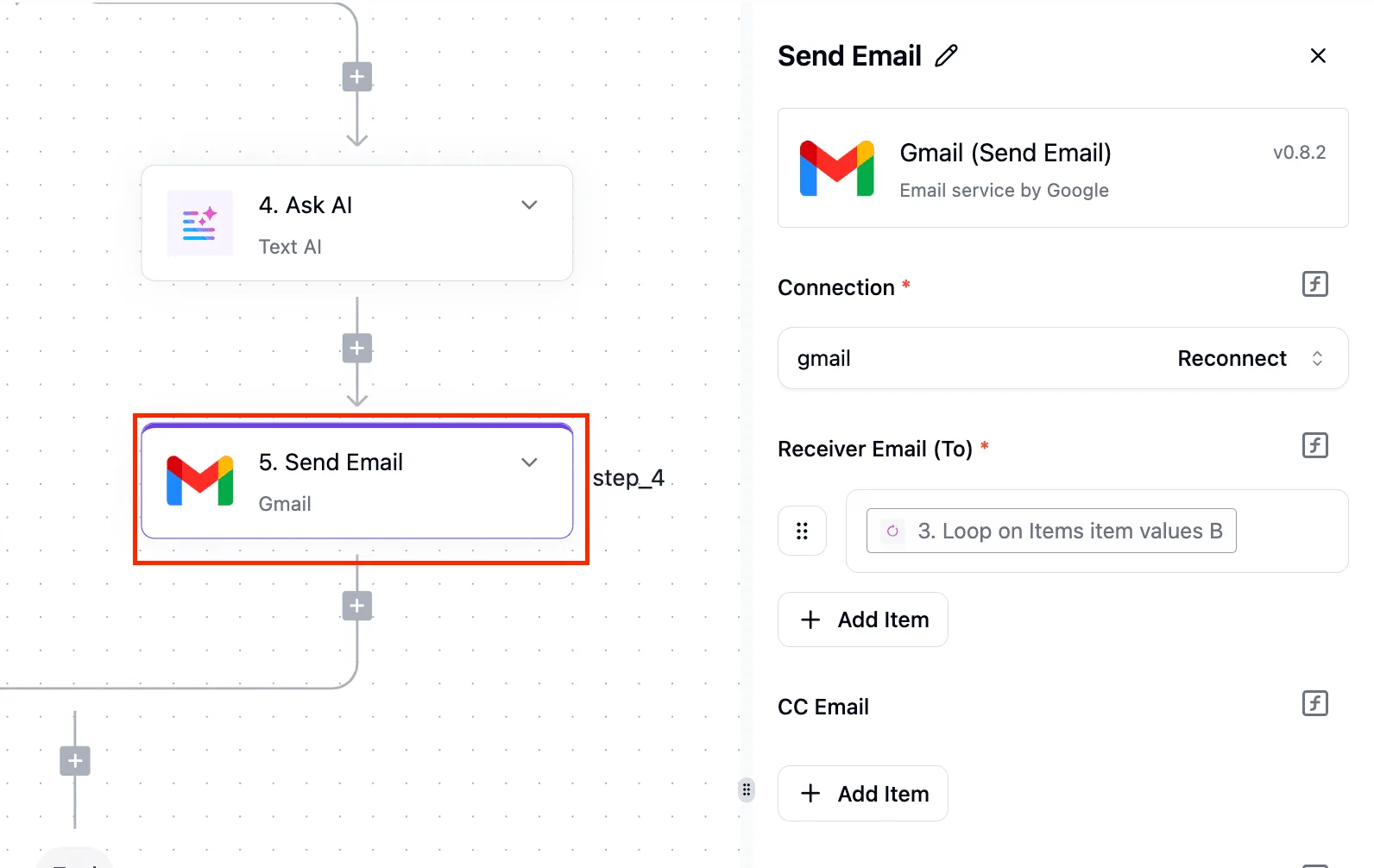
Start with a new ticket in Zendesk, our example helpdesk. The flow sends a short acknowledgment through Gmail, then writes an "acknowledged" tag back to the ticket.
The guardrail is a first-step check that stops the run if the tag already exists. Without it, the tag update fires the trigger again and the customer gets a stream of identical replies.

If you only run one helpdesk, its native triggers do this job with less setup, so use those.
Escalate an SLA-risk ticket to Slack
When a scheduled search finds open tickets close to breaching their response target, that is the trigger. For each hit, the flow posts to a channel in Slack and tags the ticket "escalated".
The tag is the cap: the search excludes it, so a ticket alerts once, not on every scheduled run.
The owner is a named person who watches that channel. An alert nobody owns teaches the team to mute it, and then the flow protects nothing.
Send a CSAT request after solve
Once a ticket moves to solved, the flow waits briefly, then sends the survey through Gmail. Two tests go before any real customer: run it on a ticket with your own address, then reopen that ticket and solve it again.
If you get a second survey, the flow needs a "survey sent" tag check. Customers who reopen a ticket are already annoyed, and a repeat survey adds to it.
Draft an AI reply for human approval
When a new ticket arrives, an OpenAI model drafts a reply from the ticket text, and the draft goes to a reviewer as an internal note or Slack message. Nothing reaches the customer until that person approves. Rejected drafts stop there and get logged.
The pattern is the same whatever the content: a human-input step, an approval, then a branch on accepted or rejected. Only the accepted branch ever touches a customer.
That approval gate is the guardrail. The model never sends anything on its own, so a bad draft costs a reviewer a few seconds instead of a customer's trust.
Build the first flow on a free plan that needs no card, and put the owner's name on it before it goes live.
Building the same workflows in Activepieces
Activepieces lets you build all four templates. It's an automation tool with an MIT-licensed core and 742 integrations, plus a visual builder, test runs, run history and an approval step, which covers the cap, the owner and the test this article asks for.
Where it fits and where it does not
Each integration maps to something you would otherwise do by hand:
- The visual builder shows the trigger and every step on one canvas, so the person who owns the flow can read it without opening code.
- Test runs let you push a sample ticket through before a real customer is involved, so a wrong assumption about your data fails in private.
- Run history records what each execution received and did, so when a customer says "your bot told me something odd," you can find that run and see why.
- The approval step pauses a flow until a person signs off, which is where your cap lives: refunds, bulk replies and escalations wait for a human.
You may not need Activepieces at all. Native helpdesk rules alone are often enough.
If your whole process lives in one helpdesk tool and you only need to tag, route or auto-assign tickets, its built-in rules are less to maintain and have one fewer thing to break.

If you outgrow them, the free plan allows unlimited flows, so nothing about that choice is locked in.
Reach for Activepieces when a flow crosses tools, say a ticket that must check billing and post to your team chat, which is where its 742 integrations earn their place, or when you need a human approval and a replayable record that the helpdesk rules don't give you.
Read Activepieces' own pricing page the day you decide, because plans change and I would rather you see the current terms than trust my summary.
When I checked on 2026-10-12, the free plan was $0 with 1,000 credits a month, unlimited flows and up to 5 users, Plus was $20 a month and Team was $200 a month. Check four things against your real volume:
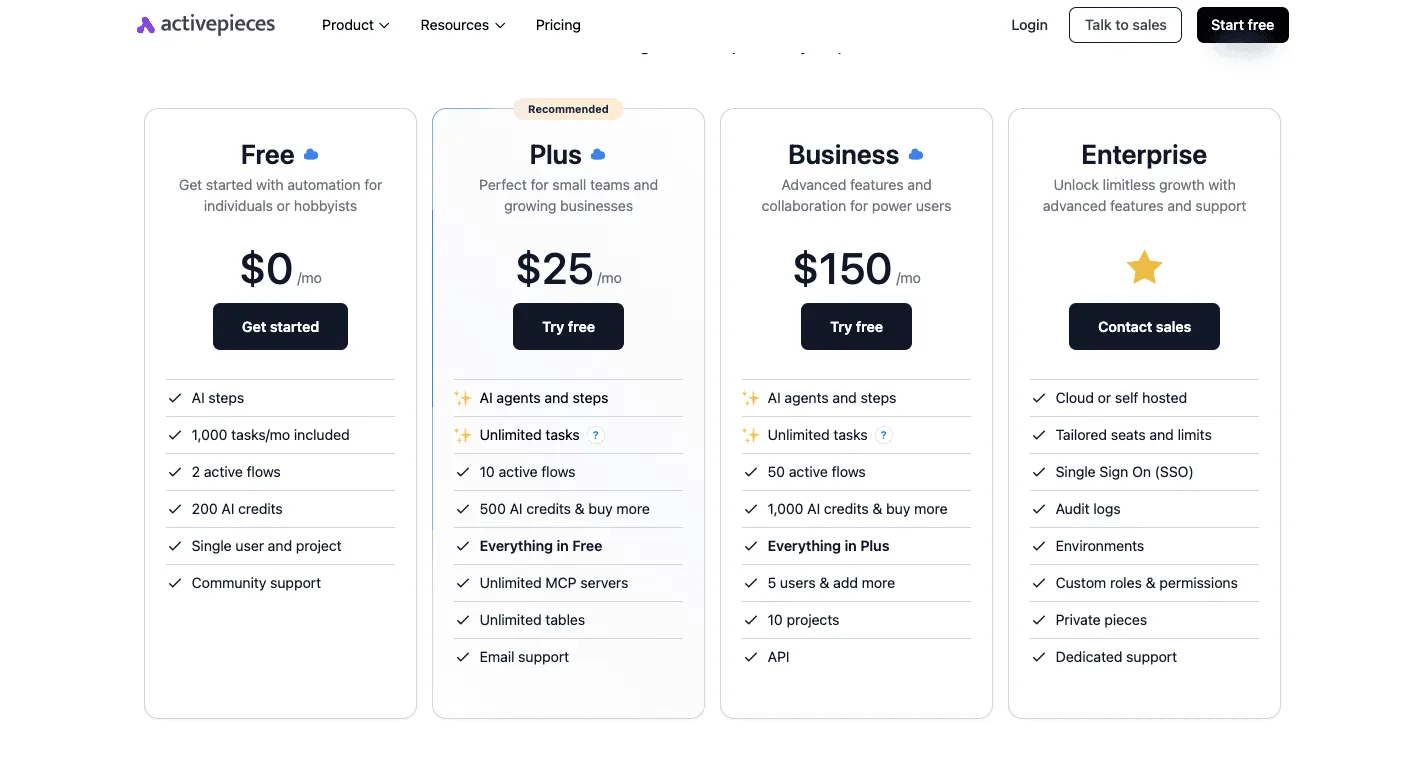
- Whether the limits on the free plan cover the cap you set for your first flow.
- Whether the approval step is included on the plan you will actually be on.
- How long run history is kept, since that's your evidence when a customer disputes something.
- How many people can be owners or collaborators on a flow.
If the answers fit, start small: one flow, one owner, one test run. You can start on the free plan, no card.
Five rules to copy templates safely
Here are the five rules that now sit between a copied template and your first real customer. Every one of them is a check you can finish on a Monday morning.
A template assumes your ticket volume, your data and someone watching it. These rules replace each assumption with something you control, so work through them in order.
- Set the trigger to fire when a ticket is created, not when it's updated. An update trigger fires again on every edit, so one customer can receive the same automated reply each time an agent adds a note.
- Check a processed ID before any send. Store each ticket ID once the workflow has handled it, and stop if the ID is already there. Retries and duplicate webhooks happen, and without this check each one becomes a second email to a customer.
- Cap sends per hour, with auto-pause. Set a ceiling on outbound messages per hour, and have the workflow switch itself off when it hits it. A loop or a flood of tickets then costs you a paused flow instead of a mailbox full of angry replies.
- Name one owner. Put a person's name on the workflow, not a team alias. When nobody is clearly responsible, a broken flow stays broken until a customer complains.
- Alert failures into Slack. Send every failed run to a channel the owner reads, with the ticket ID in the message. A silent failure means a customer waits for a reply that is never coming, and you learn about it from them.
Testing support workflows with five fake tickets
Before you point anything at real customers, run the whole flow in a staging copy with five invented tickets, each aimed at one rule. Make one a normal ticket and one a duplicate of it, to confirm the ID check blocks the second send.
Edit one after creation, to prove the trigger ignores it. Push a batch through fast enough to trip the hourly cap and watch the pause happen. Break one on purpose, with a missing field, and confirm the Slack alert reaches the named owner.
If any of the five misbehaves, the template isn't ready, and you have found that out with fake customers instead of real ones. Once all five pass, you can switch it on with a clear conscience and the right person watching.
Frequently asked questions
Once the workflow is live, the same few questions come up, so here are the short answers.
Are customer support workflow templates free to copy?
Usually yes, but the template being free doesn't make the workflow free to run. Most automation tools meter usage by tasks or runs, and the free plan of a typical tool runs out quickly once real tickets flow through it.
Mail providers also limit how much bulk mail one account can send, and they penalize senders whose messages get reported as spam.
So a free template can still cost you money or a damaged sender reputation, and the cap you set earlier is what keeps that from happening.
How many steps should a support template have?
As few as it takes to do one job, which for most teams is around four. Platforms impose a hard ceiling on steps per workflow, but you will hit confusion long before you hit that limit.
If you can't explain the flow to a new hire in a minute, split it into two workflows that each have one owner and one test.
Should AI write replies without human review?
Not at the start. Let the model draft, and have a person approve every reply until you've read a good sample of its drafts against real tickets.
After that, you can let it send on its own for narrow, low-risk categories such as order status or password resets. Keep anything involving refunds, legal complaints or angry customers behind a human.
Skipping review is where a copied template does the most damage, because it wasn't tested against your customers.
To stop a workflow from replying twice, give every ticket a marker the workflow checks before it acts. That can be a "replied" tag, a status change or a stored ticket ID.
Set the marker as the first step, not the last, so a retry or a duplicate trigger finds it already set and stops. Then test by firing the same ticket through twice on purpose.
If you run a five-person support team, start with whatever the helpdesk already offers for automation, because it needs no new accounts and no data sync.
Move to a separate automation tool only when you need to connect systems the helpdesk can't reach. Pick one with a free plan, and treat its task limit as your first cap.